Step 11 of 13 in Enrich your products with Atlas
Copy Atlas style JSONL into Shopify
A practical guide for copying the Atlas Style JSONL snippet into Shopify theme code so AI crawlers can discover the structured Style data on the published product page.
Under review. This page is published while we check it against the live app, so some details may have changed.
Screenshots may be out of date.
How the process works
- Open Atlas and select the Style or product you want to publish.
- Confirm the Atlas SKU matches the matching Shopify variant SKU.
- Open the Shopify theme code for the storefront theme you want to update.
- Copy the Atlas Style JSONL snippet and paste it into the product section file.
- Save the theme and verify the snippet appears on the public product page.
Before you start
- Use a Shopify account with permission to edit theme code.
- Know which Shopify theme is live or will be published.
- Keep the Atlas-generated snippet intact; do not reformat or rewrite the JSONL by hand.
- If possible, duplicate the theme first so you can test before changing the live storefront.
Goal: The snippet must be present in the rendered product page HTML. AI crawlers cannot read Style data that only exists inside Atlas or inside an unpublished Shopify theme.
Open Atlas and choose the style
Go to https://atlas.vestislabs.com/dashboard,
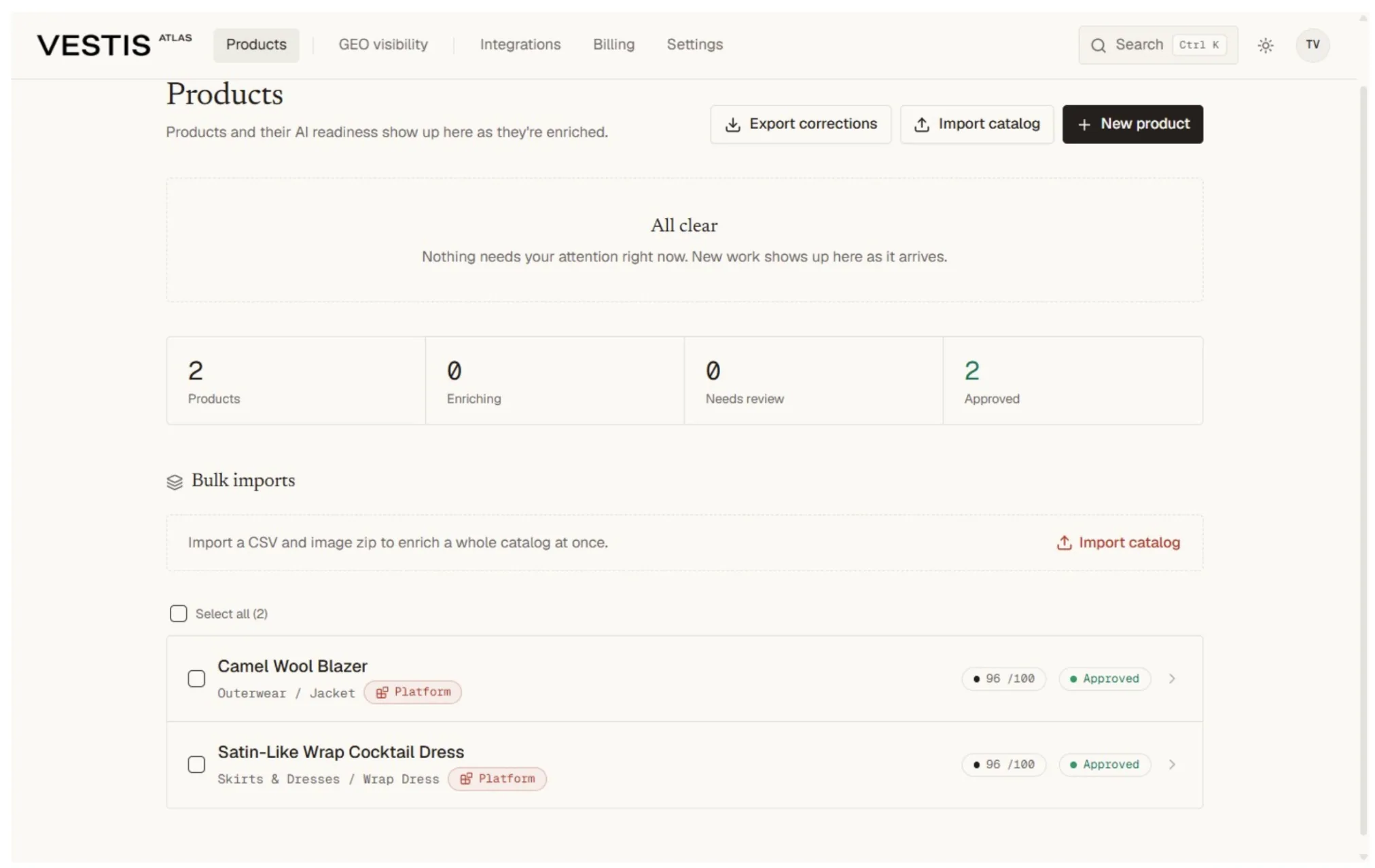
Sign in and open the Products page. Select the approved Style that should be connected to the Shopify product page.
Open the Atlas dashboard. Choose the relevant Style or product from the list.
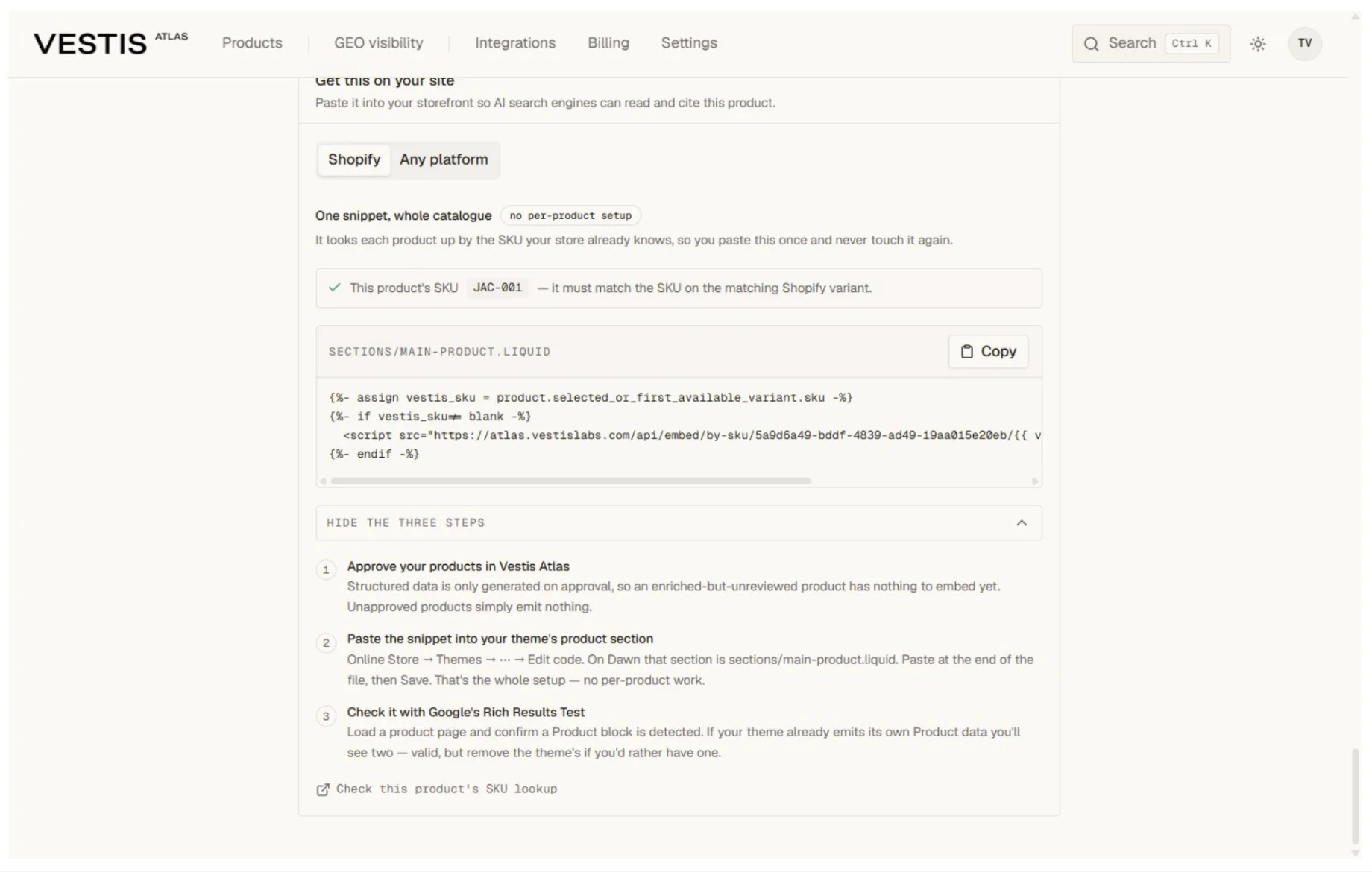
On the detail page, open the Publish tab and find Get this on your site. Select the Shopify tab.
Confirm SKU and read Atlas instructions
Atlas uses SKU to match the Style JSONL data to the right Shopify variant. Before copying anything, compare the SKU shown in Atlas with the SKU on the Shopify variant.
Important: The SKU must match exactly. Differences in spaces, hyphens, casing, or variant assignment can prevent the snippet from describing the right product.
Use the Get this on your site panel in Atlas to review the generated instructions. Click Show installation instructions and keep that tab available while you edit Shopify.
Open the Shopify theme editor
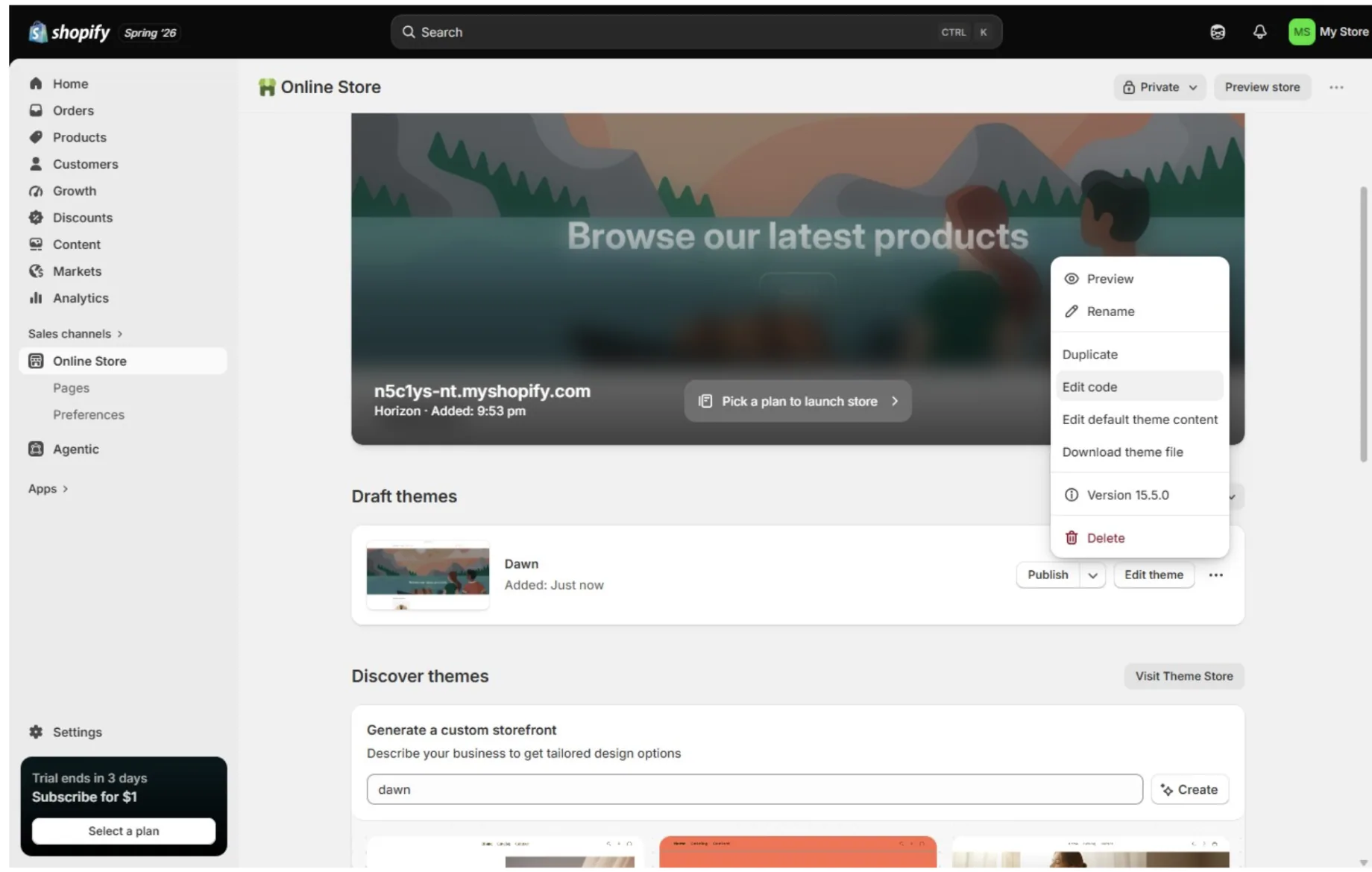
In Shopify Admin, open Online Store, then choose the theme that should contain the Atlas Style JSONL snippet. For a live store, duplicate the theme first when you want a safer test path.
- Select Online Store in the Shopify admin menu.
- Find the theme you want to update.
- Open the three-dot menu for that theme. Select Edit code.
Find the product section file
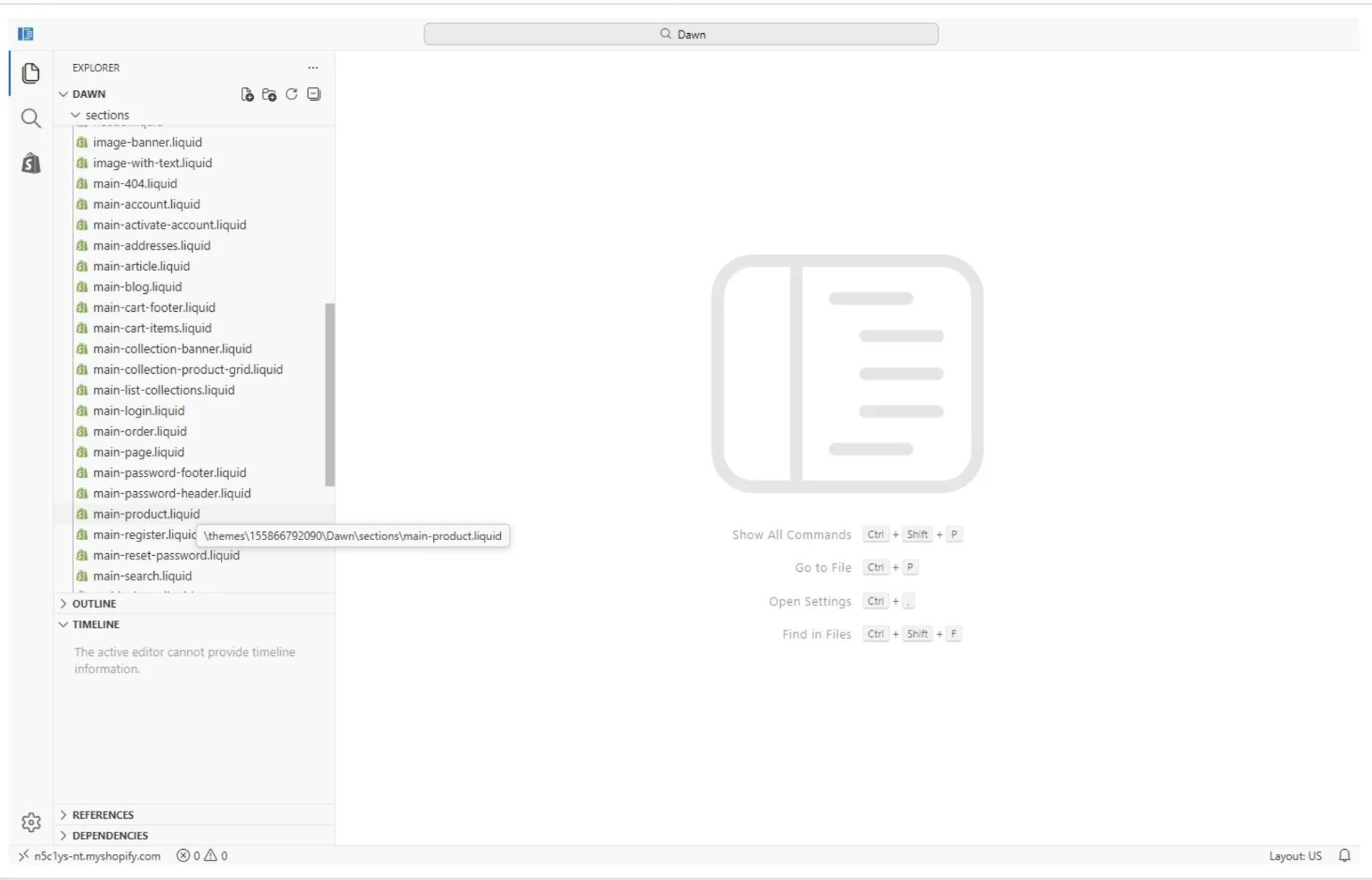
In the code editor, open the Sections folder and search for main-product.liquid. This is the product-detail section used by many Shopify themes, including Dawn.
- If the theme is custom, use the product section that renders the product detail page.
- Scroll near the bottom of the file and choose a clean insertion point after the main product markup.
- Avoid pasting inside another JSON object, Liquid condition, or partial HTML tag.
Copy and paste the style JSONL snippet
Return to the Atlas tab, open the Shopify snippet for the selected Style, and click Copy. Then switch back to Shopify, click the chosen insertion point in the editor, and paste the snippet.
- In Atlas, click Copy for the Shopify snippet. Switch back to the Shopify code editor.
- Click the insertion point in main-product.liquid. paste the full snippet.Save the file.
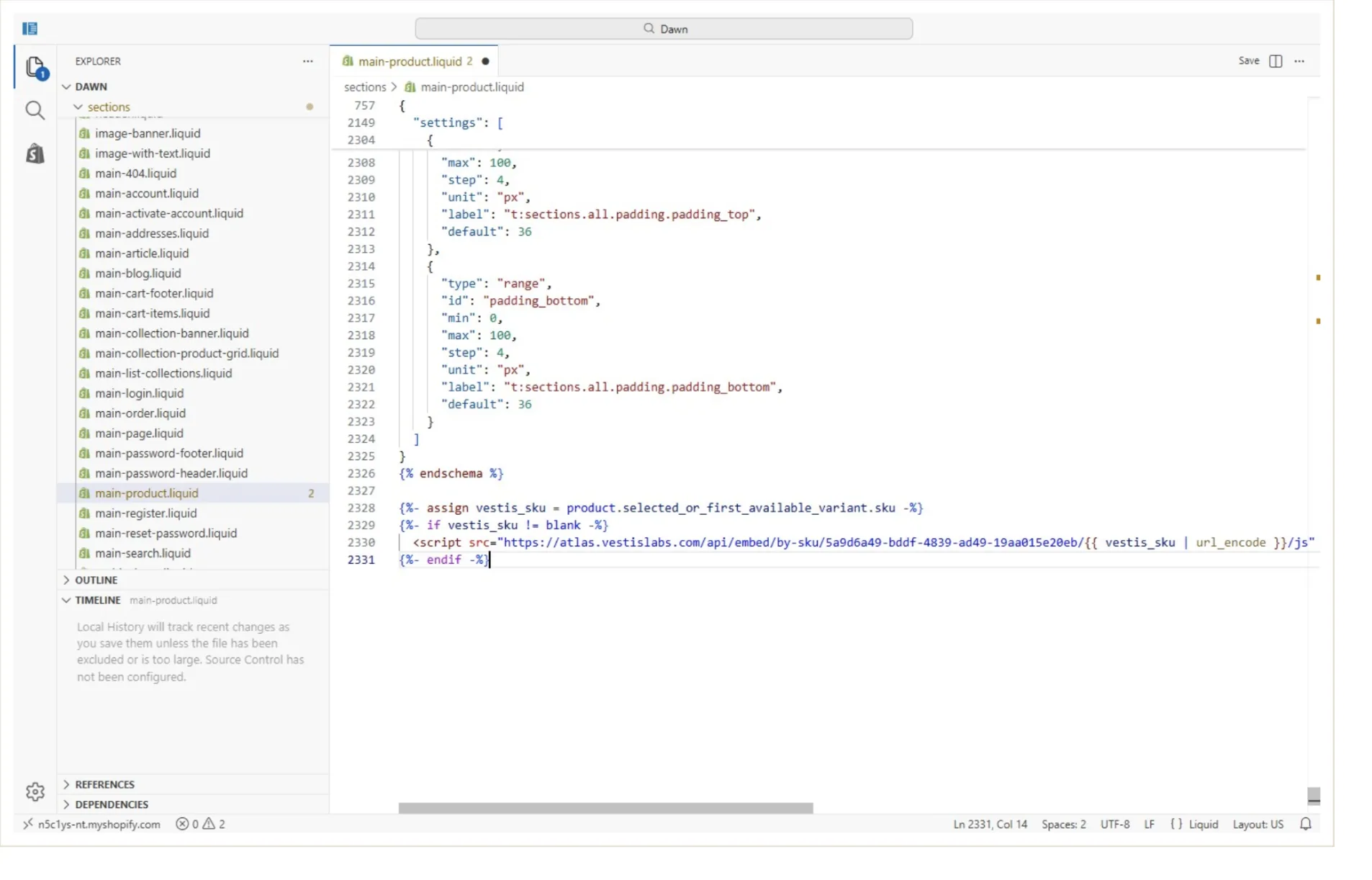
Paste once: Do not paste duplicate copies for the same Style. If you need to replace an older version, remove the previous Atlas snippet first, then paste the updated one.
Verify ai-crawl readiness
After saving, open the matching Shopify product page in the published or preview theme and confirm the Atlas data is present in the page source.
- Search the source for a known SKU, Style name, or Vestis/Atlas marker from the snippet.
- Confirm the product page is public and not blocked from indexing or crawling.
- Check that the snippet appears once and is not printed visibly to shoppers.
- When Style data changes in Atlas, copy the updated snippet again and replace the old version in Shopify.
Crawlability check: AI crawlers read what is available on the storefront page. The saved theme, product visibility, storefront password, robots settings, and noindex tags can all affect whether the data is discoverable.
Use the any platform option when needed
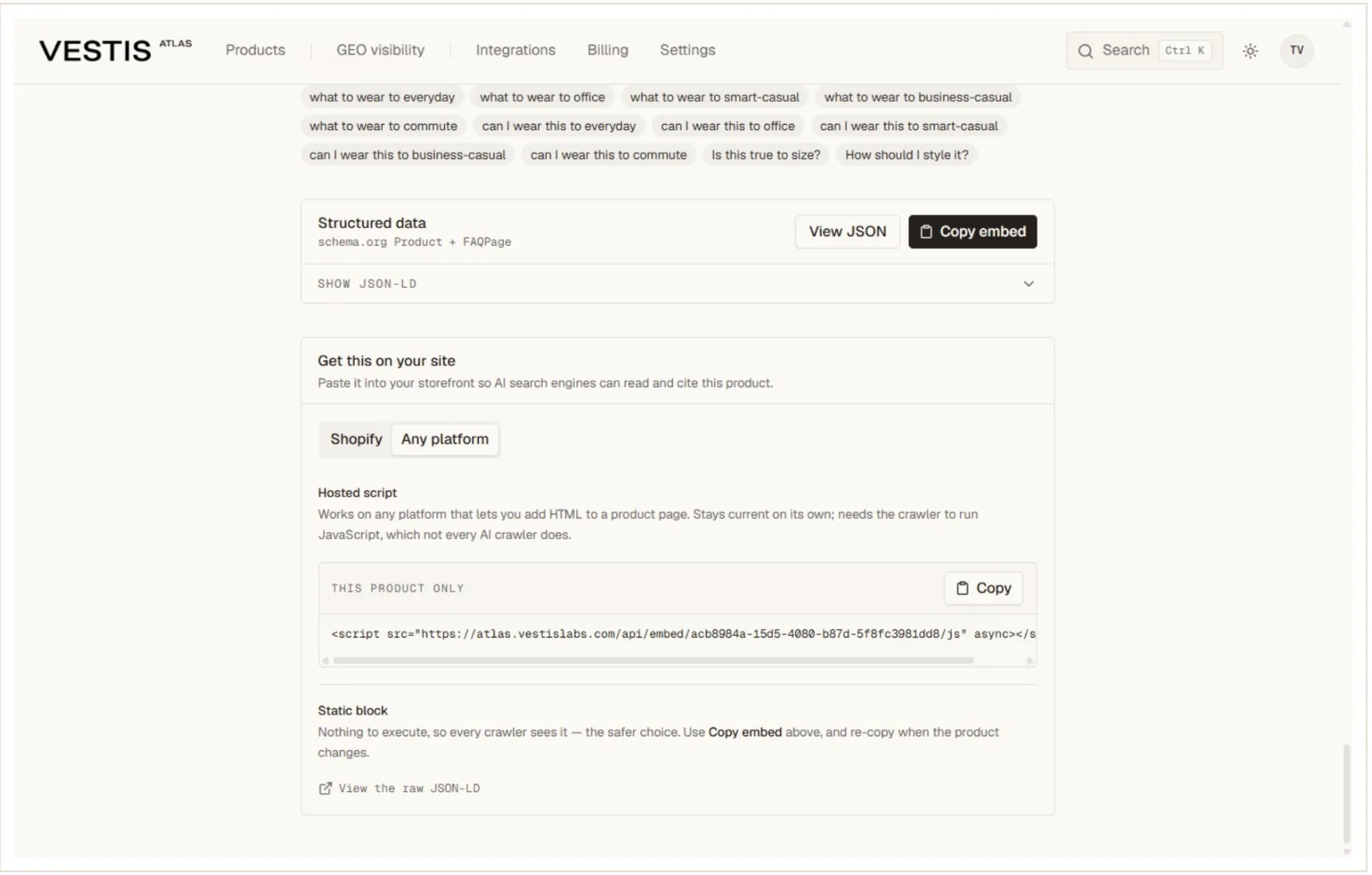
If the Shopify-specific path is not the right fit, select the Other platforms tab. Use it for custom storefronts, non-Shopify product pages, or places where you need a standalone script instead of a Shopify theme snippet. It offers an Automatic embed and Static structured data.
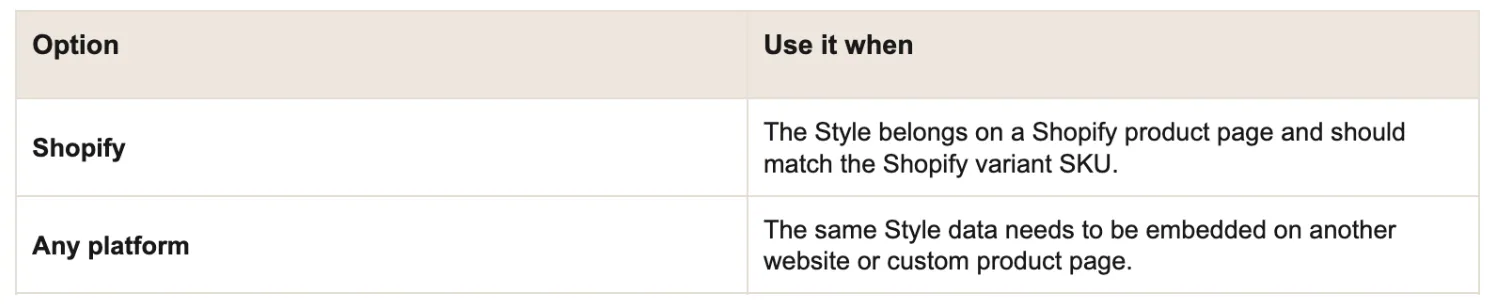
Choose the right copy option
Troubleshooting
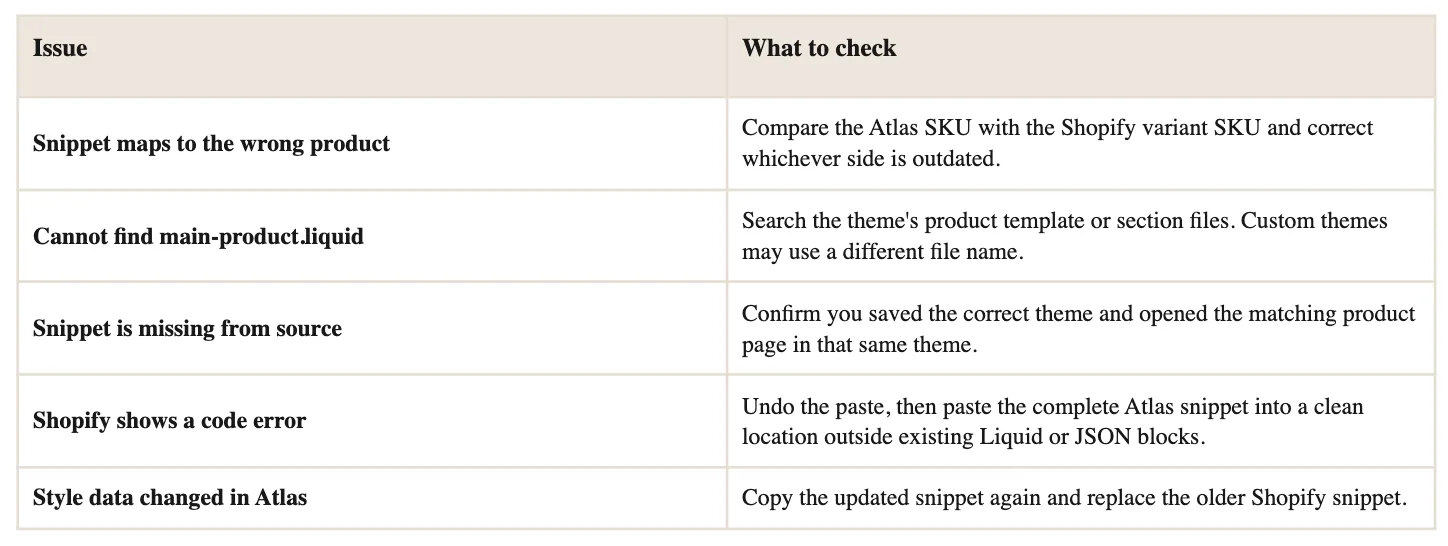
Use these checks when the snippet does not appear on the product page or the Style data looks disconnected from the Shopify product.