
Step 8 of 10 in See the business view: reports, pricing and margin
Currency exchange page
Set up and manage the exchange rates used for currency conversions in Vestis Labs to support accurate costing and consistent currency handling across your seasons and styles.
Under review. This page is published while we check it against the live app, so some details may have changed.
Screenshots may be out of date.
Currency exchange – admin setup
Set up and manage the exchange rates used for currency conversions in Vestis Labs to support accurate costing and consistent currency handling across your seasons and styles.
Introduction & best practice
Currency exchange settings in Vestis Labs allow you to define the exchange rates applied when converting between your base currency and other trading currencies. The exchange rate represents how much quote currency you need to exchange for one unit of the base currency. The Currency Exchange and Exchange Rates are used to make it easier for users to calculate costs in different currencies. They are applied in the Cost Section of each style and are available as selectable currencies within your collections. Users can edit exchange rates only through the Currency Exchange page.
SettingsPrice, Cost & MarginCurrency Exchange
Permission: UPDATE_BRAND
Create a currency exchange
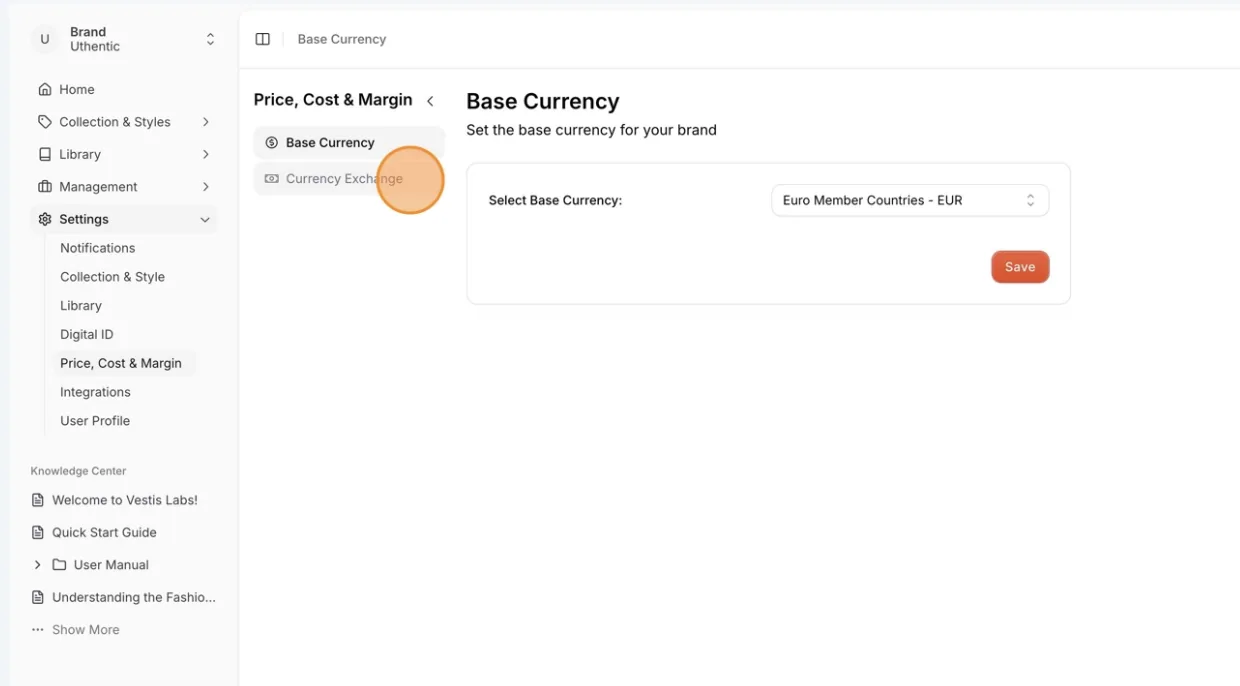
Navigate to Settings > Price, Cost & Margin.
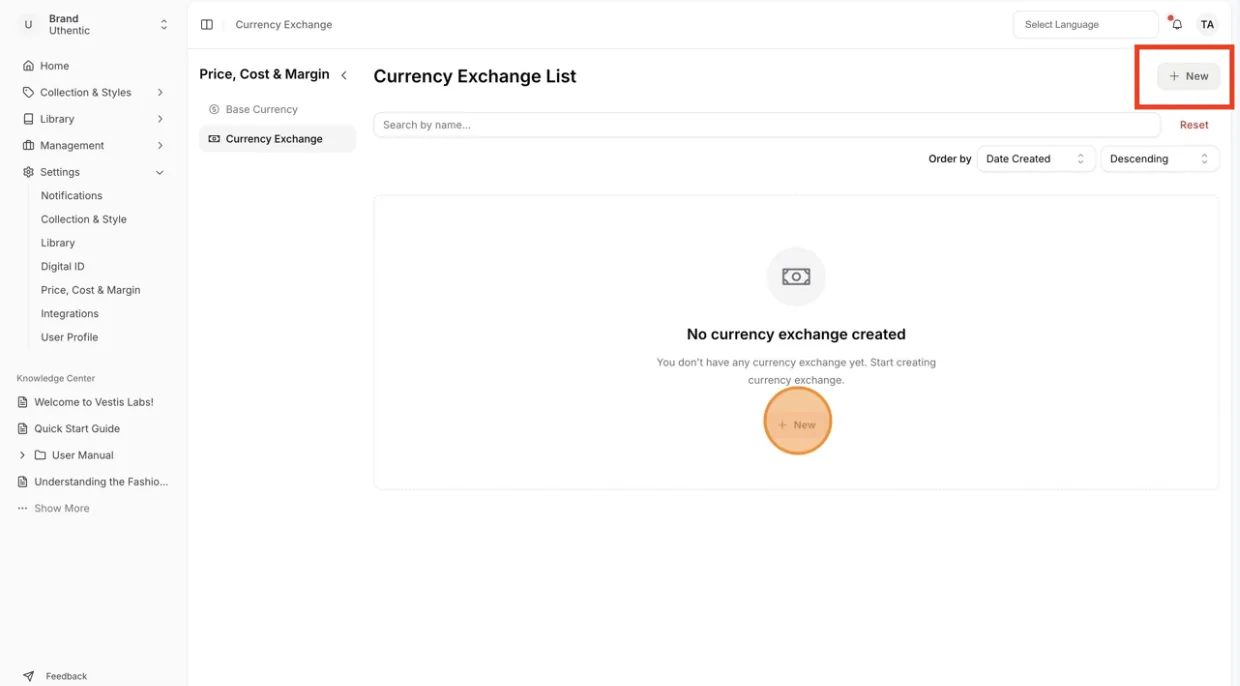
- Choose the header 'Currency Exchange'. The list shows each exchange's Name, Brand, Date Created and Last Modified.
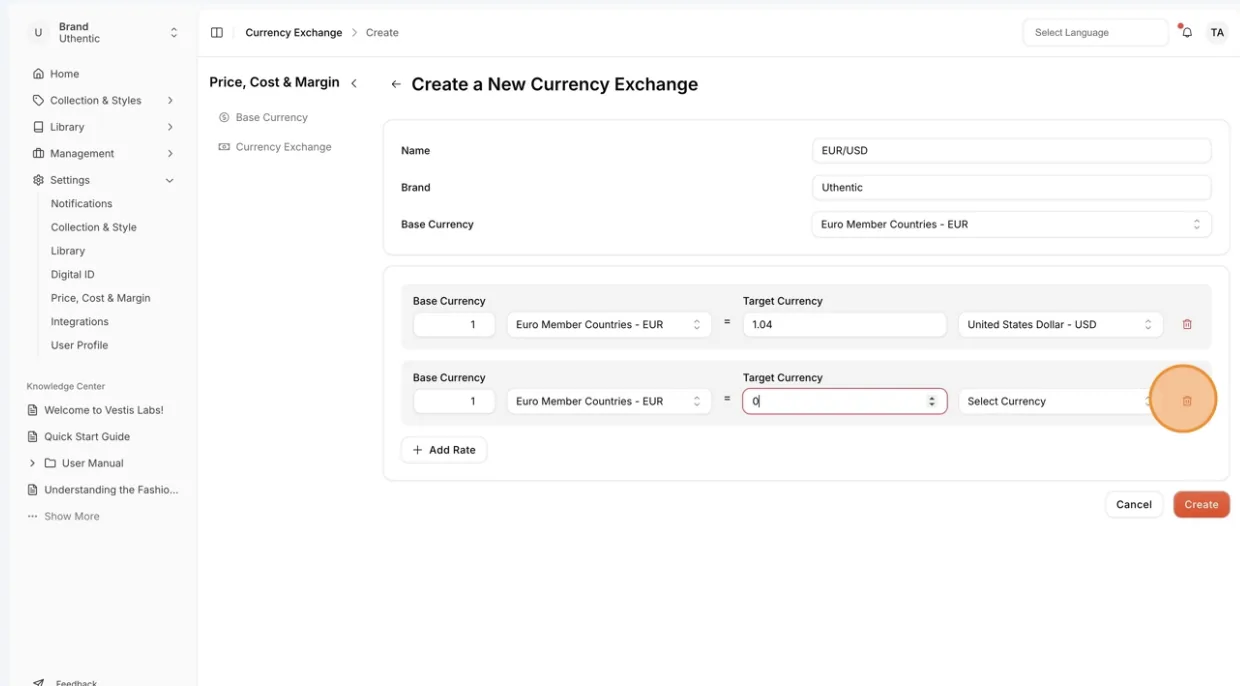
- Click the '+ New' button - a Currency Exchange Page will show up.
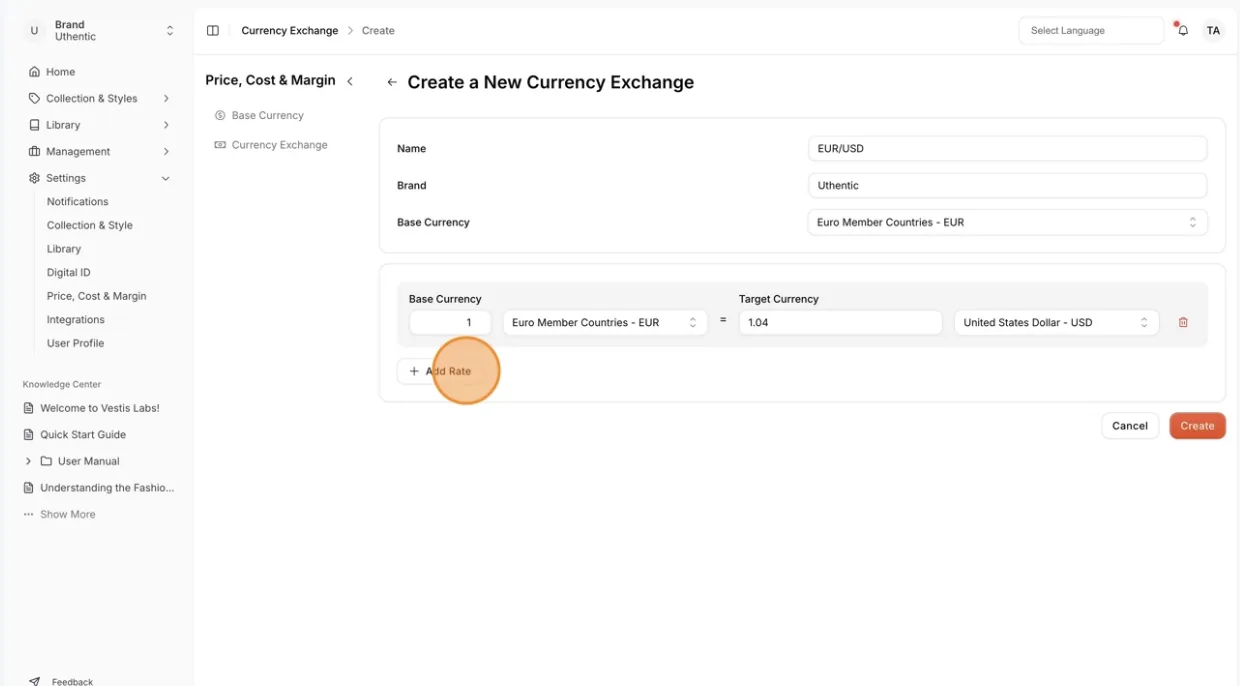
- Name - mandatory ("Name is required" if left empty). The Brand and Base Currency are filled in for you and cannot be changed here. If no base currency is set yet, the page shows "Base Currency is not set" with a link to set it first.
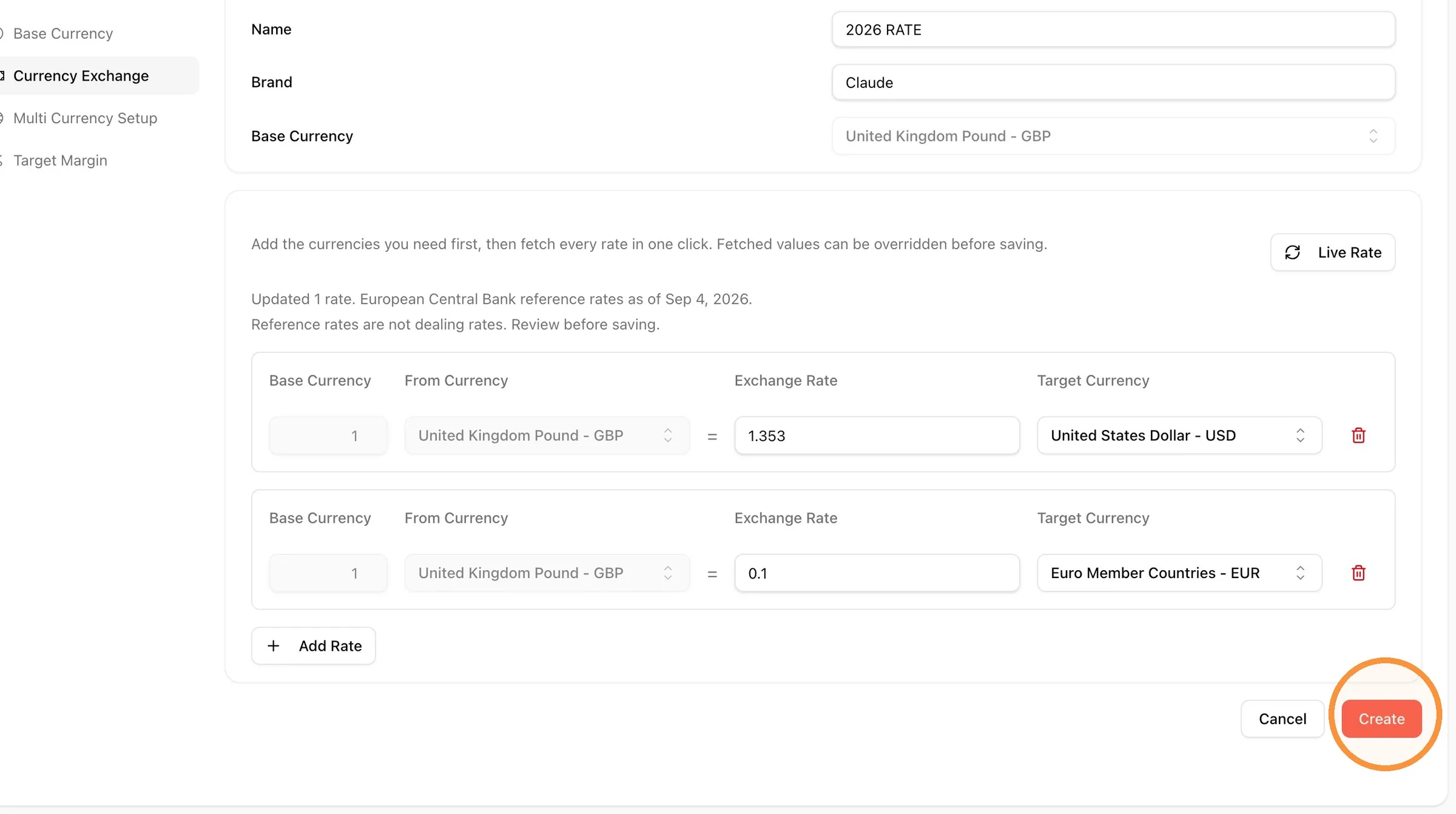
- Each row reads "1 [base currency] = Exchange Rate [Target Currency]". The base side is fixed.
- Click Add Rate - Create another Exchange Rate to a different currency. The same target currency cannot be used twice ("Duplicate target currencies are not allowed").
Select the Target Currency - these are typically currencies your supplier works with.
Type in the Exchange Rate value (0 or more) for that target currency.
With your base currency set and at least one target currency selected, click the Live Rate button. It fetches European Central Bank reference rates, which are not dealing rates, so review them before saving. The button is disabled with an explanation if your plan does not include Live Rate.
- Fetched values will populate the Exchange Rate field for each row.
- You can manually override any fetched rate before saving — just click into the Exchange Rate field and type a new value.
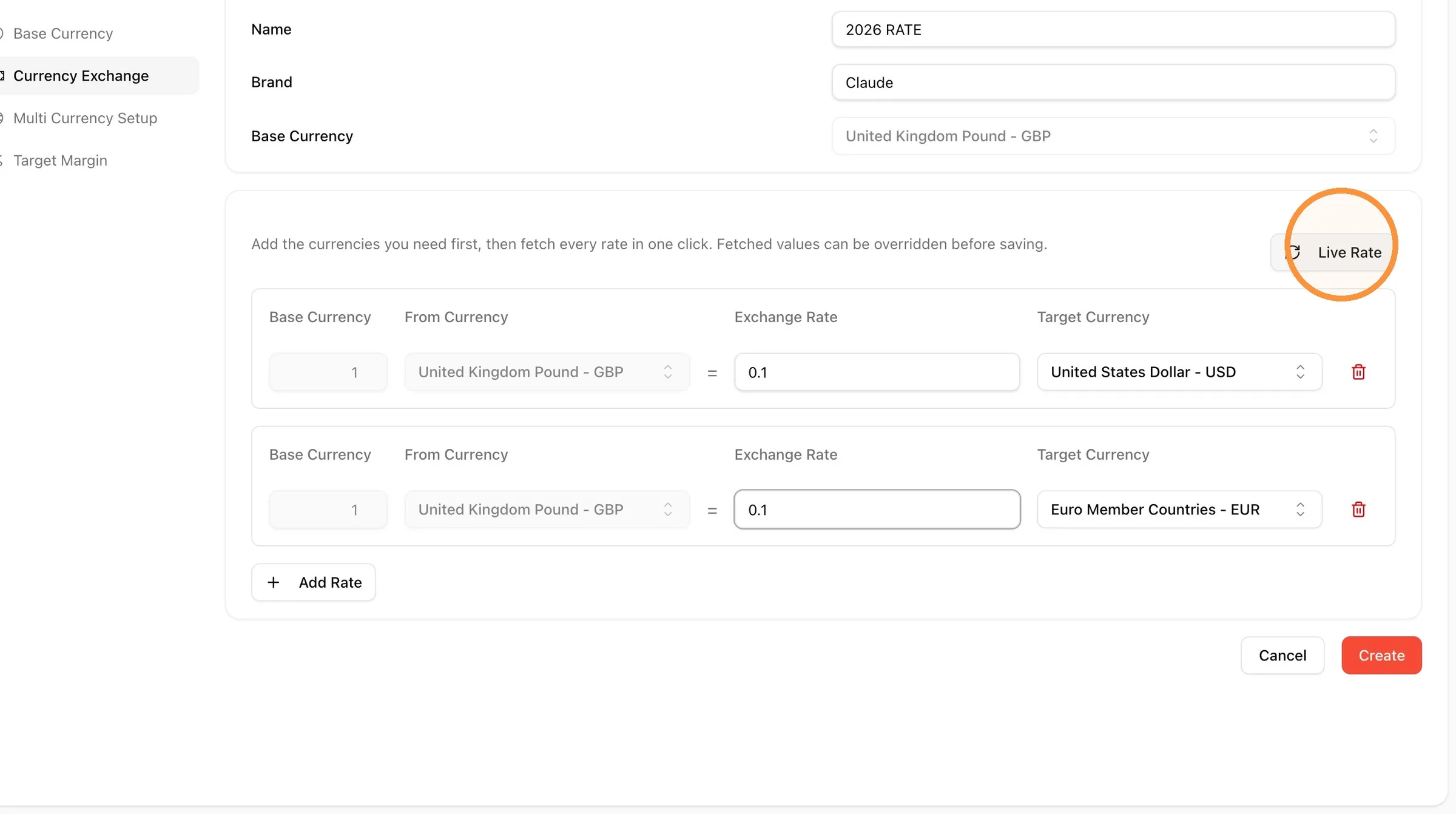
- Select the trash icon at the end of a row to remove that Exchange Rate.
Select 'Create' to save the exchange rate
Edit currency exchange list
The Currency Exchange List Page stores all the information related to the Currency Exchange created in Vestis Labs.
- To change the Currency Exchange - Click the row's menu button and select Edit
- The page will be in edit mode
- Click Save to finish
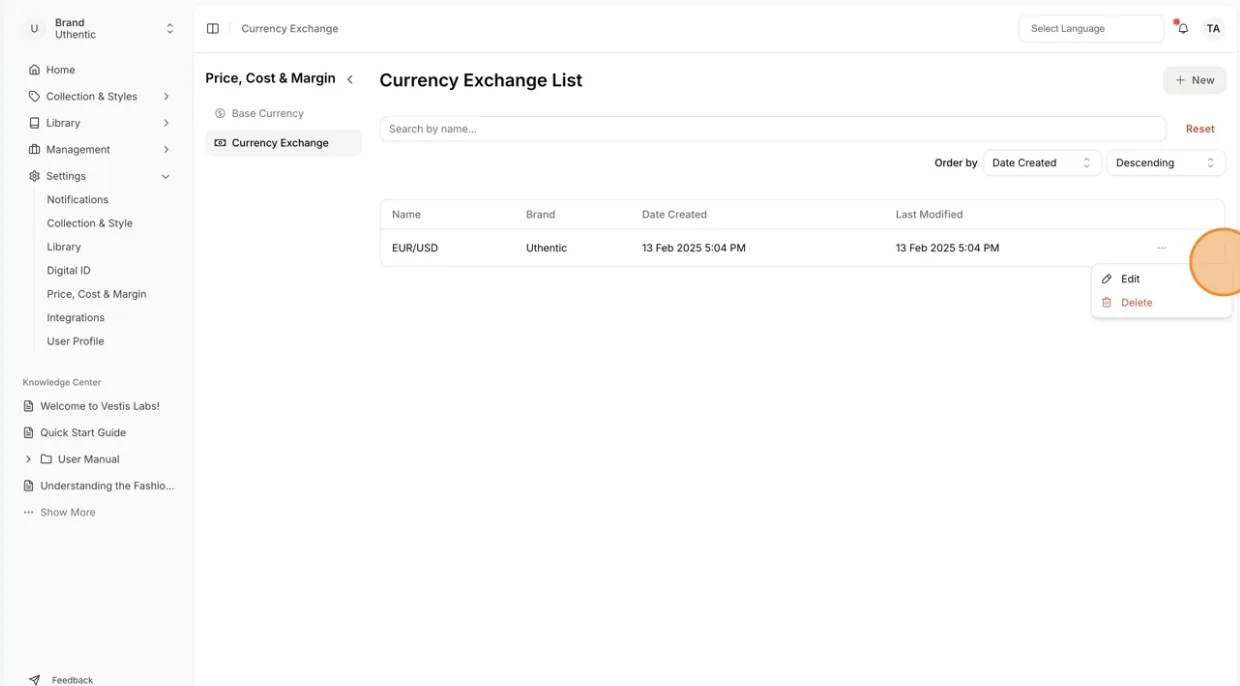
- Select Delete from the row's menu and confirm in the "Are you sure?" window to remove the selected Currency Exchange from Vestis Labs. This cannot be undone.
- Select Duplicate to copy a currency exchange: enter a new Name in the Duplicate currency window and click Duplicate.