
Step 12 of 12 in Connect Shopify
The Ecobalyse integration
Learn how to set up product environmental impact metrics using the Ecobalyse integration.
Under review. This page is published while we check it against the live app, so some details may have changed.
Screenshots may be out of date.
Learn how to set up product environmental impact metrics using the Ecobalyse integration. This guide provides a step-by-step walkthrough for calculating scores and embedding them directly into your Shopify product pages.
Enable the Ecobalyse integration
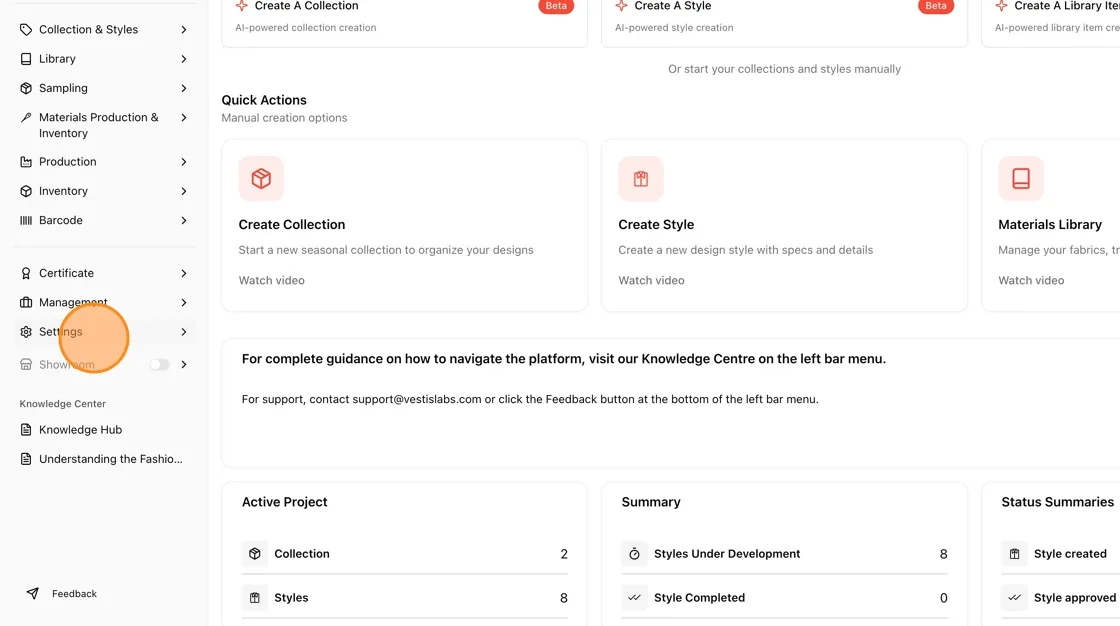
Open Settings
From the Home dashboard, click Settings in the left sidebar.
Go to Integrations
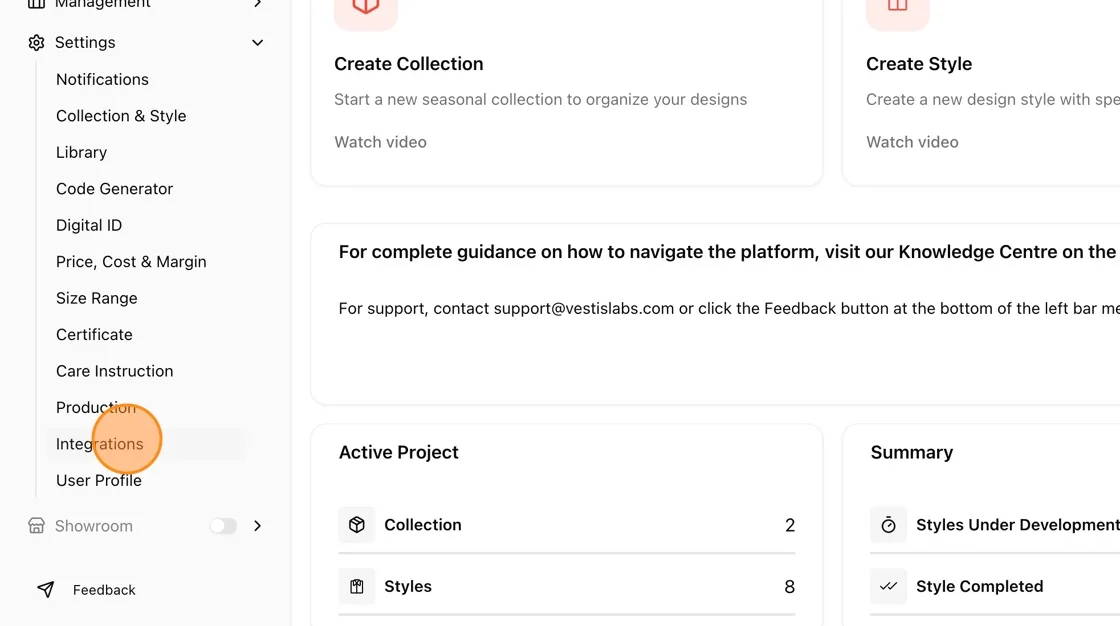
Expand the Settings menu and select Integrations.
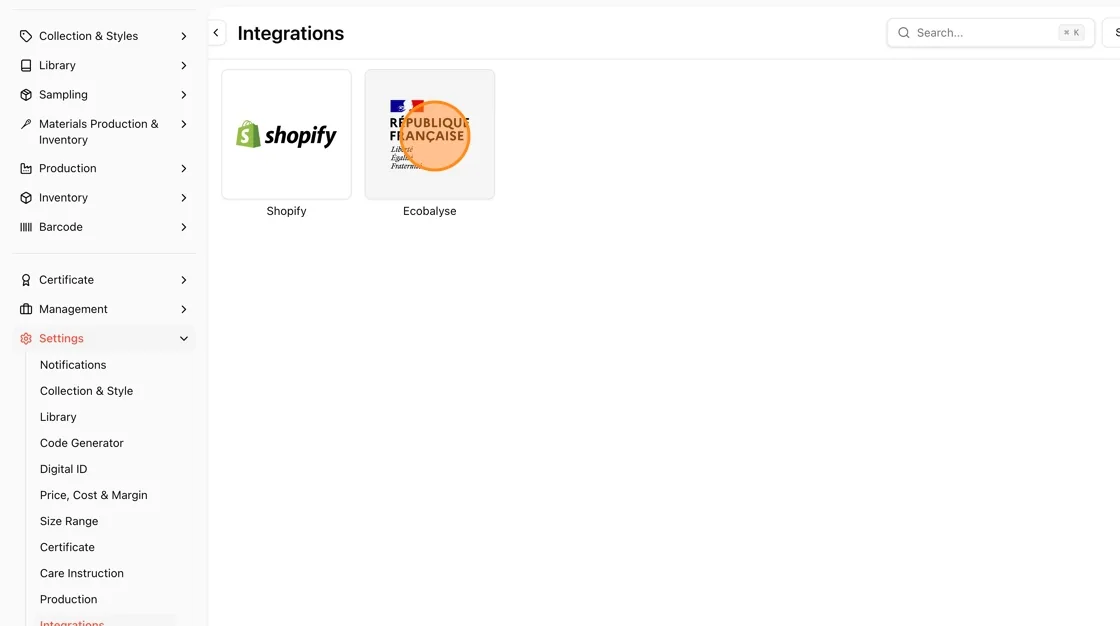
Select Ecobalyse
On the Integrations page, click the Ecobalyse card.
Activate the integration
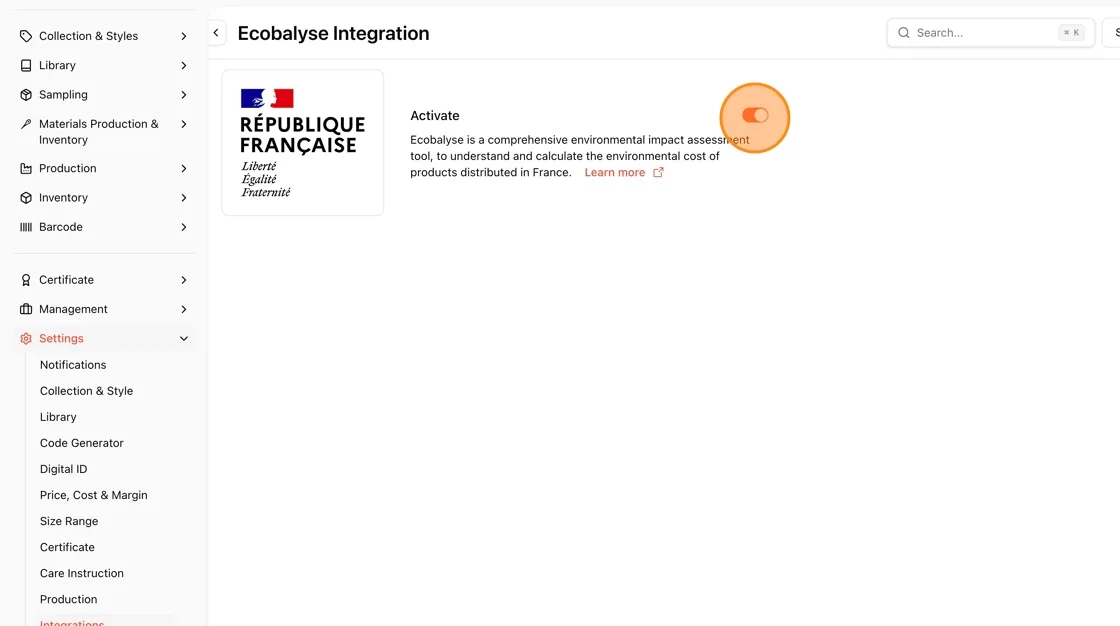
On the Ecobalyse Integration page, toggle Activate on.
Ecobalyse is a comprehensive environmental impact assessment tool used to understand and calculate the environmental cost of products distributed in France.
Confirm it's active
The toggle turns red/on once activated. Next, go to Collection & Styles in the left sidebar.
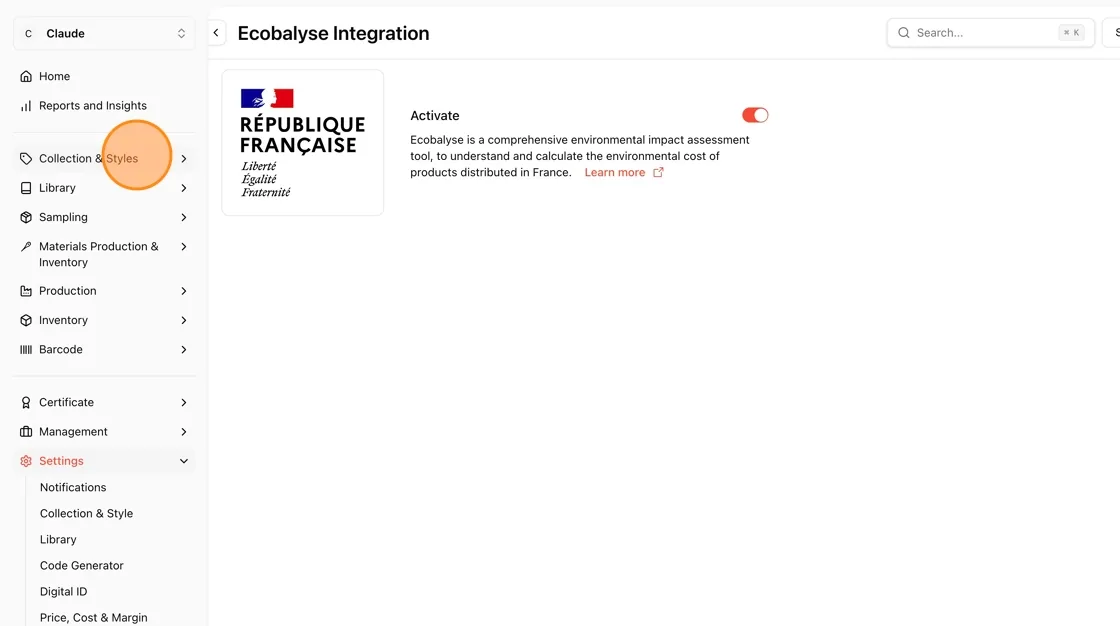
Open Styles
Expand Collection & Styles and select Styles.
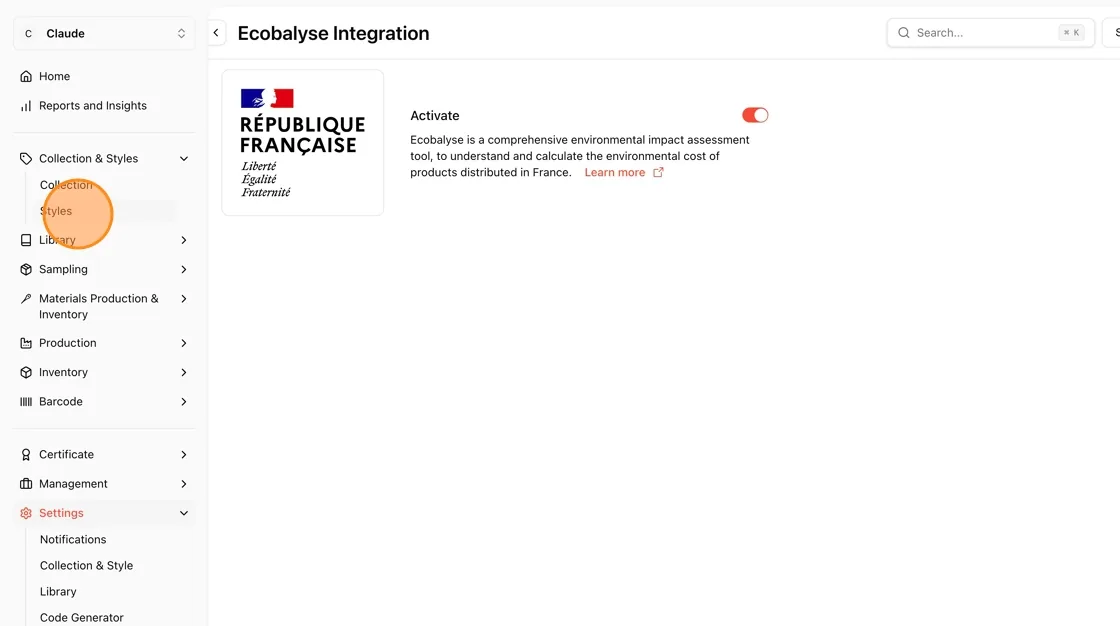
Select a style
From the Styles list, click the style you want to calculate an environmental score for (e.g., Jolly Dress).
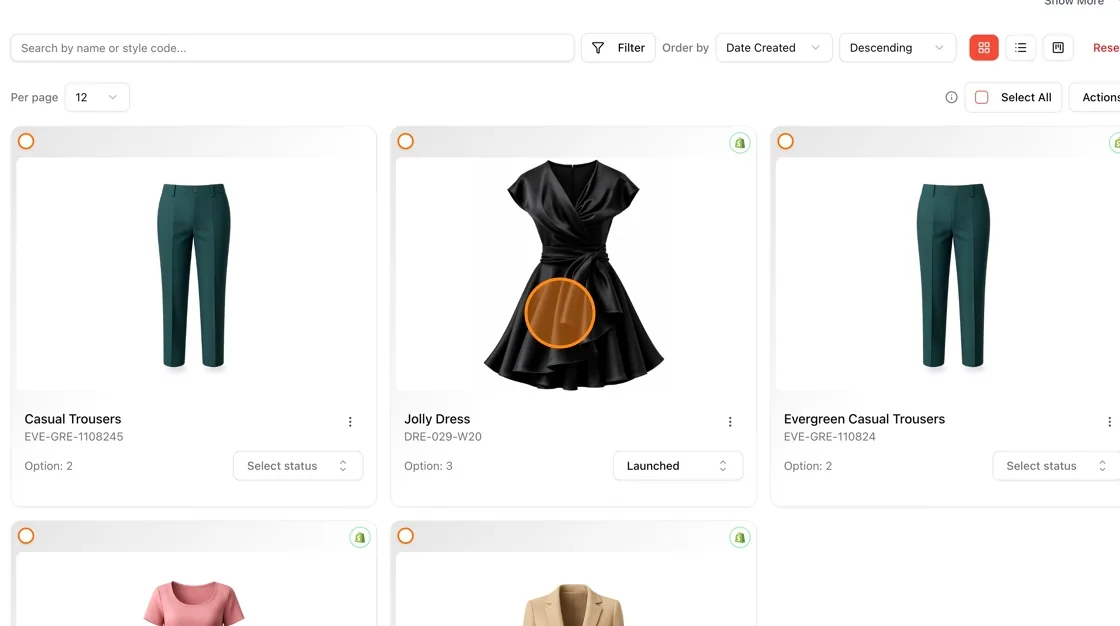
Go to Integrations for the style
Inside the style's edit page, open the Production tab area and click Integrations in the top navigation.
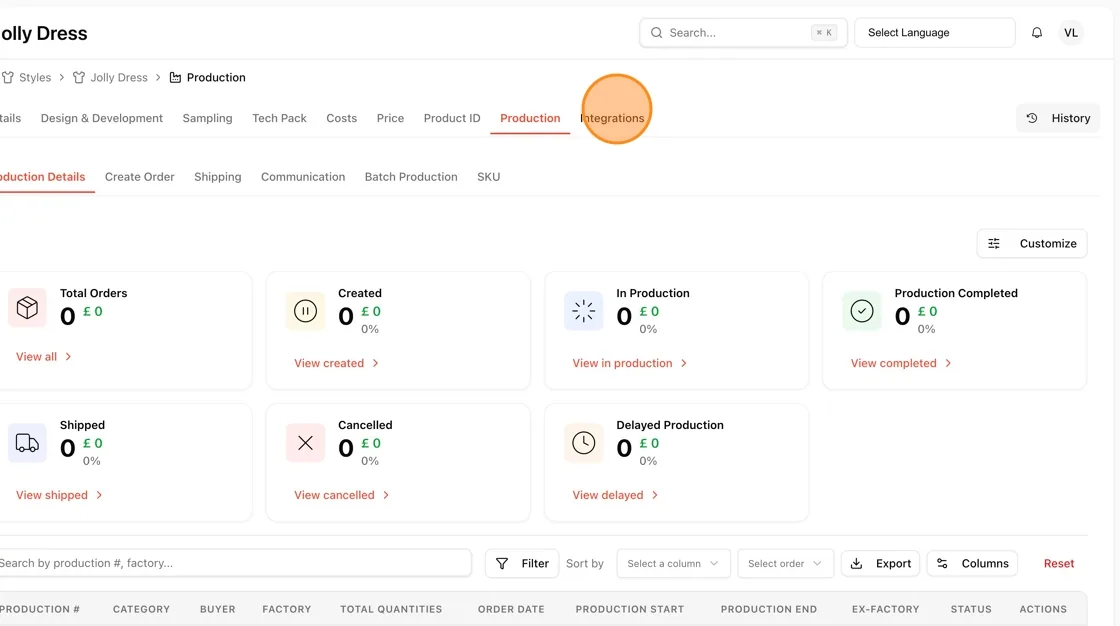
Open the Ecobalyse tab
On the style's Integrations page, click the Ecobalyse tab (next to Shopify) to open the Environmental Cost Calculator.
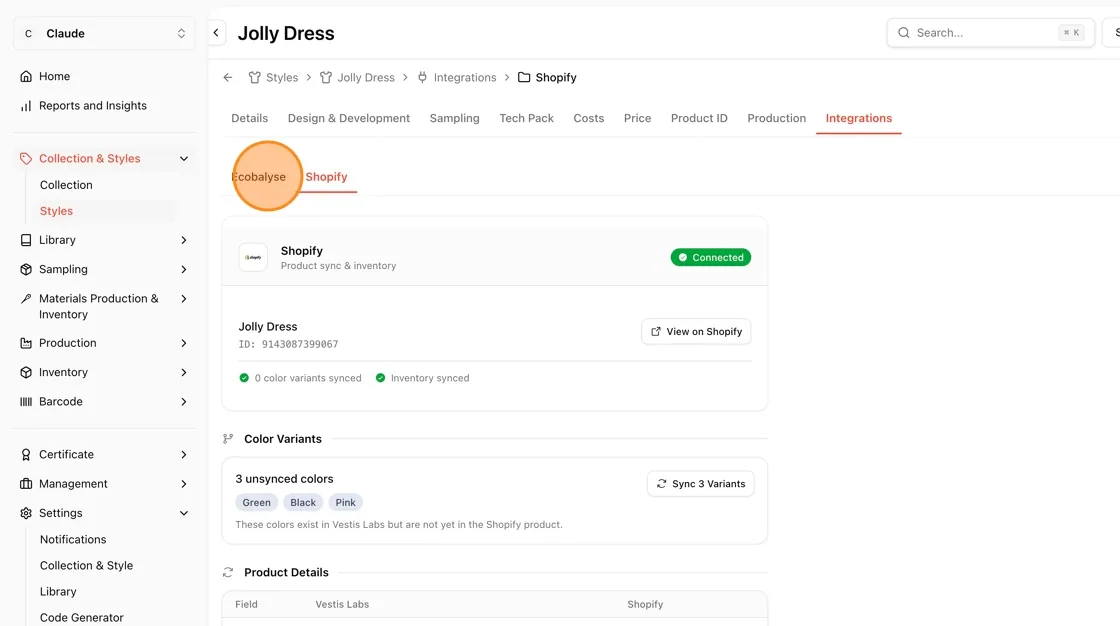
Fill in the environmental cost calculator
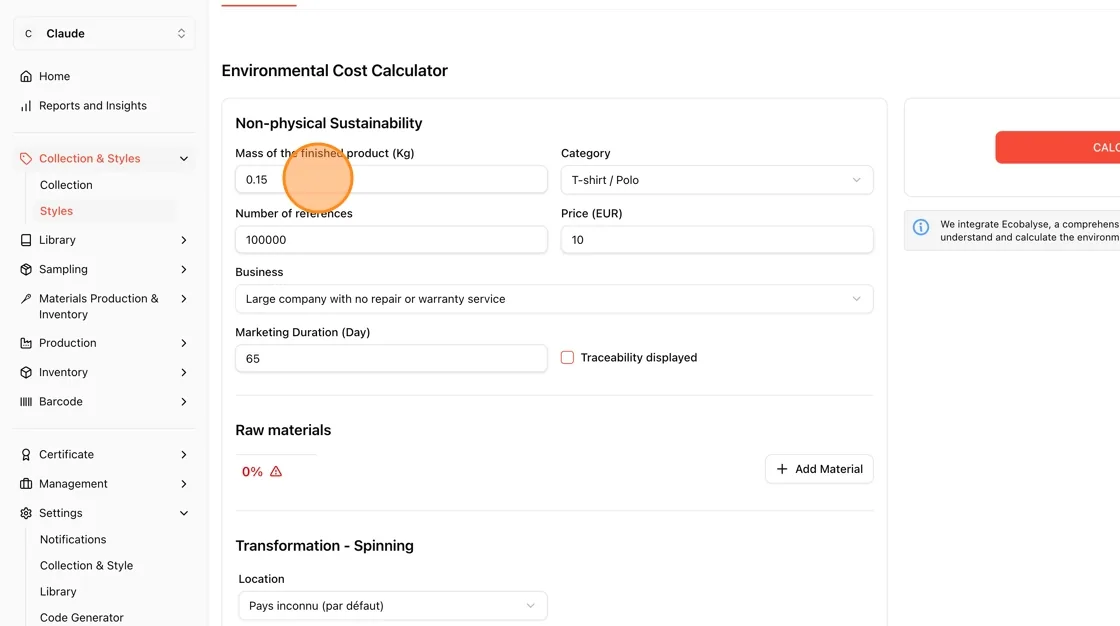
Enter the mass
Under Non-physical Sustainability, enter the Mass of the finished product (Kg).
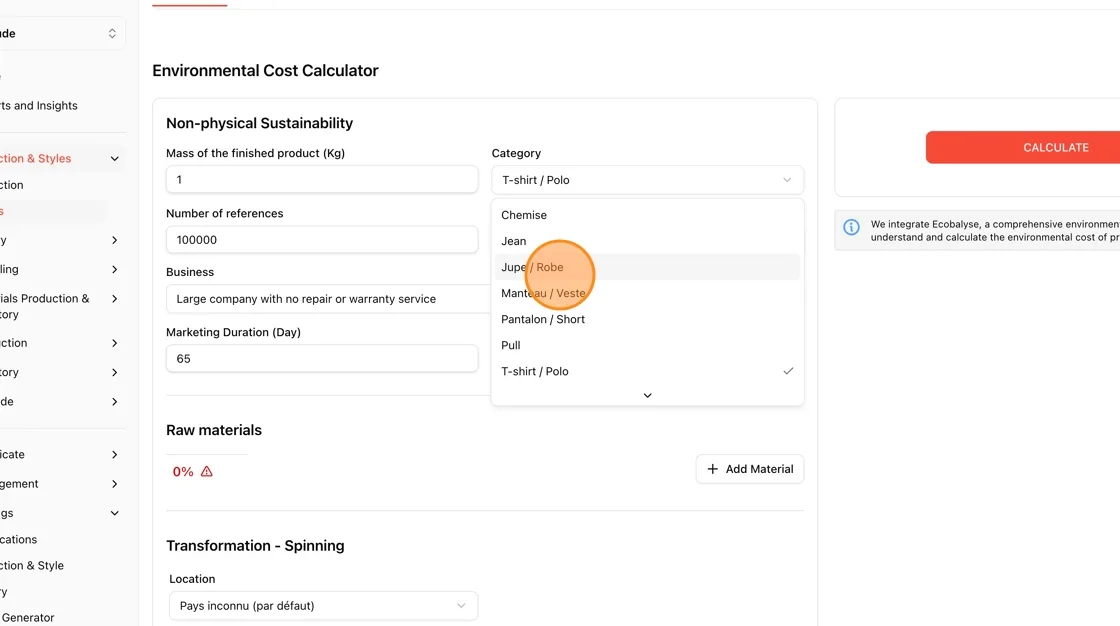
Choose a category
Open the Category dropdown and select the matching product category (e.g., Jupe / Robe for a dress/skirt).
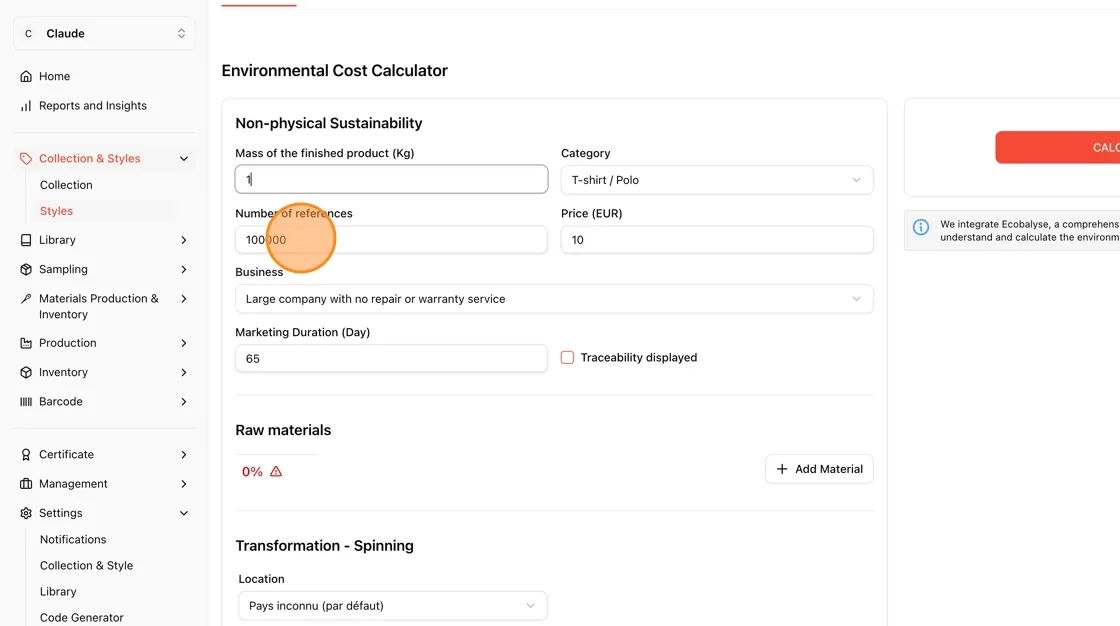
Enter number of references and confirm mass
Enter the Number of references (units produced) and double-check the Mass value.
Enter the price
Enter the Price (EUR) of the product.
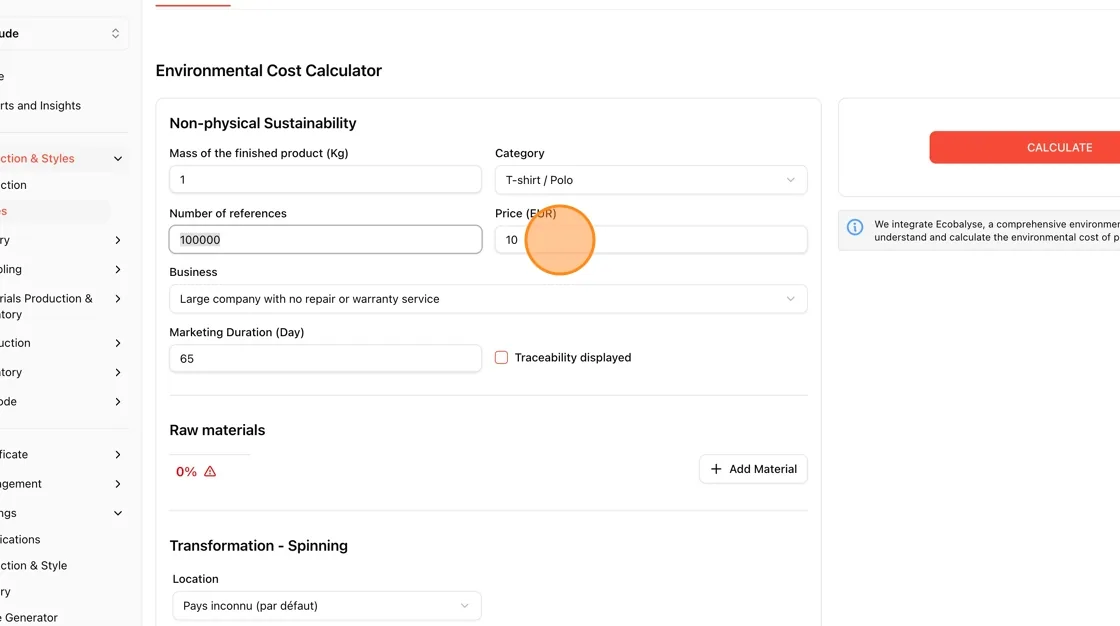
Choose a business type
Open the Business dropdown and select the option that matches your company (e.g., Large company with offering repair and warranty service).
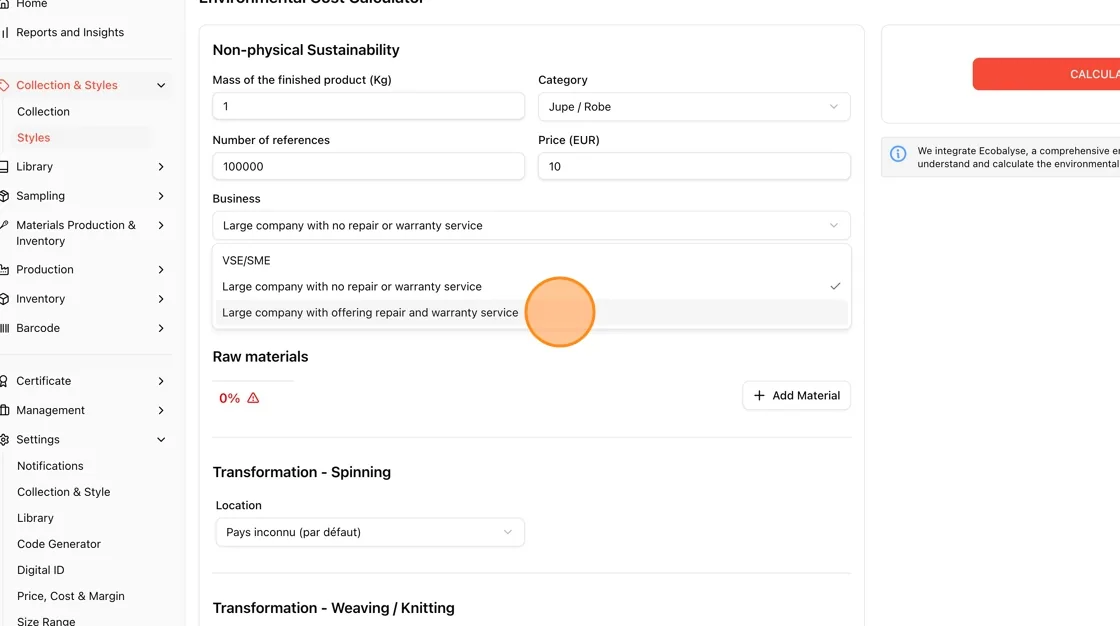
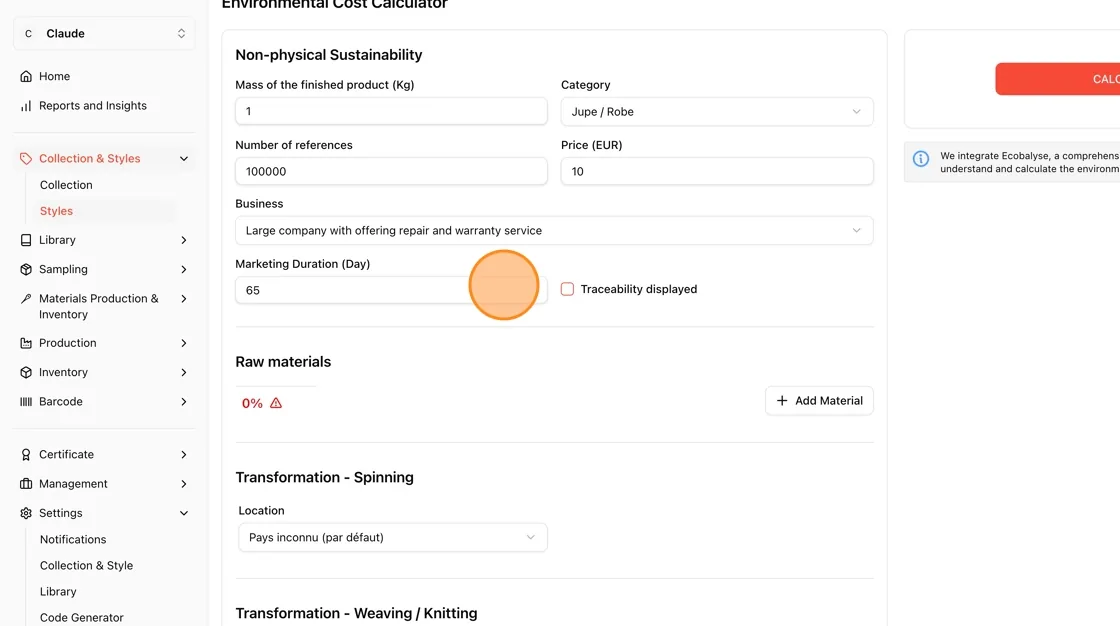
Set marketing duration and traceability
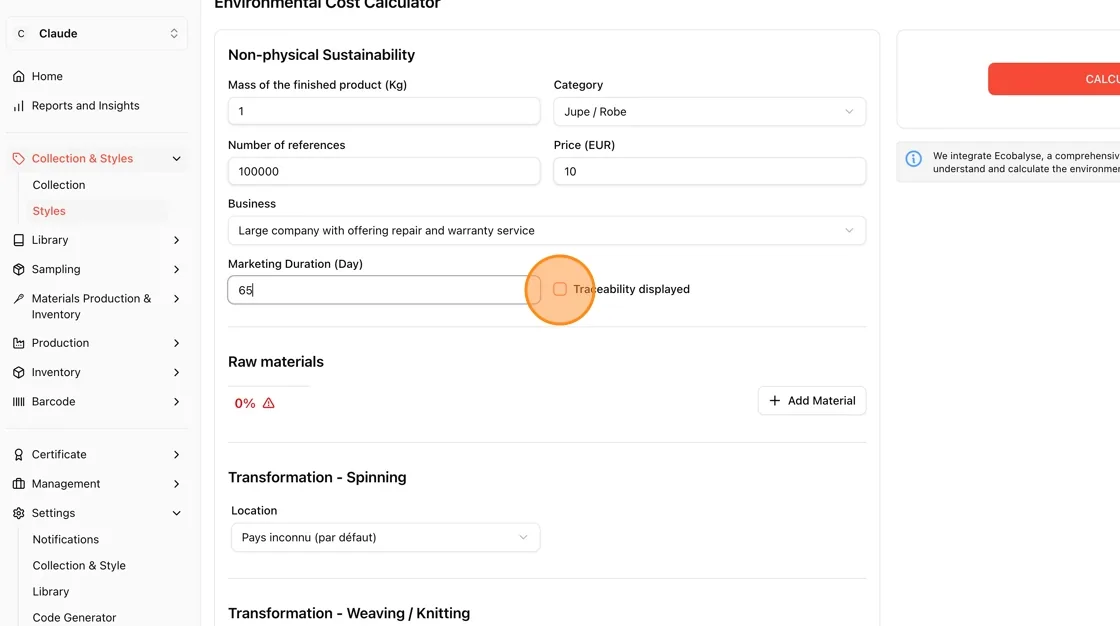
Enter the Marketing Duration (Day).
Check Traceability displayed if you want traceability data shown in the results.
Add a raw material
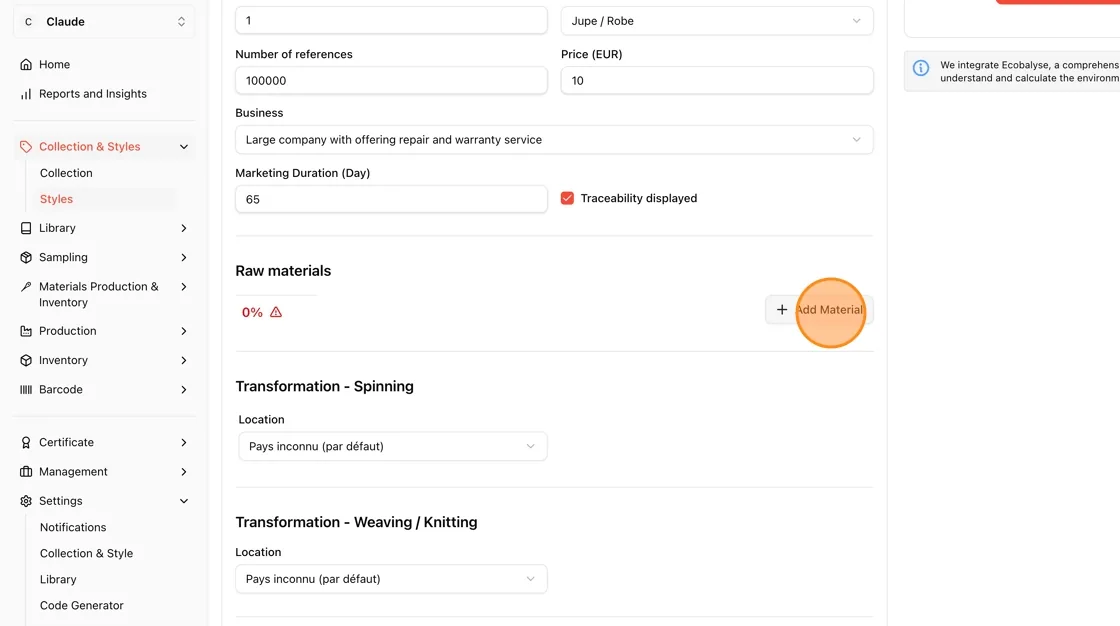
Under Raw materials, click + Add Material to add a material line.
Select the material type
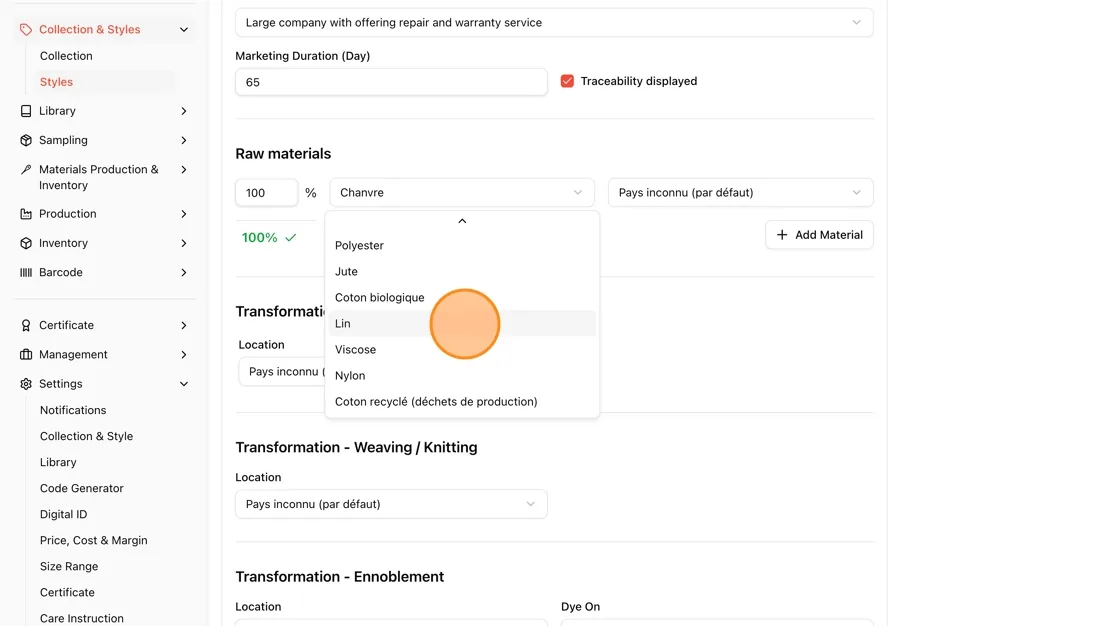
Open the material dropdown and choose the raw material used (e.g., Lin for linen), then set its percentage until raw materials total 100%.
Set the raw material's origin
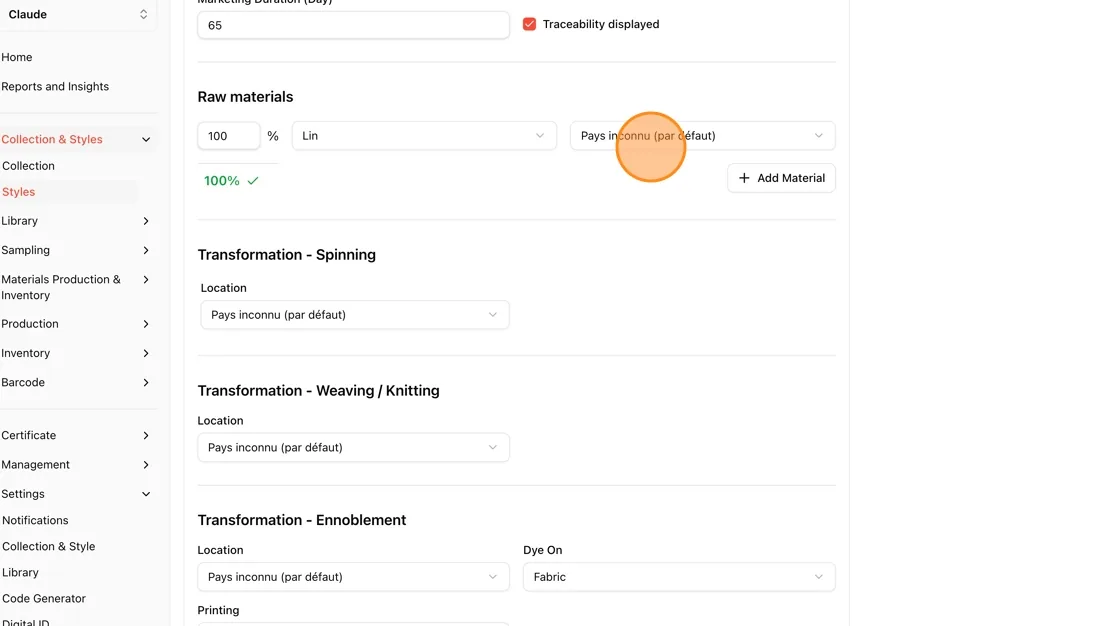
Open the country/region dropdown next to the material and choose where it's sourced from (e.g., Pays inconnu (par défaut), or a specific region like Région - Europe de l'Ouest, Région - Asie, etc.).
Manage multiple materials
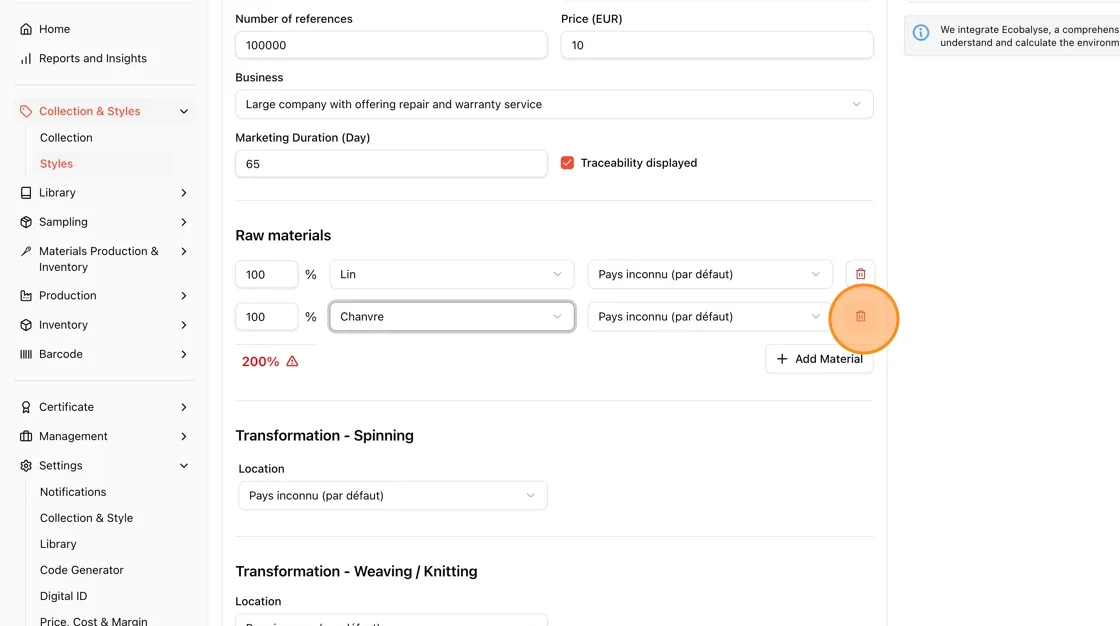
If you add more than one material, keep the total at 100%. Use the trash icon next to a row to remove an extra material.
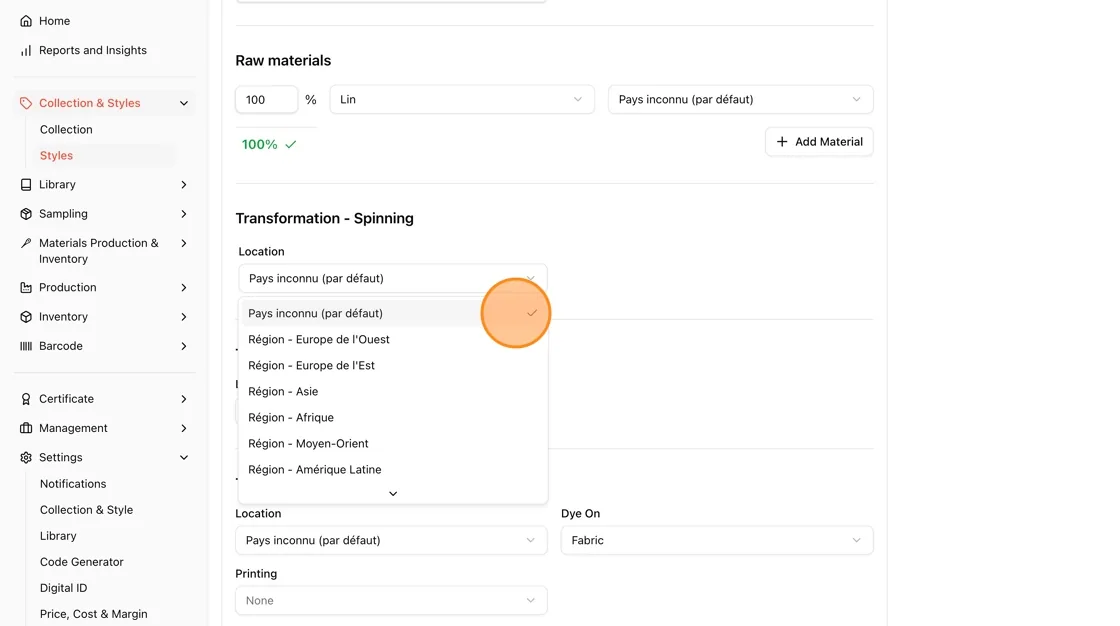
Set the Spinning location
Under Transformation - Spinning, choose the Location where spinning takes place.
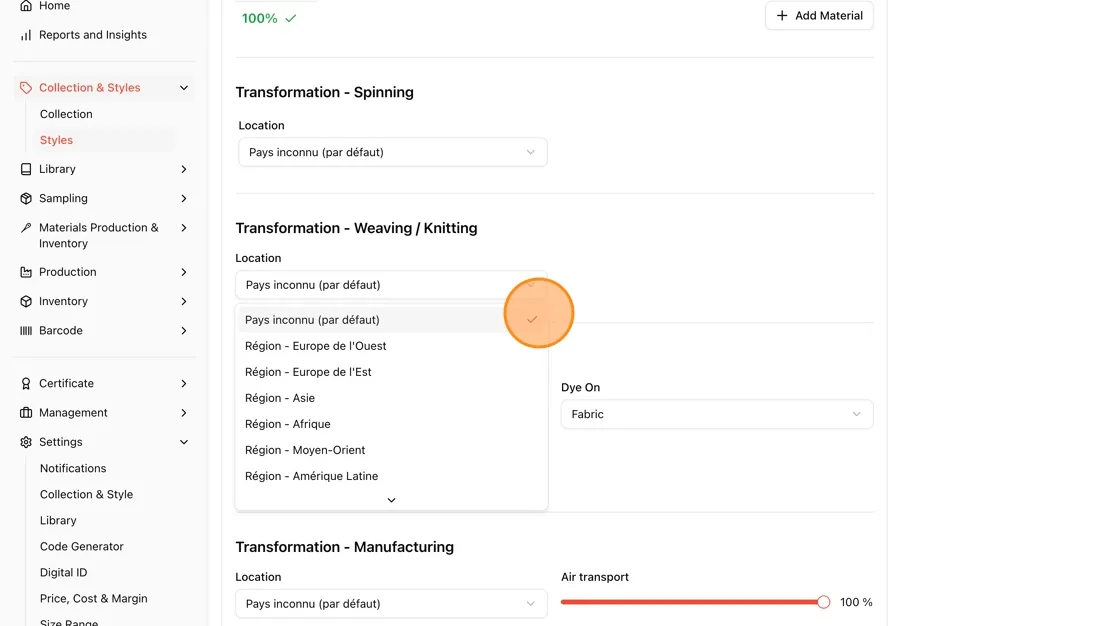
Set the Weaving/Knitting location
Under Transformation - Weaving / Knitting, choose the Location for this stage (this section sits directly below Spinning in the same panel).
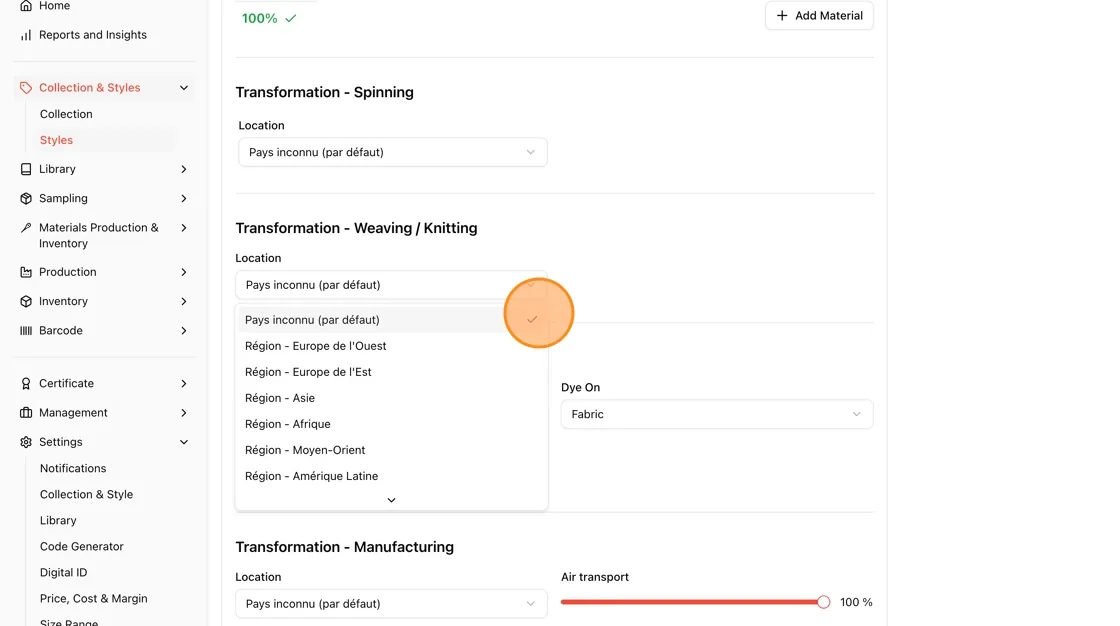
Configure Ennoblement
Under Transformation - Ennoblement, set the Location.
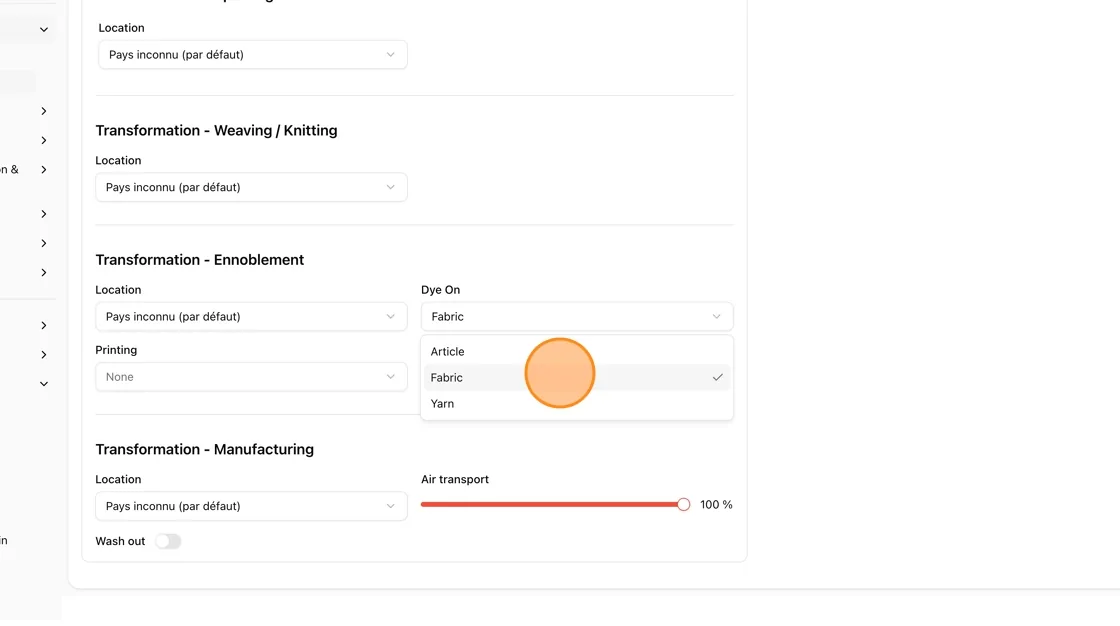
Choose what's being dyed under Dye On (Article, Fabric, or Yarn).
Set the Printing method
Still under Ennoblement, choose a Printing option (None, Pigmentary, or Fixed-wash).
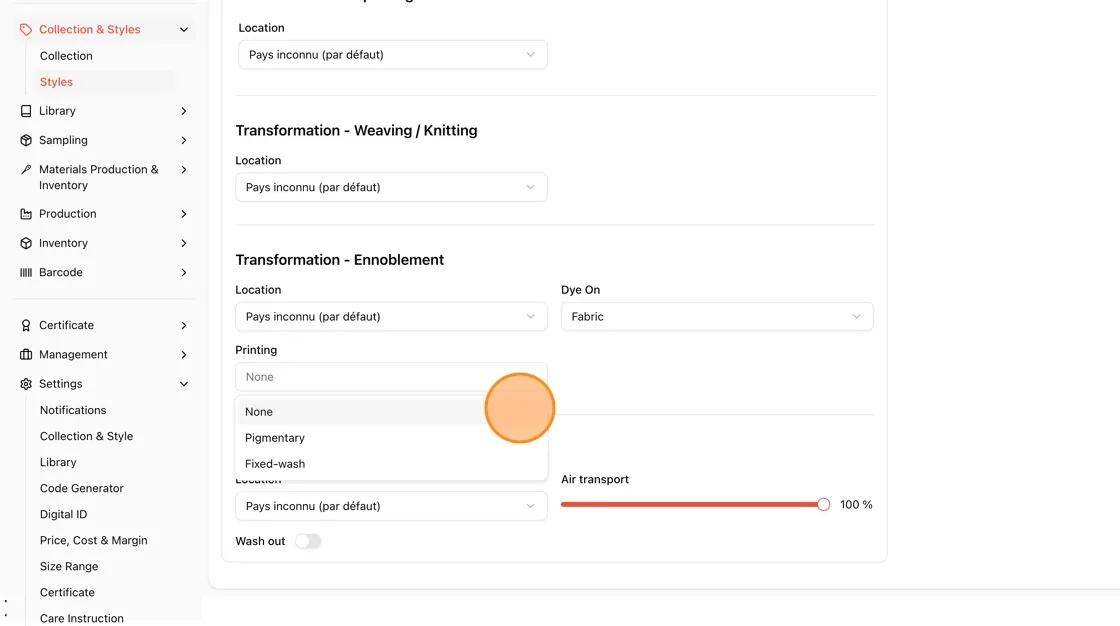
Confirm the Ennoblement location
Reopen the Location dropdown under Ennoblement if needed to confirm or adjust the region.
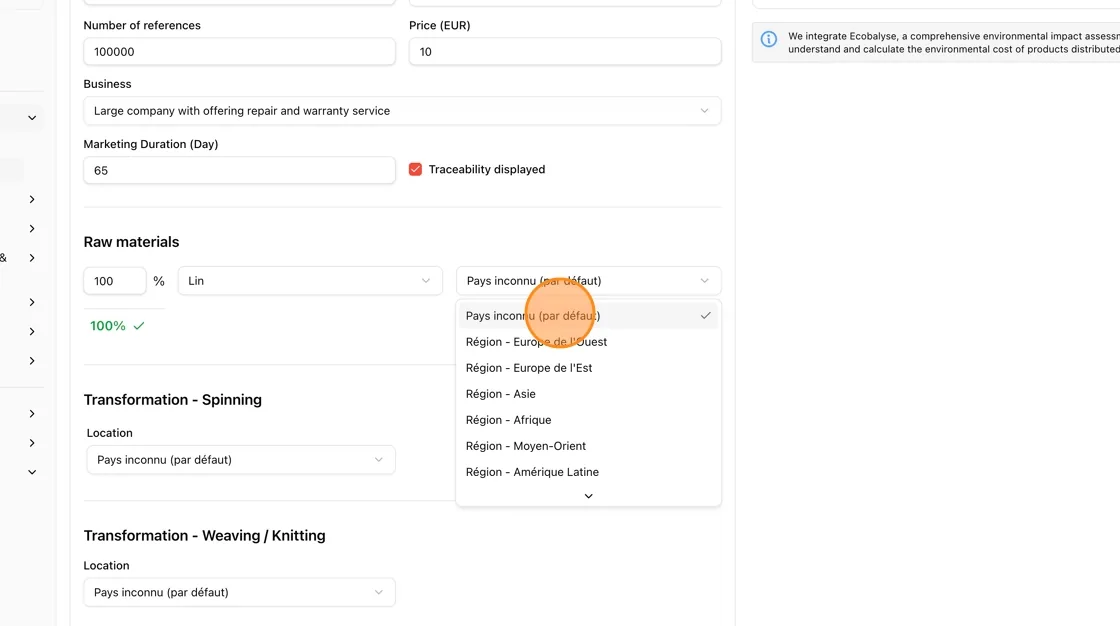
Set Manufacturing details
Under Transformation - Manufacturing, set the Location, and toggle Wash out on or off as applicable.
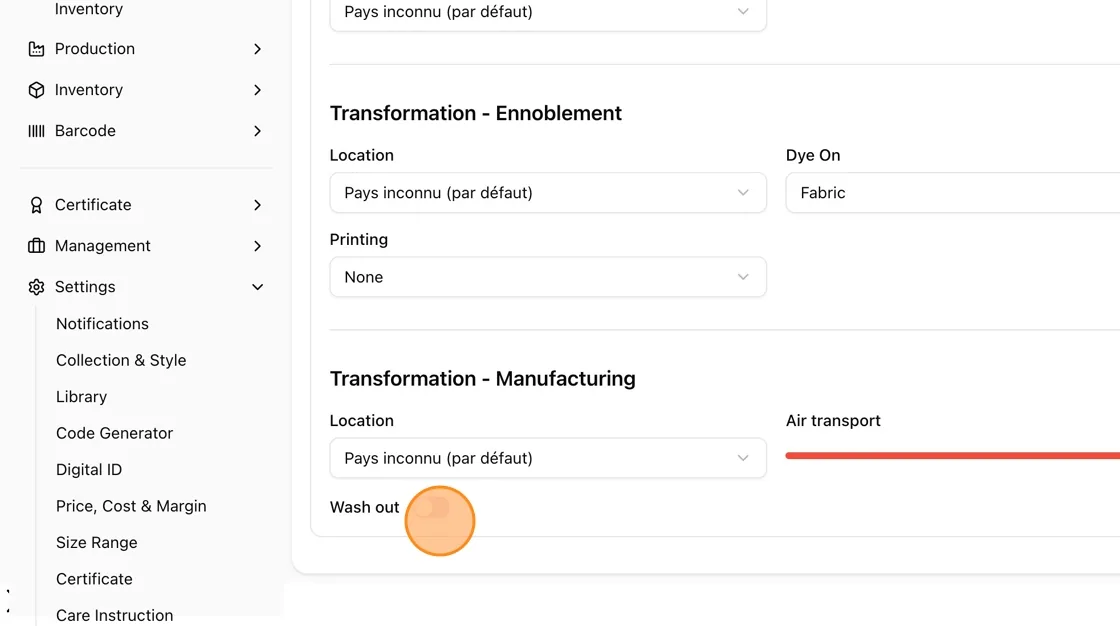
Adjust the Air transport slider (e.g., 100%) to reflect the share of transport by air
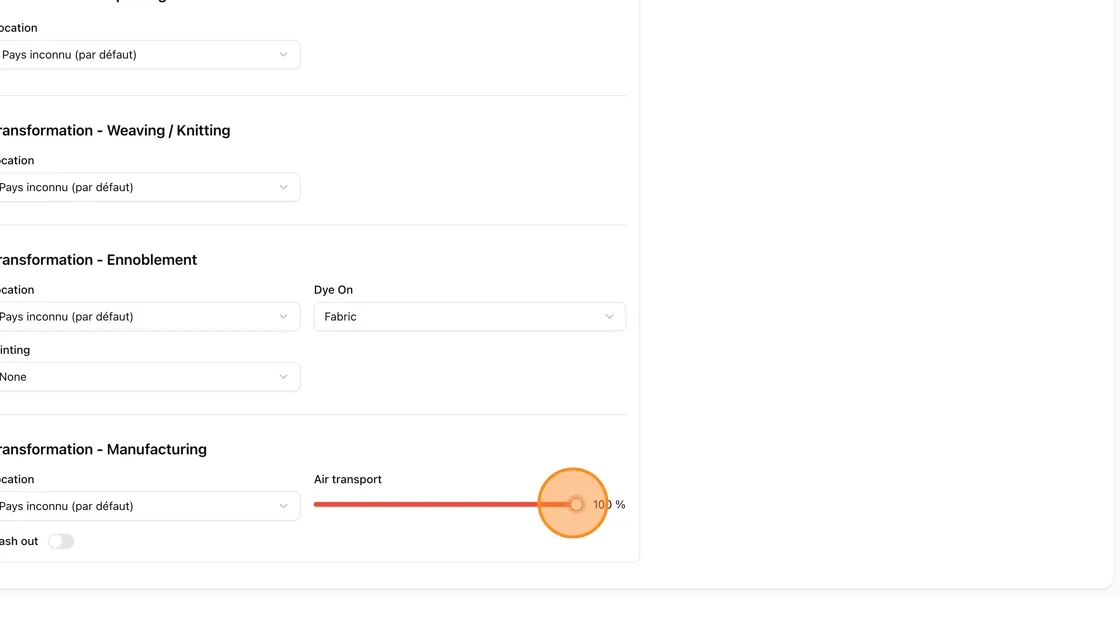
Review your inputs
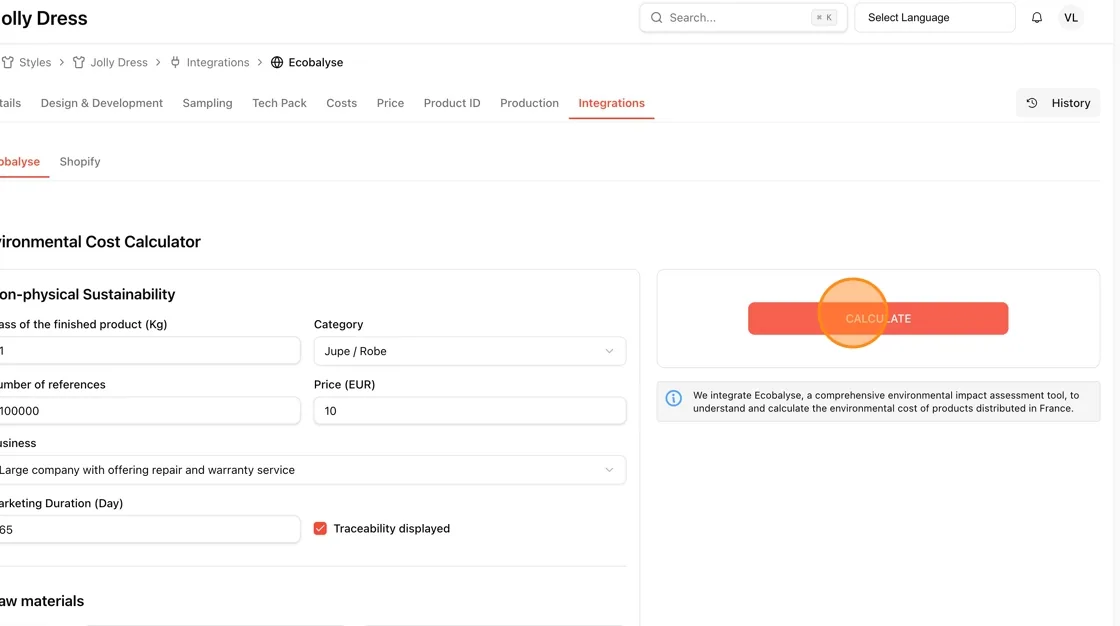
Review all fields — Mass, Category, Business, Marketing Duration, Price, Raw materials, and each Transformation stage — before calculating.
Calculate and embed the score
Click Calculate
Click the red CALCULATE button to run the Ecobalyse assessment.
Re-calculate if you change inputs
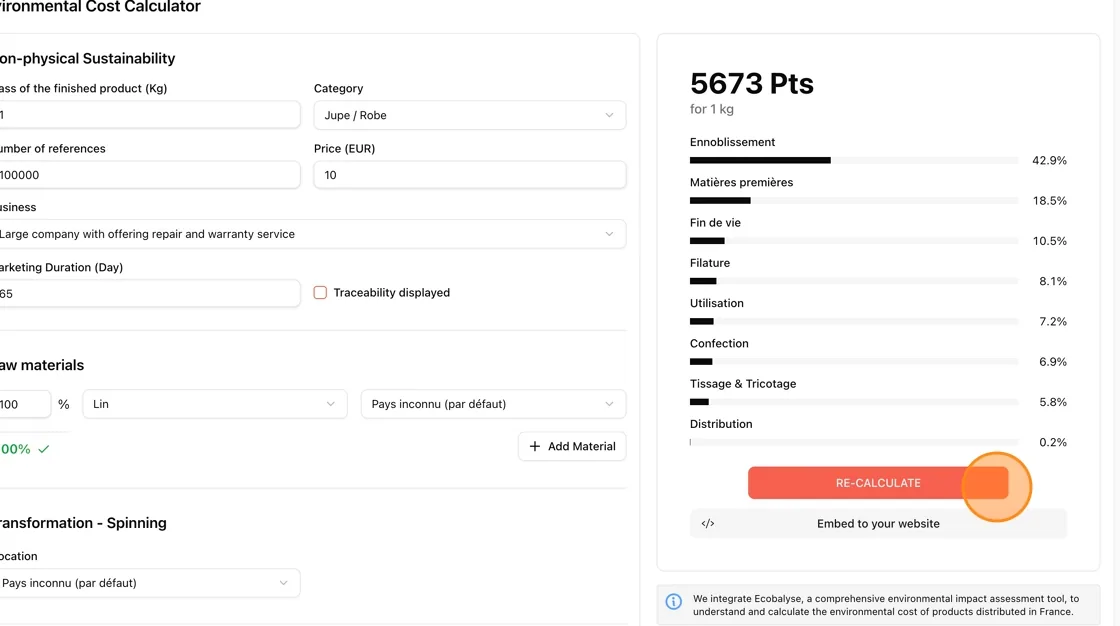
If you edit any field afterward, click RE-CALCULATE to refresh the score before embedding.
Open the embed dialog
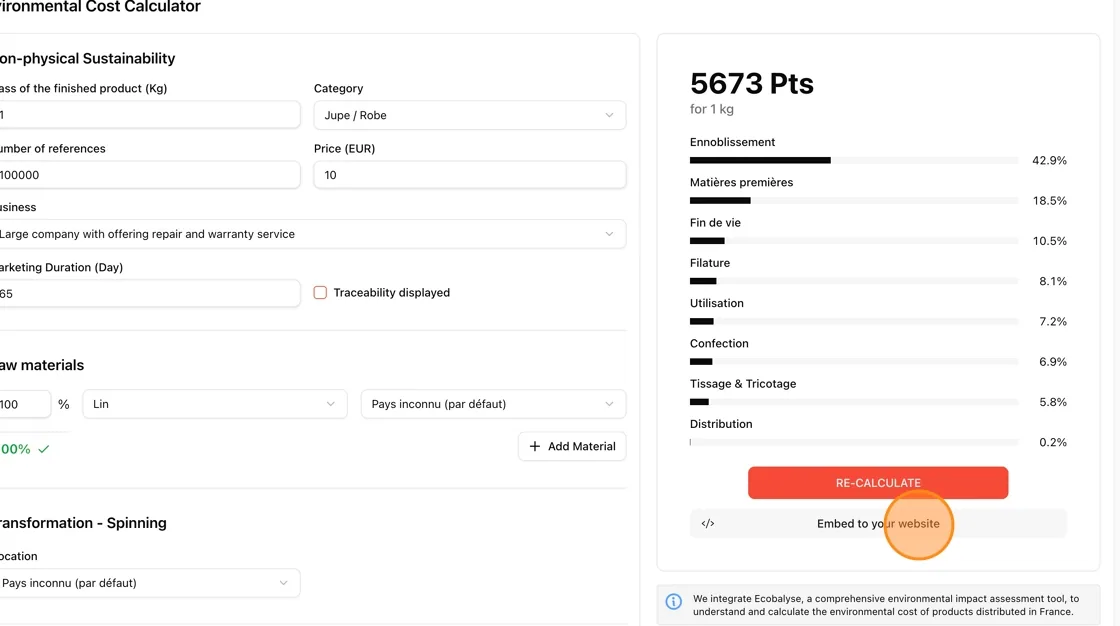
Click Embed to your website to open the Embed to your website modal.
View the score
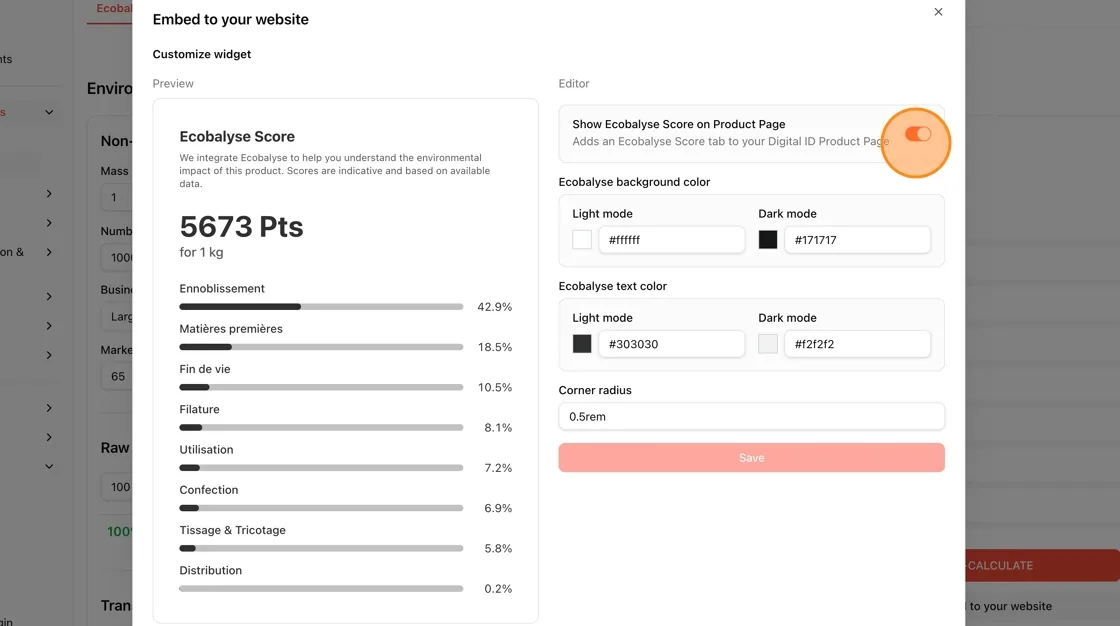
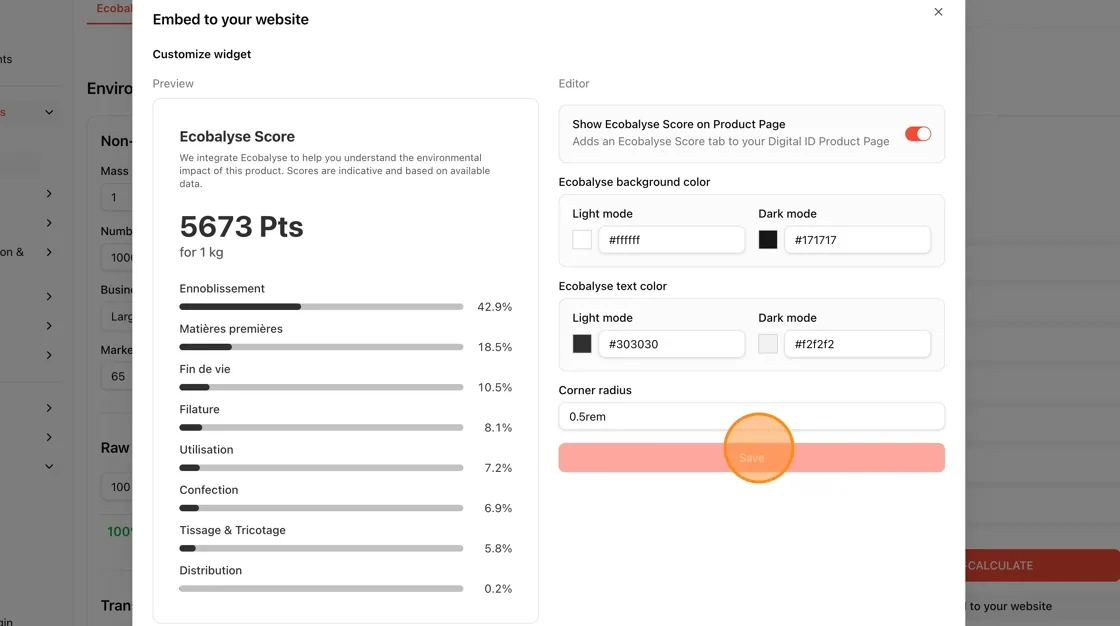
The results panel shows the environmental score. In the Customize widget panel, toggle Show Ecobalyse Score on Product Page on — this adds an Ecobalyse Score tab to your Digital ID Product Page.
Set the widget colors and corner radius
Adjust the Ecobalyse background color and Ecobalyse text color for both Light mode and Dark mode, and set the Corner radius (e.g., 0.5rem) to match your site's style. Click Save.
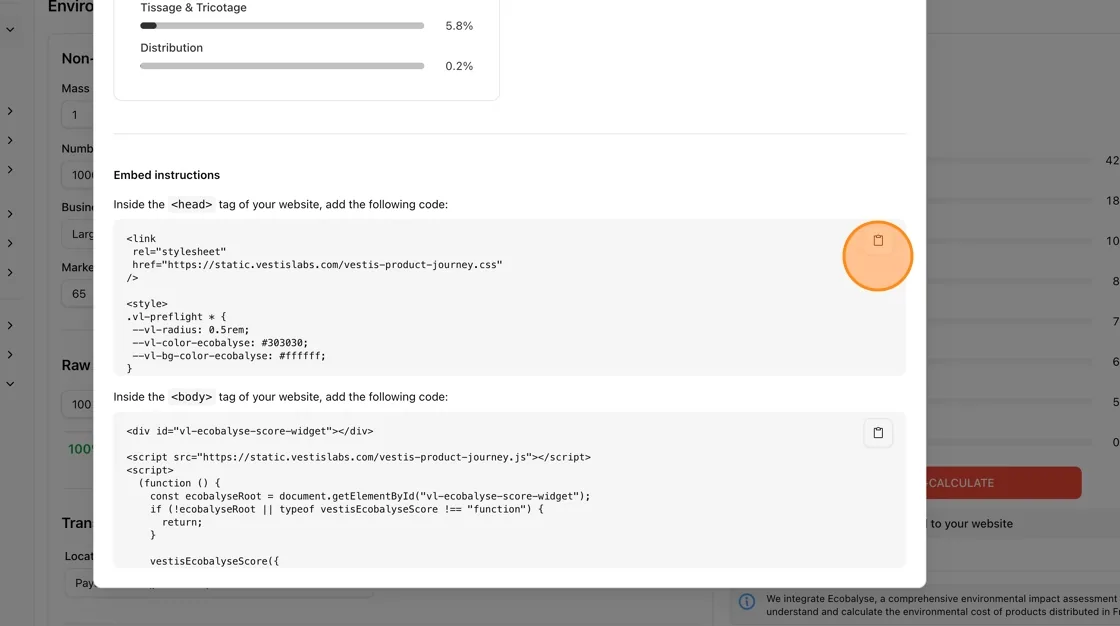
Copy the embed instructions
Scroll down to Embed instructions. Copy the code for the <head> tag (stylesheet link and CSS variables) using the copy icon.
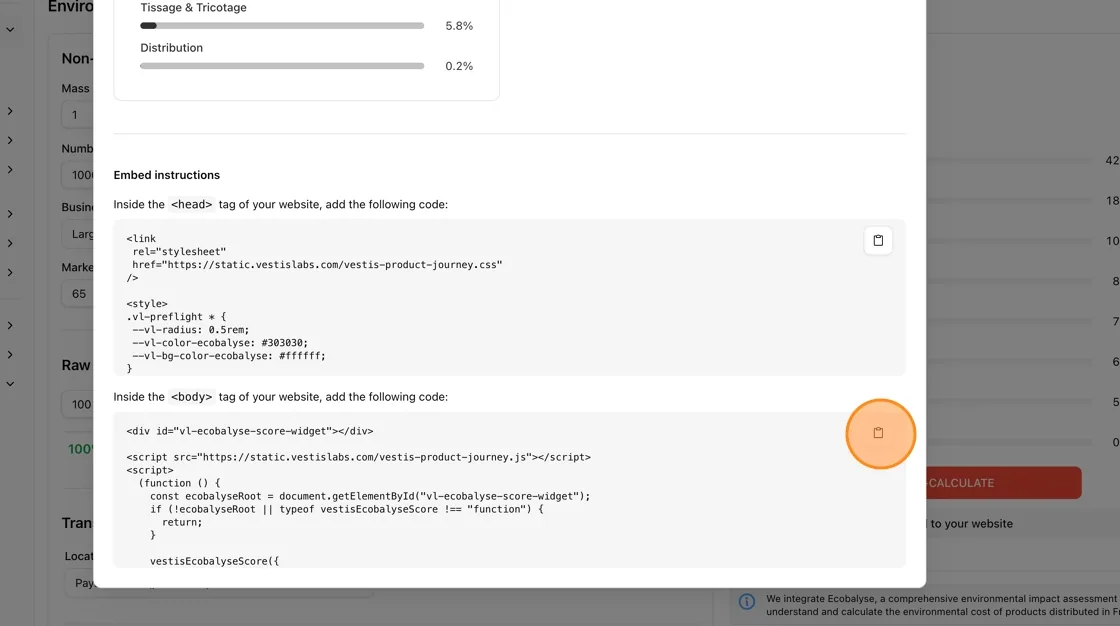
Copy the body code
Copy the code for the <body> tag (the vl-ecobalyse-score-widget div and initialization script) using the copy icon, then paste both snippets into your website as described in the instructions.
Tip: Add the <head> code via your theme's head/custom-code section, and the <body> code where you want the Ecobalyse Score widget to appear on the page.
Your style now has a calculated environmental impact score from Ecobalyse, ready to be embedded on your website for customer-facing sustainability transparency.