
Shipment documents
Upload, find, download and delete the documents attached to your shipments, such as invoices, packing lists and delivery receipts.
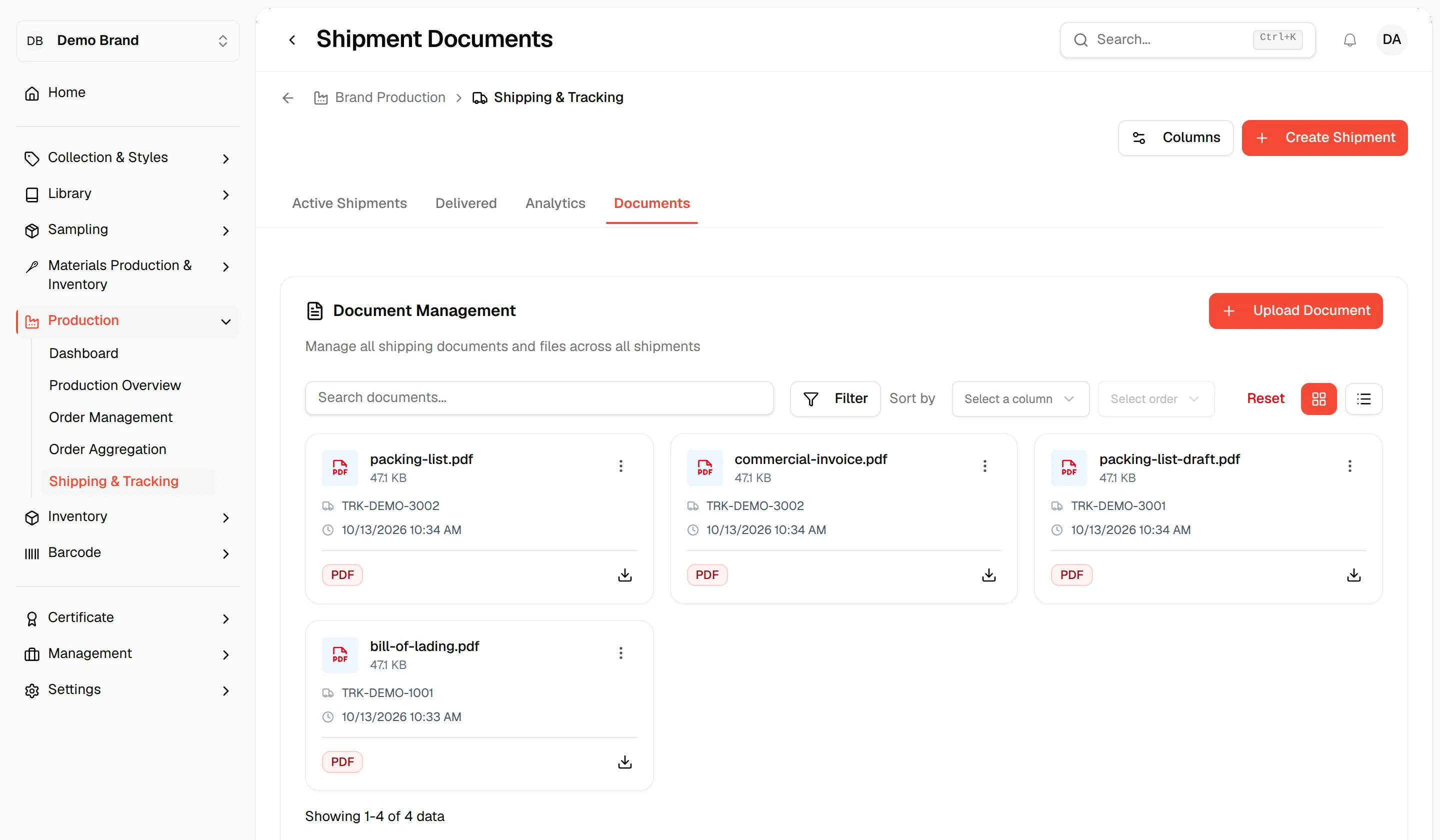
The Documents tab of Shipping & Tracking is Document Management: one place to manage all shipping documents and files across all shipments. You can search, filter and sort them, download a file, delete it, or upload a new one to a shipment.
ProductionShipping & TrackingDocuments
Permission: VIEW_BRAND_PRODUCTION
Open the documents
Open Shipping & Tracking
In the left sidebar, expand Production and click Shipping & Tracking.
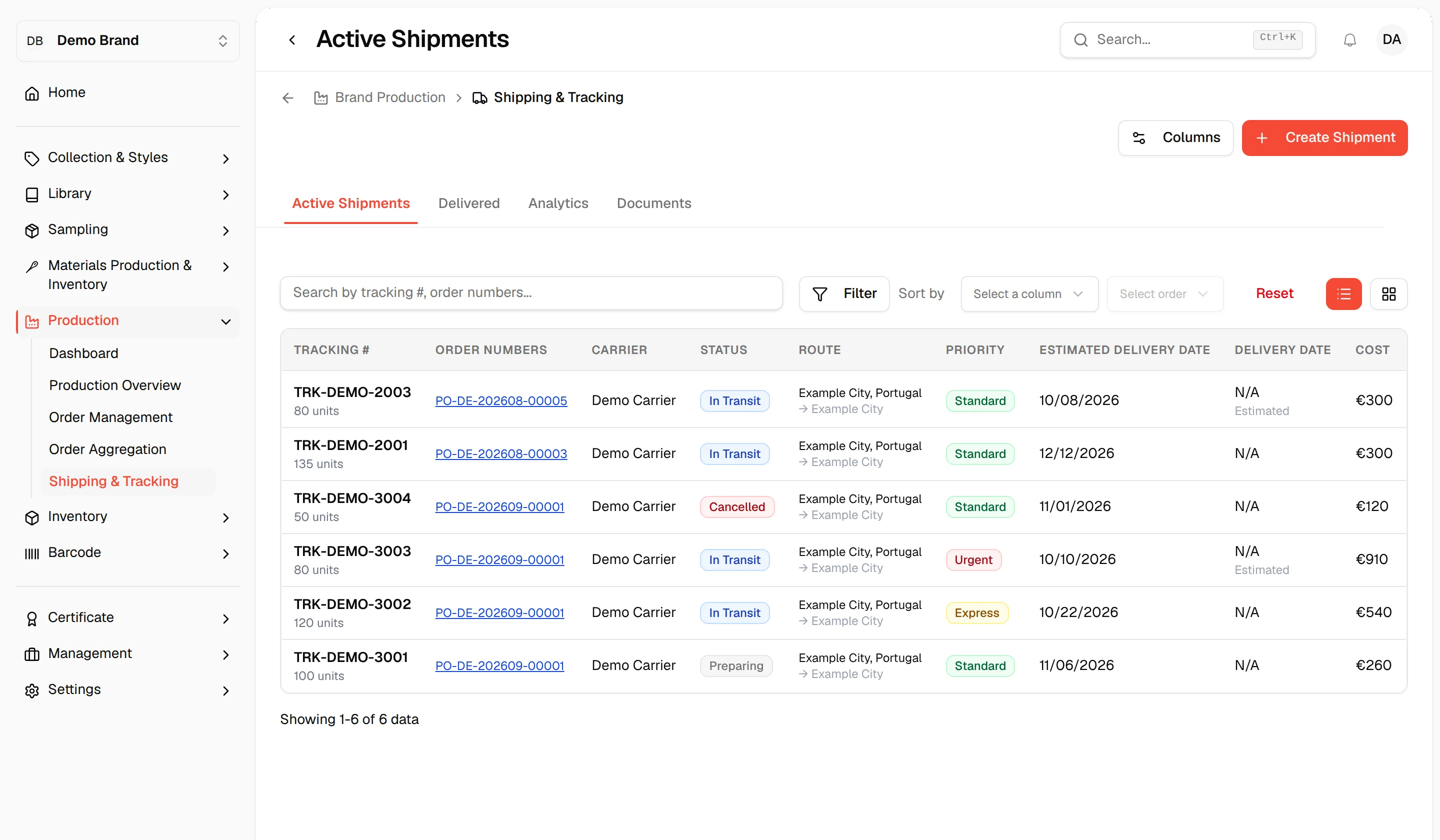
Click "Documents"
Click the Documents tab. Documents show as cards by default.
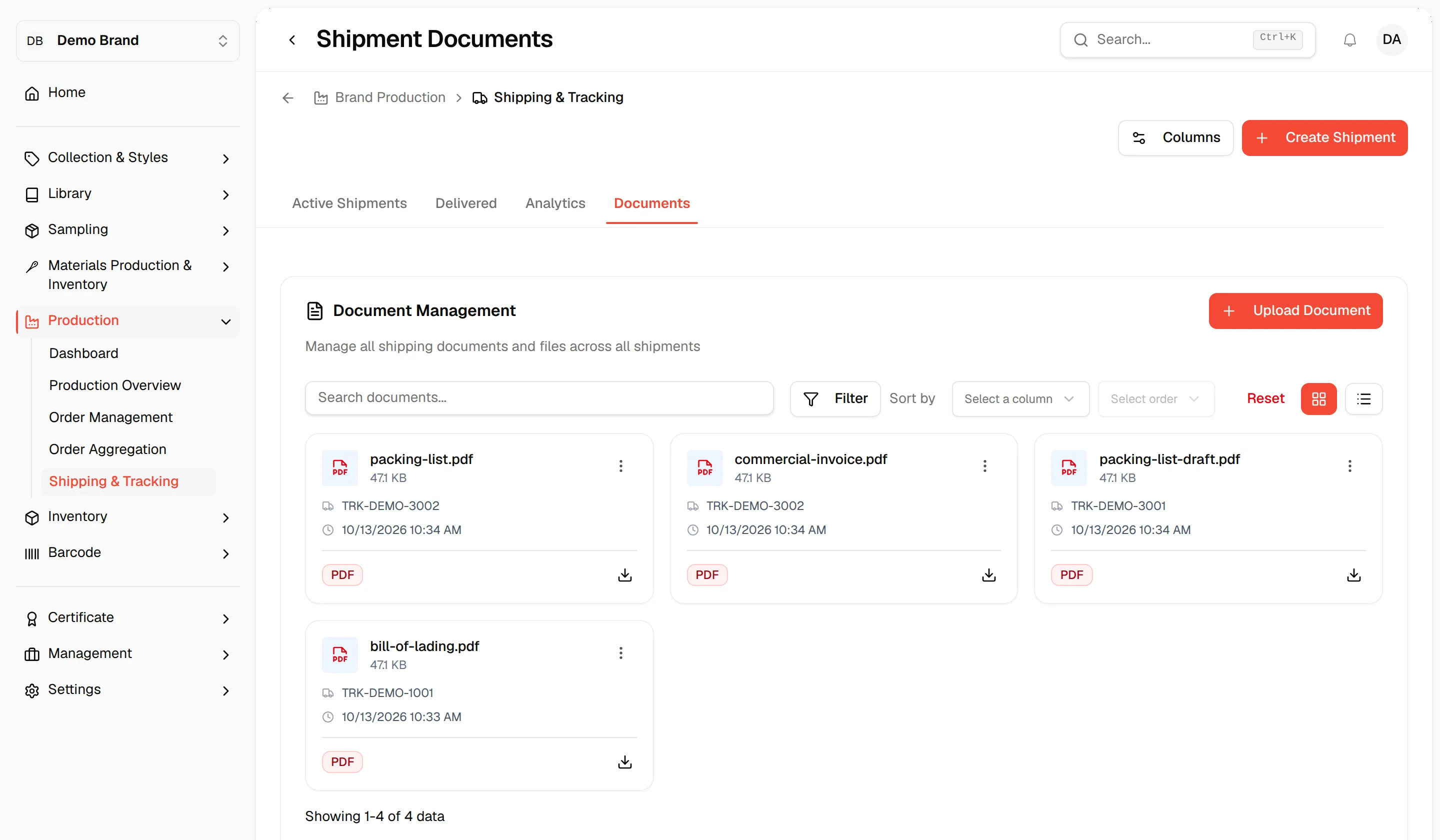
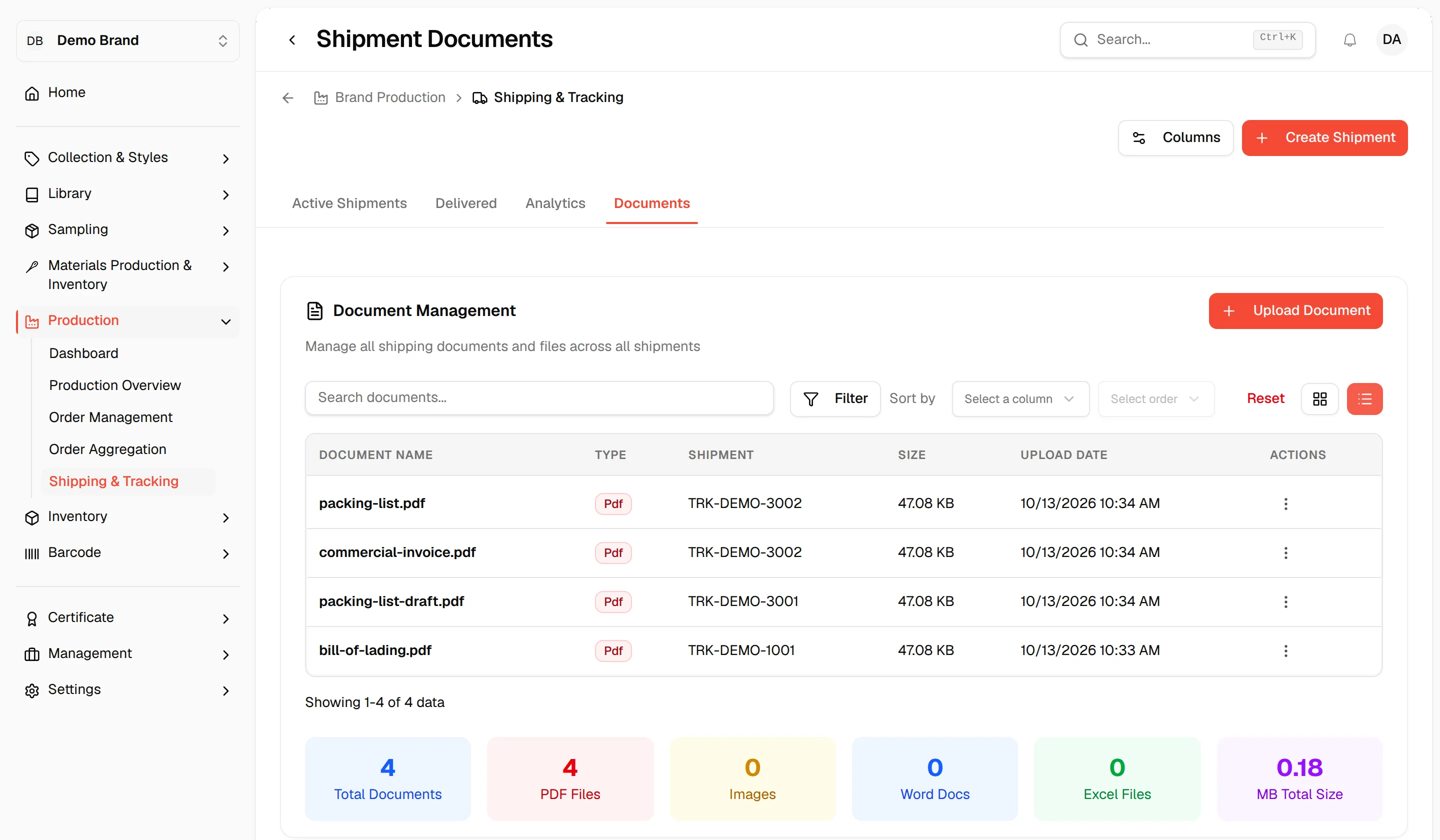
Switch between cards and table
Click the grid icon for cards (9 per page) or the list icon for a table (10 per page).
- A card shows the file icon, the file name, its size, and a ⋮ menu with Download and Delete.
- The table has the columns Document Name, Type, Shipment (the tracking number), Size and Upload Date, with a row menu with Download and Delete.
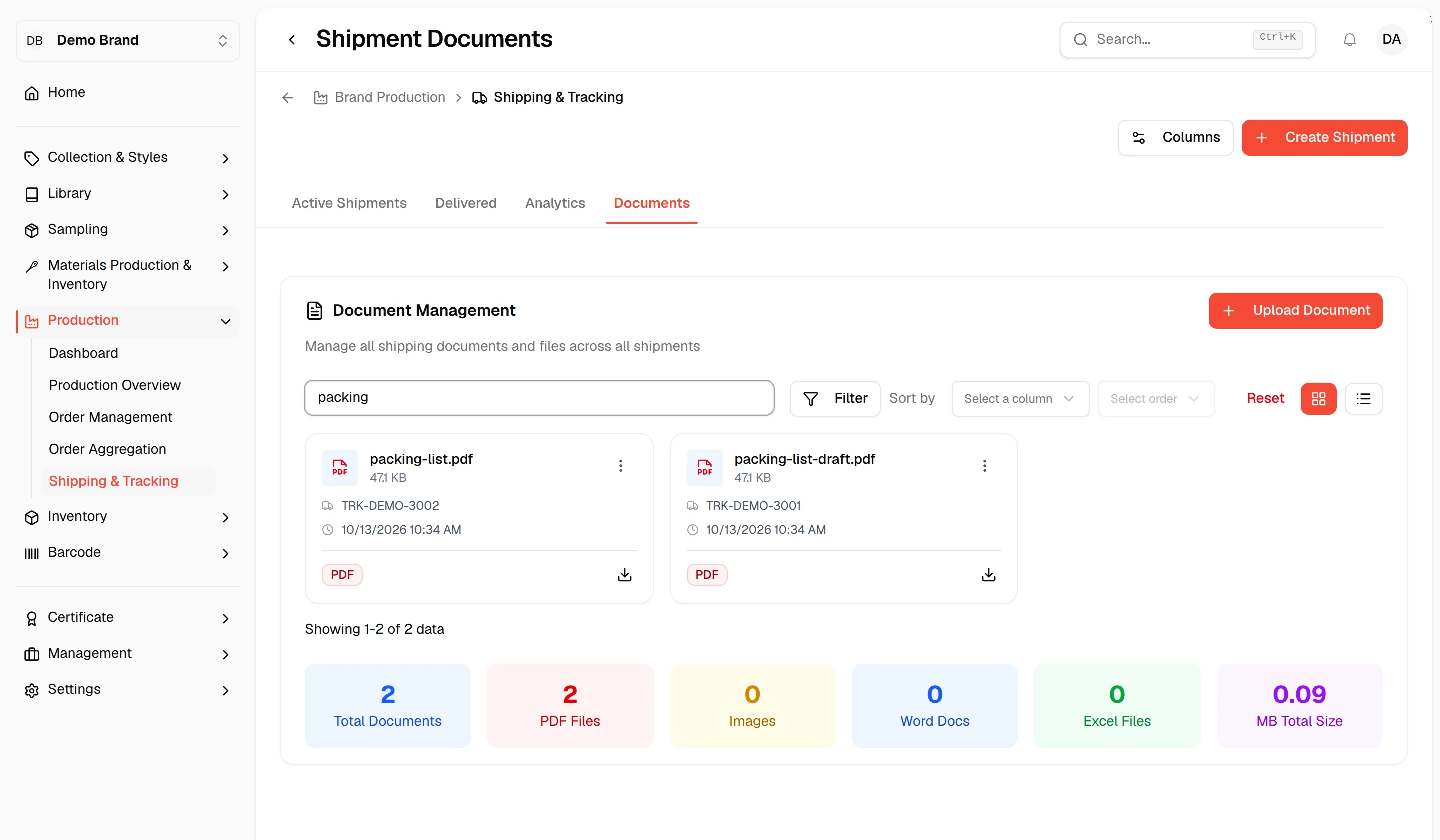
Search, filter and sort
Search
Type in Search documents... to find a file by name.
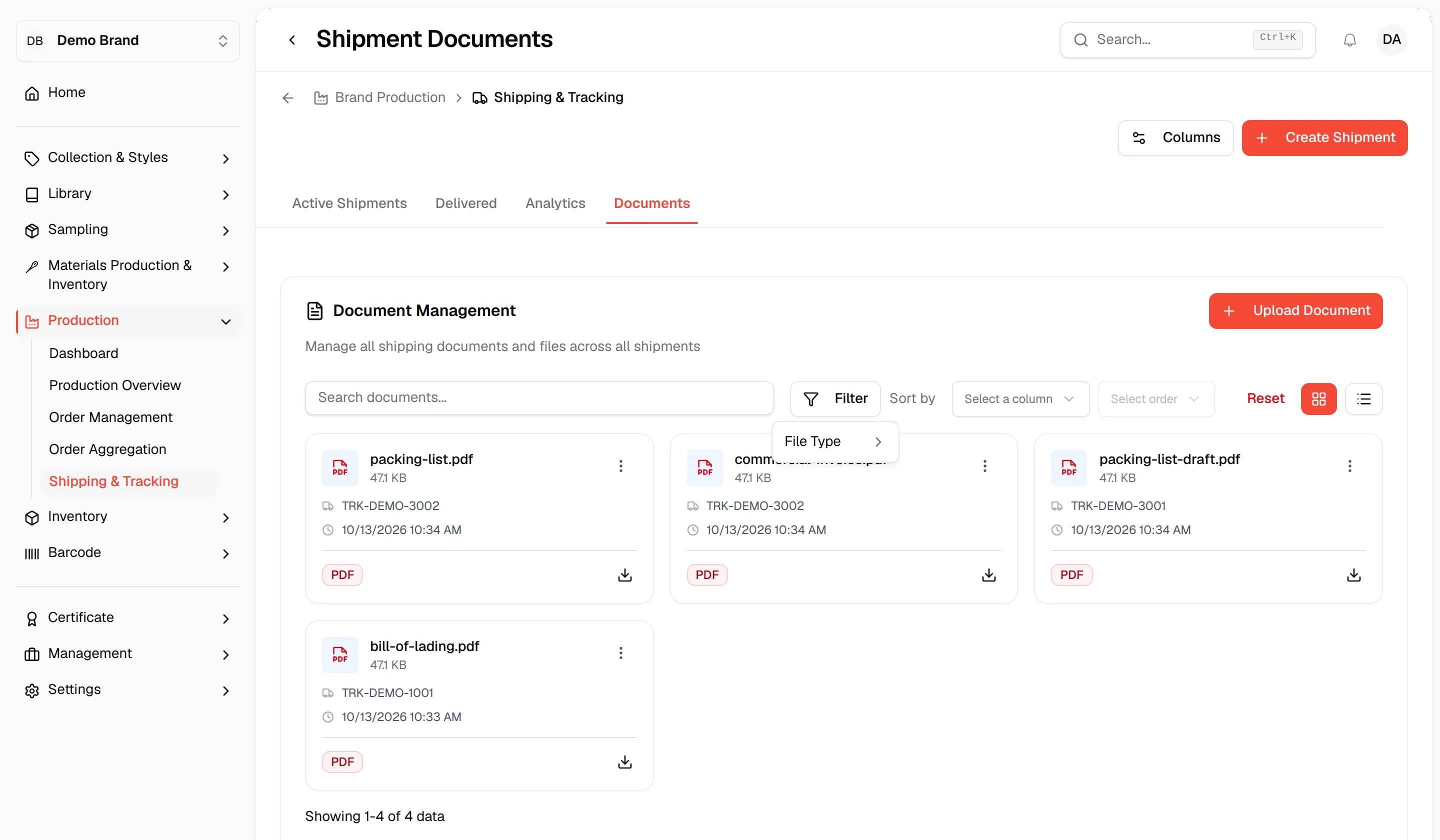
Filter by file type
Click Filter and check File Type values: PDF, IMAGE, WORD or EXCEL.
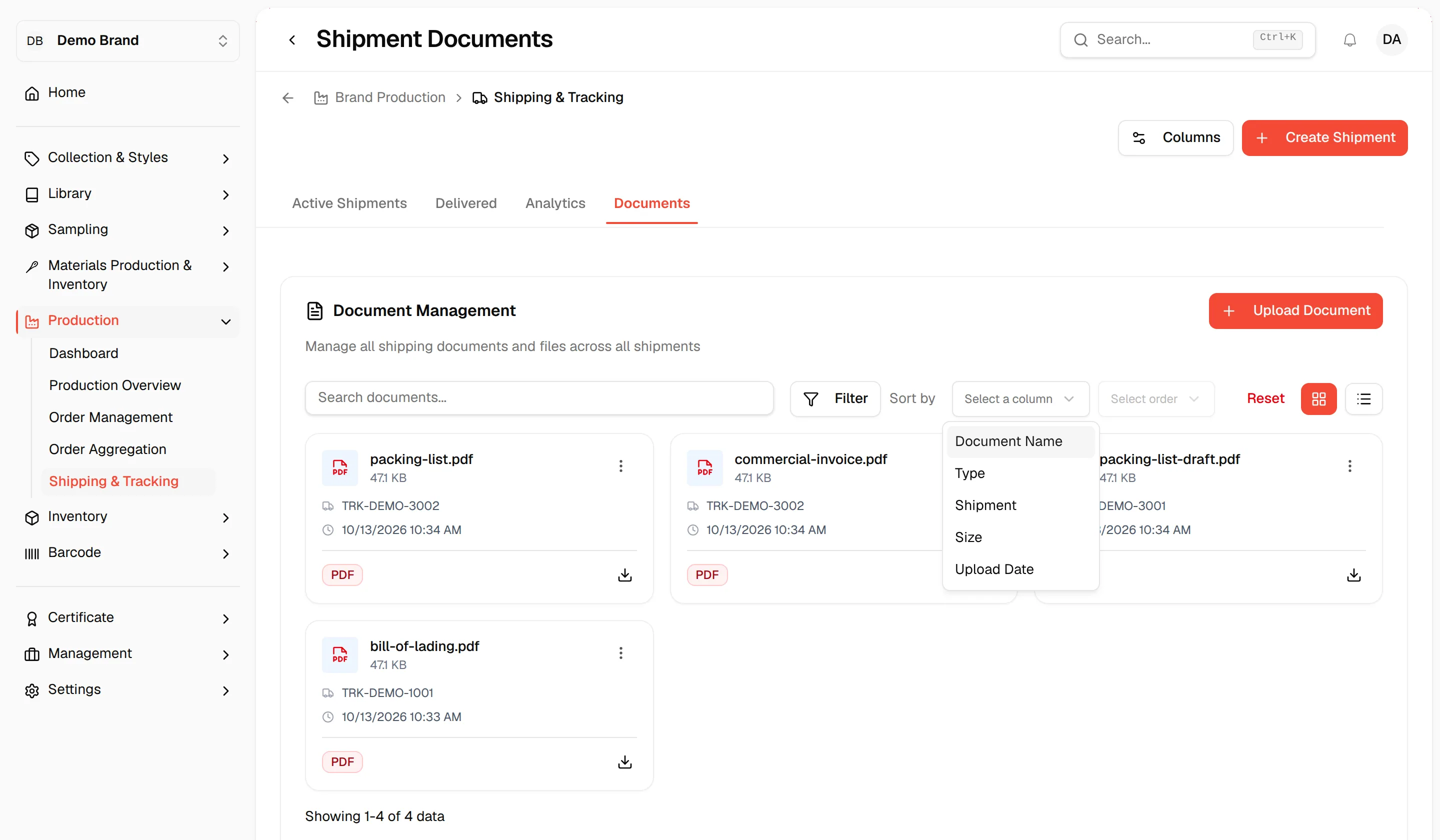
Sort
Choose a column such as Document Name, Size or Upload Date and Ascending or Descending. Click Reset to clear everything.
Upload a document
Click "Upload Document"
At the top right of the Document Management card, click Upload Document.
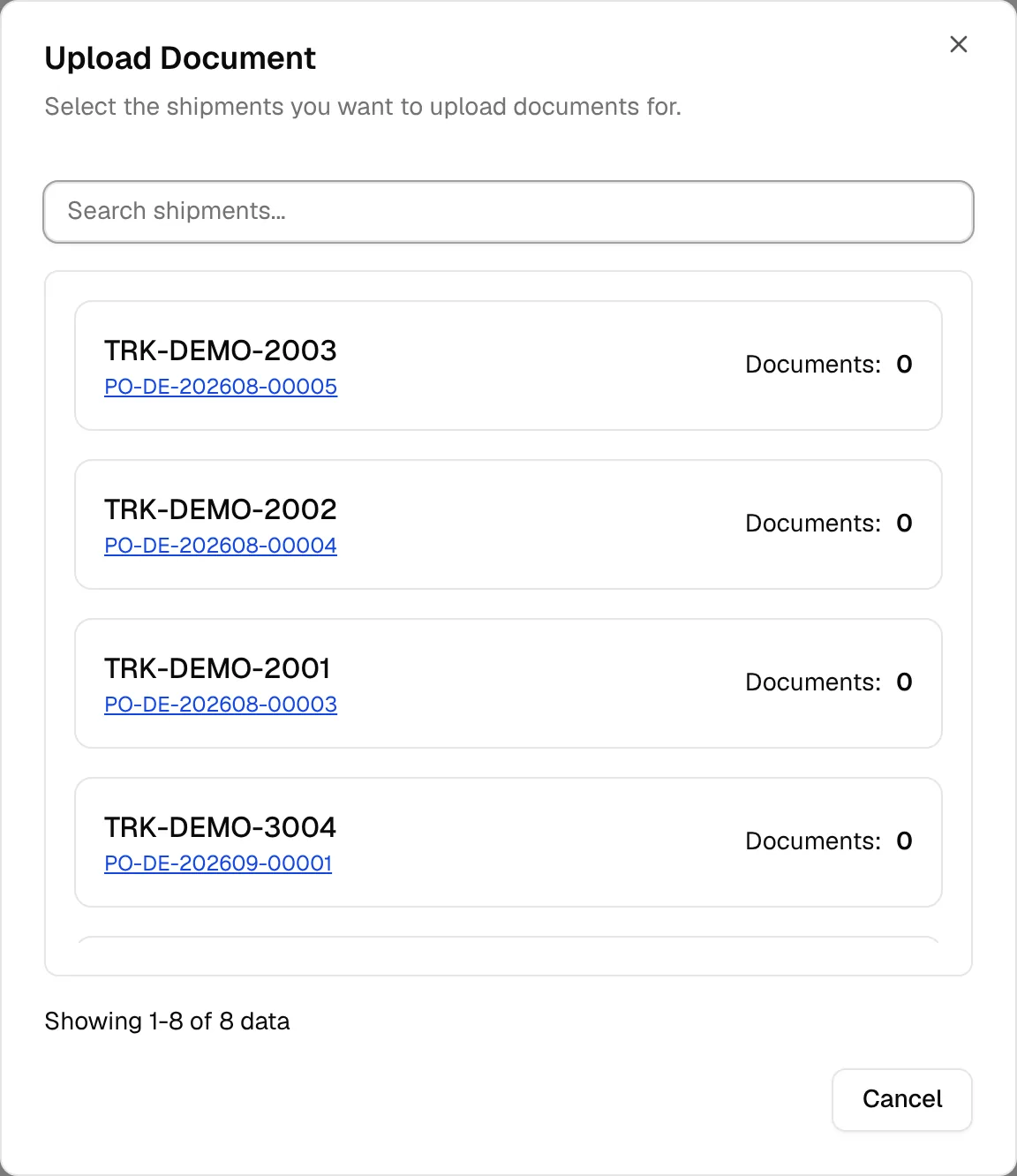
Choose the shipment
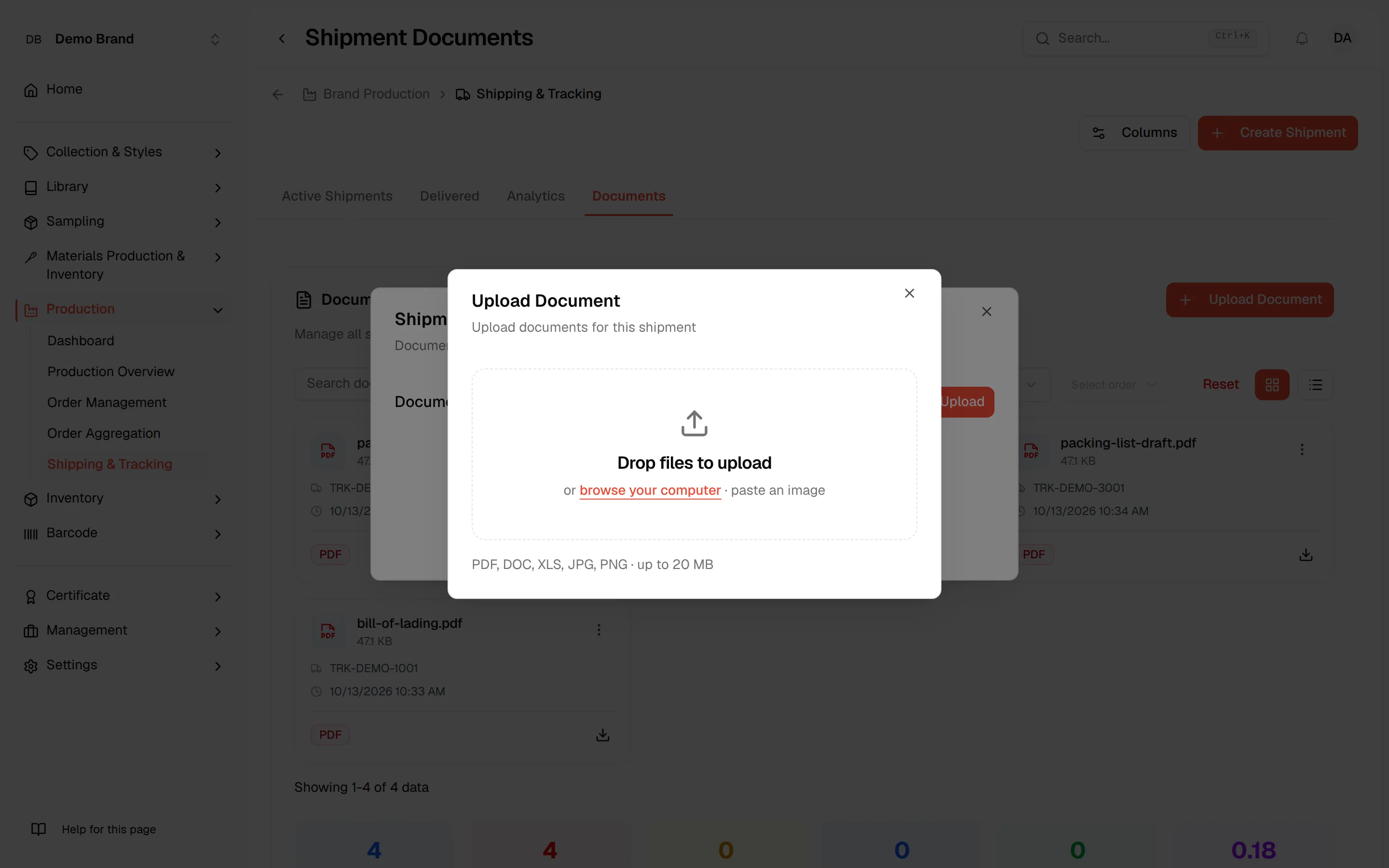
In the Upload Document dialog (Select the shipments you want to upload documents for.), type in Search shipments... if needed and click the shipment. Each shipment shows its tracking number, its production orders and how many Documents it already has.
Click "Upload"
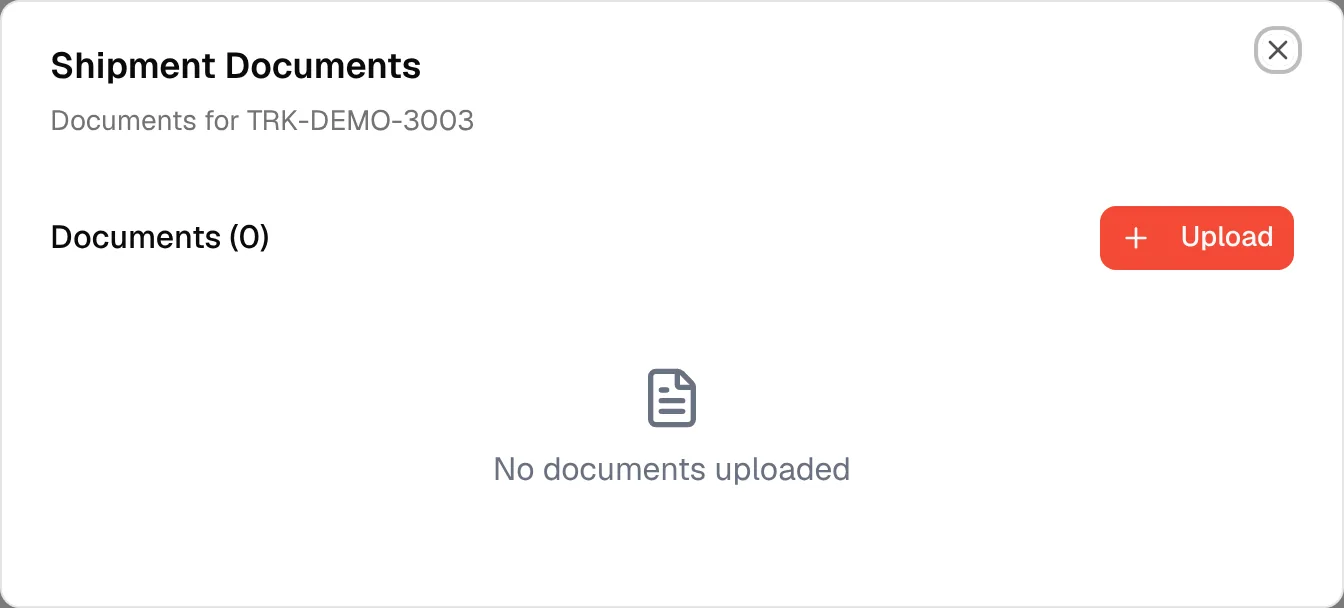
The Shipment Documents dialog opens for that shipment, with the count in Documents (N). Click Upload.
Add the file
Drop the file into the box, or click it to browse. The helper text reads PDF, DOC, XLS, JPG, PNG · up to 20 MB. The file uploads as soon as you add it.
Check the list
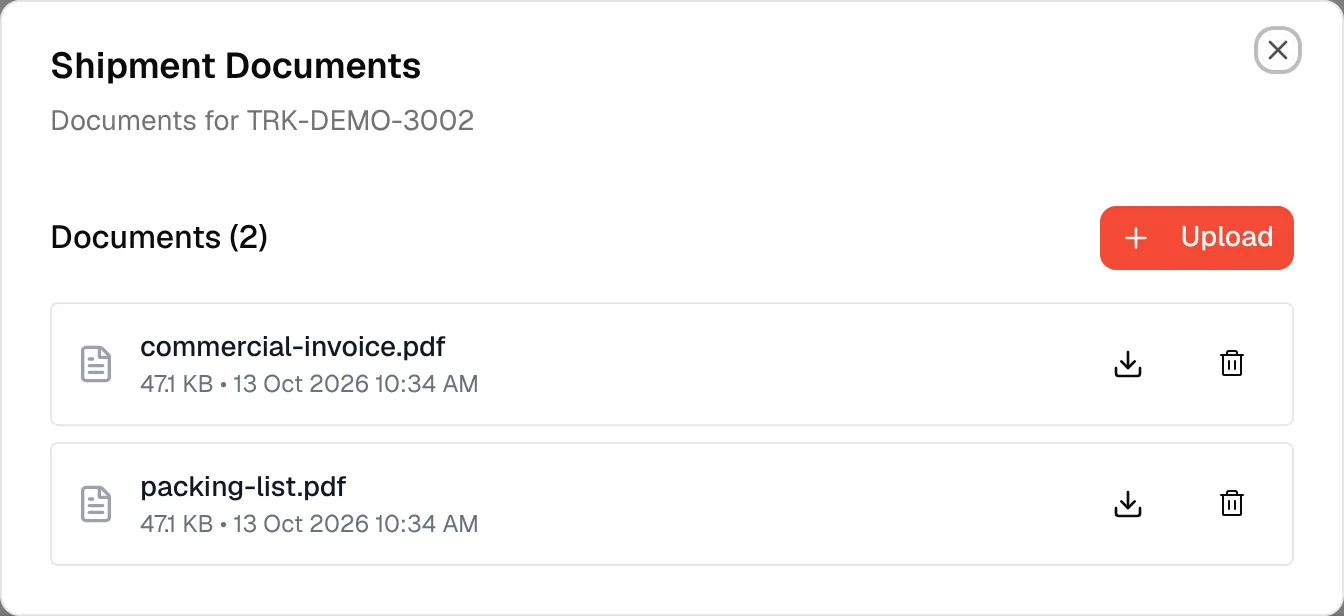
The file appears in the list with its size and upload time. A shipment with no files shows No documents uploaded.
Tip
You can also open a single shipment's documents from the ⋮ menu of a shipment on Active Shipments or Delivered: click Documents.
Download or delete a document
- Click Download in the ⋮ menu (or the download icon in the shipment's documents dialog) to save the file.
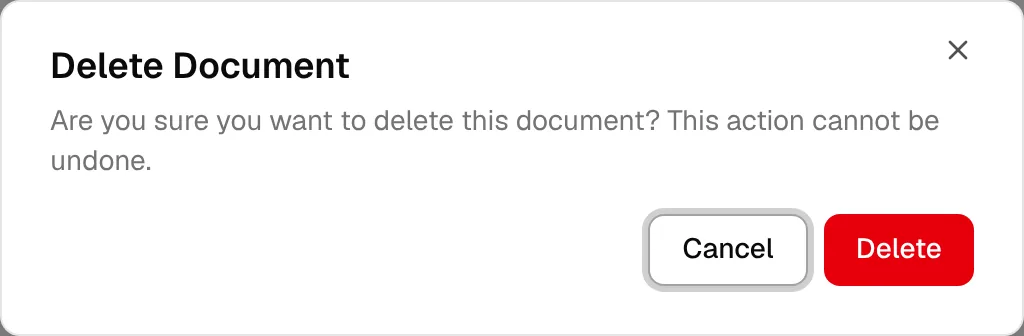
- Click Delete to remove it. In the table view, Delete is only shown if you can delete brand production. The confirmation reads Are you sure you want to delete this document? This action cannot be undone.
Warning
Deleting a document cannot be undone.
Summary
When there are documents, a summary under the list shows the Total Documents, PDF Files, Images, Word Docs, Excel Files and MB Total Size.