
Step 13 of 13 in From idea to a production-ready tech pack
Print and share a tech pack
Open the print view of a tech pack or measurement sheet, choose the page layout, and share an order sheet with a supplier through a passkey link.
Under review. This page is published while we check it against the live app, so some details may have changed.
You can print a tech pack or a measurement sheet from the platform, and you can send a supplier a link to a sample order sheet that includes the tech pack. This page covers the print views and the shared link.
Collection & StylesStyles(select a style)Tech PackOverview
Permission: VIEW_TECH_PACK
Print a tech pack
The print view is available for tech packs whose Format is PDF or PDF and Excel.
Open the three dots menu
On the Overview tab, click the three dots at the end of the tech pack row.
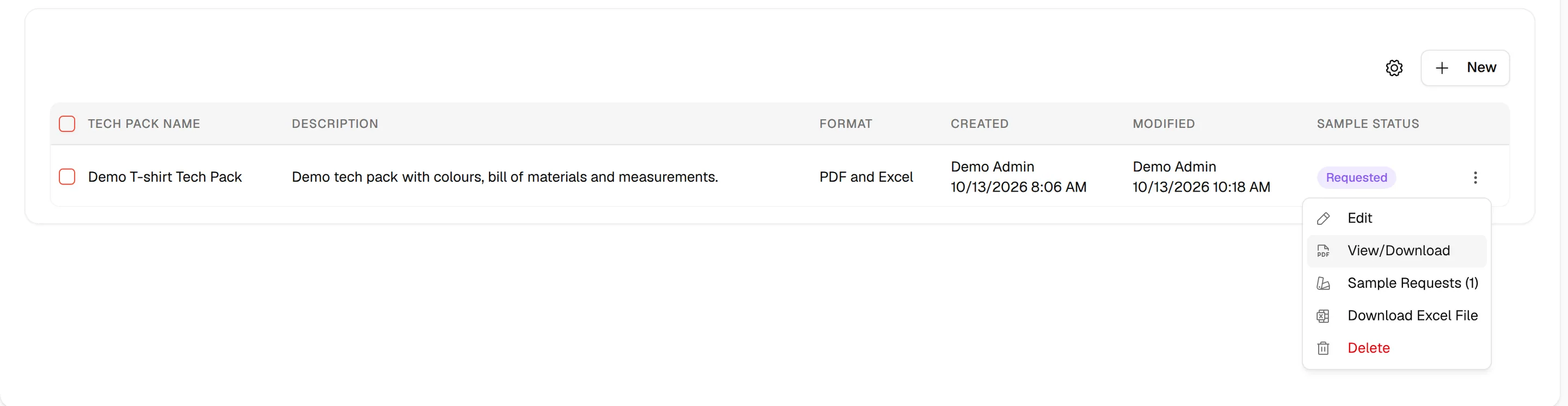
Click "View/Download"
Click View/Download. The print view opens in a new tab.
Choose the layout
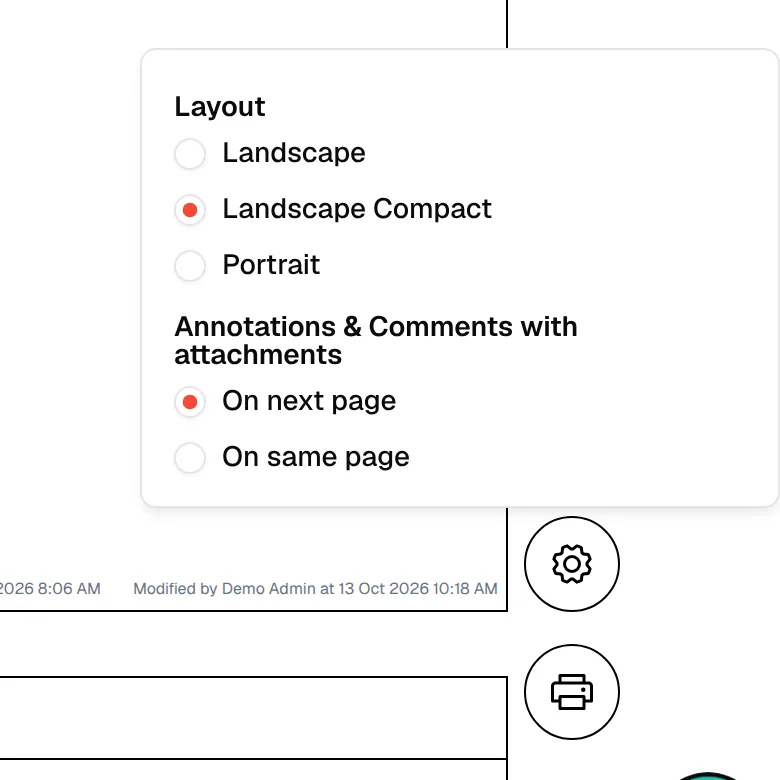
Click the gear icon at the bottom right of the page. Under Layout, select Landscape, Landscape Compact or Portrait.
Choose where comments go
Under Annotations & Comments with attachments, select On next page or On same page.
Click the print icon
Click the print icon below the gear. The icon is disabled and shows Preparing pages… until all pages are ready. Then use your browser print window and select Save as PDF to download the file.
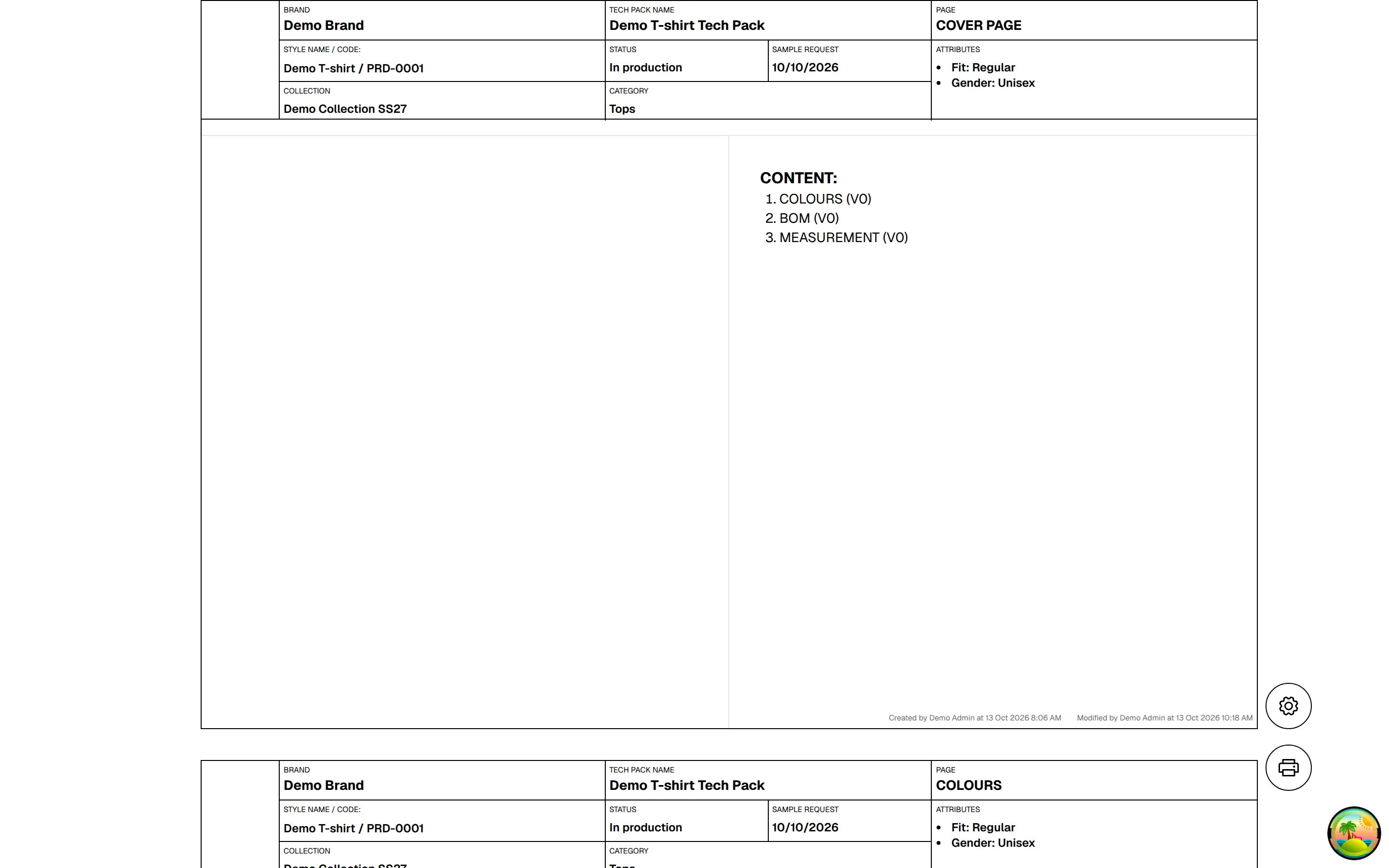
The print view shows the brand, the tech pack name, the style name and code, status, collection, category and attributes at the top of each page, followed by the sections you chose when you created the tech pack. Which emails, dates and comments appear follows the Annotation & Comment Settings on the overview.
Note
If the page shows Unable to load required data for print view., close the tab and open View/Download again from the overview.
Print the measurement sheet
Collection & StylesStyles(select a style)Tech PackMeasurements
On the Measurements tab, select the Version you need, click Export, then click PDF. The measurement print view opens in a new tab with the same gear icon: under Layout, select Landscape, Landscape Compact or Portrait, then click the print icon. See Tech pack measurements.
Share an order sheet with a supplier
A shared link shows a supplier the sample order sheet. If the sample is linked to a tech pack, the same page also includes the tech pack. The link is created when you send the sample request.
Open the sample
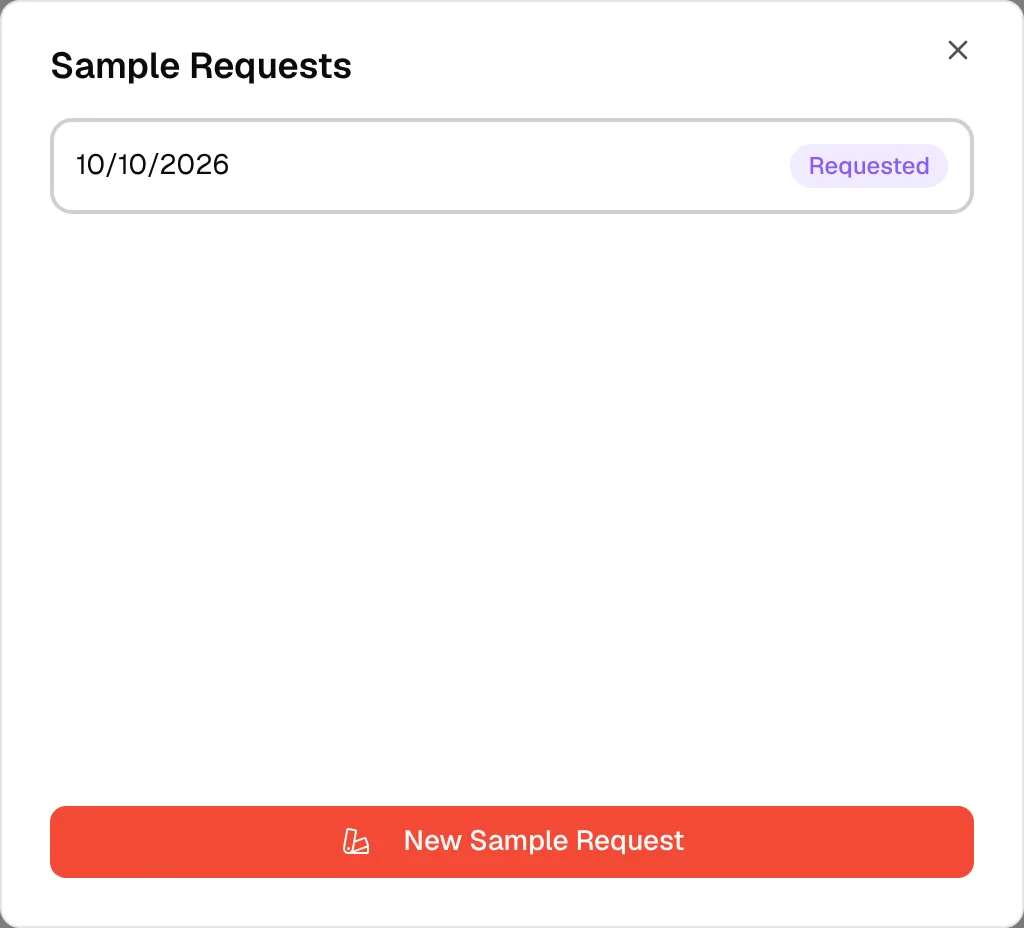
On the Overview tab, open the three dots menu of the tech pack and click Sample Requests. Click a request to see its Sample Details. You can also work with samples in Sampling.
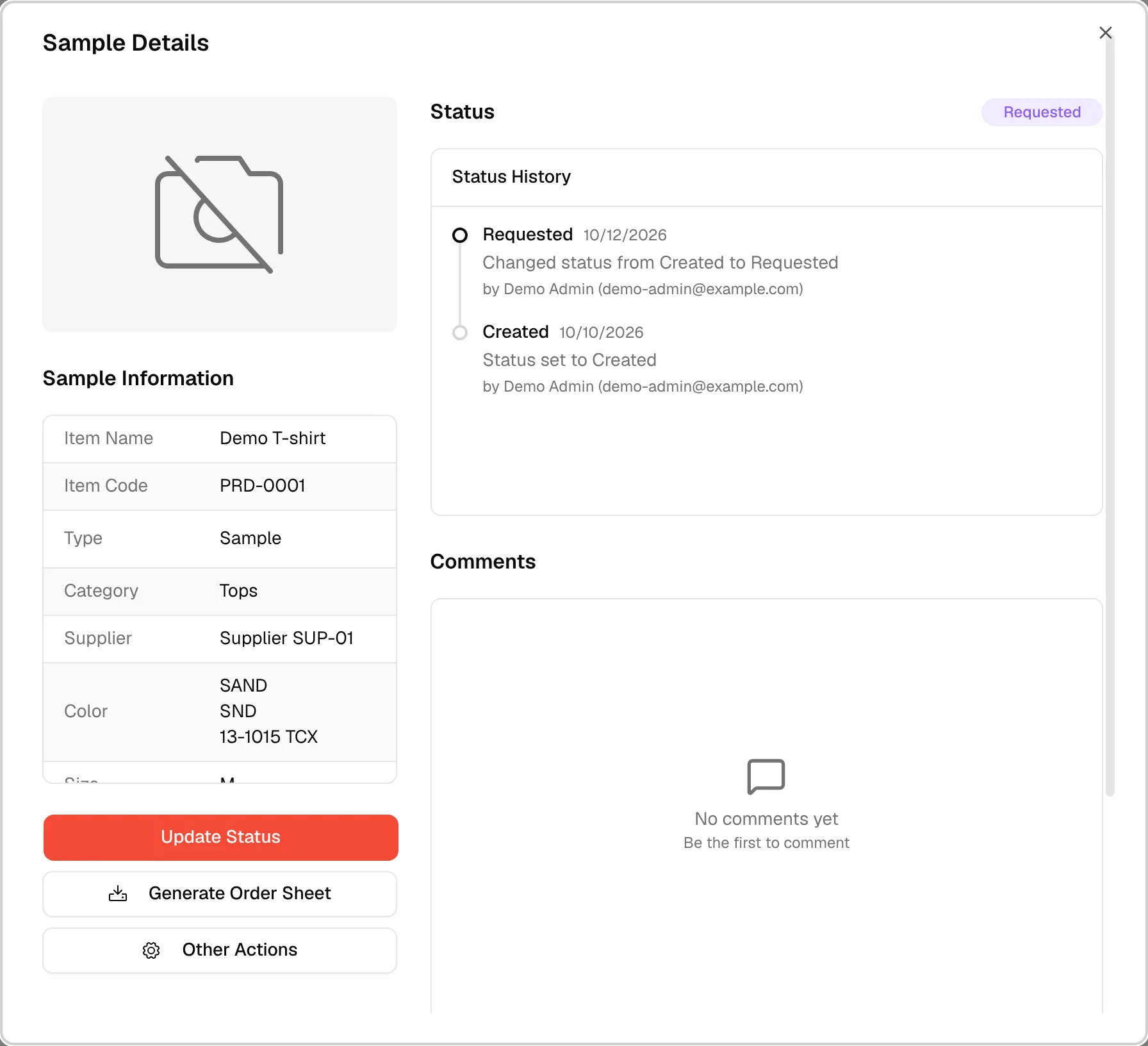
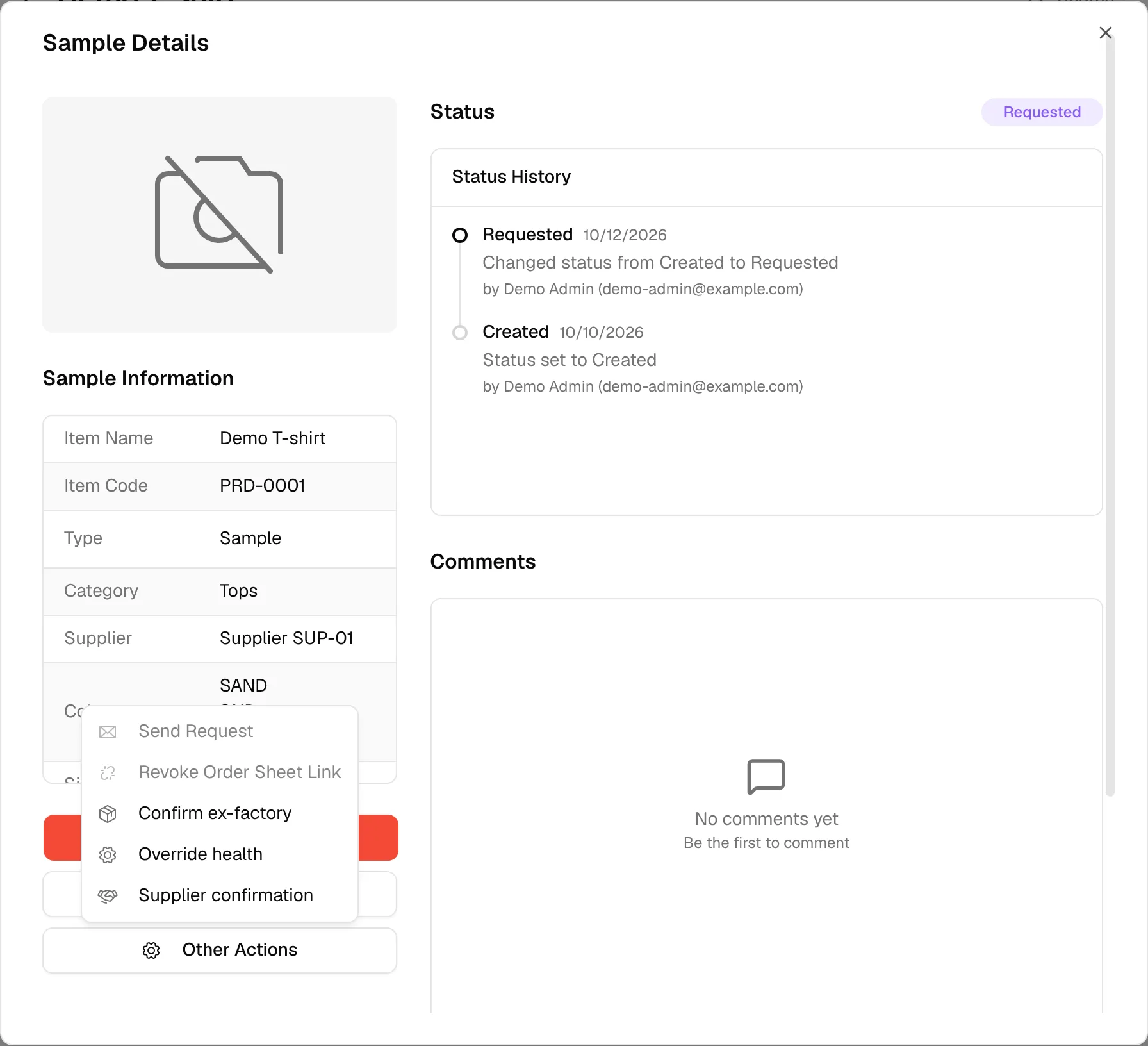
Click "Other Actions → Send Request"
Send Request is only available while the sample status is Created. For any other status it is greyed out, as in this sample.
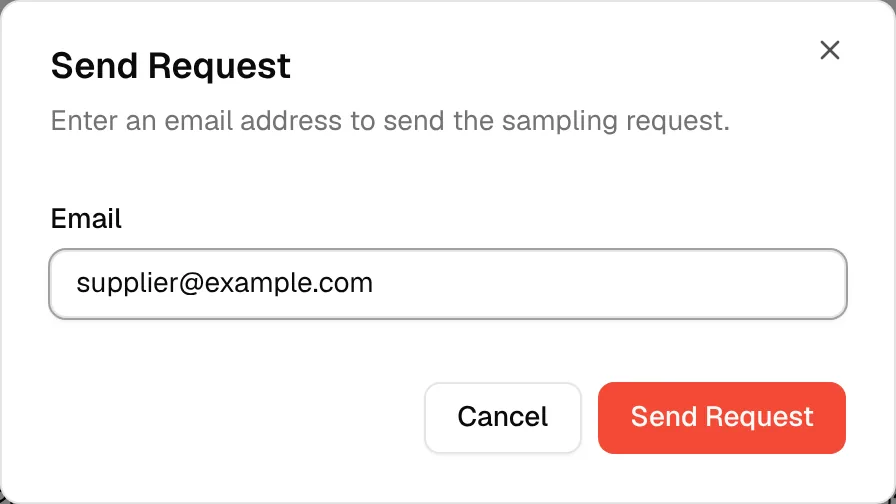
Select a contact or enter an email
In Send Request, select a contact or type an email address in Email, then click Send Request.
The supplier receives an email with a link and a passkey. Sending the request again reuses the existing link while it is active.
What the recipient sees
Open the link
The page View Order Sheet asks for the passkey from the email.
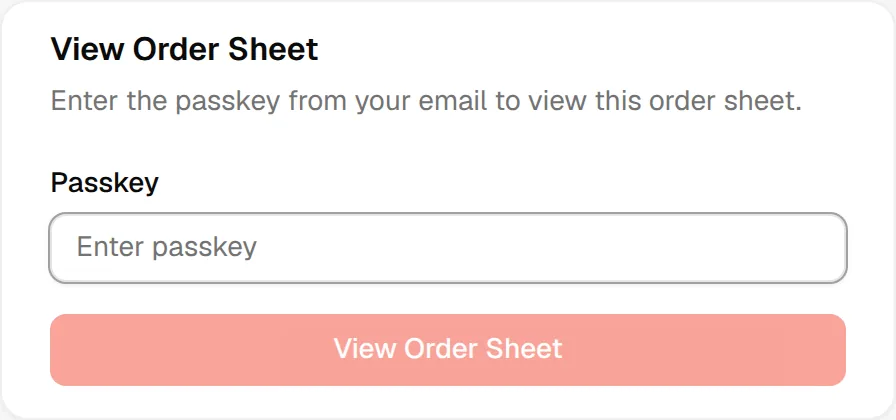
Enter the passkey and click "View Order Sheet"
If the passkey is wrong, the page shows Invalid passkey. Please check the passkey from your email and try again.
The recipient sees the Sample order sheet with the brand, supplier, request details, status history and comments marked for the order sheet. If the sample is linked to a measurement or a tech pack, those pages follow. The gear icon offers Order sheet layout (Portrait or Landscape) and Tech pack layout (Landscape compact, Landscape or Portrait), and the print icon prints the page. The recipient does not need a Vestis account.
Revoke the link
In Sample Details, click Other Actions → Revoke Order Sheet Link, then confirm with Revoke Link. Anyone who still has the link and passkey loses access straight away. Sending the request again creates a new link. If someone opens a revoked link, the page shows Your session has expired or this link has been revoked. Please re-enter the passkey.
Warning
Revoke Order Sheet Link is greyed out when the sample has no active link.