
Measurement settings
Choose whether the Ref column and pin labels on measurement images are numbered alphabetically or numerically across your brand.
Measurement Settings controls how the Ref column and the pin labels on measurement images are numbered. The choice applies to every measurement card, tech pack, export and PDF of your brand. Existing cards are not changed, only how their refs are shown.
SettingsCollection & StyleMeasurement Settings
Permission: VIEW_STYLE,UPDATE_BRAND
Reference format
| Option | Result |
|---|---|
| Alphabetical | A, B, C … Z, AA, AB |
| Numeric | 1, 2, 3 … 26, 27, 28 |
Change the reference format
Open Measurement Settings
From the left sidebar, click Settings, then Collection & Style, then Measurement Settings.
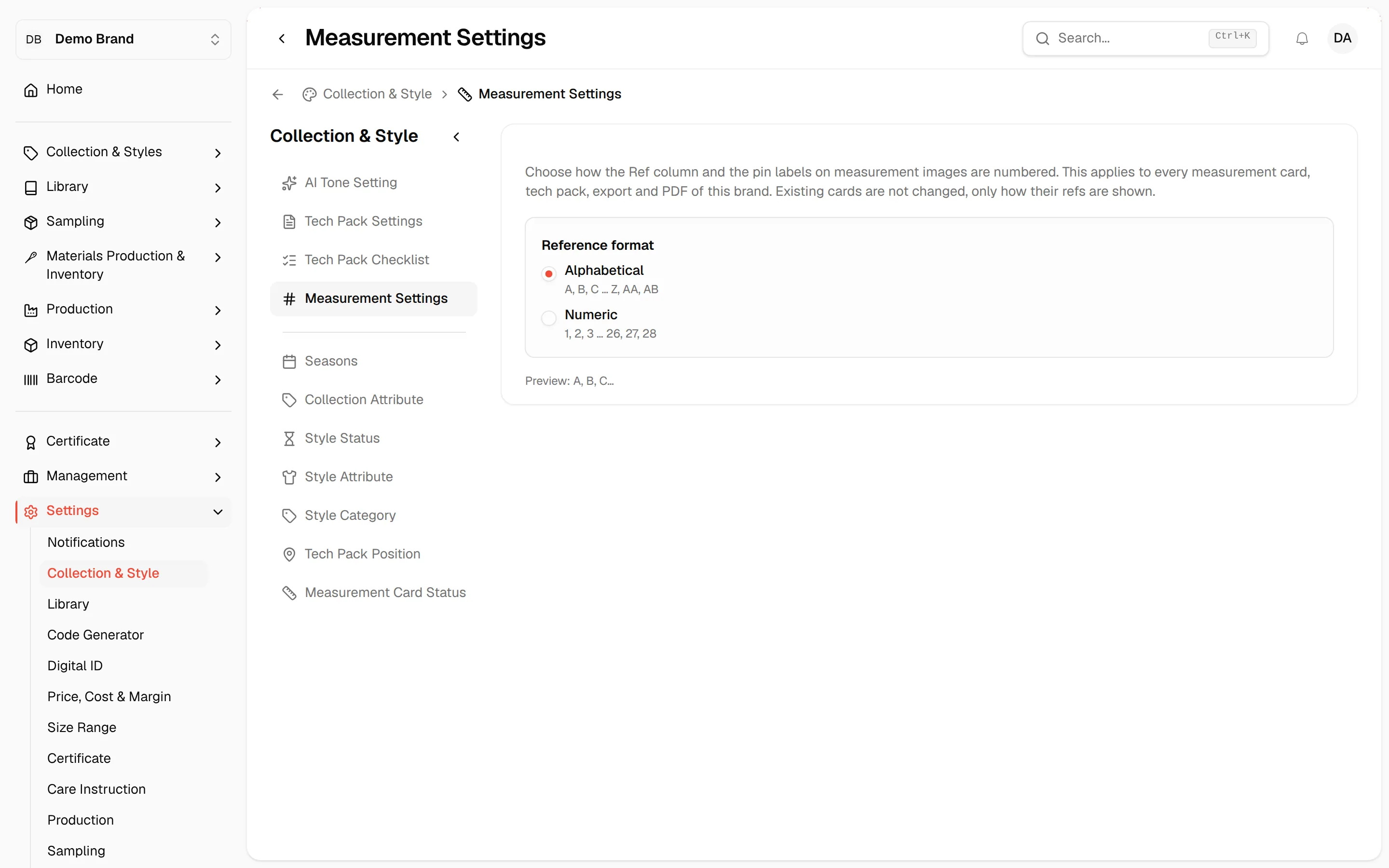
Select a format
Under Reference format, select Alphabetical or Numeric. The choice saves as soon as you select it and shows Measurement settings saved.
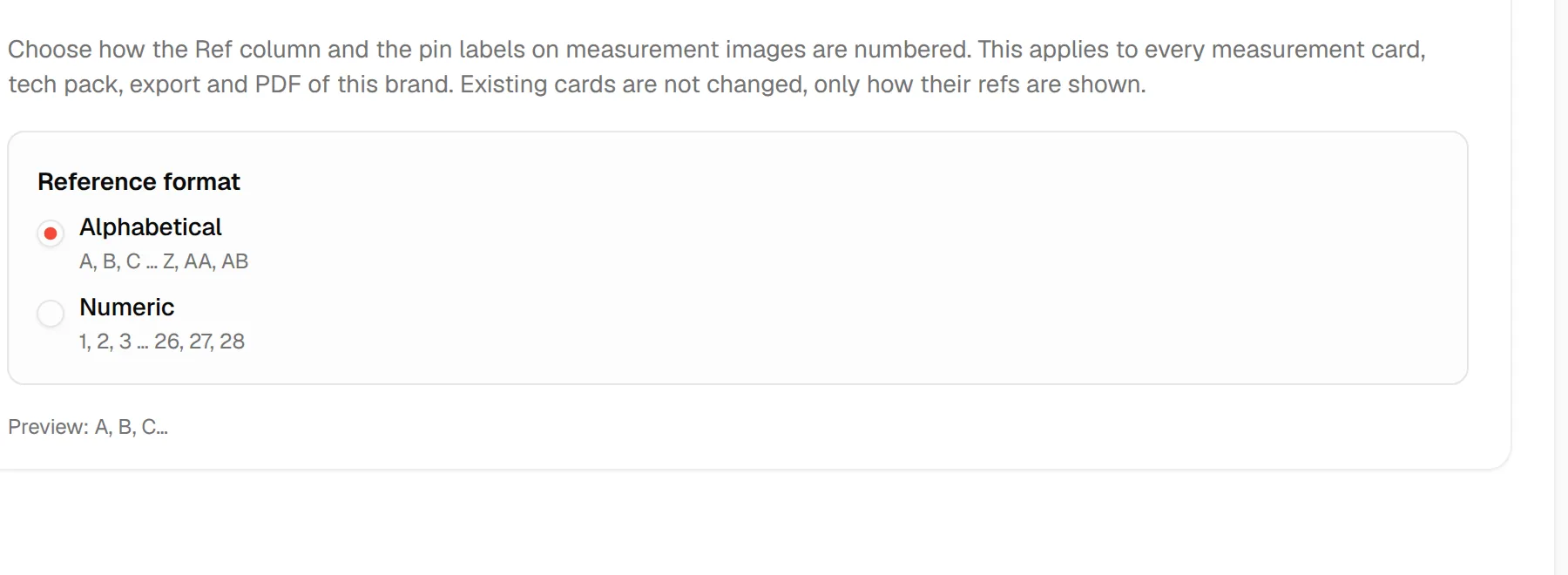
The Preview line under the options shows how the first refs will look, for example A, B, C.
Note
The options only appear if your role can update the brand.