Step 11 of 13 in Place and track a production order
Track active shipments
Follow shipments that are being prepared or in transit in a table or kanban board, filter and sort them, open their details, edit them and track the package.
The Active Shipments tab of Shipping & Tracking shows every shipment that is still being prepared, in transit or cancelled. Use it to see where each shipment is, open its details, update it, track the package and manage its documents.
ProductionShipping & TrackingActive Shipments
Permission: VIEW_BRAND_PRODUCTION
Before you start
- Creating a shipment, choosing the table columns and editing a shipment are for people who can update brand production. Deleting a shipment needs the permission to delete brand production.
- Shipments that are delivered move to the Delivered tab. See Delivered shipments.
Open the shipping page
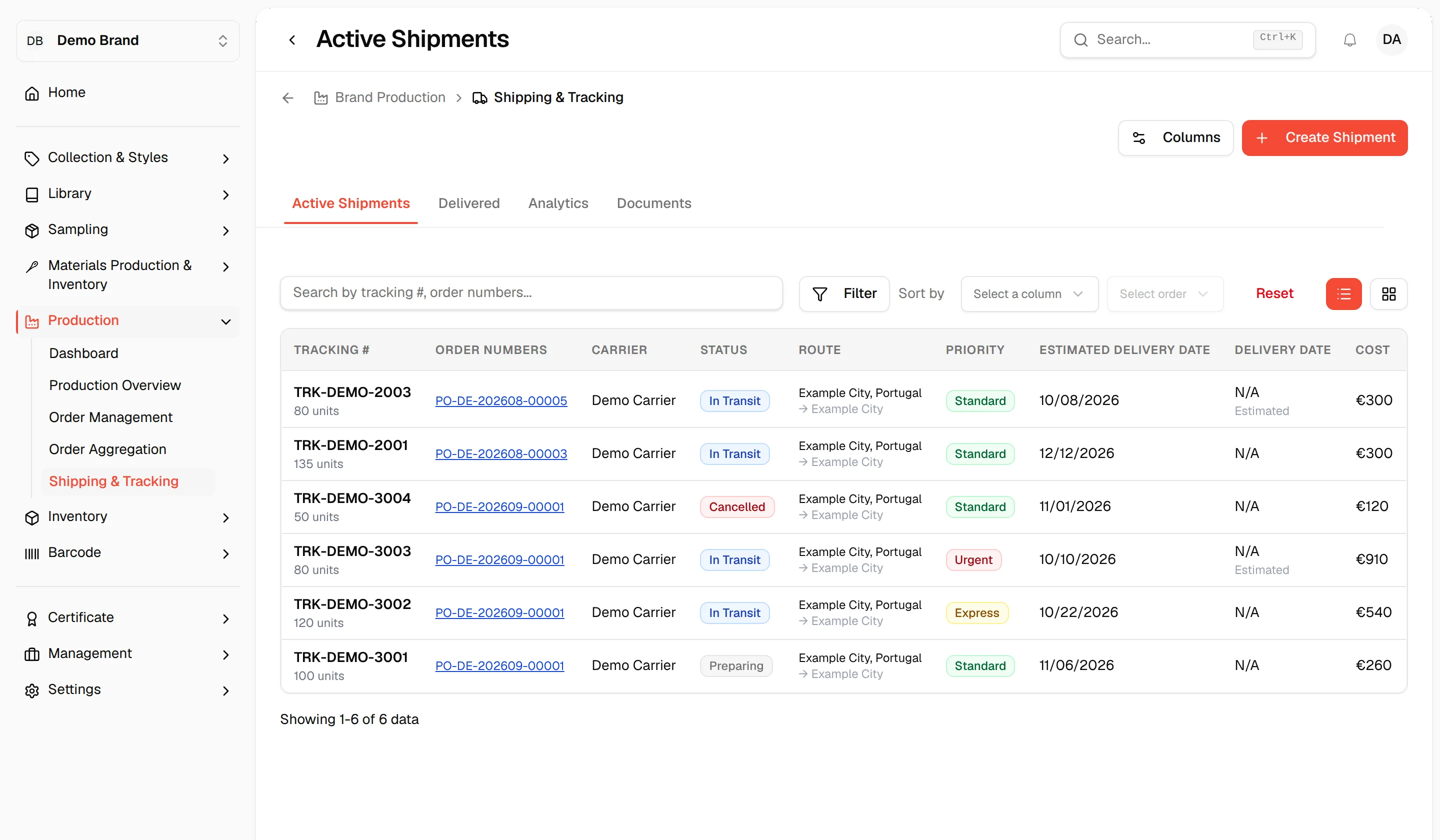
In the left sidebar, expand Production and click Shipping & Tracking. The page has four tabs: Active Shipments, Delivered, Analytics and Documents. Active Shipments is the first one.
Read the table
The table is the default view. Each row is one shipment.
| Column | What it shows |
|---|---|
| Tracking # | The tracking number, with the total units under it. |
| Order Numbers | The production orders on the shipment. |
| Carrier | The carrier name. |
| Status | Preparing, In Transit or Cancelled. |
| Route | The factory's city and country, then the destination city (or Multiple Destinations). |
| Priority | Standard, Express or Urgent. |
| Estimated Delivery Date | The date you expect delivery, or N/A. |
| Delivery Date | The actual delivery date, or N/A. Shows Estimated when the estimated date has passed. |
| Cost | The shipping cost. |
| Actions | The row menu. |
When there are no shipments, the table shows No shipments found and, if you can update brand production, a Create Shipment button.
Choose which columns to show
Click "Columns"
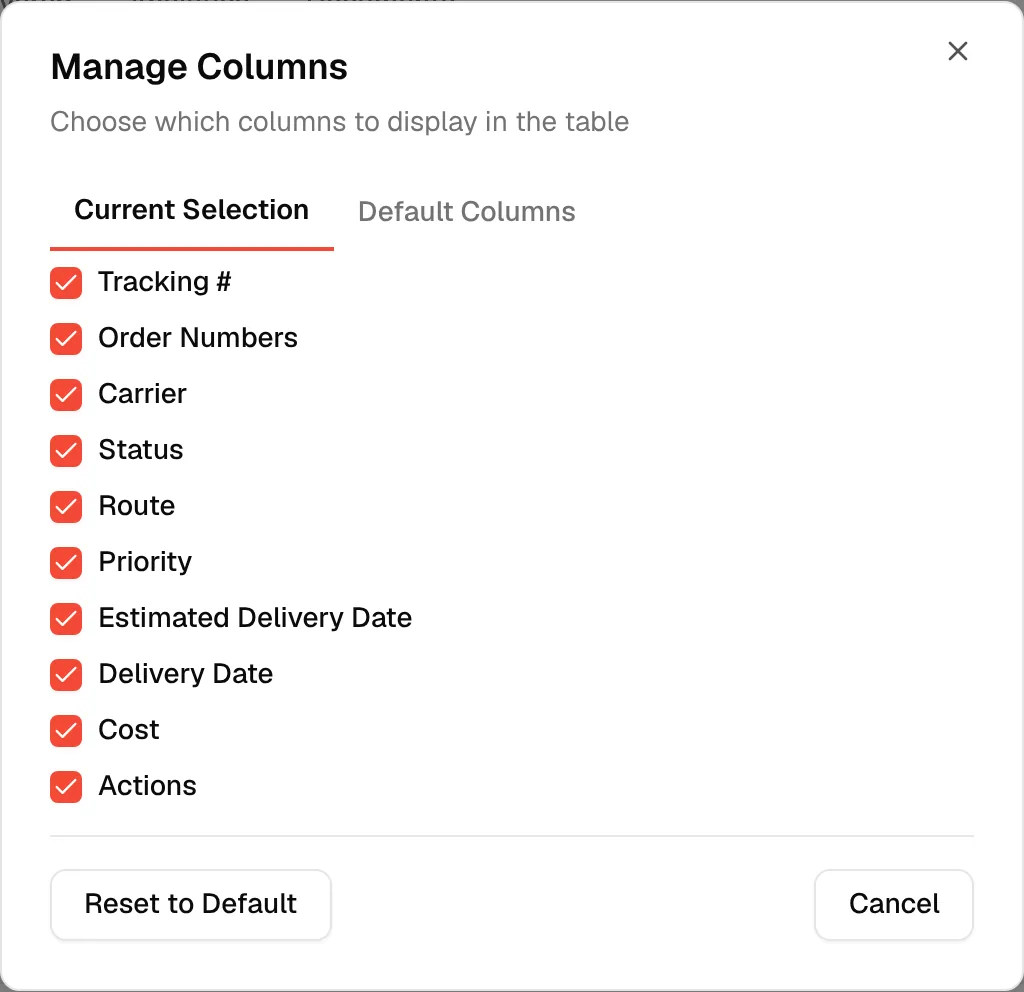
Click the Columns button at the top right of the page.
Check or uncheck columns
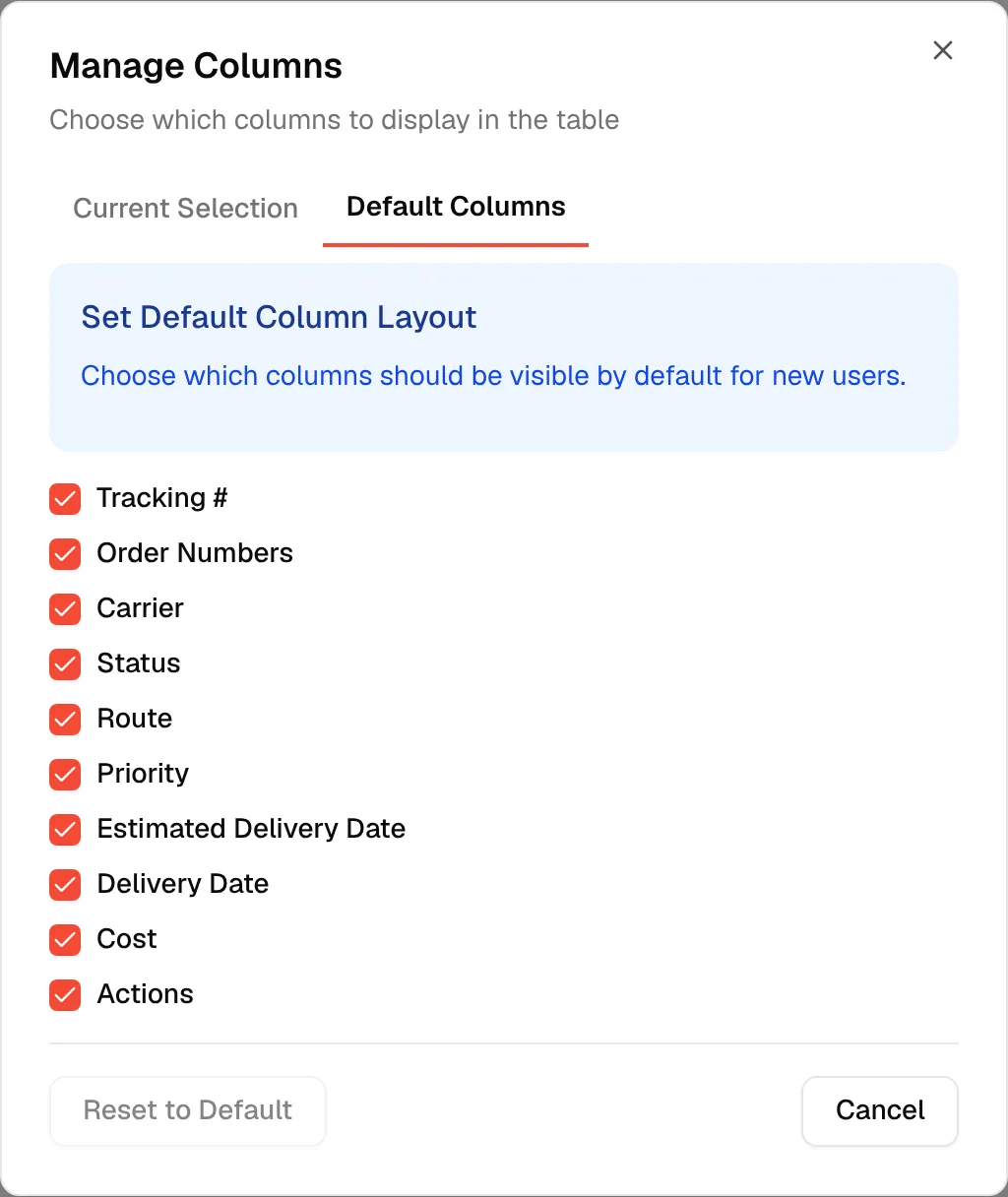
Use the Current Selection tab for your own view, or the Default Columns tab for the layout new users start with. Changes are saved as soon as you click a checkbox. Click Reset to Default to go back to the brand layout.
Search, filter and sort
Search
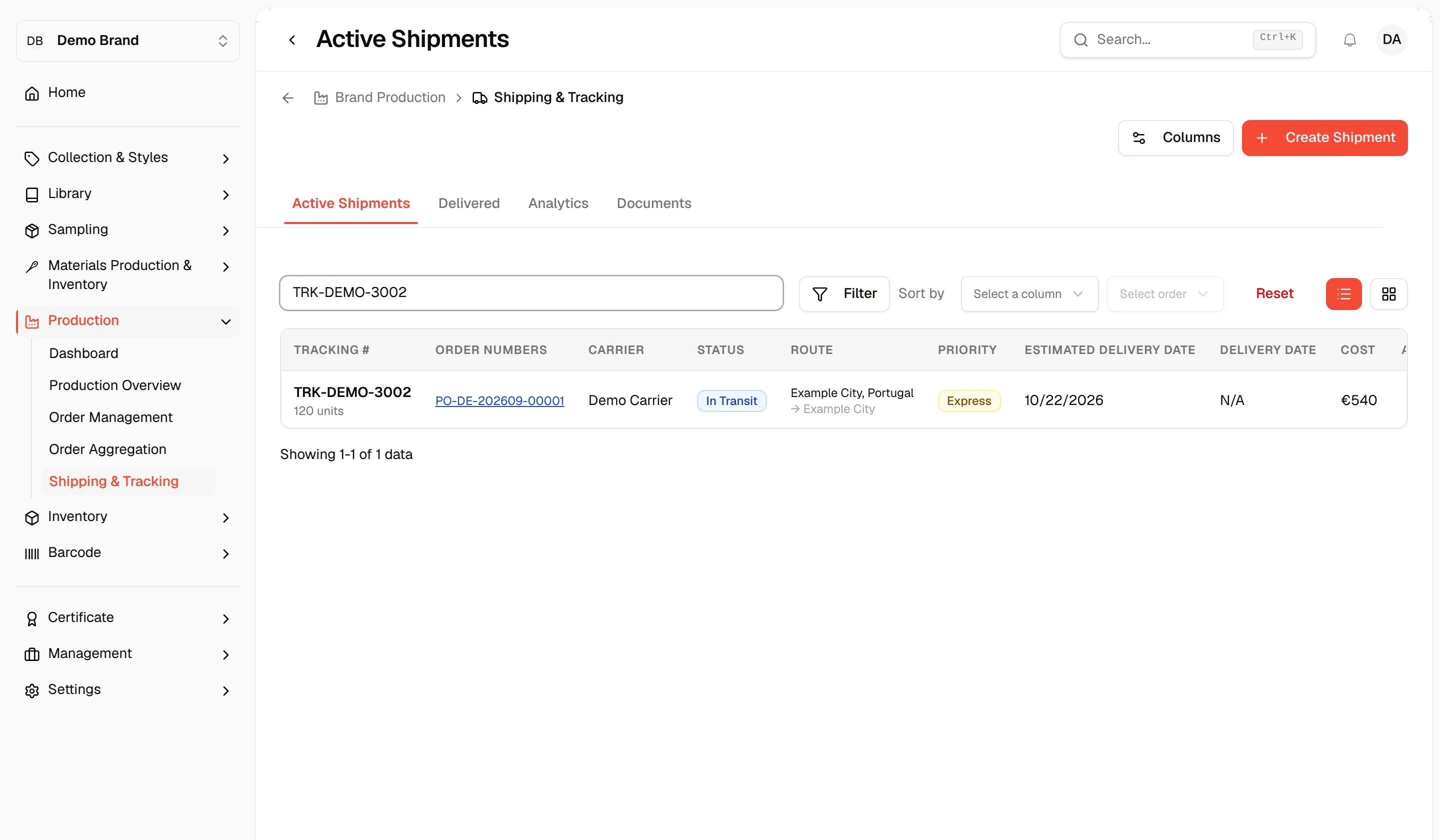
Type in Search by tracking #, order numbers.... The list updates as you type.
Filter
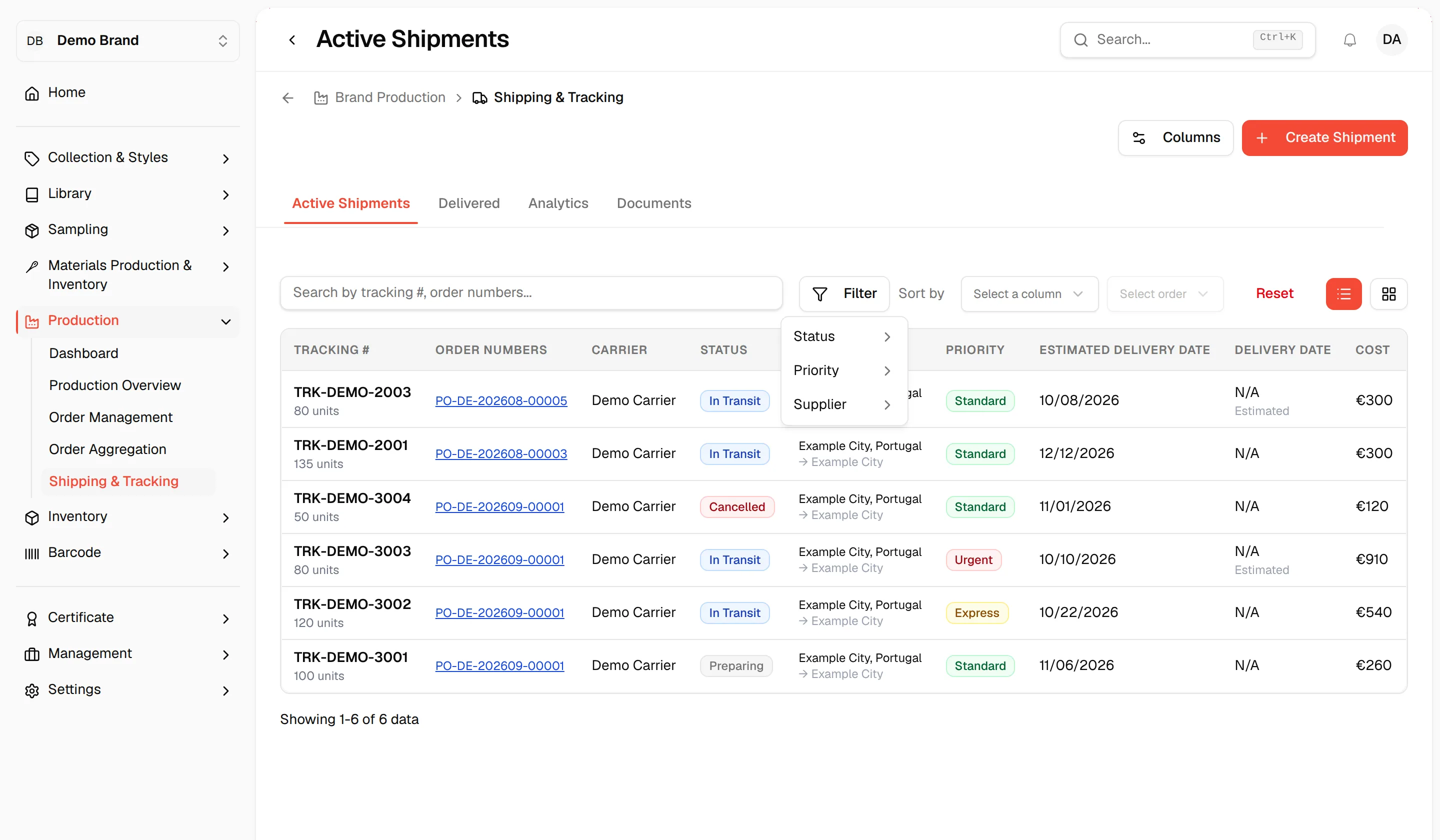
Click Filter and check values for Status (Preparing, In Transit, Cancelled, Overdue), Priority (Standard, Express, Urgent) or Supplier. With no status chosen, the tab shows Preparing, In Transit and Cancelled shipments.
Sort
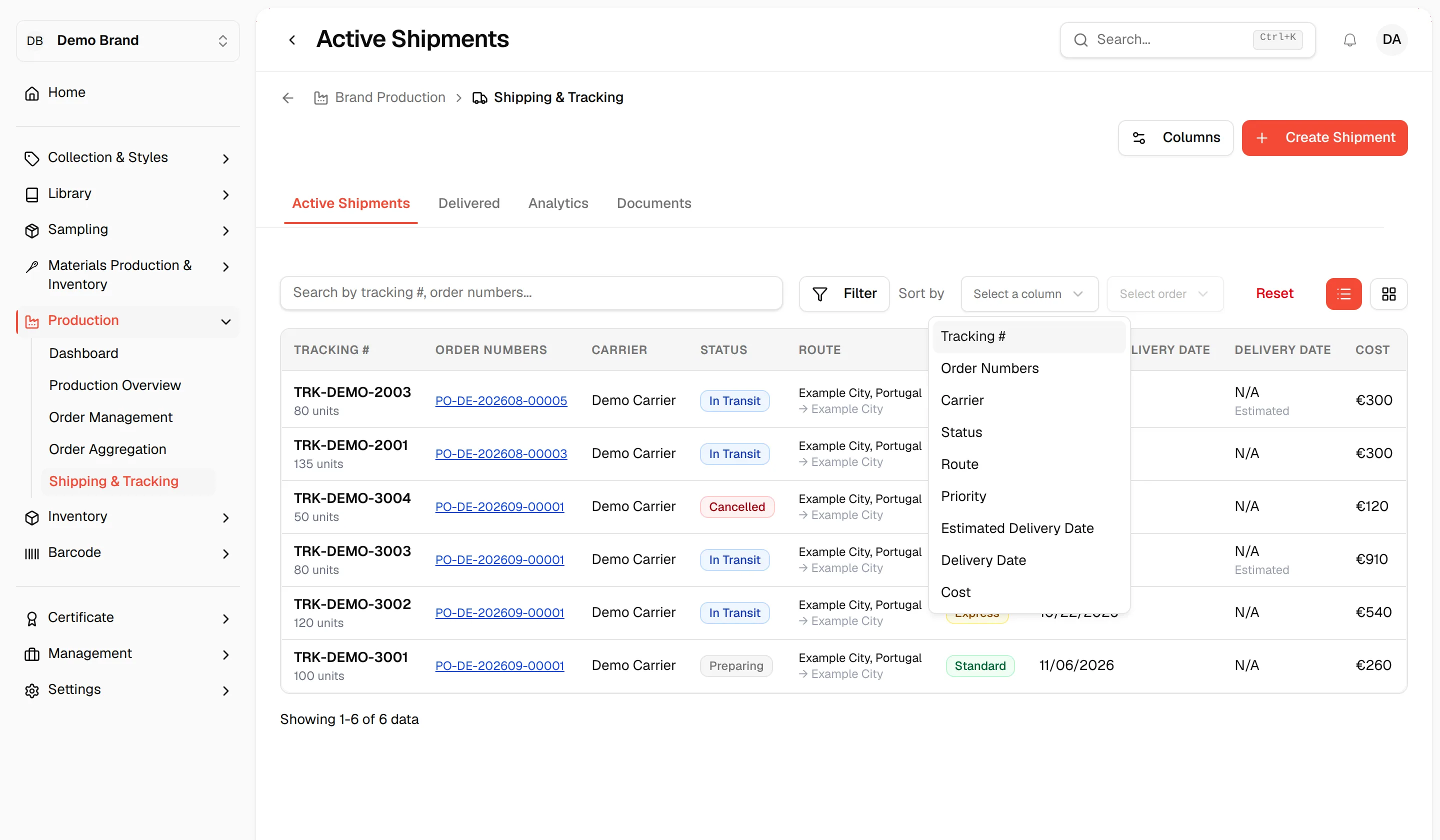
Use the sort controls to choose a column to sort by and Ascending or Descending.
Reset
Click Reset to clear the search, filters and sorting.
Switch to the kanban board
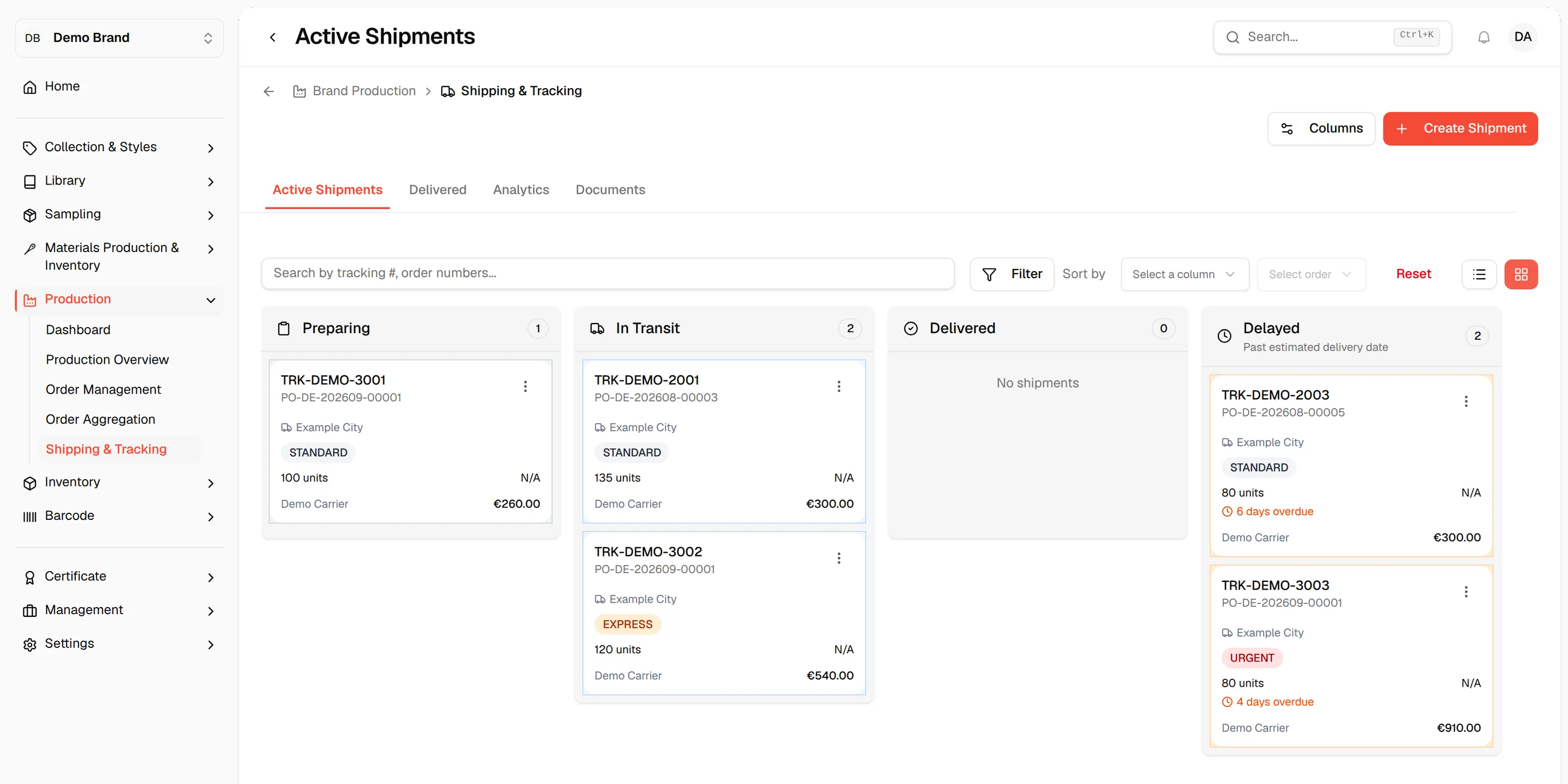
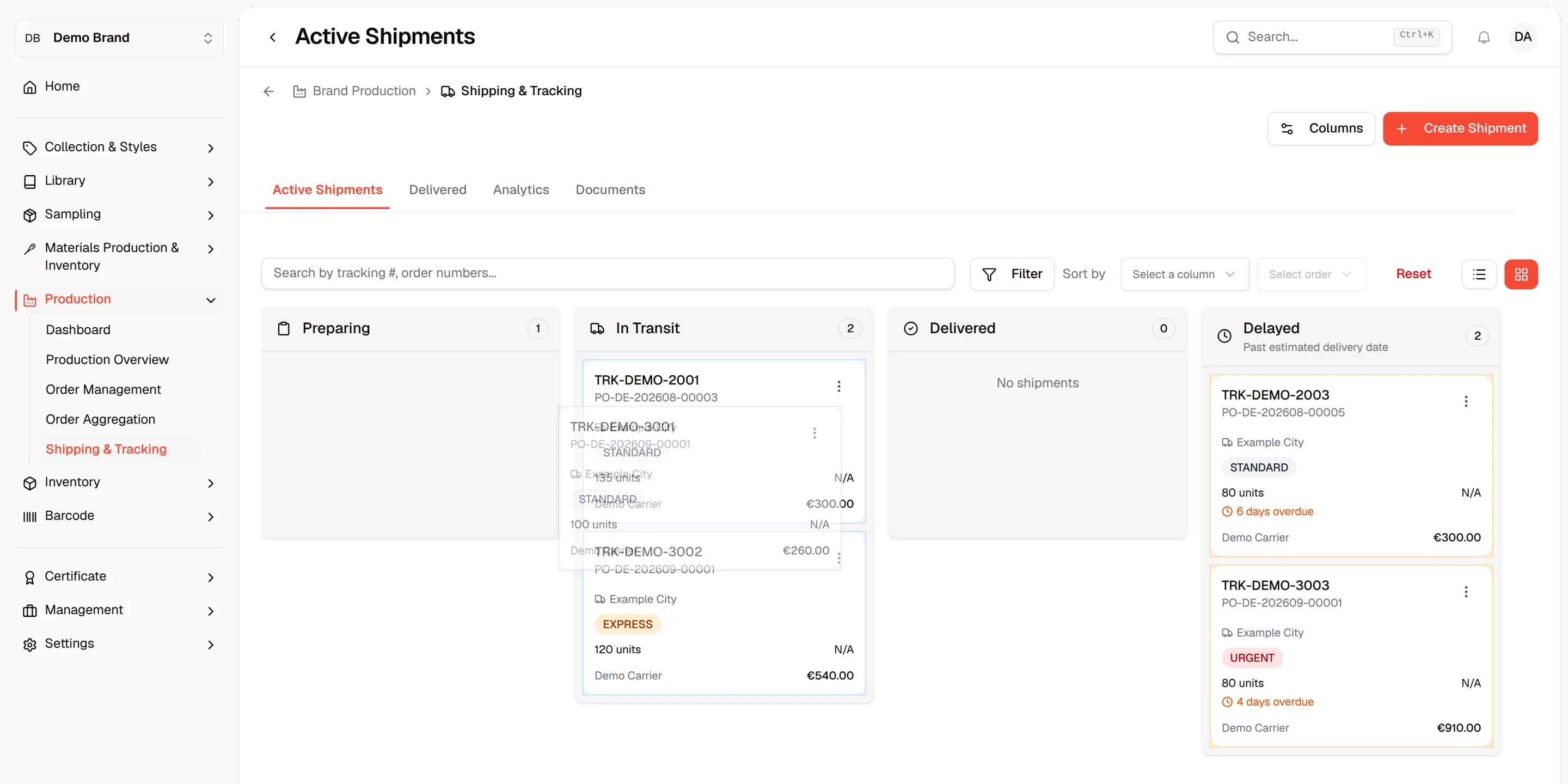
Click the board icon next to the list icon at the top right of the list. Shipments appear as cards in four columns:
- Preparing
- In Transit
- Delivered
- Delayed (Past estimated delivery date)
Each card shows the tracking number, the production orders, the destination, the priority, the units, the delivery date, the carrier and the cost. Cards in Delayed also show how many days they are overdue.
Move a shipment between columns
Drag a card into another column to change its status. If you move a shipment that was overdue or delivered, its estimated delivery date is reset to tomorrow.
Note
Delivered shipments are listed on the Delivered tab, and cancelled shipments have no column on the board. They show in the table view.
Note
You cannot drop a shipment into Delayed. A shipment appears there by itself when its estimated delivery date has passed and it is not delivered. The message Shipment cannot be moved to delayed column appears if you try.
Use the row menu
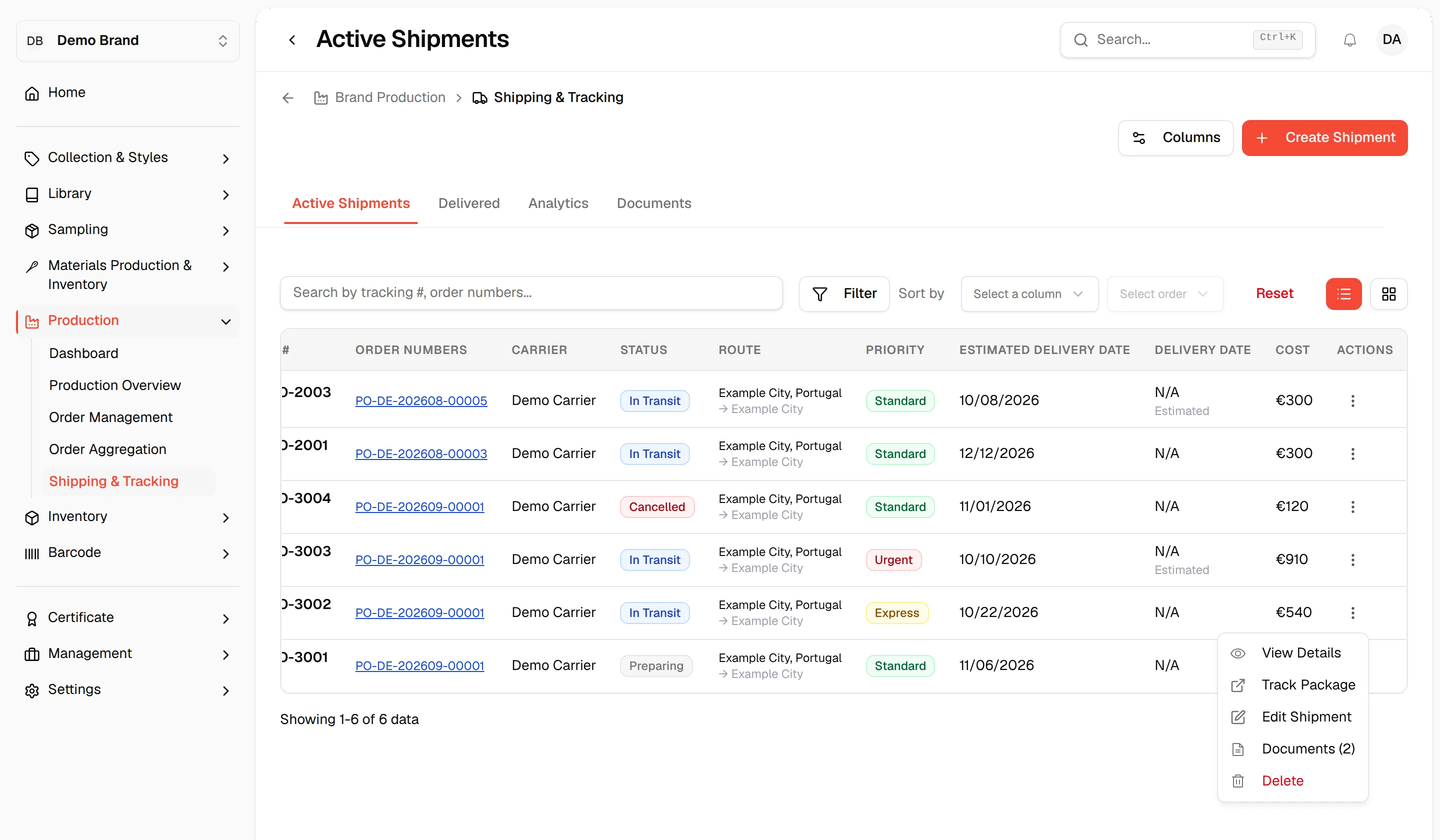
Click the ⋮ icon on a table row or a kanban card:
- View Details: opens the shipment details.
- Track Package: opens the carrier's tracking link in a new tab. It is disabled when the shipment has no tracking URL.
- Edit Shipment: opens the edit form.
- Documents: opens the shipment's documents. The number of files is shown in brackets.
- Delete: only shown if you can delete brand production.
View the details of a shipment
Click "View Details"
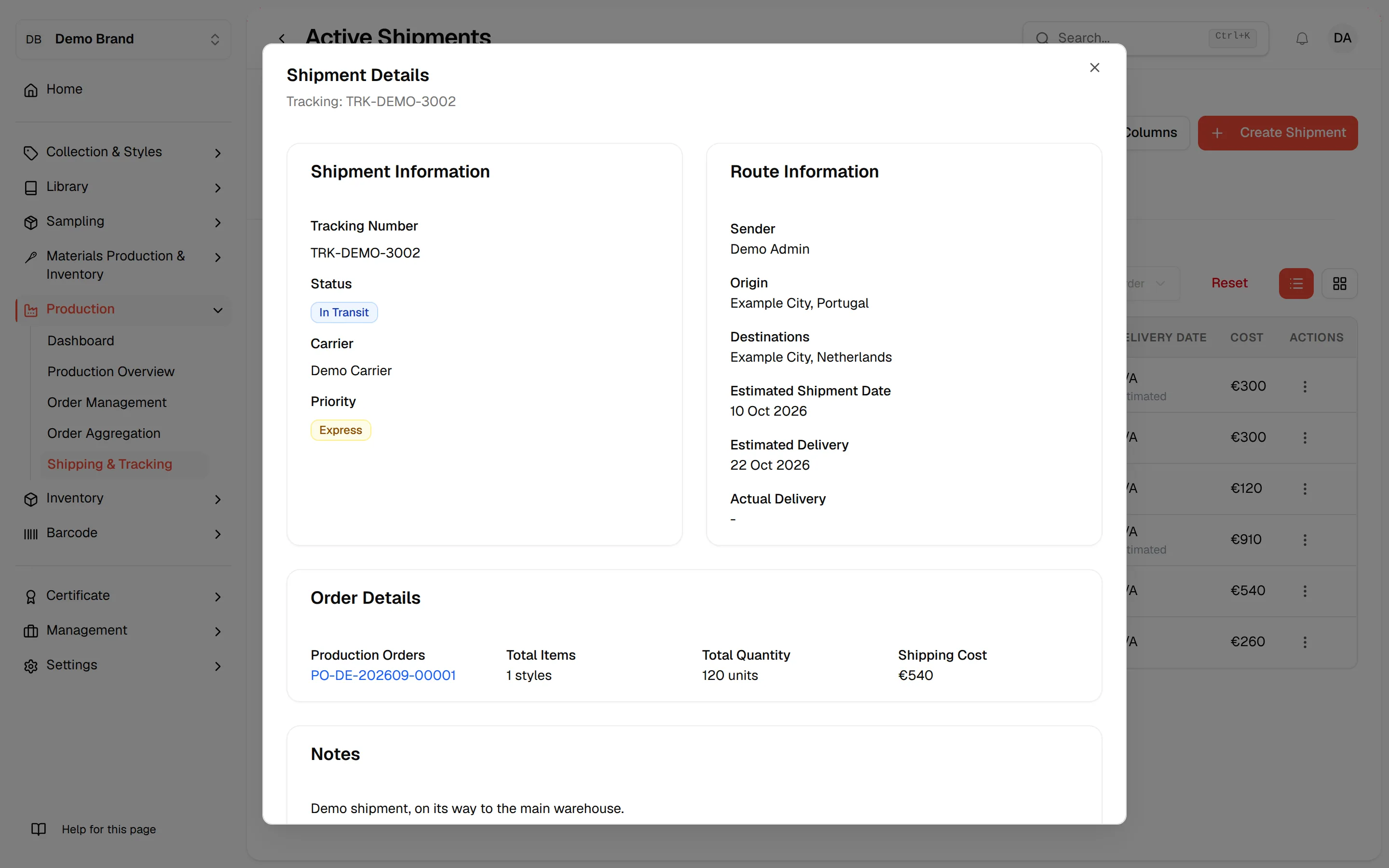
In the row menu, click View Details. The Shipment Details dialog opens with the tracking number.
Read the information
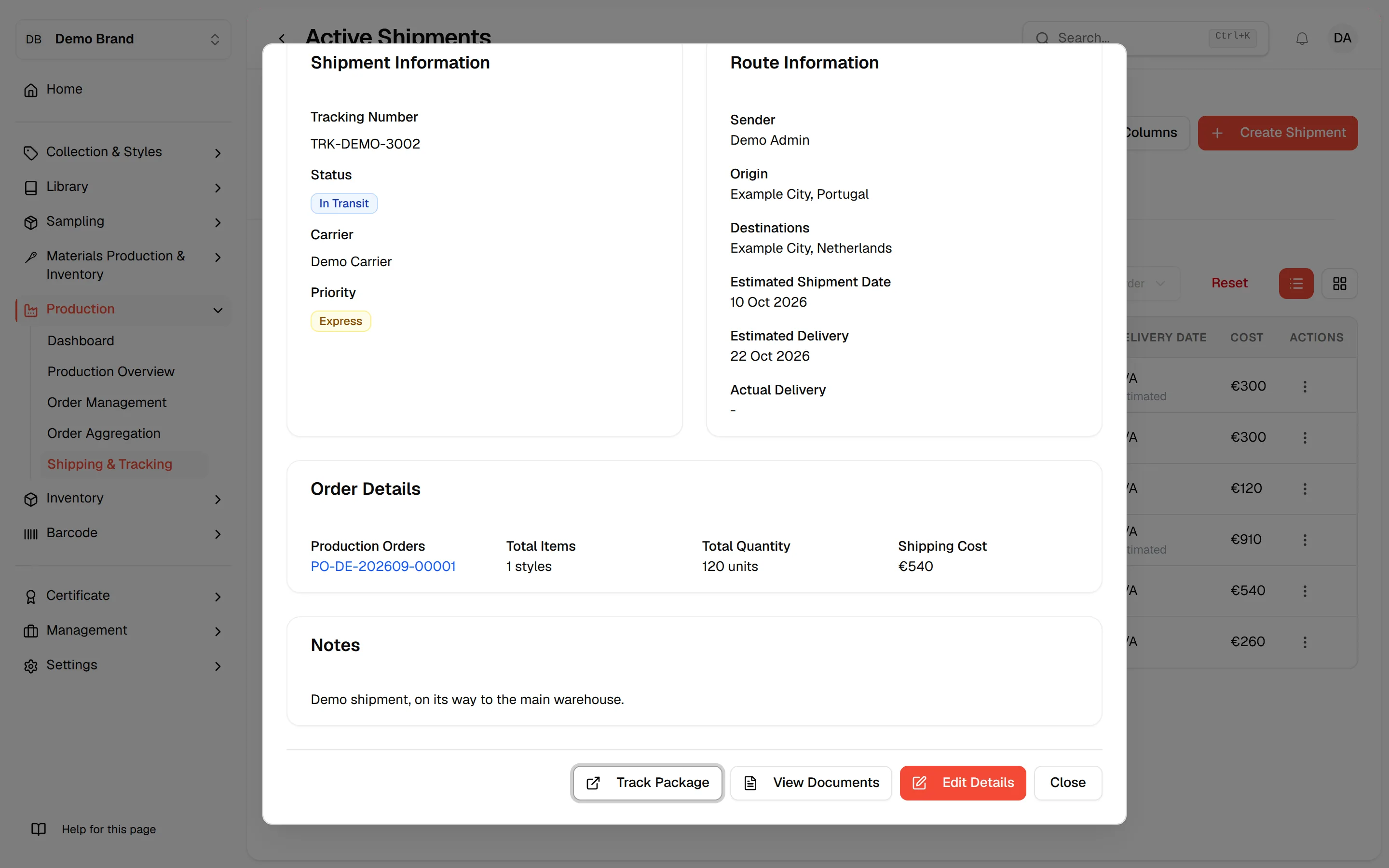
Shipment Information shows the tracking number, status, carrier and priority. Route Information shows the sender, the origin, the destinations, the Estimated Shipment Date, the Estimated Delivery and the Actual Delivery. Order Details lists the production orders, the total items (styles), the total quantity and the shipping cost. Notes appears when the shipment has notes.
Use the buttons
At the bottom, click Track Package, View Documents, Edit Details or Close.
Edit a shipment
Click "Edit Shipment"
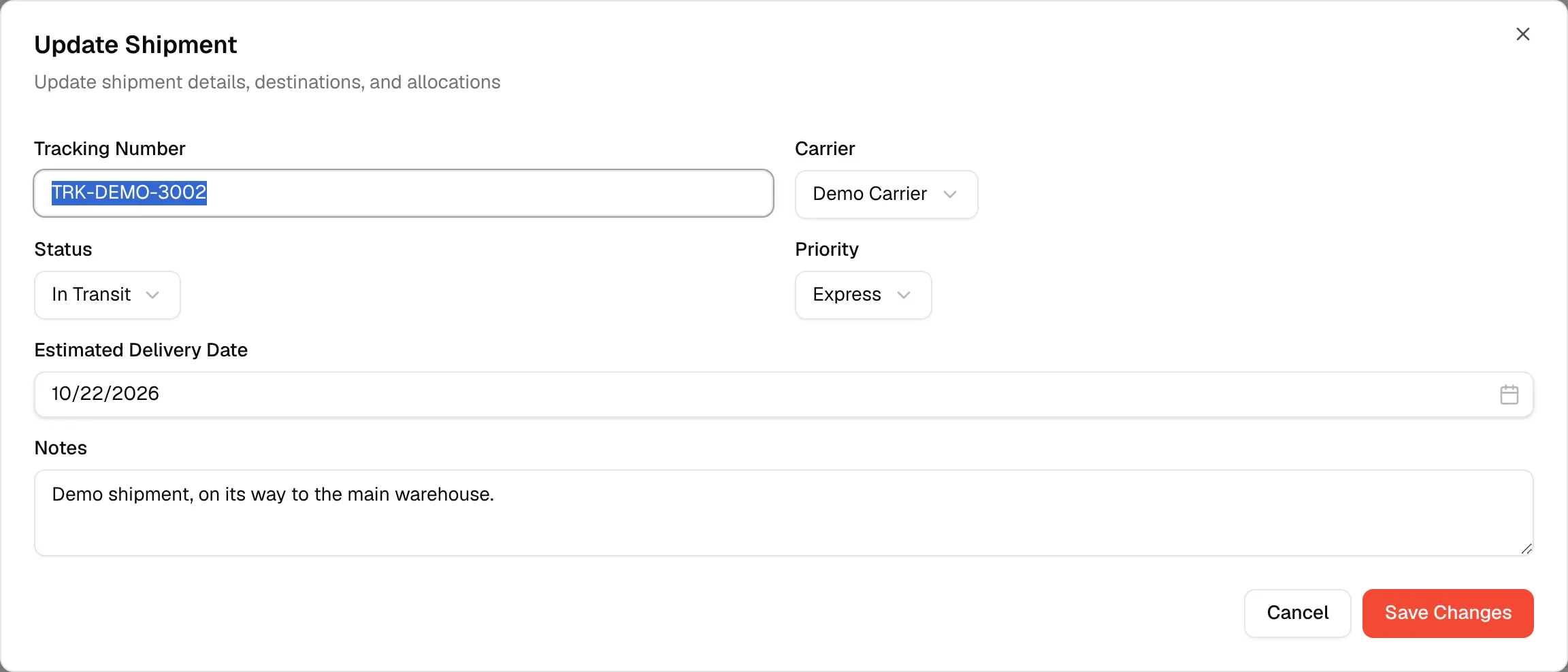
In the row menu, click Edit Shipment. The Update Shipment dialog opens.
Change the fields
You can change Tracking Number, Carrier, Status (Preparing, In Transit, Delivered, Cancelled), Priority, Estimated Delivery Date and Notes.
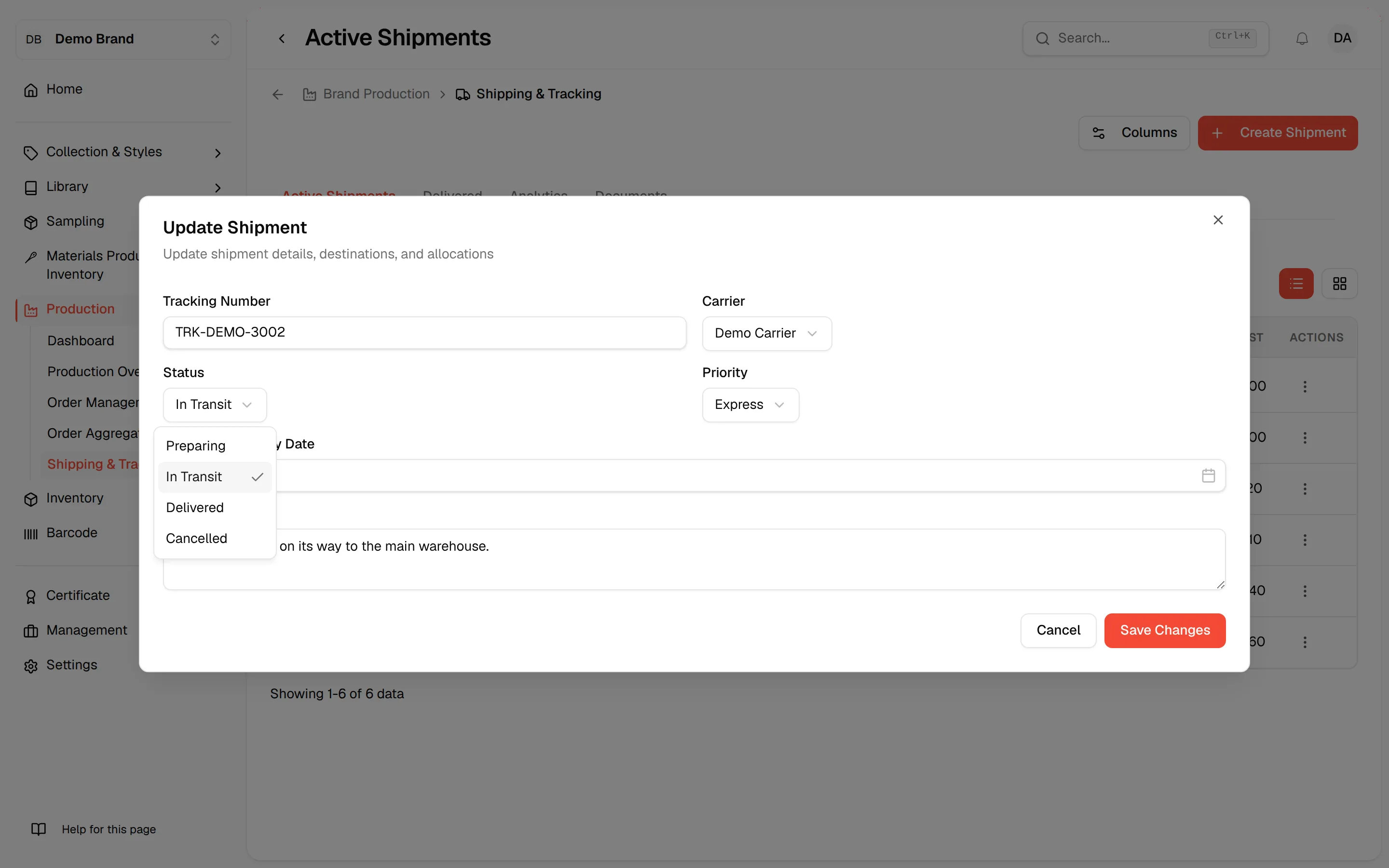
Click "Save Changes"
Click Save Changes. The button stays disabled until the form is valid. Click Cancel to close without saving.
Delete a shipment
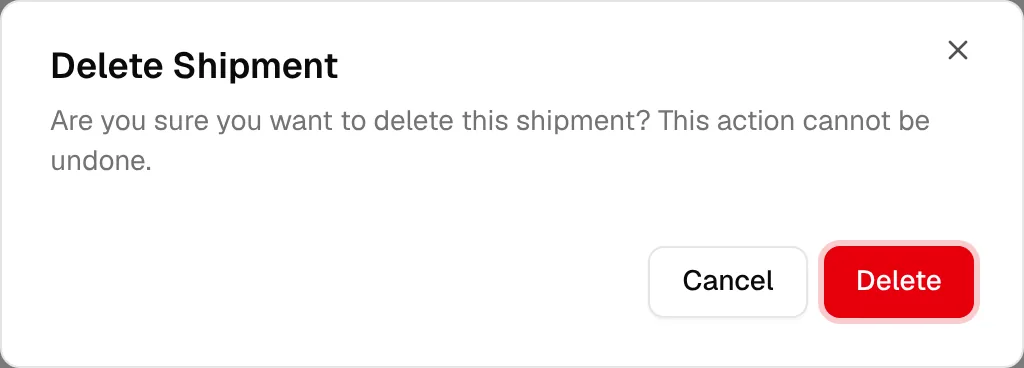
In the row menu, click Delete, then confirm in the Delete Shipment dialog. It reads Are you sure you want to delete this shipment? This action cannot be undone.
Warning
Deleting a shipment cannot be undone.