
Order aggregation
Combine items from several wholesale orders into factory production orders: select orders, review the combined items, group them by factory and create the orders.
Under review. This page is published while we check it against the live app, so some details may have changed.
Order Aggregation turns the wholesale orders your buyers have placed into production orders for your factories. You pick the wholesale orders, review the items they add up to, group those items by factory, fill in the production details for each group and create the production orders in one go.
ProductionOrder Aggregation
Permission: VIEW_BRAND_PRODUCTION
Before you start
- The page lists wholesale orders that still have items waiting to be aggregated. Orders whose items have all been aggregated are no longer shown.
- Each item needs a suggested factory (the supplier set on the style). Items are grouped by that factory.
- Factories, order categories, priorities, payment terms and shipment methods are the ones already set up for your brand.
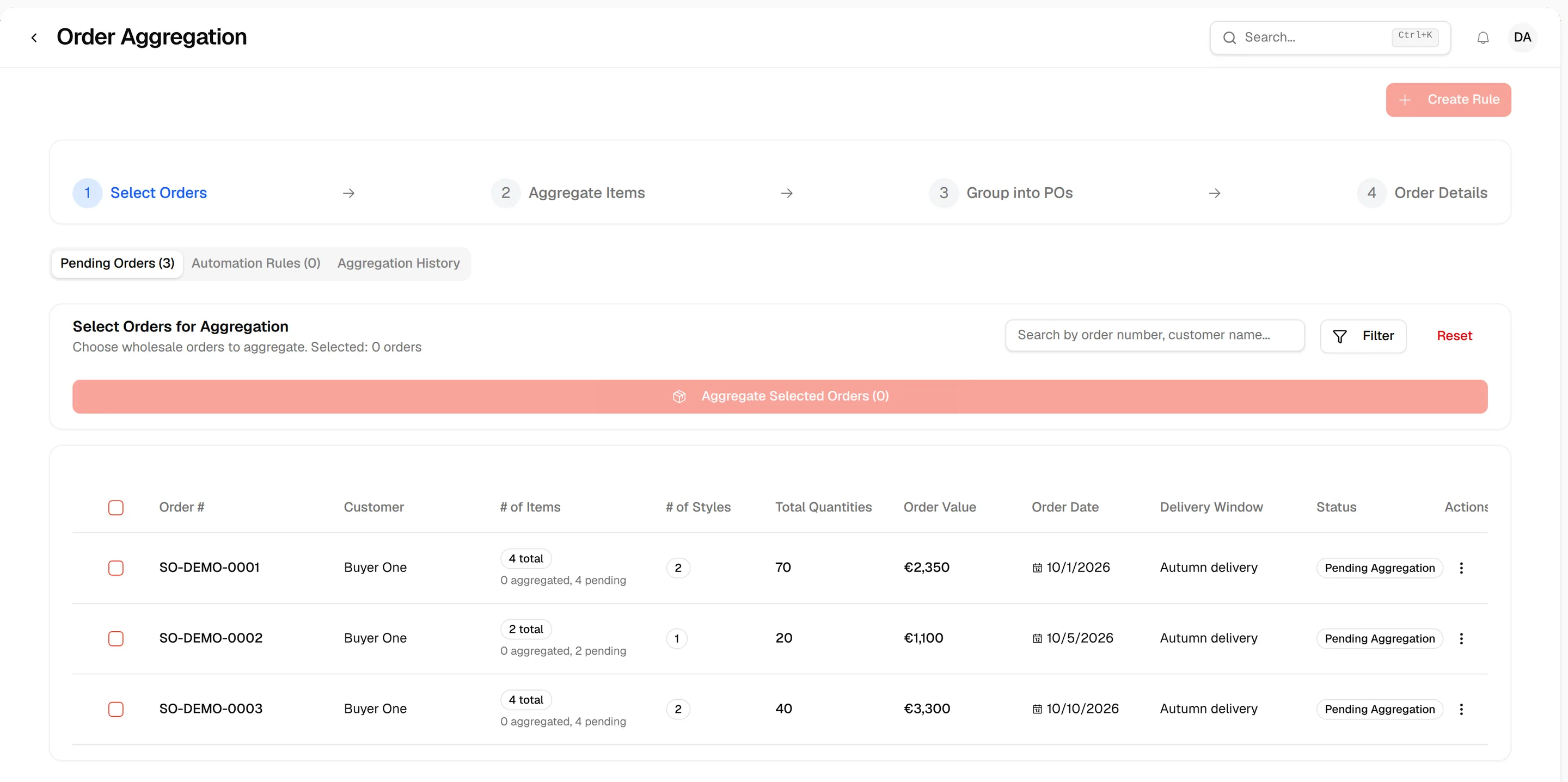
The four steps are always shown at the top of the page: Select Orders, Aggregate Items, Group into POs and Order Details. The step you are on is highlighted and finished steps are marked as done.
Select the orders to aggregate
Open Order Aggregation
In the left sidebar, expand Production and click Order Aggregation. The Pending Orders tab lists the wholesale orders waiting for aggregation, with the number of orders in the tab title.
Search and filter the list
Use the search bar (Search by order number, customer name...) to find an order. Click the Filter button to narrow the list by Status, Delivery Window, Customer or Order Date (a Start Date and an End Date). Click Reset to clear everything.

Tick the orders
Check the checkbox at the start of a row to select an order, or check the checkbox in the header to select every order in the list. The heading reads Choose wholesale orders to aggregate. Selected: N orders.
Note
An order whose items are all aggregated already cannot be selected.
Check the items of each order
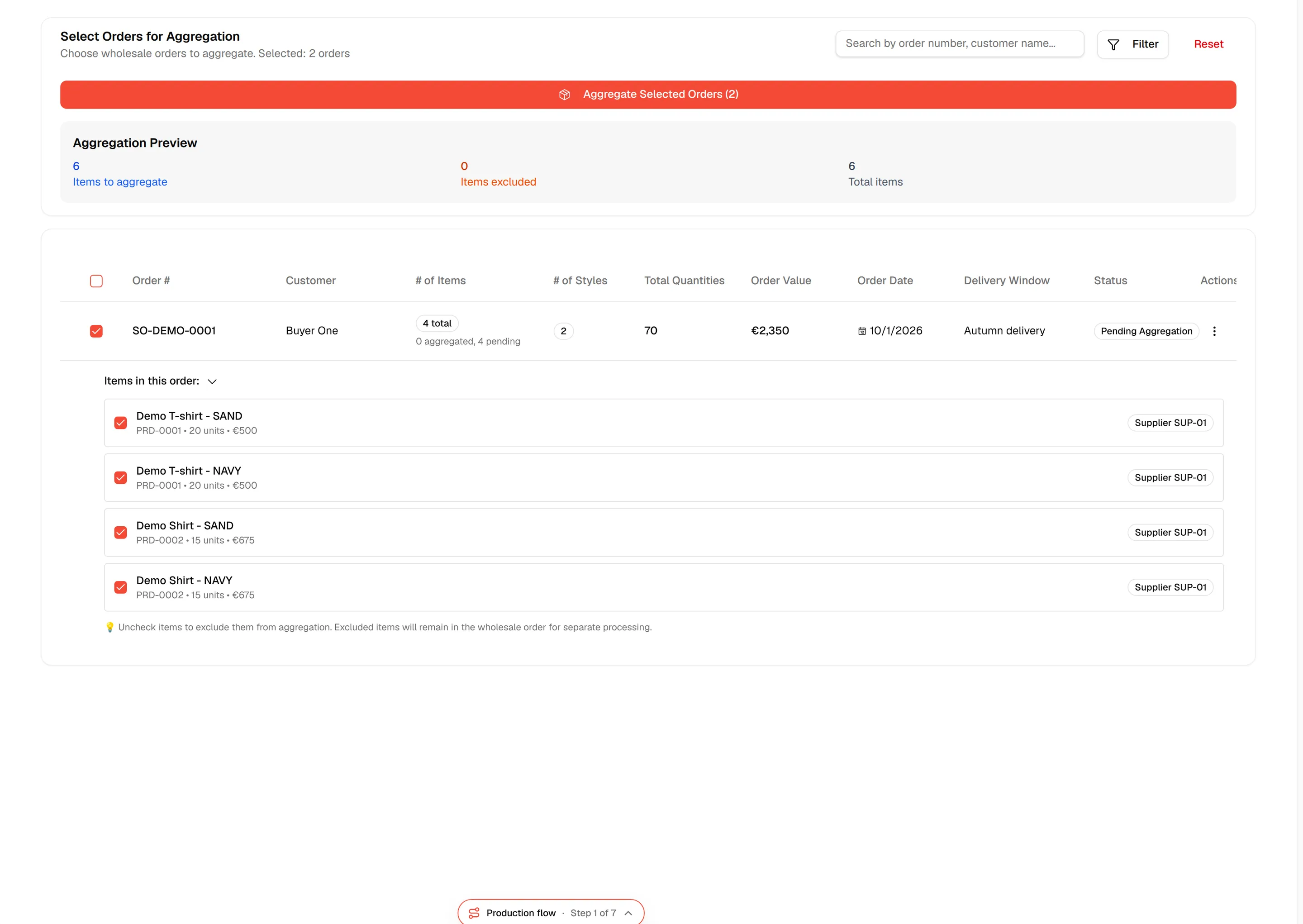
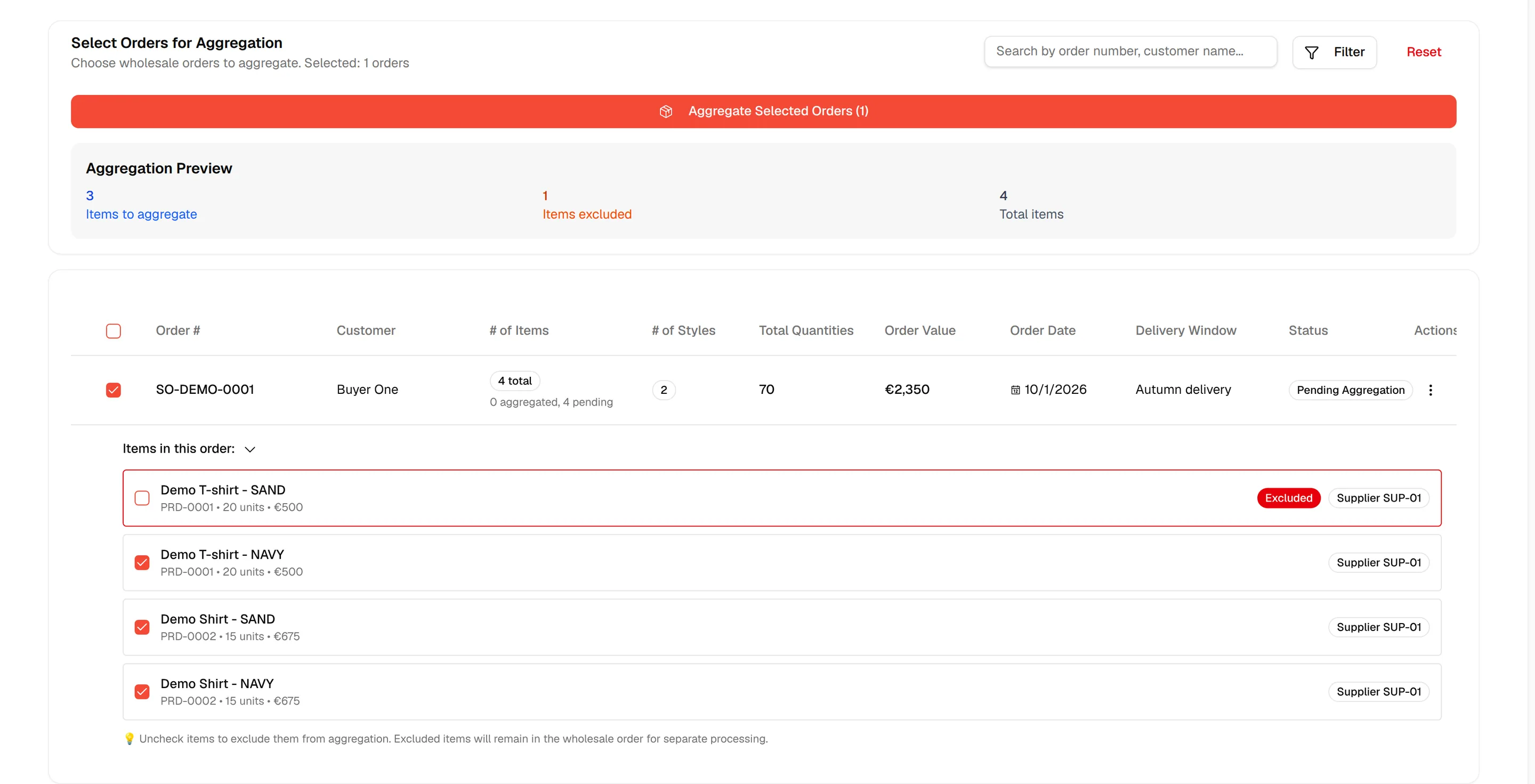
Under every selected order, the Items in this order: list shows each style and colour with its SKU, units and value. Uncheck an item to exclude it. Excluded items are outlined and are left out of this run. Items that were aggregated earlier are greyed out and marked Aggregated.
Review the preview
Once at least one order is selected, an Aggregation Preview shows Items to aggregate, Items excluded and Total items.

Columns in the list
| Column | What it shows |
|---|---|
| Order # | The wholesale order number. |
| Customer | The buyer who placed the order. |
| # of Items | The total number of items, with how many are already aggregated and how many are pending. |
| # of Styles | The number of different styles in the order. |
| Total Quantities | The total units. |
| Order Value | The value of the order. |
| Order Date | When the order was placed. |
| Delivery Window | The delivery window the buyer chose. |
| Status | Pending Aggregation or Partially Aggregated. |
View the details of an order
Click the ⋮ icon at the end of a row, then View Details. The Order Details dialog shows the customer, the order date, the delivery window, the total quantity and value, the aggregation status (total, aggregated and pending items) and a table of every item with its sizes, unit cost, total value, suggested factory and a status of Pending, Aggregated or Excluded.
Aggregate the items
Click "Aggregate Selected Orders"
Click Aggregate Selected Orders (N). The button is disabled until you select at least one order.

Review the aggregated items
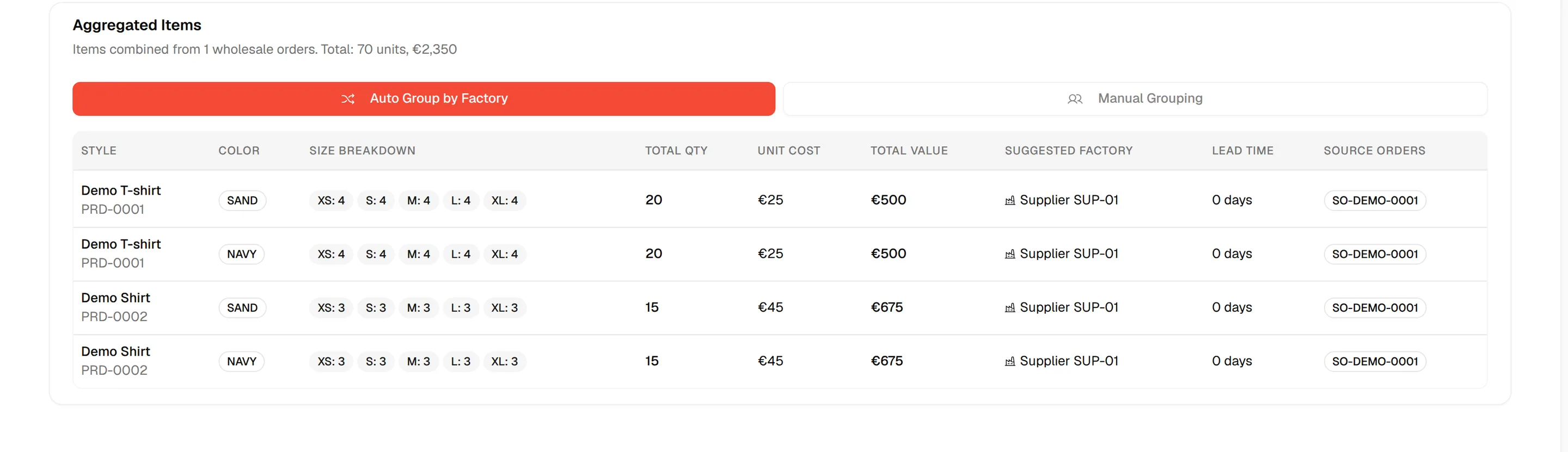
The Aggregated Items table lists one row per style and colour with the Size Breakdown, Total Qty, Unit Cost, Total Value, Suggested Factory, Lead Time (in days) and the Source Orders it came from. The heading above shows the total units and value across all selected orders.
Tip
Click Start Over at the top right at any time after the first step to discard your work and return to the order list.
Group the items into production orders
Click "Auto Group by Factory"
Click Auto Group by Factory. Items with the same style and colour are combined, then one group is created per suggested factory, named after the factory (for example SUP-01 Production). The group's lead time is the longest lead time of its items.

Review the groups
Each group card shows the factory, the number of items, units, value and lead time, with a table of its items. You can change the factory of a group with Select factory.
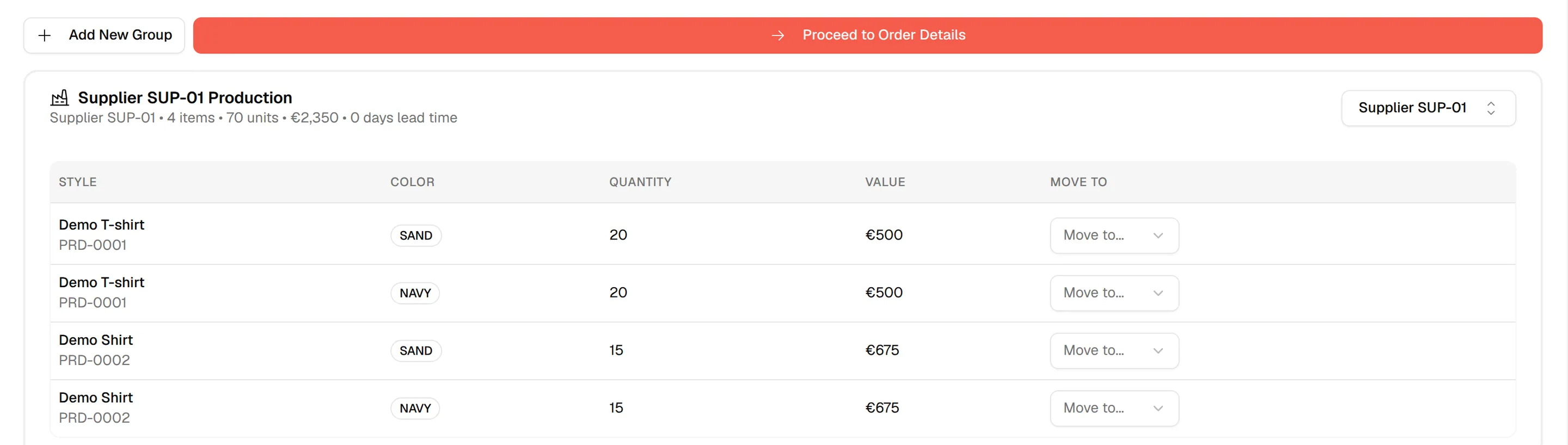
Move items between groups (optional)
In a group's table, use the Move To dropdown (Move to...) on an item to send it to another group. Click Add New Group to create an empty Custom Group and move items into it, then assign a factory.
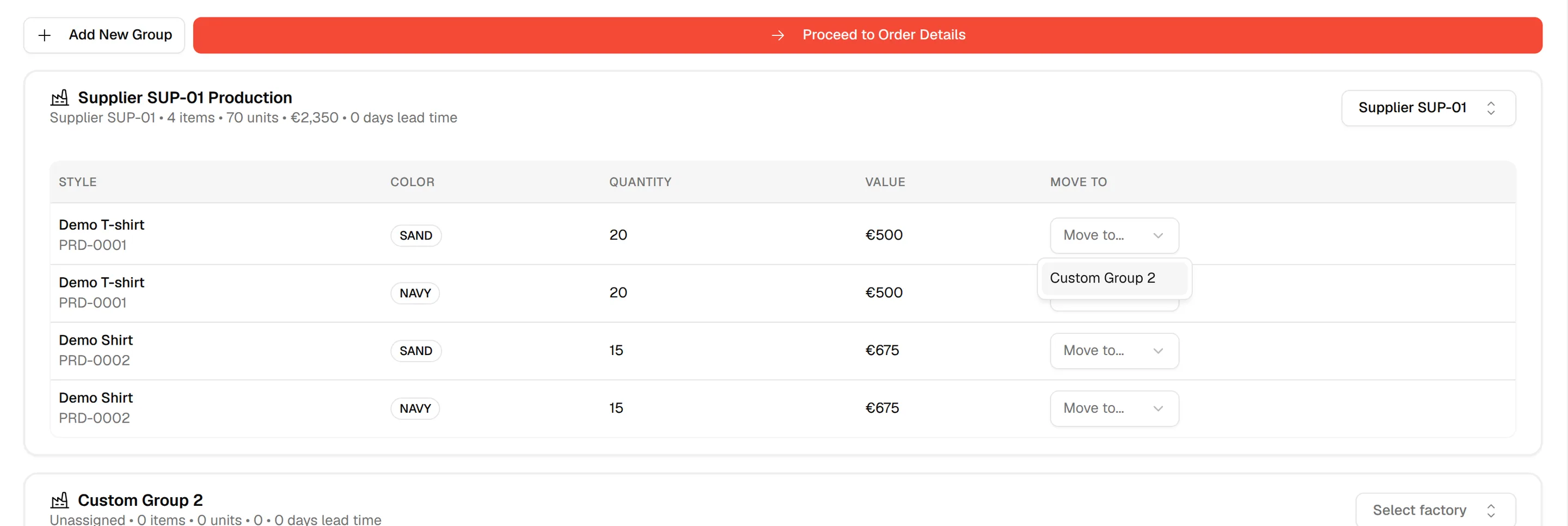
Click "Proceed to Order Details"
When the groups look right, click Proceed to Order Details.

Fill in the order details
The Production Order Details step has one card for every group that still contains items. The text Configure production details for each order group. All fields are required to create the orders. applies to the fields marked with an asterisk.
Check the group badges
Each card shows Ready to Create when every required field is filled, or Missing Required Fields otherwise. Once the three dates are filled in, a second badge shows Valid Timeline or Invalid Date Sequence.

Choose the order details
Select the Order Category *, Priority * and Factory *. You can type a new category, priority, payment term or shipment method into the dropdown to create it, and edit an existing one from the dropdown.

Enter the dates
Pick Production Start *, Production End * and Ex Factory Date *. The start date must be before the end date, and the end date must be on or before the ex-factory date.

Choose payment terms and shipment method
Select Payment Terms * and Shipment Method *.

Enter the tax details (optional)
Fill in Default VAT Rate (%), VAT Registration Number, TAX Jurisdiction (Country/State) and Tax Status (Registered, Exempt or Special). These are filled in from the factory when you choose one.

Add notes (optional)
Type any extra requirements in Notes. The source wholesale order numbers are added to the notes of each production order automatically.

Check the Aggregation Summary
The Aggregation Summary shows the number of Production Orders, Total Units, Total Value and Factories, the Source Wholesale Orders and the Factory Distribution (orders, units and value per factory).
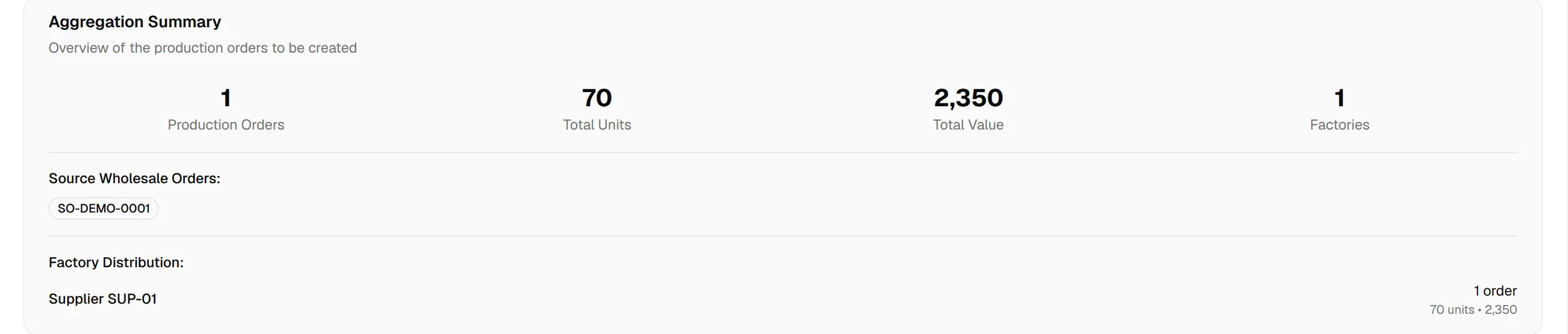
Click "Create Production Orders"
Click Create N Production Orders. The button is disabled until every group has all required fields and a valid date sequence. Use Back: Review Groups to return to the previous step.

After the orders are created
An Aggregation Complete! screen reports how many production orders were created from how many wholesale orders, with the Production Orders, Total Units, Total Value and Factories. The Aggregation Status Summary lists each wholesale order as Fully Aggregated, Partially Aggregated or Not Aggregated, with the number of items done and how many were added in this session.
- Click Create Another Aggregation to start again.
- Click View in Order Management to open the new production orders. See Production orders.
Troubleshooting
An order is missing from the list. Orders whose items are all aggregated are hidden, and filters may be active. Click Reset.
The Create button is disabled. Open each group and check for the Missing Required Fields or Invalid Date Sequence badge.