
Create purchase order
The Create Purchase Order feature allows users to generate a new purchase order directly from a production product order.
Under review. This page is published while we check it against the live app, so some details may have changed.
Screenshots may be out of date.
The Create Purchase Order feature allows users to generate a new purchase order directly from a production product order. This function is useful when additional materials or items are needed for the same production batch. Once created, the new purchase order will automatically appear at the top of the purchase order list in descending order.
Materials Production & InventoryProductionOrder Management
Permission: VIEW_MATERIAL_PRODUCTION
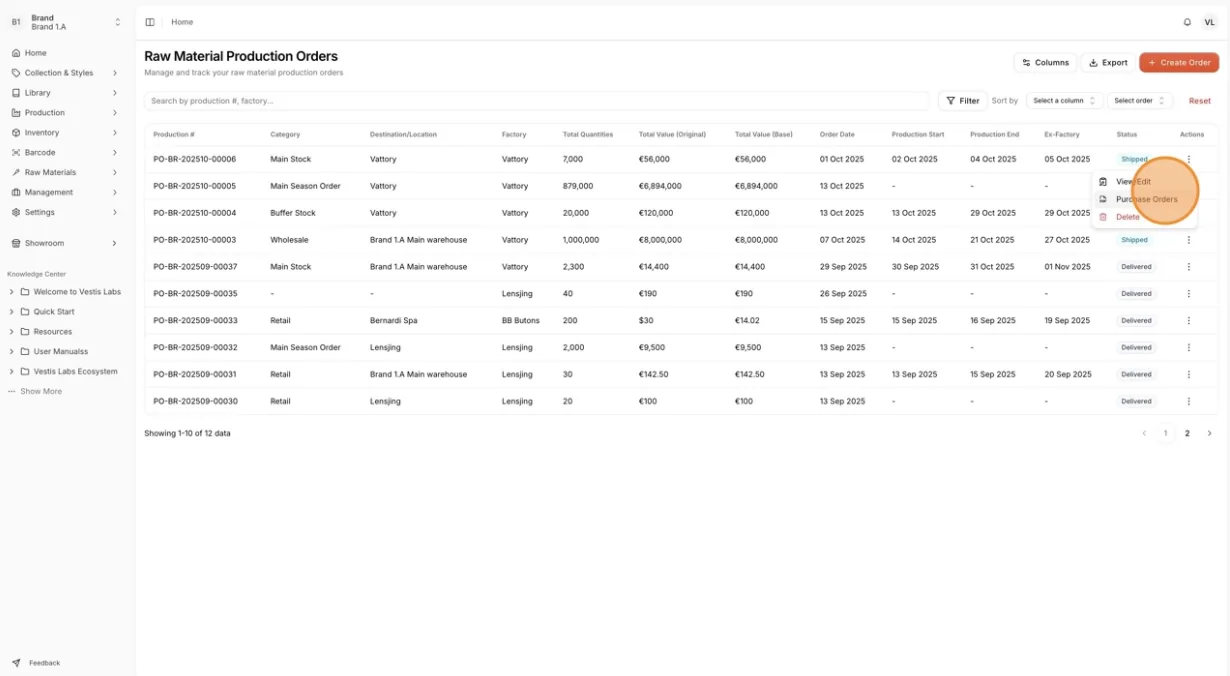
From the Production Product Order
On the Order Management page, click the three dots action button on the order row, then select Purchase Orders. A window titled Purchase Orders for and the production number opens, listing each purchase order's Purchase Order No. and Created At date.
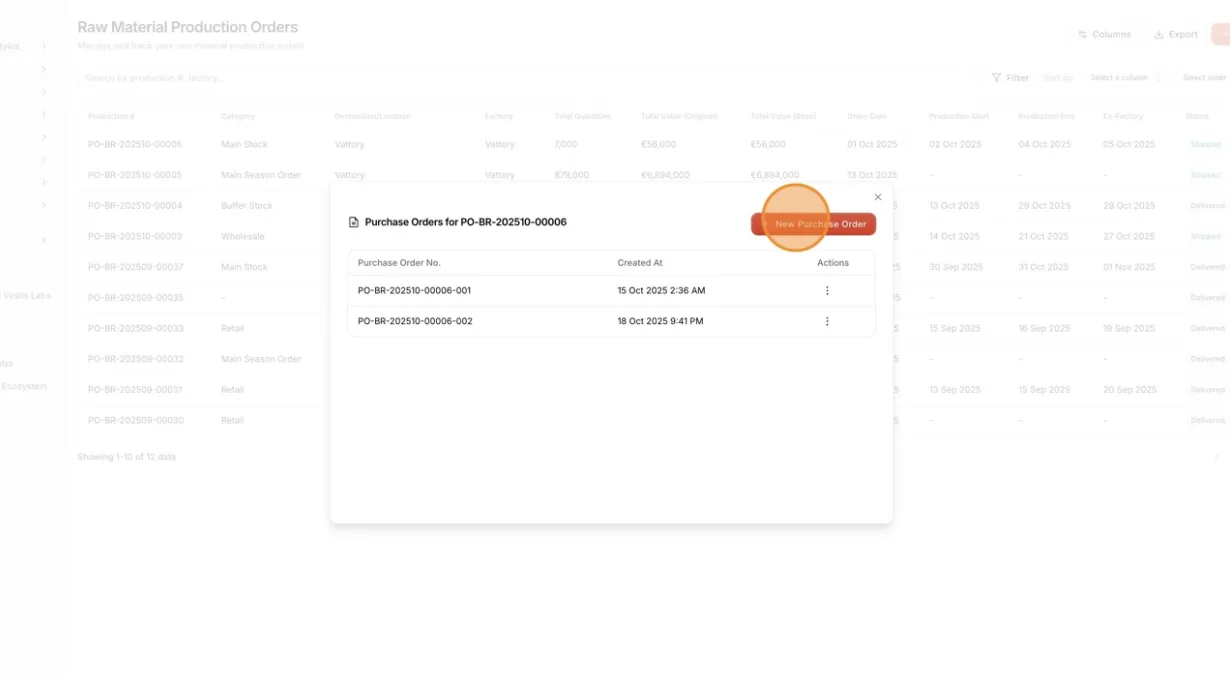
Click New Purchase Order to create an additional…
Click New Purchase Order to create an additional purchase order from the same product order (PO). The Create Purchase Order window shows the production number, category and supplier.
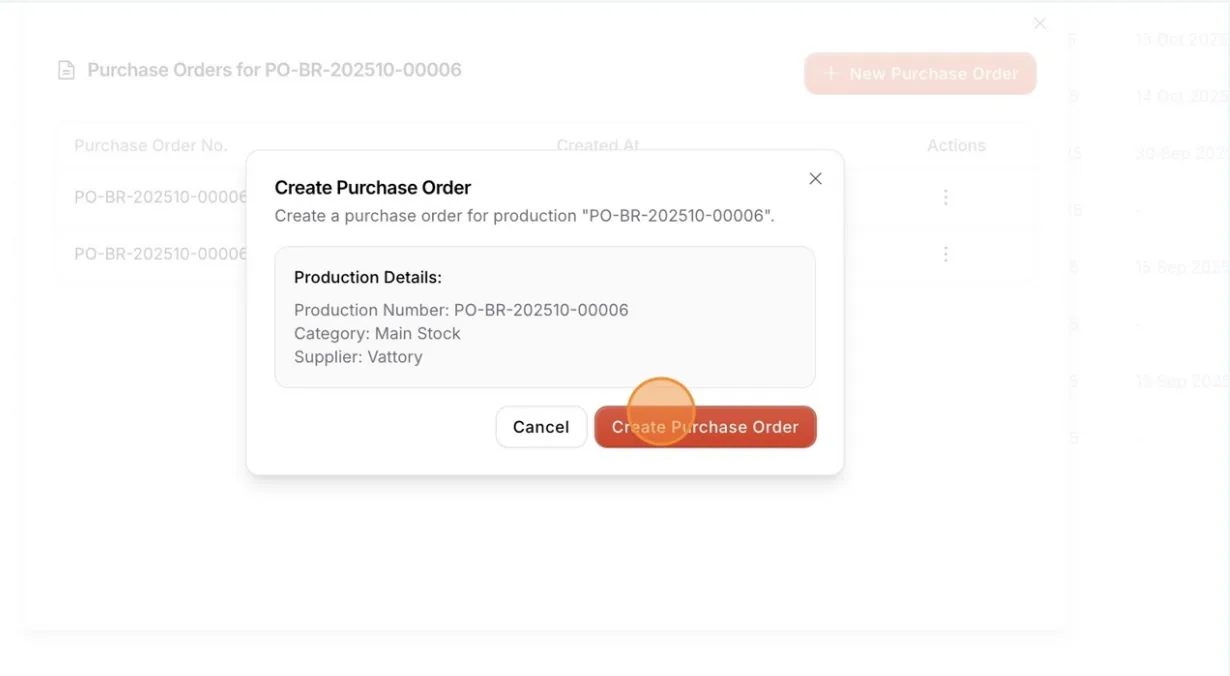
Select Create Purchase Order.
Click Create Purchase Order in the window. A new purchase order will be added to the list, shown in descending order.
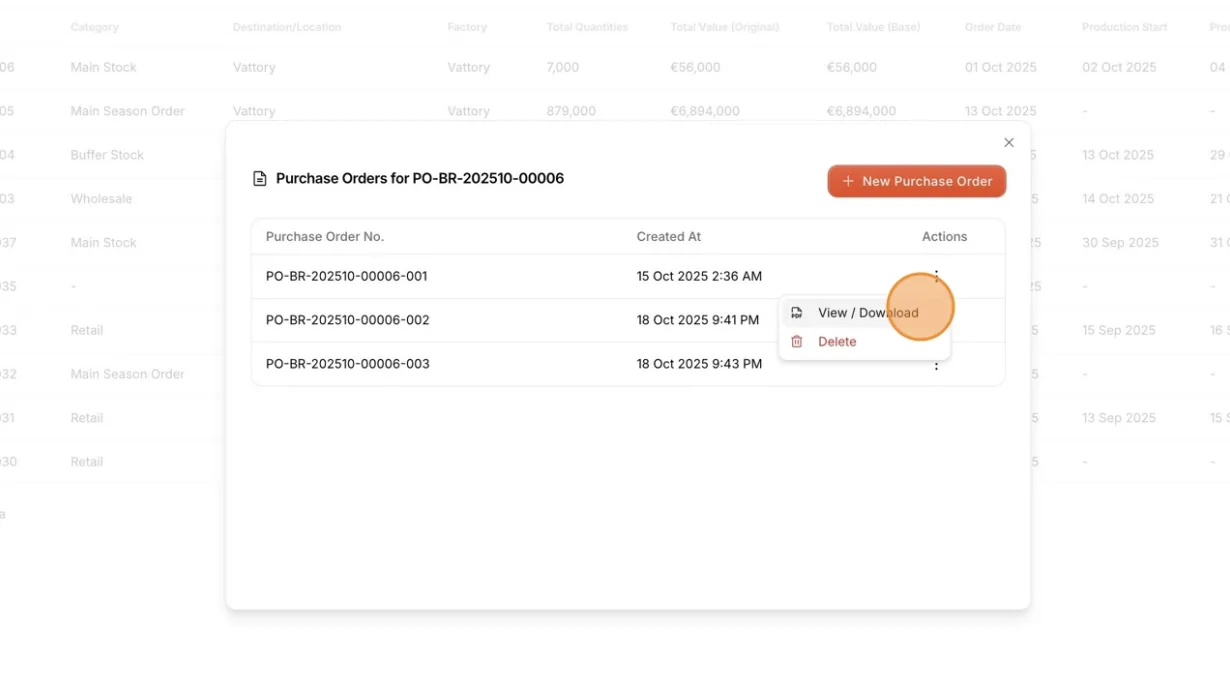
Use the three dots action button beside each purchase order for additional actions:
- View / Download: Open the selected purchase order in a new tab to view, print or save it as a PDF.
- Delete: Remove the selected purchase order from the list after you confirm Delete Purchase Order. This cannot be undone.
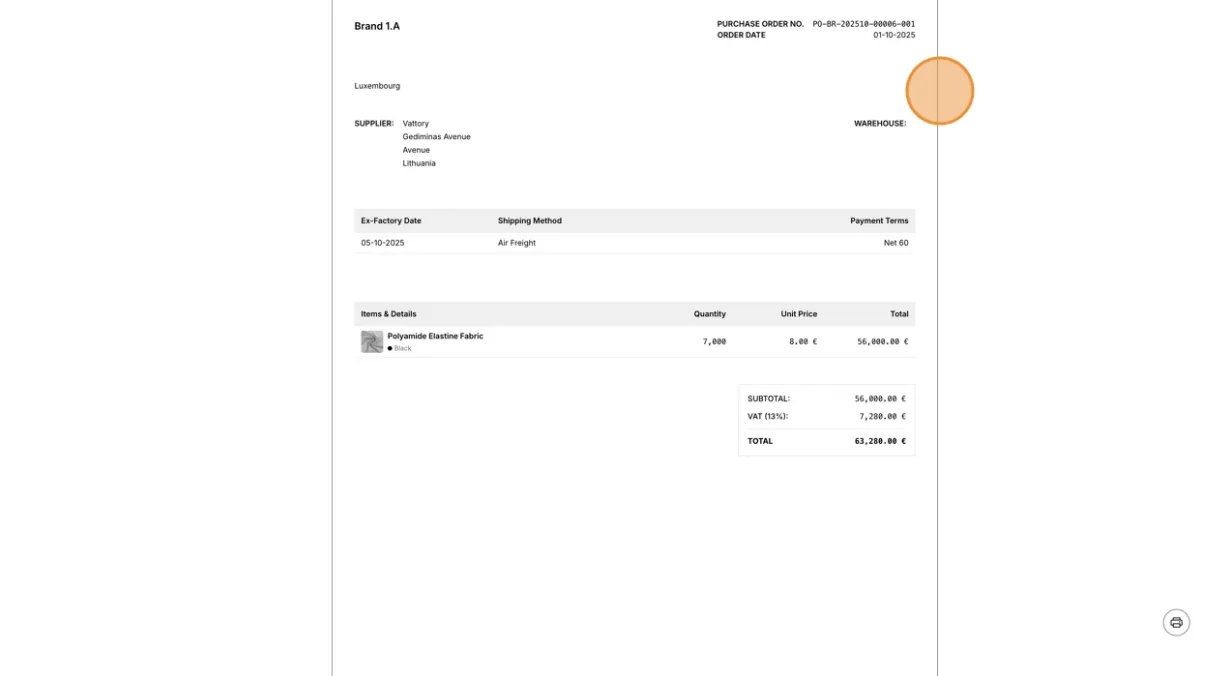
The preview of the downloaded Invoice
What the purchase order shows
The purchase order opens in its own page, laid out for A4 printing. It shows:
- Purchase Order No. and Order Date at the top, with your brand name, logo and address.
- SUPPLIER: the supplier's name and address.
- WAREHOUSE: the delivery address.
- Ex-Factory Date, Shipping Method and Payment Terms (shown as N/A when not set).
- A table of Items & Details with each material and colour, its Quantity, Unit Price and Total, ten rows per page.
- On the last page, SUBTOTAL, SHIPPING COST (only when shipping cost is included on the order), VAT and TOTAL.
Click the print button at the bottom right of the page to print or save the purchase order as a PDF. The button is not part of the printed page.
Note
You need permission to view material production to open a purchase order.