
View/edit the production order detail
Users can review all order details, make necessary changes, and update the information as needed.
ProductionOrder Managementthree-dot menuView/Edit
Permission: VIEW_BRAND_PRODUCTION
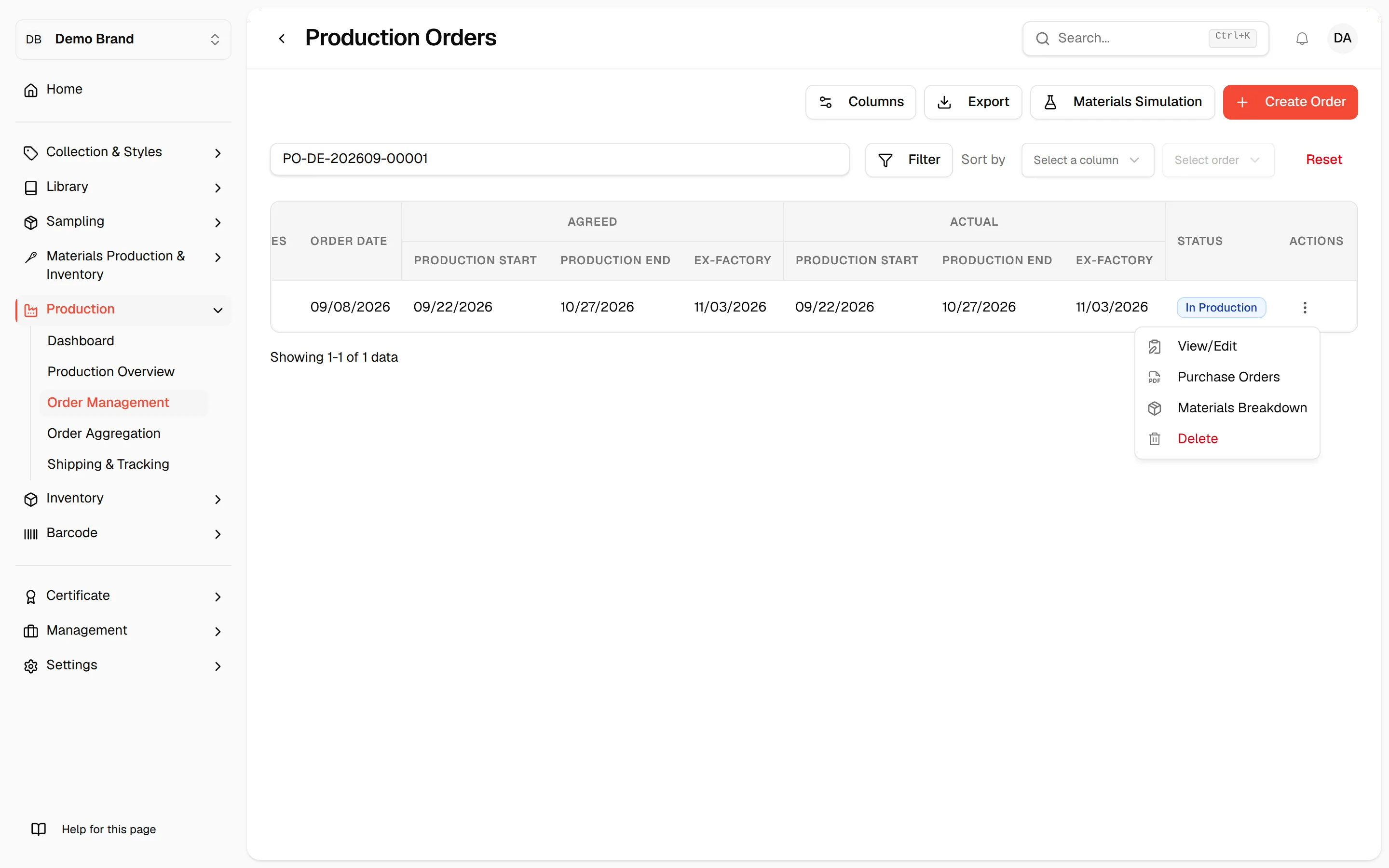
On the Production Orders Dashboard, select the three-dot action button > View/Edit to review and update your Production Order.
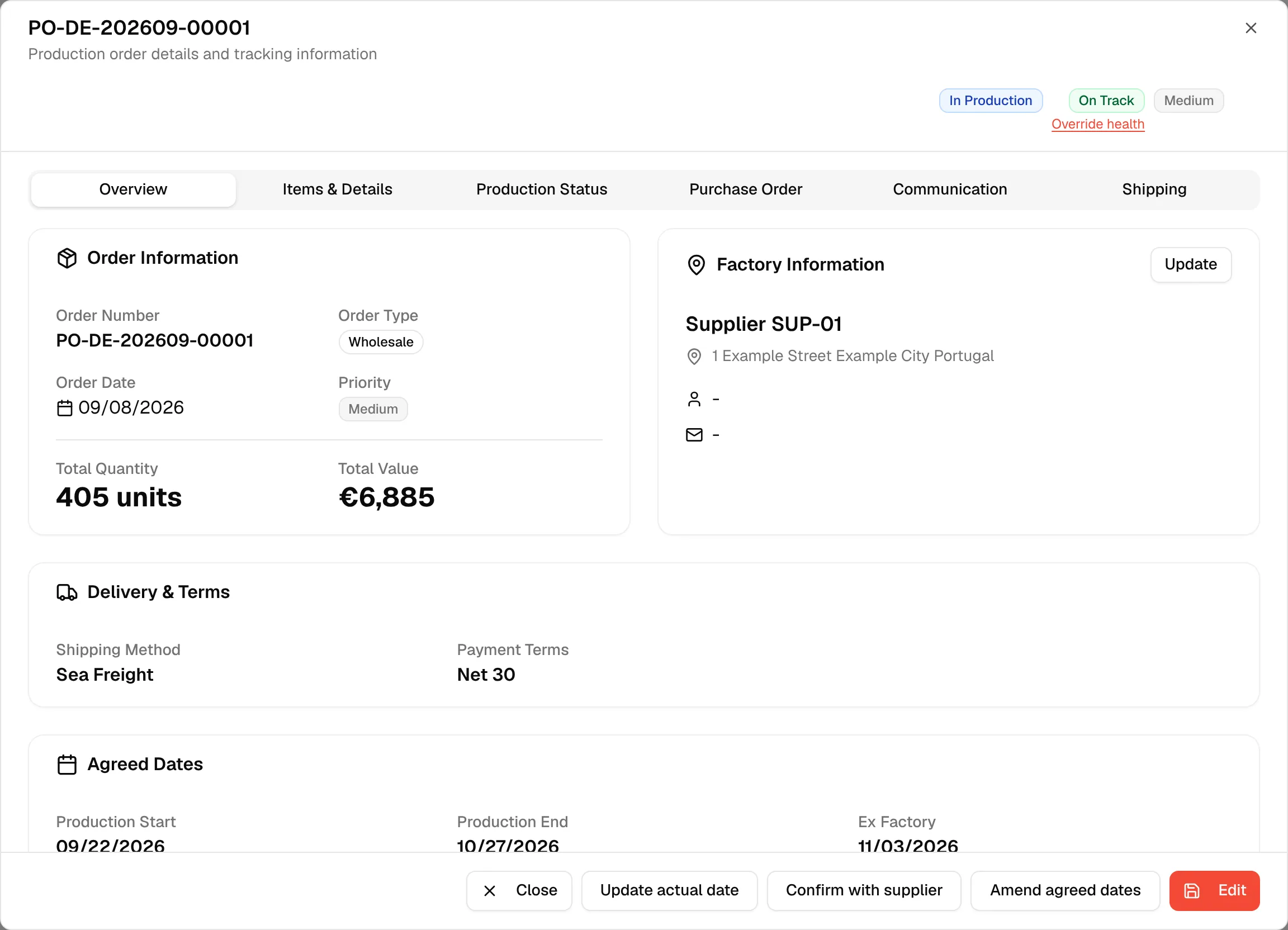
The order opens in a dialog titled with the order number, with the description "Production order details and tracking information". Beside the title you see the order's status, its health (when one is calculated) and its priority. The dialog has six tabs: Overview, Items & Details, Production Status, Purchase Order, Communication and Shipping.
Overview
The Overview tab is a read-only summary in cards:
- Order Information – Order Number, Order Type, Order Date, Priority, Total Quantity (in units) and Total Value.
- Factory Information – The supplier name, address, contact and email.
- Delivery & Terms – Shipping Method and Payment Terms.
- Agreed Dates – Production Start, Production End and Ex Factory.
- Actual Dates – The same three dates as they really happened. Users with the Update actual production date permission see an Edit button on this card.
- Supplier Confirmation – Appears once a confirmation was requested from the supplier. See Request supplier confirmation.
- Production Notes – The notes entered on the order.
On the Overview Page, Users can update the Factory Information by selecting Update.
Update the information as needed in the update supplier page. Click Save to save the changes.
Items & details
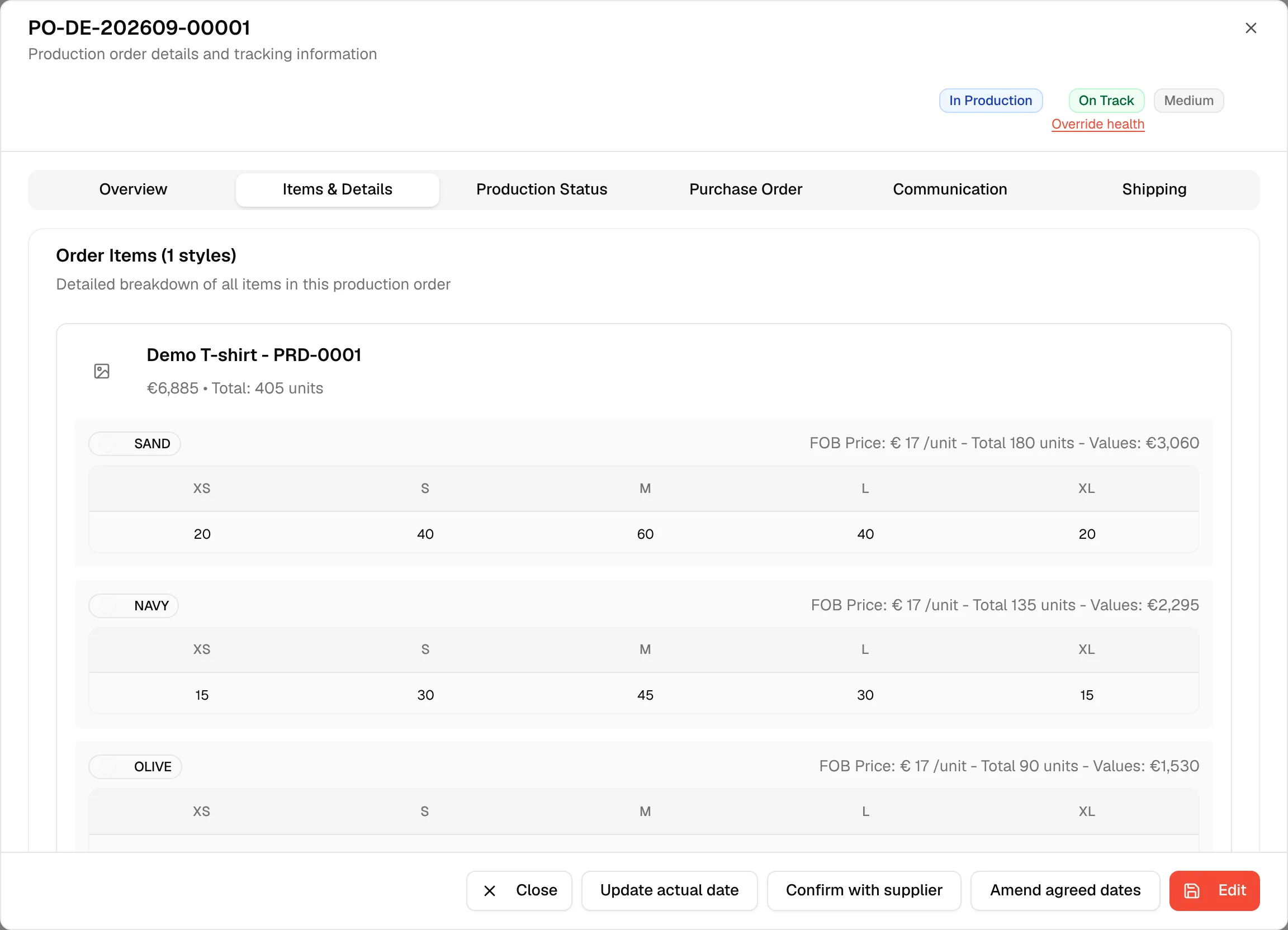
On the Item & Details page, users can review the Order Items. The card is titled Order Items (n styles), with the description "Detailed breakdown of all items in this production order". Each style shows its picture, name, style code, total units and total value. Under it, every colour shows its FOB Price per unit, its total units and value, and a table with the quantity for each size. A colour that has since been made inactive on the style is marked Inactive.
Production status
On the Production Status page, users can view the current status or update the production progress. All changes and progress of the production process are reflected in real time on the production timeline.
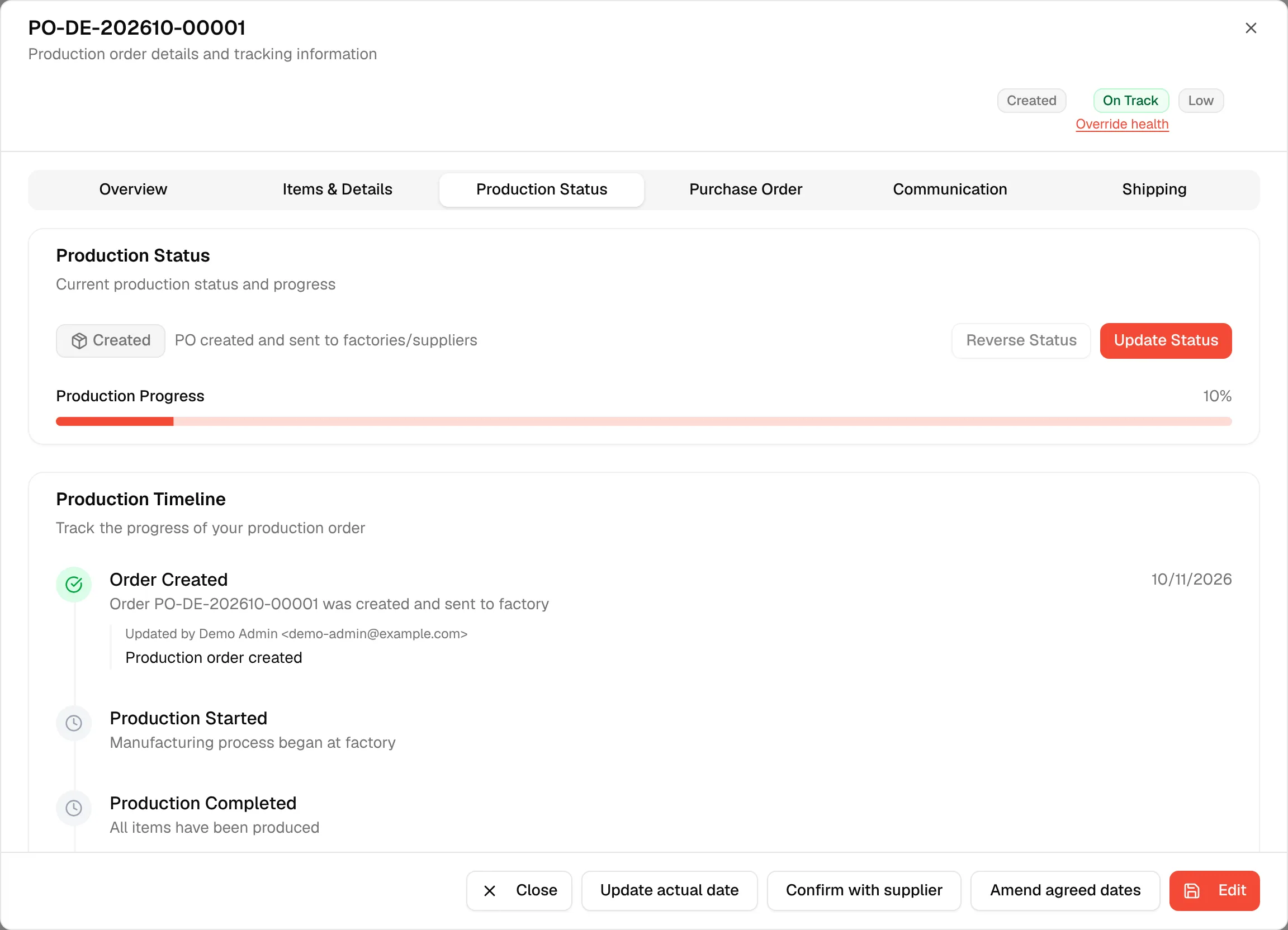
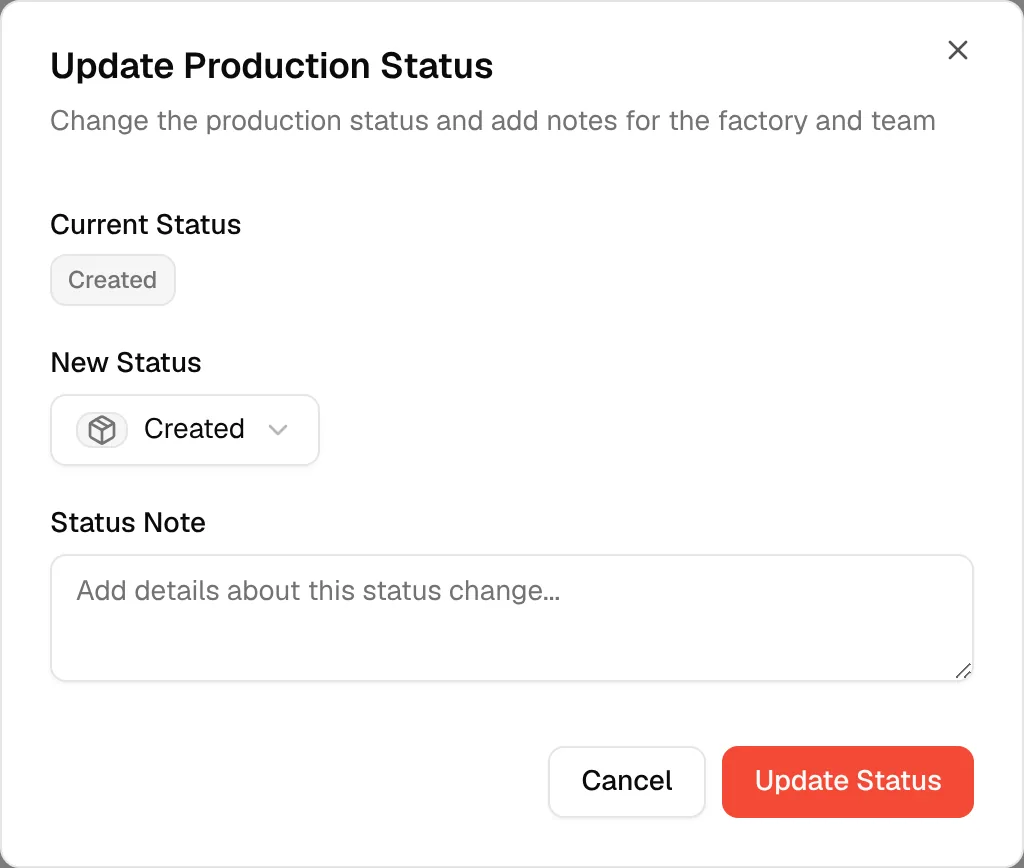
Select Update Status to change the production status and adding notes for the factory and team
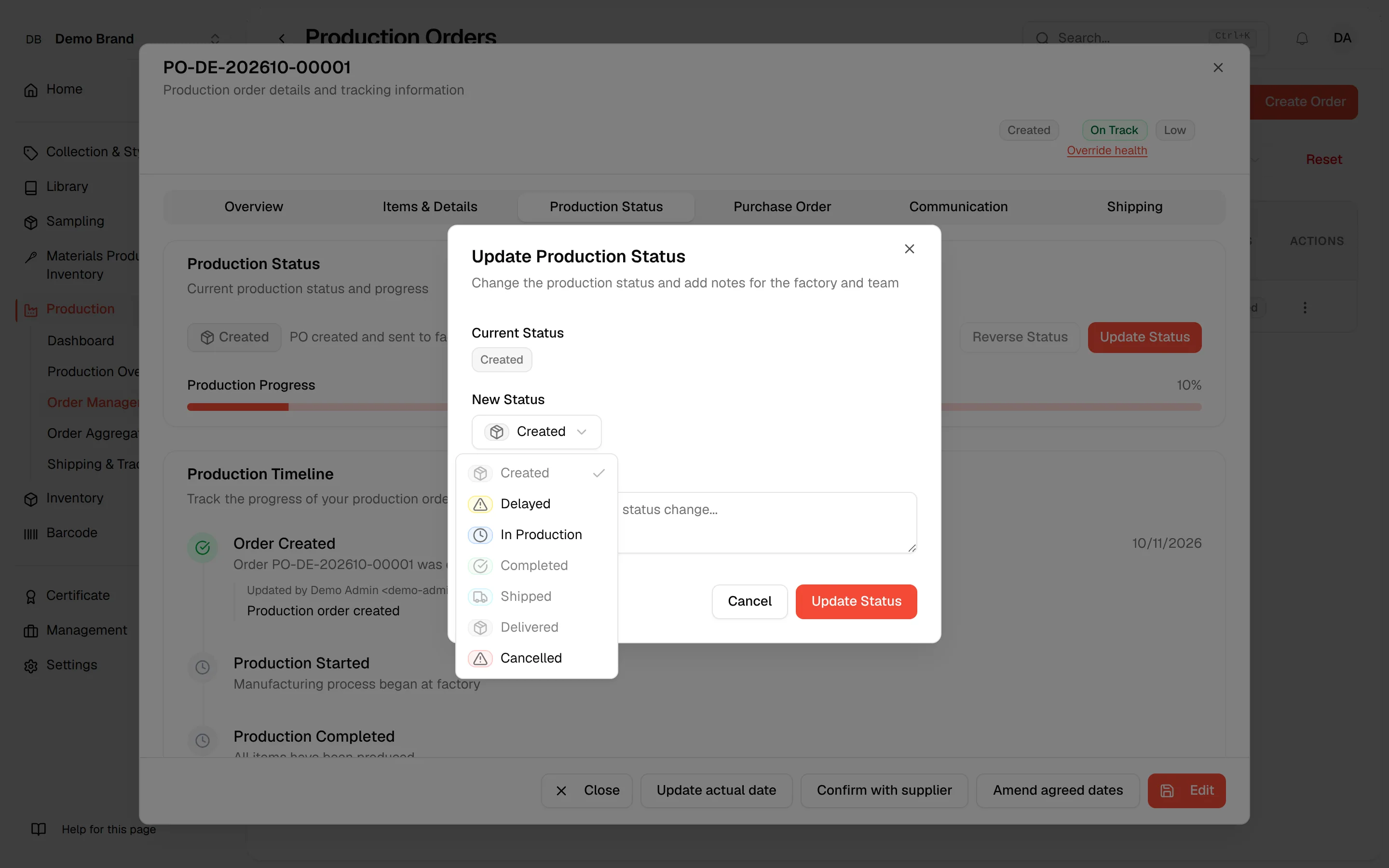
Select the New Status you want to apply to update the current production status.
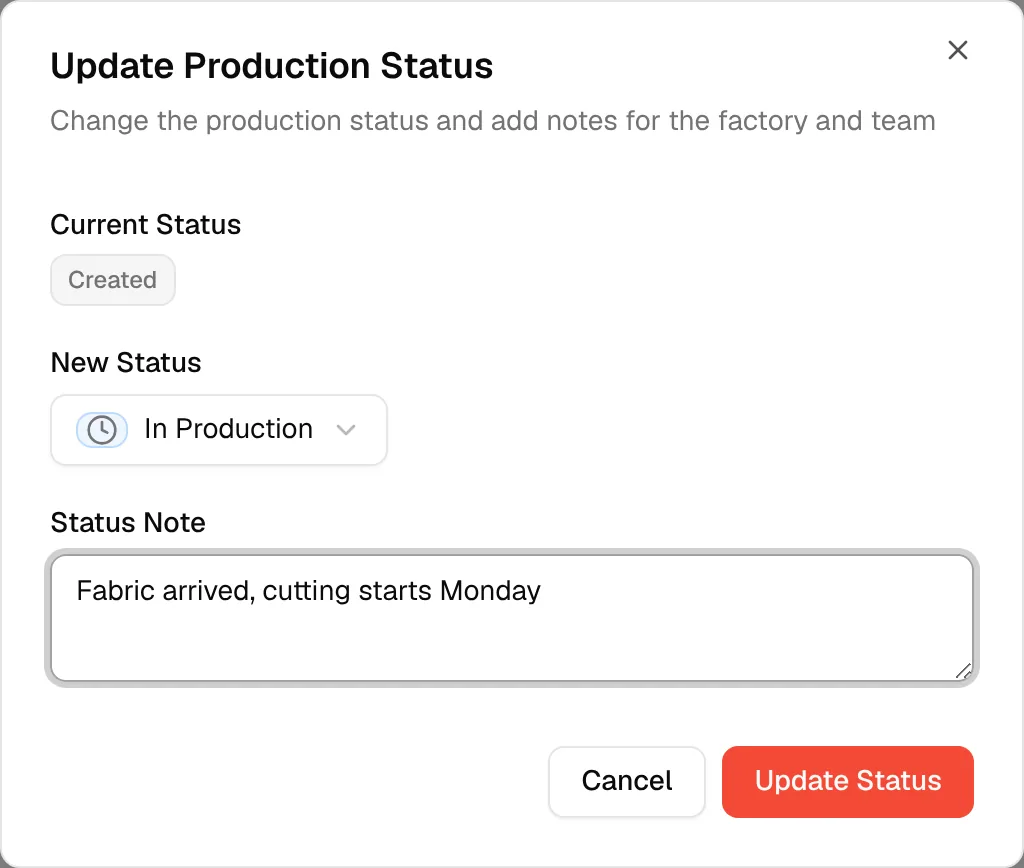
Users can add a Status Note for the factory before selecting Update Status to save the changes.
Users can view the updated production status in real time on the production timeline.
Not every status can follow every other one, and a status can also be reversed. See Update the production status.
Purchase order
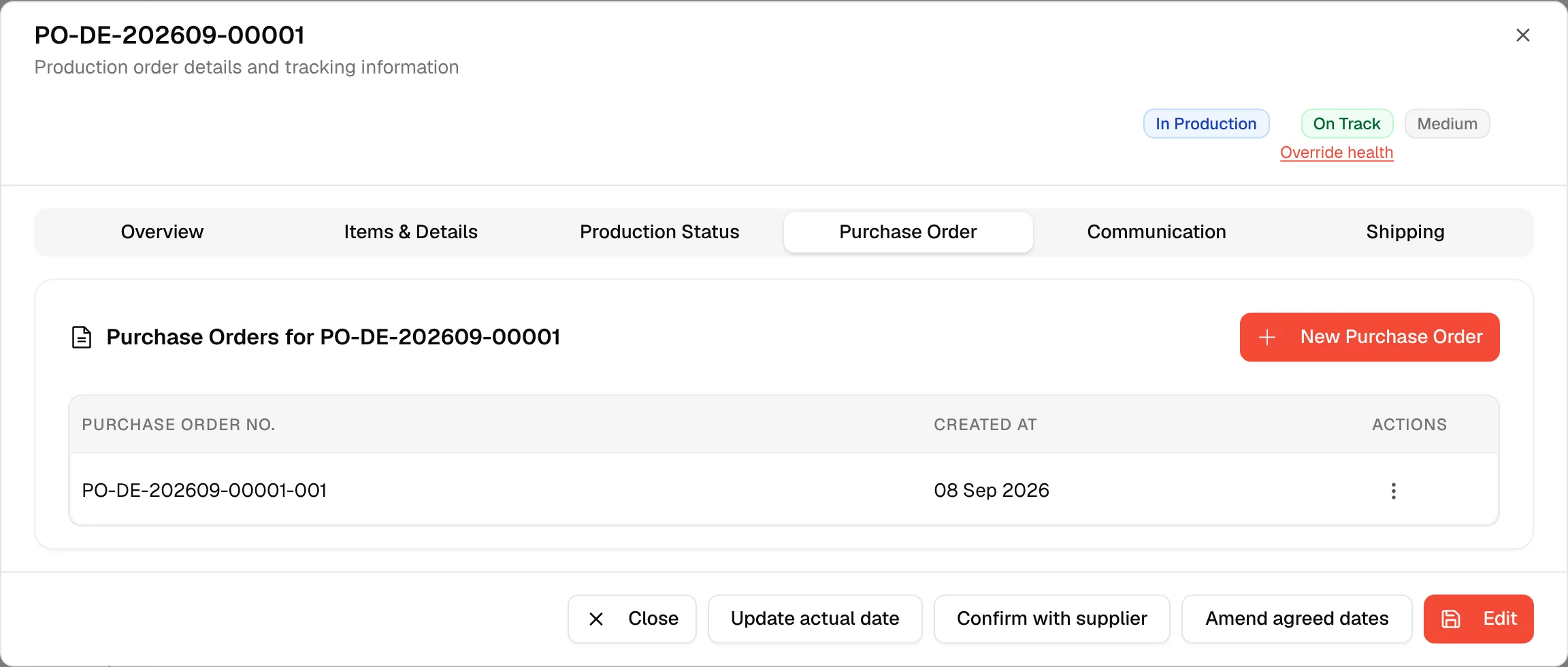
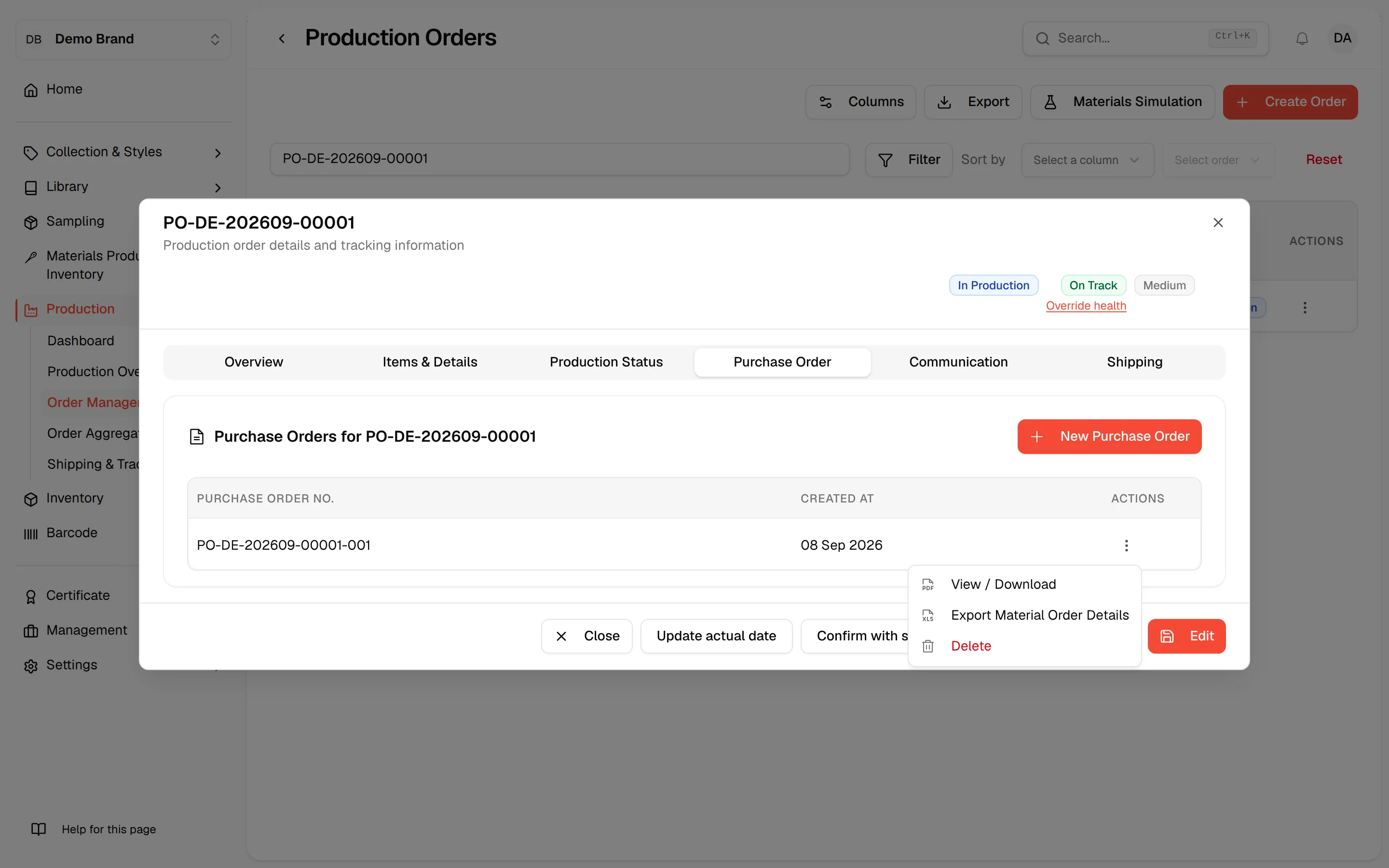
On the Purchase Order page, users can create, view/download, or delete Purchase Orders that are linked to previously created Production Orders.
Select New Purchase Order to create a new batch of purchase orders linked to the related Production Order.
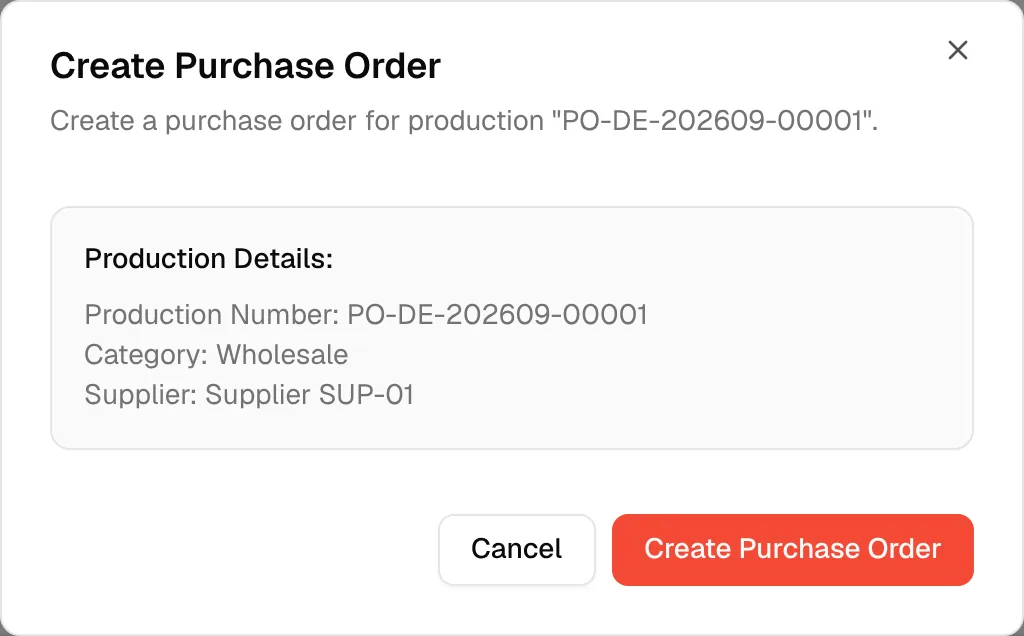
In the Create Purchase Order dialog, check the production number, category and supplier shown, then select Create Purchase Order to generate the new purchase order.
Click the three-dot action button to access more options:
- View / Download – Open or download the selected purchase order.
- Export Material Order Details – Download the material order details of the purchase order as an Excel file.
- Delete – Remove the purchase order from the list.
See Purchase orders for the full steps.
Communication
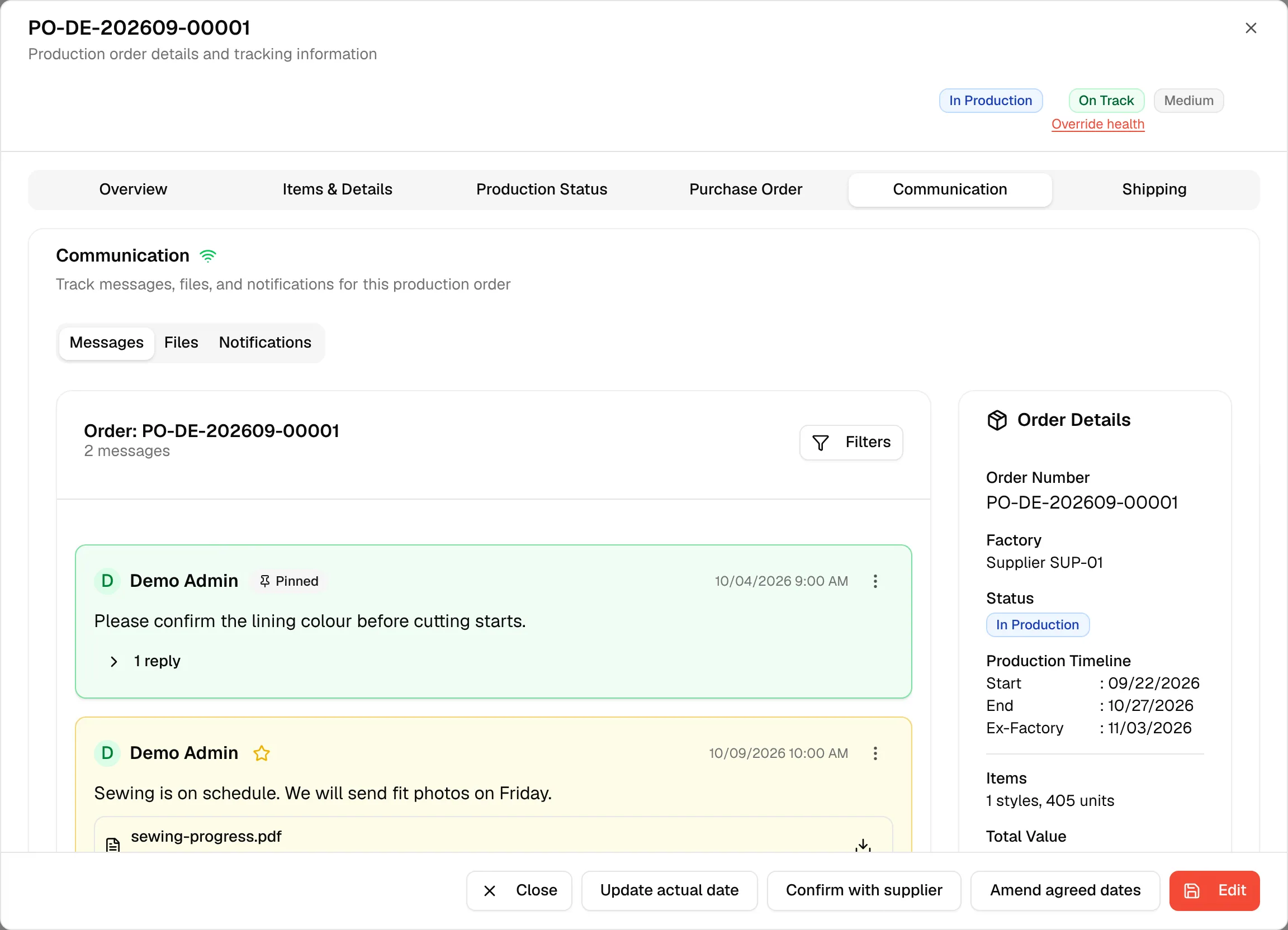
On the Communication page, users can view and manage all messages, files, and notes related to their production orders. It has three tabs: Messages, Files and Notifications. See Communicate about a production order.
Shipping
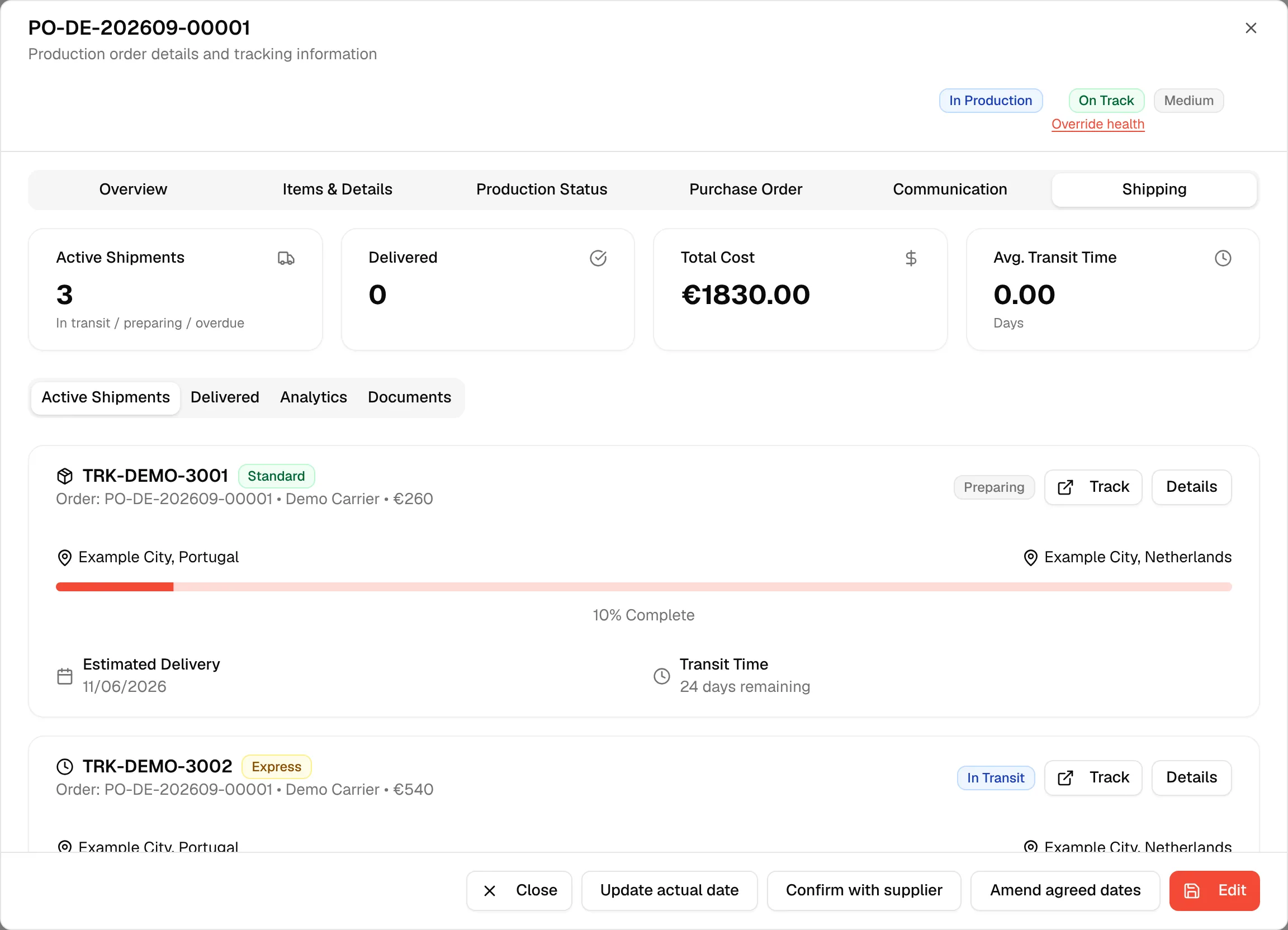
On the Shipping page, users can track, manage, and update the shipment details for their production orders. See Shipping tab of a production order.
Footer buttons
The buttons at the bottom of the dialog act on the whole order:
- Close – Close the dialog.
- Update actual date – Record an actual production date. Needs the Update actual production date permission. See Update actual production dates.
- Confirm with supplier – Ask the supplier to confirm the production milestone, or record their answer. Needs the Update production permission. See Request supplier confirmation.
- Amend agreed dates – Change the agreed production dates and keep a history. Needs the Update production permission and is hidden for supplier users. See Amend agreed production dates.
- Edit – Open the Edit Production Order dialog. See Edit a production order.
Next to the badges at the top, users with the Update production permission also see an Override health link. See Override the production health.