
Step 7 of 13 in From idea to a production-ready tech pack
Approval process
Once a style has been submitted and approved by the Vestis Labs team, we will start the development and upload the deliverables based on Vestis Labs’s workflow.
Under review. This page is published while we check it against the live app, so some details may have changed.
Screenshots may be out of date.
Collection & StylesStyles(open a style)Design & Development
Permission: VIEW_DESIGN_DEVELOPMENT,APPROVE_STYLE_INPUT
Notification that a deliverable is uploaded on the platform for your review.
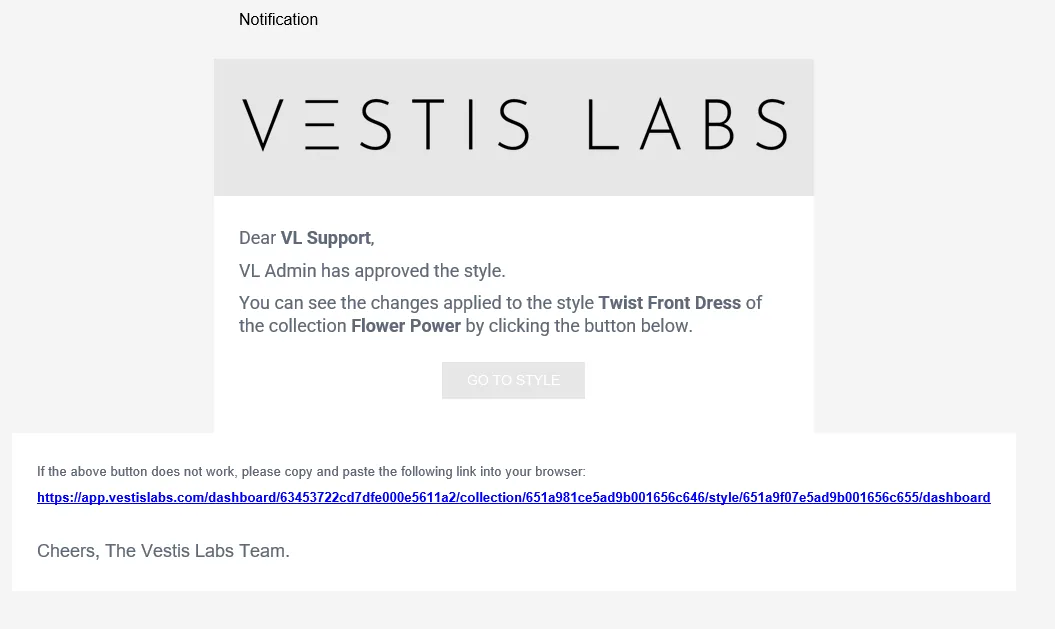
Users will receive an email notification as well as a notification on your platform as soon as we upload a deliverable in the relevant sections for you to review. Example of the email and platform notifications:
Review the deliverables Review the deliverables carefully by going to the workspace.
To be directed to the workspace where users can review and comment on the styles, click on the card that you would like to work on.
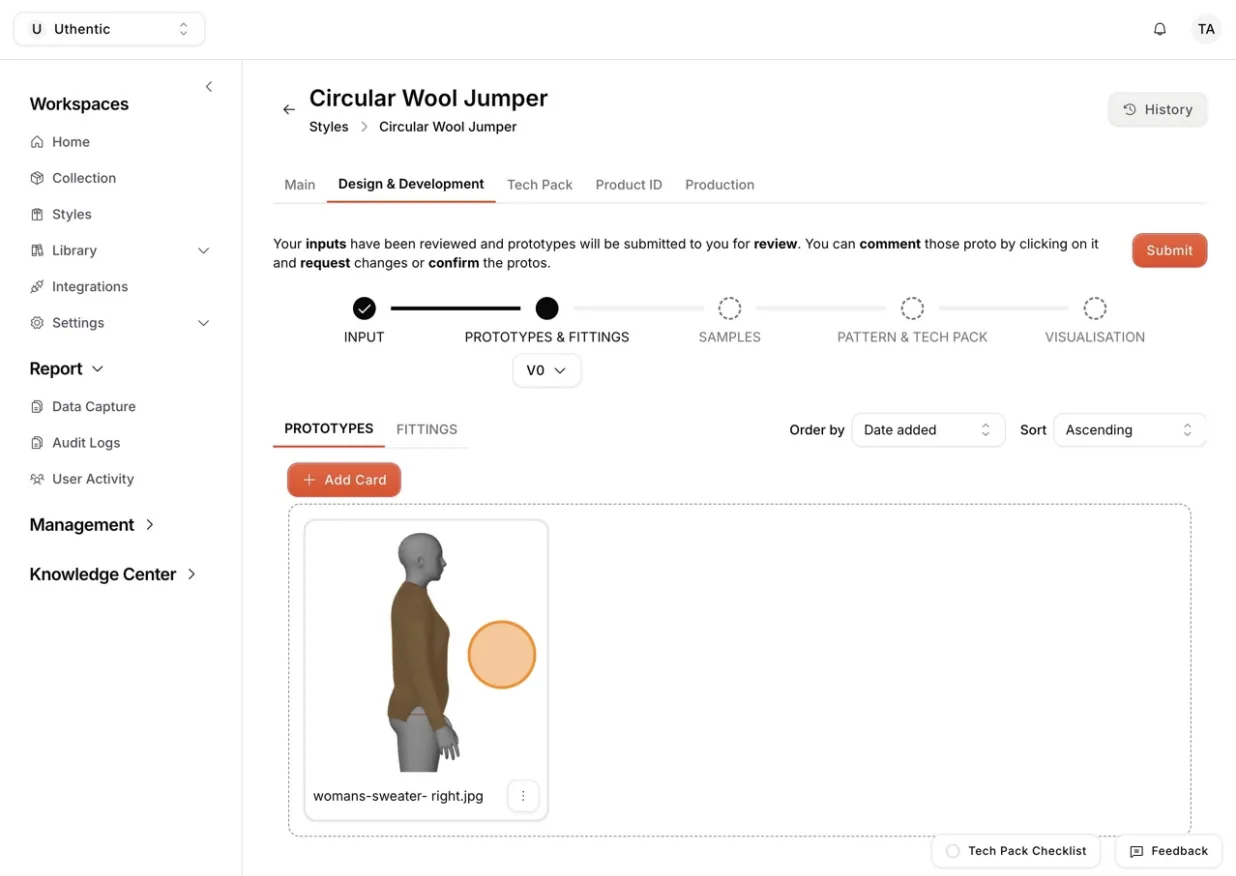
On the workspace, users can zoom in and out on the picture for a clear view, comment, and annotate for easy collaboration with the Vestis Labs team and your team members.
Request Changes.
If revisions are required, click on the Request Changes button.
Note
DO NOT APPROVE A STAGE IF YOU NEED REVISION. ONCE A STAGE IS APPROVED THE SYSTEM MOVES TO THE NEXT STAGE.
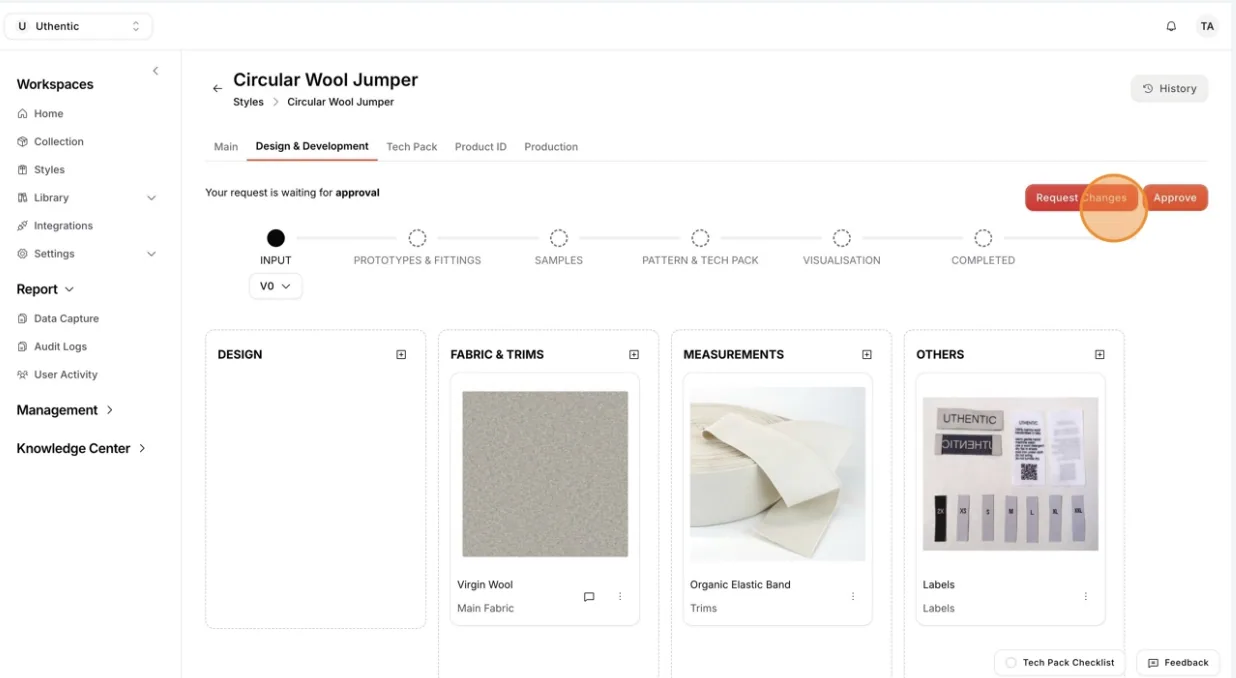
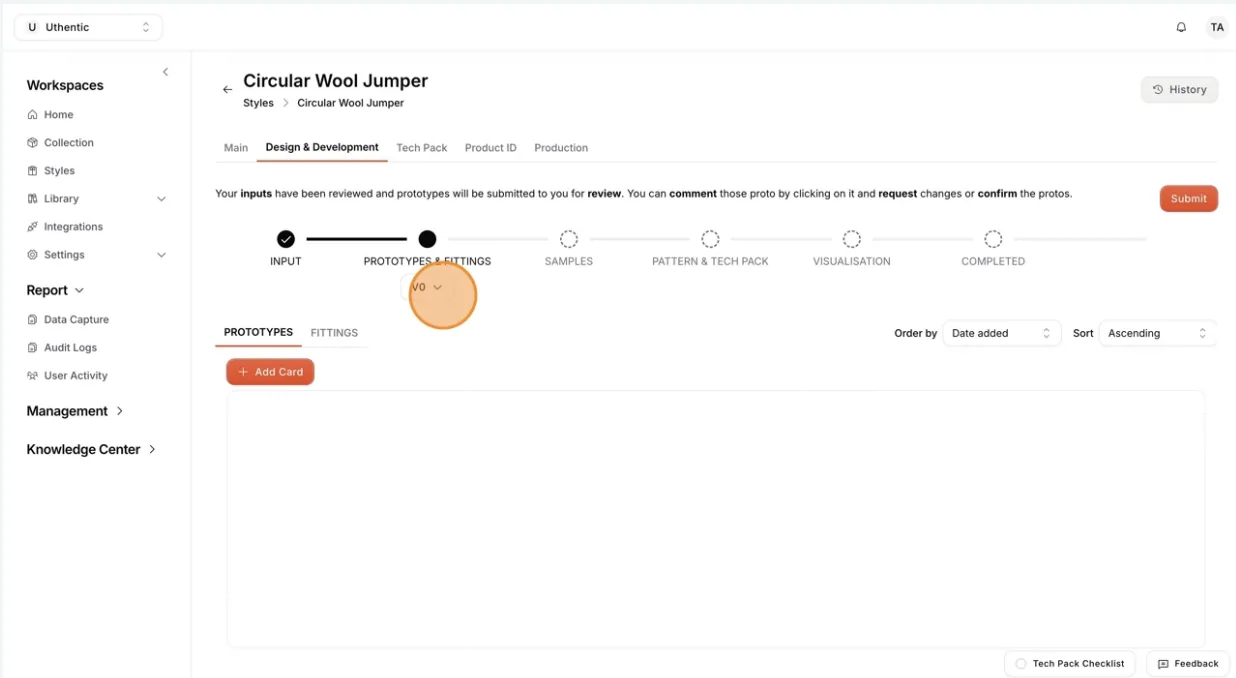
We will action the revisions and upload the new versions. You will be notified of any deliverables uploaded for review and approval. You can see the different versions from the version button on each section.
Approve a deliverable
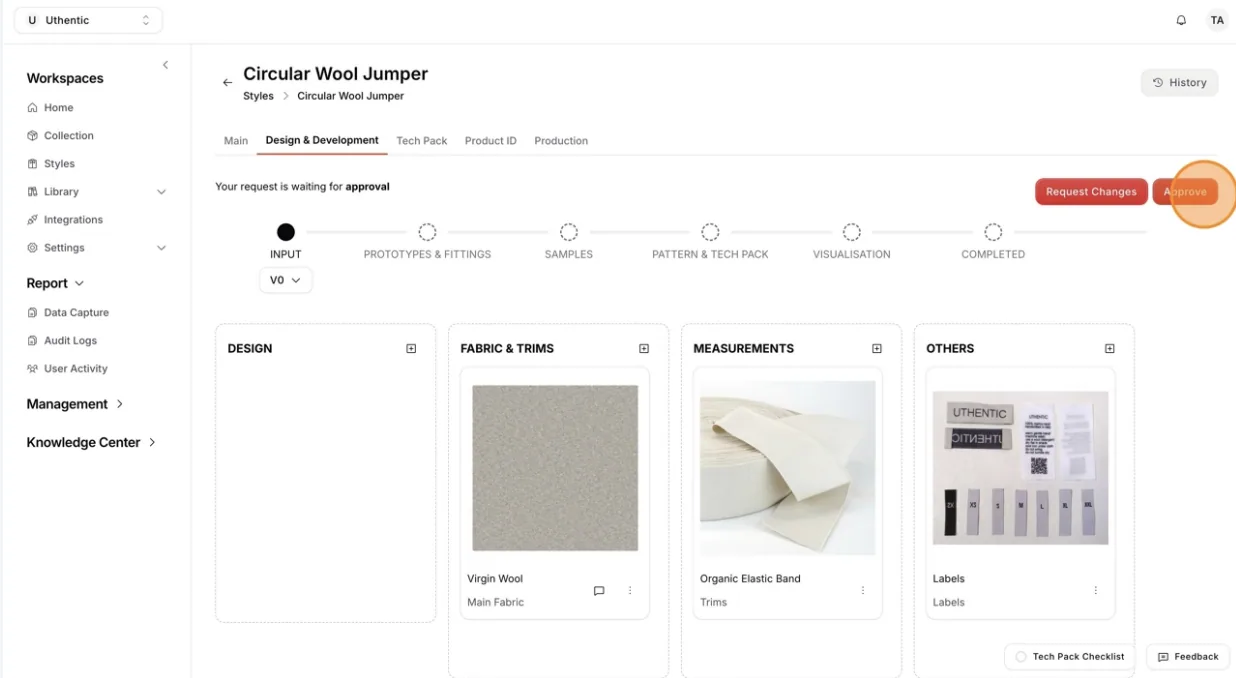
Once users are satisfied with the deliverable, click the Approve button and move to the next step.
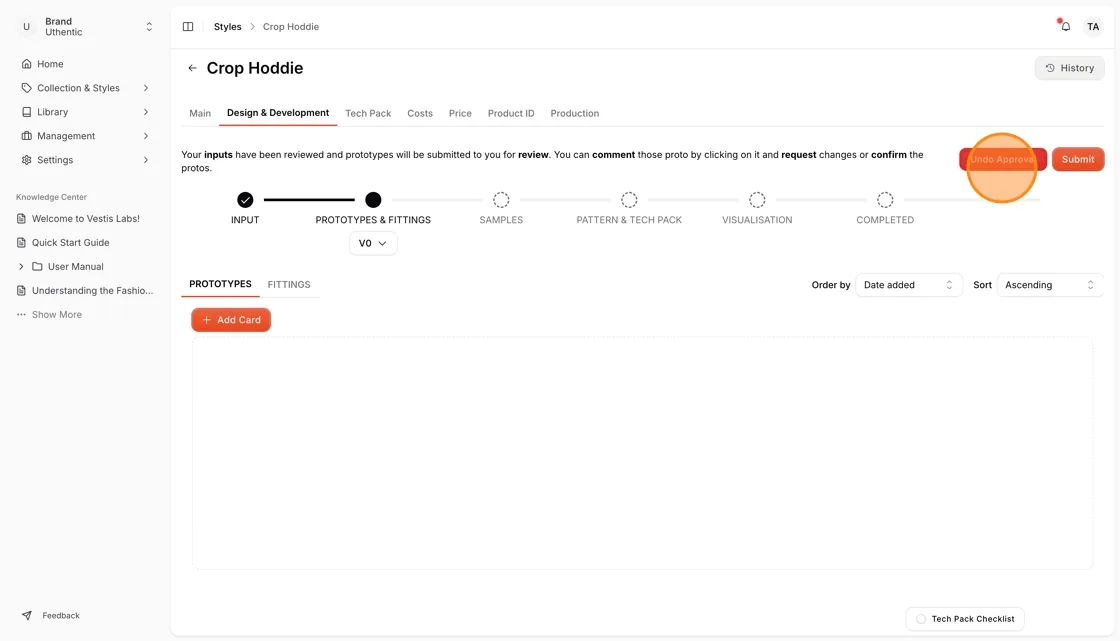
Users can undo the approval and will go back to the previous stage.
You can change the earlier stage and request another approval or request a change.
Final Approval
After all the deliverables are uploaded and approved, we will close the development of the style. The style’s status will be Completed.
What you see at each stage
At the top of the Design & Development tab, a short message tells you what the style is waiting for, and the buttons on the right change with the stage. Which buttons you see depends on your role: Pending is shown instead of the approval buttons when you may not approve that stage.
| Stage | Message shown | Buttons |
|---|---|---|
| Input | Upload your design input such as design sketches, materials, sample measurements, etc. Click Submit to notify your team member(s) for review and start the approval process. | Submit |
| Input, submitted | Your request is waiting for approval | Request Changes, Approve |
| Input approved (Prototypes & Fittings) | Your inputs have been reviewed and prototypes will be submitted to you for review. | Undo Approval, Submit |
| Prototypes & Fittings, submitted | Your request is waiting for approval. | Request Changes, Approve |
| Prototypes approved (Samples) | Wait for samples to be proposed and review request. | Undo Approval, Submit |
| Samples, submitted | Your request is waiting for approval. | Request Changes, Approve |
| Samples approved (Pattern & Tech Pack) | Your samples have been reviewed and techpack will be proposed to you. | Undo Approval, Submit, Complete |
| Pattern & Tech Pack, submitted | Your request is waiting for approval. | Request Changes, Approve |
| Tech pack approved (Visualisation) | none | Undo Approval, Submit, Complete |
| Visualisation, submitted | Your request is waiting for approval. | Request Changes, Approve |
| Visualisation approved | Your workflow is complete. | Undo Approval, Complete |
| Completed | none | Reactivate Style |
Note
Request Changes sends the stage back so a new version can be uploaded. Approve moves the style to the next stage. Undo Approval moves it back to the previous stage and puts that stage back in review.
Complete and reactivate a style
Complete closes the development of the style from the stage where you click it. A completed style shows only Reactivate Style. Click it and confirm with Confirm in the Reactivate Style window (Are you sure you want to reactivate this style?) to reopen the workflow, or click Cancel.
Versions and their status
Every stage except Completed has a version button (V0, V1, and so on) under its name. Each version carries a status badge: New, In Review, Approved, Changes Requested or Rejected - Changes Requested. Open the version list to switch version, delete a version (when more than one exists), or click Create new version. Create new version stays disabled until the current version has at least one input.
In-app guidance and notifications
The message at the top of the tab and the version badges are the in-app guidance for this workflow. The platform also records each submit, approval and change request as a notification for your team, so check your Notification settings if you want these by email.