
Measurement card status settings
Add, rename, reorder, activate and delete the statuses a measurement card can have, and choose the default one.
Measurement Card Status lets you manage the statuses that a measurement card can have. The list starts with the system statuses Draft, Needs Changes, Approved and Not Approved, and you can add your own.
SettingsCollection & StyleMeasurement Card Status
Permission: UPDATE_PRODUCT,VIEW_STYLE
The status list
| Column | What it shows |
|---|---|
| Label | The name of the status. |
| Order | Move up and Move down arrows that change the position of the status in the list. |
| Active | Switch that turns the status on or off. System statuses cannot be deactivated. |
| Default | Switch that marks the status used by default. To change it, switch on Default for another status. |
System statuses and the current default status cannot be edited or deleted. The row shows why when you hover over a disabled button.
Add a status
Open Measurement Card Status
From the left sidebar, click Settings, then Collection & Style, then Measurement Card Status.
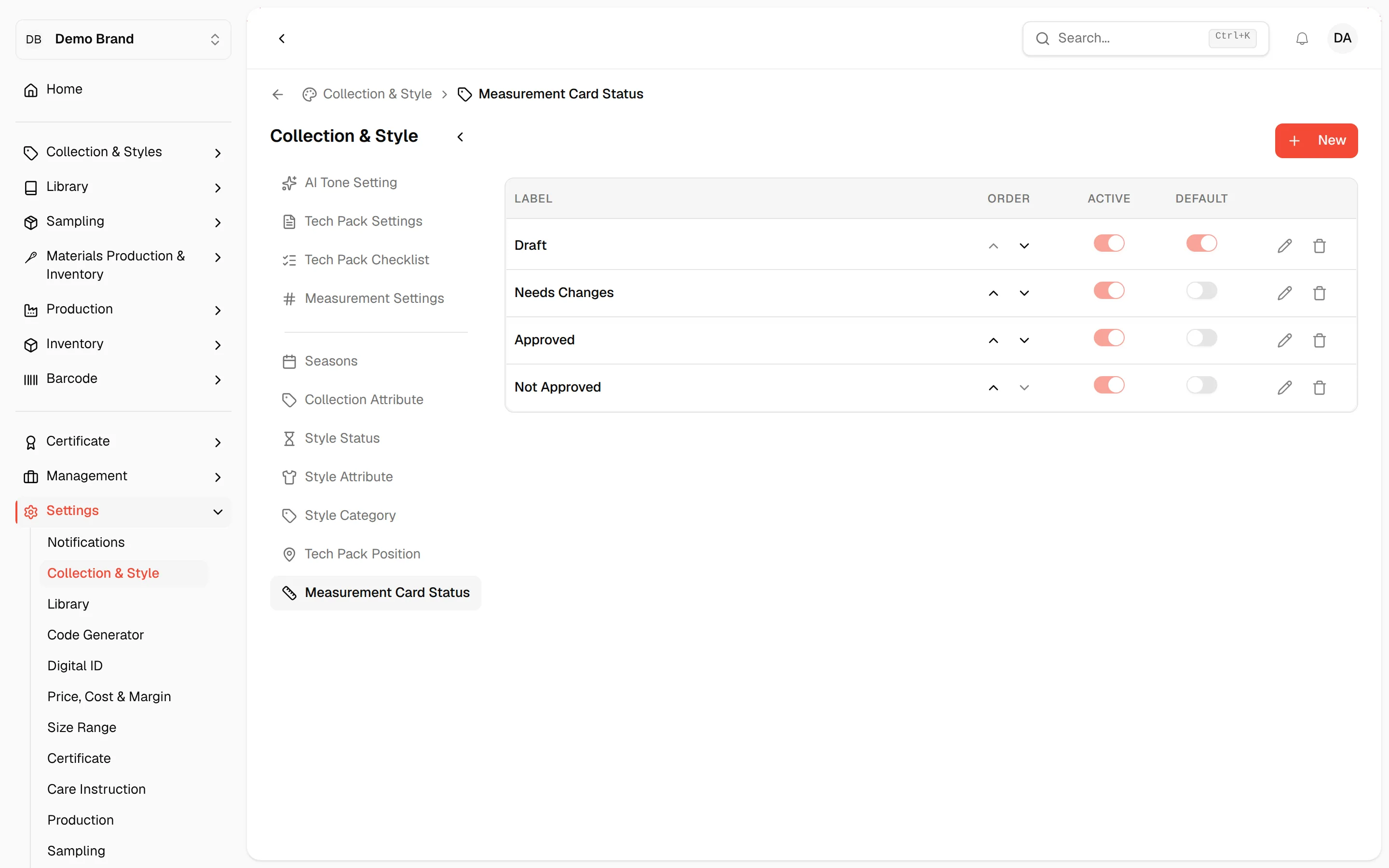
Click "New"
Click the New button above the list.

Enter the label
In the New status window, type the name in the Label field, for example In Review. The field is required.
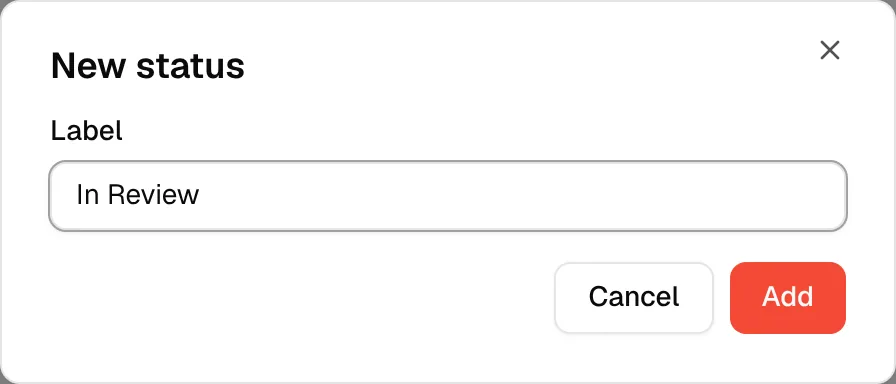
Click "Add"
Click Add. A Status added message appears.
Rename a status
Click the pen icon
In the row of a status you added, click the pen icon.
Change the label
In the Edit status window, change the Label.
Click "Save"
Click Save. A Status updated message appears.
Reorder, activate or set the default
- Click the up or down arrow in the Order column to move a status.
- Use the Active switch to turn a status on or off.
- Switch on Default to make a status the default.
These changes save as soon as you make them and show Status updated.
Delete a status
Click the trash icon in the row of a status you added and confirm the prompt that asks to delete the status. A Status deleted message appears.
Note
Without the permission to update products you can see the list, but cannot add, change or delete statuses.