
See which styles use a material
Use the Styles tab of a material to find every style that uses it, filter the list, and open a style to unlink the material.
Under review. This page is published while we check it against the live app, so some details may have changed.
The Styles tab of a material lists every style that uses the material in its bill of materials. Use it to see where a material goes before you change its price, and to find the styles to unlink when you want to delete a material.
LibraryMaterials(open a material)Styles
Permission: UPDATE_PRODUCT,VIEW_PRODUCT,VIEW_STYLE
Before you start
- The tab only exists for private materials. Public materials do not show it.
- You need the permission to view styles on top of the permissions needed to open a material.
See the styles that use a material
Open the material
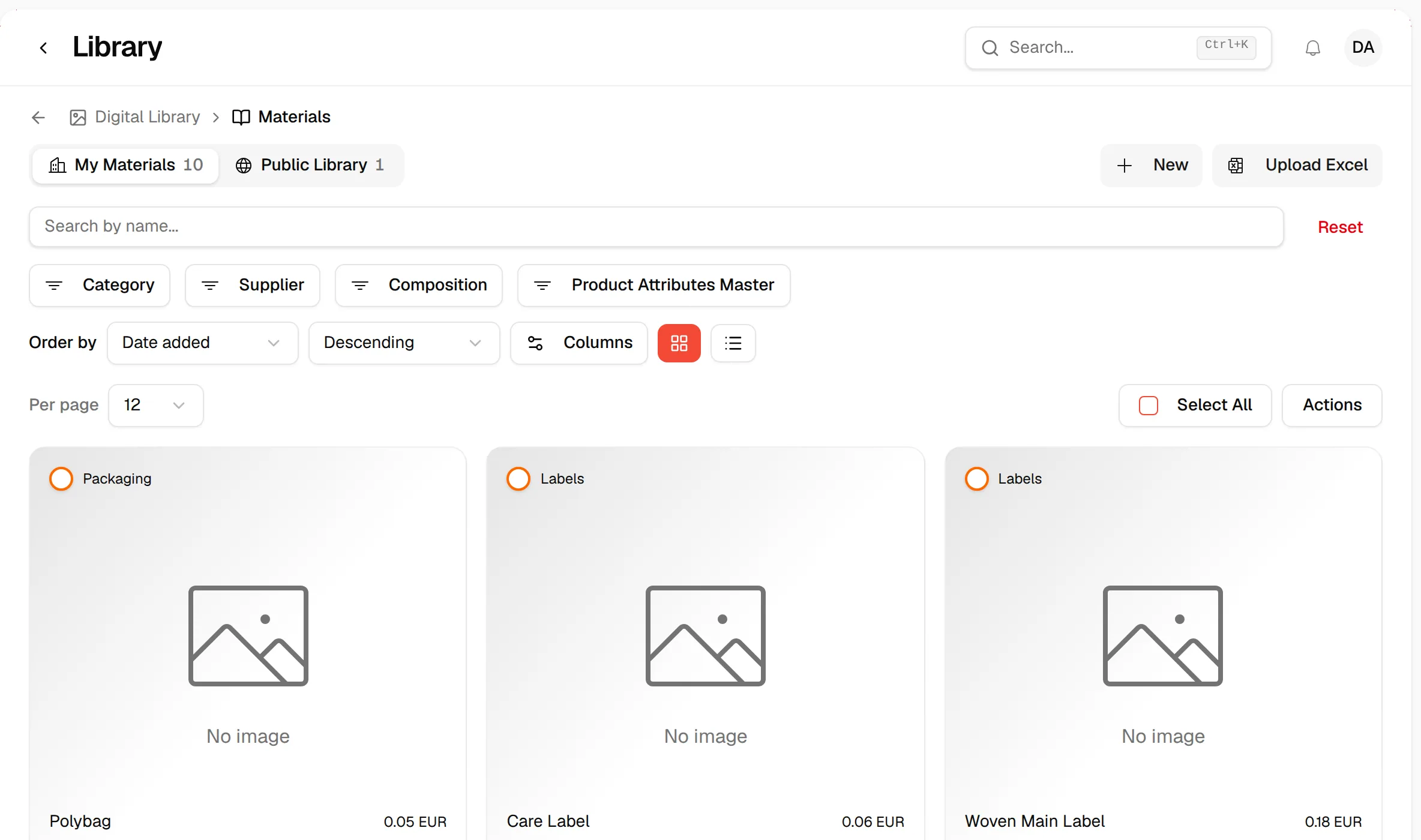
From the left sidebar, click Library, then Materials, and open the material.
Click the "Styles" tab
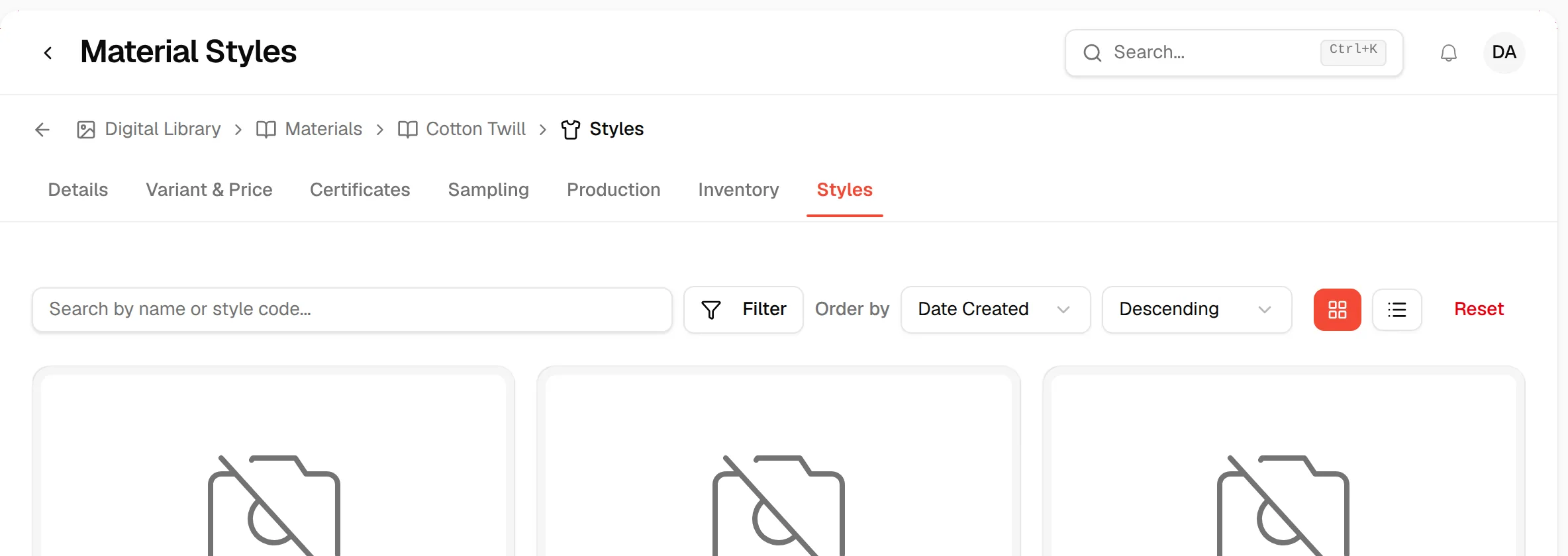
Click Styles in the tab row at the top of the material.
Read the list
Each style that uses the material is shown as a card, or as one row per colour in the table view.
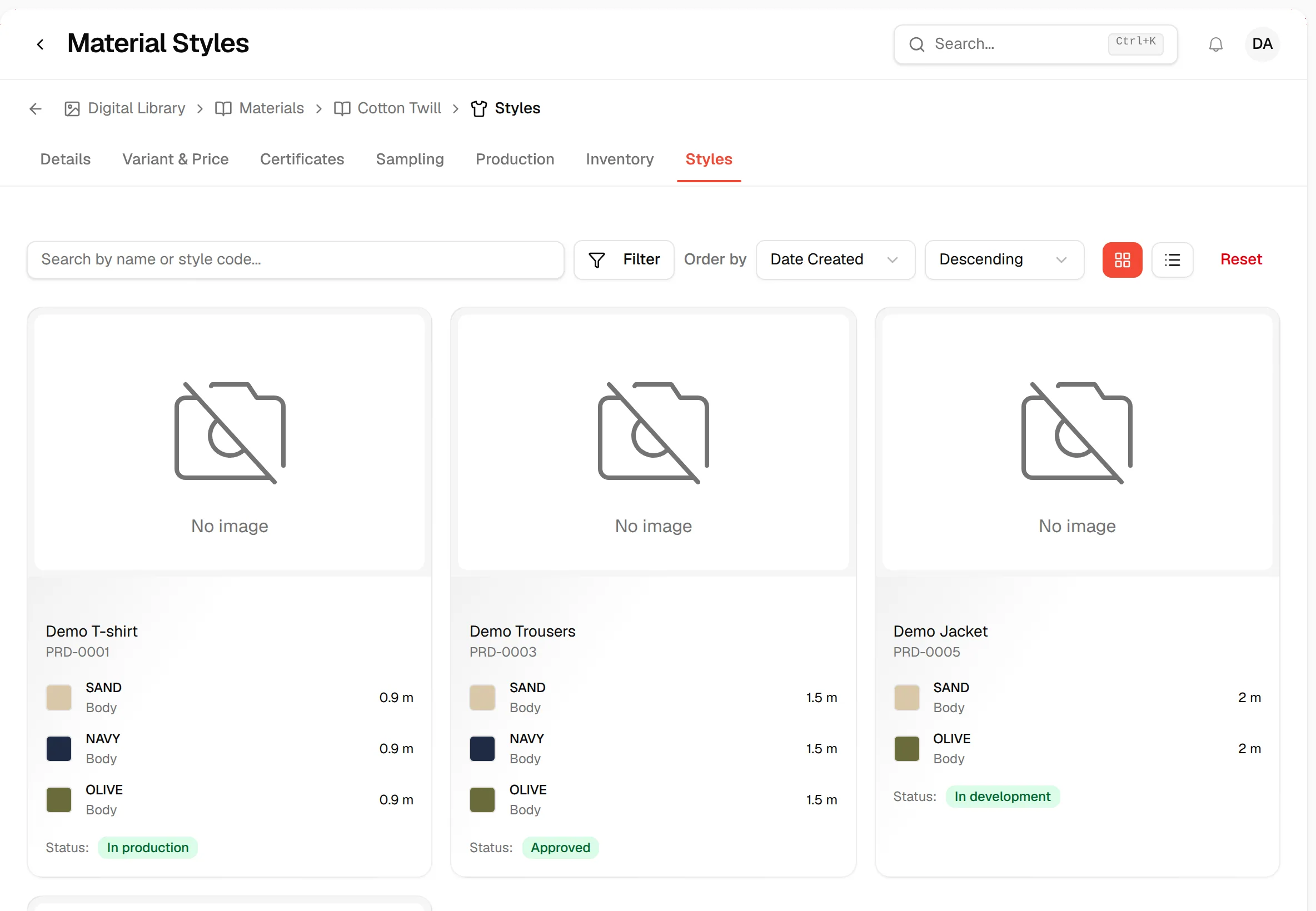
If no style uses the material, the tab says "No styles found — No styles are using this material."
Cards and table
Use the two view buttons next to the filters to switch between cards and a table. The table has these columns:
| Column | What it shows |
|---|---|
| Thumbnail | The style picture. |
| Style Name | The name of the style. Click it to open the style. |
| Code | The style code. |
| Collection | The collection of the style. |
| Status | The style status. |
| Material Color | The colour of this material used in the style. |
| Position | Where the colour is used on the style. |
| Usage Per Style | The quantity of the colour used for one style, with its unit. |
Narrow the list
- Search by name or style code... finds styles by name or code.
- Filter opens a stacked filter with Collection, Season, Category, Size Range, Color, Supplier, Status and Style Attributes. Selecting a Color keeps only the rows that use that colour of the material.
- The sort chip orders the list by Name, Code, Date Created or Last Modified, Descending or Ascending. The default is Date Created, newest first.
- Reset clears the search, the filters and the sort.
Unlink a material from a style
You cannot delete a material that is linked to a style. To free it:
Open the style
In the Styles tab, click the style name (table view) or the style card.
Remove the material
In the style's bill of materials, remove the material row. See Tech pack bill of materials.
Delete the material
Go back to Library → Materials and delete the material. See Material library page overview.
Note
Searching, filtering and sorting on this tab are applied to the list already loaded, so results update instantly.