
Step 2 of 13 in Place and track a production order
Select style for production order
Select the appropriate product variant to ensure the correct style is included in the order
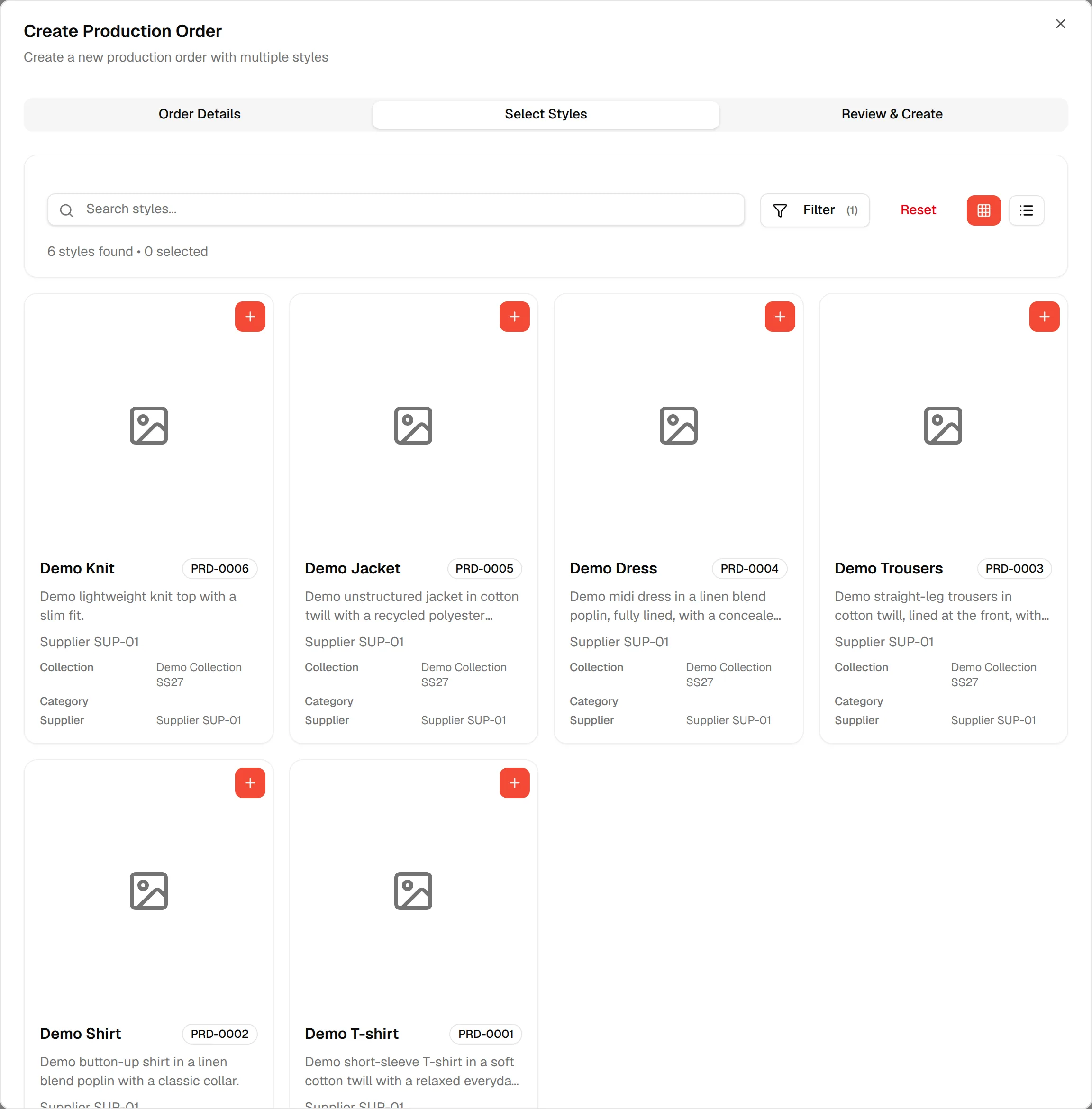
Select the appropriate product variant to ensure the correct style is included in the order. This is the second tab, Select Styles, of the Create Production Order dialog.
ProductionOrder ManagementCreate OrderSelect Styles
Permission: UPDATE_BRAND_PRODUCTION
Find the style
Use Search styles... to find a style by name. Use Filter to narrow the list by Collection, Category or Supplier. If you chose a supplier on the Order Details tab, the list is already filtered to that supplier. Click Reset to clear the filters.
Switch between the card view and the table view with the two icon buttons at the right. Above the list, a counter shows how many styles were found and how many are selected, for example "12 styles found • 2 selected".
- In the card view, each card shows the style picture, name, style code, collection, category and supplier.
- In the table view, the columns are Image, Style, SKU, Collection, Category, Stock (the number of colours), Supplier and Action.
Add a style to the order
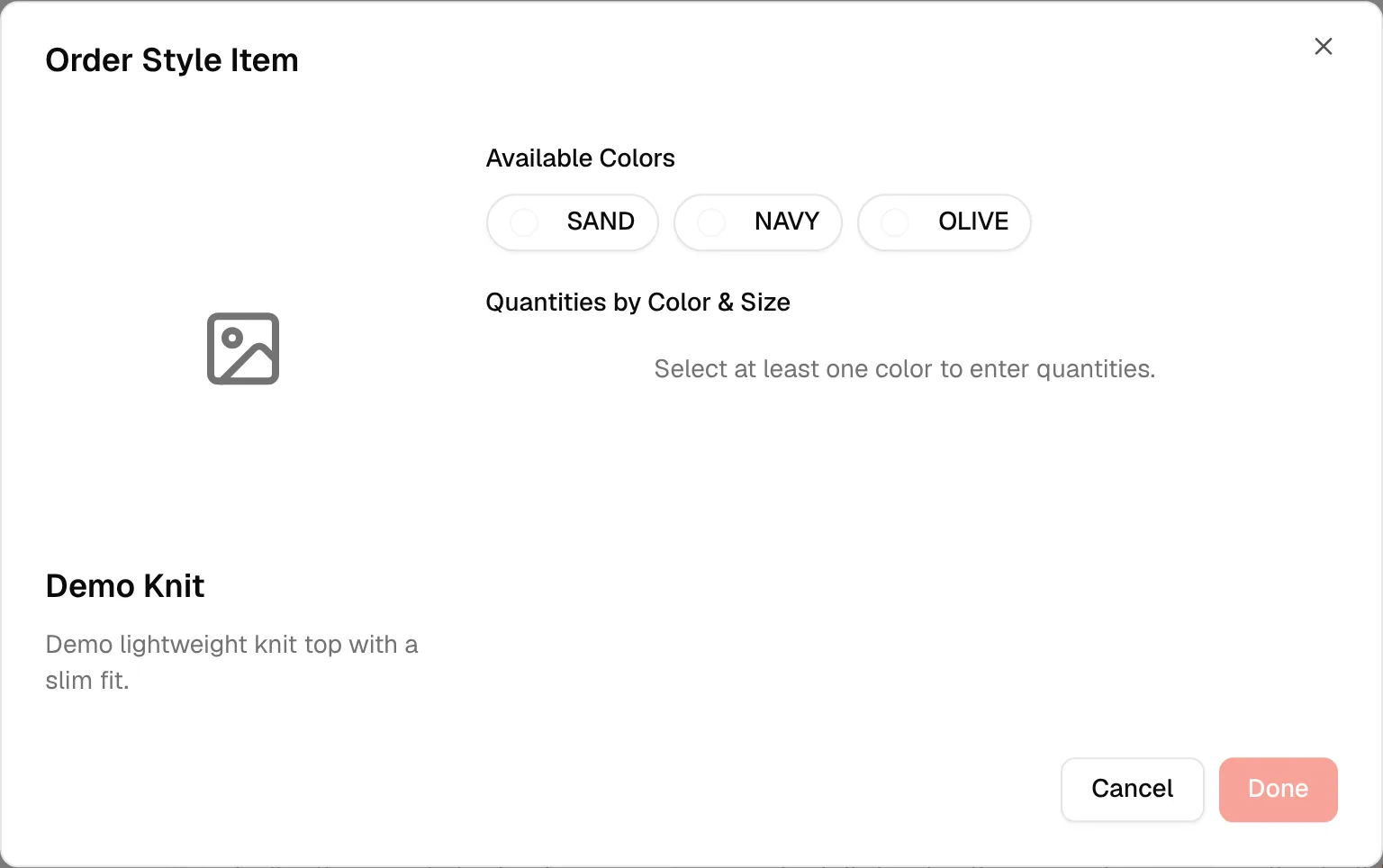
Choose products by clicking the + icon on a card (card view) or Configure (table view). The Order Style Item dialog opens.
Under Available Colors, select the appropriate available product colour variant. Click a colour again to remove it. Colours that are no longer active on the style are not offered.
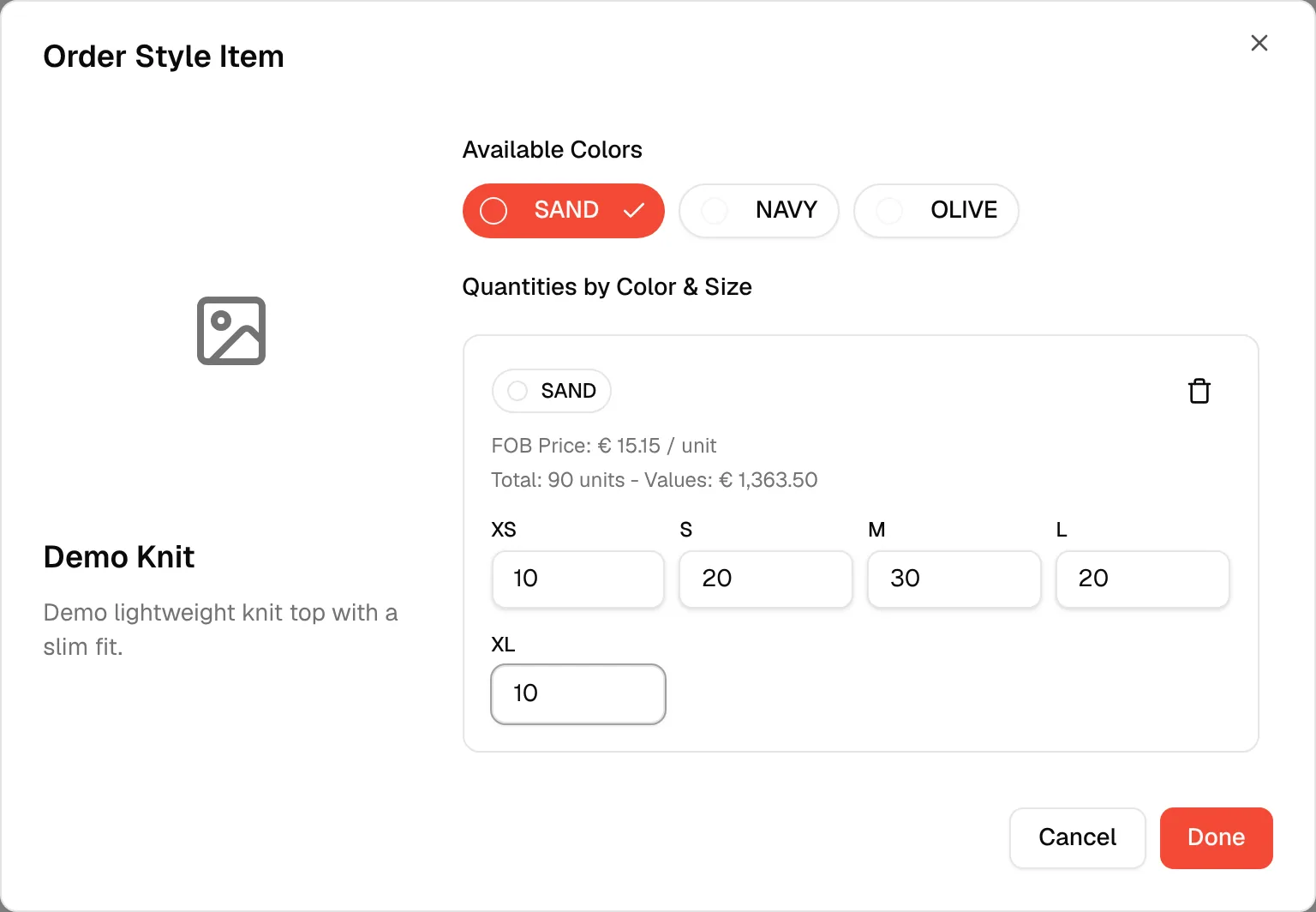
Under Quantities by Color & Size, enter the required quantity for each size of each colour. The sizes come from the style's size range. Each colour shows its FOB Price per unit, its total units and its total value, and the values update as you type. The FOB price is taken from the style's costing when you add the colour, and typing a quantity never changes it.
Note
Users can select multiple colour variants under one style to include various options in the same order. Until you select at least one colour, the dialog shows "Select at least one color to enter quantities." and Done stays disabled.
Click Done once you have added the product.
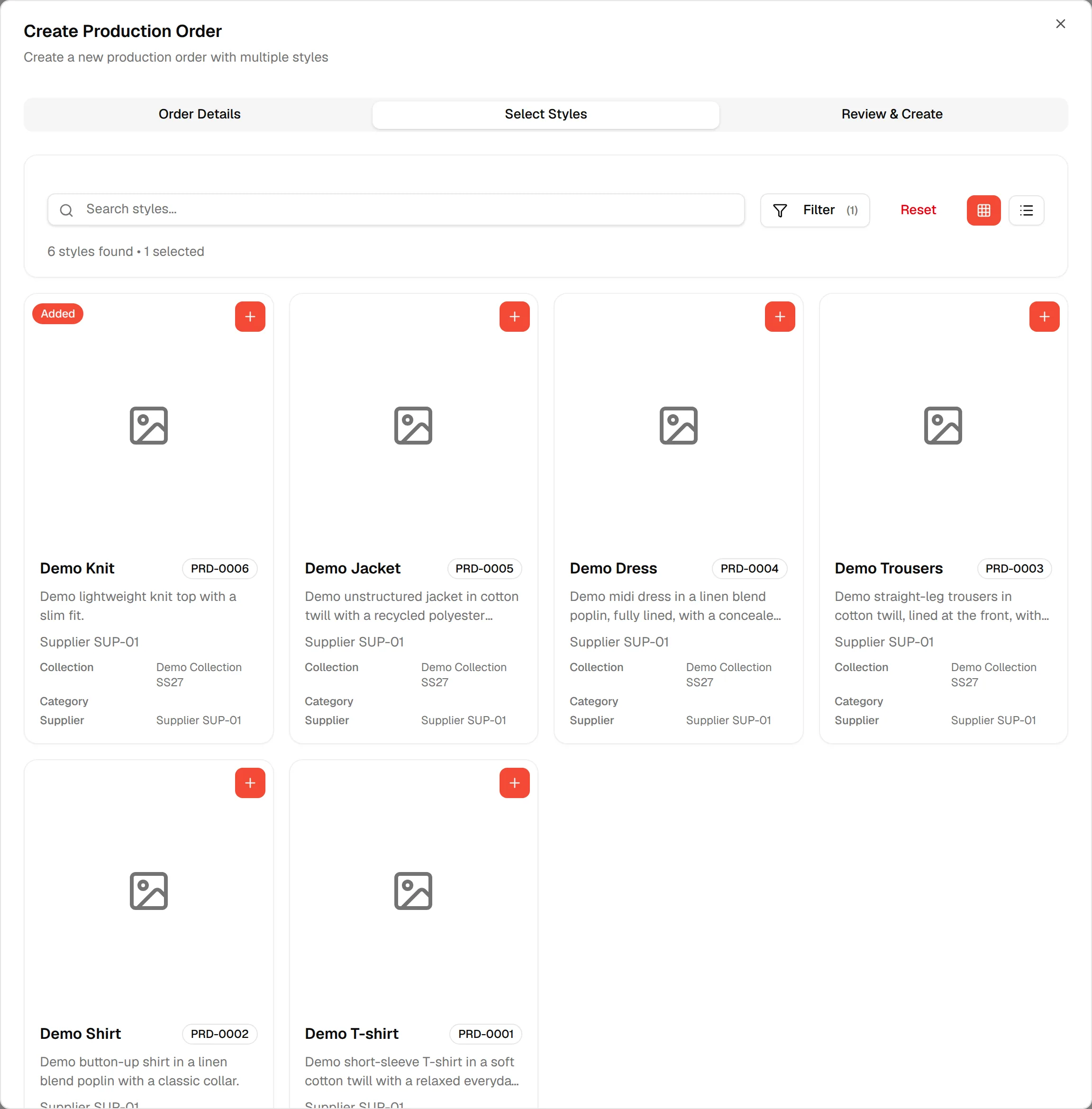
Repeat the process to add more products or variants as required. Added styles show an Added badge in the card view.
Review and adjust the selected styles
Under Selected Styles (n), each style appears with its total value and units, and a table of quantities per size for each colour.
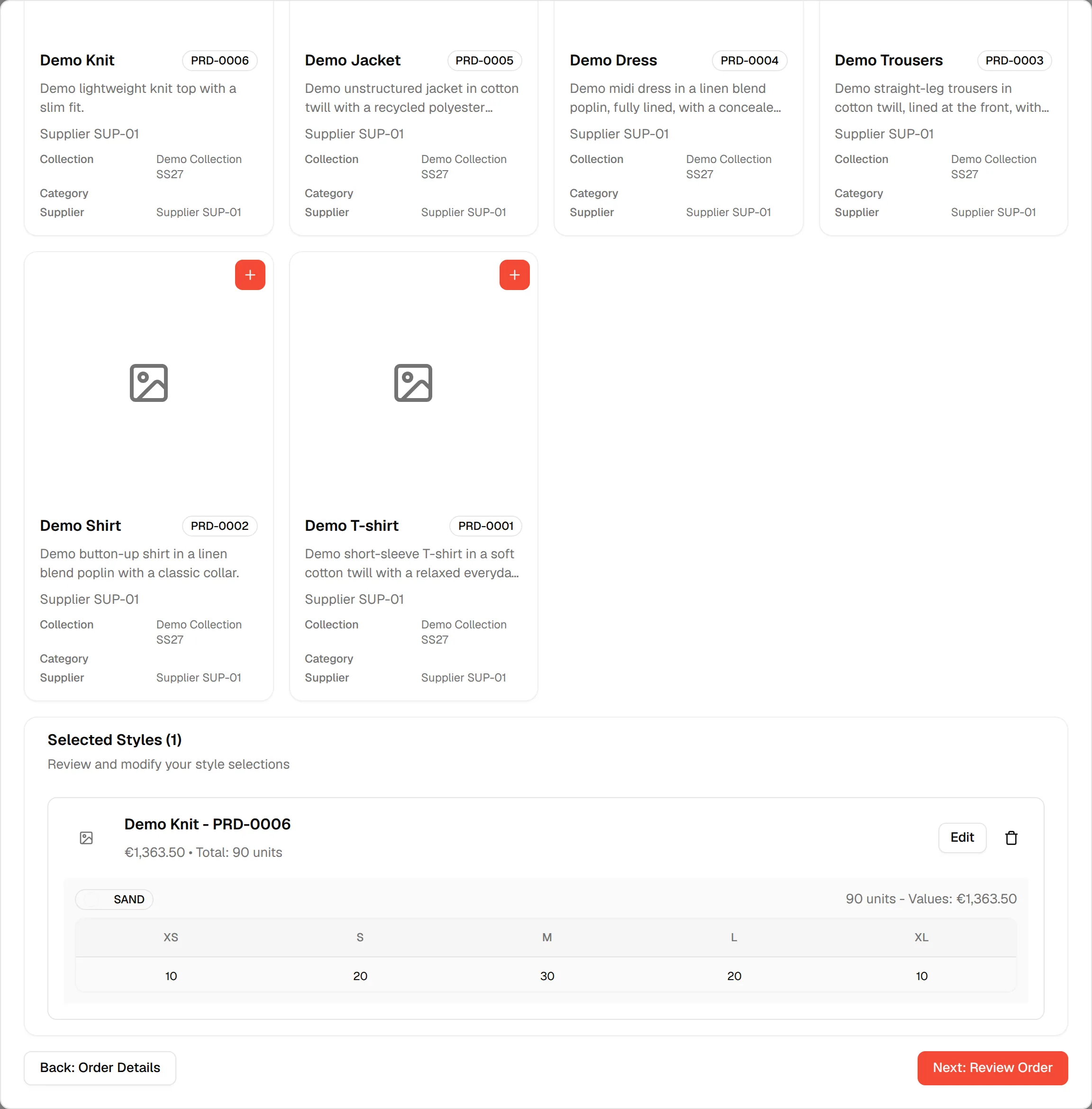
- Click Edit to reopen Order Style Item and change colours or quantities.
- Click the bin icon to remove the style from the order.
Click Next: Review Order. It stays disabled until at least one style is added. Click Back: Order Details to return to the previous tab.
One supplier per order
An order can only contain styles from one supplier. If you add styles from different suppliers and then click Create Order & Generate PO, the platform shows Multiple Suppliers Detected: "This order contains products from multiple suppliers. Orders can only be created for one supplier at a time." Click Enable Order Aggregation to include the order in aggregation, or Cancel to go back and change the styles. See Review and confirmation production order.