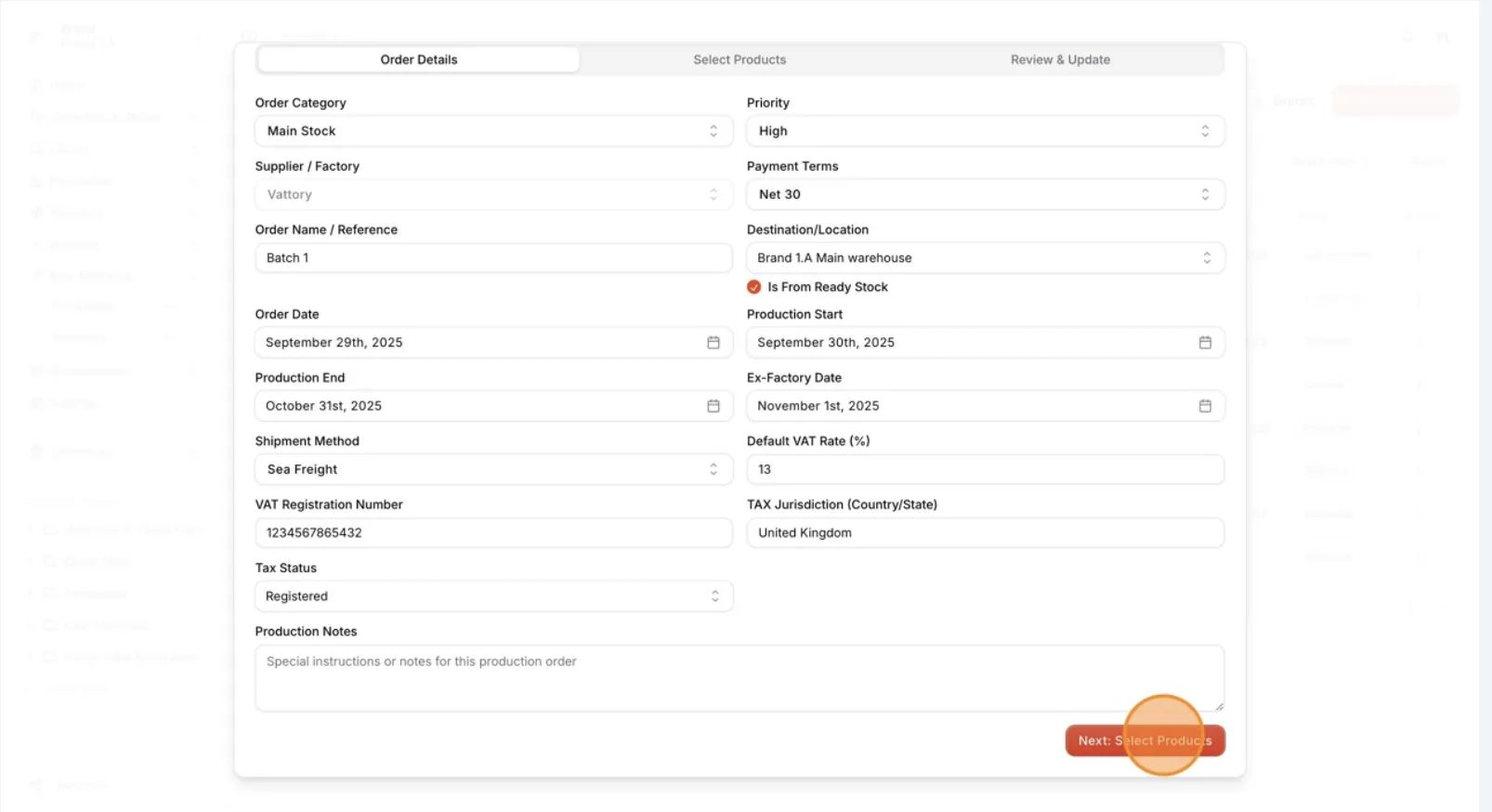
View/edit the production order
Users can review all order details, make necessary changes, and update the information as needed.
Under review. This page is published while we check it against the live app, so some details may have changed.
Screenshots may be out of date.
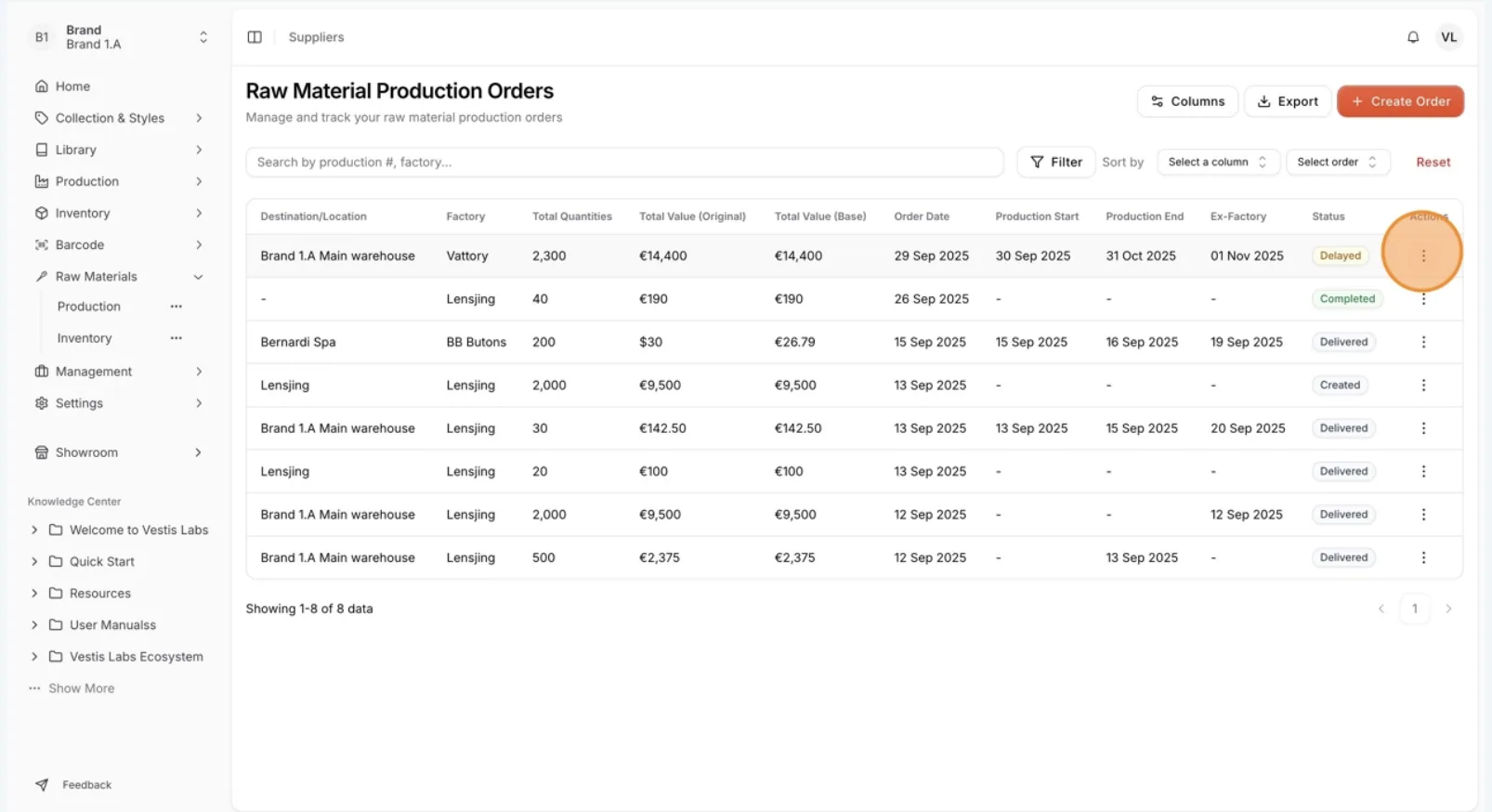
On the Raw Material Production Orders Dashboard, select…
On the Raw Material Production Orders Dashboard, select the three-dot action button > View/Edit to review and update your Production Order.
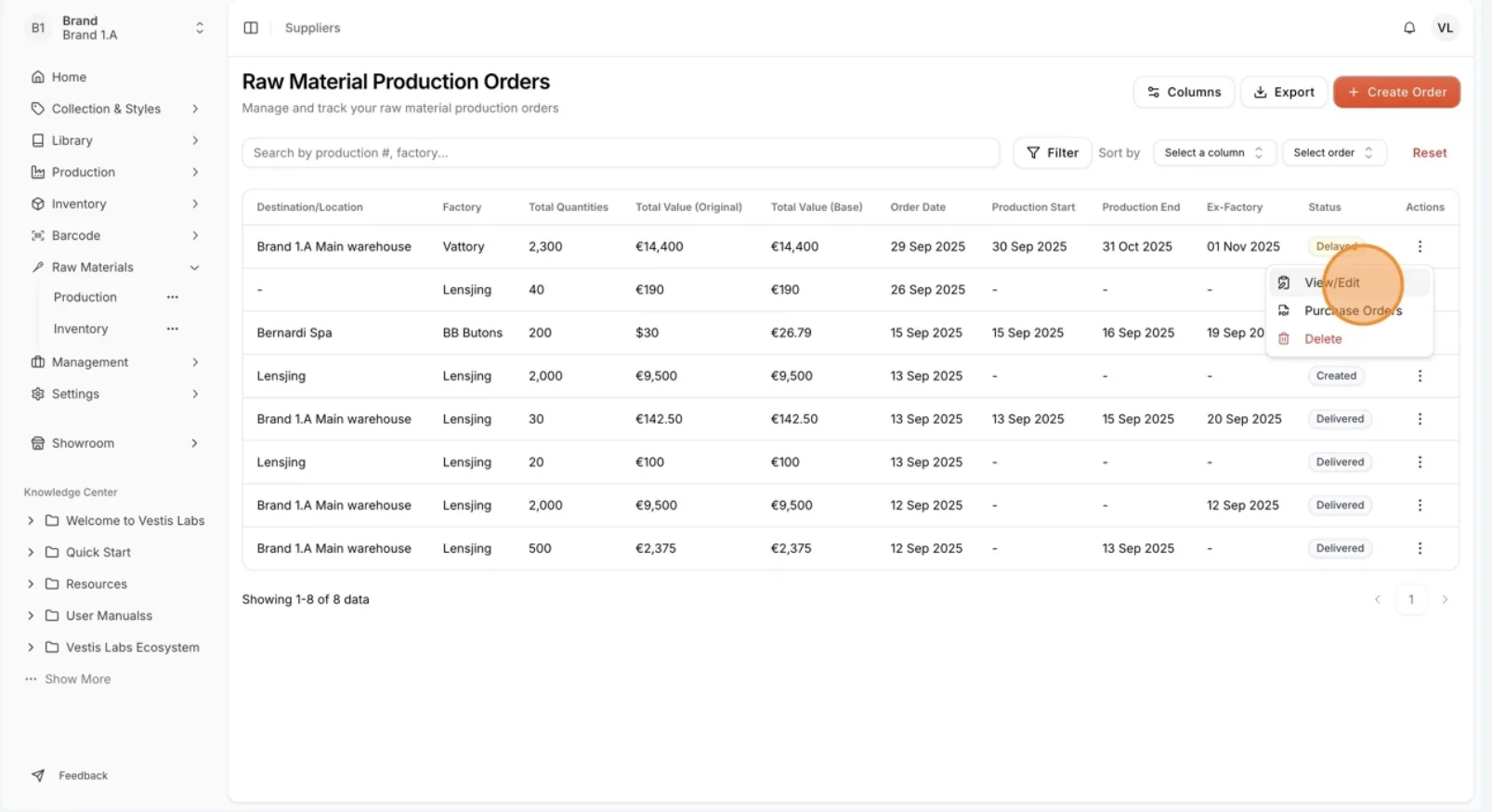
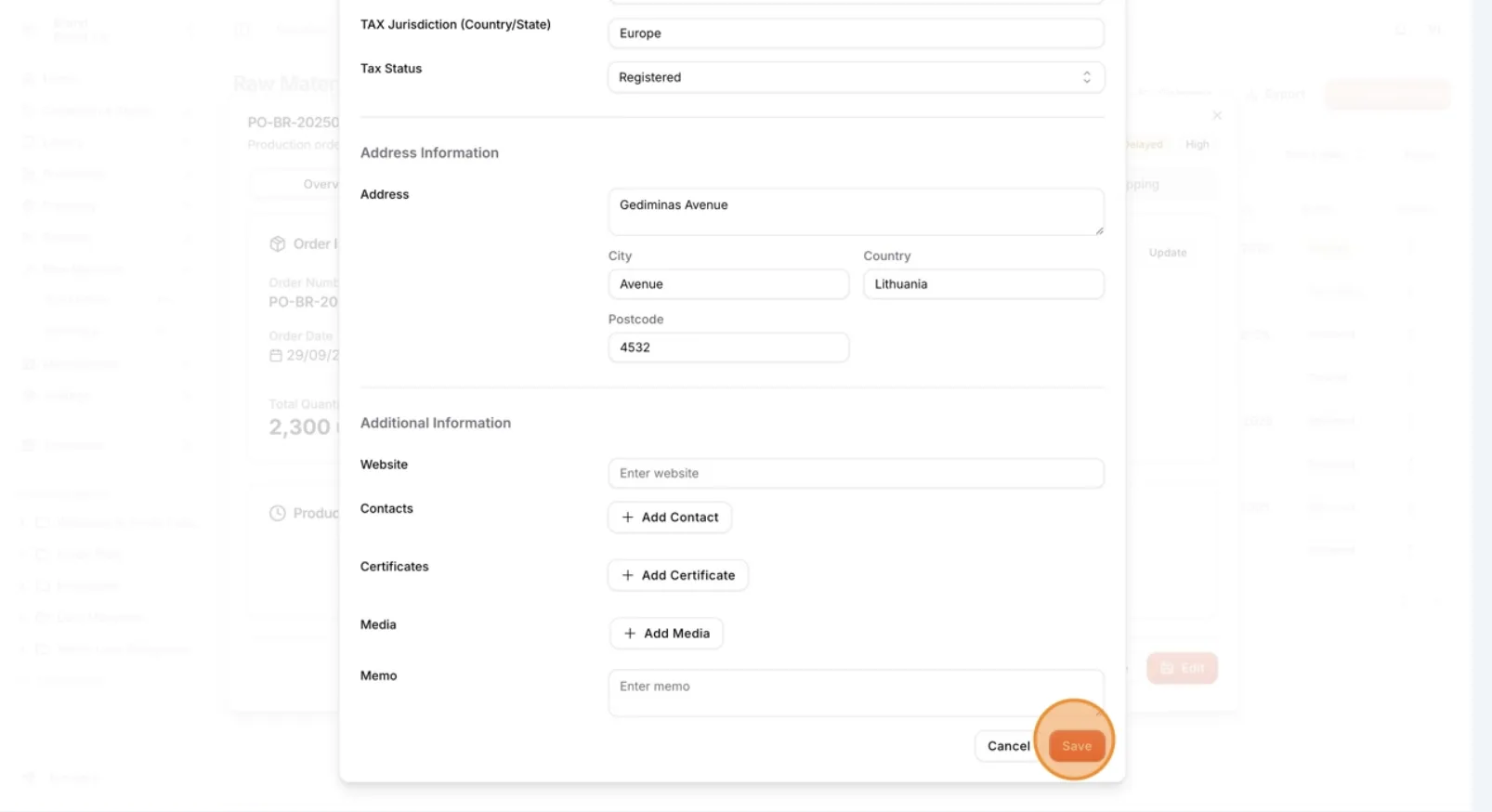
On the Overview Page, Users can update the Factory Information by selecting 'Update'.
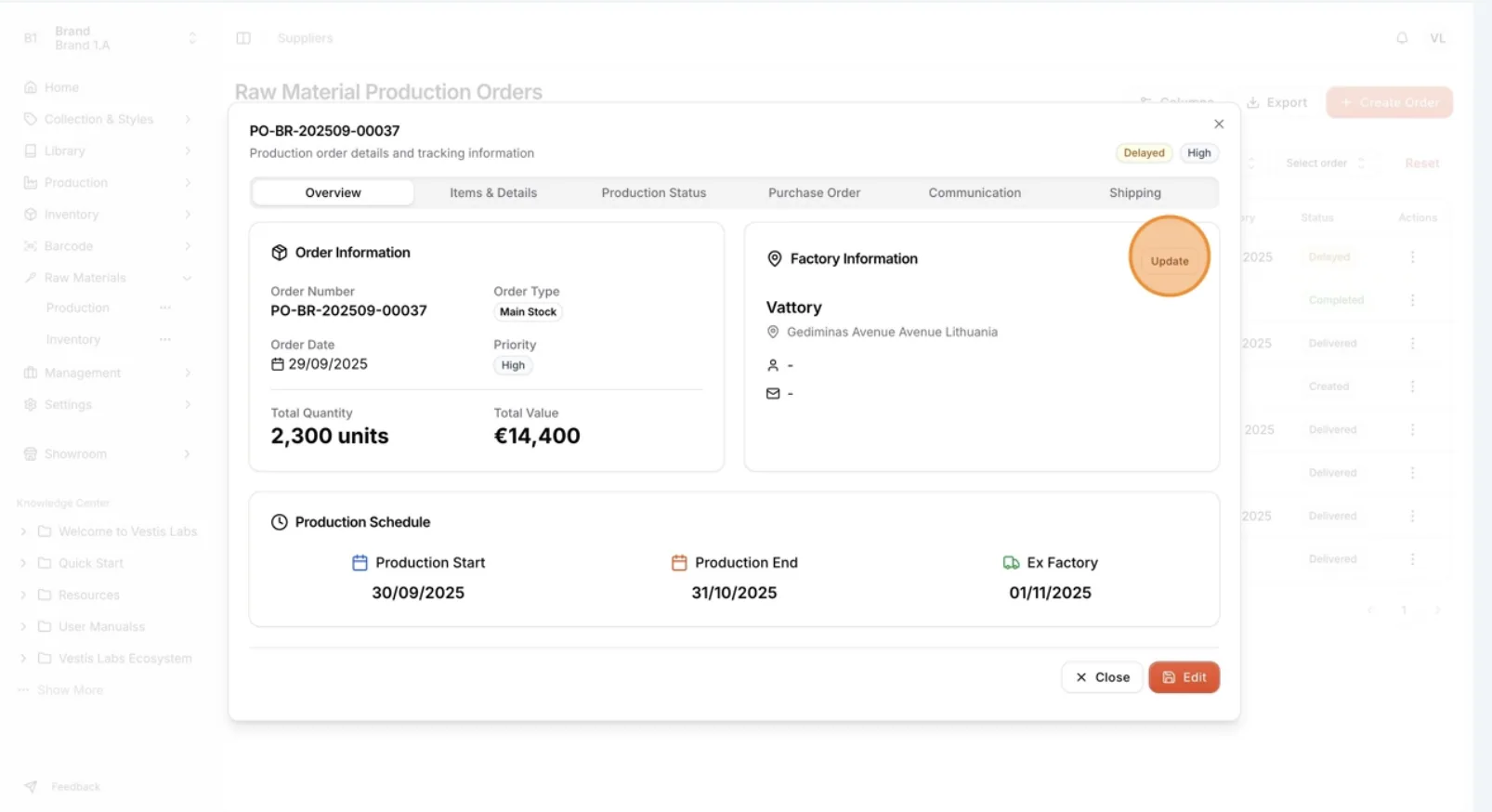
Update the information as needed in the update supplier page.
Click 'Save" to save the changes.
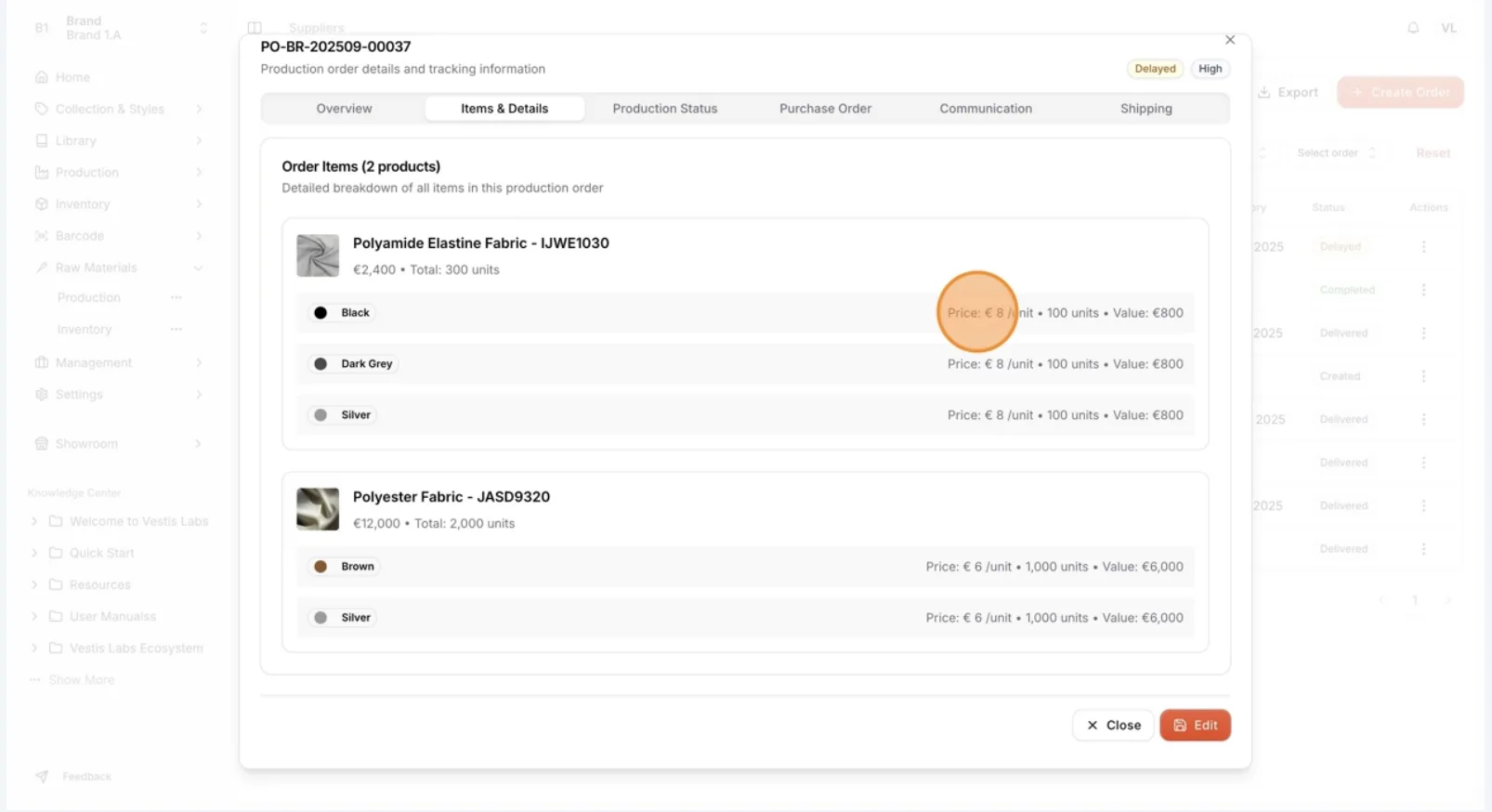
On the Item & Details page, users can review the Order Items.
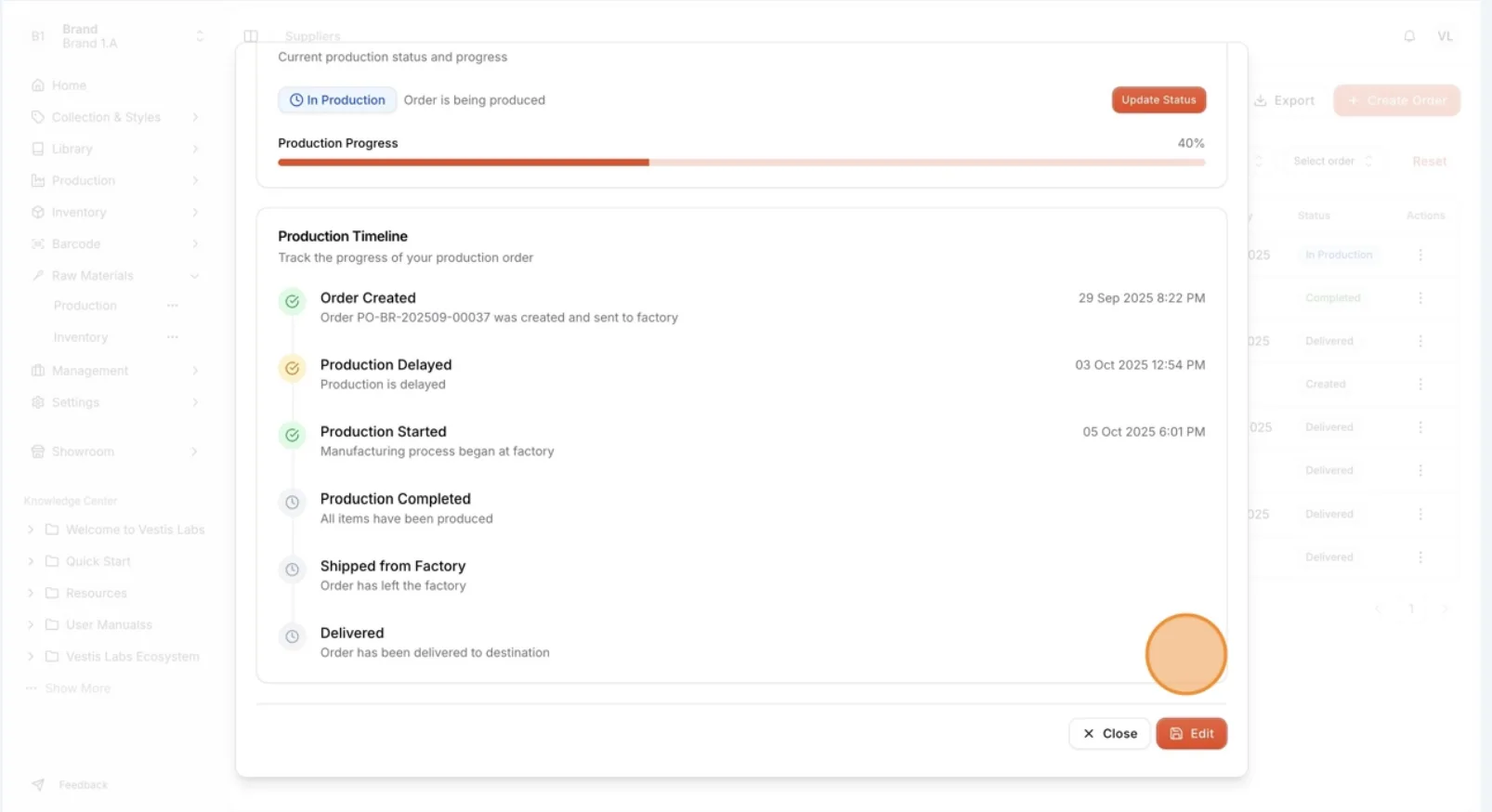
On the Production Status page, users can view…
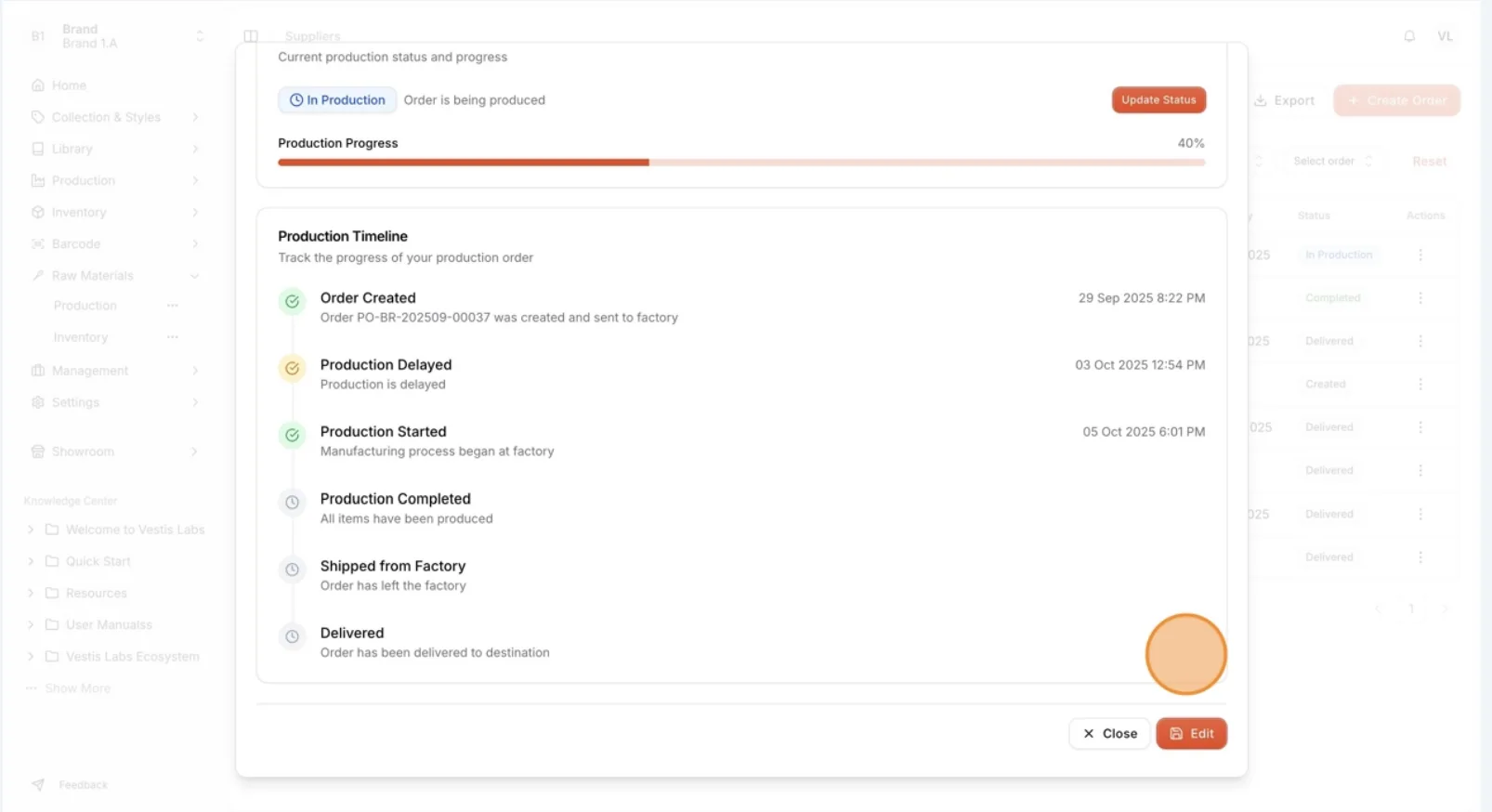
On the Production Status page, users can view the current status or update the production progress. All changes and progress of the production process are reflected in real time on the production timeline.
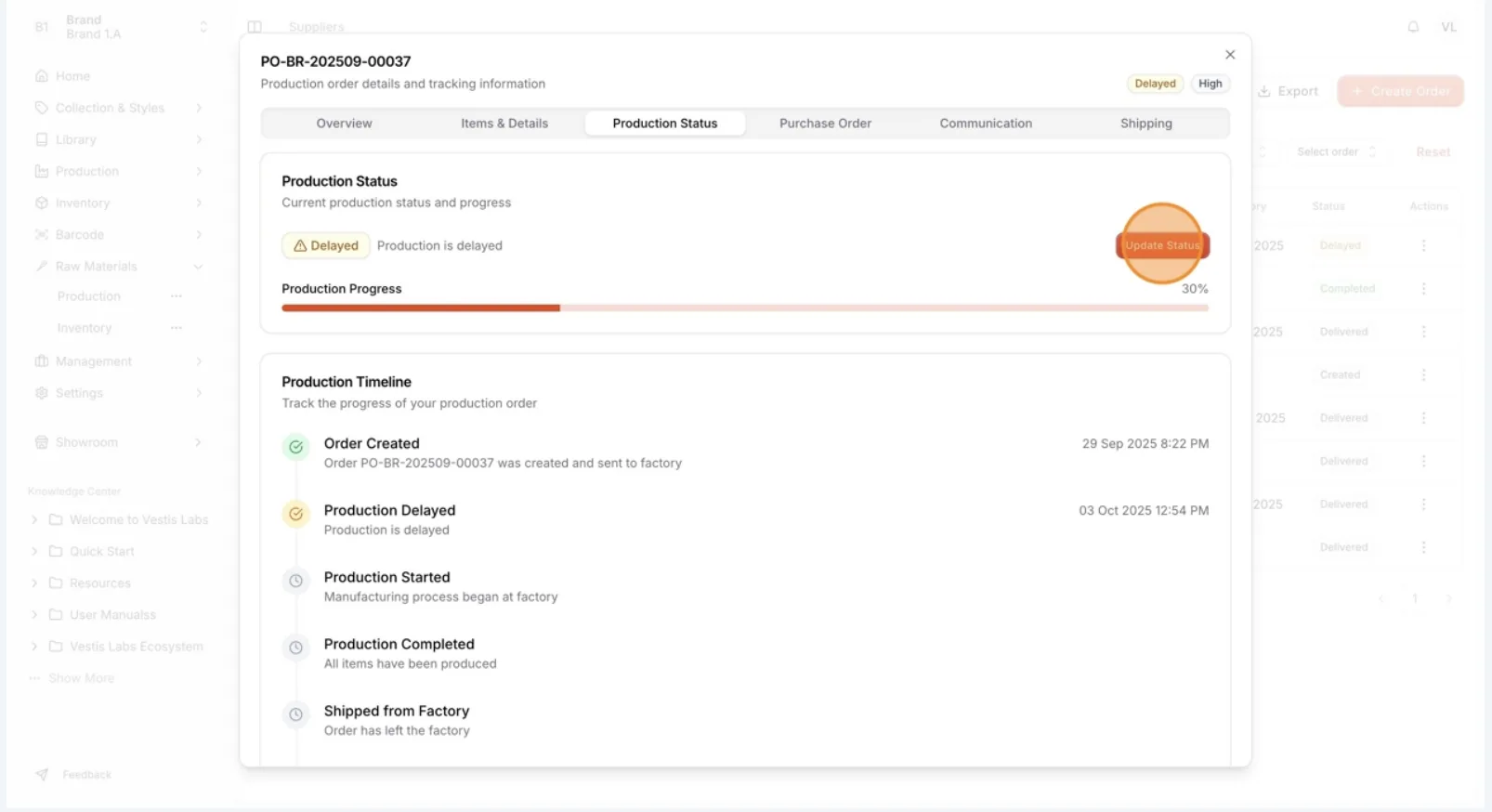
Select 'Update Status' to change the production status…
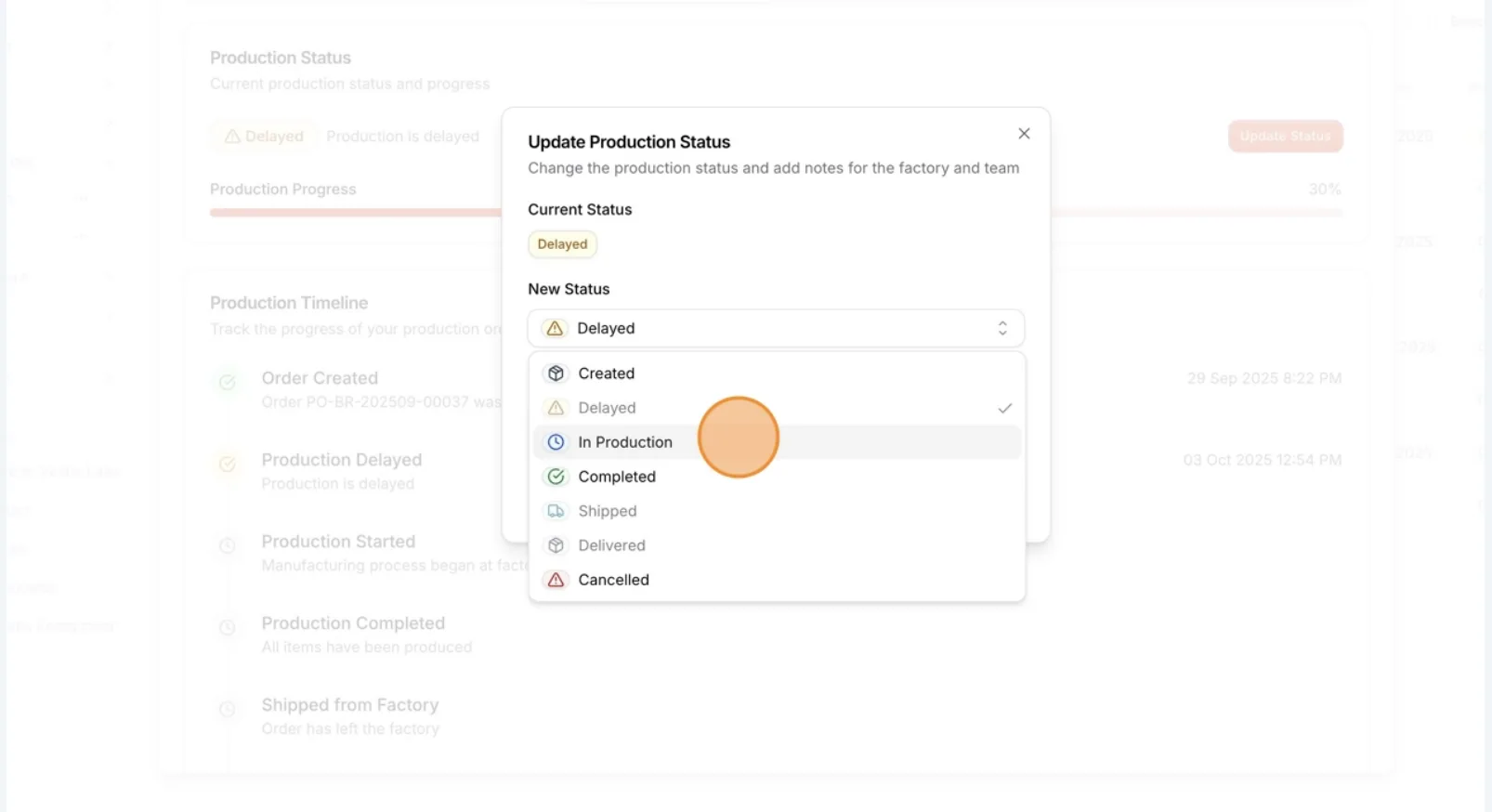
Select 'Update Status' to change the production status and adding notes for the factory and team
Select the 'New Status' you want to apply to update the current production status.
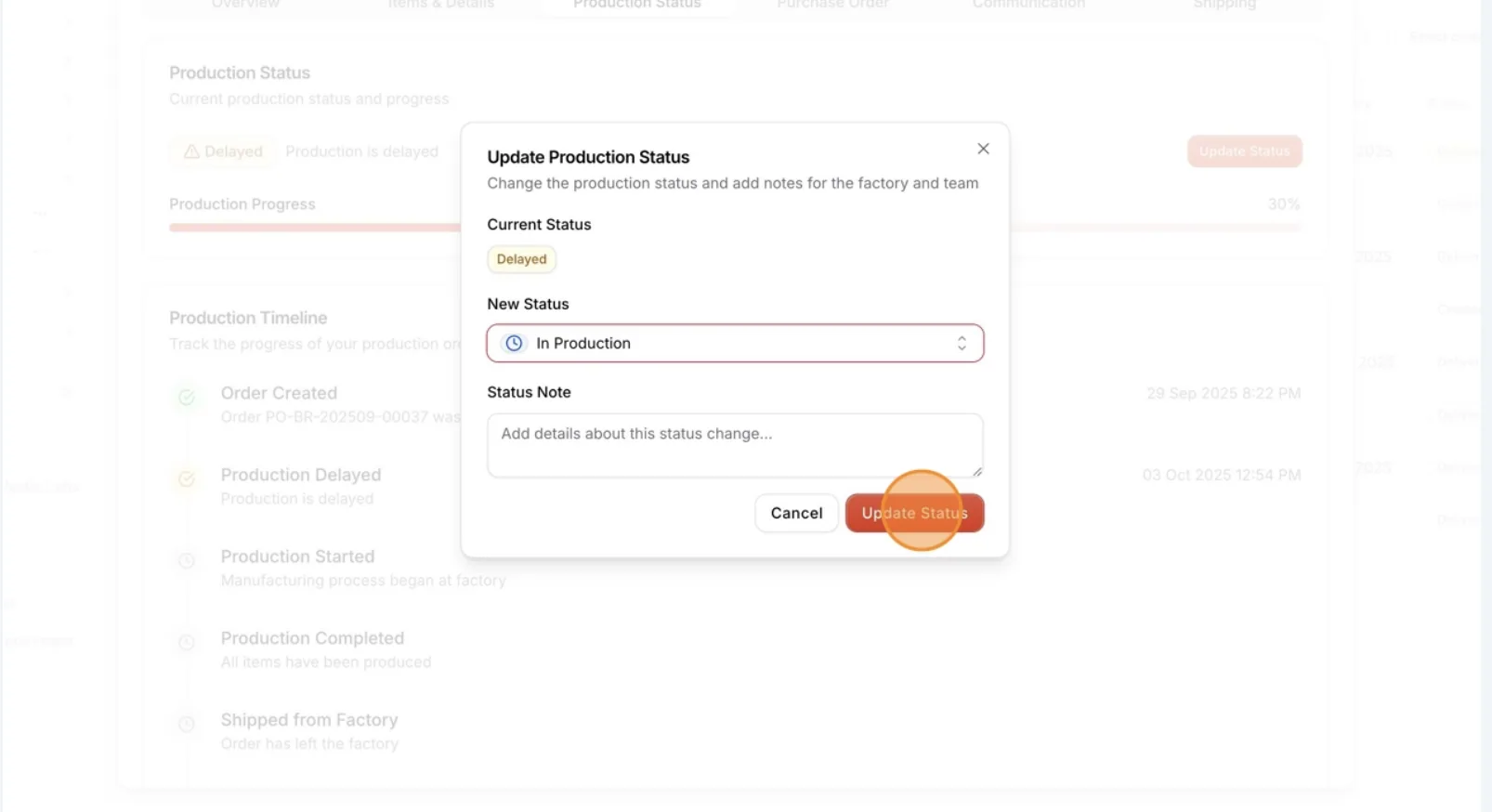
Users can add a note for the factory before selecting 'Update Status' to save the changes.
Users can view the updated production status in real time on the production timeline.
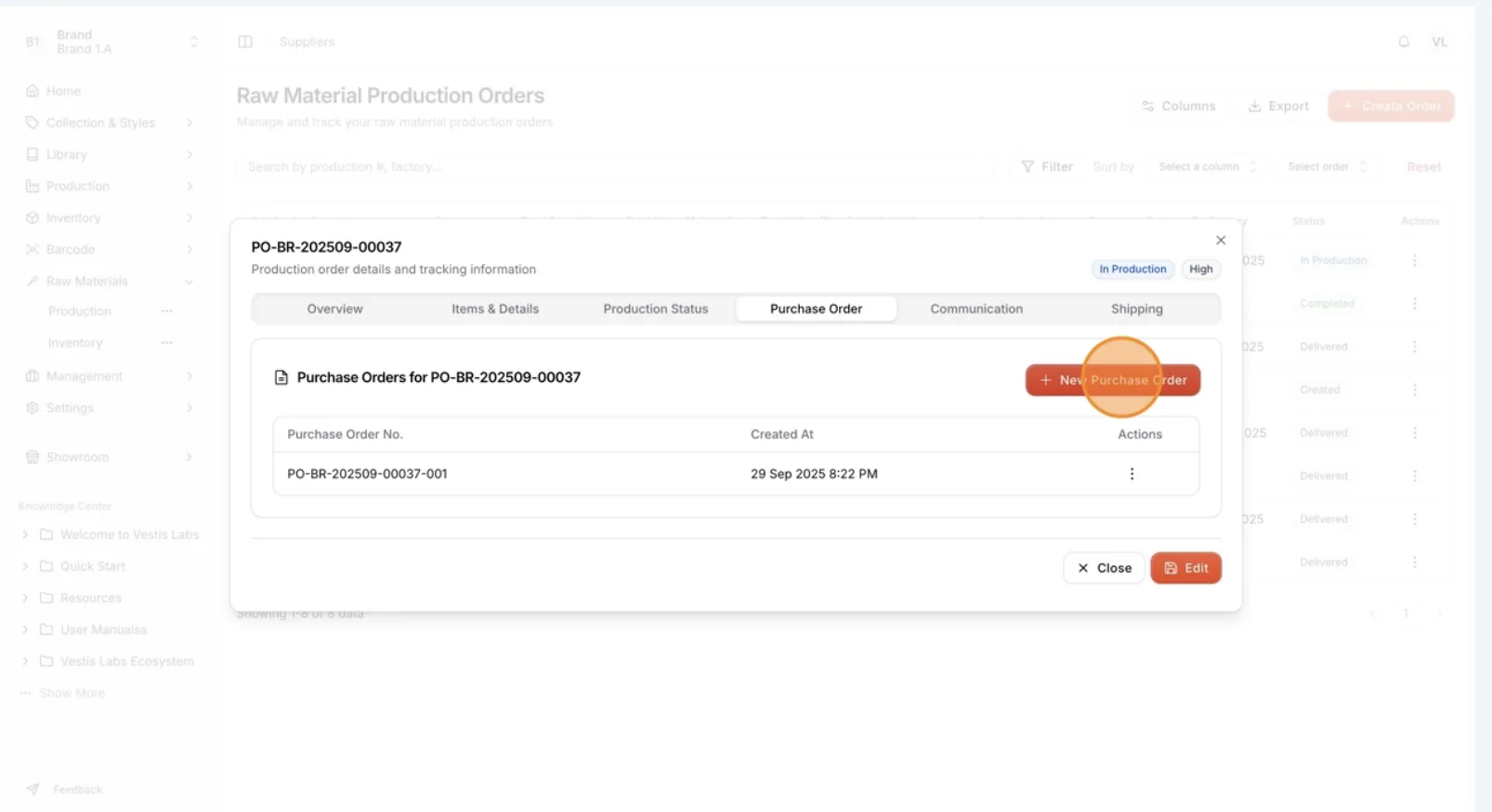
On the Purchase Order page, users can create,…
On the Purchase Order page, users can create, view/download, or delete Purchase Orders that are linked to previously created Production Orders.
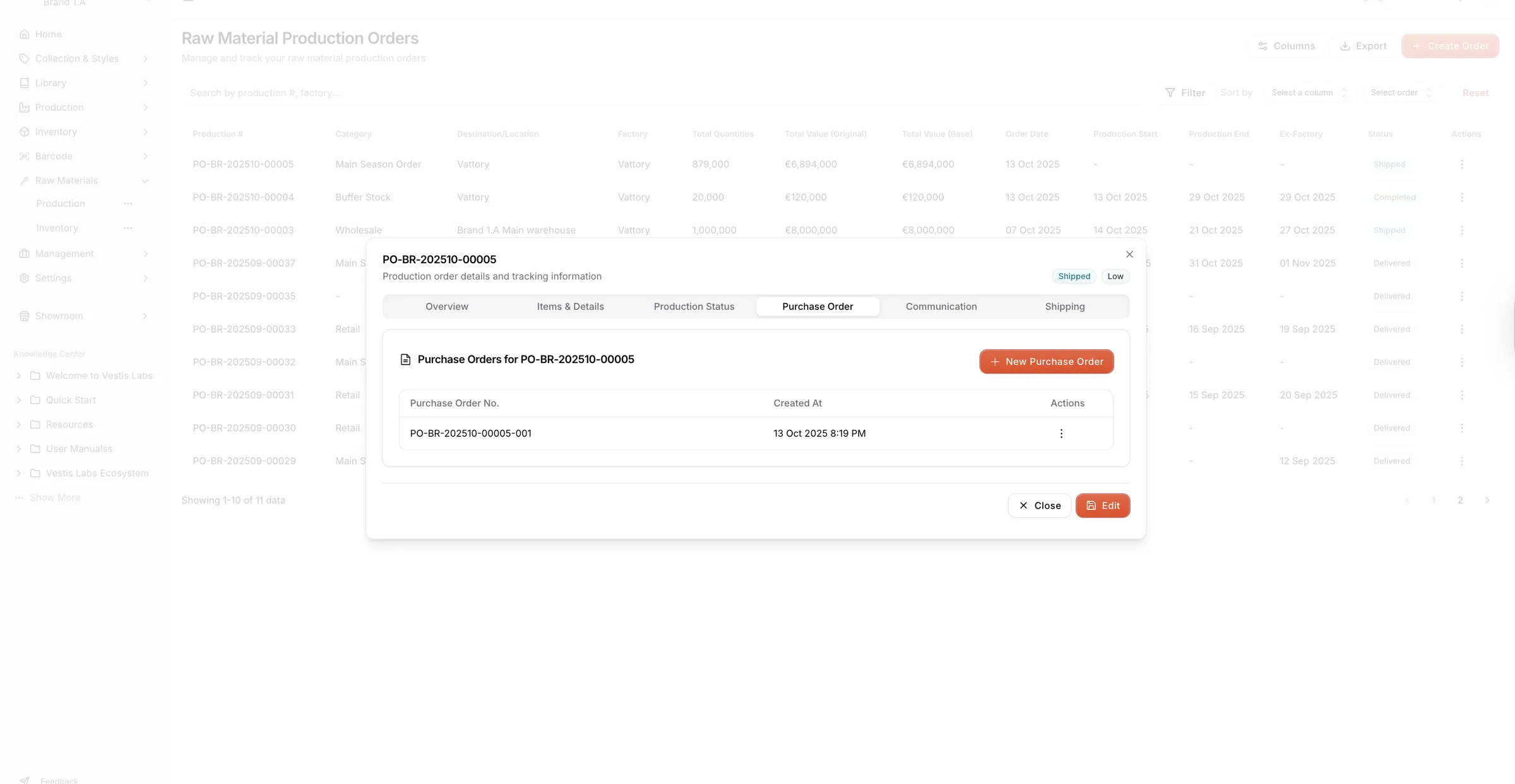
Select 'New Purchase Order' to create a new…
Select 'New Purchase Order' to create a new batch of purchase orders linked to the related Production Order.
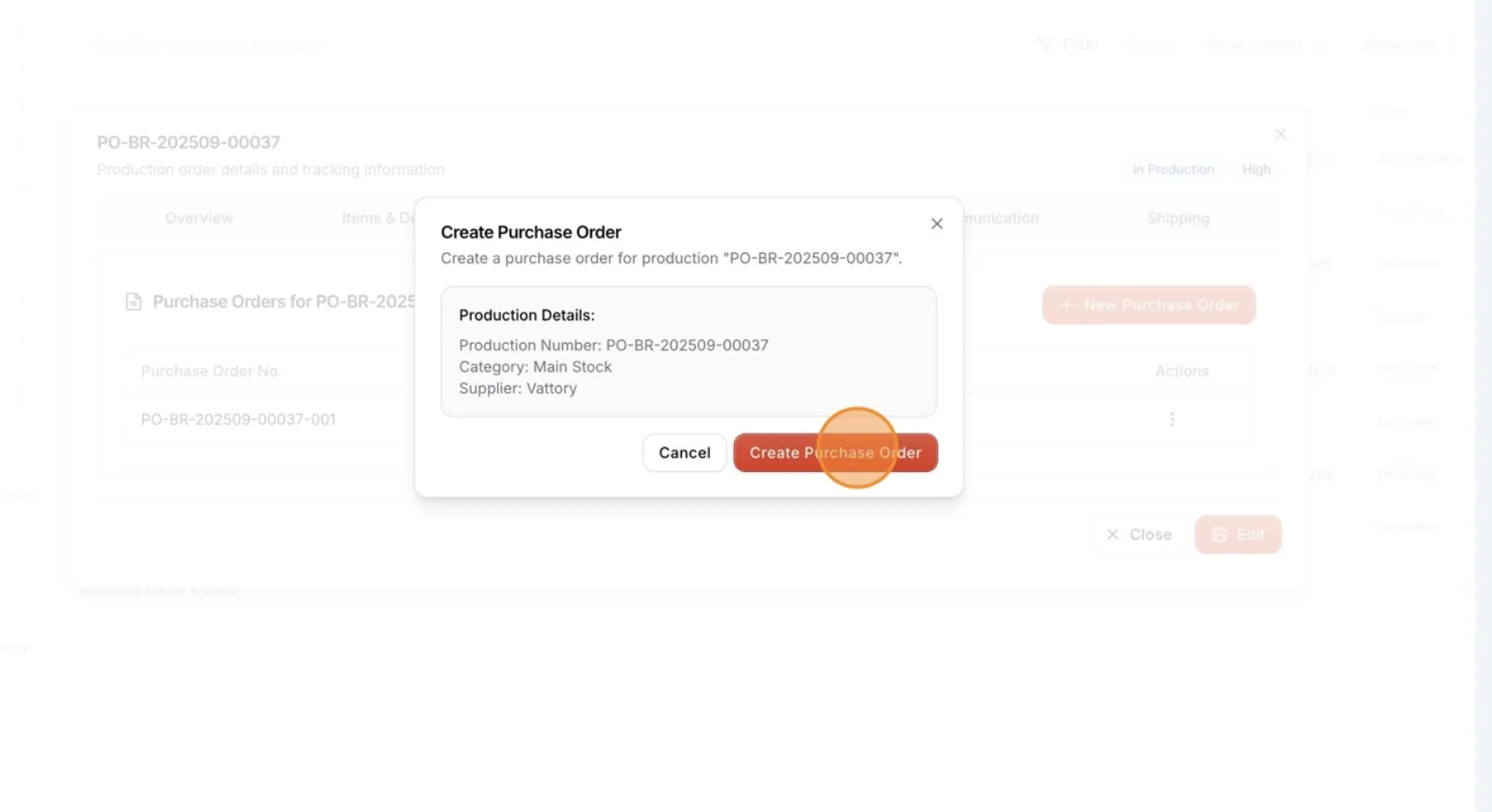
Select 'Create Purchase Order' to automatically generate a…
Select 'Create Purchase Order' to automatically generate a new order with the same items and quantities as the previous purchase order.
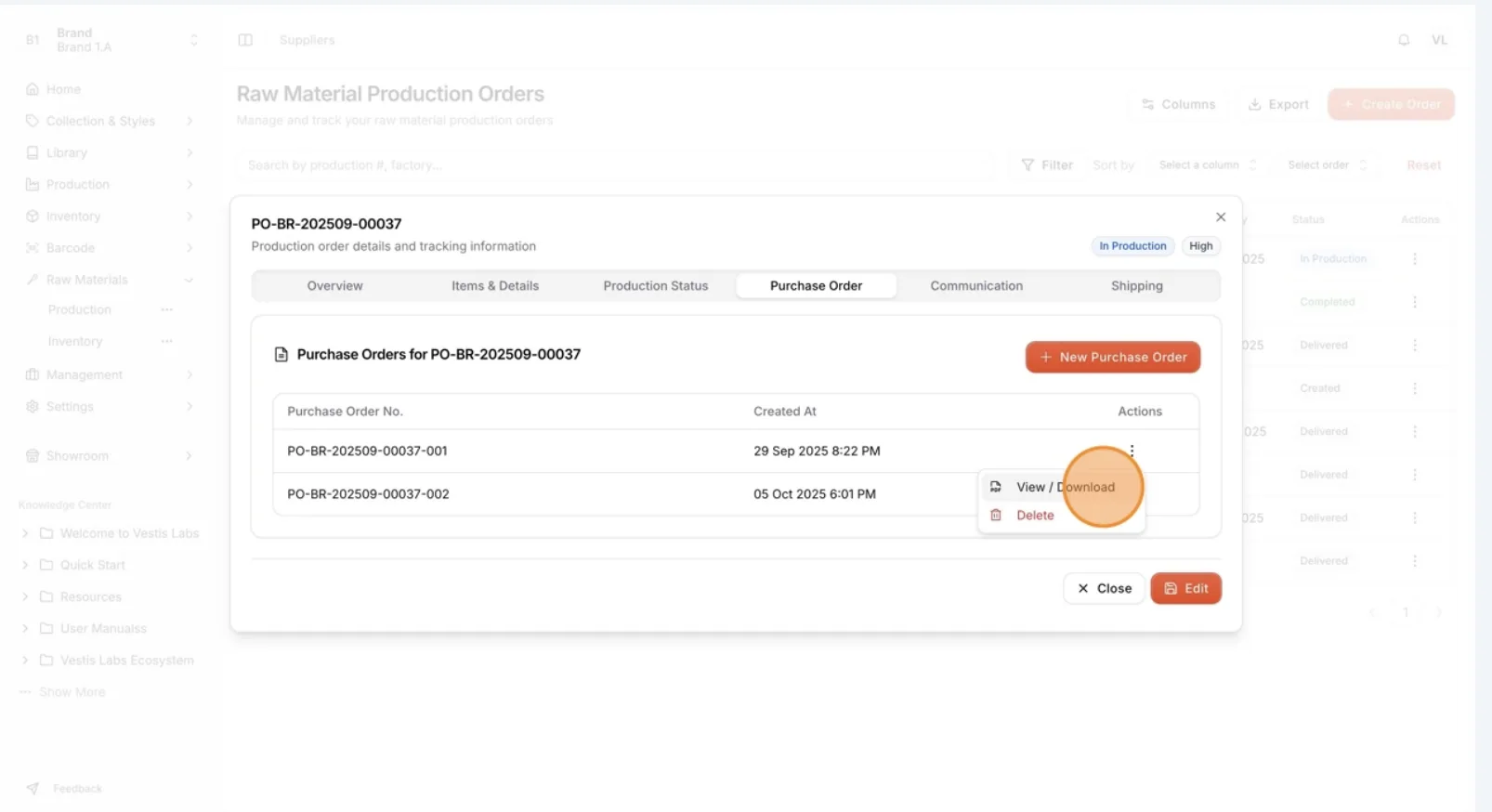
Click the three-dot action button to access more options:
View/Download
– Open or download the selected purchase order.
Delete
– Remove the purchase order from the list.
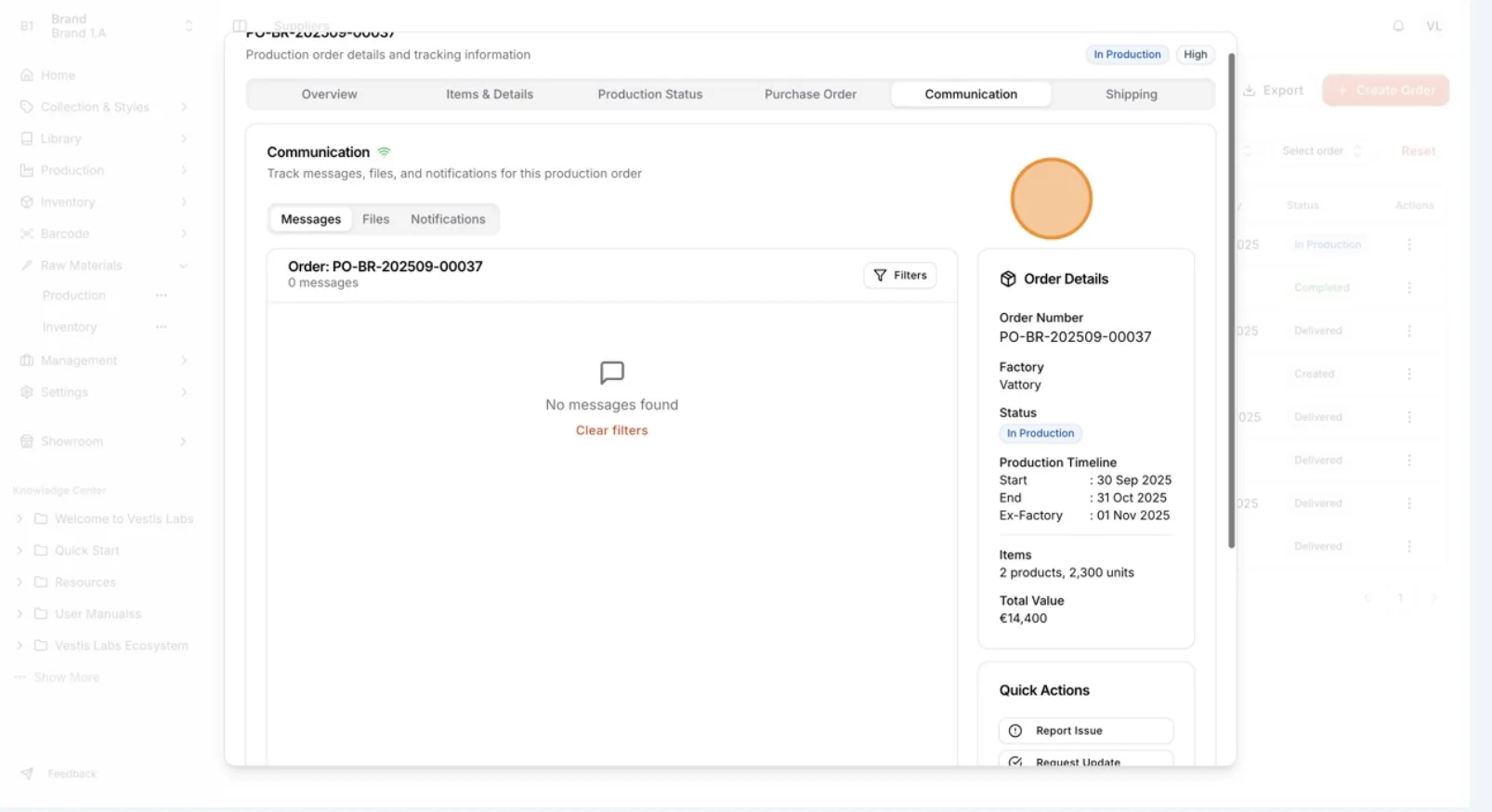
On the Communication page, users can view and…
On the Communication page, users can view and manage all messages, files, and notes related to their production orders.
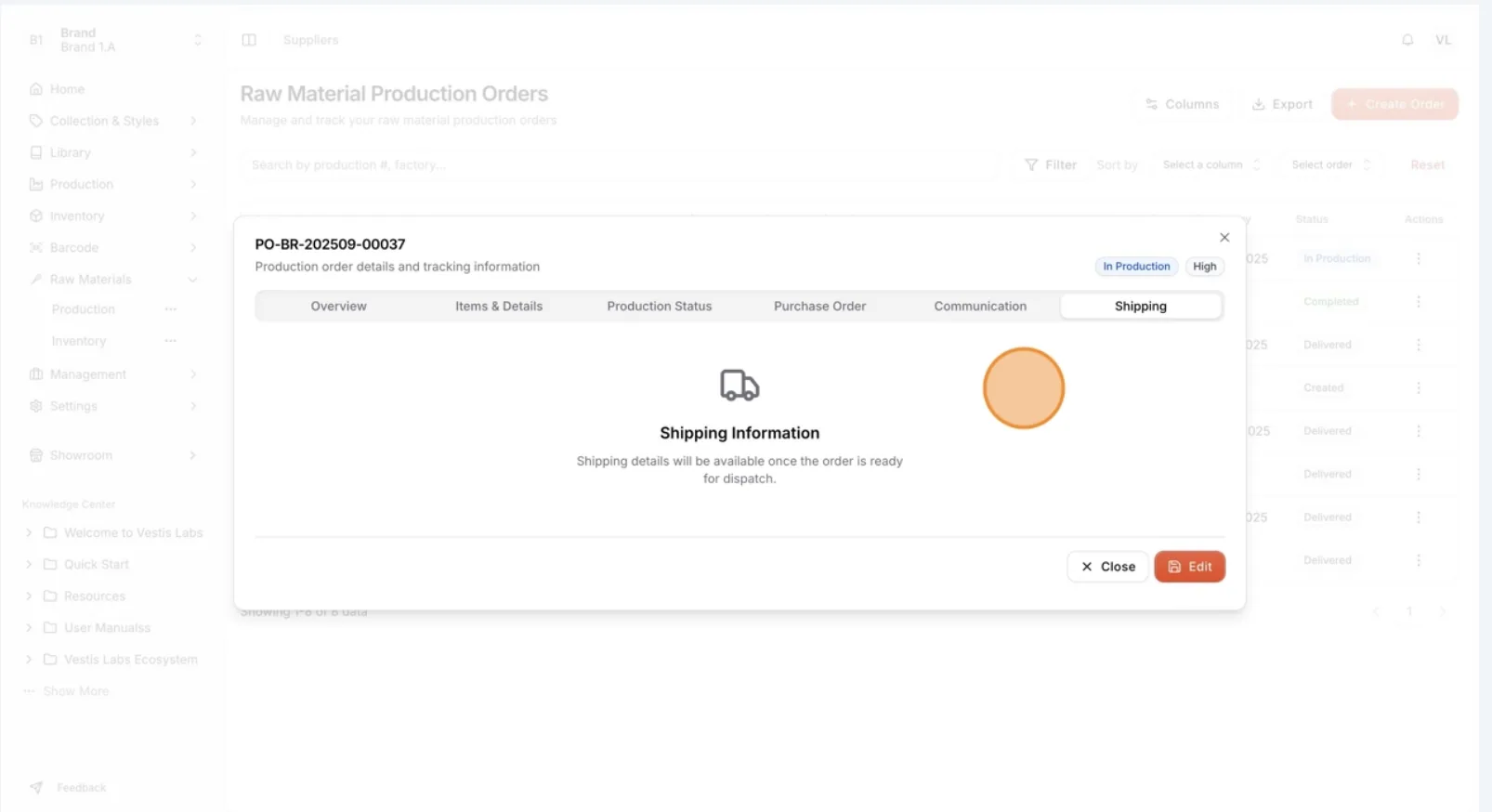
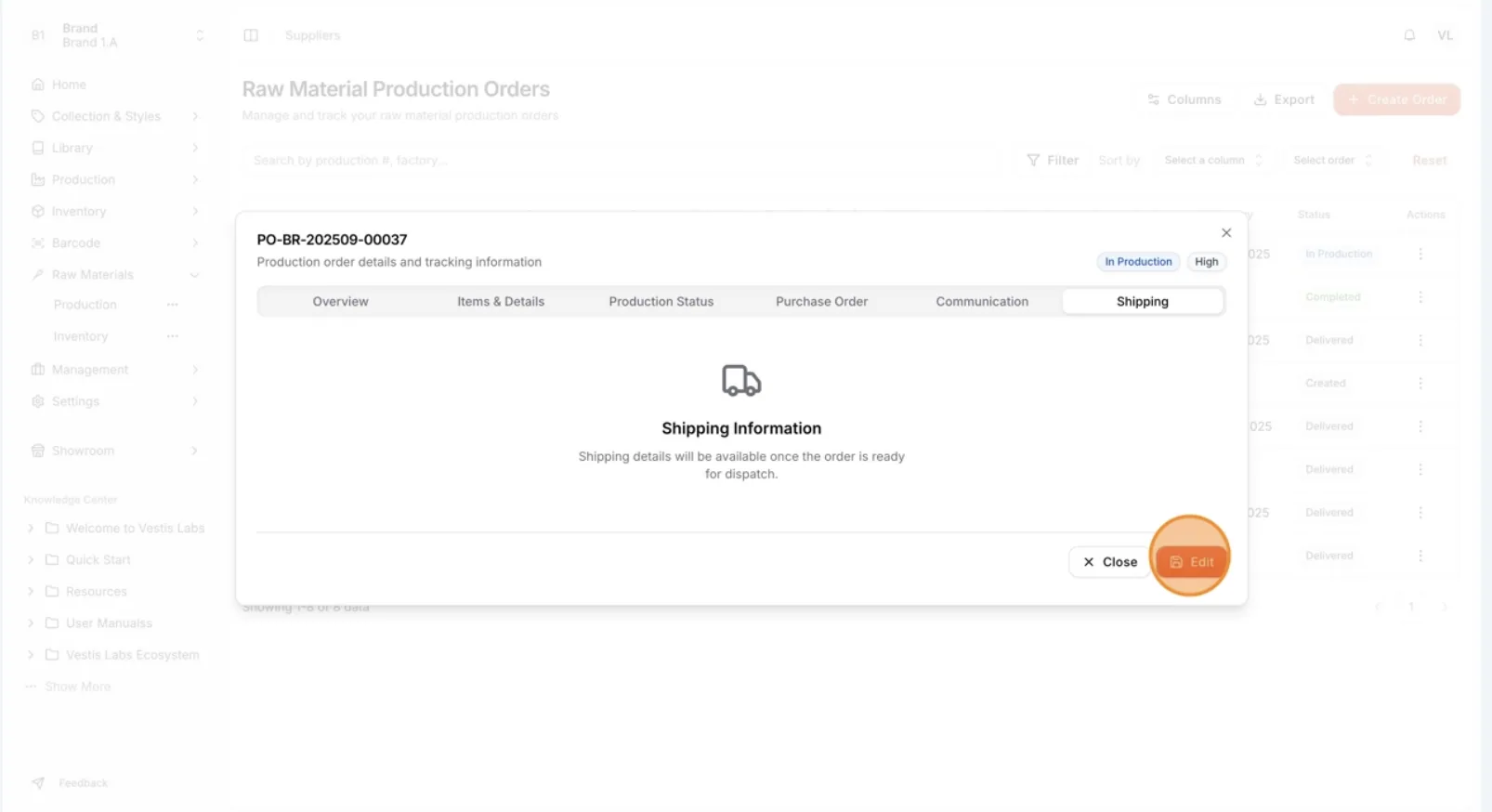
On the Shipping page, users can track, manage,…
On the Shipping page, users can track, manage, and update the shipment details for their production orders.
Select 'Save' to save the changes.
Users will be redirected directly to the Purchase Order page.