
Accept a brand invitation
Join an existing brand from the invitation email and go straight to its dashboard.
Under review. This page is published while we check it against the live app, so some details may have changed.
When someone invites you to a brand, the invitation email can link to an acceptance page. Opening the link adds you to the brand and signs you in. If you need to create your password first, follow Register by email invitation instead.
Accept the invitation
Open the invitation email
Click the invitation link in the email you received.
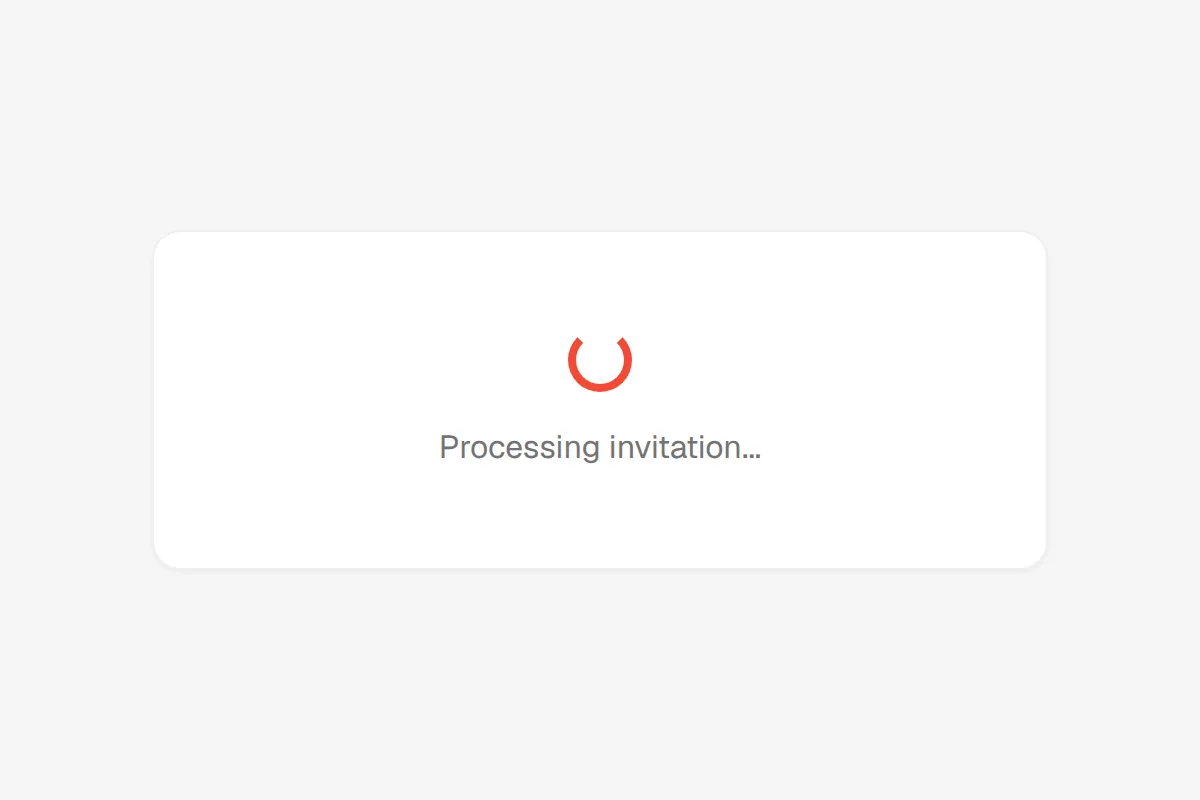
Wait for the invitation to be processed
The page shows Processing invitation...
Read the confirmation
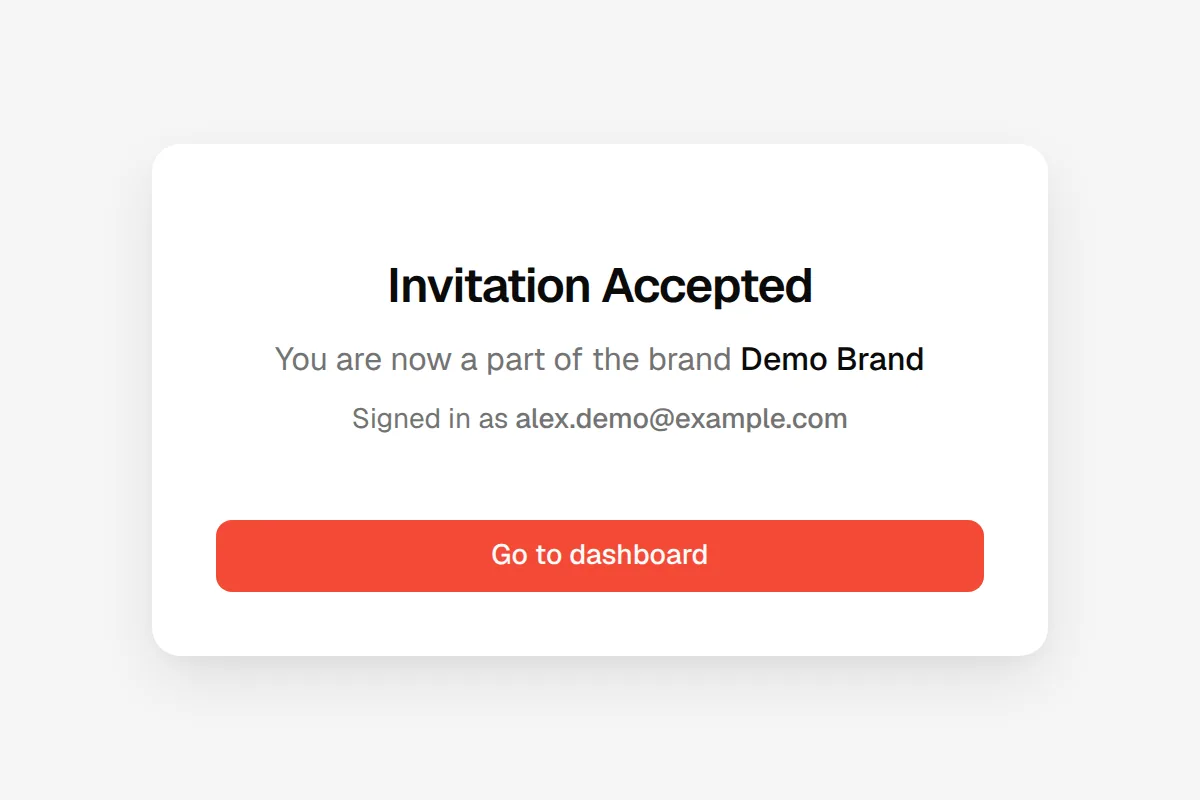
The page shows Invitation Accepted, You are now a part of the brand followed by the brand name, and Signed in as your email address.
Click "Go to dashboard"
Click Go to dashboard to open the brand's Home page.
Troubleshooting
The page opens the sign-in page with "Your account has already been activated". The invitation was used before. Sign in with your email and password.
"This link has expired". Click Send New Link. A new invitation email is sent and you return to the sign-in page. See Get a new activation link.
The page shows an error. The page displays the reason given by the platform. If it only says Something Went Wrong!, ask the person who invited you to send a new invitation.
The page sends me to the sign-in page straight away. The link has no invitation code. Open the link from the email again.