
Step 3 of 13 in Place and track a production order
Order details in production order
The Order Details in the Production Order contain key information such as order date, supplier, and production schedule.
The Order Details in the Production Order contain key information such as order date, supplier, and production schedule. They are the first tab, Order Details, of the Create Production Order dialog.
ProductionOrder ManagementCreate OrderOrder Details
Permission: UPDATE_BRAND_PRODUCTION
On the Production Orders page, click Create Order
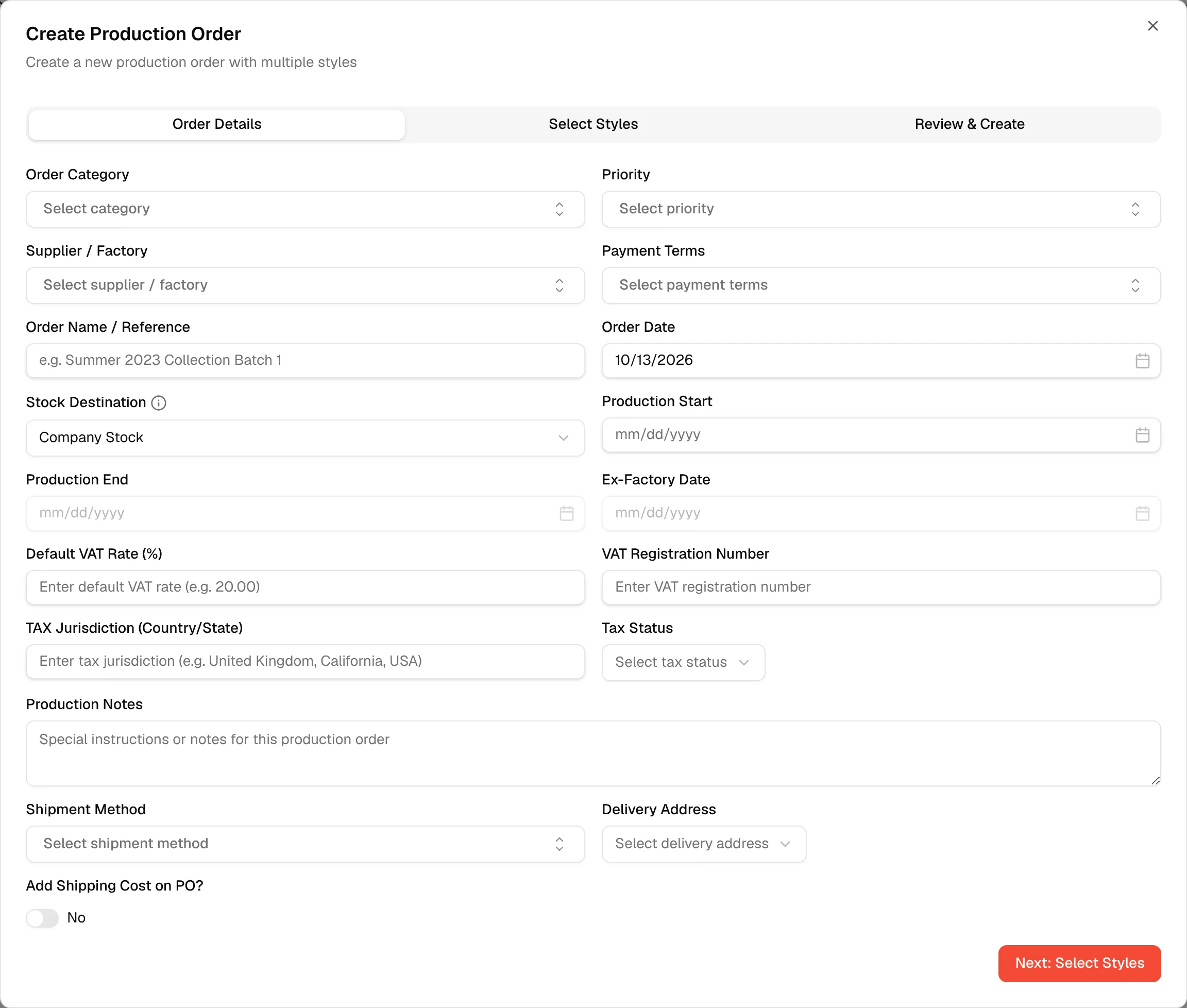
In the Order Category field, choose the appropriate category of the production order (for example: Retail).
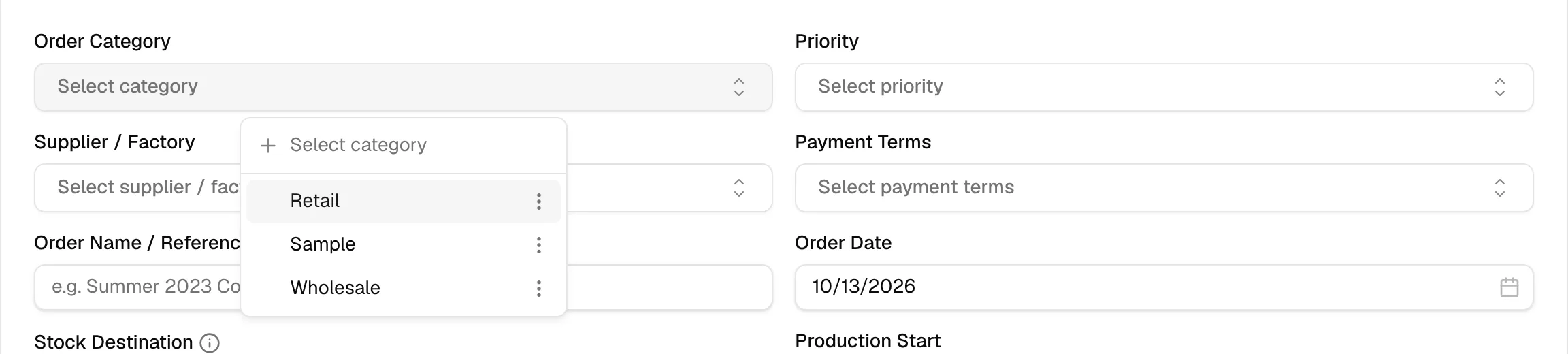
In the Priority field, choose the urgency and importance of the order.
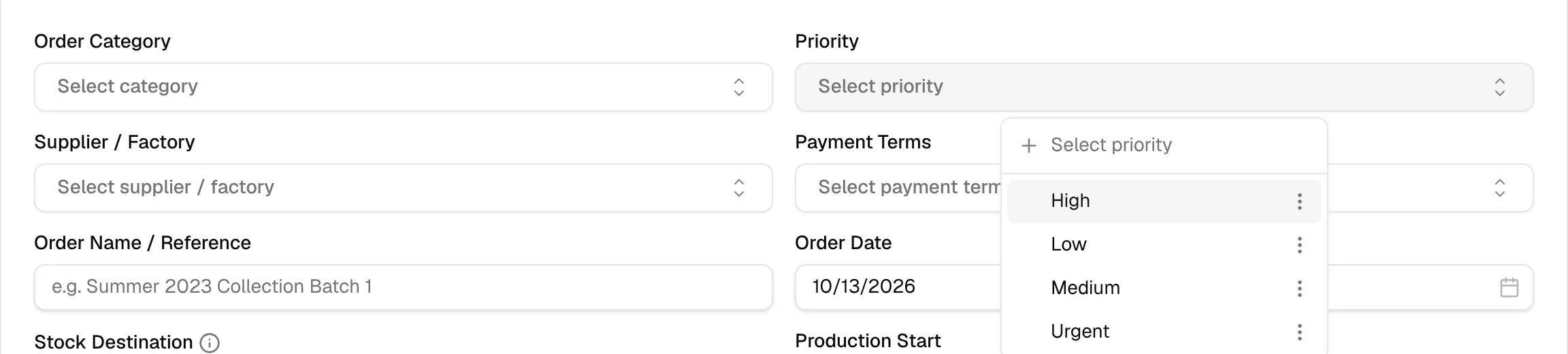
In the Supplier / Factory field, choose the appropriate supplier of the order. Once you choose a supplier, the style list on the next tab is filtered to that supplier, and the tax fields below are filled in from the supplier if it has tax details saved.
Select the Payment Terms of the order to manage supplier payments and maintain clear financial agreements
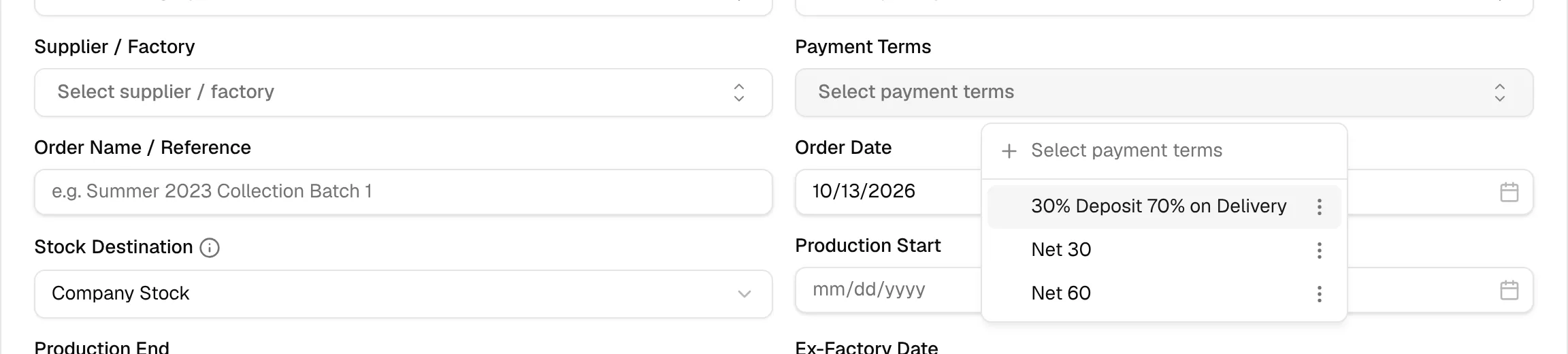
In the Order Name / Reference field, type in a custom reference for the order.

The Order Date will be automatically filled with today's date. Users can modify it by selecting a new date using the calendar picker.

Choose where the stock goes in the Stock Destination field. Hover over the information icon next to it for the explanation:
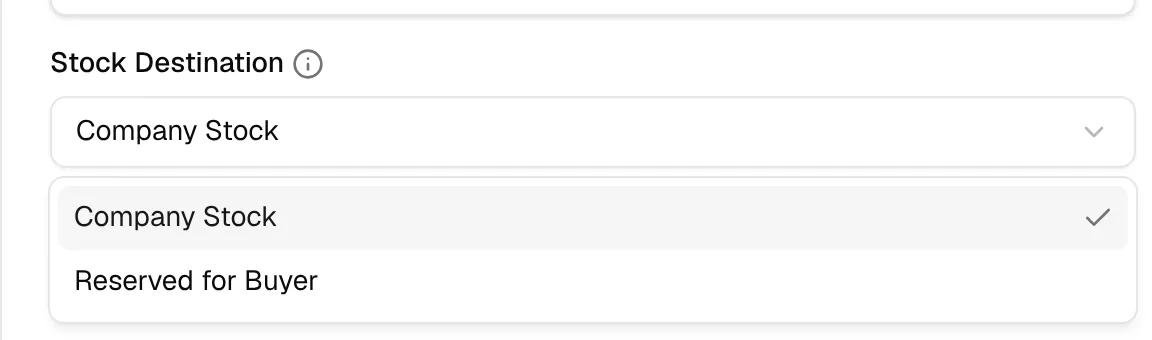
- Company Stock – Items are added to Available Inventory when the production order is received.
- Reserved for Buyer – Stock stays allocated to the buyer. A required Buyer Name field appears; you must enter a buyer name, otherwise the order cannot be created ("Buyer name is required when stock is reserved for a buyer").

Select the Production Start, Production End, and Ex-Factory Date using the calendar picker to record and manage the production timeline accurately.
Note
Production End unlocks after you choose a Production Start, and Ex-Factory Date unlocks after you choose Production End. Each date cannot be earlier than the one before it.

Complete the tax information section by entering the Default VAT Rate (%), VAT Registration Number, and TAX Jurisdiction (Country/State), then select the appropriate Tax Status: Registered, Exempt or Special.
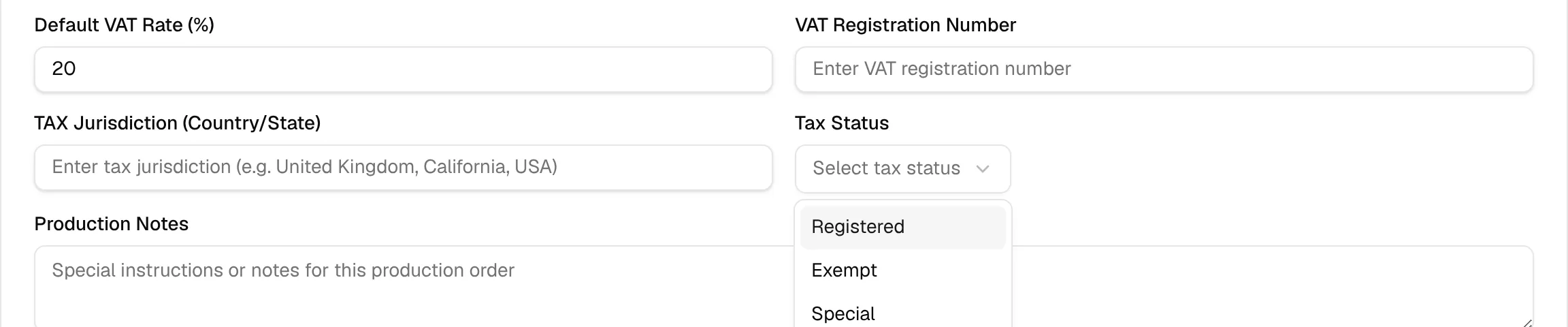
Enter the Production Notes for additional special instructions for the production order

Select the Shipment Method for the order to determine how the goods will be delivered.
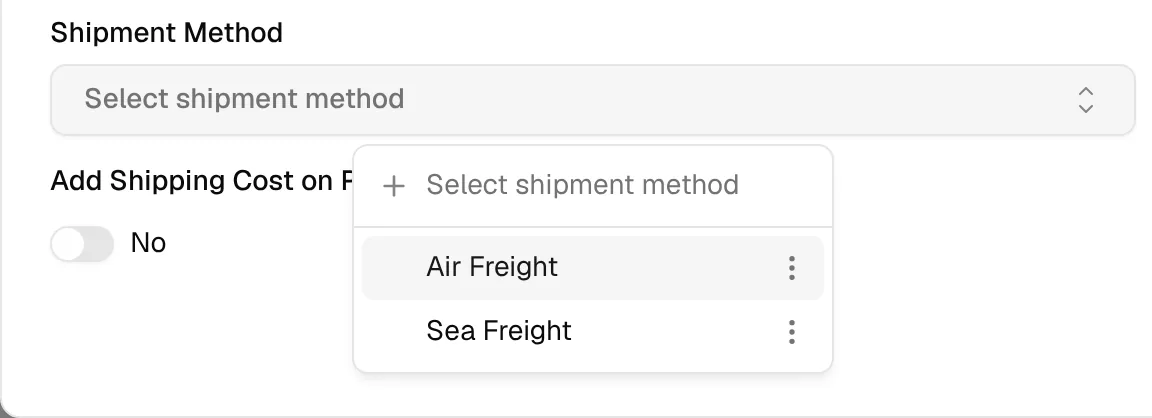
Select the Delivery Address from the dropdown list to identify and allocate the appropriate product stock (e.g., Main Warehouse). The list shows the warehouses saved for your brand.
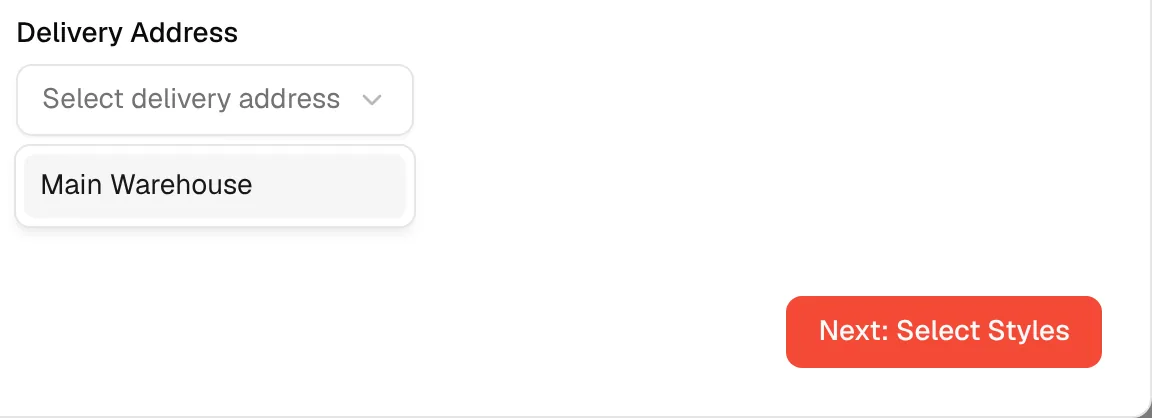
Use the Add Shipping Cost on PO? toggle to include a shipping cost on the purchase order.

If it is turned on, a Shipping Cost field appears. Enter the shipping cost in the field.
Click Next: Select Styles to continue to the style selection step.
Add or edit dropdown values
The Order Category, Priority, Payment Terms and Shipment Method dropdowns let you manage their values without leaving the form:
- Type a new name in the dropdown search box and click Add followed by the name to create it. It is selected straight away.
- Hover over a value and click the three-dot menu next to it to Delete it. The value that is currently selected cannot be deleted.
In the Supplier / Factory dropdown, typing a new name and clicking Add opens the supplier form so you can create the supplier. The three-dot menu next to a supplier offers Edit and Delete.
Optional fields
All fields on this tab are optional except Buyer Name when Stock Destination is Reserved for Buyer. The Create Order & Generate PO button on the review step stays disabled while the form has an error.