
Measurement library page overview
Find, filter, sort, duplicate, download and delete the measurement cards stored in your Measurement Library.
The Measurement Library Page stores all the information related to the product measurement created in Vestis Labs. Each measurement is shown as a card, so you can find a size chart quickly and open it, copy it, download it or remove it.
LibraryMeasurements
Permission: VIEW_PRODUCT
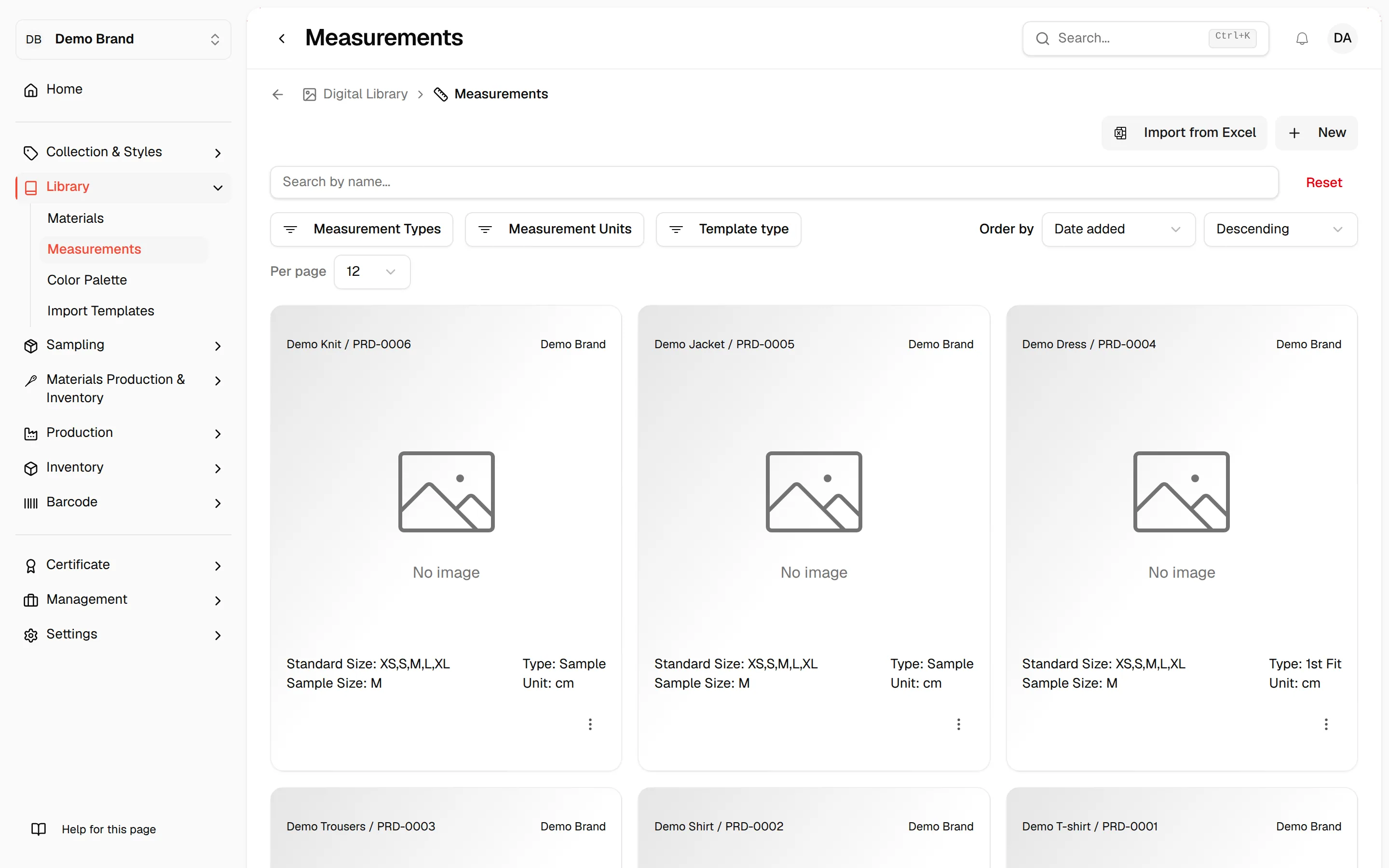
What each card shows
Every card in the list shows the following:
- Card name at the top left and the brand name at the top right.
- The image of the measurement card. If no image was added, the card shows No image.
- Standard Size: the size range of the card, for example XS, S, M.
- Sample Size: the size or sizes marked as the sample size.
- Type: the measurement type, for example Final Spec.
- Unit: the measurement unit, for example cm.
- A Size Chart Template and/or Grading Rule badge when the card is published as a template. See Manage a created measurement card to publish or unpublish one.
Click the image of a card to open it for editing.
Search, filter and sort
Use the controls above the list to narrow it down.
- Search by name... : type the name of a measurement card to find it. The list updates after a short pause.
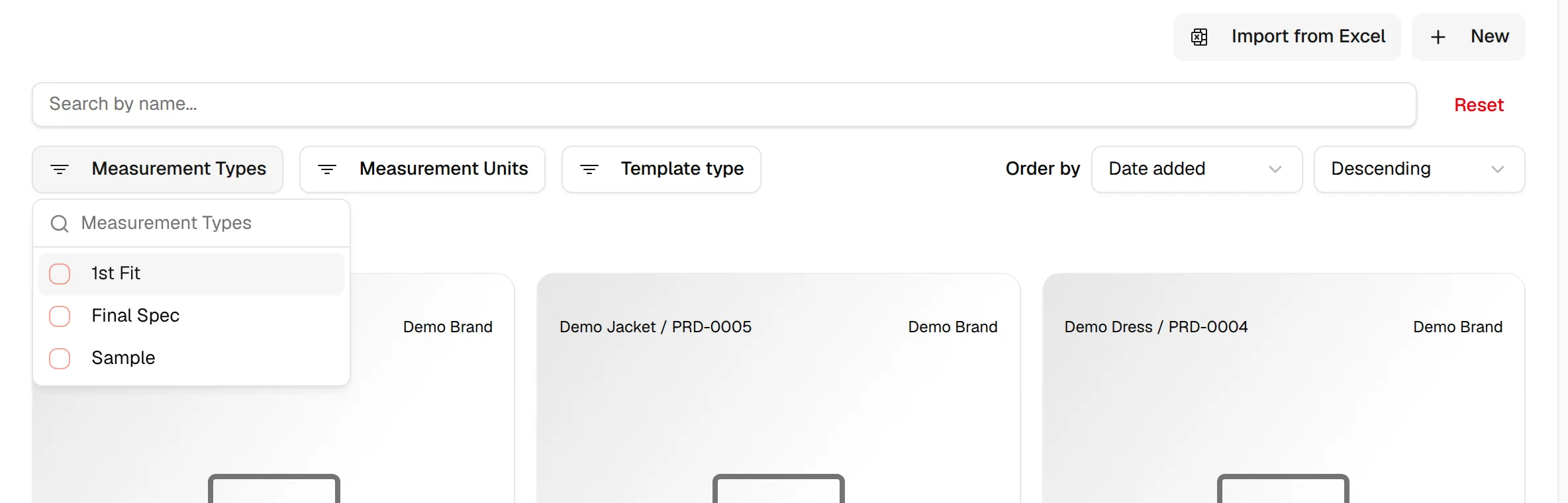
- Measurement Types : select one or more types to show only those cards.
- Measurement Units : select one or more units to show only those cards.
- Template type : select Size Chart Template and/or Grading Rule Template to show only template cards.
- Order by : sort by Date added, Card Name, Unit or Type, then choose Ascending or Descending.
- Reset : clears the search, every filter and the sorting.
Note
The Measurement Types and Measurement Units lists come from your measurement settings. Anything you add while creating a card shows up here too.
Number of cards per page
Under the filters, use Per page to show 12, 48, 96 or All cards. Below the list, the page shows how many cards you are looking at, for example "Showing 1-12 of 30 measurements", with page navigation. With All, the page shows "Showing all" followed by the total.
Card actions
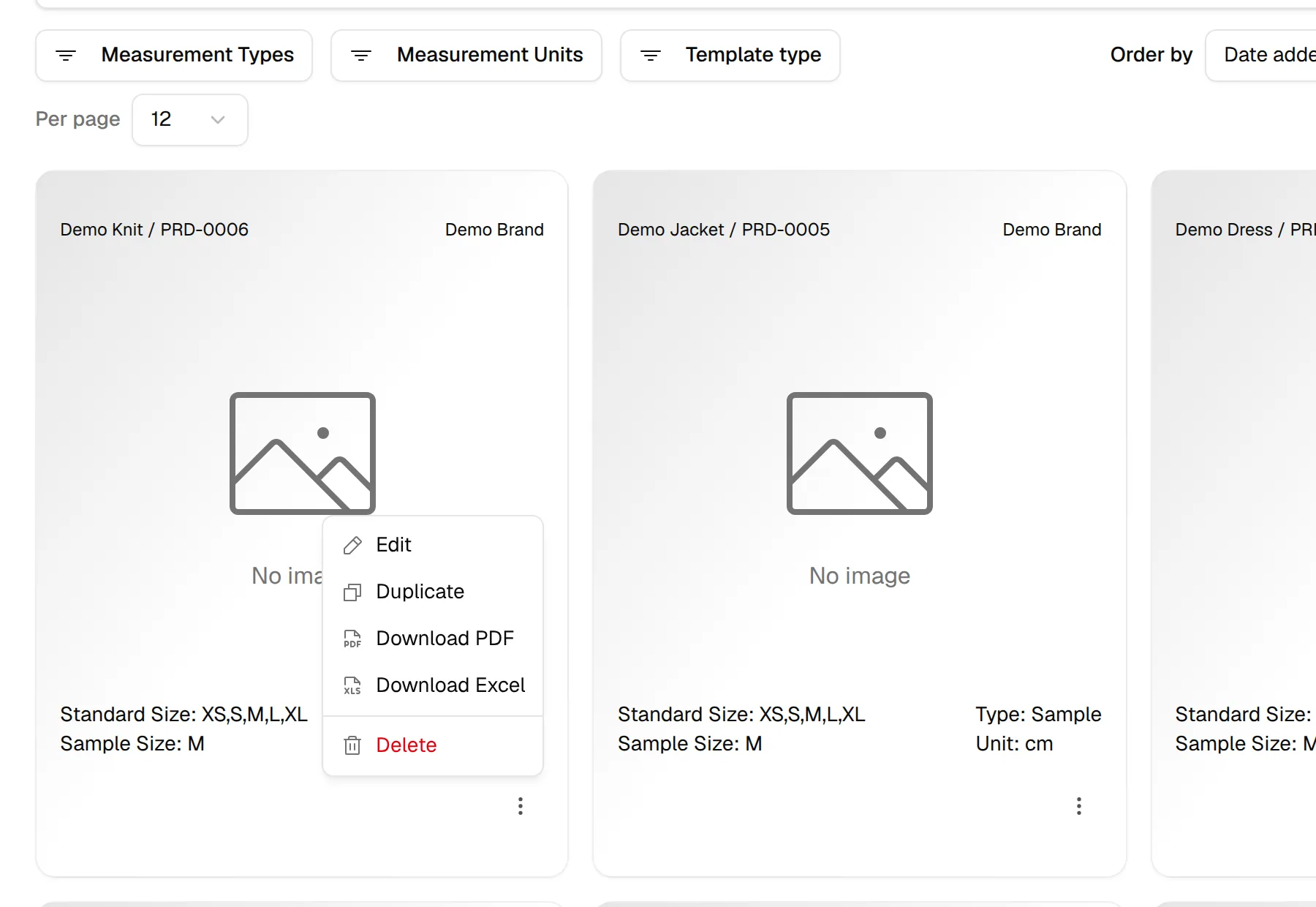
Click the three dots on a card to choose an action.
| Action | What it does |
|---|---|
| Edit | Opens the card for editing. Needs the permission to update products. |
| Duplicate | Creates a copy of the card. Needs the permission to update products. |
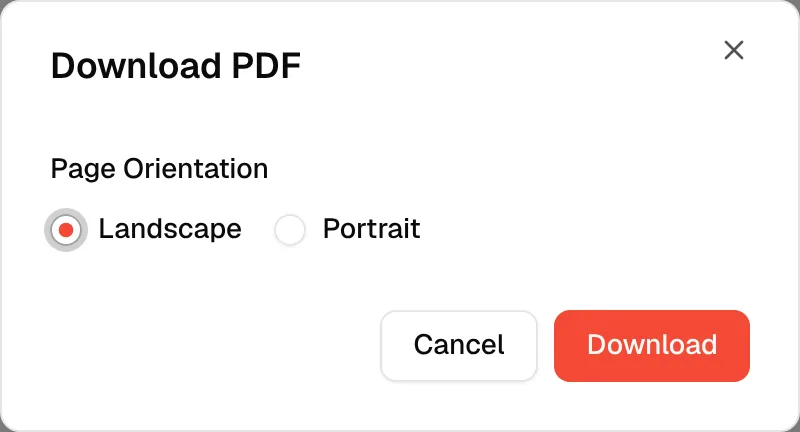
| Download PDF | Downloads the card as a PDF, in Landscape or Portrait. |
| Download Excel | Downloads the card as an Excel file. |
| Delete | Removes the card. Only shown if your role can delete products. |
Duplicate a card
Click "Duplicate"
Click the three dots on the card, then Duplicate.
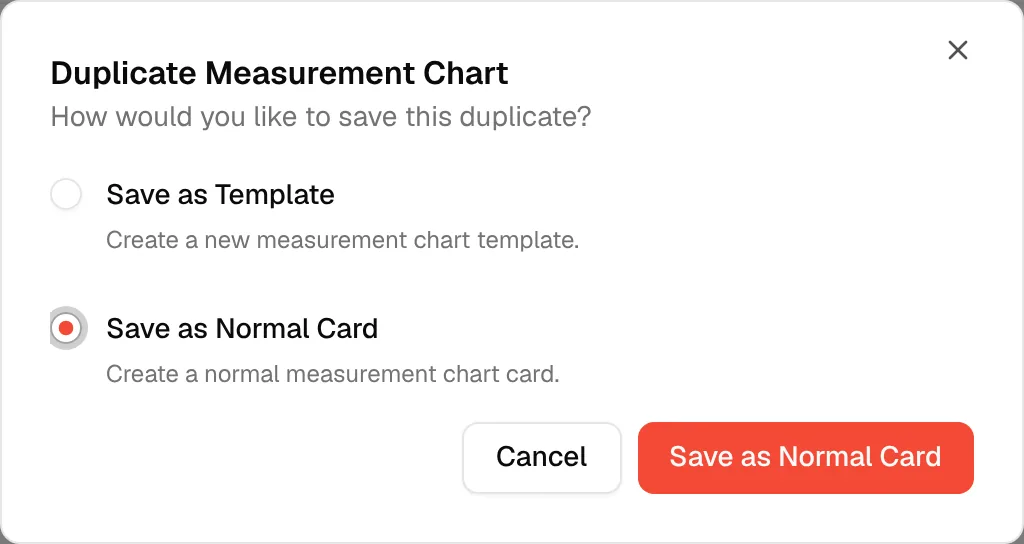
Choose how to save the copy
If the card is a template, the Duplicate Measurement Chart window asks "How would you like to save this duplicate?". Select Save as Template or Save as Normal Card, then click the button at the bottom right.
A card that is not a template is copied straight away. You see Duplicating measurement... and then Measurement duplicated successfully.
Download a PDF
Click "Download PDF"
Click the three dots on the card, then Download PDF.
Choose the orientation
In the Download PDF window, under Page Orientation, select Landscape or Portrait.
Click "Download"
Click Download. The file is saved to your device and the window closes.
Note
From the list, the PDF uses the unit the card is saved in. To export in a different unit, open the card and use View as first. See Edit a measurement card.
Delete a card
Click "Delete"
Click the three dots on the card, then Delete. Vestis first checks whether the card can be deleted.
Confirm
In Delete Measurement?, read "Are you sure you want to delete ...? This action cannot be undone." and click Delete.
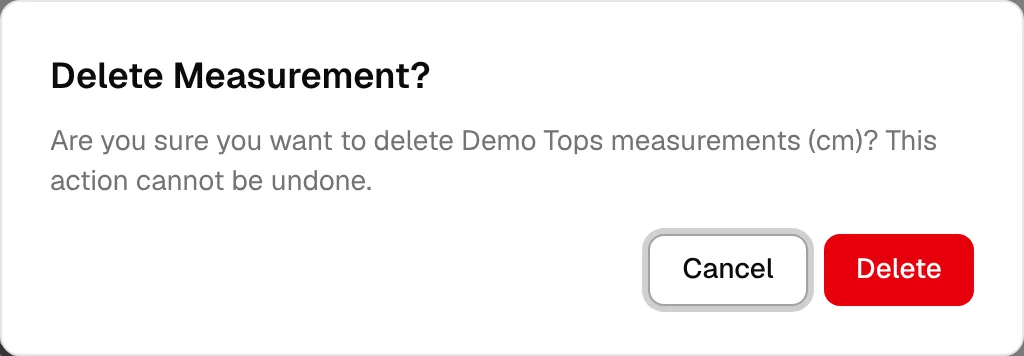
If the card is used by a style, you see Cannot Delete Measurement instead. Unlink the card from all styles first, then delete it.
Create a card
- Click New at the top right to create a new measurement card. See Create a digital measurement library.
- If your brand has the Excel import turned on, Import from Excel appears next to New. See Import measurement cards from Excel.
Both buttons only appear if your role can update products.
When the list is empty
If there are no cards, or nothing matches your filters, the page shows No library created and, for users who can update products, a New button.