
Step 12 of 12 in Stock materials and finished goods
Inventory dashboard
The Inventory Dashboard provides a quick overview of your inventory status across all warehouses.
The Inventory Dashboard provides a quick overview of your inventory status across all warehouses. From this page, you can monitor recent inventory movements, identify items that require attention, and understand overall stock activity at a glance.
InventoryDashboard
Permission: VIEW_STYLE_INVENTORY
The Inventory Dashboard gives you a quick snapshot of your inventory across all warehouses.
- View recent inventory activity.
- Check active alerts that need attention.
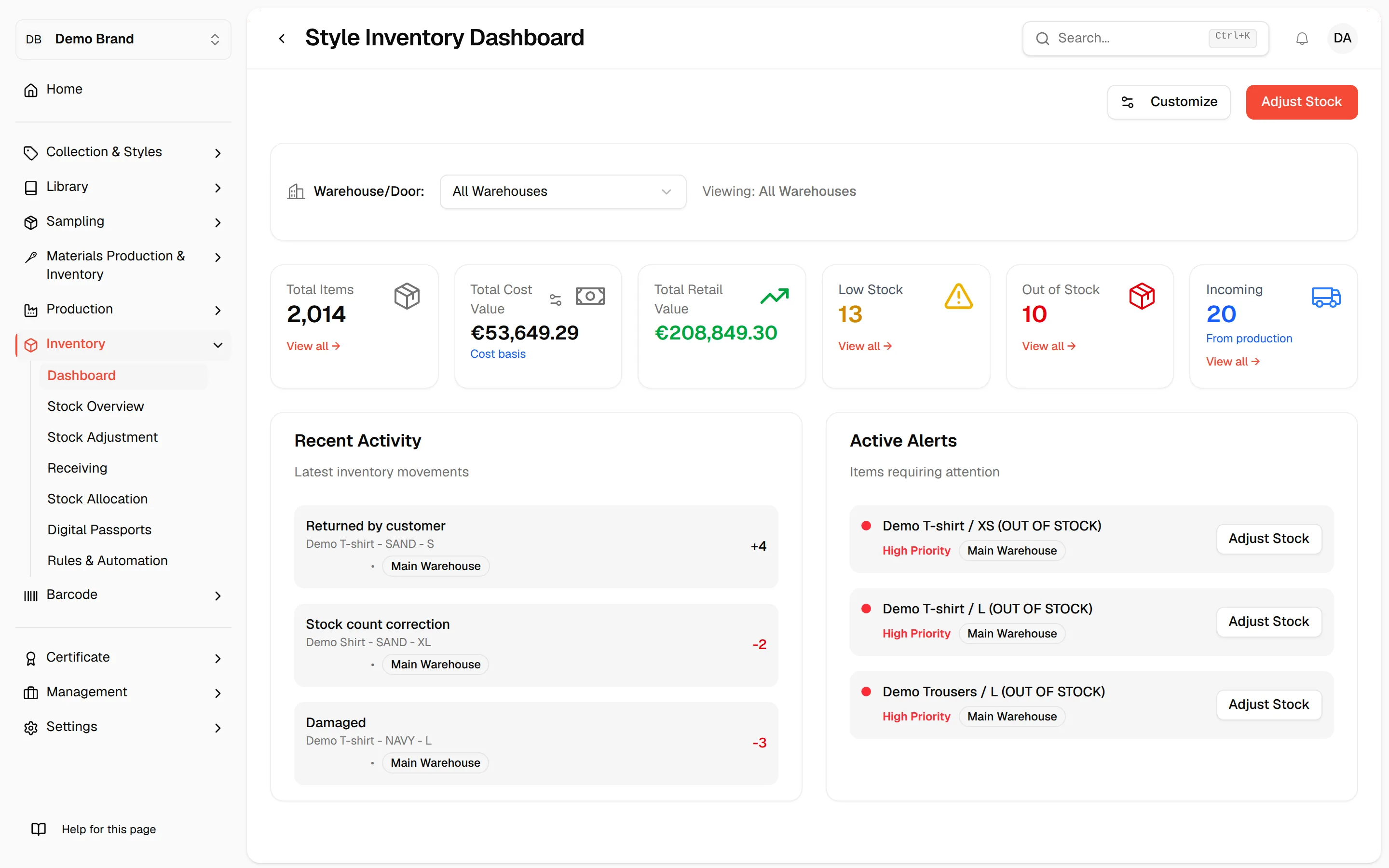
Switch between warehouses using the Warehouse/Door dropdown.
Click Customize to customise the dashboard layout to match your needs.
Choose a warehouse
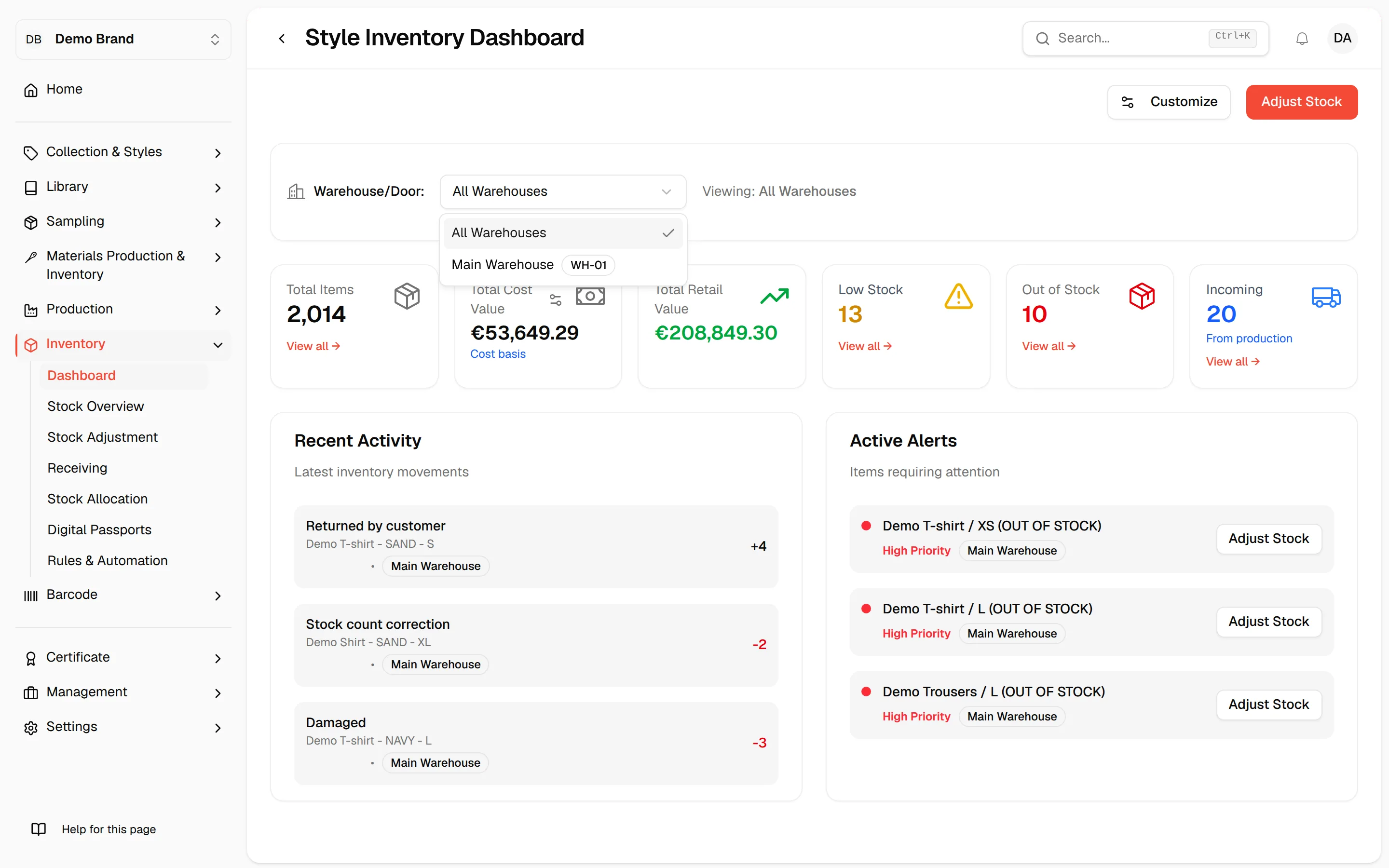
Open the Warehouse/Door dropdown and select All Warehouses or a single warehouse. The cards, the alerts and Recent Activity all follow your choice.
Read the summary cards
Each card shows a figure for the selected warehouse:
- Total Items: click View all → to open the Stock Overview.
- Total Cost Value: the value of your stock at cost.
- Total Retail Value: the value of your stock at retail price.
- Low Stock: items running low. Click View all → to open the Stock Overview.
- Out of Stock: items with no stock left. Click View all → to open the Stock Overview.
- Incoming: stock coming from production. Click View all → to open Receiving.
Values are shown in your brand's base currency.
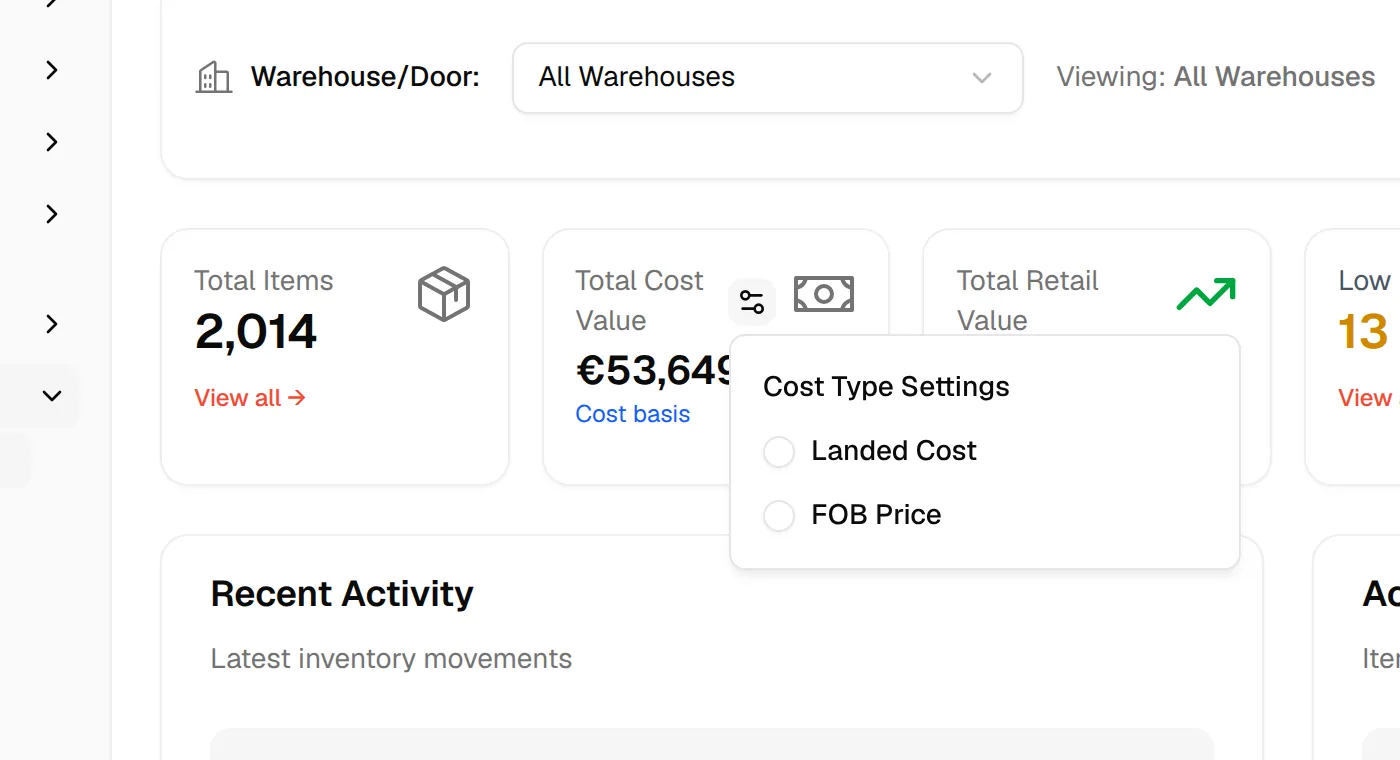
Choose how cost value is calculated
- Click the settings icon next to Total Cost Value.
- In Cost Type Settings, select Landed Cost or FOB Price.
Note
The cost type is saved to your brand straight away, so it applies to everyone in your brand.
Customise the cards
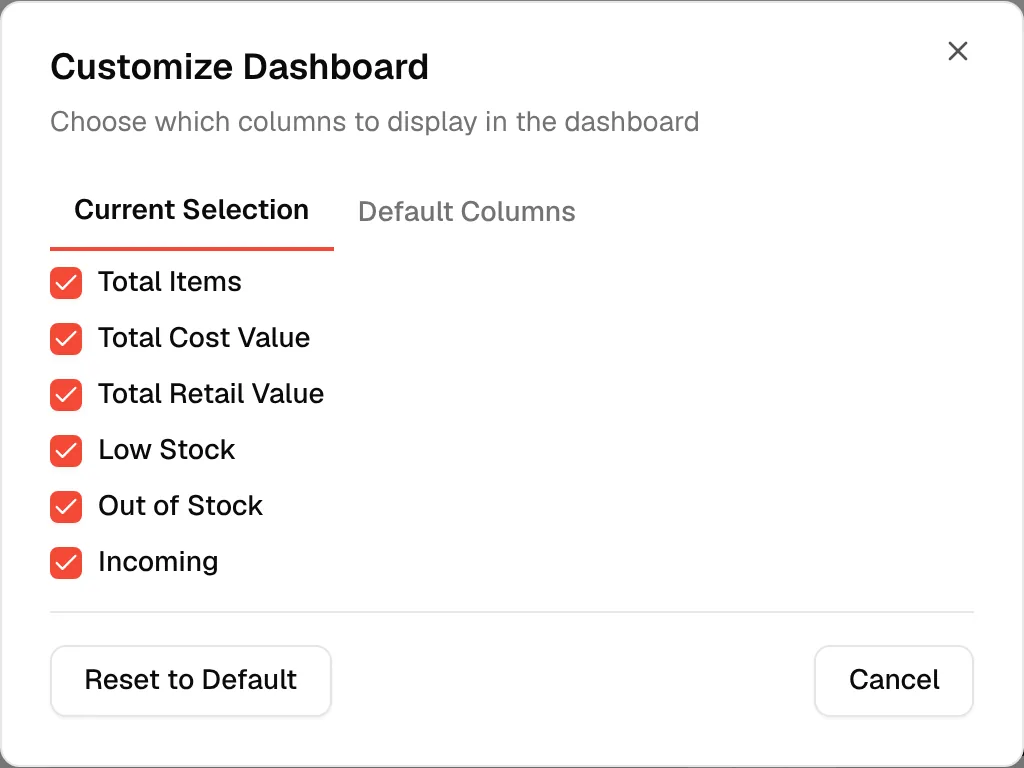
Click Customize to open Customize Dashboard, where you choose which cards to display. The options are Total Items, Total Cost Value, Total Retail Value, Low Stock, Out of Stock and Incoming. Each tick takes effect straight away. Click Reset to Default to show all the cards again.
Active alerts
Active Alerts lists items requiring attention. Each alert shows its message, a High Priority, Medium Priority or Low Priority label and, where relevant, the warehouse. When nothing needs attention you see No active alerts.
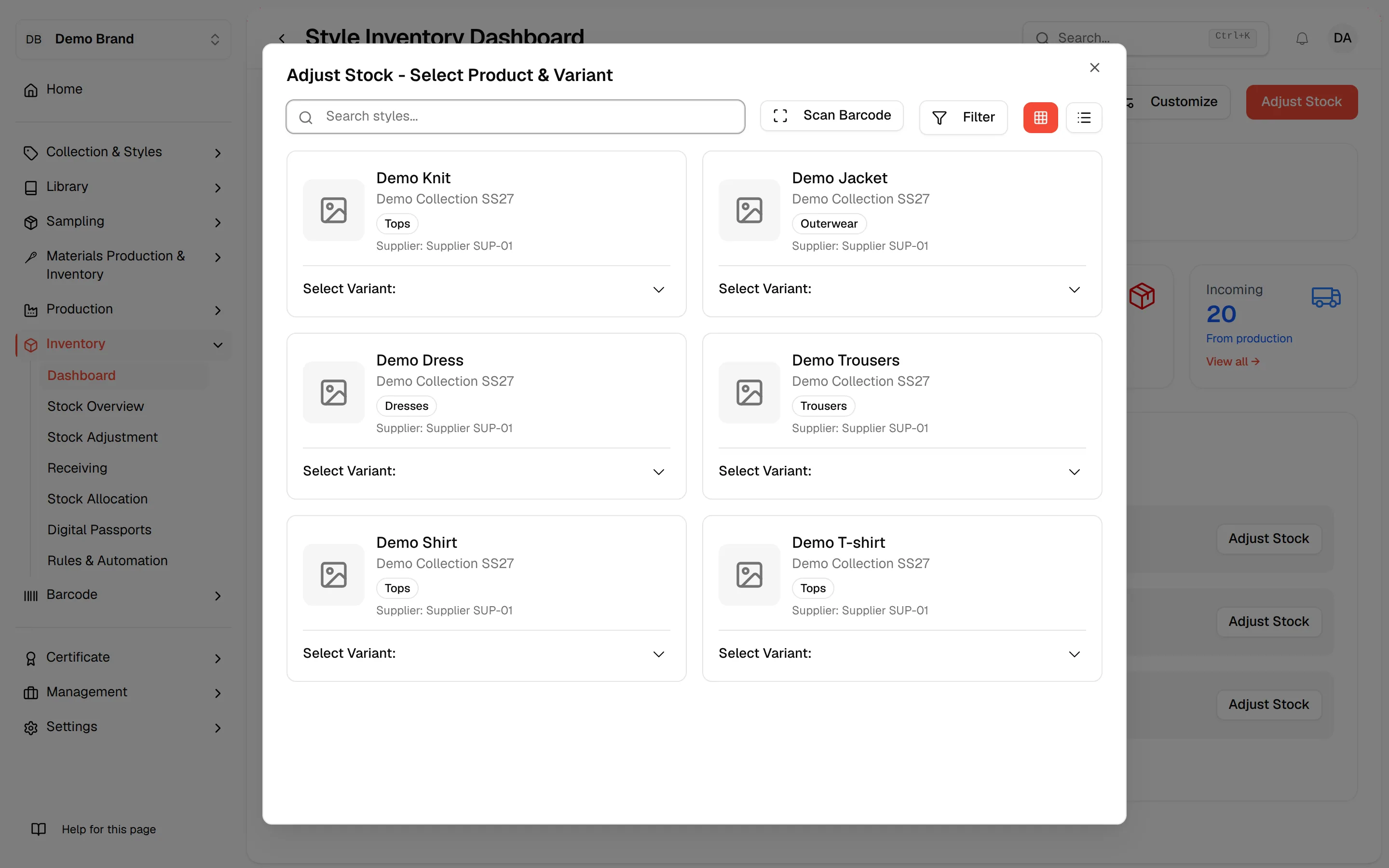
Click Adjust Stock on an alert to open the stock adjustment form with that item and warehouse already selected. See Inventory stock adjustments.
Recent activity
Recent Activity shows the latest inventory movements (the three most recent for the selected warehouse). Each row shows the style, colour and size, how long ago it happened, the warehouse, and the quantity with a + for an increase or a - for a decrease. When there is nothing to show you see No recent activity.
Create stock adjustment
- Click Adjust Stock to update inventory quantities.
Important
Adjust Stock only appears if your role includes permission to update style inventory.