Step 12 of 13 in Place and track a production order
Review delivered shipments
See every shipment that has reached its destination, search and filter the list, and open the shipment details and documents.
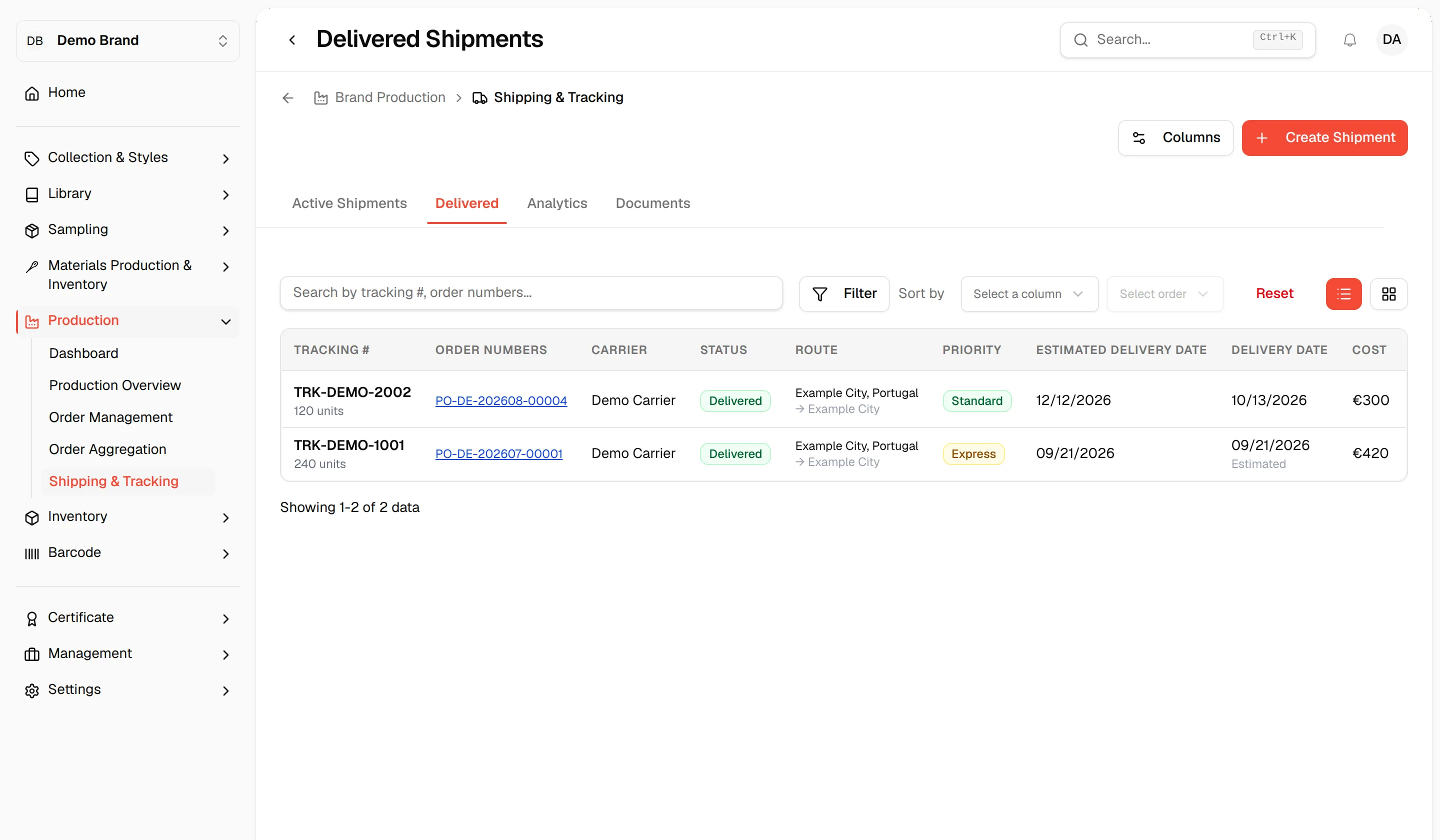
The Delivered tab of Shipping & Tracking lists the shipments that have been delivered. Use it as your record of what arrived and when.
ProductionShipping & TrackingDelivered
Permission: VIEW_BRAND_PRODUCTION
Open the Delivered tab
Open Shipping & Tracking
In the left sidebar, expand Production and click Shipping & Tracking.
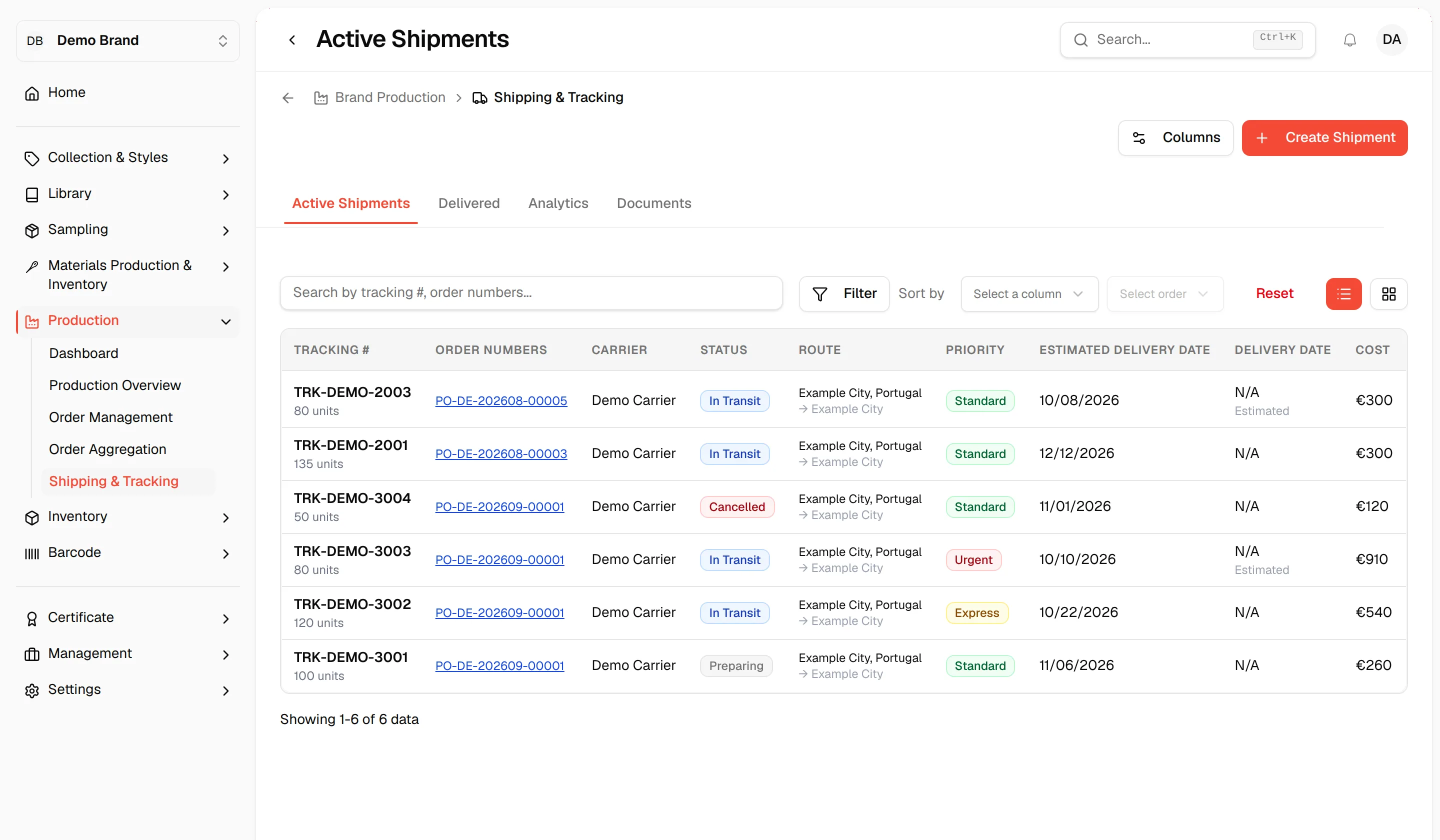
Click "Delivered"
Click the Delivered tab. The list shows only shipments with the status Delivered.
What you can do on the tab
The tab works like Active Shipments:
- Search with Search by tracking #, order numbers....
- Filter by Priority or Supplier. There is no Status filter here because every shipment is delivered.
- Sort by any column and click Reset to clear.
- Change the visible columns with Columns at the top of the page (shown if you can update brand production). The same column choice is used on every shipment tab.
- Switch between the table and the kanban board with the icons at the top right.
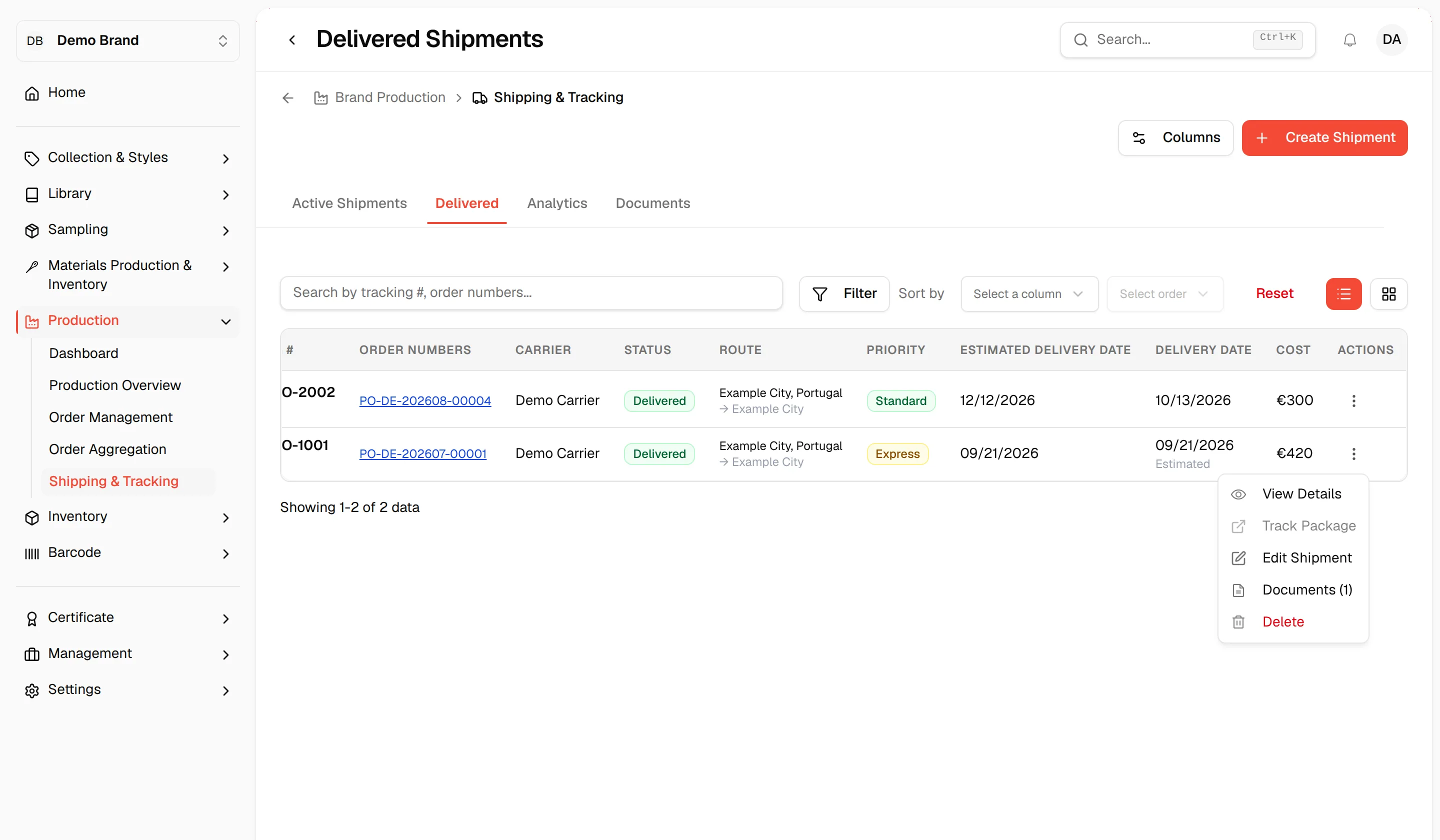
- Use the ⋮ menu to View Details, Track Package, Edit Shipment, open Documents or Delete (if you can delete brand production).
In the table, the Delivery Date column shows the date the shipment arrived.
Move a shipment back
If a shipment was marked delivered by mistake, open Edit Shipment from the ⋮ menu and change the Status to Preparing or In Transit, then click Save Changes. It returns to the Active Shipments tab.