
Step 8 of 13 in From idea to a production-ready tech pack
Tech pack overview
Review a style's tech packs, create new ones, change print settings, request samples and download them as PDF or Excel.
Under review. This page is published while we check it against the live app, so some details may have changed.
Collection & StylesStyles(select a style)Tech PackOverview
Permission: VIEW_TECH_PACK
1. Tech Pack Overview Header
(Automatically filled from the Main Style Page)
- Style Name and Code: the Style Name and Code associated with the Style.
- Collection: the Collection associated with the Style.
- Category: the Category associated with the Style.
- Status: the Status of the Style.
- Attributes: Users can show or hide the Style Attributes and select multiple style attributes.

2. Tech Pack Overview List
- Circle: to select the tech pack for action
- Tech Pack Name: Name of tech pack. Users can enter the name of the Tech Pack.
- Description: The Tech Pack Description. Users can enter the description representing the Tech Pack.
- Format: The Tech Pack File Format (PDF, or PDF and Excel). Users can choose the format of the Tech Pack.
- Created: The First Created Tech Pack Time Stamp and user's name.
- Modified: The latest modification Tech Pack Time Stamp and user's name.
- +New: to create a new Tech Pack
- Sample Status: the status of linked sample requests (see below).
- Three dots: represents a selection of actions that users can perform in this section.

The three dots menu offers Edit, View/Download, Sample Requests, Download Excel File and Delete.
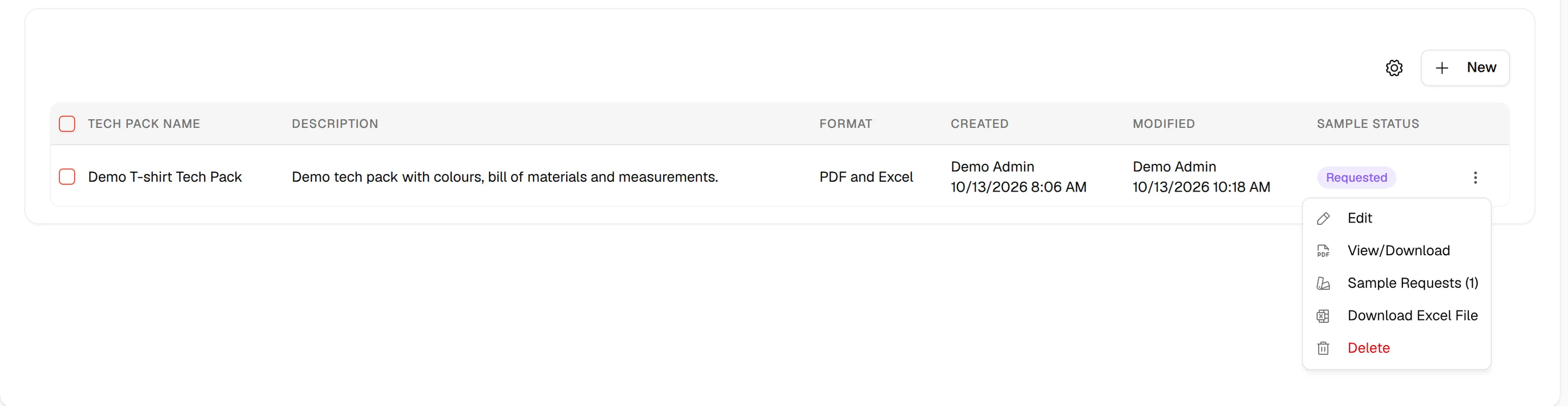
Users can create a New Tech Pack through the Tech Pack Overview.
Sample status and sample requests
- Sample Status appears when at least one sample request is linked to the tech pack. One request shows its status badge; several show a N Samples badge. Click the badge to open the Sample Requests list.
- In the three dots menu, Sample Requests opens the same list. It is shown when the tech pack already has sample requests, or when you can create samples.
- In the Sample Requests list, click a request to see its Sample Details, or click New Sample Request to request a sample from this tech pack.
Note
Learn more about samples in Sampling.
Annotation and comment settings
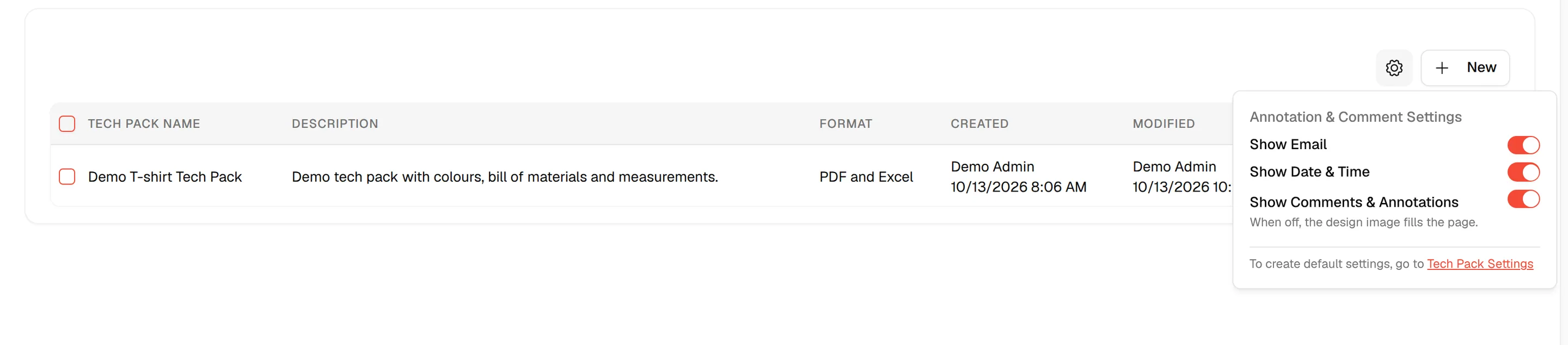
Click the gear icon above the list to open Annotation & Comment Settings. These switches apply to the printed tech pack of this style and save as soon as you change them:
- Show Email
- Show Date & Time
- Show Comments & Annotations — when off, the design image fills the page.
Tip
To create default settings for all styles, click Tech Pack Settings at the bottom of the popover.
Delete tech packs
Check the circle next to one or more tech packs, then click Delete Selected and confirm with Delete in Confirm Multiple Deletion. To delete a single tech pack, use Delete in its three dots menu.
Empty state
When the style has no tech pack, the page shows No Tech Pack Available with a New button.
Print and share
View/Download in the three dots menu opens the print view of the tech pack. See Print and share a tech pack.