
Material sampling tab
See every sample requested for one material, track its status and cost, and request a new material sample from the material page.
Under review. This page is published while we check it against the live app, so some details may have changed.
The Sampling tab of a material lists all the samples that have been requested for that one material. You can follow their status and cost, open a sample, and request another material sample without leaving the material.
LibraryMaterialsopen a materialSampling
Permission: VIEW_PRODUCT,UPDATE_PRODUCT
Before you start
- The Sampling tab only appears when the sampling feature is switched on for your brand. If it is missing, ask your Brand Admin.
- On a material from the Public Library, the tab is read-only: the currency list, New Sample, Edit/View and Delete are disabled.
Open the tab
Open the material
From the left sidebar, click Library, then Materials, and click the material you want.
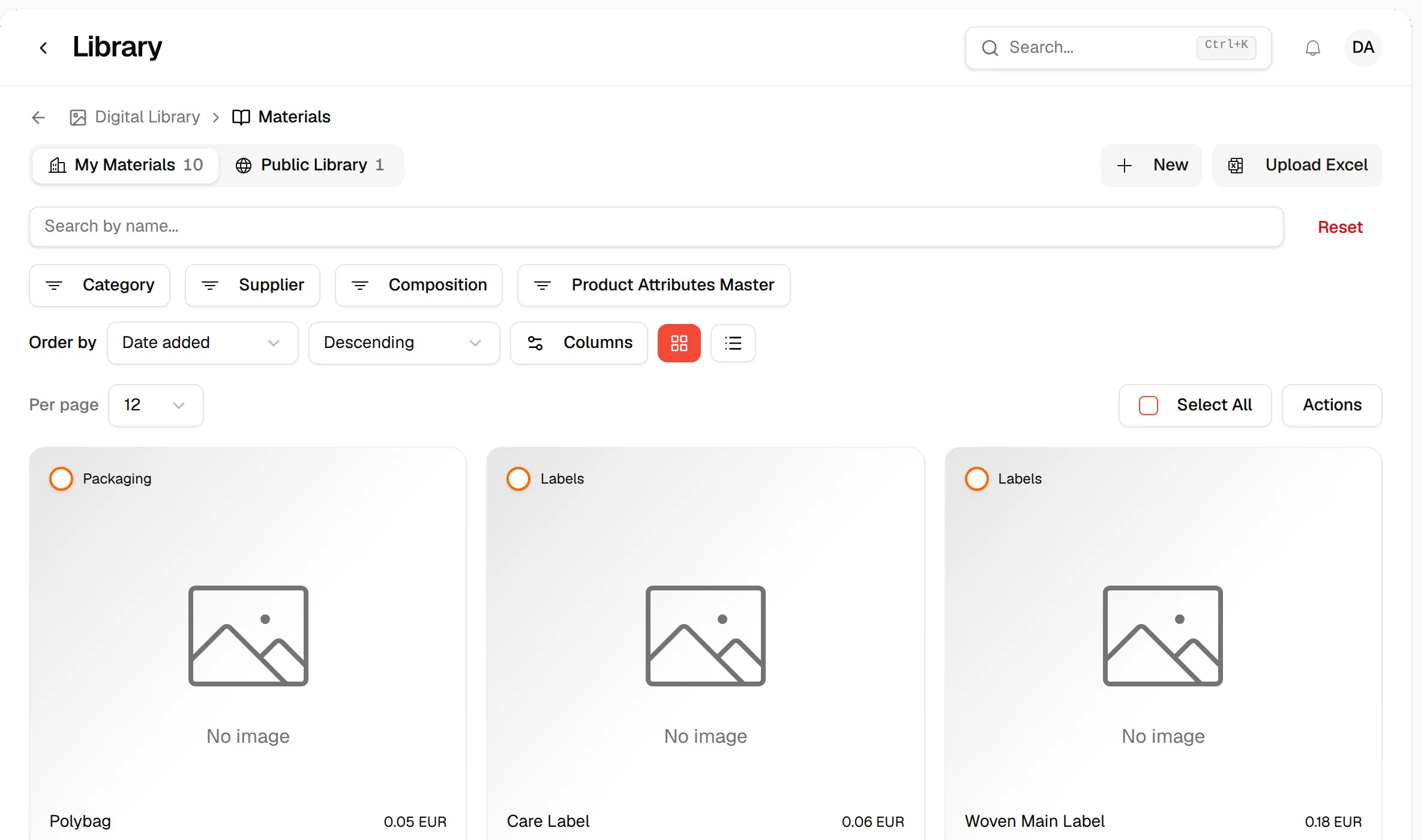
Click "Sampling"
Click the Sampling tab at the top of the material.
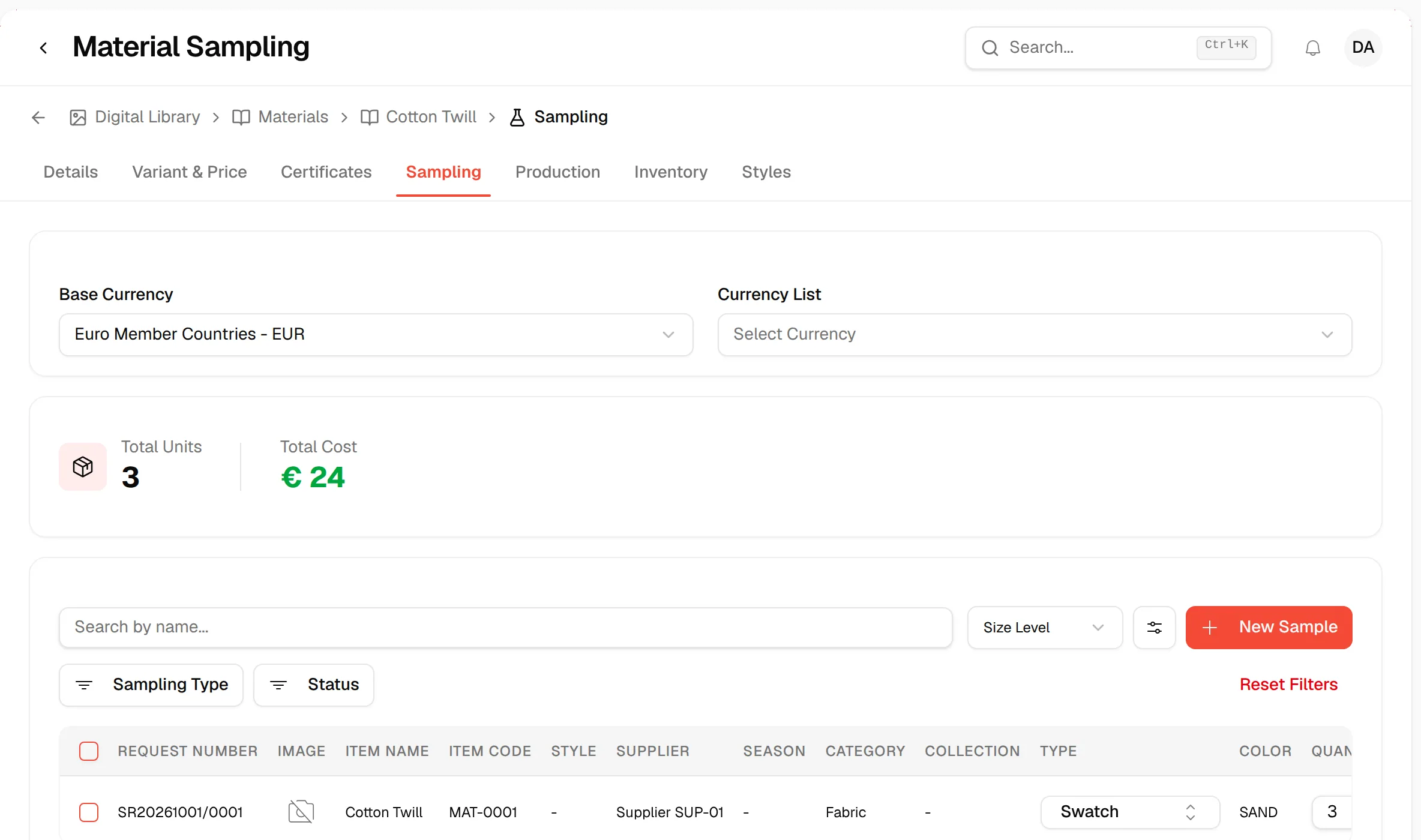
Currency and totals
- Base Currency shows your brand's base currency. It is read-only.
- Currency List lets you choose which exchange rate list is used to convert the sample costs into the base currency. Your choice is saved on the material.
- Total Units and Total Cost summarise all the samples listed below, with the cost in your base currency.
Find a sample
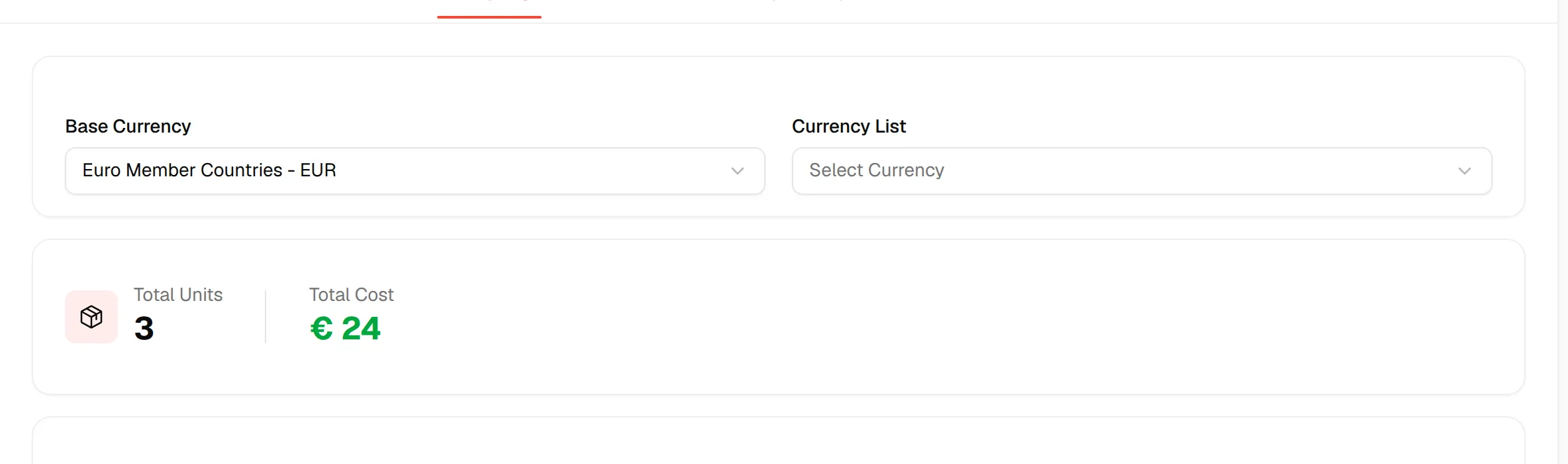
Use the tools above the table:
- Search by name... searches the samples.
- Style Level, Colour Level or Size Level switches the level at which the samples are shown.
- Sampling Type and Status filters narrow the list. Click Reset Filters to clear them.
- The sliders button opens the column picker, where you choose which columns you see.
The table can show these columns: Request Number, Image, Item Name, Item Code, Style, Supplier, Season, Category, Collection, Type, Color, Quantity, Currency, Unit Cost, Total Cost (Original), Total Cost in your base currency, Created At, Status, Health, Agreed Due Date, Actual Due Date, Days to Due, Days Overdue, Last Status Update and Notes. Each row also has a comment button and an Action menu.
Note
The Season, Supplier, Category, Collection, Health and Created At filters used on the main sampling page are not offered on this tab.
Request a new material sample
Click "New Sample"
Click New Sample above the table, or New Sample in the empty state.
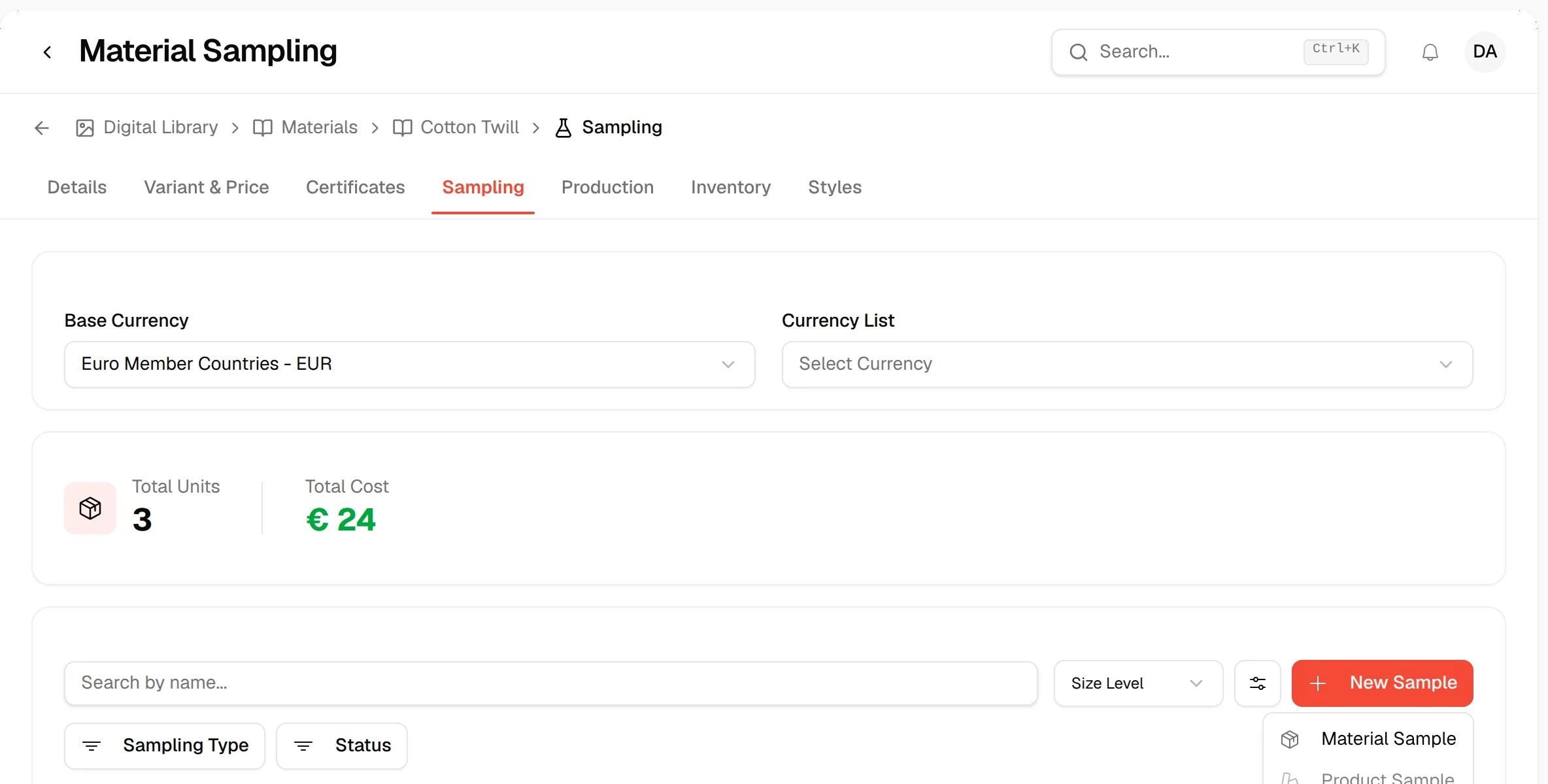
Click "Material Sample"
In the menu, click Material Sample. Product Sample is greyed out on this tab.
Select the sampling type
In Sampling Type, select the type you need.
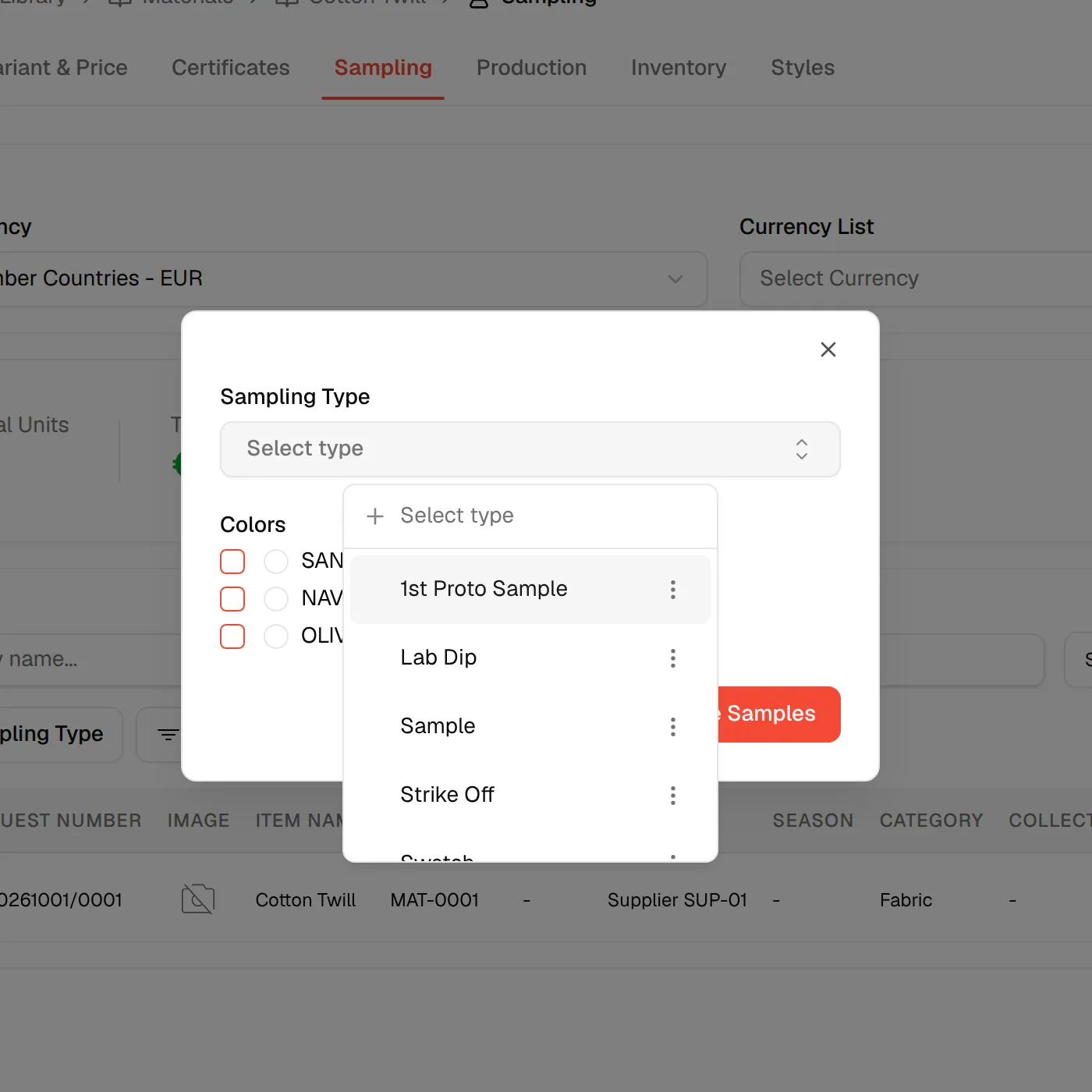
Select the colours
If the material has colours, check the ones to sample under Colors. One sample is created for each colour you check. If you check none, one sample is created for the material.
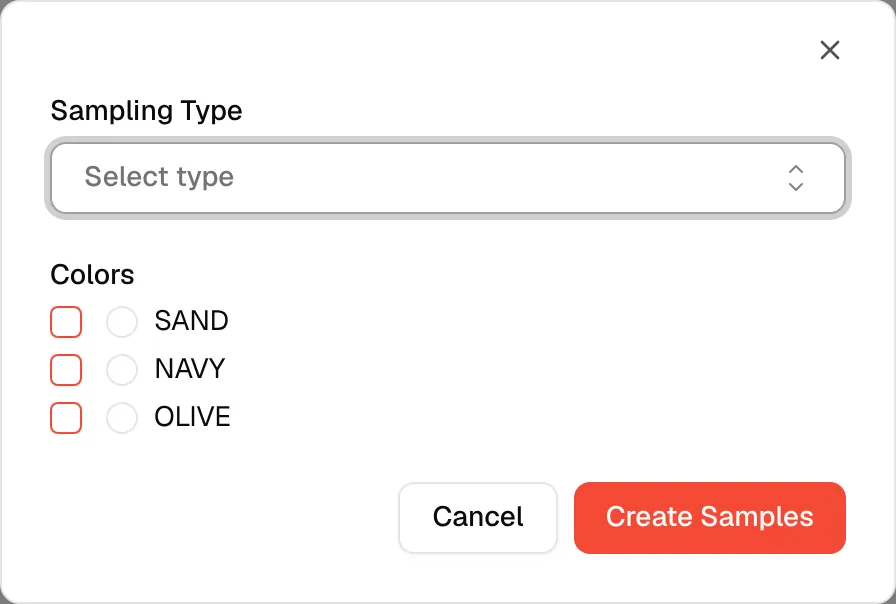
Click "Create Samples"
Click Create Samples. Click Cancel to close the window without creating anything.
You should now see the new sample in the table.
Work on a sample
Click the three dots in the Action column of a row:
- Edit/View opens Sample Details.
- Send Request sends the request to the supplier. It is available only while the sample status is Created.
- Override health lets you set the health of the sample yourself.
- Confirm ex-factory and Supplier confirmation appear only if your role has those permissions.
- Delete removes the sample after you confirm in Delete Sample.
For the details of a sample, its statuses and its full workflow, see Sampling and Create a sample.
When there are no samples
The page shows No Samples Available with a New Sample button.