
Code generator settings
This article outlines best practices for setting up and using the Code Generator in Vestis Labs to support consistent, automated generation of SKU codes, Style codes, and Library item codes…
Under review. This page is published while we check it against the live app, so some details may have changed.
Screenshots may be out of date.
Code generator – admin setup
This article outlines best practices for setting up and using the Code Generator in Vestis Labs to support consistent, automated generation of SKU codes and Style codes across your product.
Introduction & best practice
The Code Generator in Vestis Labs allows you to define structured formulas for creating product codes using predefined elements such as season, category, style, material, size, colour and supplier. By configuring code formulas, you ensure every generated code follows a clear, standardised format that is easy to read, track, and manage.
Using the Formula Builder, you can arrange formula elements in the desired order, define separators, and control how codes are constructed. This structured approach improves data consistency, reduces manual errors, and enhances traceability across styles and SKUs.
SettingsCode Generator
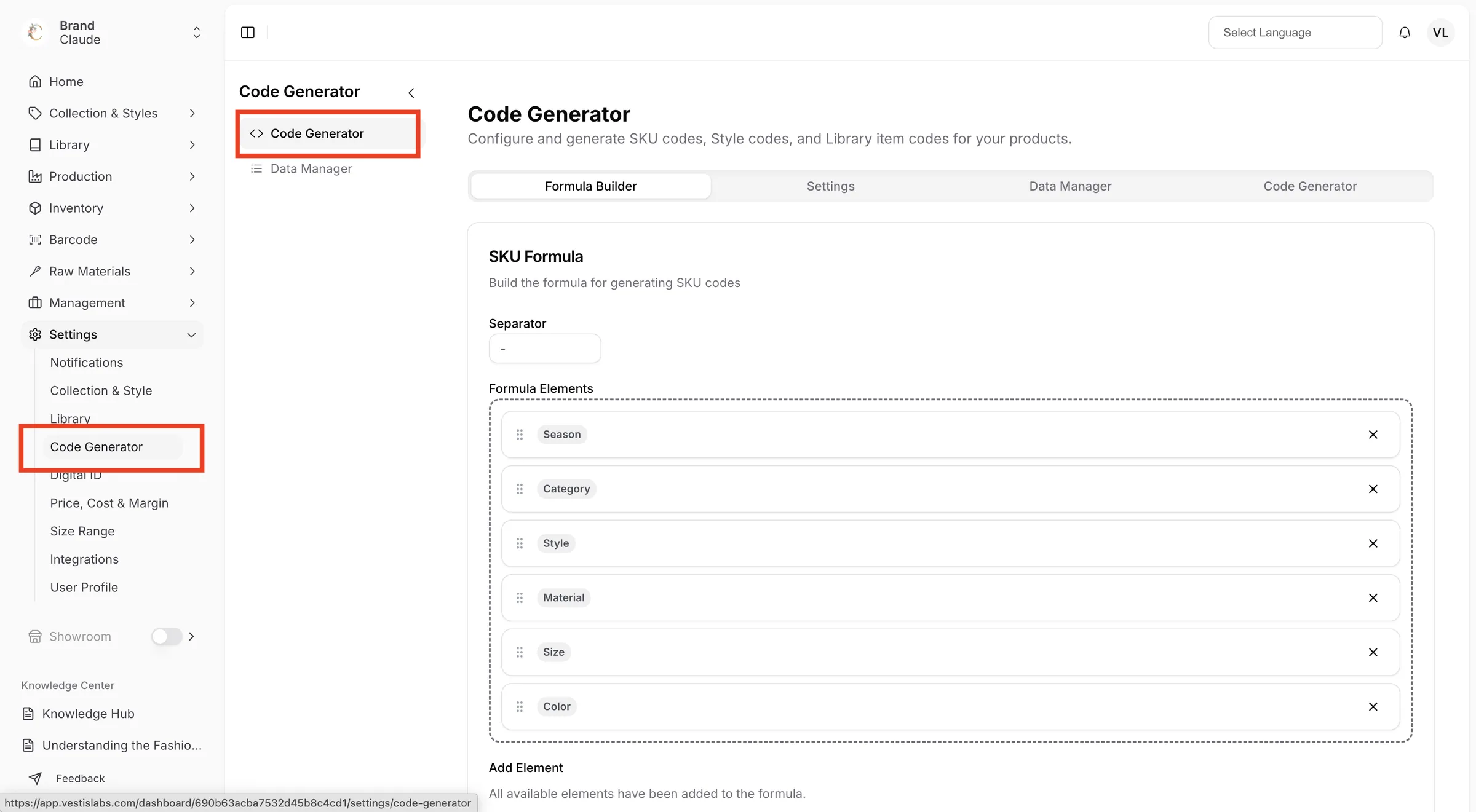
From the left sidebar, click Settings, then Code Generator. The page opens on the Formula Builder tab.
The Code Generator page has four tabs: Formula Builder, Settings, Data Manager and Code Generator.
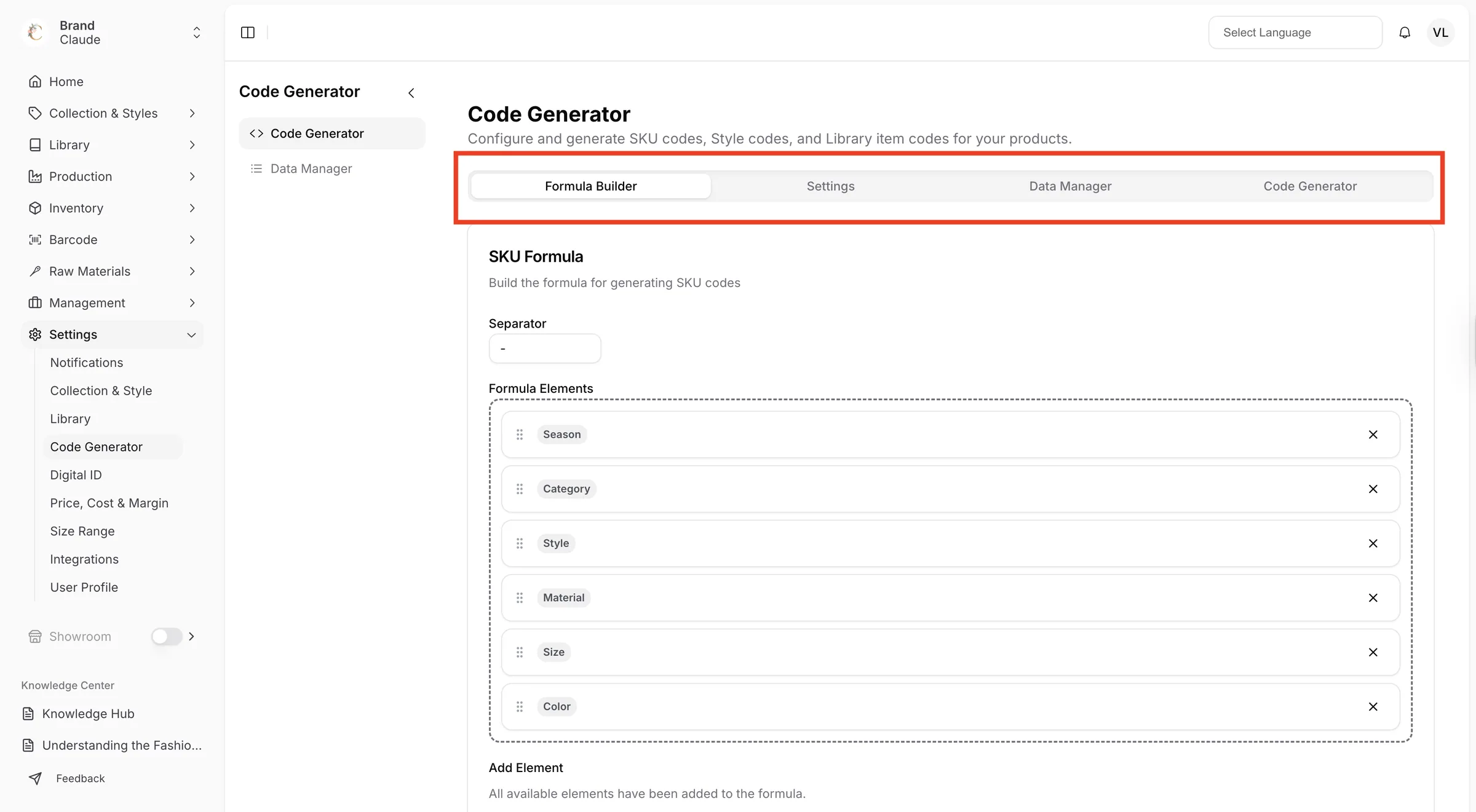
Formula Builder tab
Contains two cards, SKU Formula and Style Code Formula. In each card you can:
- Type a Separator (for example
-or_, or leave it empty) that is placed between the elements of the code. - Add elements with the buttons under Add Element. A button disappears once its element is in the formula, and the card shows "All available elements have been added to the formula." when none are left.
- Drag elements in the Formula Elements box to reorder them, or click the X on an element to remove it.
- Click Create Custom to add your own element (see below).
- Check the Live Preview to see the formula with the separator applied.
The SKU Formula can use Category, Color, Material, Size, Style, Season and Supplier. The Style Code Formula can use Category, Material, Style, Season and Supplier. Custom elements can be used in both.
Changes in this tab are saved automatically about one second after you stop editing.
Settings tab
Contains one card per data type: Categories, Colors, Materials, Sizes, Style Numbers, Seasons and Suppliers, followed by the Custom codes list and an Add custom card. Each card has:
- Generation Method: Letters (First no. of letters), Letters (Sequential) or Numbers (Sequential).
- Digit Count: from 1 to 10. Hidden for Letters (Sequential).
- Starting Number: only for Numbers (Sequential).
- Auto-generate switch: "Automatically assign codes on create".
- A Preview of the result, for example
DRESS → DREwith 3 letters.
For Style Numbers (always numeric) the card also shows Current Sequence Status with the Current Sequence and the Next Style Number. Once styles have been created the Starting Number is locked: "Cannot be changed after styles have been created".
Changes in this tab are saved automatically about one second after you stop editing.
Data Manager tab
Shows the lists of Categories, Colors, Materials, Sizes, Seasons, Suppliers and Customs with their codes. Edit them on the Data Manager page.
Code Generator tab
Use it to try your formulas. Under Product Selection, select a Category, Color, Material, Size, Season and Supplier, enter a Style Number (the refresh icon suggests the next one) and click Generate Codes. The SKU Code, Style Code and Library Item Code cards show the results, each with a copy button (Copy SKU, Copy Style, Copy Library).
Create custom data
In the Create custom data window choose a Custom type:
- Text: enter a Custom value (up to 20 characters). It appears exactly as typed.
- Number sequential: enter a Custom label and a Starting sequence (a number, for example 12000).
- Letter sequential: enter a Custom label and a Starting sequence in capital letters (for example AAAA).
Click Create to save it. The new element then appears under Add Element.
Sequence of style numbers
SKU numbers are generated sequentially based on the order in which styles are created. The sequence runs across all styles within your brand, not by category.