
Manage barcode template
Editing barcode templates in Vestis Labs allows you to refine and update existing label layouts without rebuilding them from scratch.
Editing barcode templates in Vestis Labs allows you to refine and update existing label layouts without rebuilding them from scratch. This ensures that your barcode labels remain accurate, aligned with brand requirements, and adaptable to changes in product information or regulatory standards. When updating a template, users can adjust fields, reposition elements, edit text properties, or revise the overall layout to better fit operational needs.
Step-by-step guide
BarcodeManage Templates
Permission: VIEW_BARCODE
Navigate to the Barcode > Manage Templates from the left sidebar menu
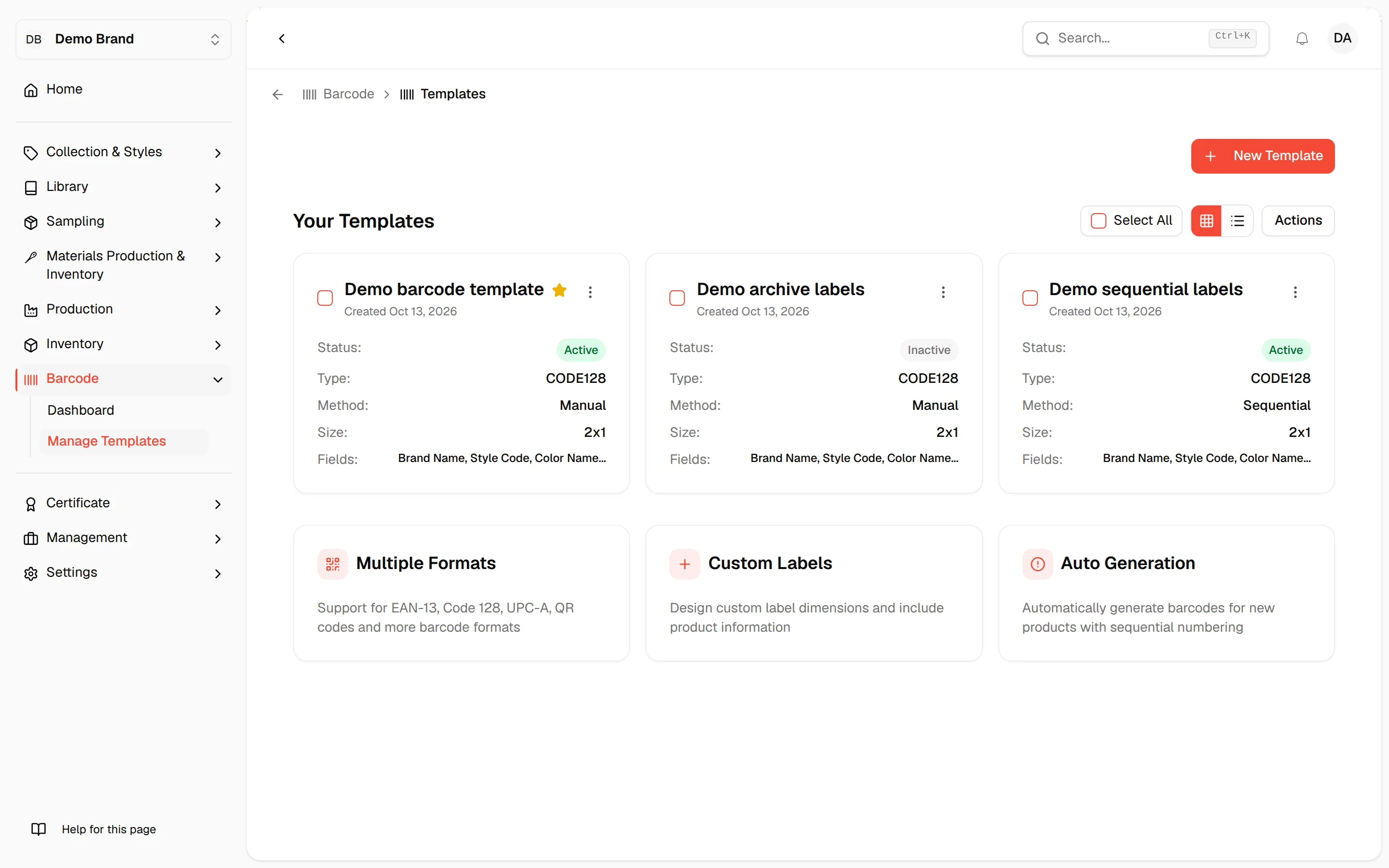
- To change the template - Click on the three dots and select View/Edit to open the template
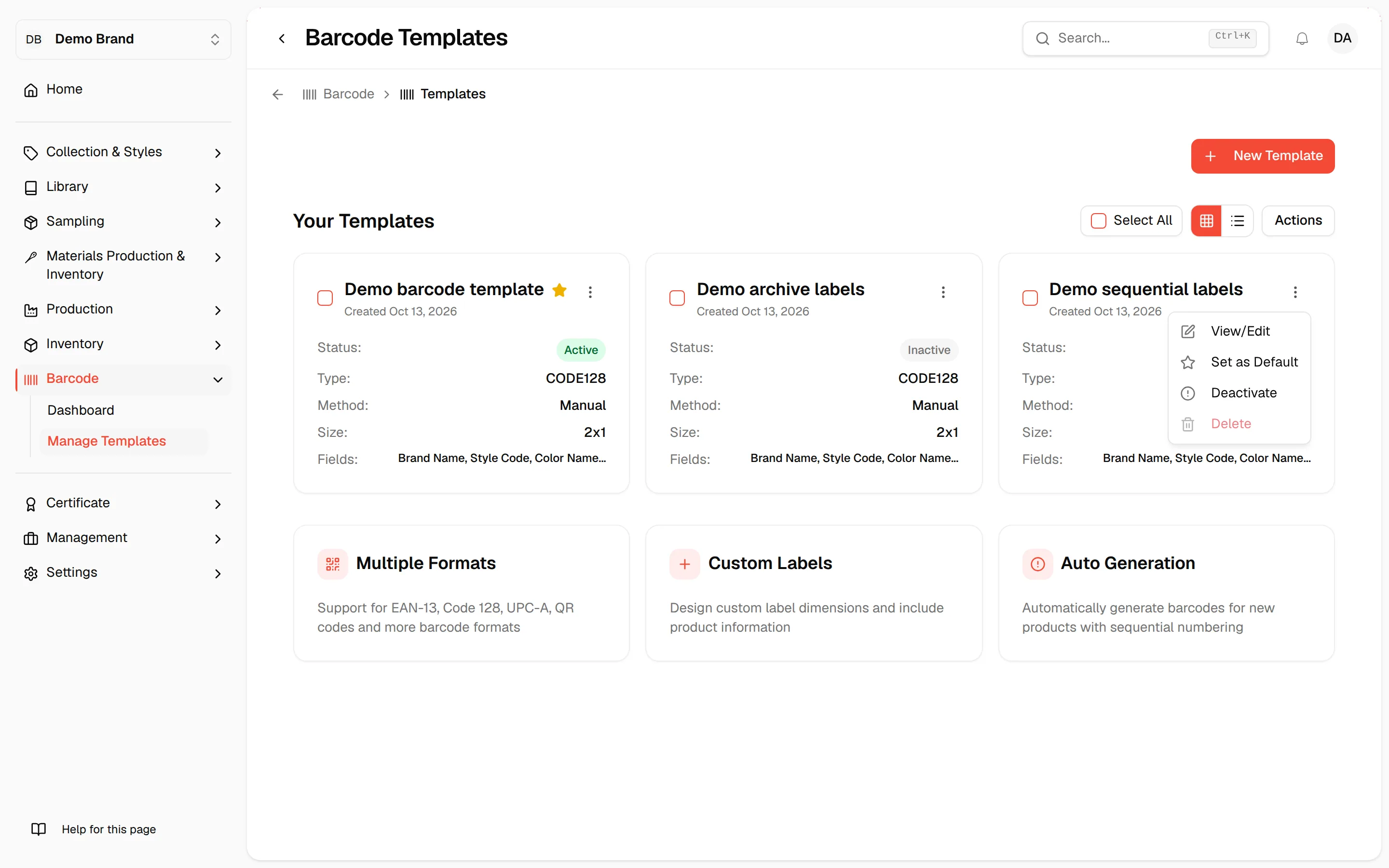
- The template opens on the Configuration tab, where you can change the same settings as when you created it
- Click Save Template to update the template. You return to the template list.
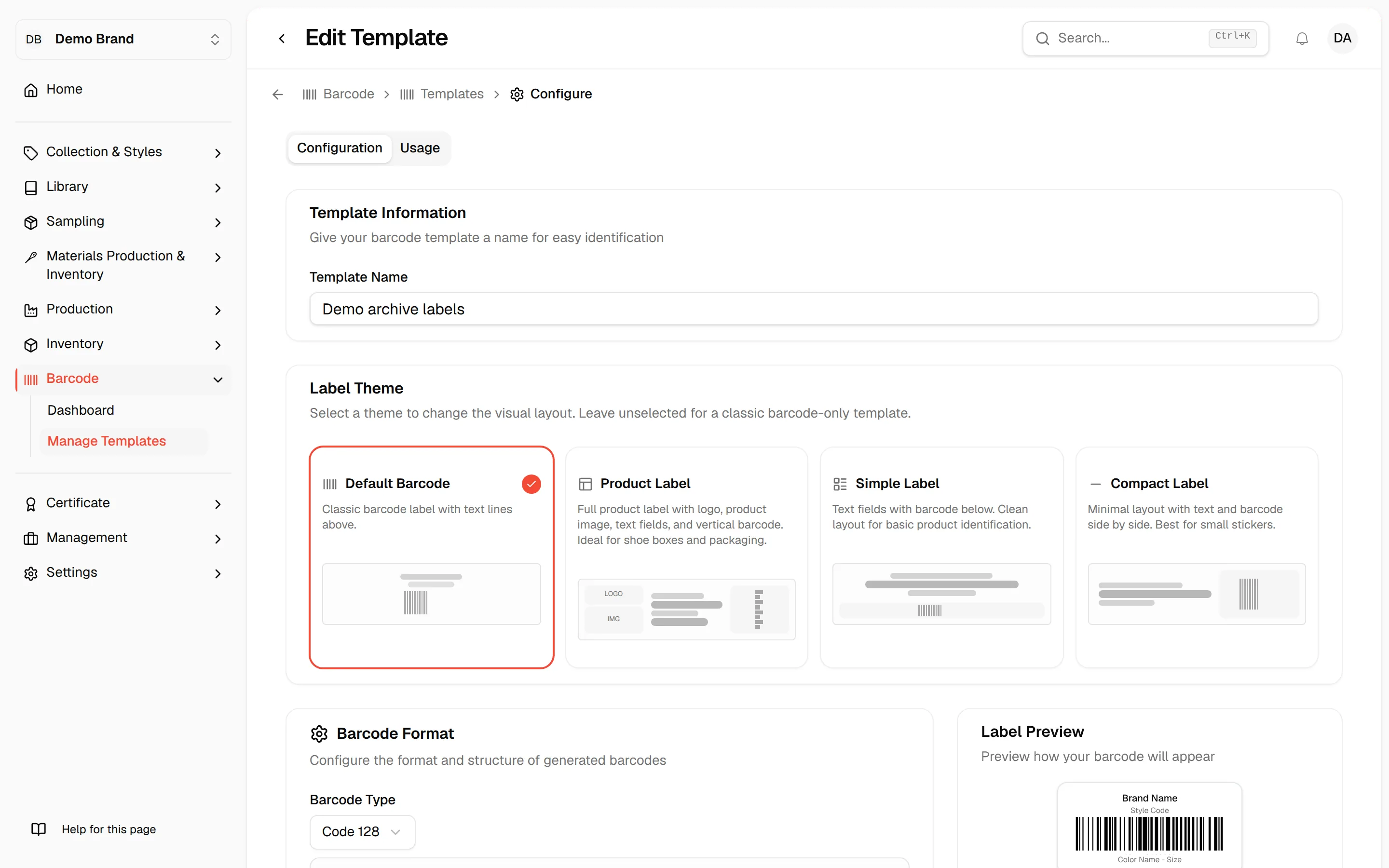
- To switch a template off, click the three dots and select Deactivate
- The template becomes inactive immediately and its status in the list changes to Inactive
- To switch it back on, click the three dots and select Activate. The status changes to Active and the template is ready to use for generating barcodes
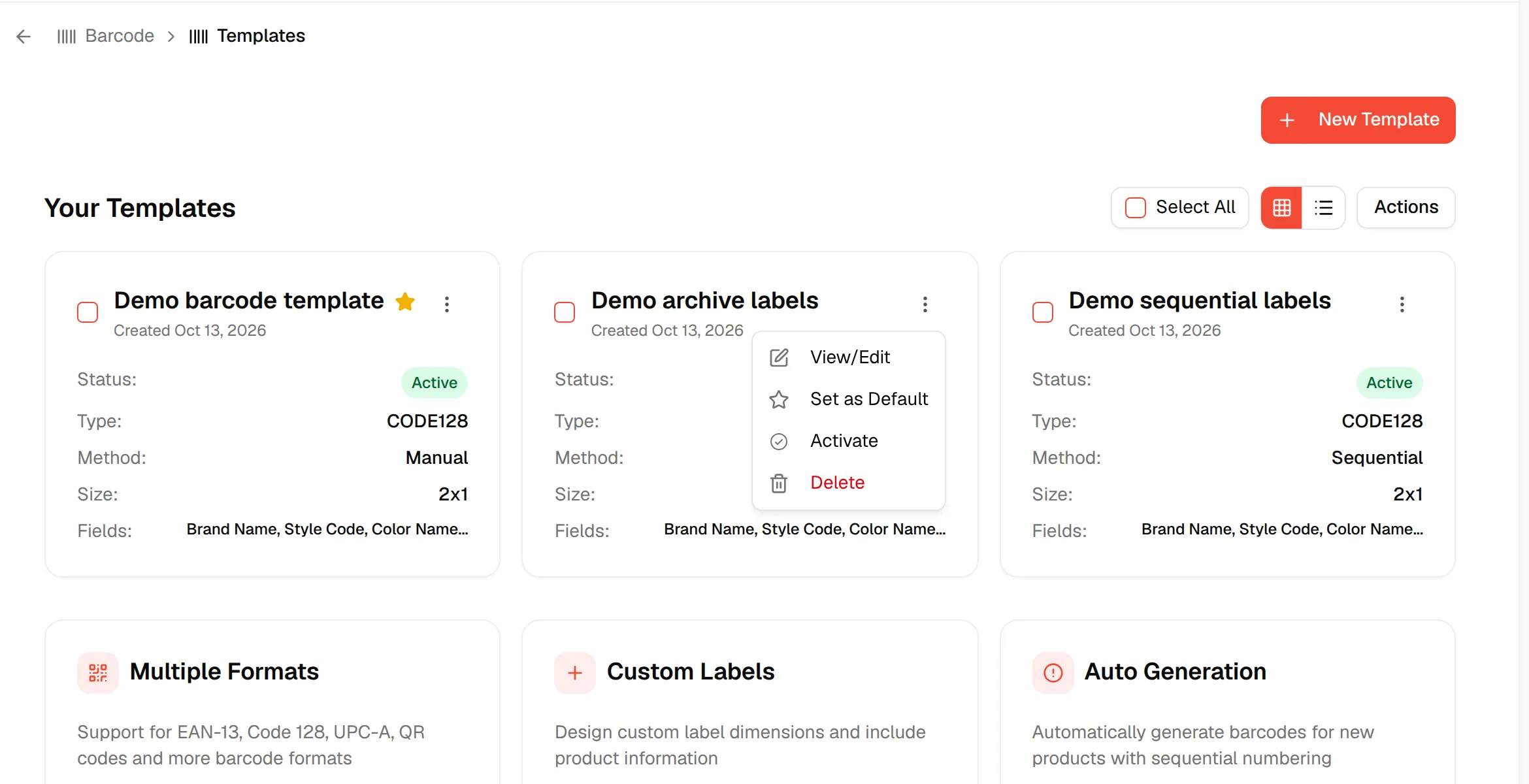
- Click Select All to select all the created templates, or check individual templates
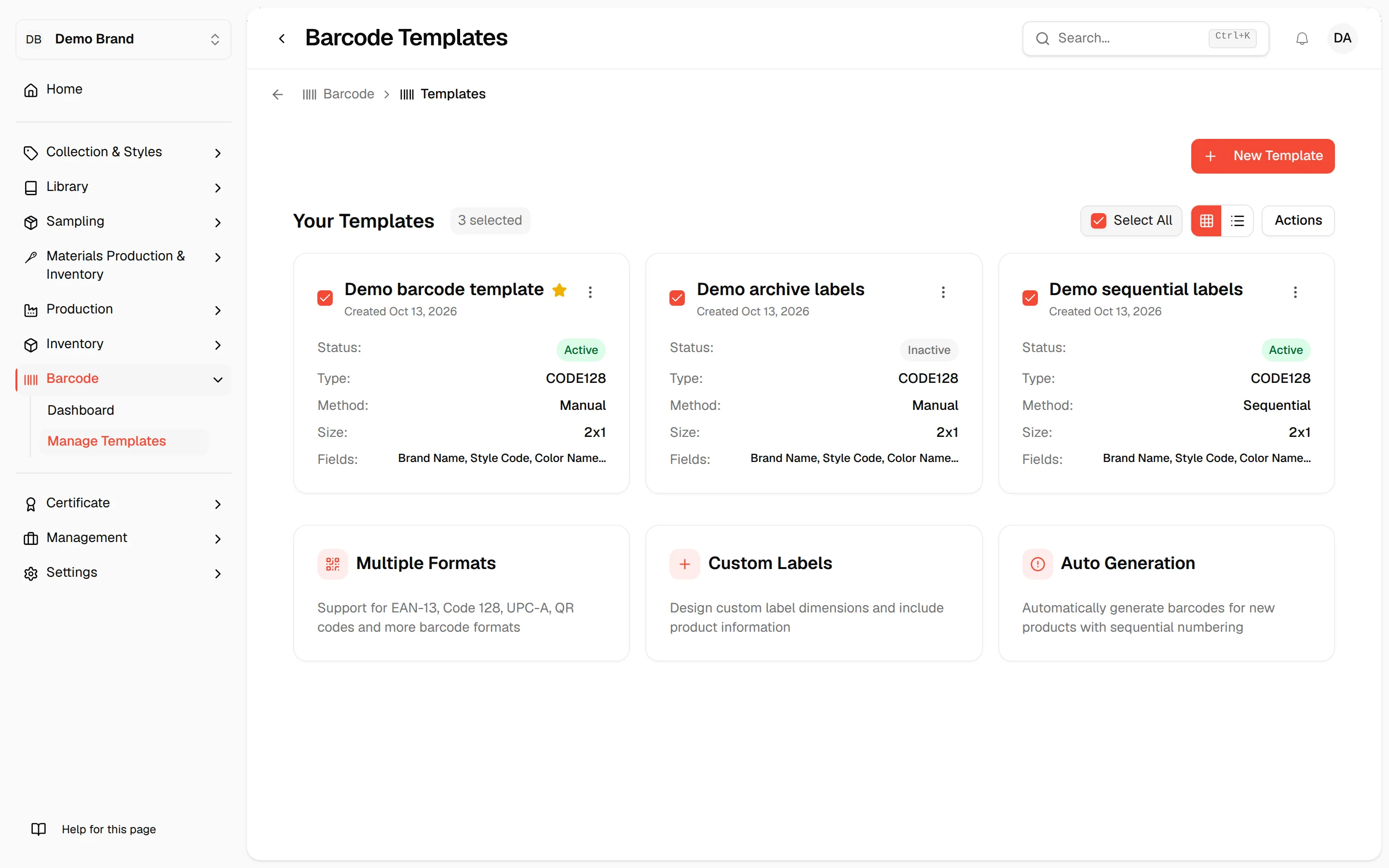
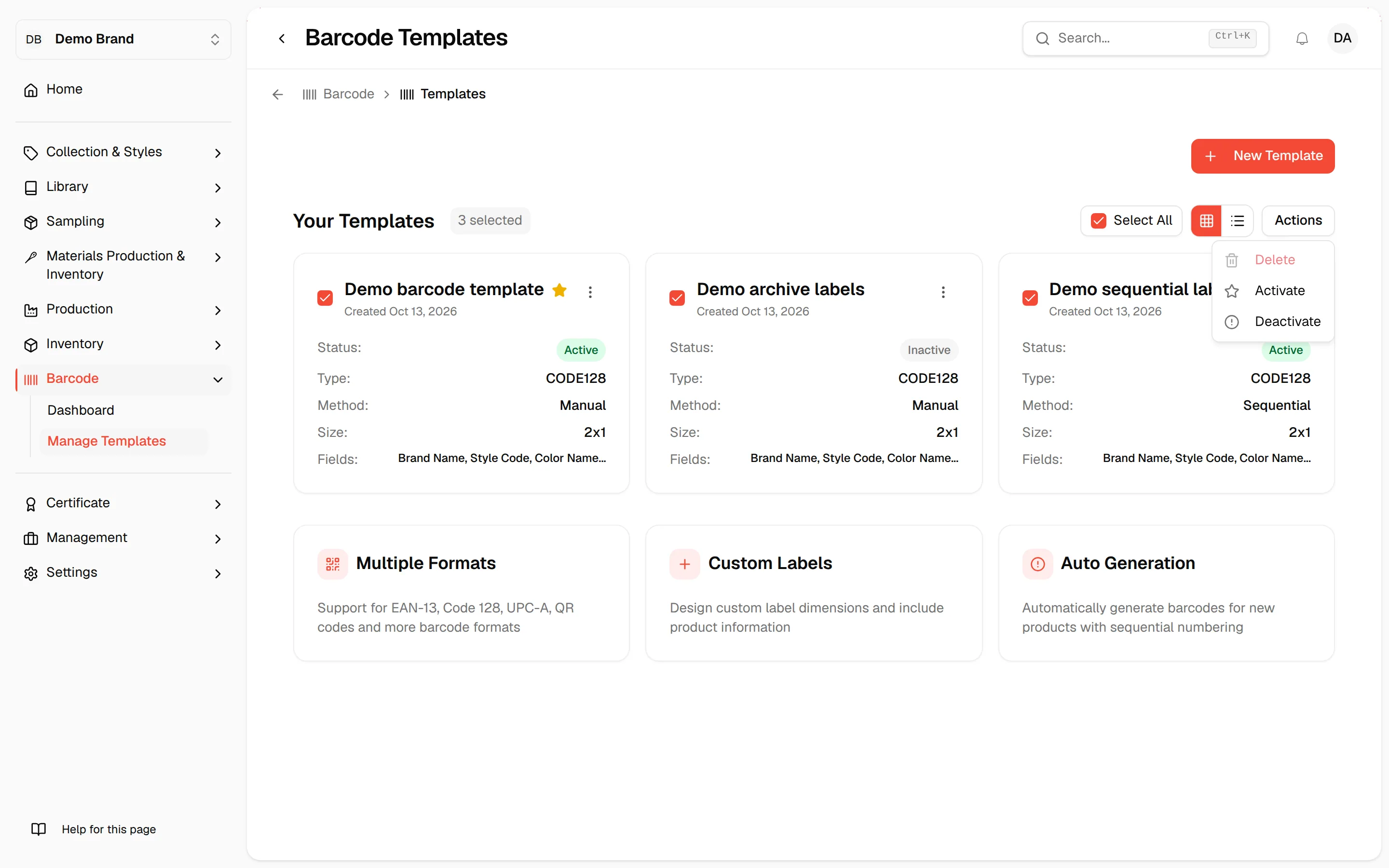
- Click Actions - A dropdown menu will appear.
- This menu applies to all selected templates.
- The options are Delete, Activate and Deactivate.
Set a default template
Click the three dots on a template and select Set as Default. The default template is marked with a star and is preselected when you generate barcodes. The option is unavailable for the template that is already the default.
Check how a template has been used
Open a template with View/Edit and click the Usage tab. It shows:
- Total Generated, Printed, Ready to Print and Available barcodes
- A progress bar showing how much of the number range is used, and the current sequence position
- A table with Barcode Number, Sequence, Status (Printed or Ready to Print) and Generated At
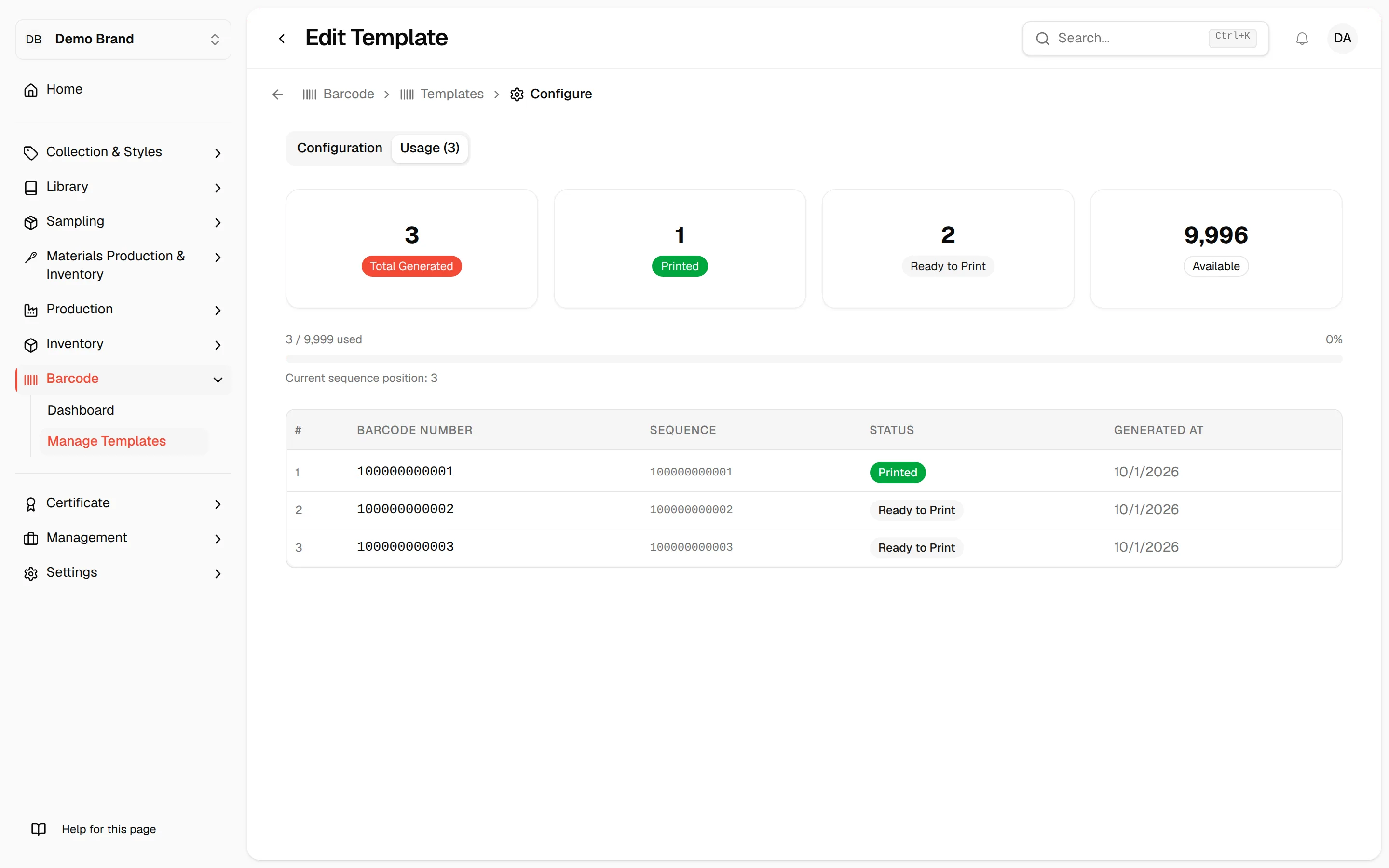
If no barcodes exist yet, the table shows No barcodes generated yet.
Templates that already have barcodes
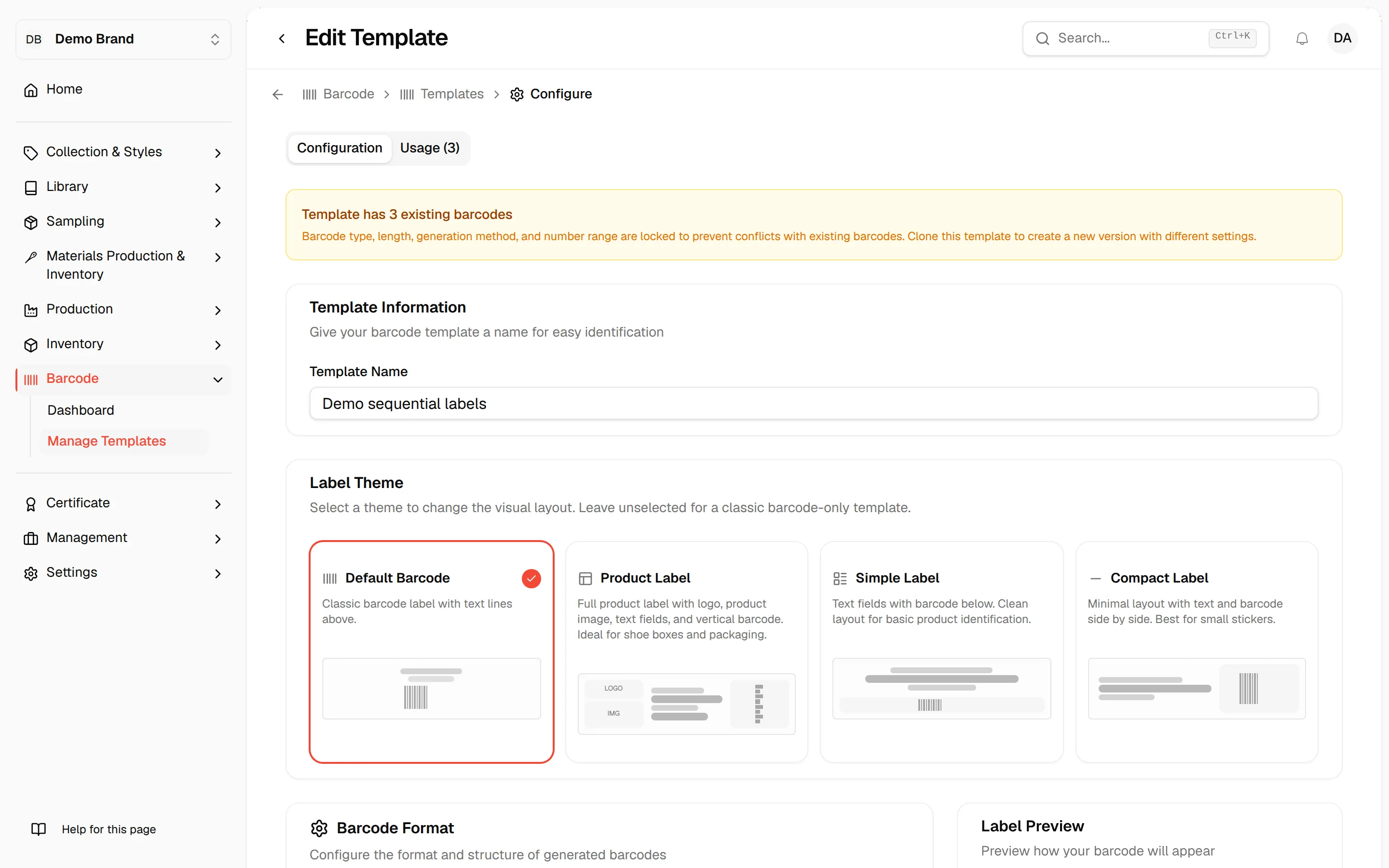
Once a template has been used to generate barcodes, the Configuration tab shows the message Template has N existing barcodes. The barcode type, length, generation method and number range are then locked so they cannot conflict with existing barcodes. Other settings, such as the label layout, can still be changed.
Note
To use a different type, length or range, create a new template.
Delete templates
Click the three dots on a template and select Delete, or select several templates and choose Actions → Delete. Confirm in the dialog.
Warning
Deleting a template cannot be undone. Barcodes generated with a deleted template remain.
Note
Delete is unavailable for templates that have been used to generate barcodes. Use Deactivate instead.
Switch between grid and list view
Use the grid and list icons at the top right of the template list to change how templates are shown. Each template shows its status, type, method, size and the first fields on the label.