
Step 11 of 13 in From idea to a production-ready tech pack
Material cost page
Material cost is the cost of materials used to manufacture a product.
Under review. This page is published while we check it against the live app, so some details may have changed.
Material cost is the cost of materials used to manufacture a product. The cost sheet is a table of detailed information for a garment that defines its cost to keep control over the cost of the products. This page allows users to manage the material cost information for calculating the total cost for the production planning.
Permission: VIEW_COSTS, VIEW_STYLE
Collection & StylesStyles(your style)CostsMaterials
To access the Materials Cost Page, select Collection…
To access the Materials Cost Page, select Collection & Styles > Styles from the left bar menu. Select your created style and click Costs > Materials on the style menu. Clicking Costs on its own opens Materials.
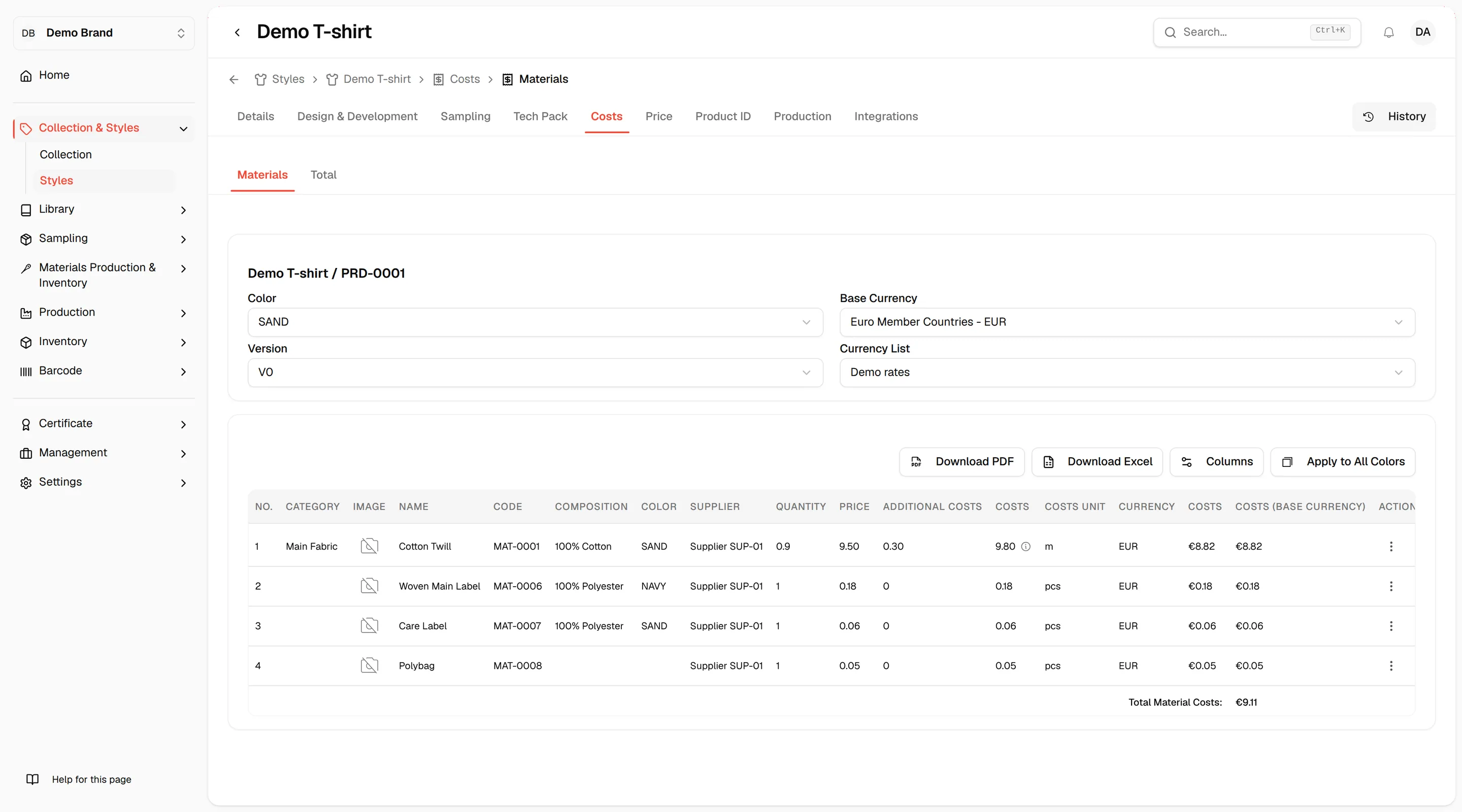
The Materials Cost Page will display all the…
The Materials Cost Page will display all the Materials cost that come from the Bill of Material. The page will display:
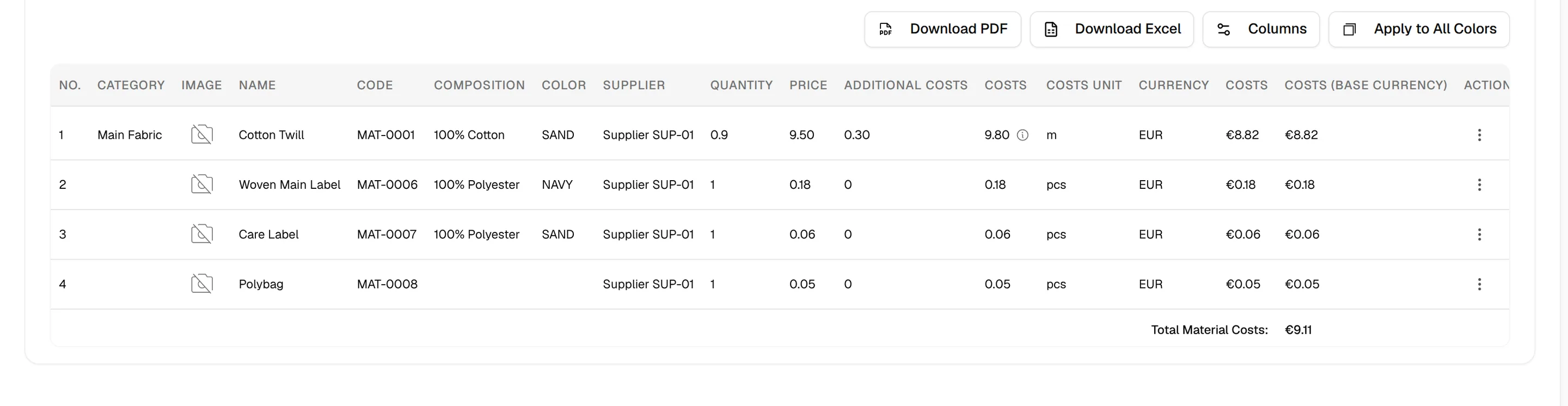
No.: the row number
Category: category from the input page that Users have assigned in design and development
Name: the name of the material
Image: image from the input page on the library
Code: code from the input page on the library
Composition: Composition from the library
Color: Users choose the color that is relevant to the style/color
Supplier: Supplier name from the input page on the library
Quantity: the number of quantities from the BOM page. Users can update the quantity from the BOM Page.
Price: the unit price of the material from the library, using the quantity break that applies to the style's volume when the material has quantity breaks
Additional Costs: additional costs of the material from the library
Costs: the unit price plus additional costs. On a material with quantity breaks, an info icon next to the value shows every bracket and which one applies.
Costs Unit: the unit measurement from the input page on the library
Currency: the currency from the input page on the library
Costs: Automated calculation between the quantity and the product unit cost.
Costs (Base Currency): Automated calculation based on the currency list.
Actions: the three dots menu at the end of each row.
To show the Material cost
you must select the Version and the Color of the style. The version opens on the highest version by default.
Nb: the Version that corresponds to the version of the Input Page on Design and Development in the version section.

The base currency is an automated field you…
The base currency is an automated field you can manage on the Base currency page. Select the Currency List from the currency exchange page.
**
**
Nb: Set up your base currency and use the exchange rate to calculate the costs in base currency.

Total Material Cost: Automated calculation based on the total cost of base currency.
It is shown under the table as Total Material Costs.
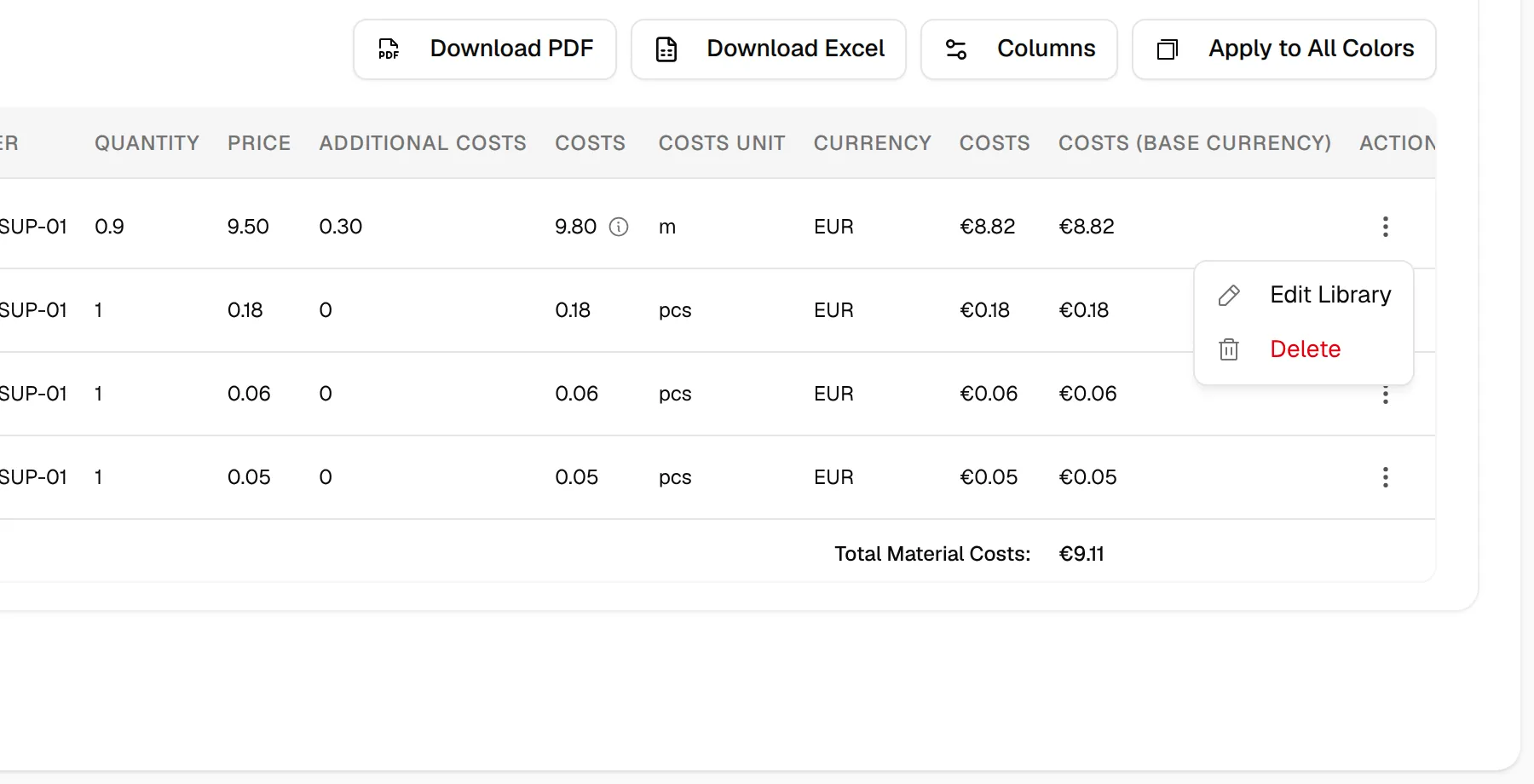
Three dots to select action for the selected item to edit library and delete.
Click the three dots on a row and select Edit Library to change the library item in the Edit Library Item window, or Delete to remove it. Delete asks you to confirm in Confirm Deletion; if the item comes from the style's input page, a warning explains it will be removed from the BOM and the input page as well.
Choose which columns to show
Click Columns above the table to open Manage Columns and turn columns on or off for your brand's view.
Apply the materials to all colours
Click Apply to All Colors above the table, then Apply in Apply Materials to All Colors. The bill of materials of the selected colour is copied to every other active colour of the style, for the selected version.
Warning
This replaces the materials already listed on the other colours.
Download the materials cost
Above the table, use Download PDF or Download Excel. Each offers two options: Export Current Color and Export All Colors in Version.
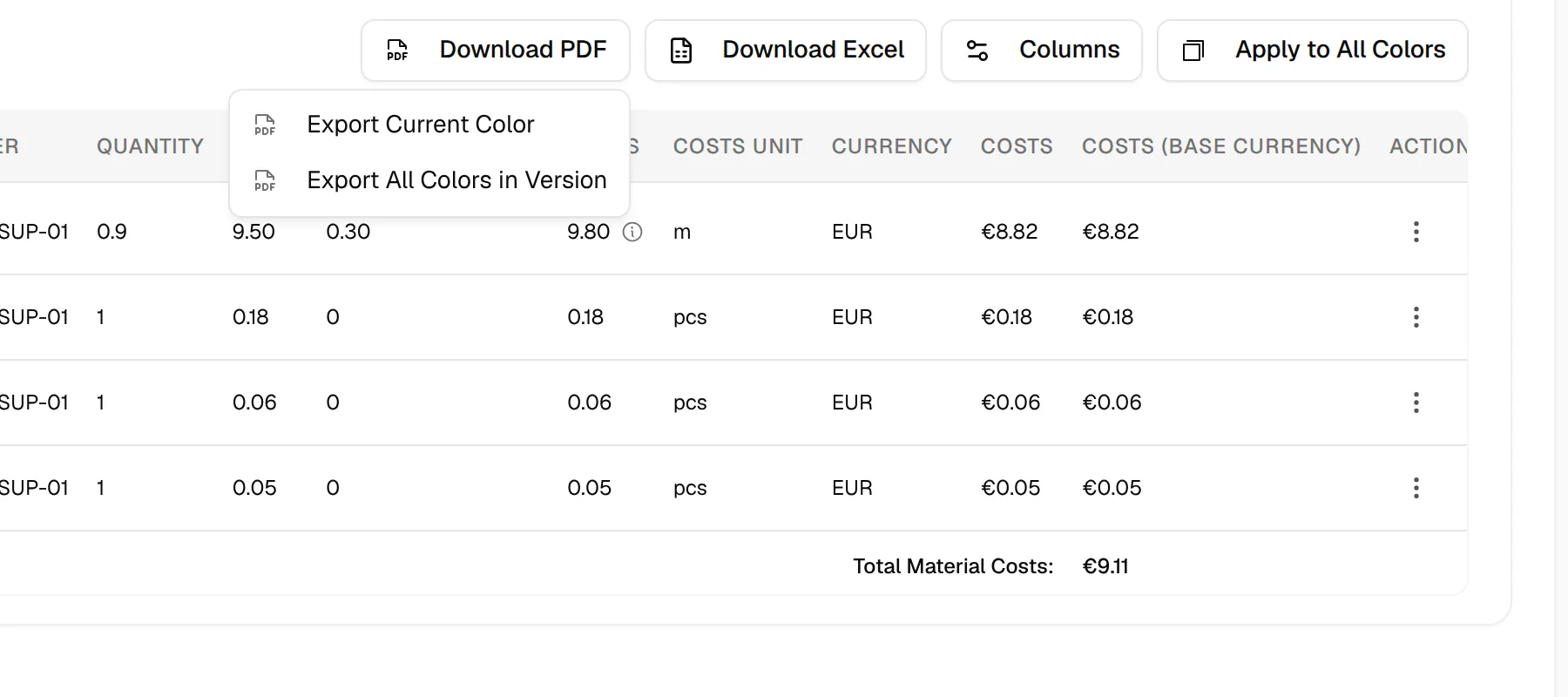
- Download Excel downloads a spreadsheet straight away.
- Download PDF opens a print page in a new tab. It has one section per colour, with the brand and style header, the table without the Actions column, and Total Material Costs at the end of each colour.
- On the print page, click the gear icon to set the Layout to Landscape or Portrait, then click the print button to save it as a PDF.
Note
Only people who are allowed to view costs can open the print page.