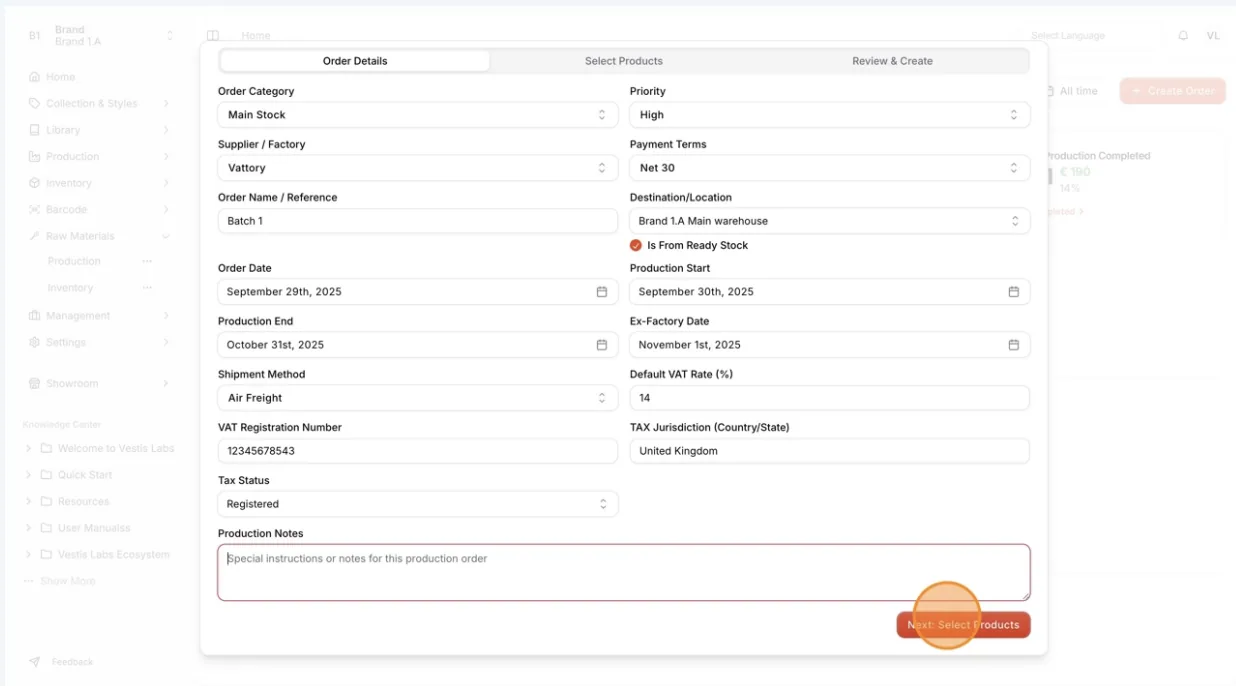
Order details in raw material production order
The Order Details in the Raw Material Production Order contain key information such as order date, supplier, and production schedule.
Under review. This page is published while we check it against the live app, so some details may have changed.
Screenshots may be out of date.
Materials Production & InventoryProductionOrder Management
Permission: CREATE_MATERIAL_PRODUCTION
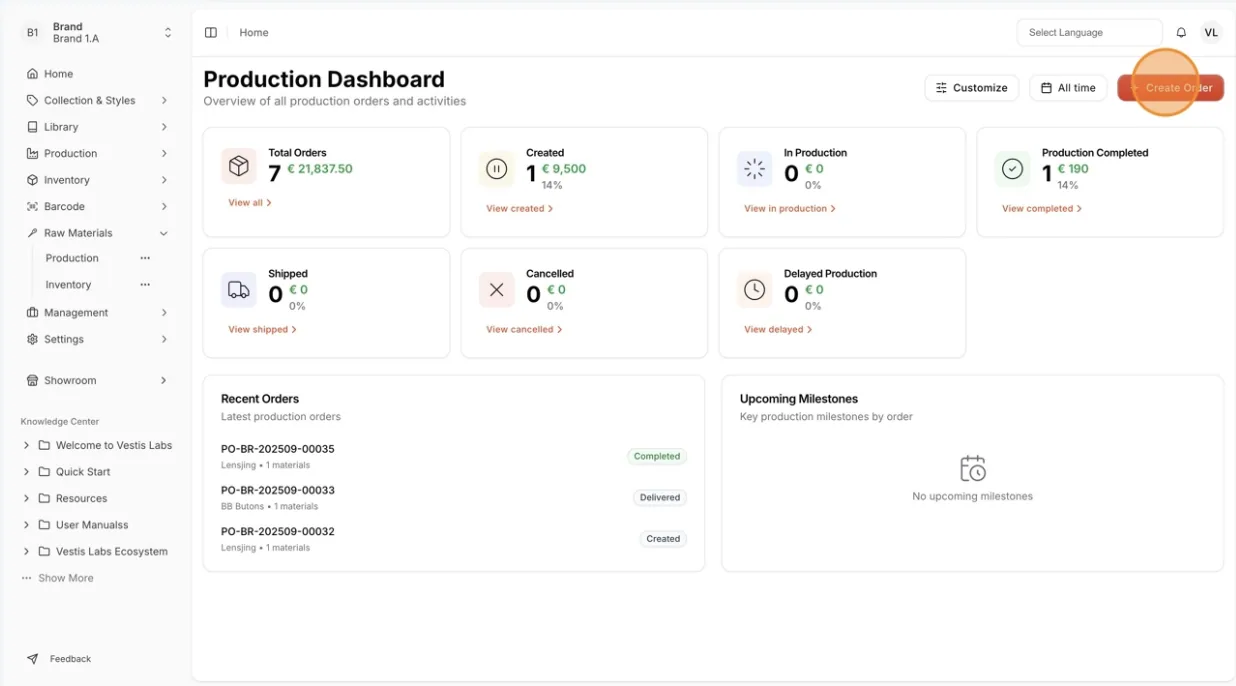
On the dashboard or Order Management page, click Create Order
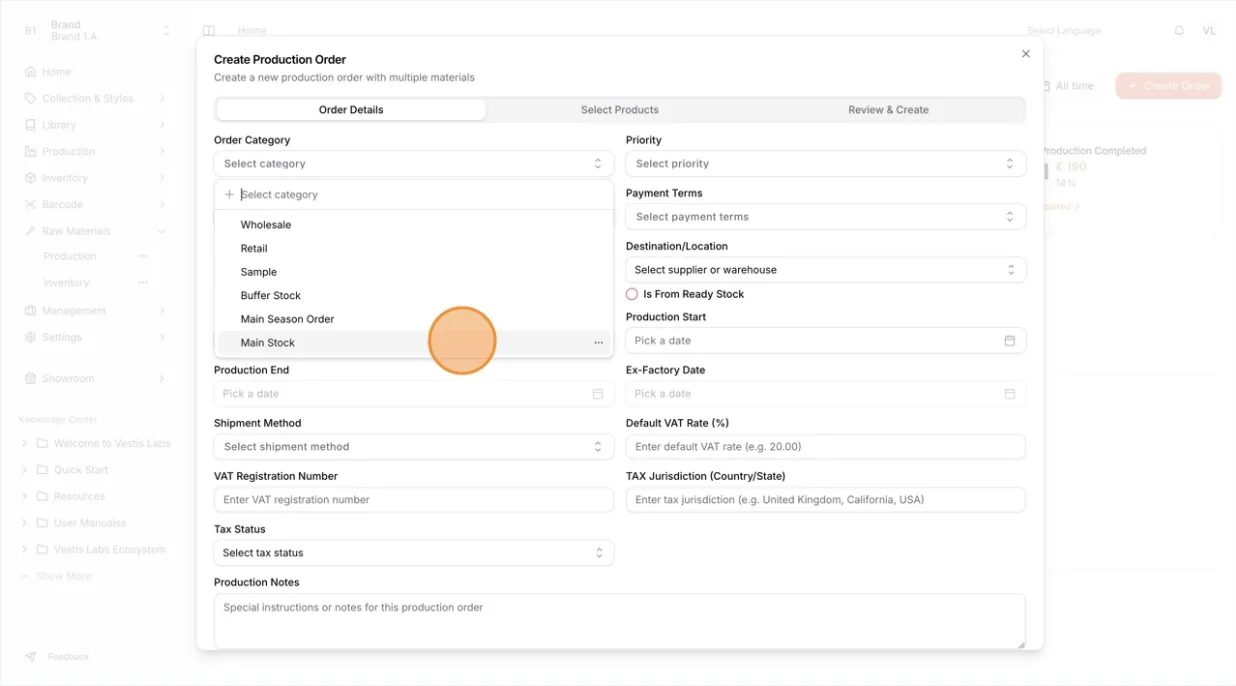
In the Order Category field, choose the…
In the Order Category field, choose the appropriate category of the raw material order (for example: Main Stock).
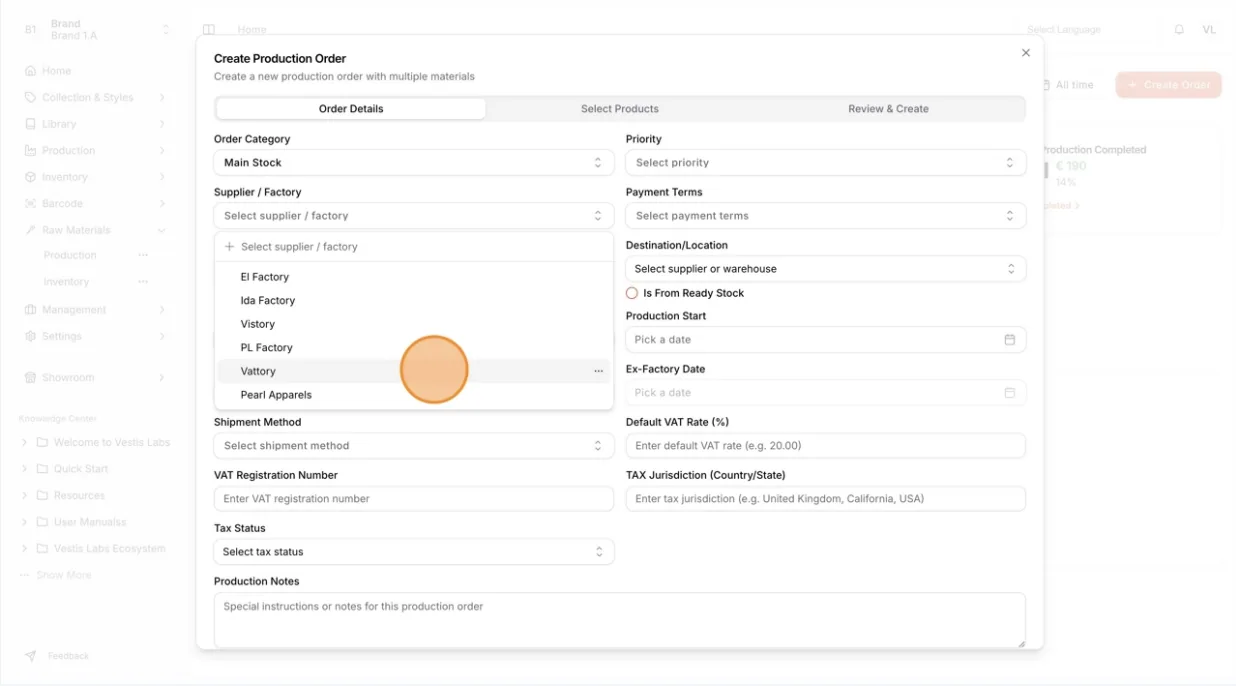
In the Supplier / Factory field, choose the appropriate…
In the Supplier / Factory field, choose the appropriate supplier of the raw material order (for example: SUP-01).
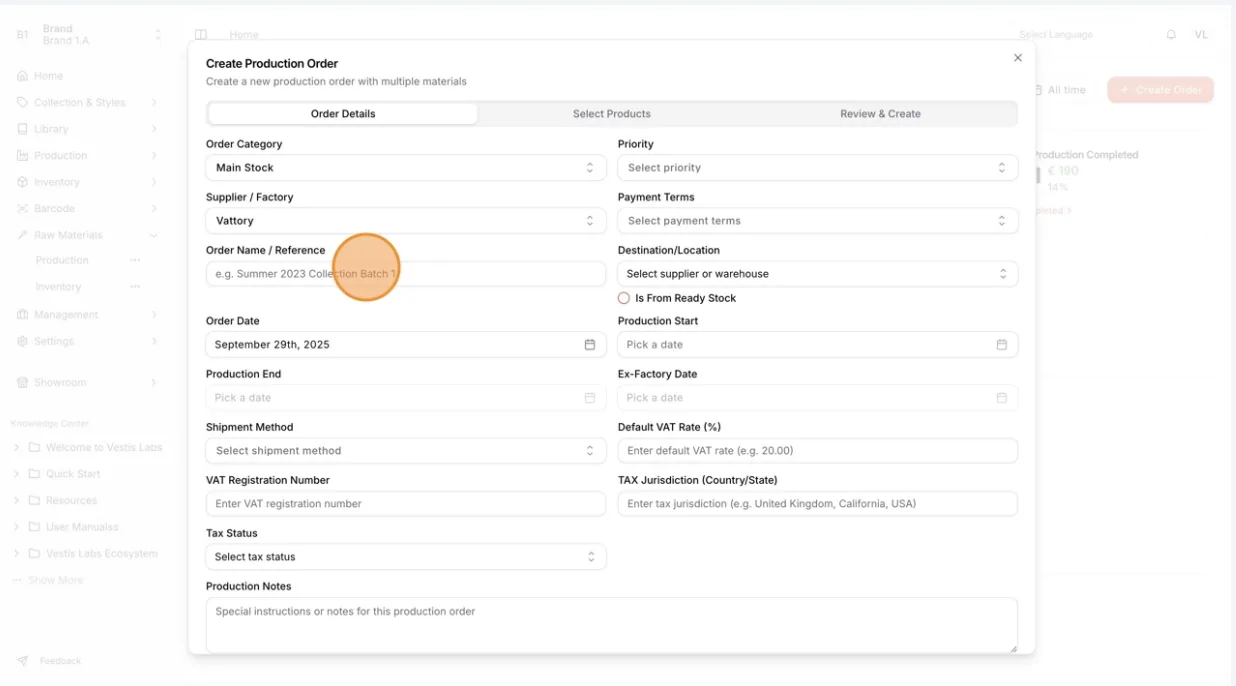
In the Order Name / Reference field, type in a custom reference for the order.
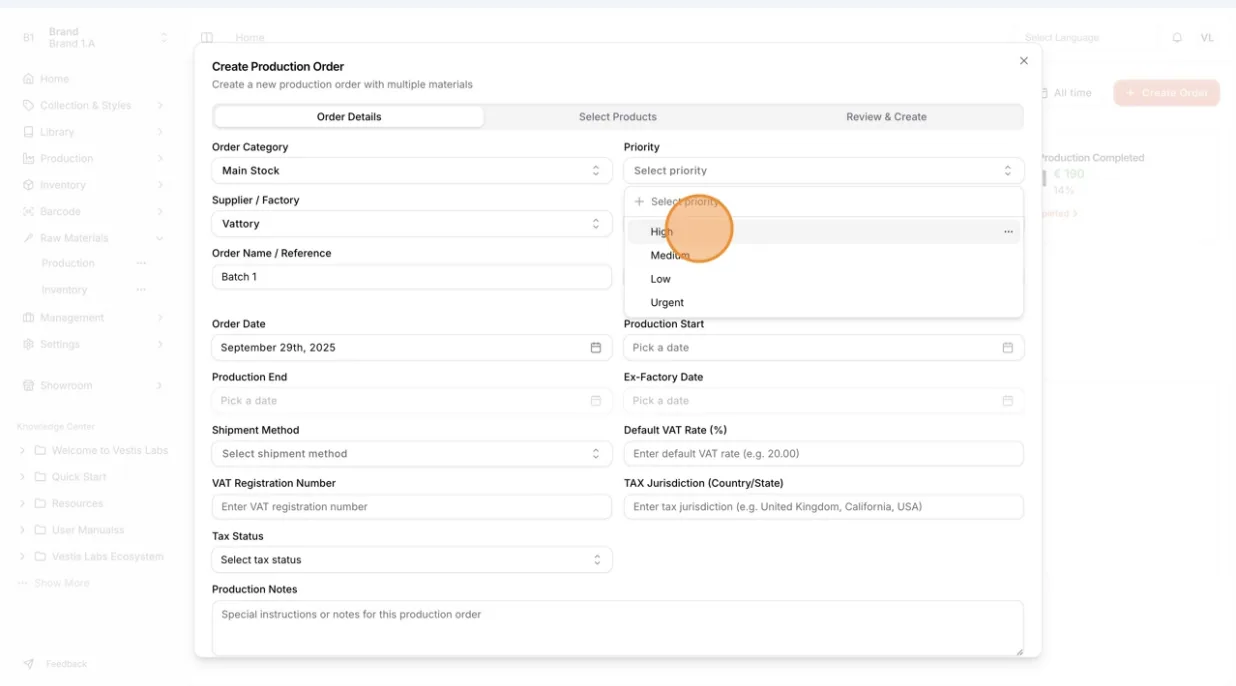
Select the Priority to manage the urgency and importance of each purchase order
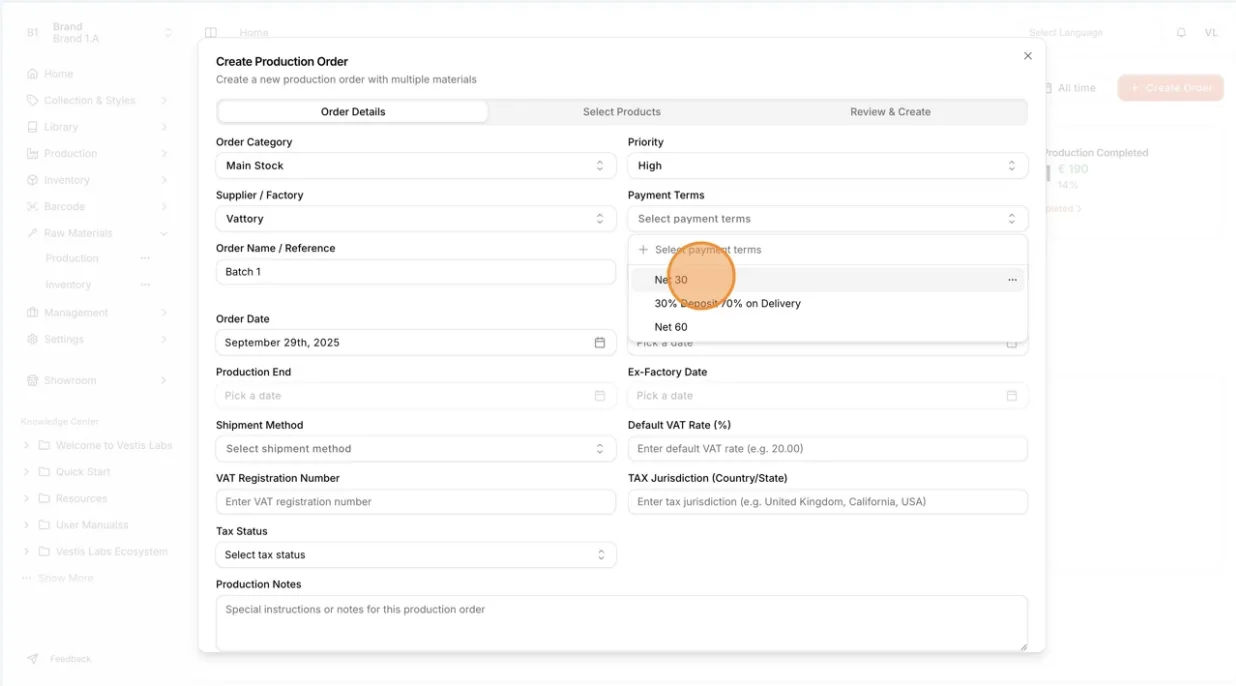
Select the payment terms of the order to…
Select Payment Terms of the order to manage supplier payments and maintain clear financial agreements
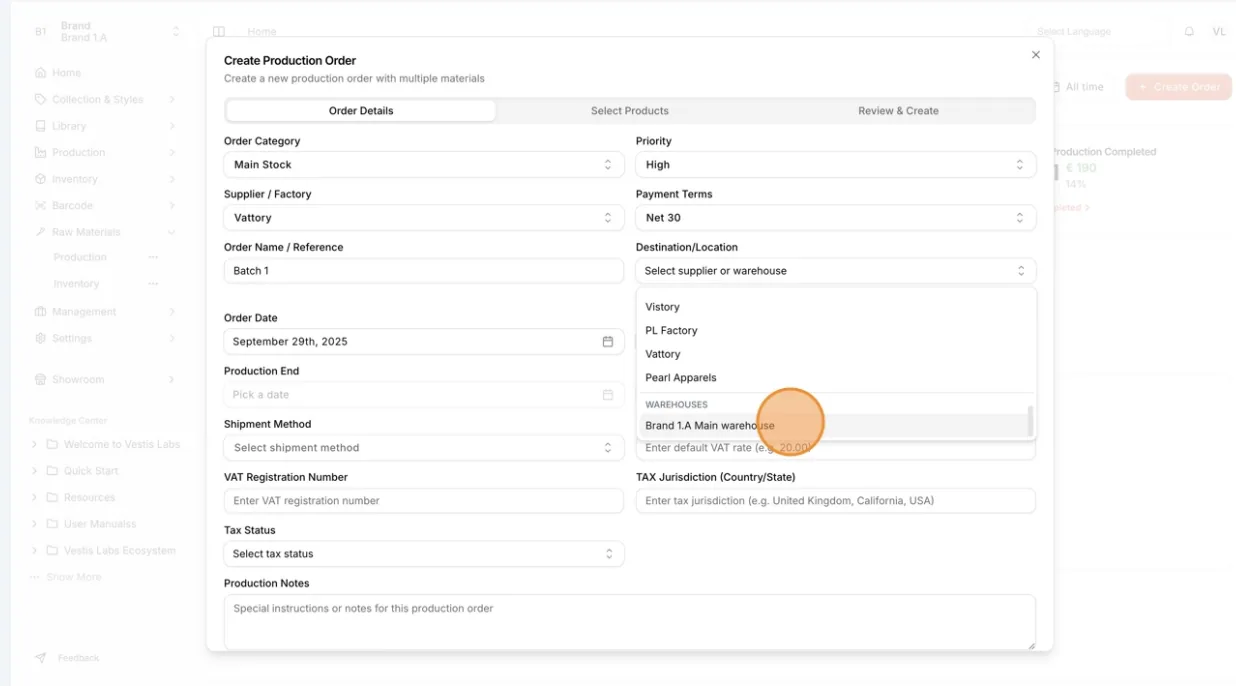
Select the Destination/Location from the dropdown list to…
Select Destination/Location from the dropdown list (suppliers and warehouses are listed separately) to identify and allocate the appropriate raw material stock (e.g., Main Warehouse).
Users can check Is From Ready Stock to indicate immediate availability.
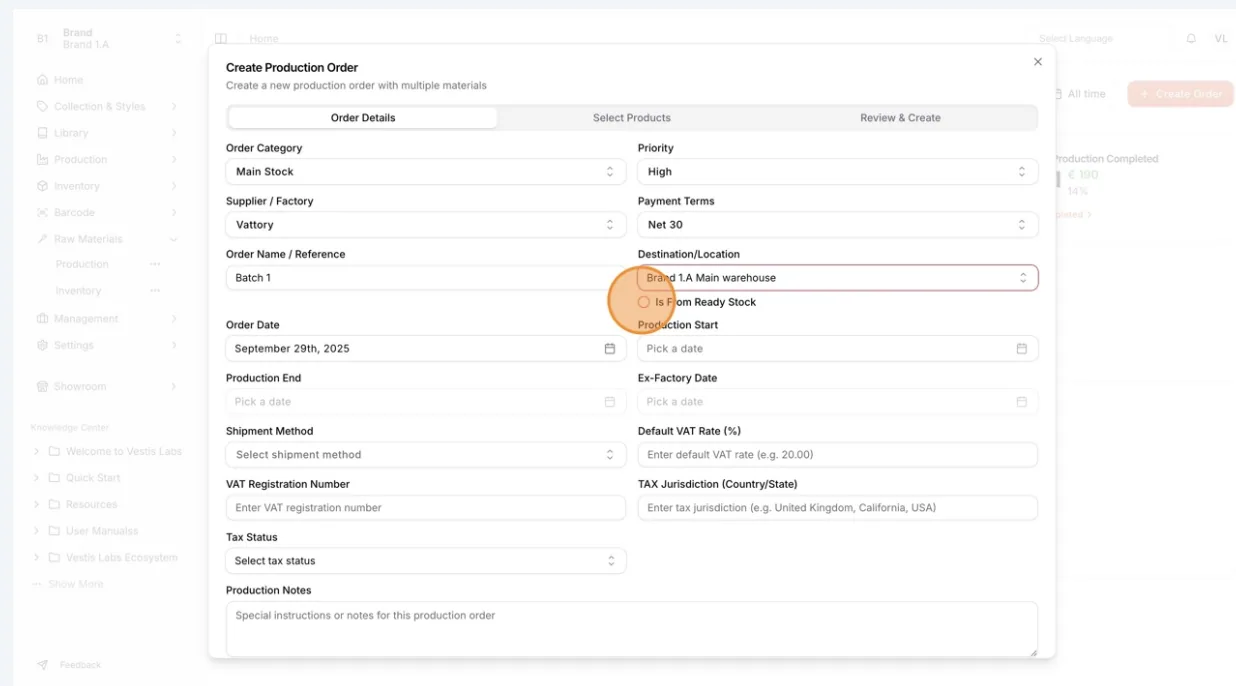
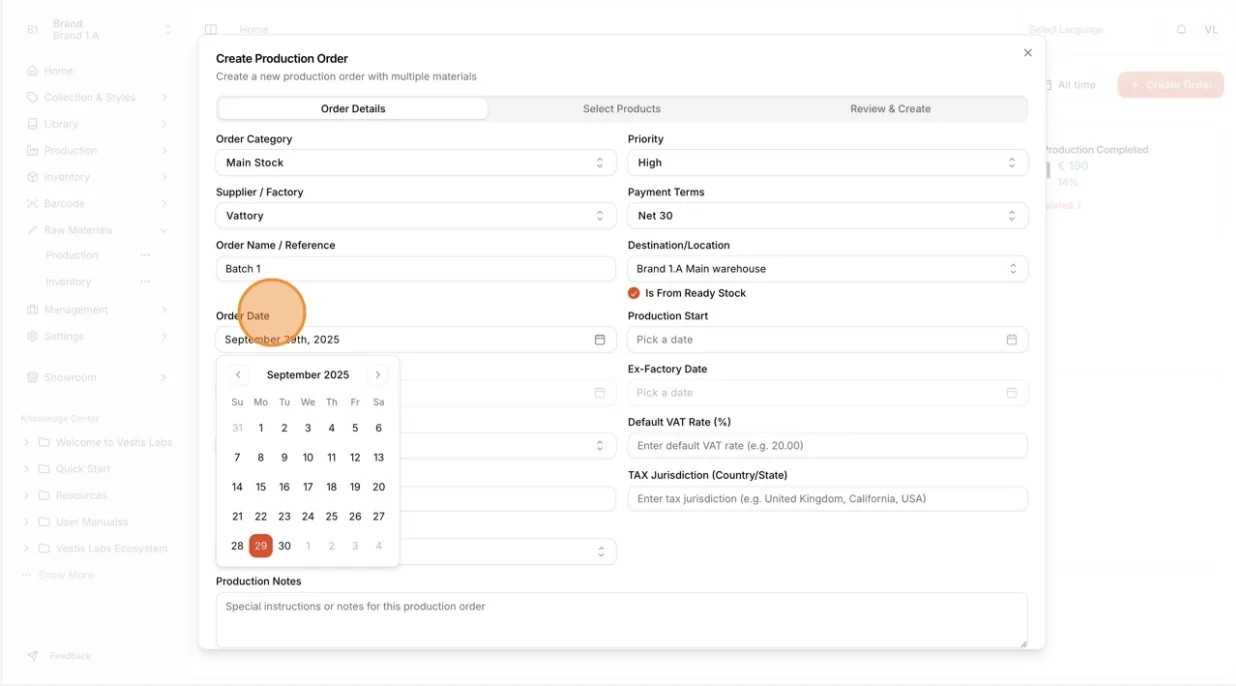
The order date will be automatically filled based on the date the order is created.
Users can modify it by selecting a new date using the calendar picker.
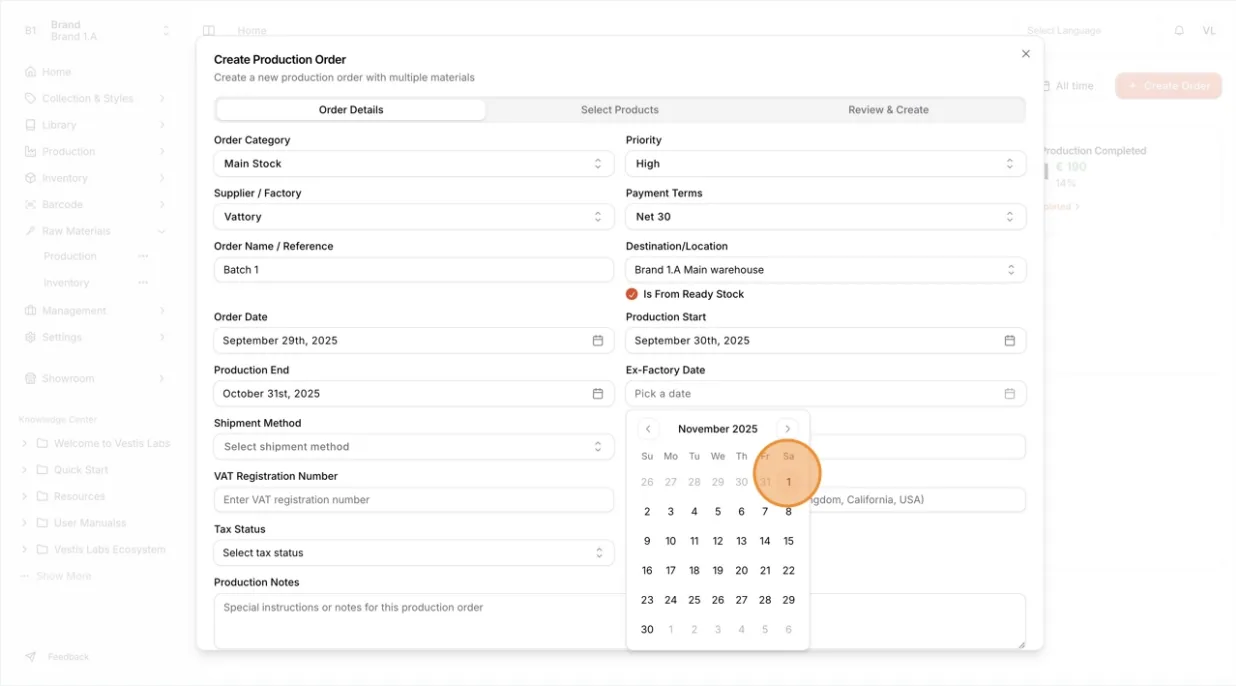
Select the Production Start, Production End,…
Select the Production Start, Production End and Ex-Factory Date using the calendar picker to record and manage the production timeline accurately.
Note
The production end date cannot be earlier than the production start date, and the ex-factory date cannot be earlier than the order date or the production end date. If you pick such a date, a message offers to fix it.
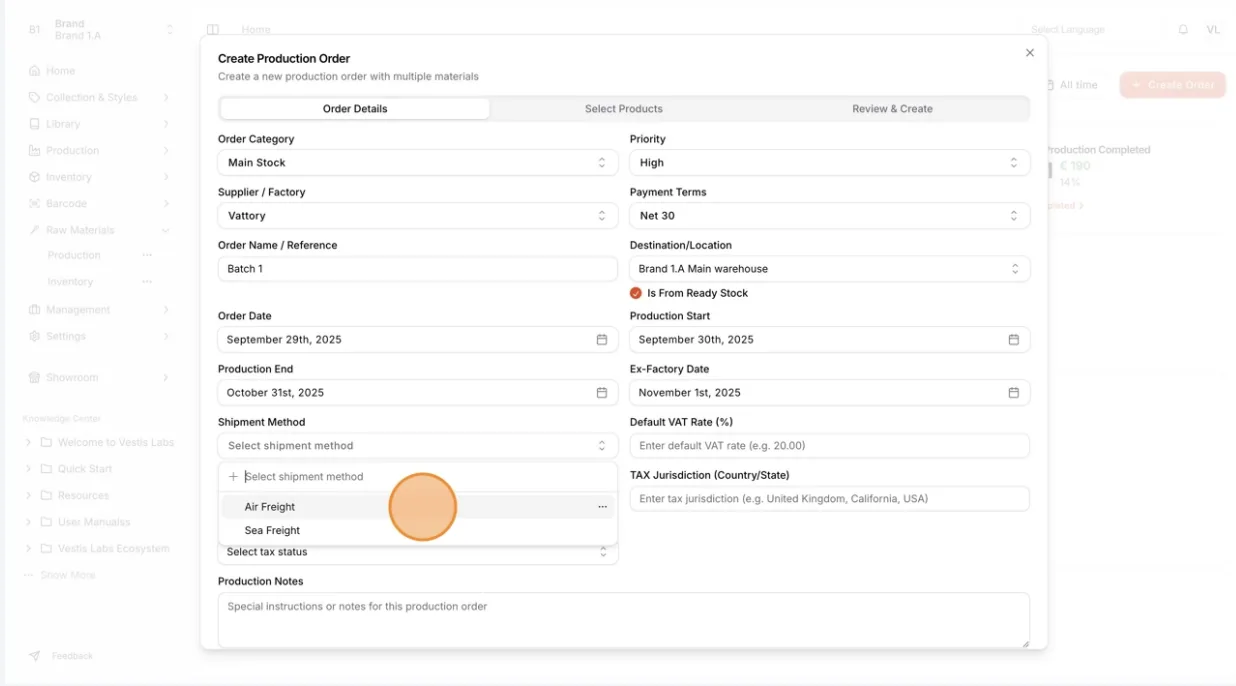
Select the Shipment Method for the order to determine how the goods will be delivered.
To print a shipping cost on the purchase order, turn on Add Shipping Cost on PO? and enter the Shipping Cost.
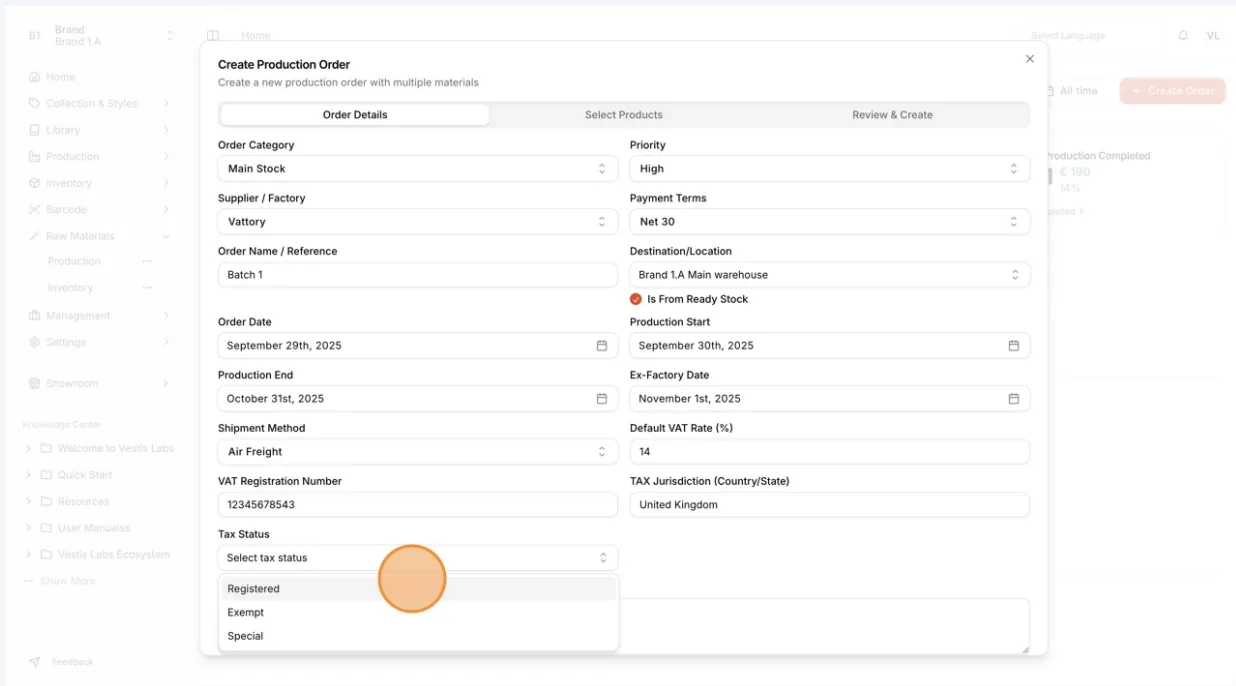
Complete the tax information section by entering the…
Complete the tax information section by entering the Default VAT Rate (%), VAT Registration Number, and TAX Jurisdiction (Country/State), then select the appropriate Tax Status (Registered, Exempt or Special).
If needed, add Production Notes for any special instructions.
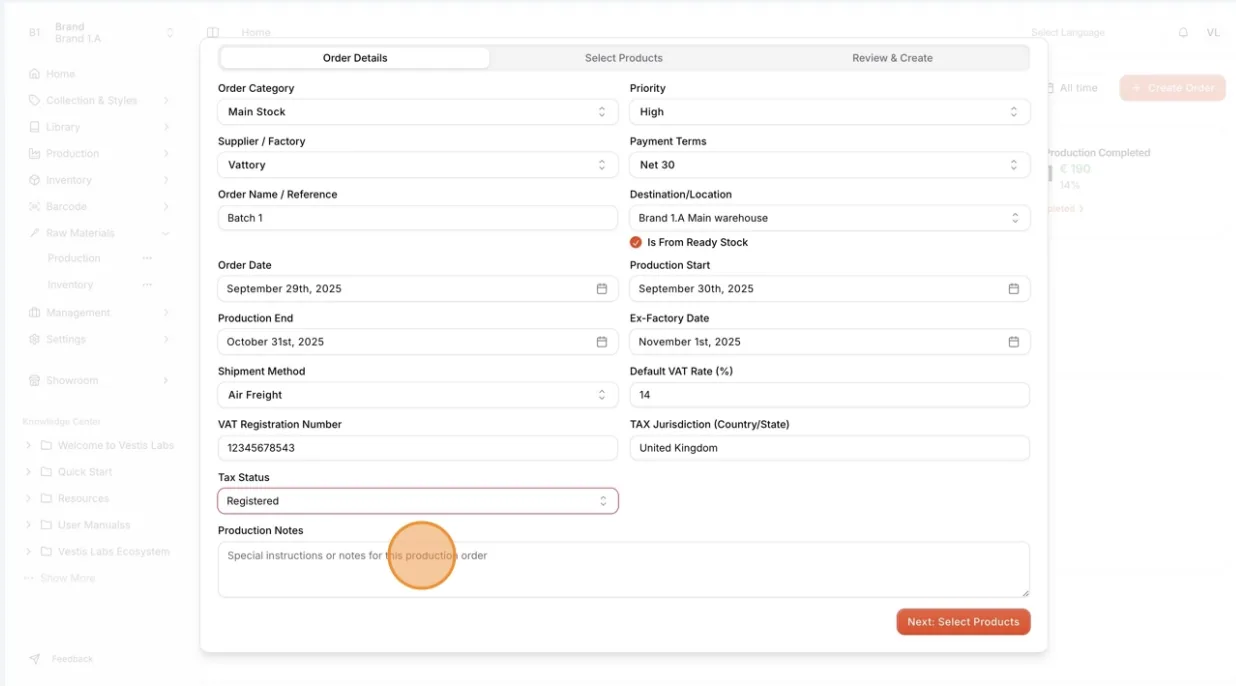
Click Next: Select Products to continue to the product selection step.