
User profile settings
This article provides an overview of all the functionalities available under User Profile Settings, which you can access via your user profile in the upper-right corner of your Vestis Labs…
Under review. This page is published while we check it against the live app, so some details may have changed.
Screenshots may be out of date.
This article provides an overview of all the functionalities available under User Profile Settings, which you can access via your user menu in the upper-right corner of your Vestis Labs window or in Settings on the left bar menu.
SettingsUser Profile
In Vestis Labs, your User Profile Settings allow you to manage and update your personal account information. From here you can change your name and picture, change your password, and review where you are signed in. Every user can open this page.
Open your profile
Use either way to open User Profile.
- In the left sidebar, open Settings and click User Profile.
- Click your user menu in the top right corner and click Profile.
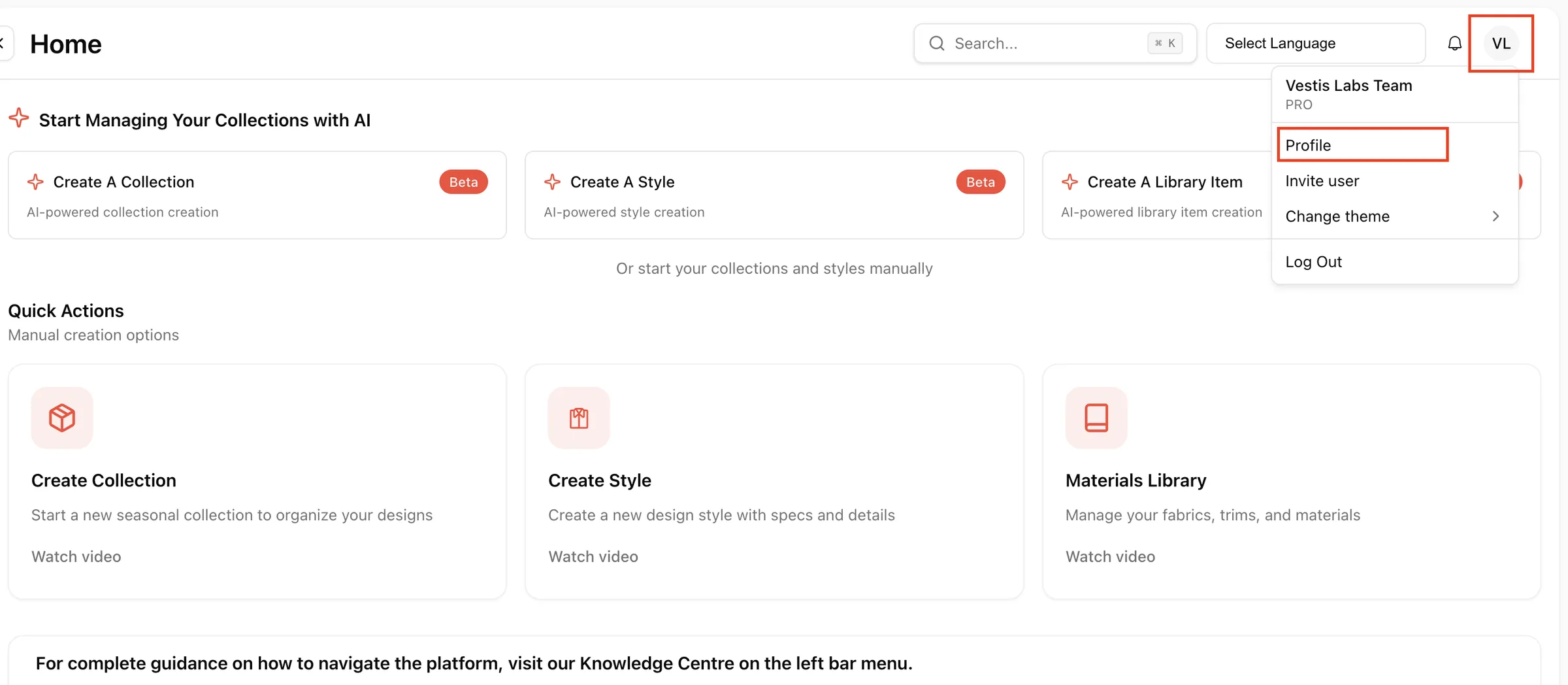
Update your profile
The Profile Information card shows your picture, Name, Email and Role. Email and Role are read-only. To change your email address or your role, ask a user who can edit users. See Users management.
Change your name
Type your name in the Name field.
Change your picture
Click the camera icon on your picture and choose an image. You can use JPG, PNG or WebP files up to 3 MB.
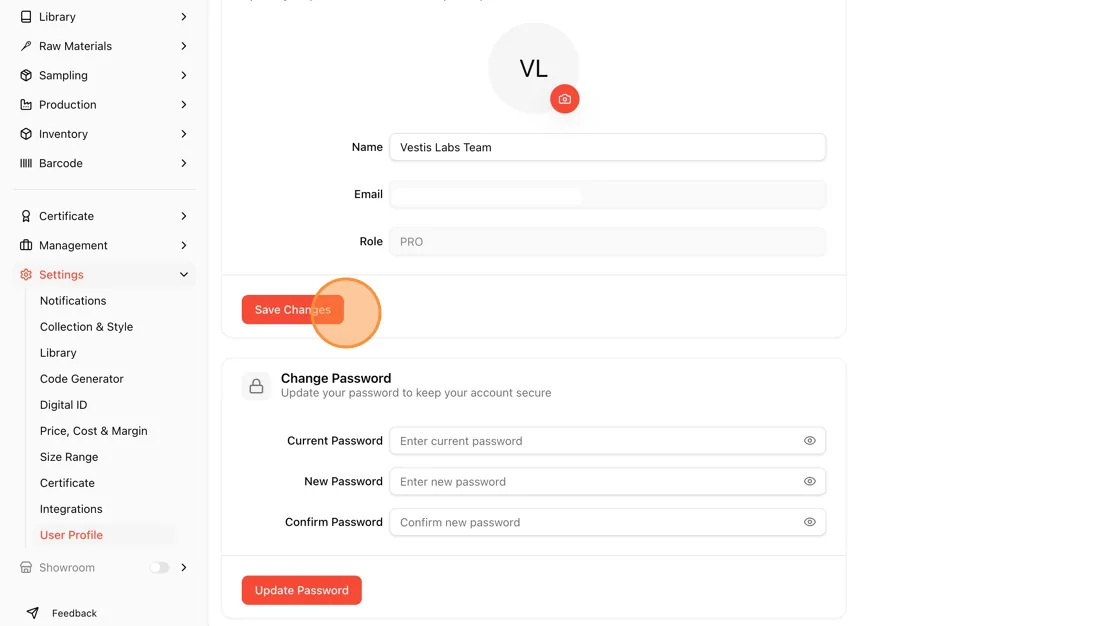
Click "Save Changes"
Click Save Changes to save.
You see Profile updated successfully.
Change your password
The Change Password card sits below your profile.
Enter your current password
Type your password in Current Password.
Enter your new password
Type the new password in New Password and again in Confirm Password.
Note
Your password must have at least 6 characters, and both new password fields must match. Otherwise you see Passwords don't match.
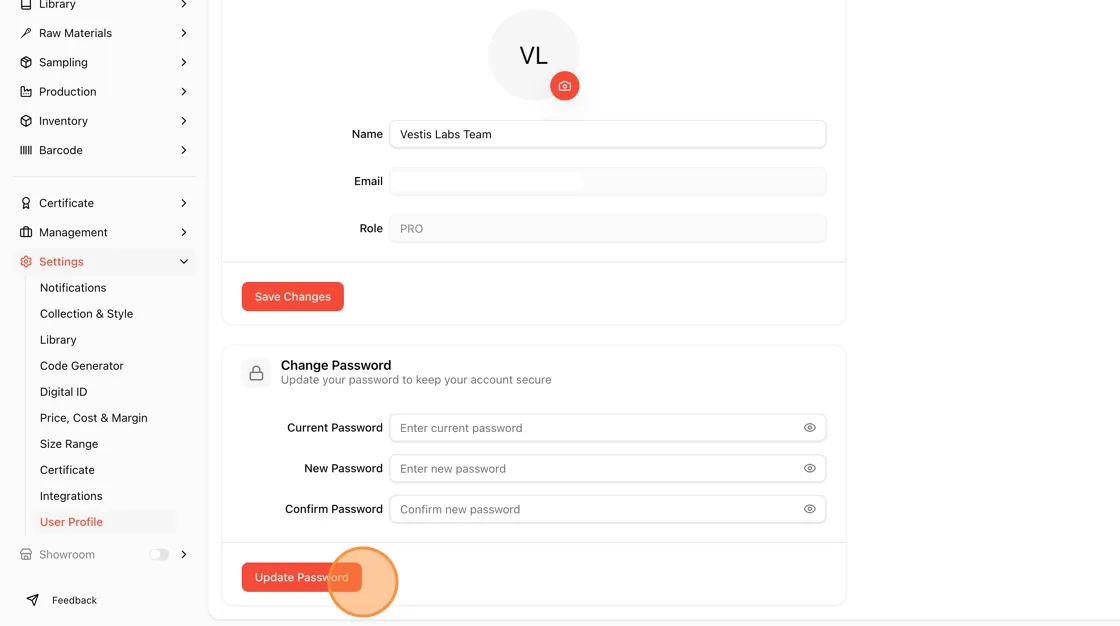
Click "Update Password"
Click Update Password.
You see Password changed successfully and the fields are cleared. Use the eye icon in a field to show or hide what you typed.
Check your sign-in activity
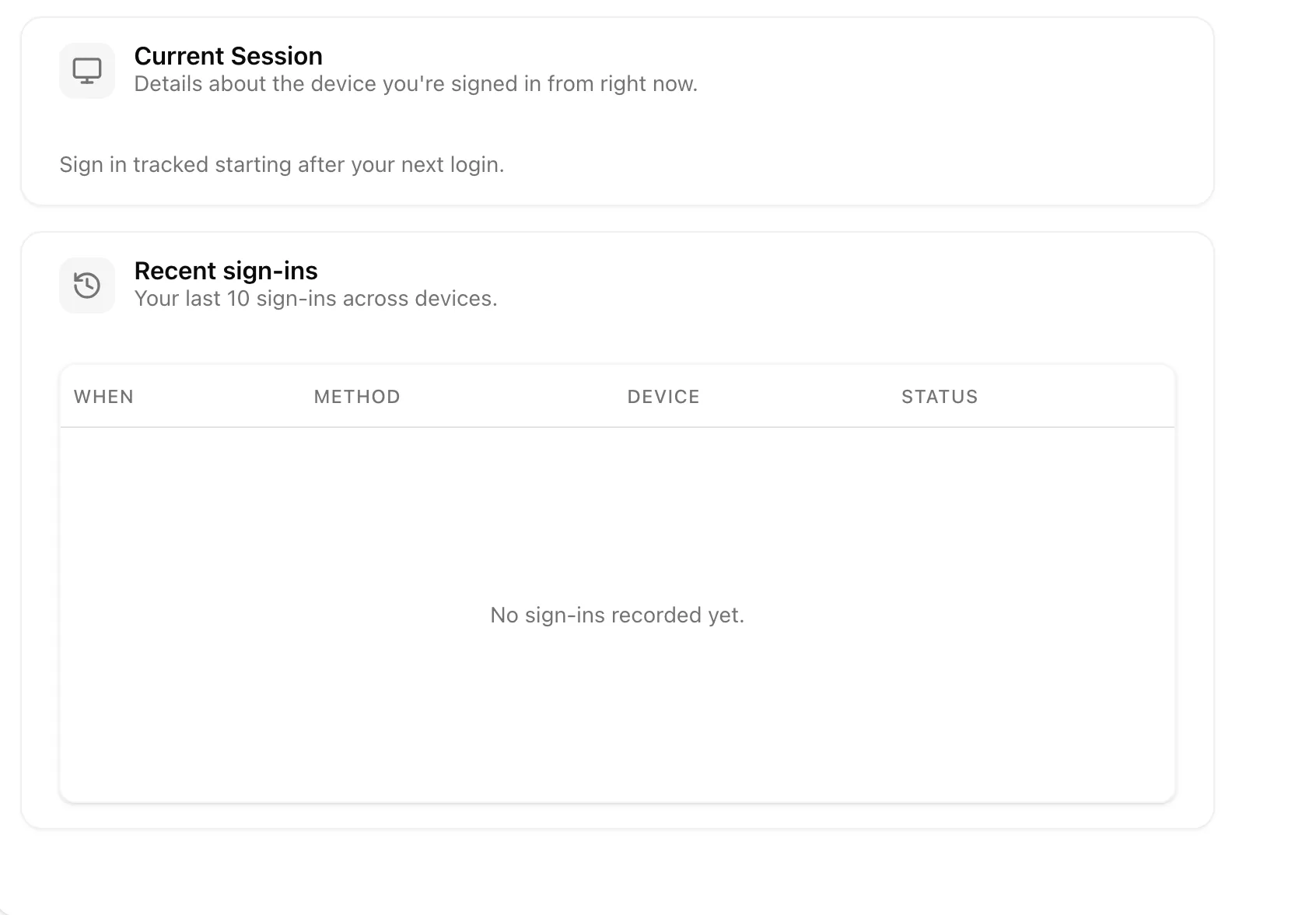
The Security section shows where you are signed in.
- Current Session shows details about the device you are signed in from right now, marked This device, with when you signed in.
- Recent sign-ins lists your last 10 sign-ins with When, Method, Device and Status. Your current session shows Active. If there is nothing to show you see No sign-ins recorded yet.
Note
Sign-in activity tracking begins after your next successful login. If you have not logged in again since this feature was enabled, no activity may be displayed.
Next step
Invite the rest of your team. See Invite user.