
Manage the production order
Users can manage the Production Order by creating, editing, and monitoring all production activities efficiently.
ProductionOrder Management
Permission: VIEW_BRAND_PRODUCTION
Open the actions menu
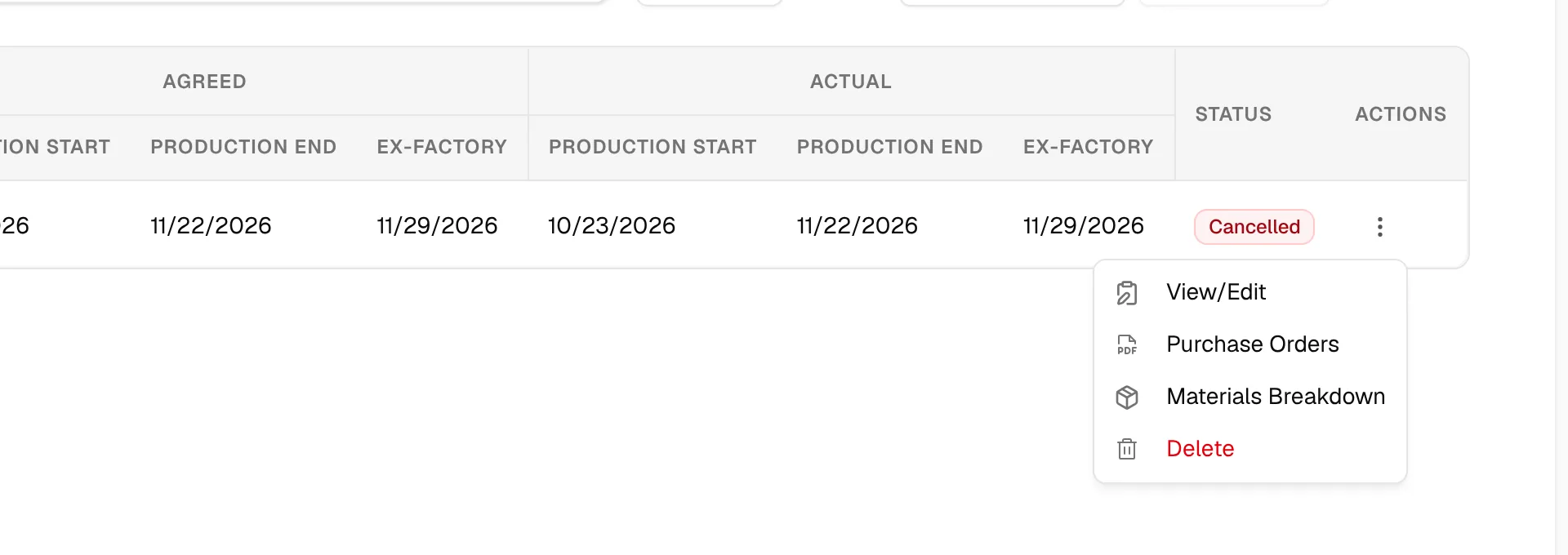
On the Production Orders page, select the three-dot action button at the end of the order's row.
There are three action buttons available to manage your production orders:
- View/Edit – Open and modify the details of the selected production order.
- Purchase Orders – View or create related purchase orders for the selected production.
- Delete – Remove the selected production order from the list permanently.
Note
Delete only appears for users with the Delete production permission. If the materials breakdown feature is switched on for your brand, a fourth action, Materials Breakdown, appears between Purchase Orders and Delete.
View or edit an order
Click View/Edit. The order details open in a dialog with six tabs: Overview, Items & Details, Production Status, Purchase Order, Communication and Shipping. The order number is the title of the dialog, and the order's status, health and priority badges sit beside it.
The buttons at the bottom of the dialog are Close, Update actual date, Confirm with supplier, Amend agreed dates and Edit. Some of them only appear for users with the right permission. See View/edit the production order detail.
View the purchase orders of an order
Click Purchase Orders. A dialog opens with the purchase orders for the order: the Purchase Order No., Created At and Actions for each. See Purchase orders.
Delete an order
Open the actions menu
Select the three-dot action button on the row of the order you want to remove.

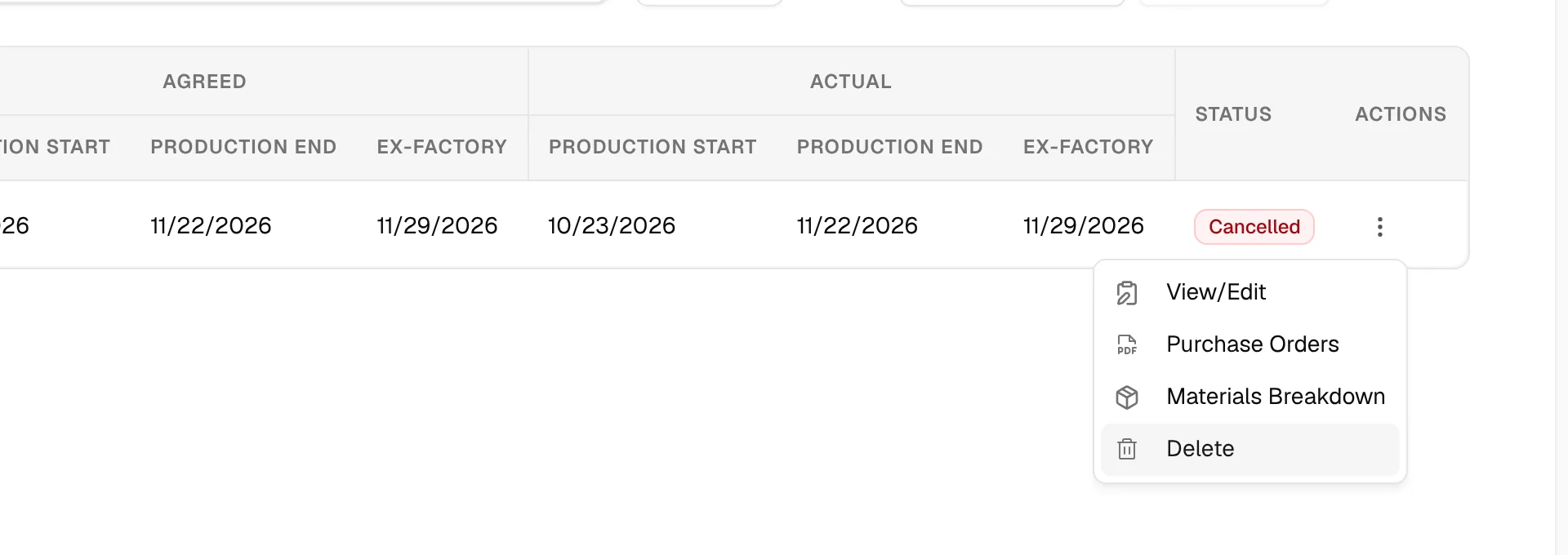
Click "Delete"
Click Delete, shown in red at the bottom of the menu.
Confirm the deletion
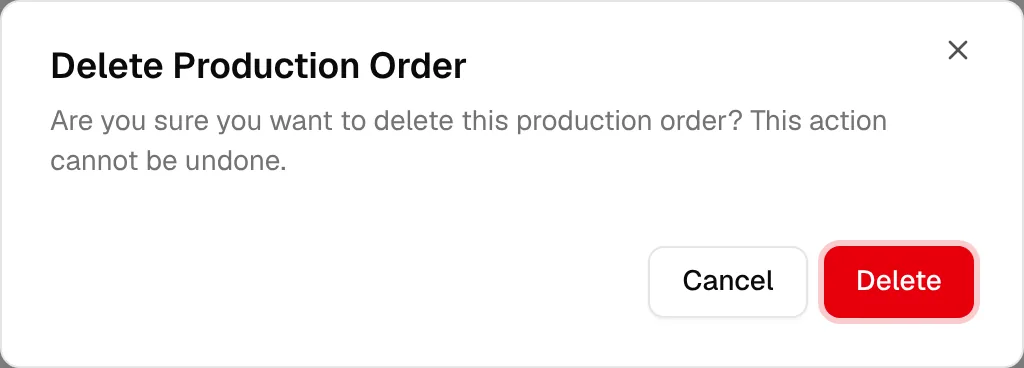
The Delete Production Order dialog asks: "Are you sure you want to delete this production order? This action cannot be undone." Click Delete to confirm, or Cancel to keep the order.
The order disappears from the list.
Warning
Deleting a production order cannot be undone.
Select several orders
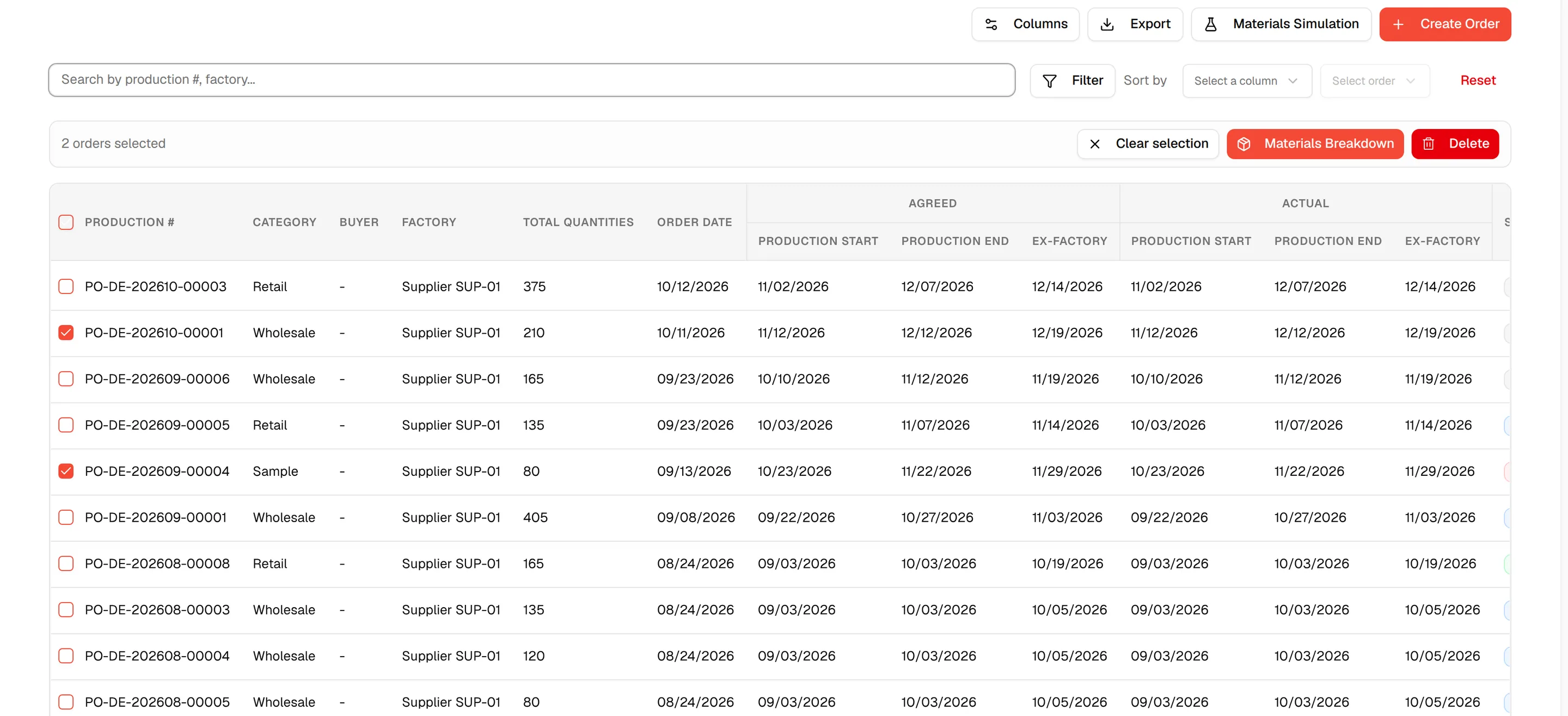
Each row has a checkbox, and the header checkbox selects every order on the current page. Your selection is kept when you move to another page, so you can combine orders from several pages. When at least one order is selected, a bar appears above the table with the number of selected orders and these buttons:
- Clear selection – Unselect all orders.
- Materials Breakdown – Show the materials the selected orders need together. Only shown when the materials breakdown feature is on. See Materials breakdown.
- Delete – Delete all selected orders. Only shown to users with the Delete production permission.
Delete several orders
Select the orders
Check the box at the start of each row you want to remove.
Click "Delete"
Click Delete in the selection bar.

Confirm
The dialog is titled Delete selected production orders? (or Delete selected production order? for a single order). It says that it permanently deletes each production order and all order items on it, and that it cannot be undone. Click Delete orders (or Delete order) to confirm.
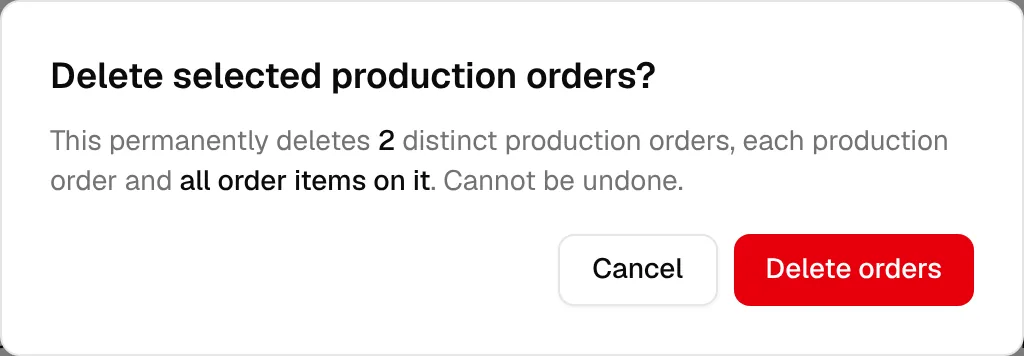
The orders are deleted one after another. When it finishes, a message tells you how many were deleted. If some orders could not be deleted, they stay selected so you can try again.