
Export and print production orders
Download the production orders list as an Excel file, or open it as a printable PDF report with the filters you applied.
Use Export on the Production Orders page to take the list out of the platform: as an Excel file for analysis, or as a printable report you can save as a PDF.
ProductionOrder ManagementExport
Permission: VIEW_BRAND_PRODUCTION
Before you start
Both exports follow what you see on the page: the search text, and the Status, Category, Supplier and Created filters, and the sorting you chose. Set them first. See Production orders.
Export to Excel
Set your filters
Search, filter and sort the list so it shows the orders you want.
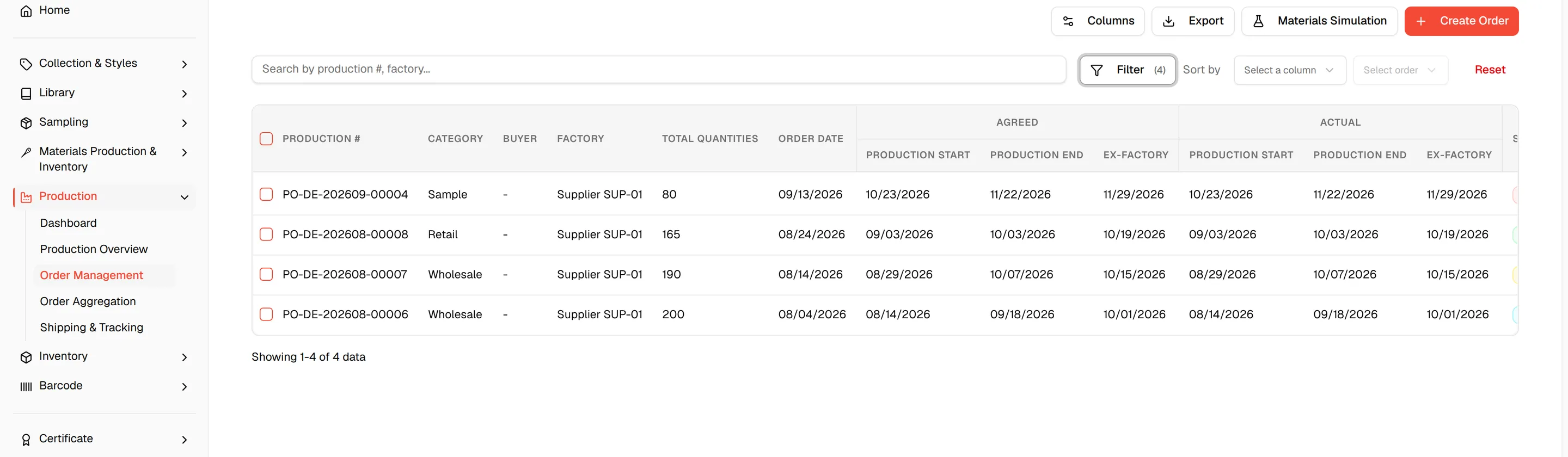
Click "Export"
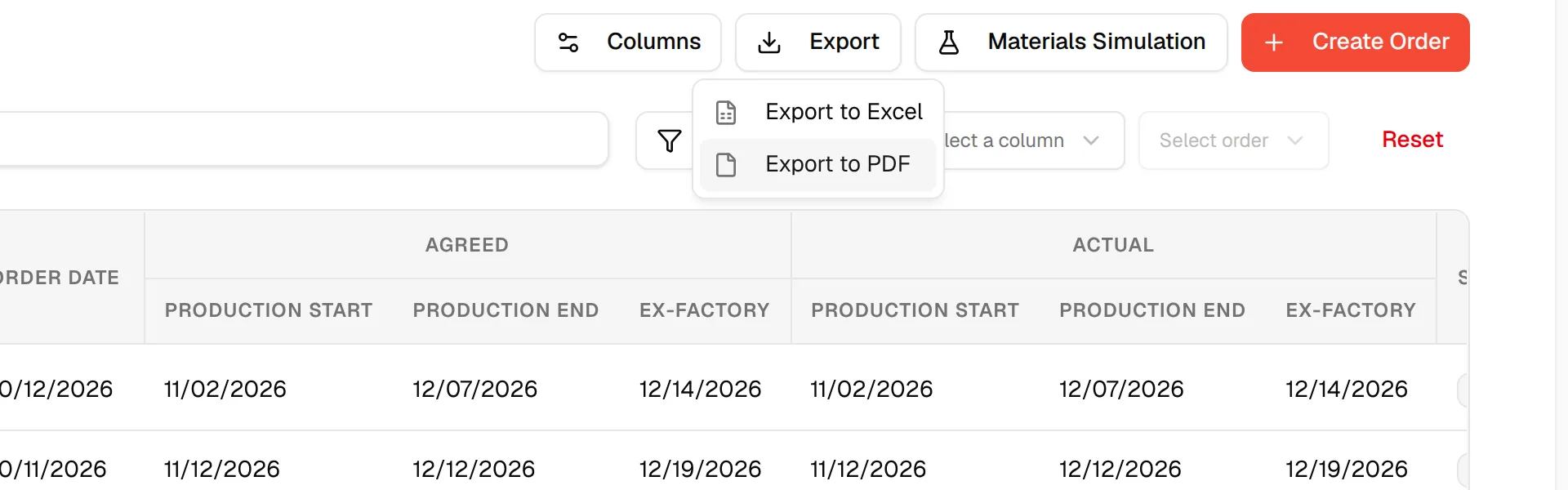
Click Export at the top right of the page.
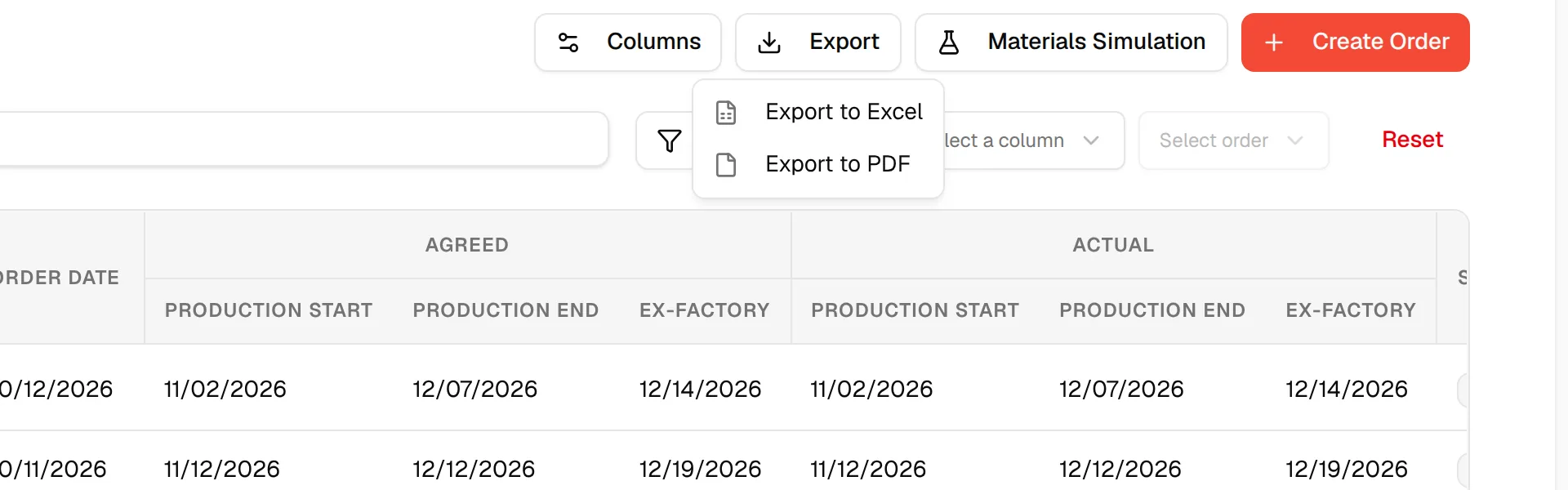
Click "Export to Excel"
Click Export to Excel. The platform downloads the file.
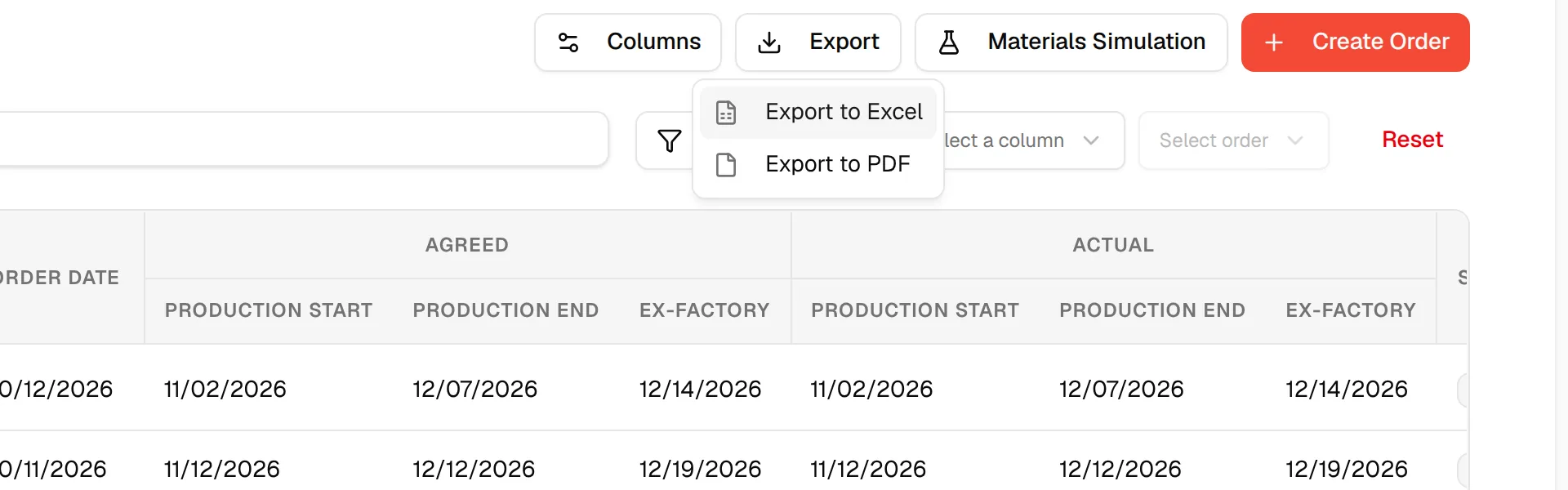
Export to PDF
Set your filters
Search, filter and sort the list so it shows the orders you want.
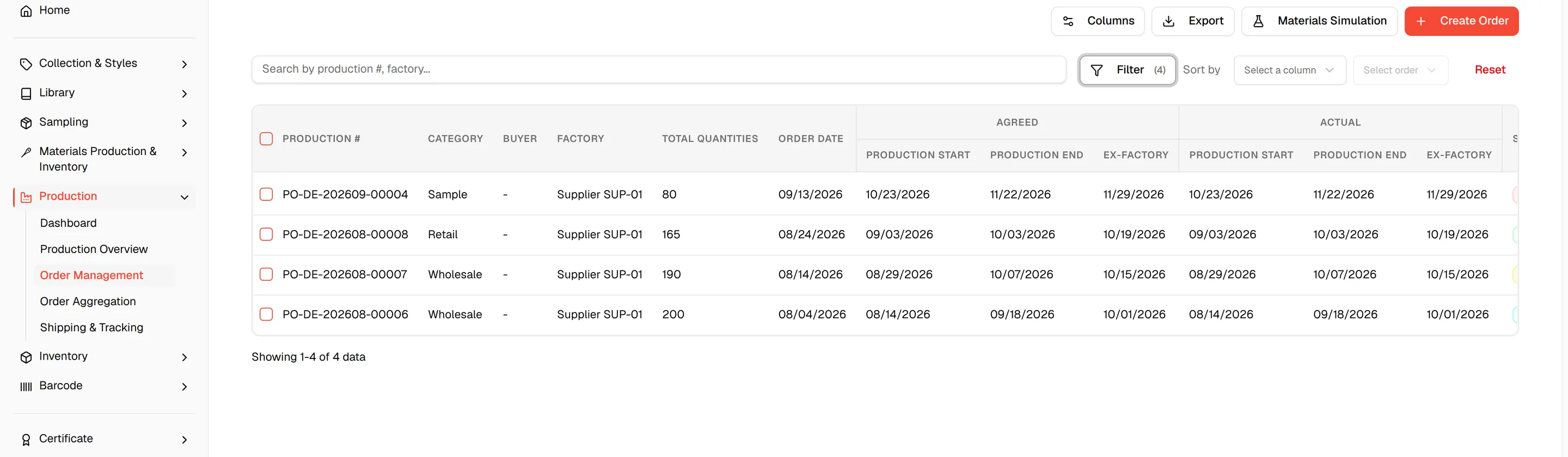
Click "Export to PDF"
Click Export, then Export to PDF. A new browser tab opens with the production orders report.
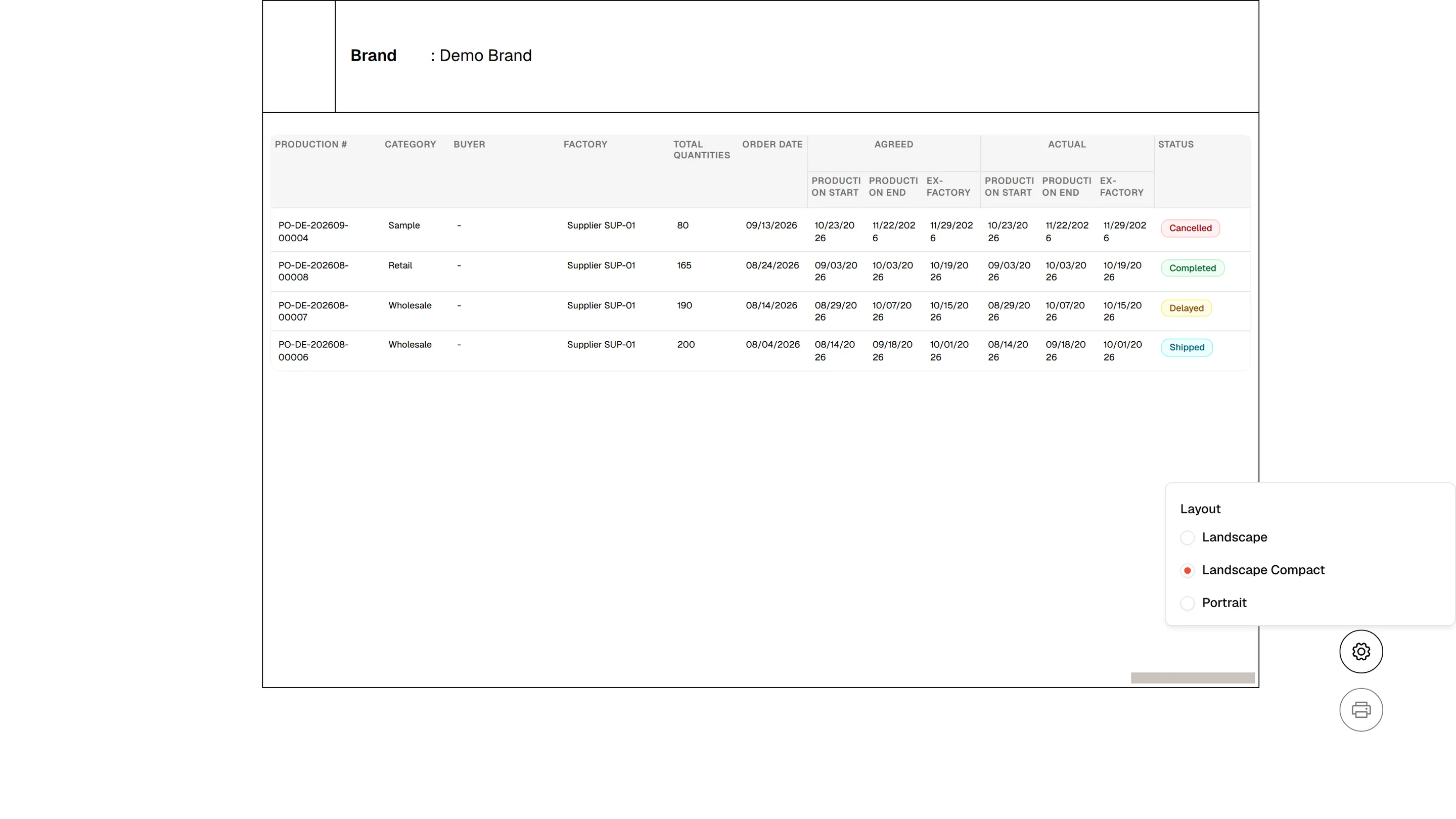
Choose the layout
Click the settings button at the bottom right of the report. Under Layout, choose Landscape, Landscape Compact or Portrait. Landscape Compact is selected when the report opens.
Print or save as PDF
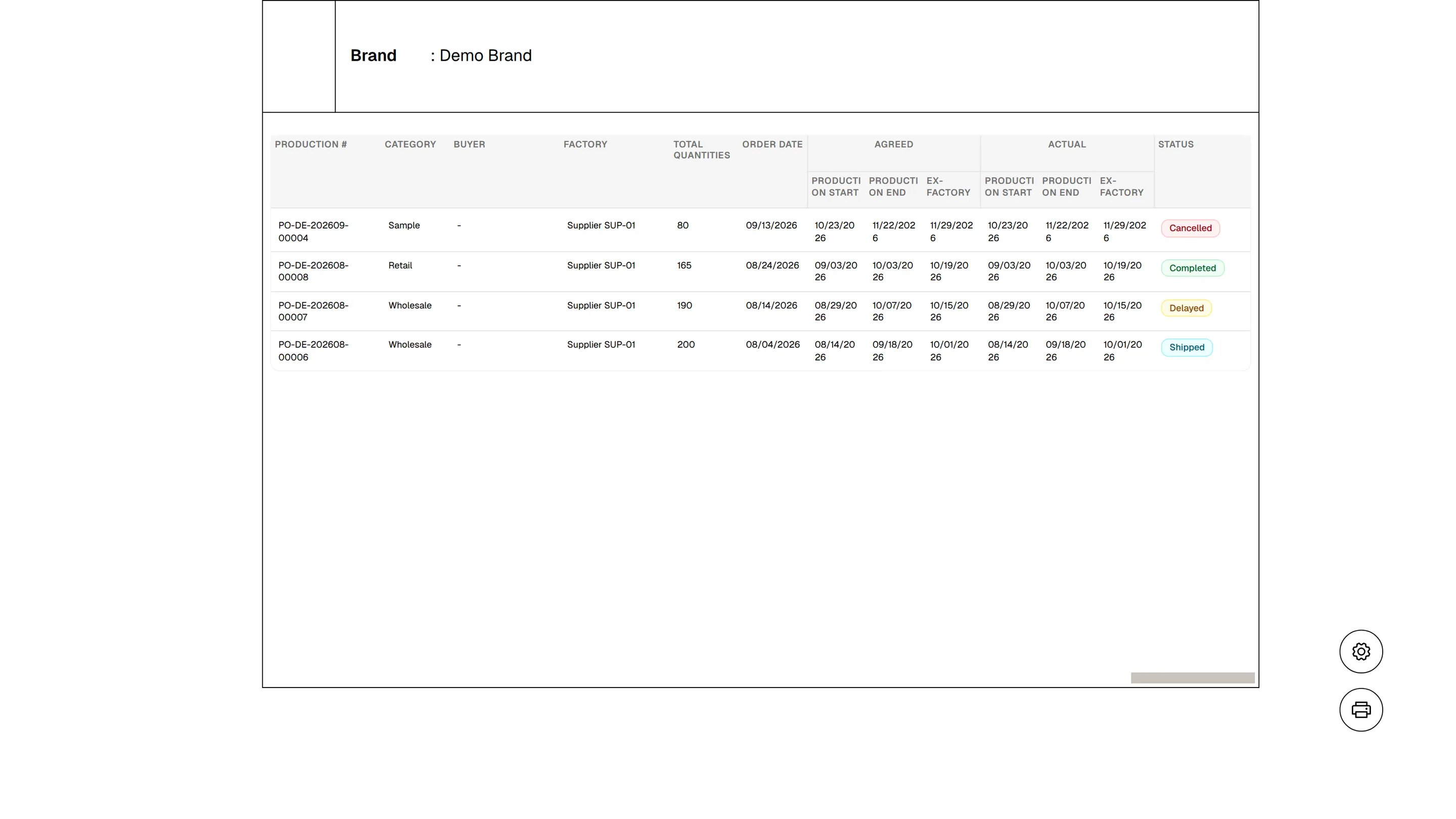
Click the print button at the bottom right. In the print window of your browser, choose a printer, or choose to save as PDF.
What the report contains
- Your brand logo and name in the header, and Downloaded at with the date and time in the footer of every page.
- A table with the columns you chose in Manage Columns on the Production Orders page. The Actions column is left out. The date columns are grouped under Agreed and Actual.
- The report is built on a white page, and the controls at the bottom right are not printed.
If no order matches the filters, the report shows No data to display.
Note
Changing the columns with Manage Columns changes both the list and the report. Reopen Export to PDF after you change them.