
Style production orders
See all production orders of a style, filter and export the list, print it, and open, edit or delete an order from the Production Details tab.
Under review. This page is published while we check it against the live app, so some details may have changed.
The Production Details tab lists every production order that was created for one style. Use it to follow the status of each order, find a specific order, export or print the list, and edit or delete an order.
Collection & StylesStyles(your style)ProductionProduction Details
Permission: UPDATE_PRODUCT,VIEW_BRAND_PRODUCTION,VIEW_STYLE
Before you start
- The Production Details tab only shows when production is turned on for your brand.
- New orders are created on the Create Order tab. See Create order.
Read the summary bar
The cards at the top of the page summarise the orders of this style. The available cards are Total Orders, Created, In Production, Production Completed, Shipped, Cancelled and Delayed Production. Each card has a link such as View all or View delayed that filters the list below to that status.
Customise the summary bar
Click "Customize"
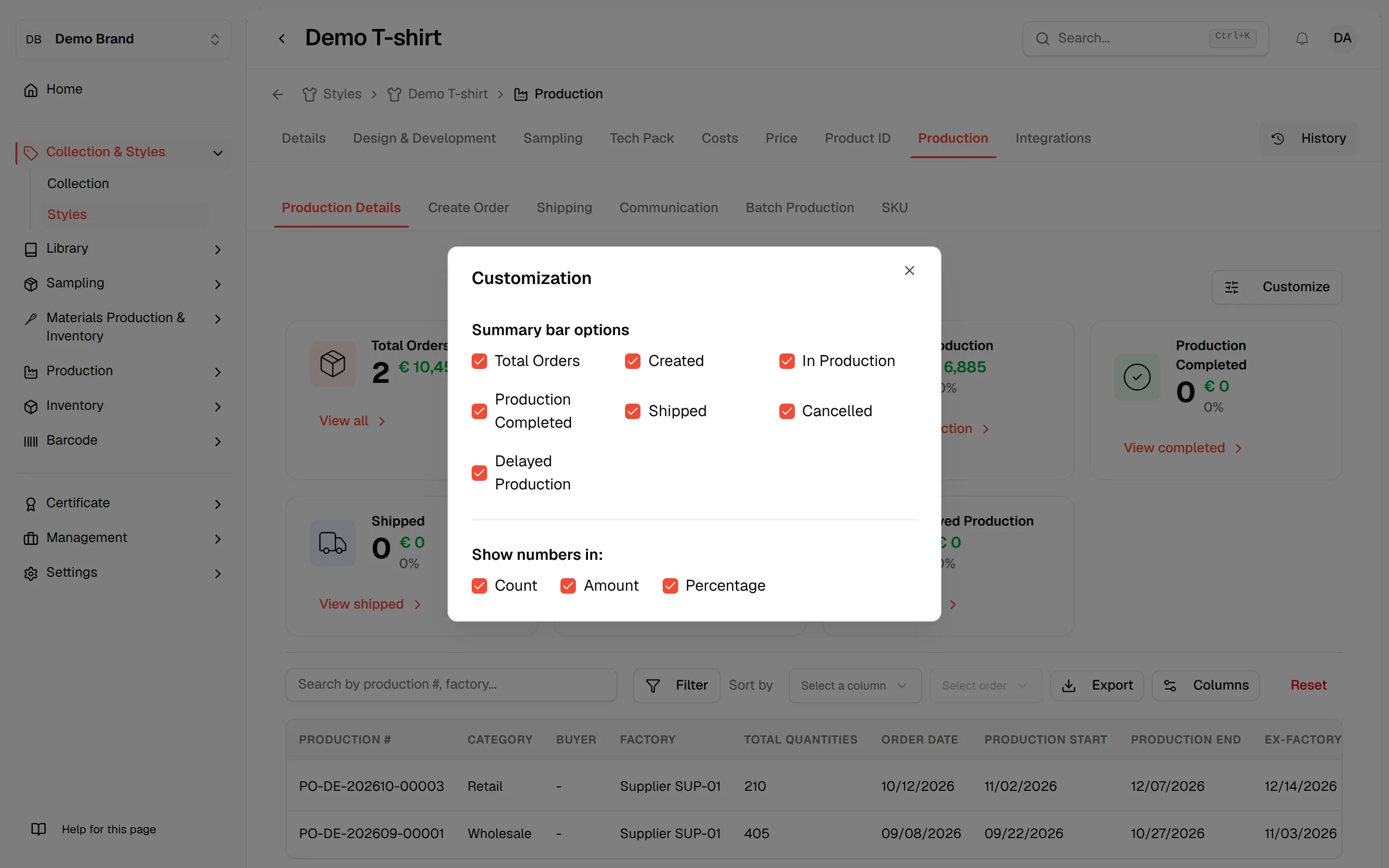
Click Customize at the top right of the page.
Choose the cards
In Customization, under Summary bar options, check the cards you want to see and uncheck the ones you do not.
Choose the numbers
Under Show numbers in:, check Count, Amount and Percentage as needed. Percentage is not shown on the Total Orders card.
Each change is saved straight away and the message "Production summary options updated successfully" confirms it.
Find orders in the list
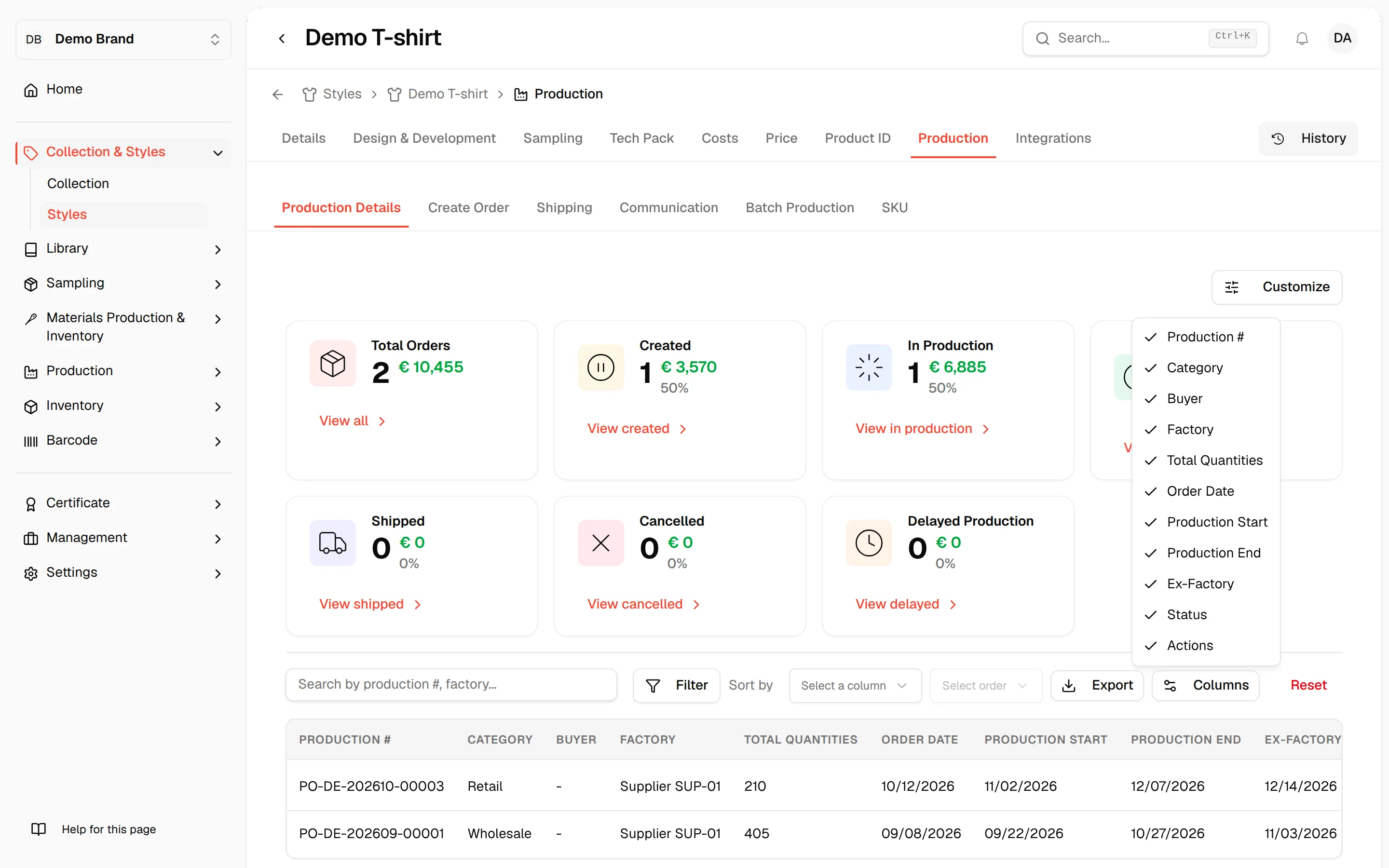
The table shows one row per production order. By default it shows Production #, Category, Buyer, Factory, Total Quantities, Order Date, Production Start, Production End, Ex-Factory, Status and Actions. The list shows 10 orders per page.
Search
Type in the search field ("Search by production #, factory...") to narrow the list.
Filter
Use the filter to narrow the list by Status, Category or Supplier. The status options are Created, Delayed, In Production, Completed, Shipped, Delivered and Cancelled. Click Reset to clear the filters.
Sort
Sort by Production #, Category, Buyer, Order Date, Production Start, Production End, Ex-Factory or Status, in ascending or descending order.
Choose the columns
Click Columns and check or uncheck a column to show or hide it. Your choice is saved for your brand and the message "Production table columns updated successfully" confirms it.
If no order matches, the page says "No production orders found". When the style has no orders at all, click + Add New to open Create Order.
Open or edit an order
Open the row menu
In the Actions column, click the menu of the order.
Click "Details"
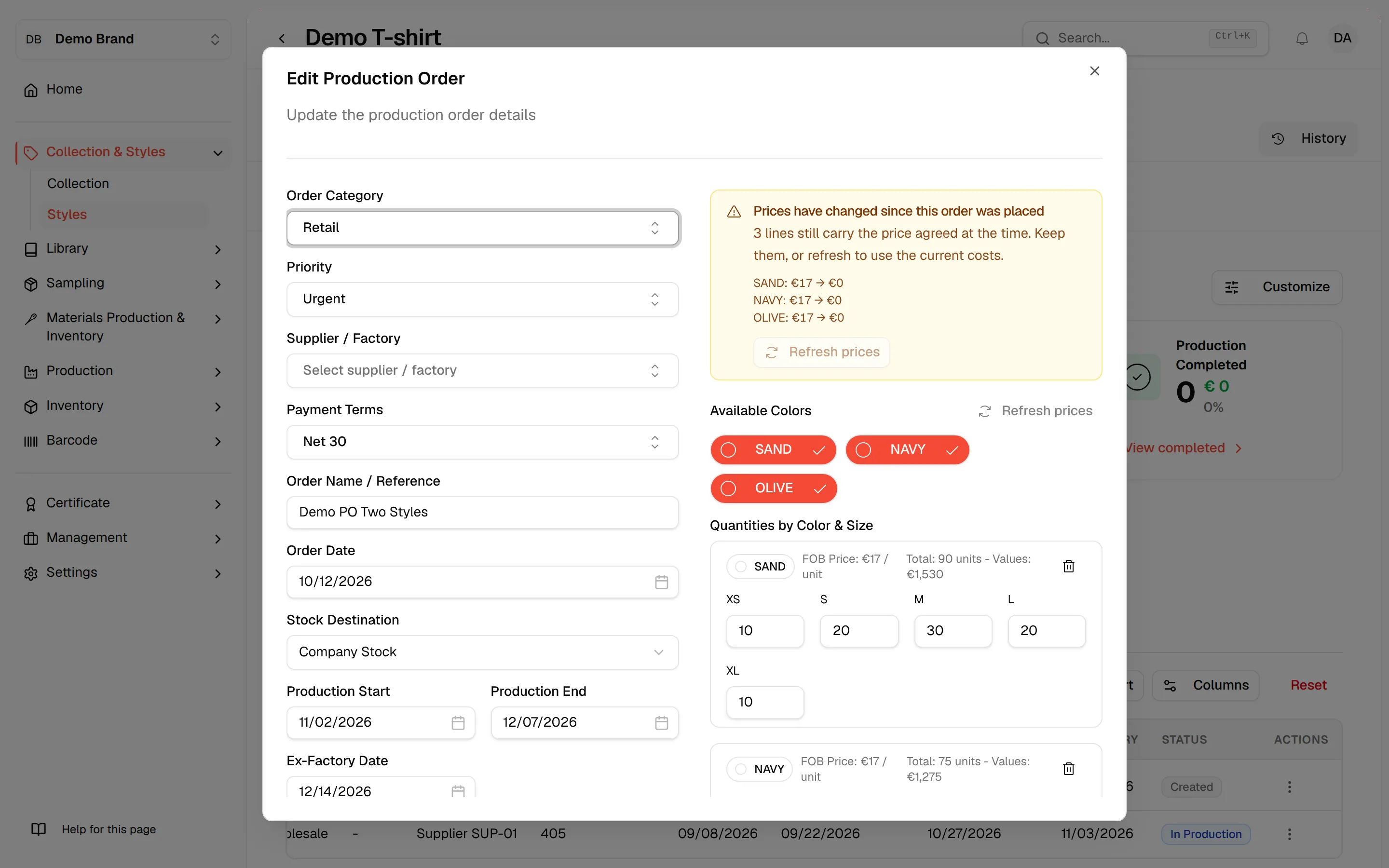
Select Details. The Edit Production Order window opens with the same fields as the create form: Order Category, Priority, Supplier / Factory, Payment Terms, Order Name / Reference, Order Date, Stock Destination, Production Start, Production End, Ex-Factory Date, Shipment Method, Delivery Address, the VAT Information and the Production Notes, together with the colours and the Quantities by Color & Size.
Make your changes
Change what you need. If the current style costs differ from the prices saved on the order, the window warns "Prices have changed since this order was placed". Click Refresh prices to bring the order prices in line with the current style costs.
Click "Update Production Order"
Click Update Production Order to save.
Delete an order
Open the row menu
In the Actions column, click the menu of the order and select Delete.
Confirm
In Delete Production Order, click Delete to confirm, or Cancel. The message reads "Are you sure you want to delete this production order? This action cannot be undone."
Export the list
Click Export above the table and choose:
- Export to Excel: downloads the orders that match your search, filters and sort.
- Export to PDF: opens the print view in a new tab.
Print the list
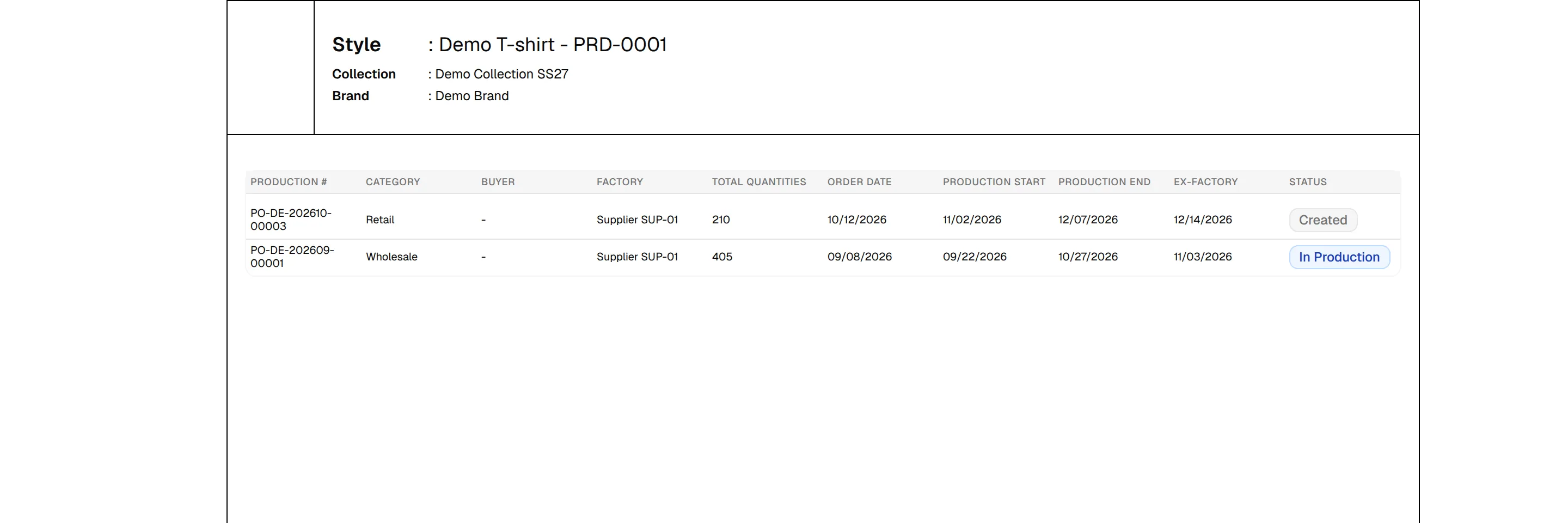
The print view shows the style, its collection and the brand at the top, followed by the table with your search, filters and sort applied, and the time of download.
Open the print view
Click Export, then Export to PDF. The print view opens in a new tab.
Choose the layout
Click the gear button and select Landscape, Landscape Compact or Portrait under Layout.
Print or save as PDF
Click the printer button to open your browser print window, then print or save the page as a PDF.
Note
The print view needs permission to view brand production. If it shows a permission error, ask your Brand Admin.