
Set prices for colour variants
Use the Variant & Price tab to check each colour of a material, rename a colour, and give a colour its own price or quantity breaks.
Under review. This page is published while we check it against the live app, so some details may have changed.
The Variant & Price tab of a material lists every colour of the material with its price. By default each colour follows the price of the material. Here you can change that for a single colour, for example when a dyed colour costs more.
LibraryMaterials(open a material)Variant & Price
Permission: UPDATE_PRODUCT,VIEW_PRODUCT
Before you start
- The material needs at least one colour. Add colours on the Details tab (see Open and edit a material).
- The currency and the price unit belong to the material. You cannot change them for a single colour.
Note
If the material is a public material of another brand, the tab is read-only: every button is disabled.
What the tab shows
On the left, a card holds the material images (.jpeg, .jpg, .png or .svg, up to 3 MB each). Adding or removing a picture here is saved at once, with "Updating product..." followed by "Product updated successfully".
On the right, Color Variants & Pricing shows one card per colour:
- the colour swatch, its name, and its code and Pantone code;
- a badge, Color Library (the colour comes from your colour palette) or Custom Color;
- the price of that colour, with an Edit pricing button.
The line under the heading reads "Prices are synced from the Main section. You can modify individual variant prices below." The Main section is the Details tab.
If the material has no colours, you see "No color variants found for this product. Add colors in the Main section first."
Rename a colour
Click the pencil icon
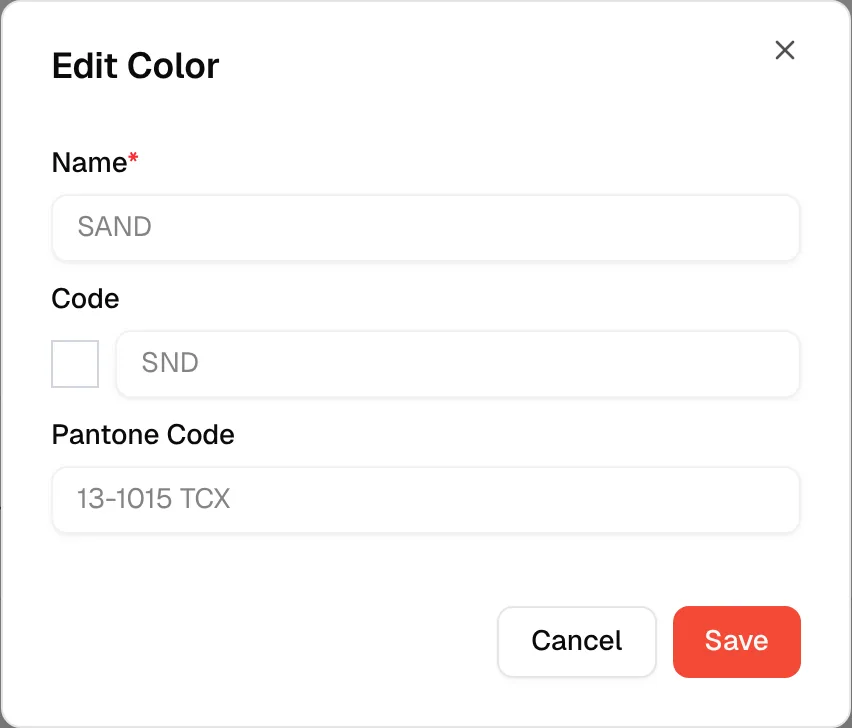
Click the pencil icon next to the colour name. The Edit Color dialog opens.
Change the details
Edit the Name (required), the Code and the Pantone Code.
Click "Save"
Click Save. The change is saved to the material.
Note
For a colour with the Color Library badge, the fields are locked. Change it from your colour palette instead, or from the colour's menu on the Details tab.
Give a colour its own price
A colour that follows the material shows the material price in a lighter style with the note "Inherits material pricing — edit to set a price for this colour".
Click "Edit pricing"
On the colour card, click Edit pricing. The dialog is titled "Edit pricing" followed by the colour name.
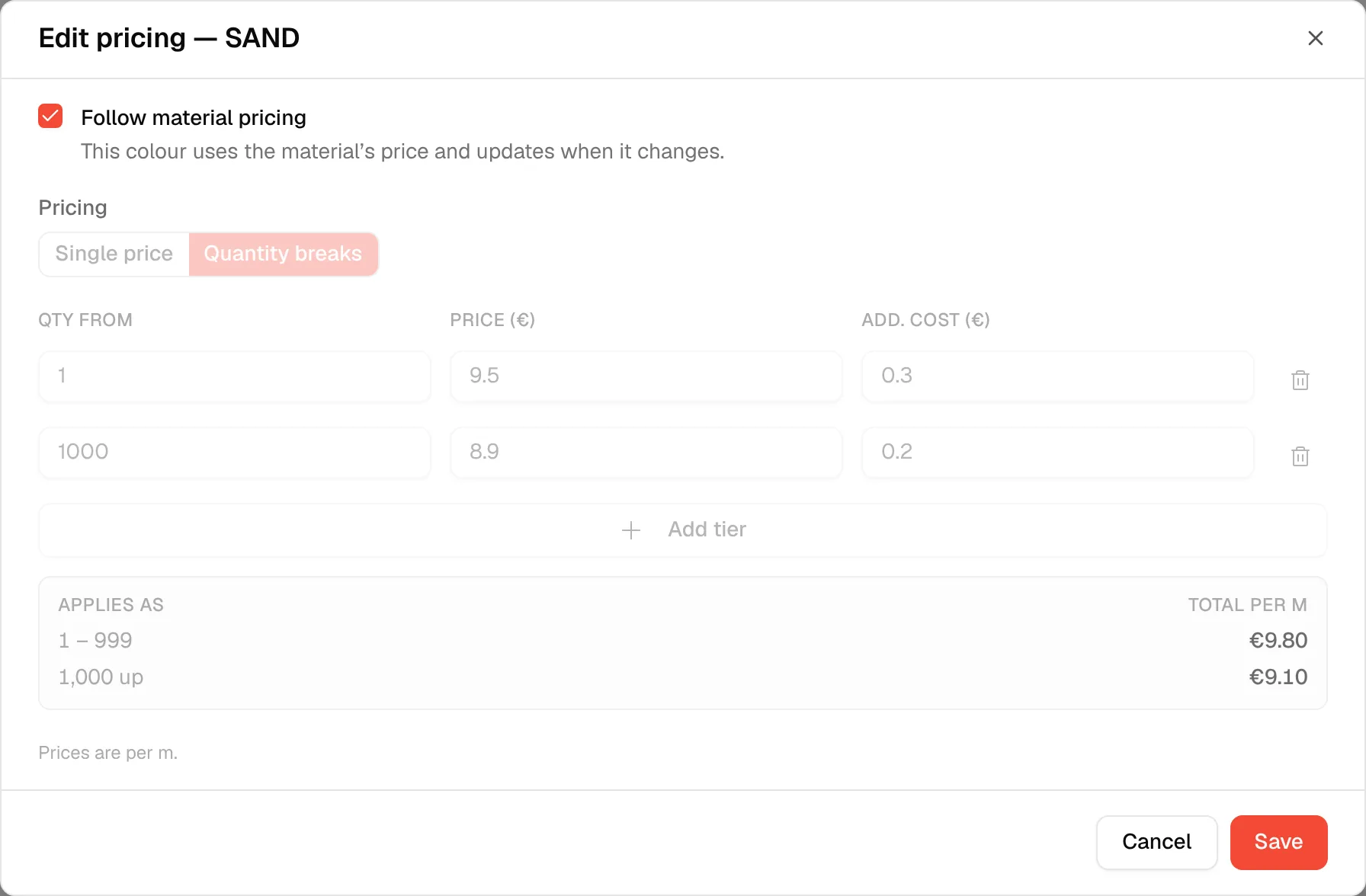
Uncheck "Follow material pricing"
Uncheck Follow material pricing ("This colour uses the material's price and updates when it changes"). The fields unlock with a copy of the material pricing to start from.
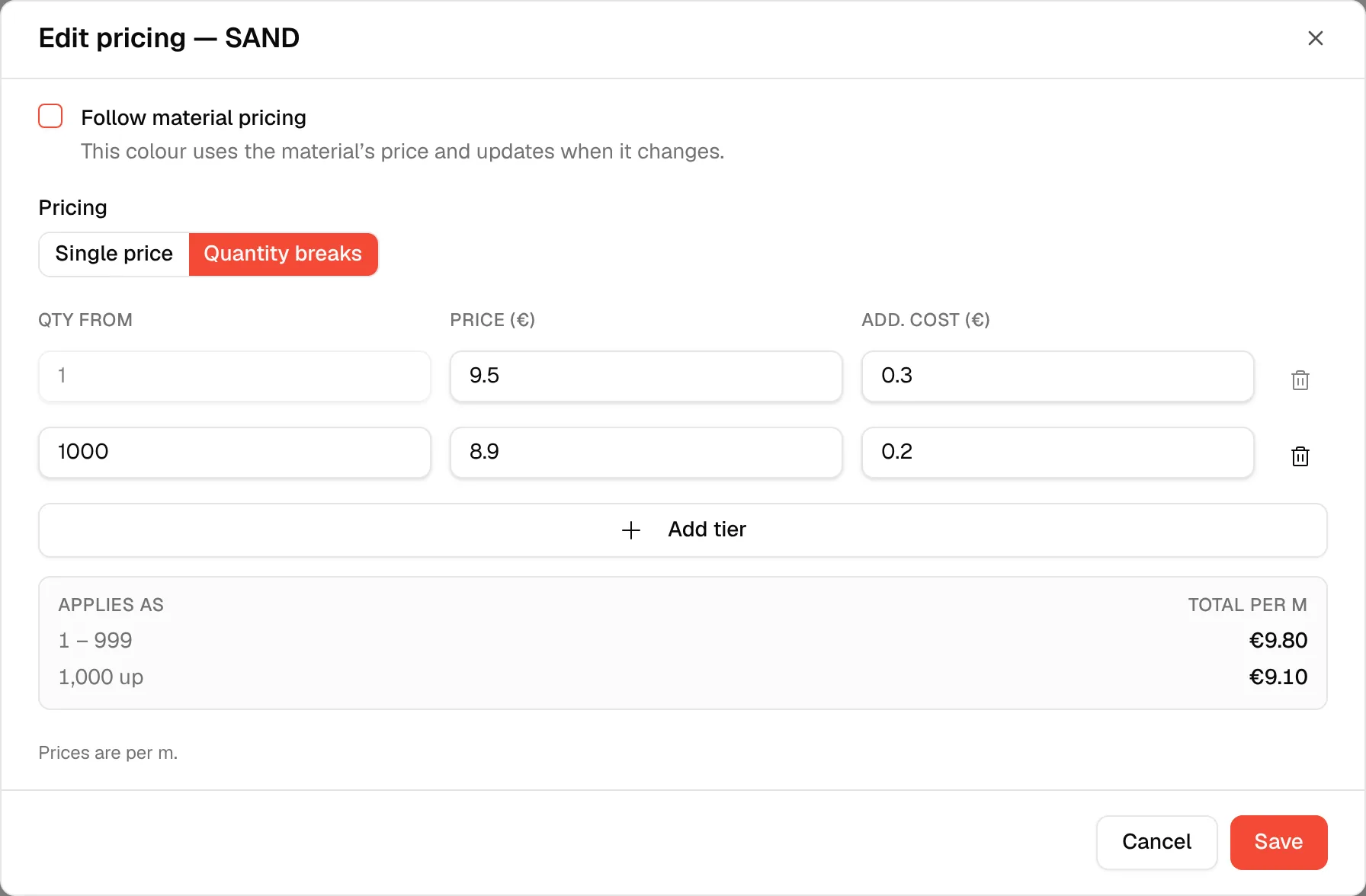
Choose how the colour is priced
Under Pricing, select Single price and enter a Price and an Additional cost, or select Quantity breaks and fill the table. The fields work as described in Set quantity-break pricing for a material.
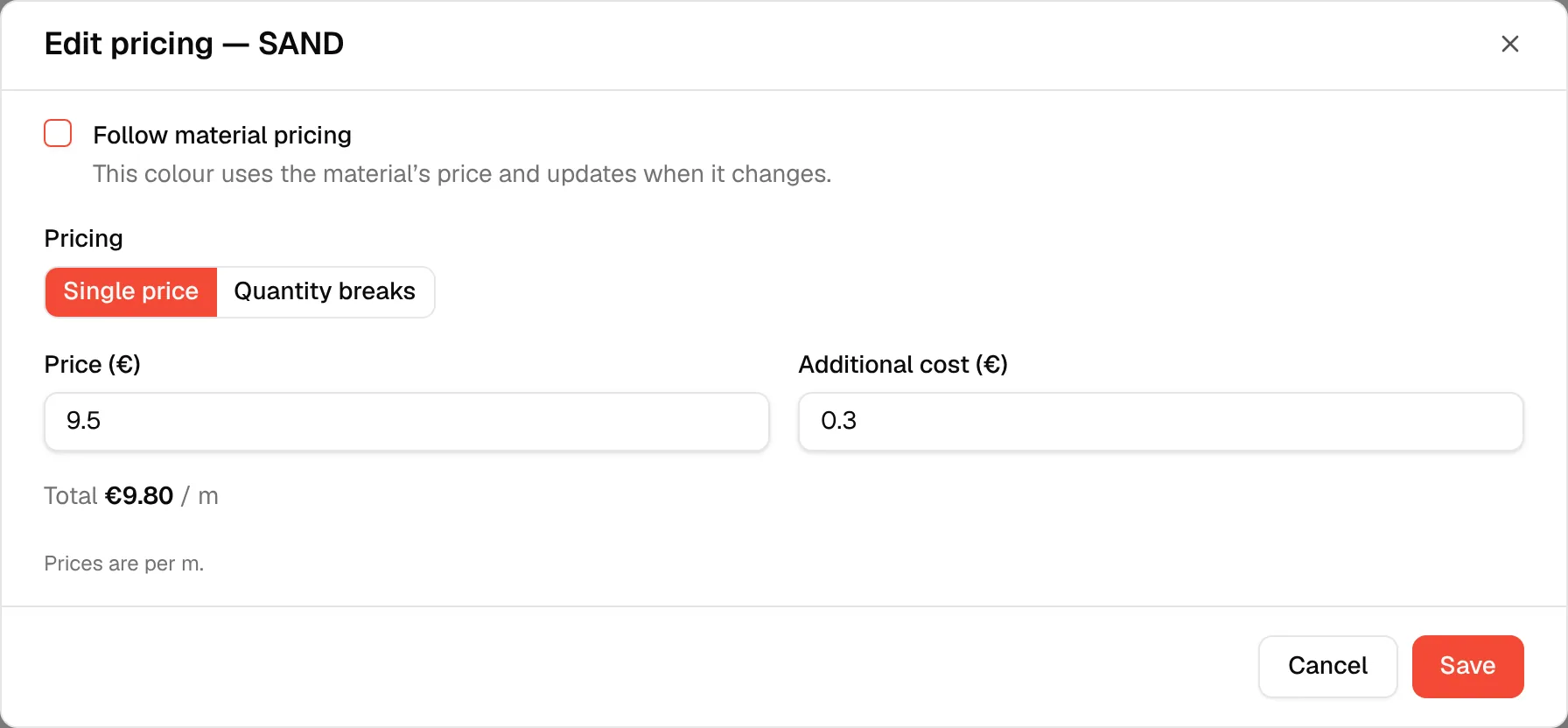
Click "Save"
Click Save. The colour card now shows its own price and the note disappears. The change is saved at once.
Make a colour follow the material again
Open Edit pricing on the colour, check Follow material pricing and click Save. The colour stores no price of its own and shows the material price again, including any quantity breaks, and updates whenever the material changes.
If you save an override that has no price, no additional cost and no tiers, the colour also goes back to following the material.
Troubleshooting
Save does nothing and an error message appears. A field elsewhere on the material is not valid, for example an unnamed colour or a media row without a title. The message names the field. Fix it on the Details tab.
The price of an inheriting colour looks out of date. Reload the tab. It reads the latest saved price of the material each time it opens.