
Step 1 of 13 in Place and track a production order
Create production order
This guide will help you create a Production Order step by step.
This guide will help you create a Production Order step by step. Please follow the instructions carefully to ensure accuracy in the order creation process.
ProductionOrder Management
Permission: UPDATE_BRAND_PRODUCTION
- From the left-hand menu, click Production > Order Management.
Click Create Order at the top right of the page.

The Create Production Order dialog opens with the description "Create a new production order with multiple styles".
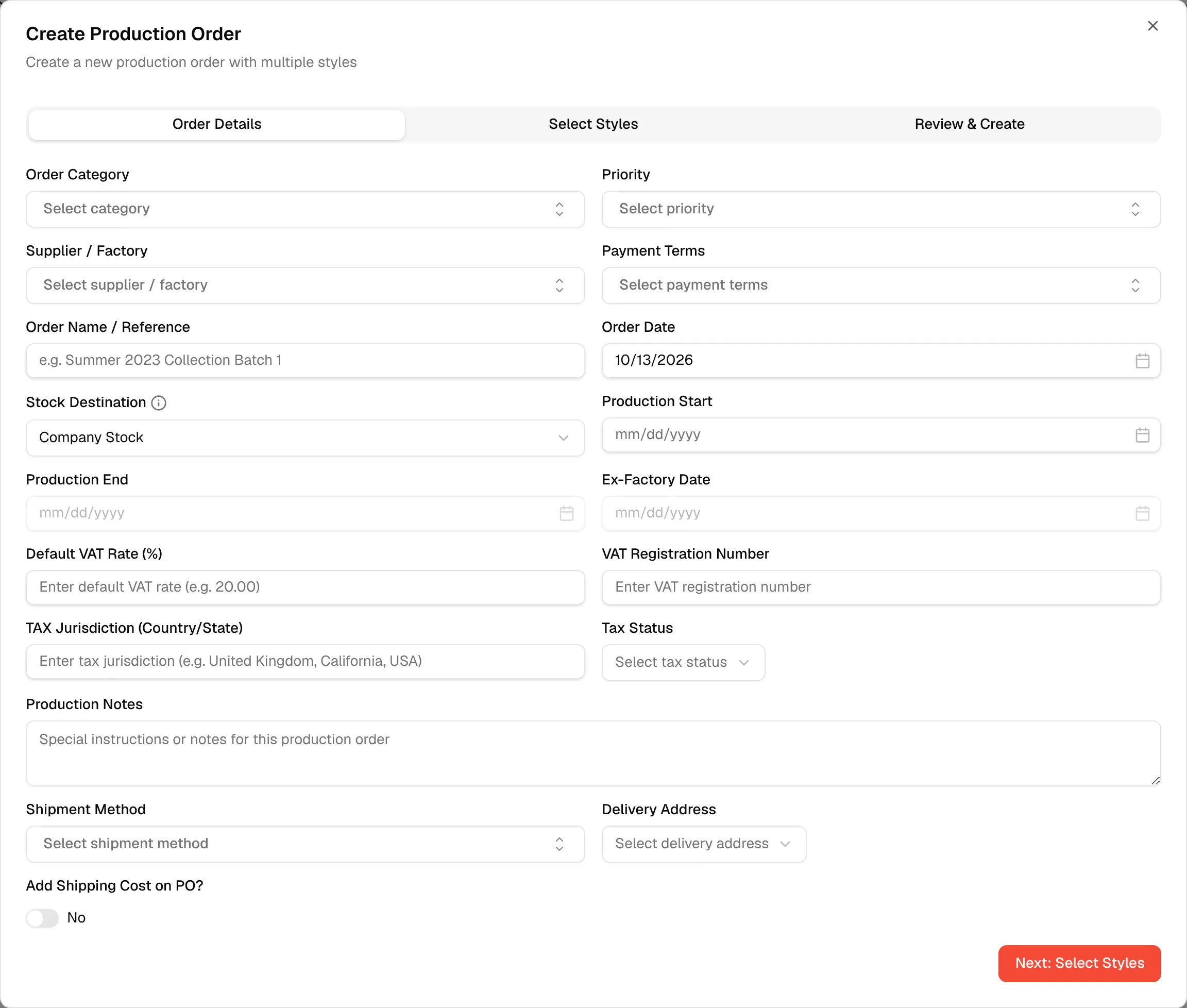
There are three tabs in the dialog, one for each step of creating a Production Order:
- Order Details – Fill in the information for the production order. See Order details in production order.
- Select Styles – Choose the Style from the appropriate supplier. You may select multiple products and enter the required quantities as needed. See Select style for production order.
- Review & Create – Carefully review all entered information, including product quantities, to ensure accuracy. See Review and confirmation production order.
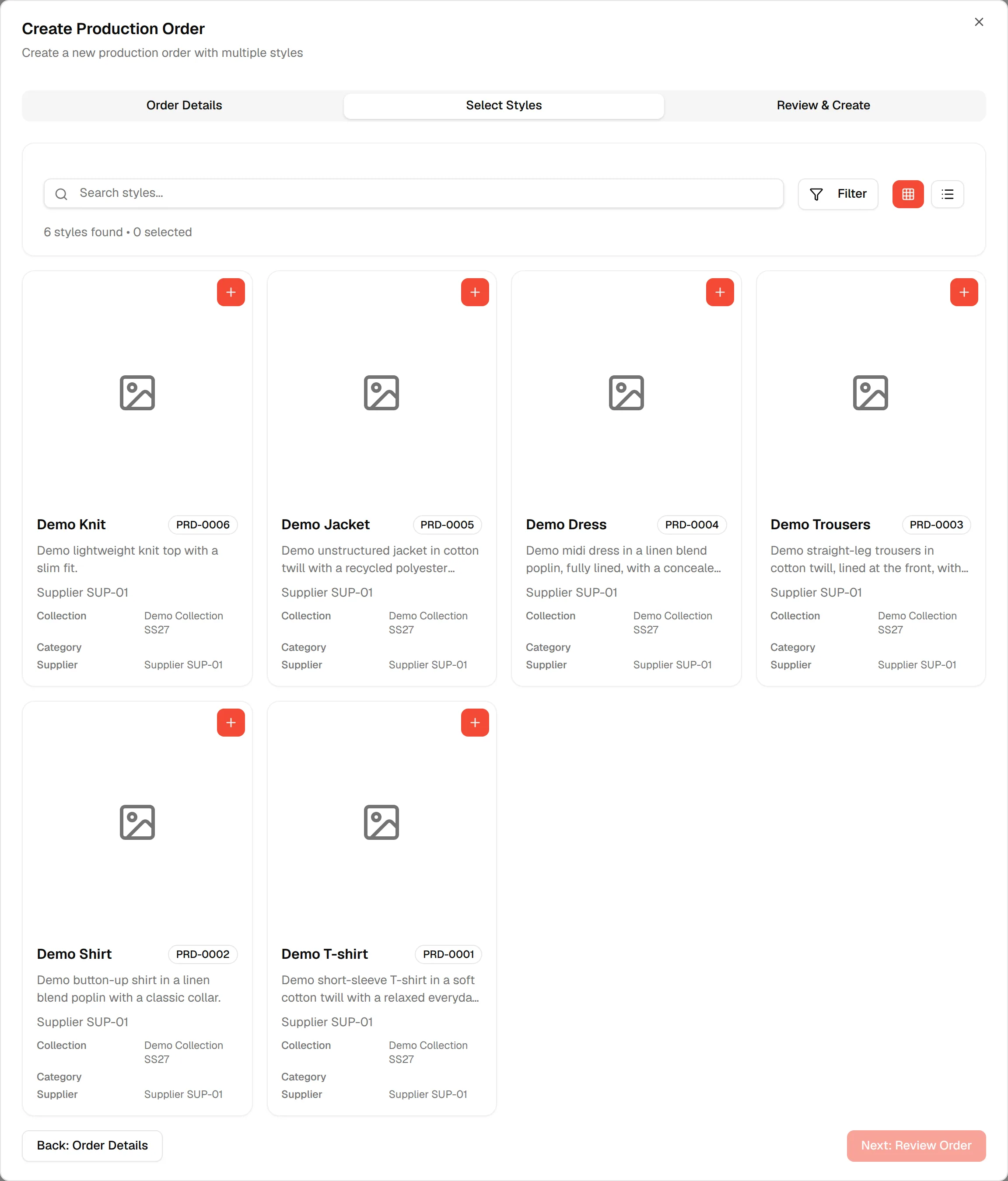
Once all details are confirmed, click Create Order & Generate PO to finalize the production order. The generated Purchase Order (PO) is listed on the Purchase Order tab of the order. See Purchase orders.
Note
Use Next: Select Styles, Next: Review Order and the Back buttons at the bottom of each tab to move between the steps. Next: Review Order stays disabled until at least one style is added.
Manage all created orders through the Order List. To download the production orders in Excel format, click Export and then Export to Excel.
Close the dialog without saving
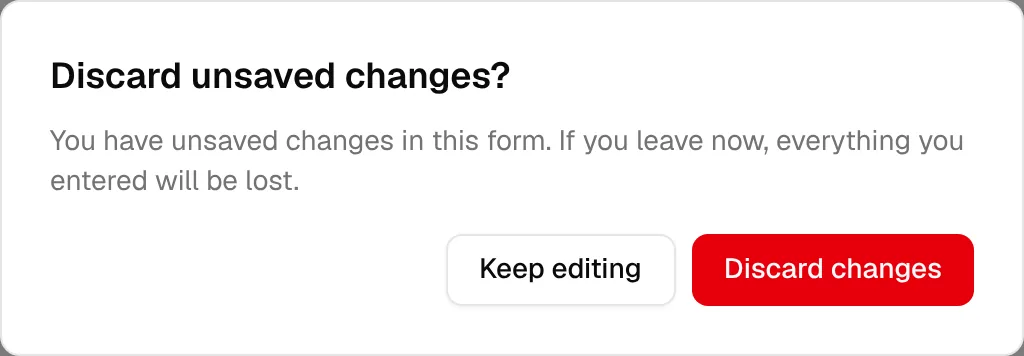
If you have typed something and try to close the dialog, the platform asks Discard unsaved changes? Click Keep editing to go back, or Discard changes to close the dialog and lose what you entered. Nothing is saved until you click Create Order & Generate PO.
Start from a materials simulation
If Materials Simulation is available on your page, you can click Create Production Order at the end of a simulation. The dialog then opens on the Select Styles tab with the simulated styles and quantities already added. See Materials simulation.