
Tech pack positions
Create, edit and delete the reusable position labels, such as Front chest, that you attach to bill of materials lines in a tech pack.
Tech Pack Position lets you keep a list of reusable position labels, for example Front chest or Back yoke. The labels appear in the position selector on bill of materials lines and in the related exports.
SettingsCollection & StyleTech Pack Position
Permission: VIEW_BILL_OF_MATERIAL,VIEW_STYLE
Fields
| Field | What it does | Notes |
|---|---|---|
| Name | The label shown in the BOM position selector and related exports. | Required. |
| Description | Optional internal notes about the position. | Optional. |
Create a tech pack position
Open Tech Pack Position
From the left sidebar, click Settings, then Collection & Style, then Tech Pack Position.
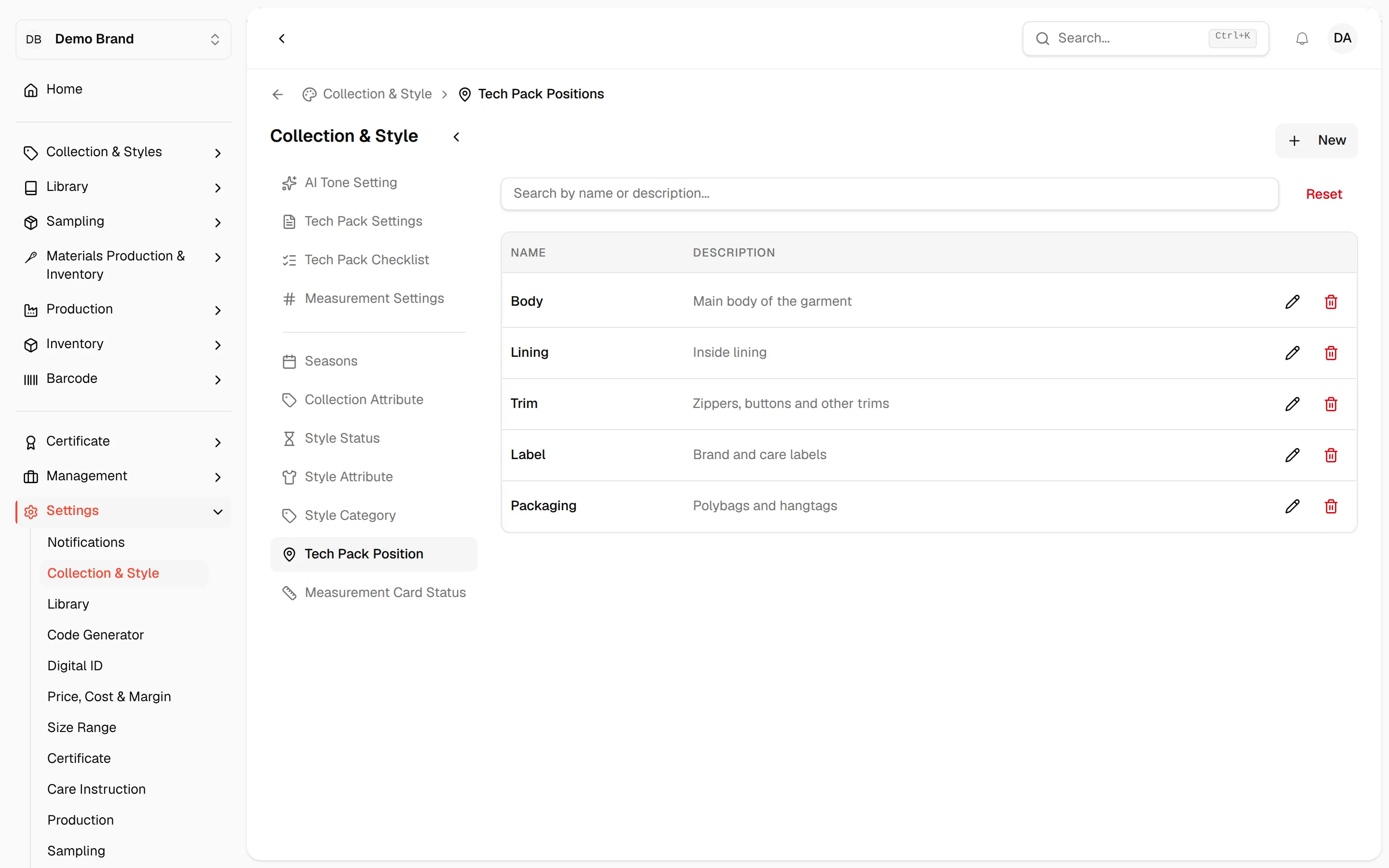
Click "New"
Click the New button above the list. You need the permission to create bill of materials entries to see it.

Enter the name
Type the position label in the Name field, for example Front chest.
Add a description
Optionally, type internal notes in the Description field.
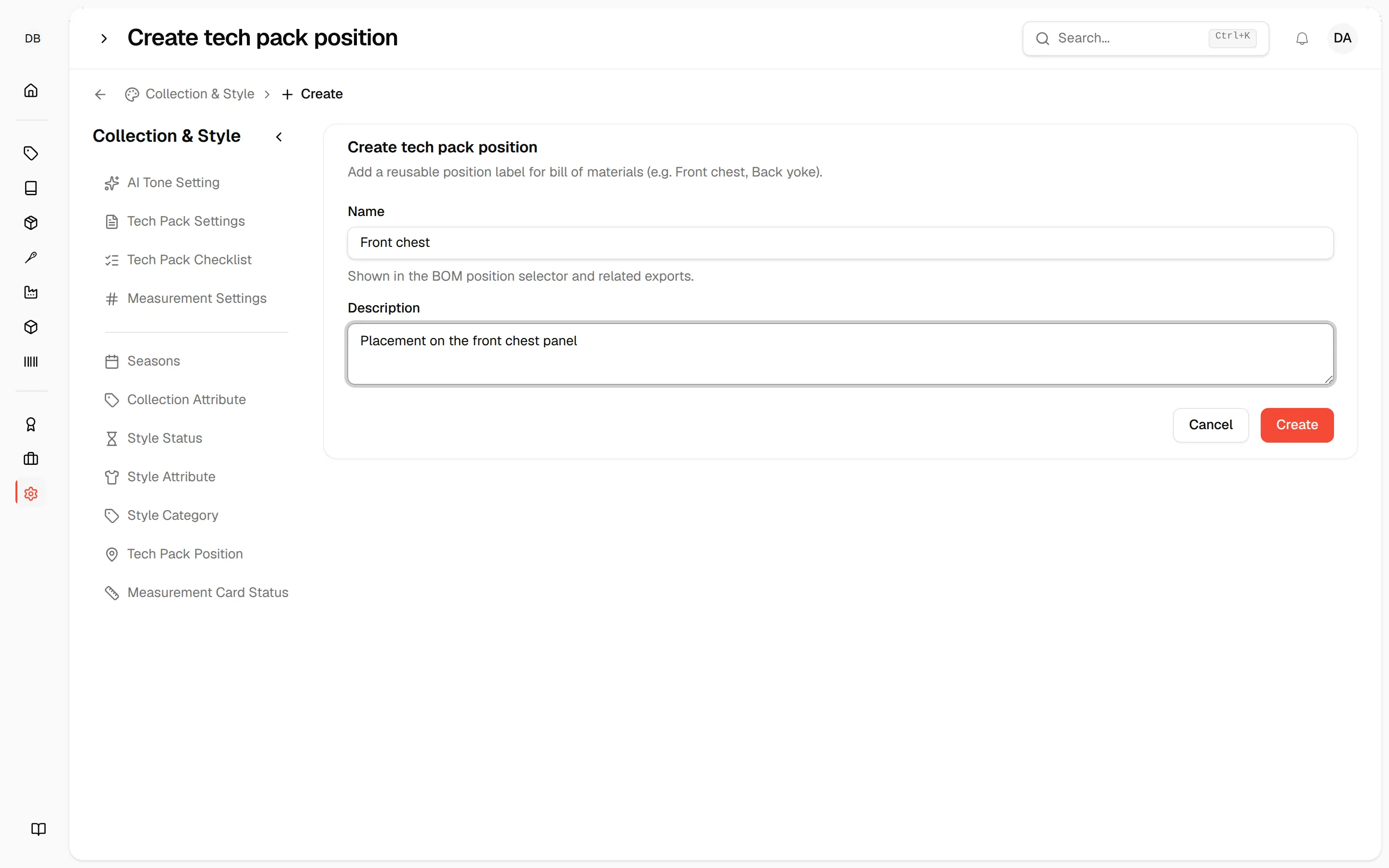
Click "Create"
Click Create. A Tech pack position created successfully message appears and the new position is saved.
Note
If the Name field is empty, the form asks for at least 1 character.
Edit a tech pack position
Click the pen icon
In the position's row, click the pen icon. It only appears if your role can update bill of materials entries.
Change the details
On the Edit tech pack position page, change the Name or Description.
Click "Update"
Click Update to save the changes.
Delete a tech pack position
Click the trash icon
In the position's row, click the trash icon. It only appears if your role can delete bill of materials entries.
Confirm
In the Delete tech pack position window, confirm the deletion. A Tech pack position deleted successfully message appears.
Find a position
Use the search field above the list to search by name or description.