
Material certificates
Link existing certificates to a material, create a new one from the material, and unlink or review certificates on the Certificates tab.
Under review. This page is published while we check it against the live app, so some details may have changed.
The Certificates tab of a material shows every certificate linked to that material, such as organic or recycled standards. You can link a certificate you already have, create a new one, or unlink one. Certificates matter for Digital Product Passport readiness, and a note at the top of the tab says so.
LibraryMaterials(open a material)Certificates
Permission: UPDATE_PRODUCT,VIEW_PRODUCT
Before you start
- Save the material first. The tab is part of an existing material, not of the create form.
- To link a certificate, it must already exist in Certificates and not be linked to this material yet. See Certificate management.
Note
The Link Existing and Create New buttons, and the Edit and Unlink actions, need the permission to update products, which is also what opens the material and its tabs.
What the tab shows
Each linked certificate is a card with:
- the certificate name, a type badge and a status badge;
- the licence number, the validity dates and the institute, when they are filled in;
- the attached file name, with an eye icon to view the file and a download icon.
With no certificates the tab says "No certificates linked".
Link an existing certificate
Click "Link Existing"
Click Link Existing at the top right of the Certificates section. The Link Certificate dialog opens.
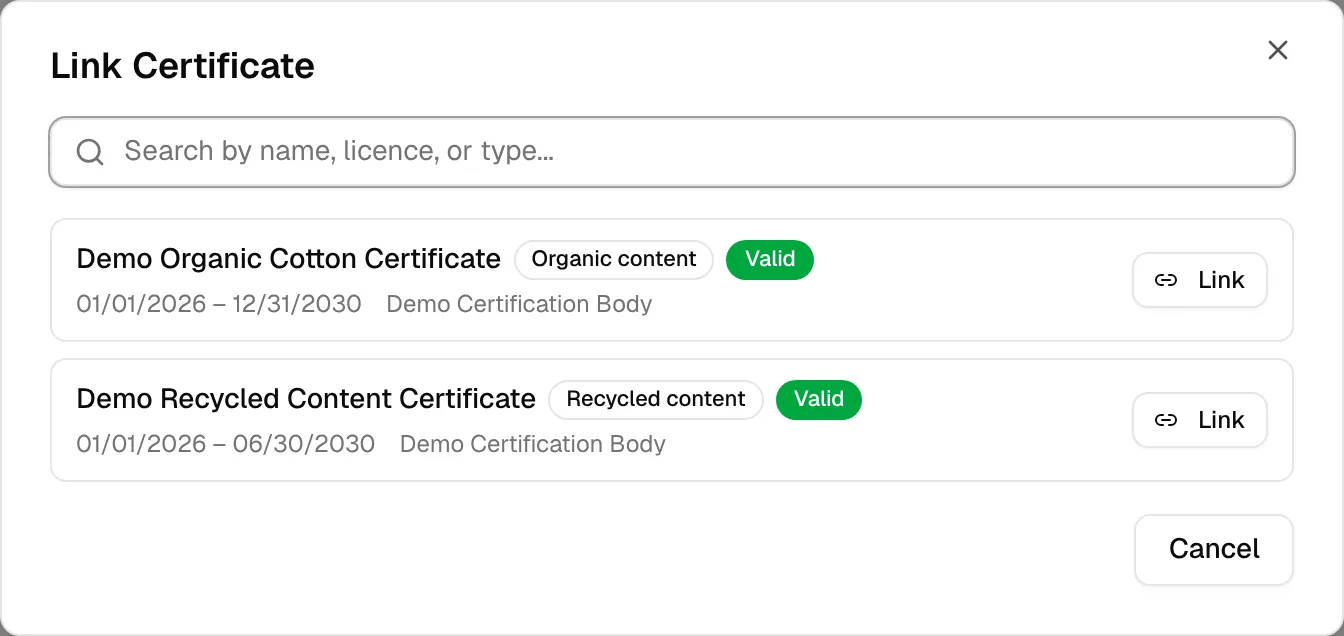
Find the certificate
Type in Search by name, licence, or type... to narrow the list. If nothing is available, the dialog says "No unlinked certificates found. Create a new one instead."
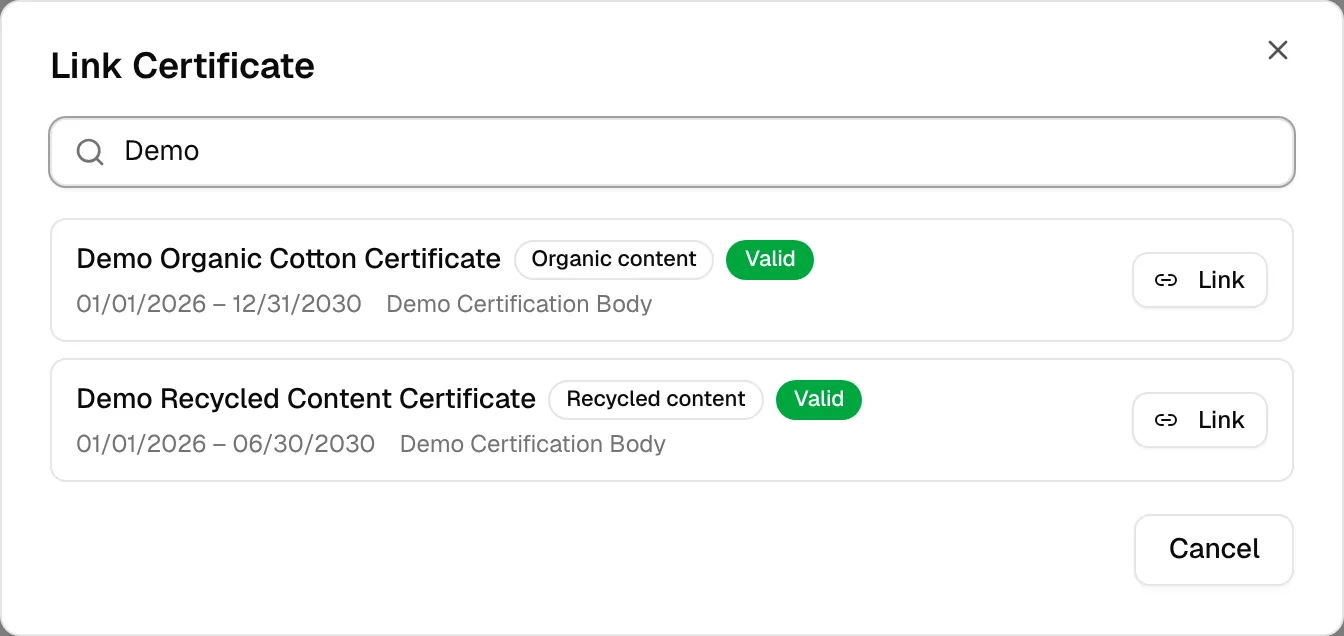
Click "Link"
Click Link on the certificate you want. You see "Certificate linked successfully" and the card appears on the tab.
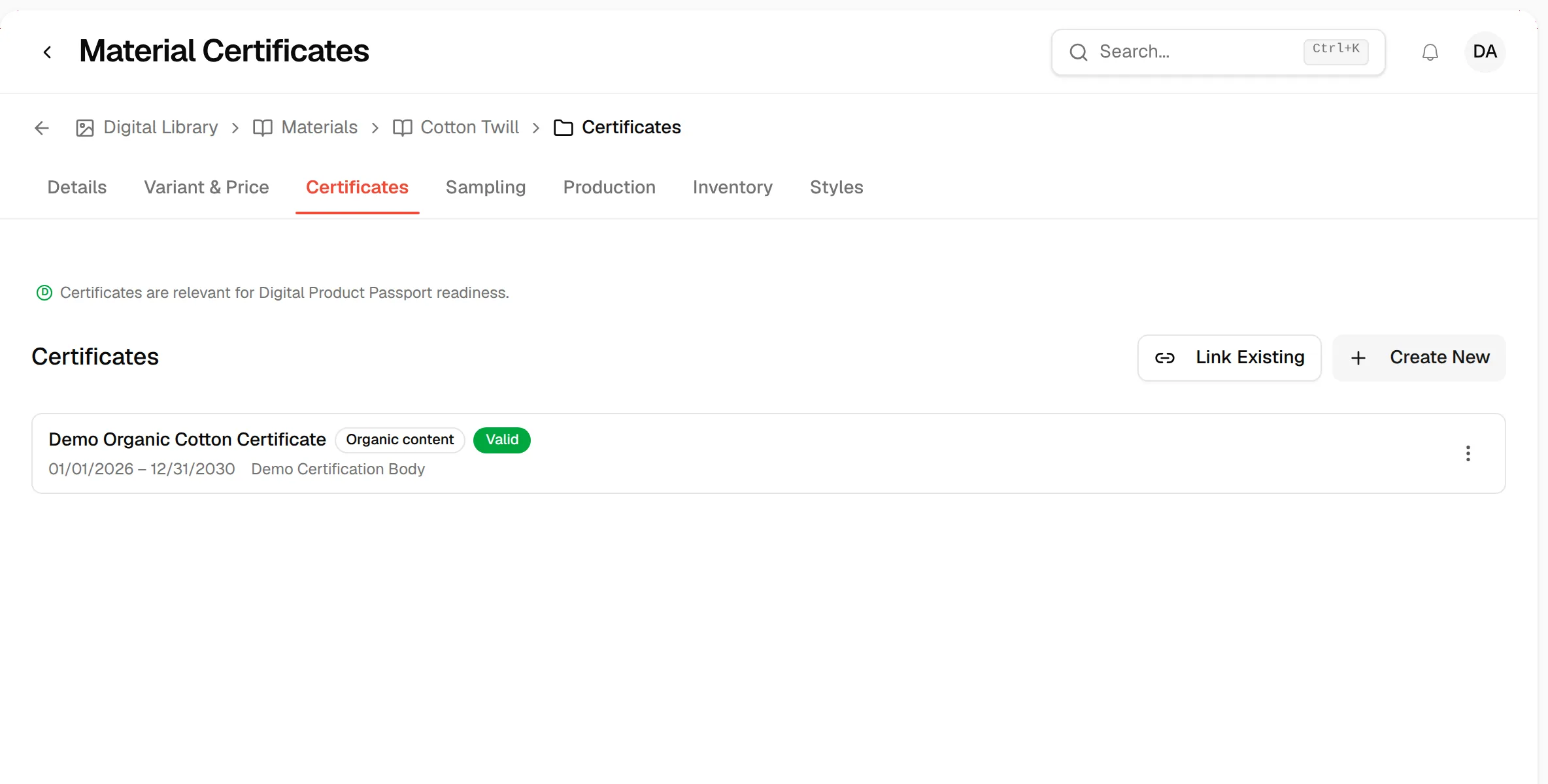
Create a new certificate from the material
Click "Create New"
Click Create New. The Add Certificate dialog opens with this material already linked.
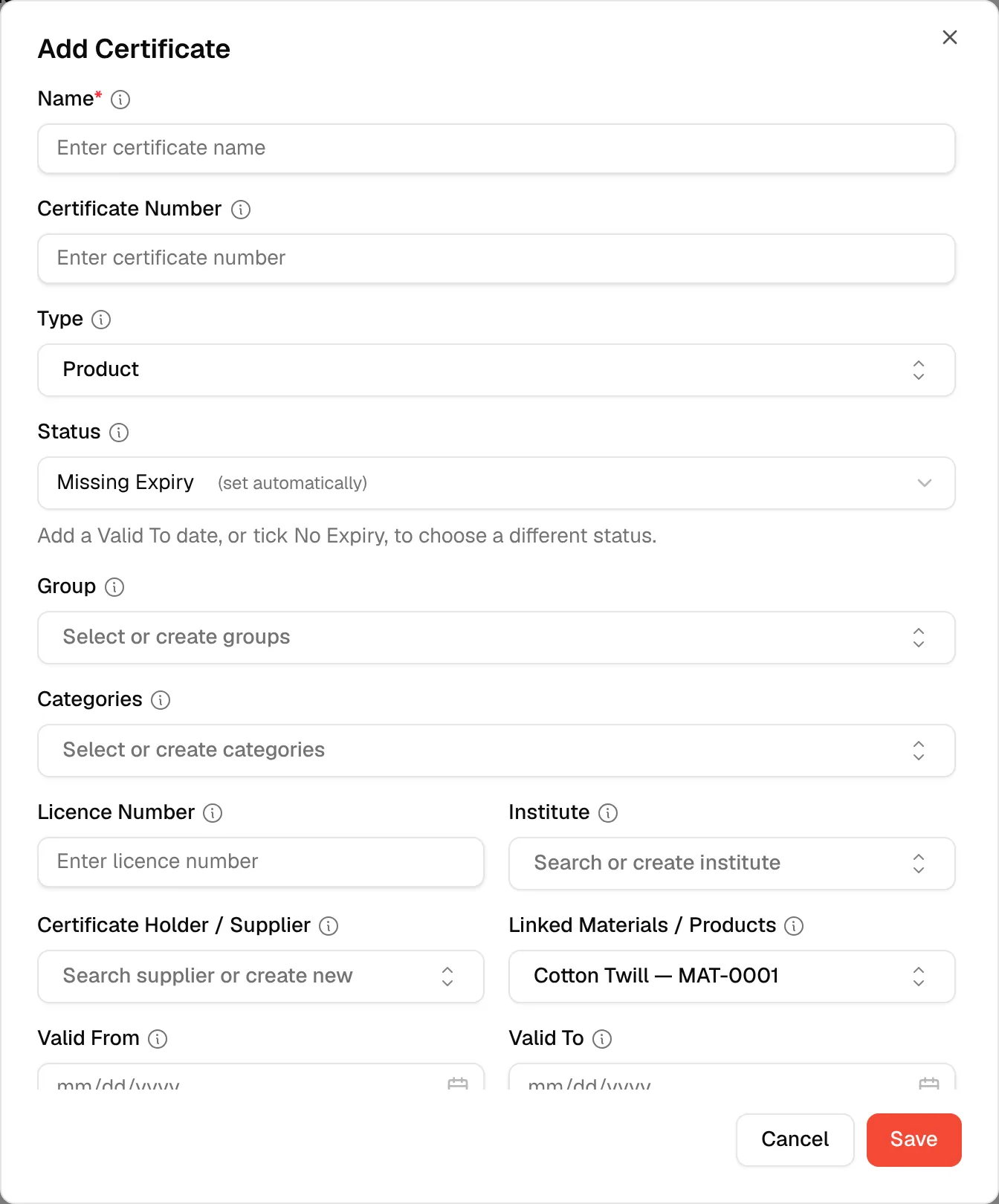
Fill in the certificate
Enter at least the Name. The dialog also asks for the Certificate Number, Type, Status, Group, Categories, Licence Number, Institute, Certificate Holder / Supplier, Linked Materials / Products, Valid From, Valid To, PO Number and a File. See Create a certificate for each field.
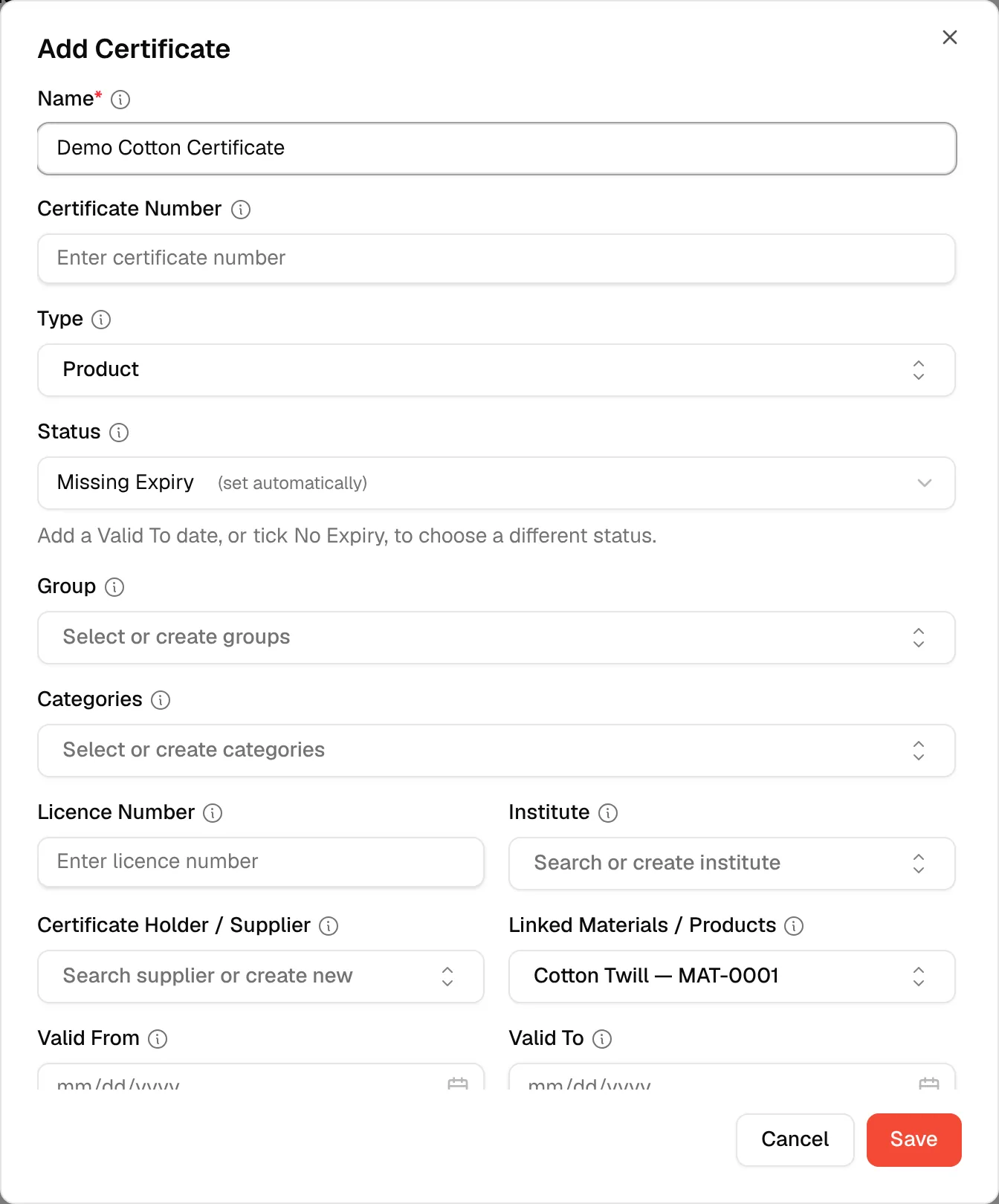
Click "Save"
Click Save. You see "Certificate created successfully" and the certificate appears on the tab.
View, edit or unlink a certificate
Click the three dots on a certificate card.
- View Details opens a read-only summary.
- Edit opens the Edit Certificate dialog. Saving shows "Certificate updated successfully".
- Unlink opens Unlink Certificate: "The certificate will not be deleted — it can be linked again later." Click Unlink to confirm, or Cancel.
Note
Unlinking removes the certificate from this material only. Other materials that use the same certificate keep it.