Step 10 of 12 in Connect Shopify
Integrating VestisLabs custom Liquid code into Shopify themes
Learn how to seamlessly connect your VestisLabs account with your Shopify store and inject custom liquid code snippets.
Under review. This page is published while we check it against the live app, so some details may have changed.
Screenshots may be out of date.
Learn how to seamlessly connect your VestisLabs account with your Shopify store and inject custom liquid code snippets. This guide provides the necessary steps to configure your theme for advanced product customizations and ensure your store displays new features correctly.
When you've successfully integrated your Style to Shopify (after following the Integration guide) you can embed them on the Product Journey.
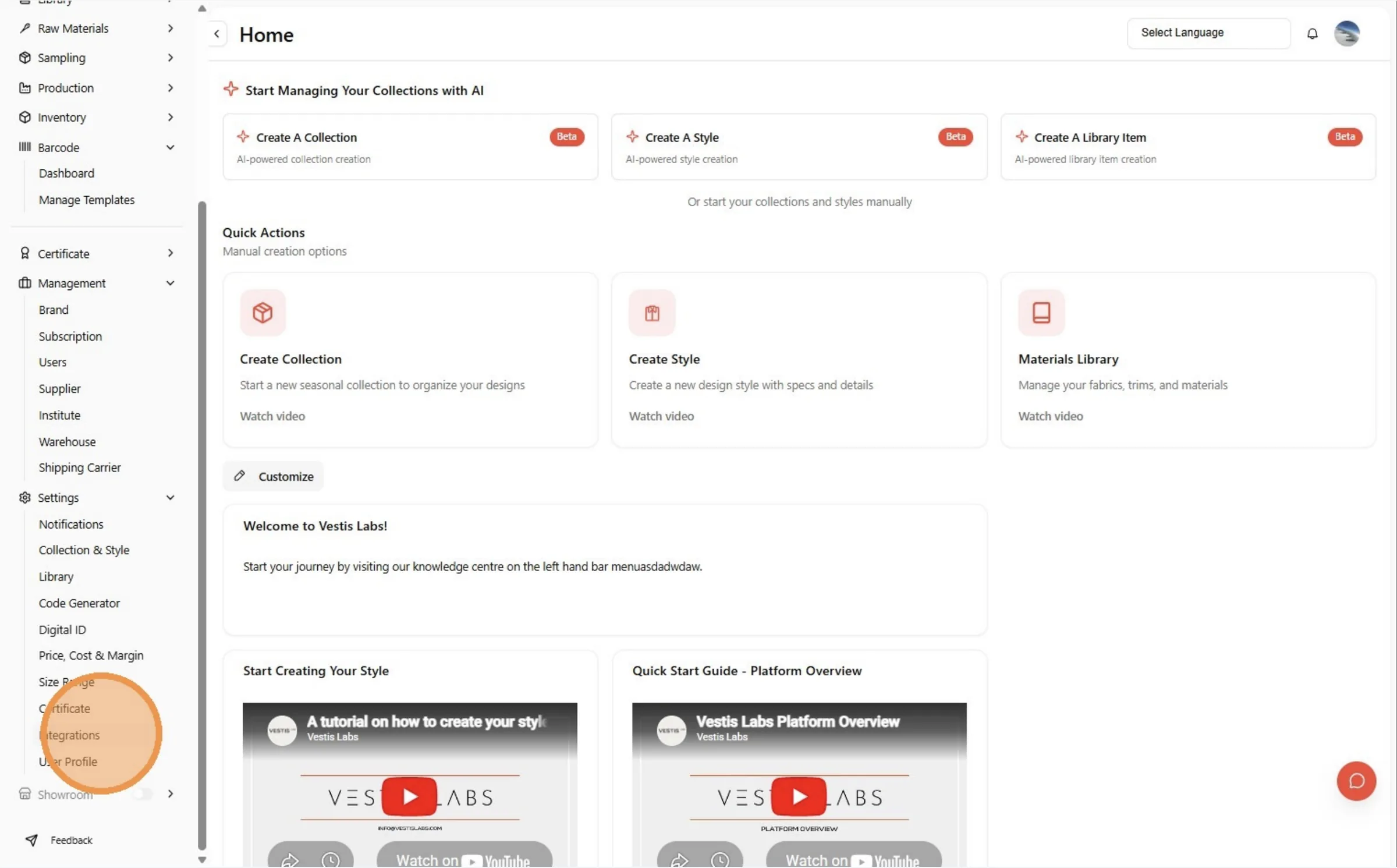
Click "Integrations"
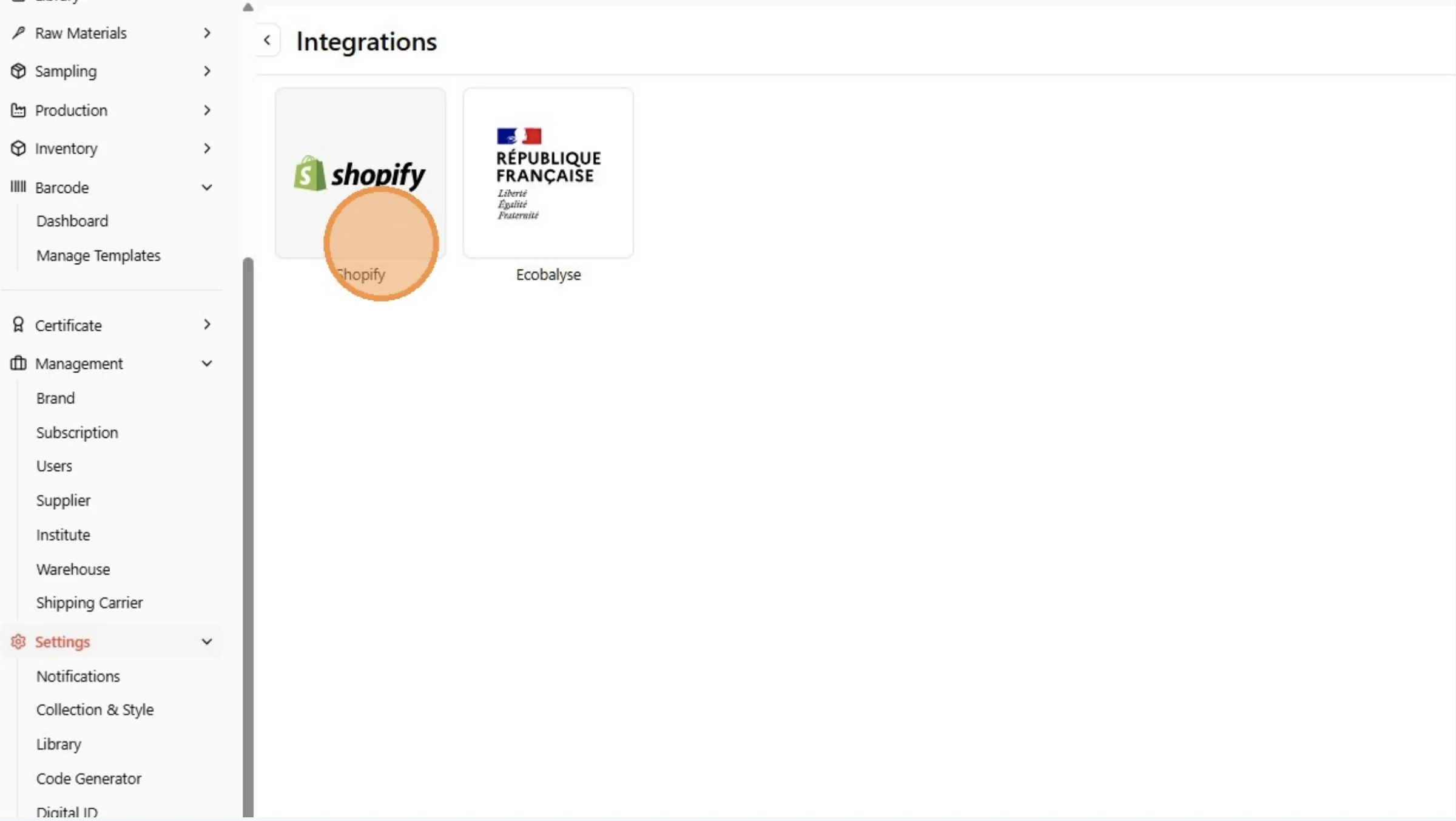
Click the Shopify button.
Open your Shopify Store.
Click "Manage themes"
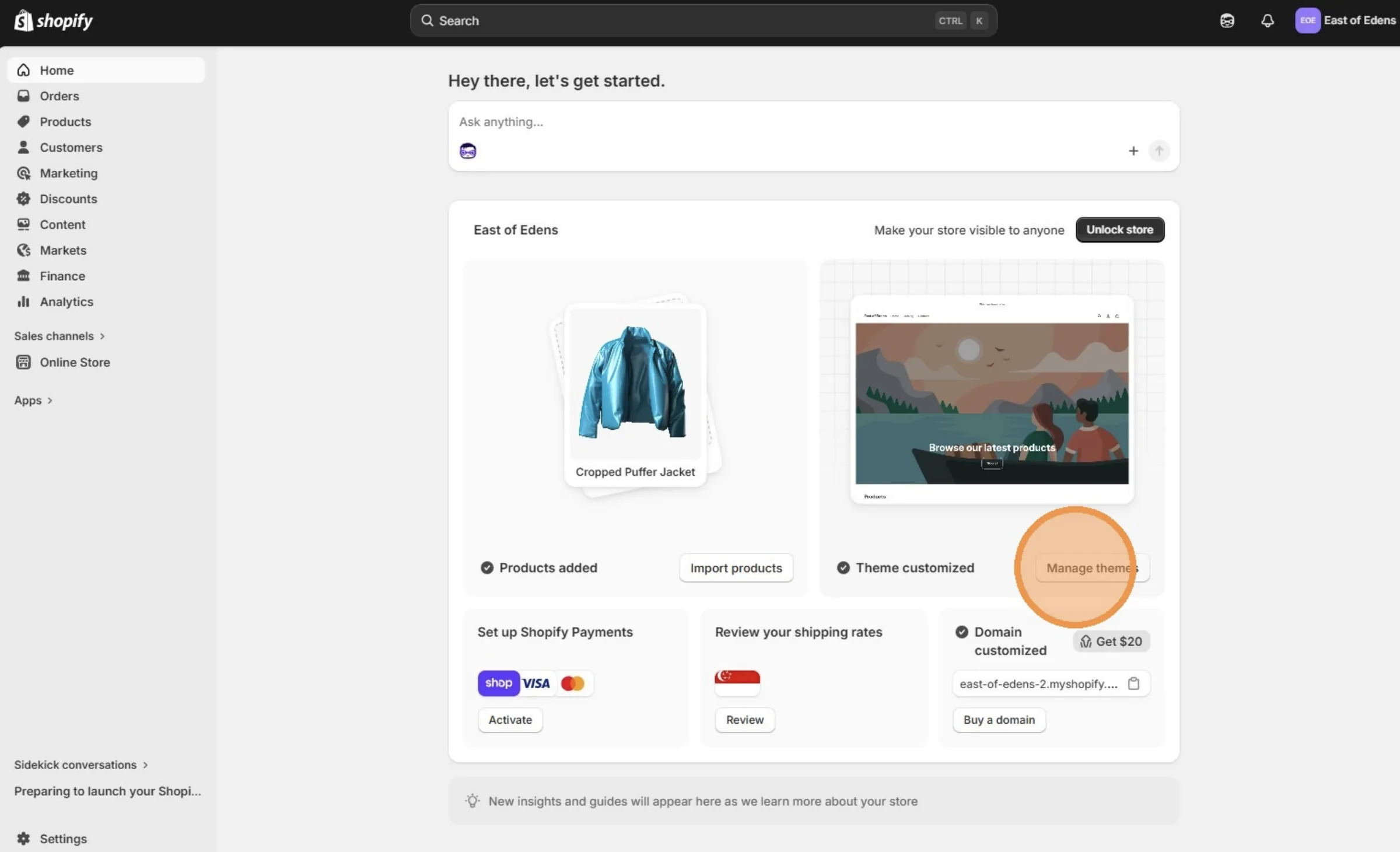
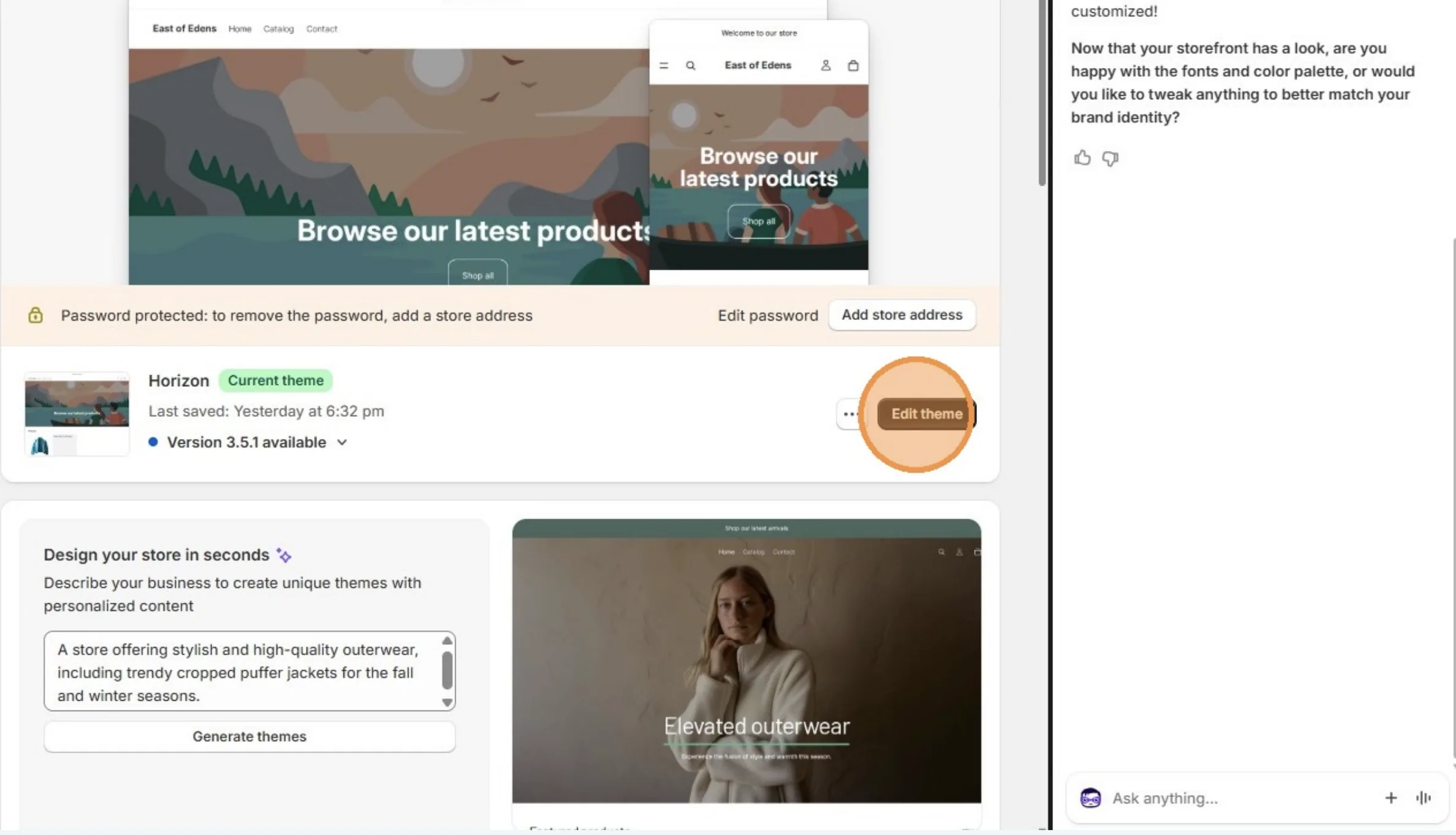
Click "Edit theme"
Select the page where you want to embed the Product Journey. For this guide, we will place it on the product page.
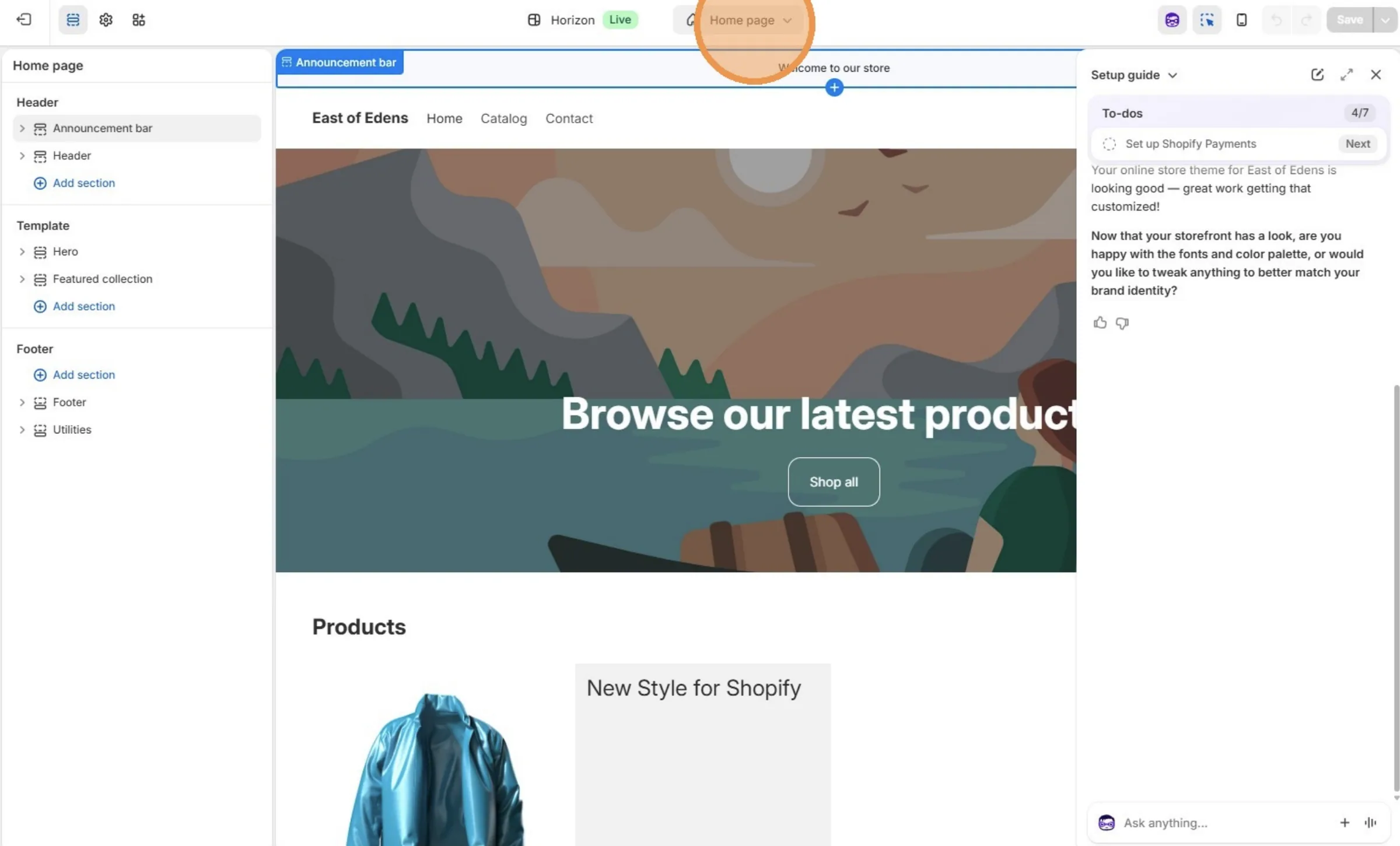
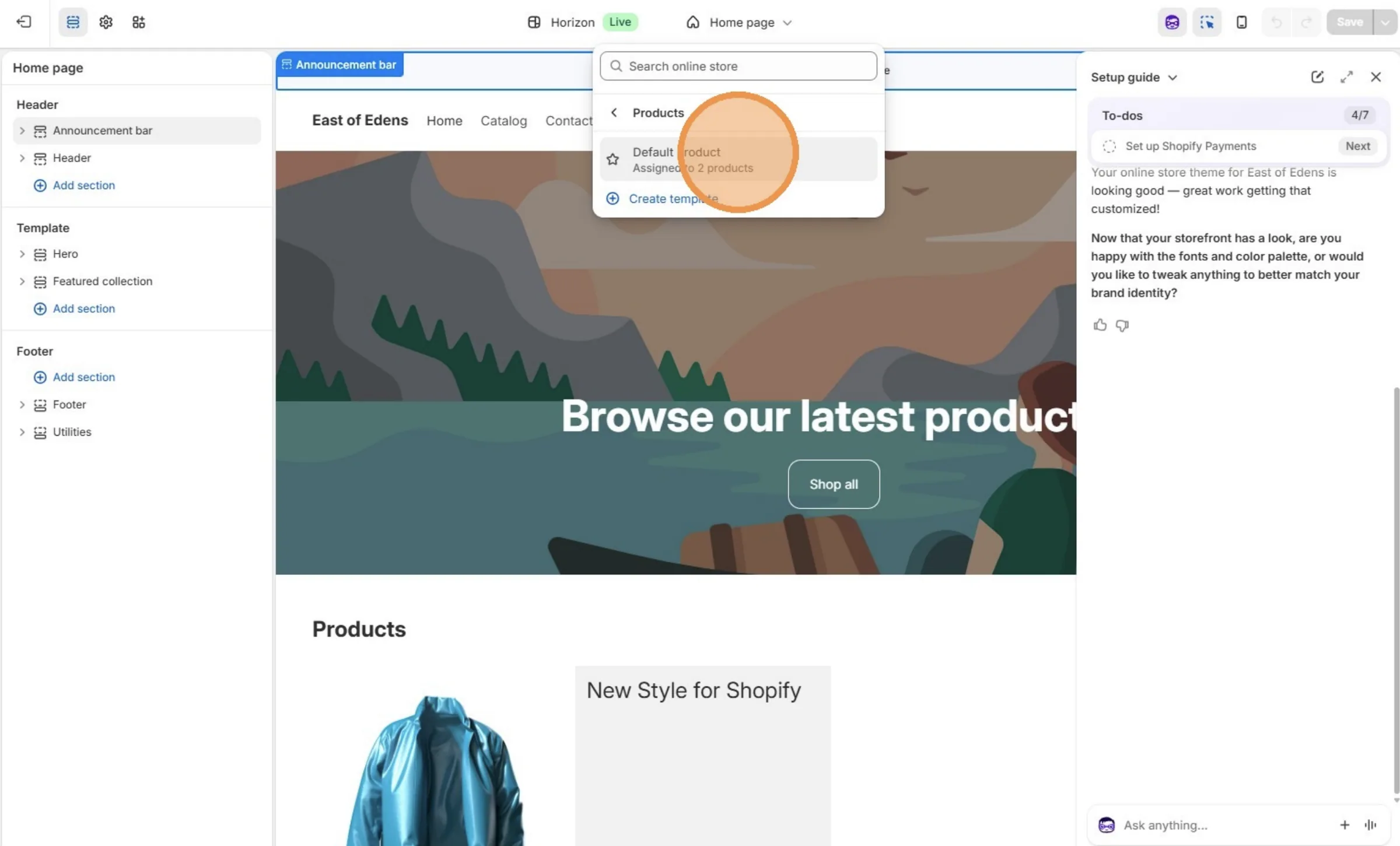
Click "Products"
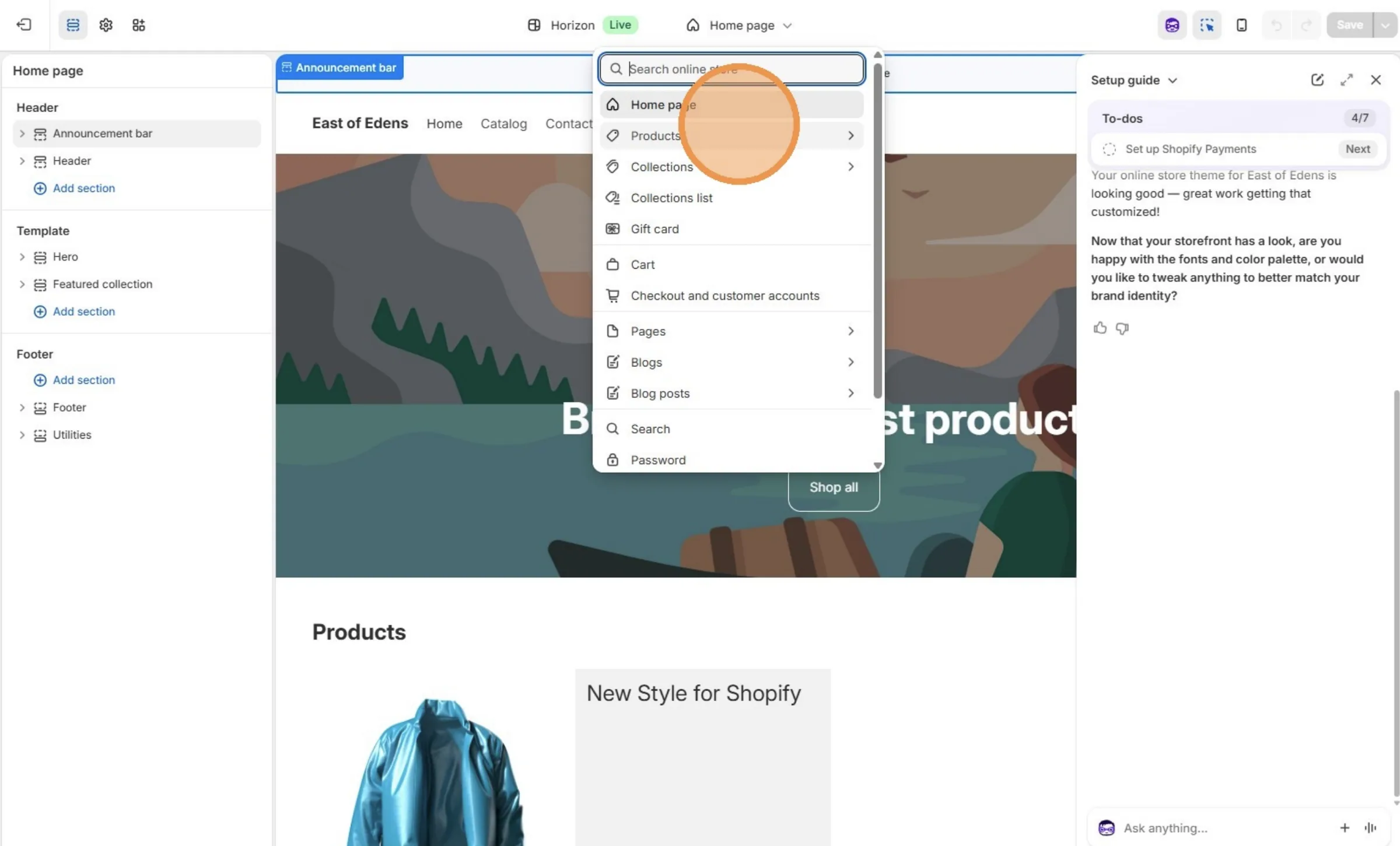
Click "Default product"
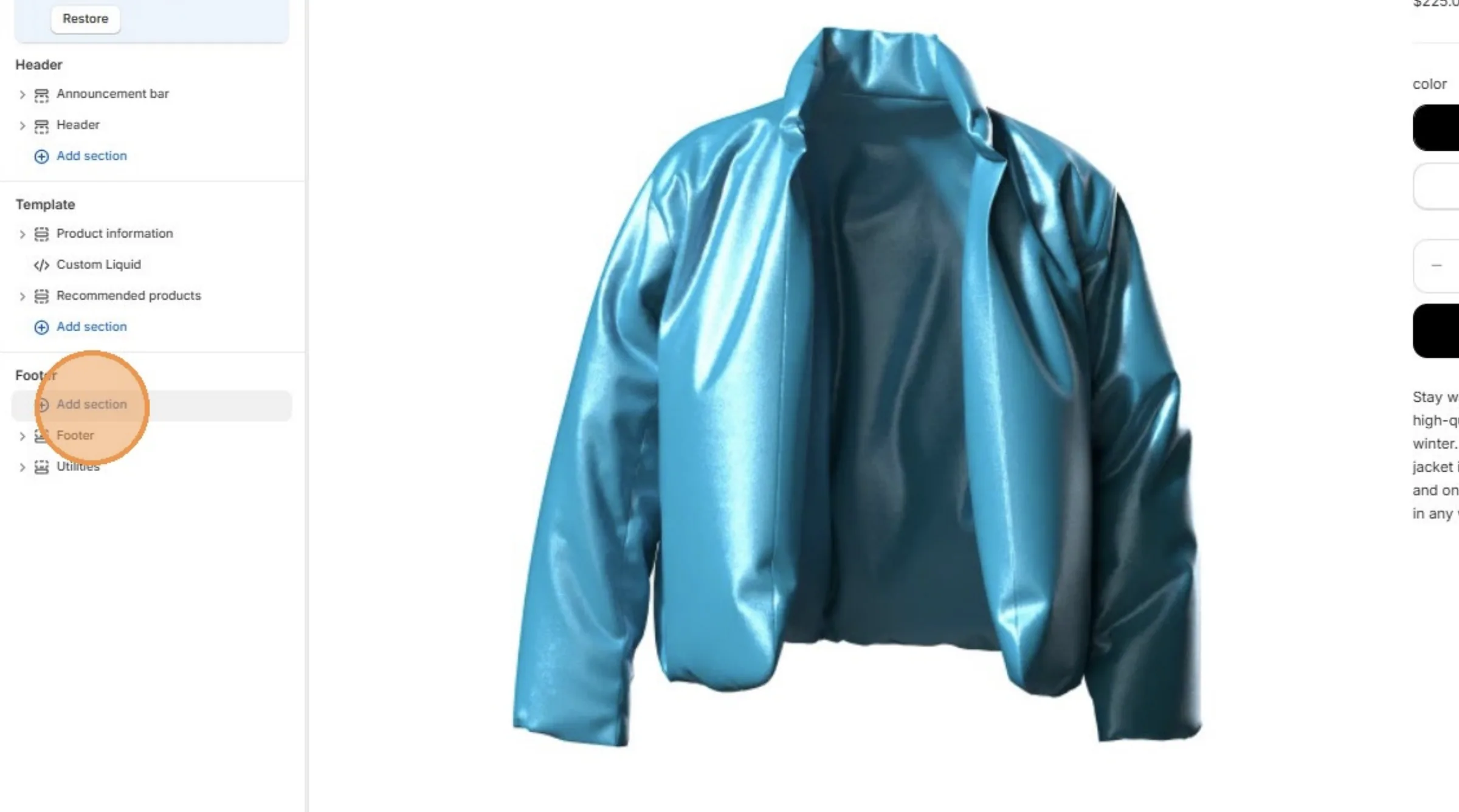
Click Add section to embed the code in a new section. For this guide, we will place it at the bottom of the page.
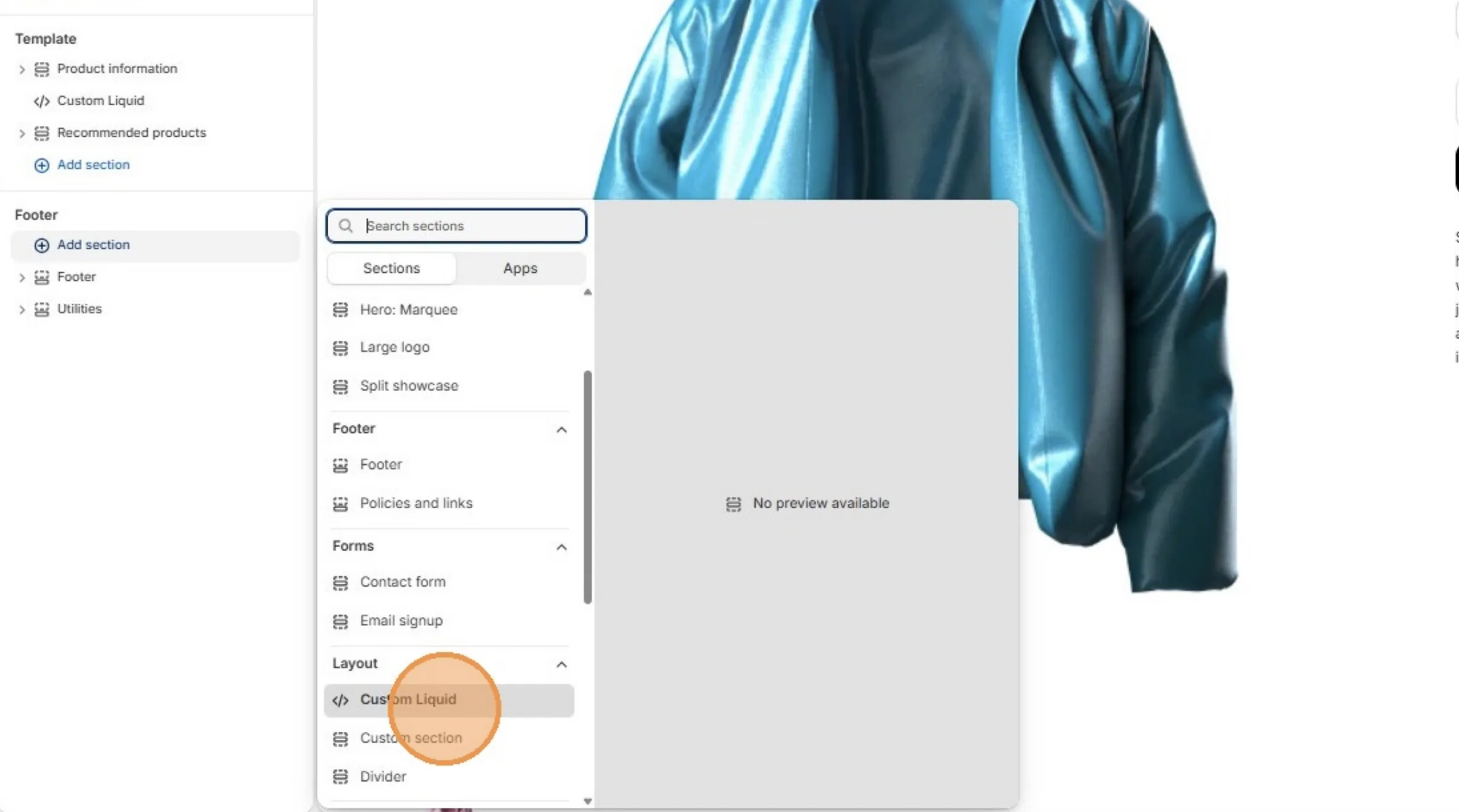
Click Custom Liquid. We will add the code using this section.
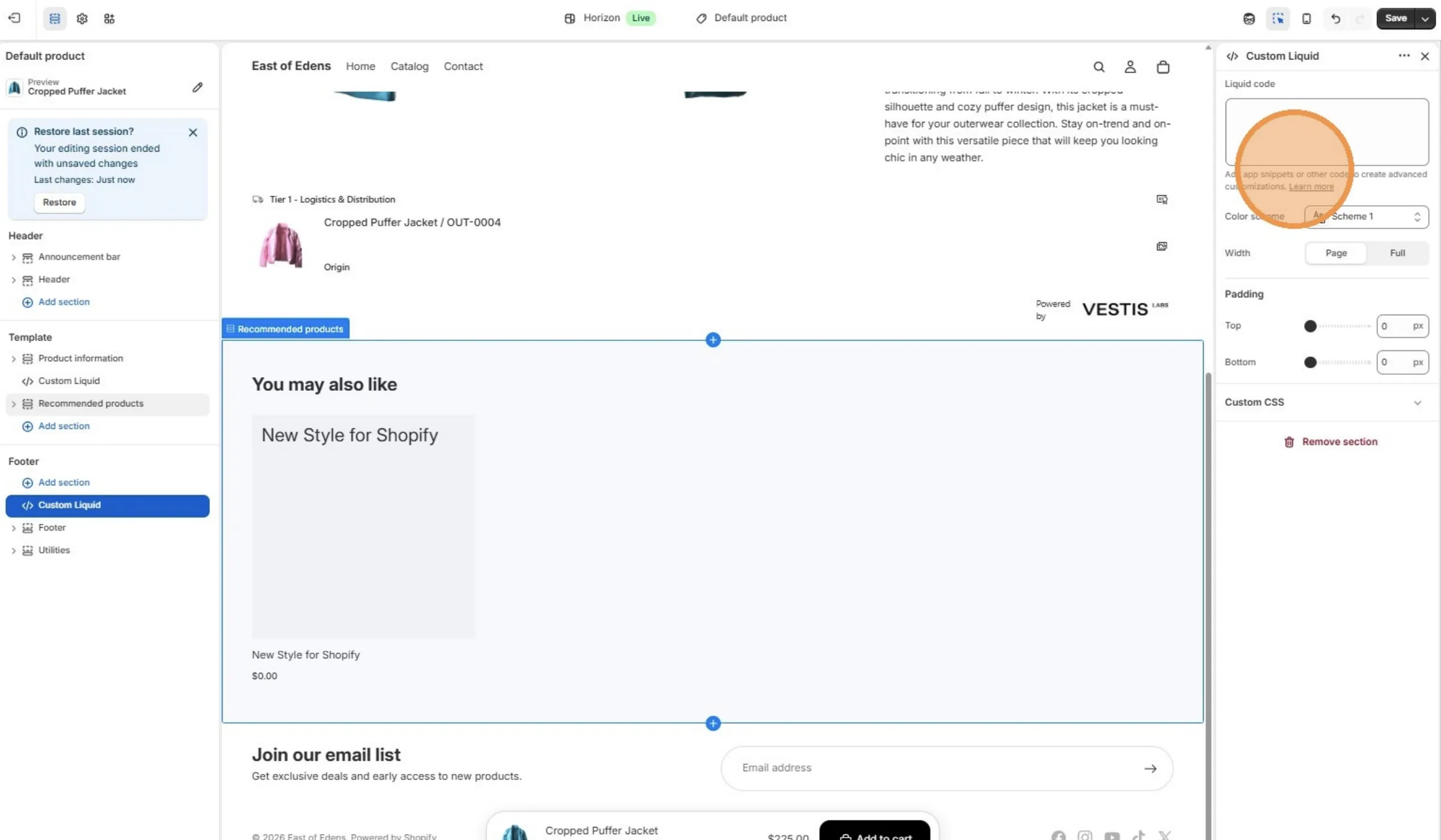
The Product Journey code will be embedded in the Liquid code field. This is where you will paste the code in the next step to ensure it is properly added and displayed on the page.
Navigate to Vestis Labs platform.
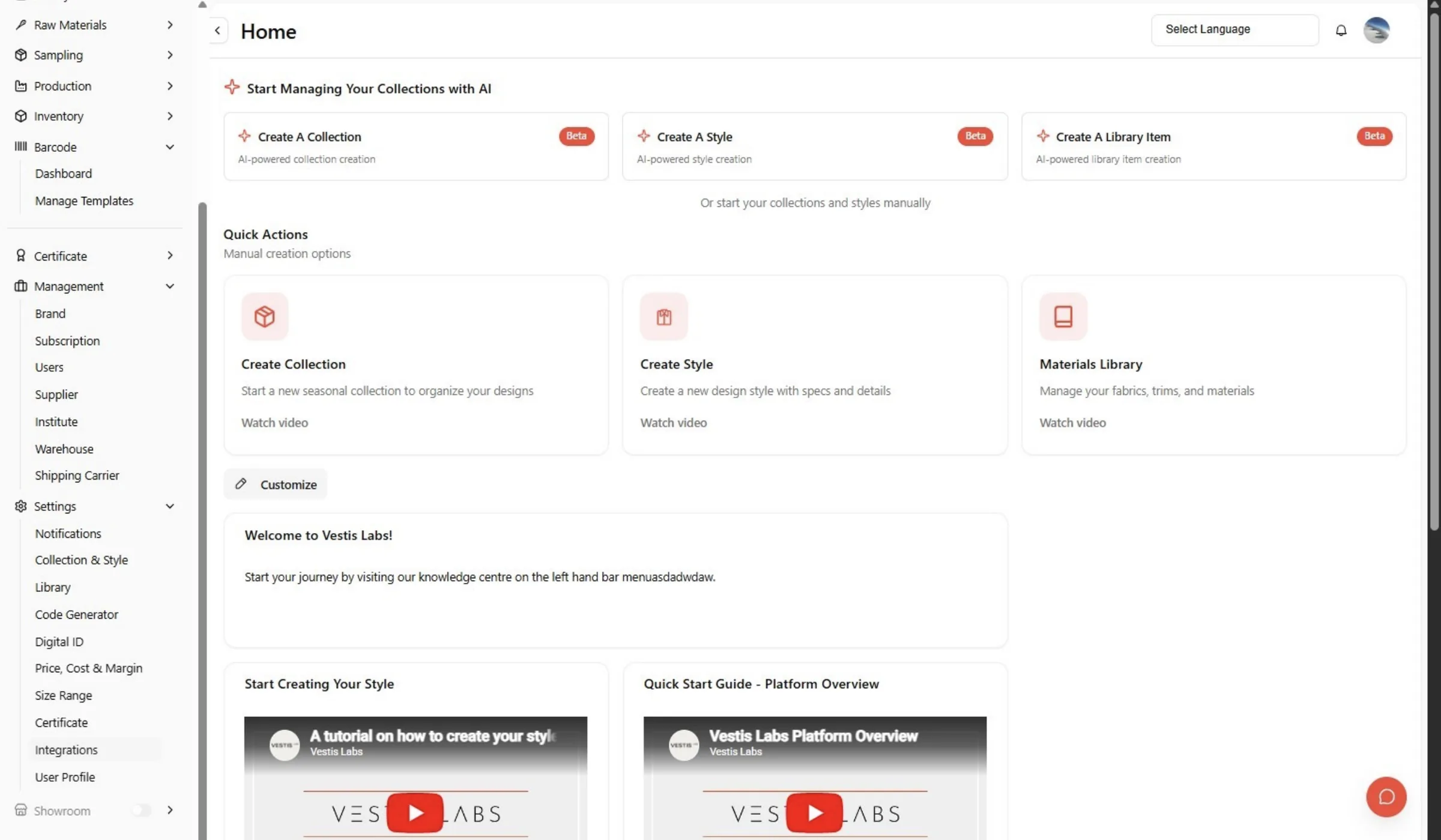
Click "Integrations"
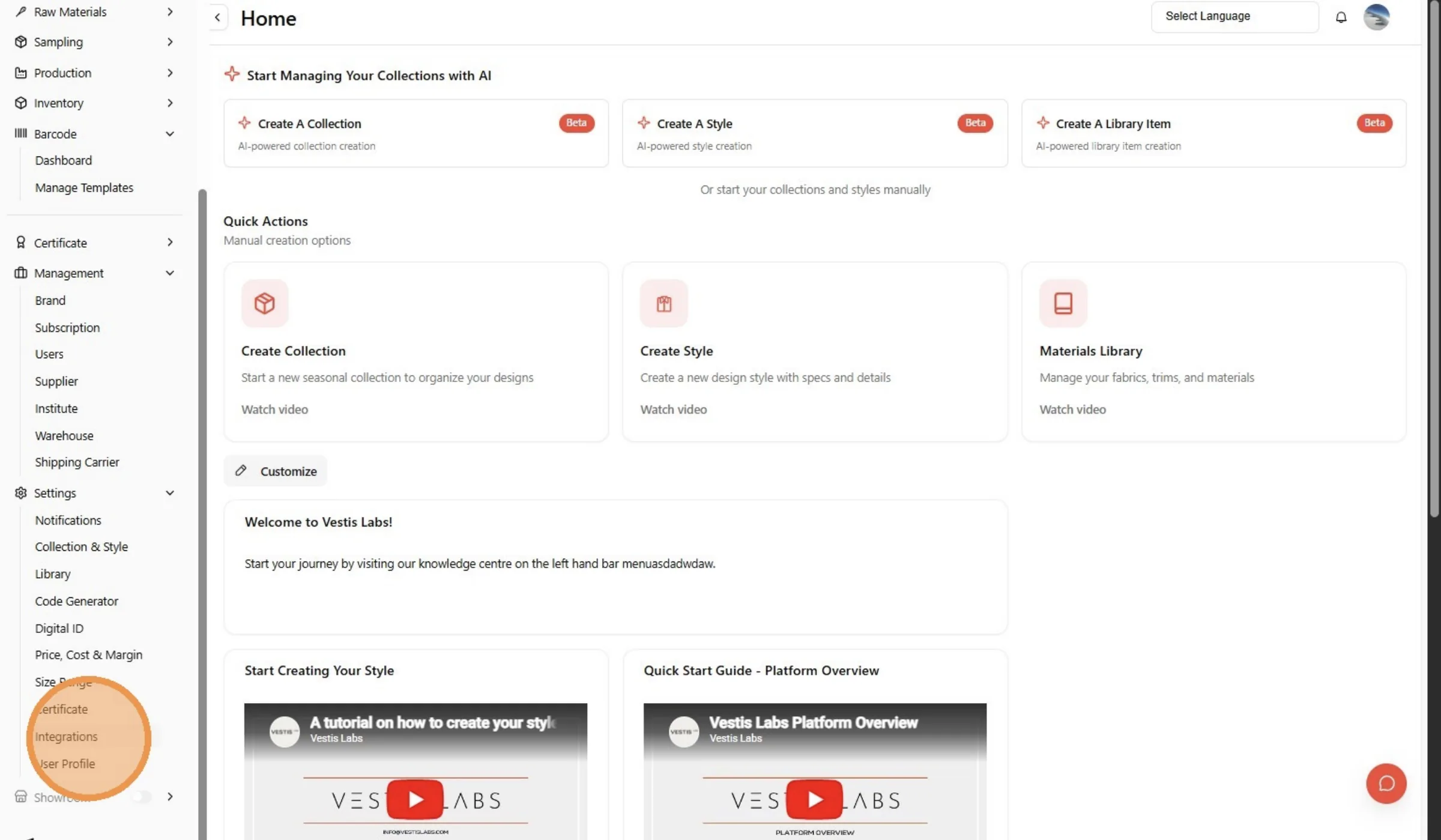
Click the Shopify button.
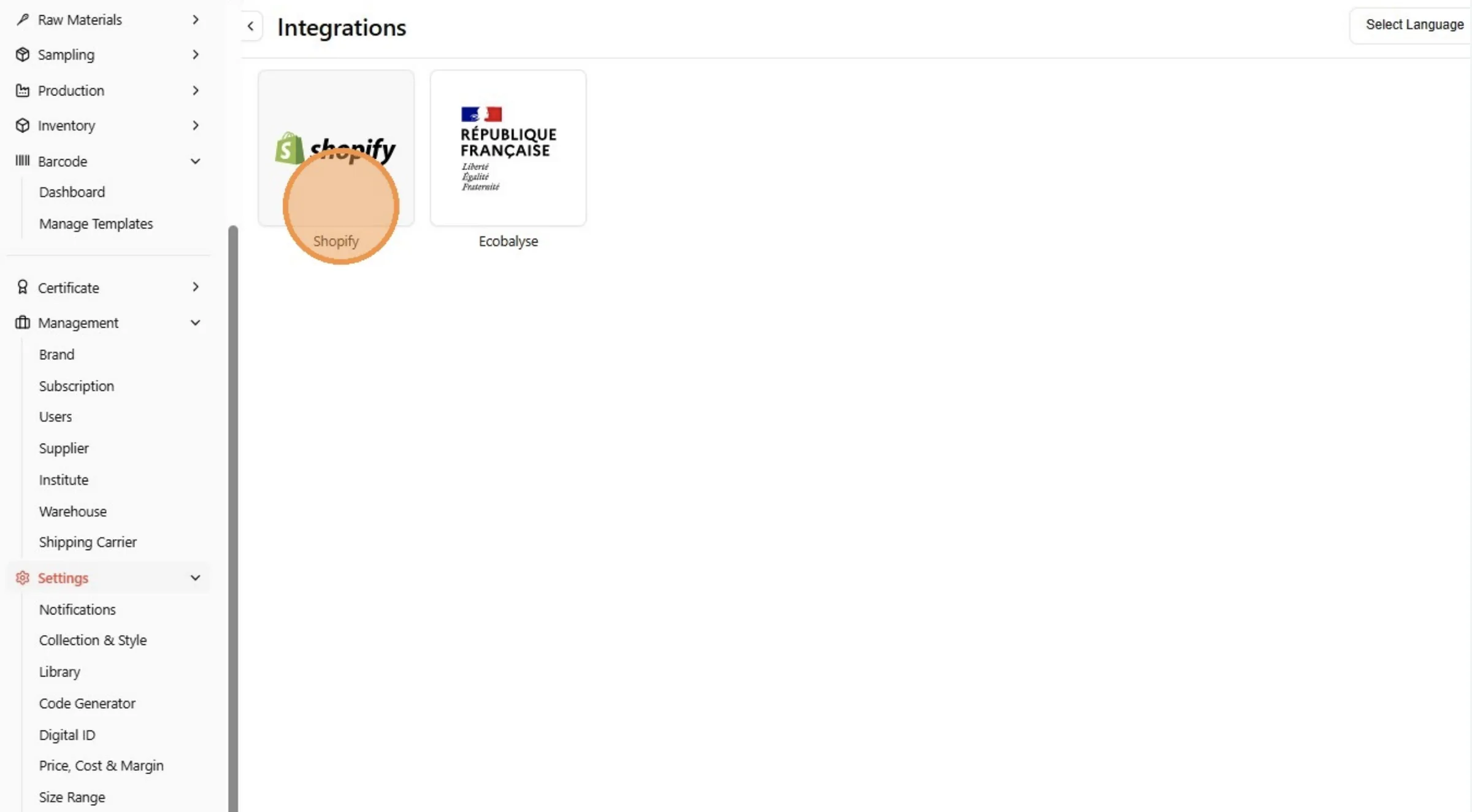
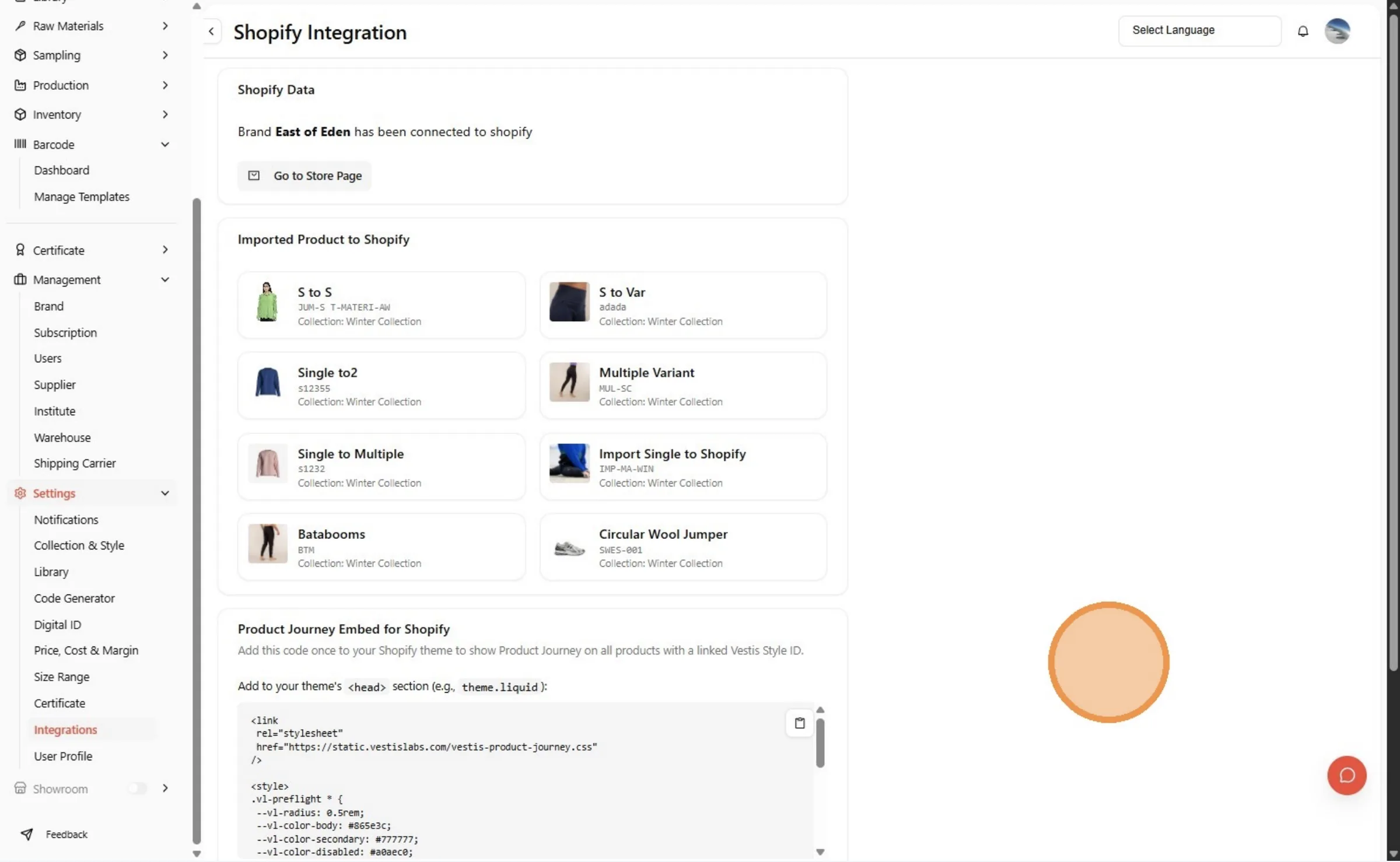
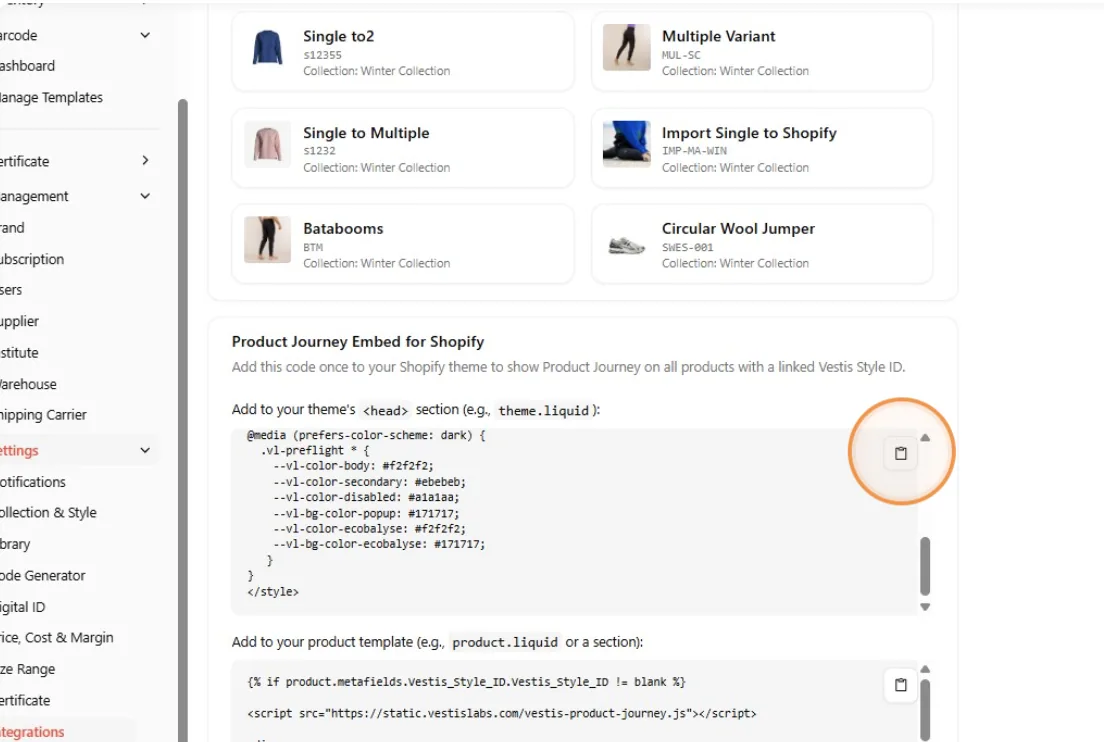
The system will display the integrated Style on this page. From here, you can copy the code to embed the Product Journey into your Shopify store.
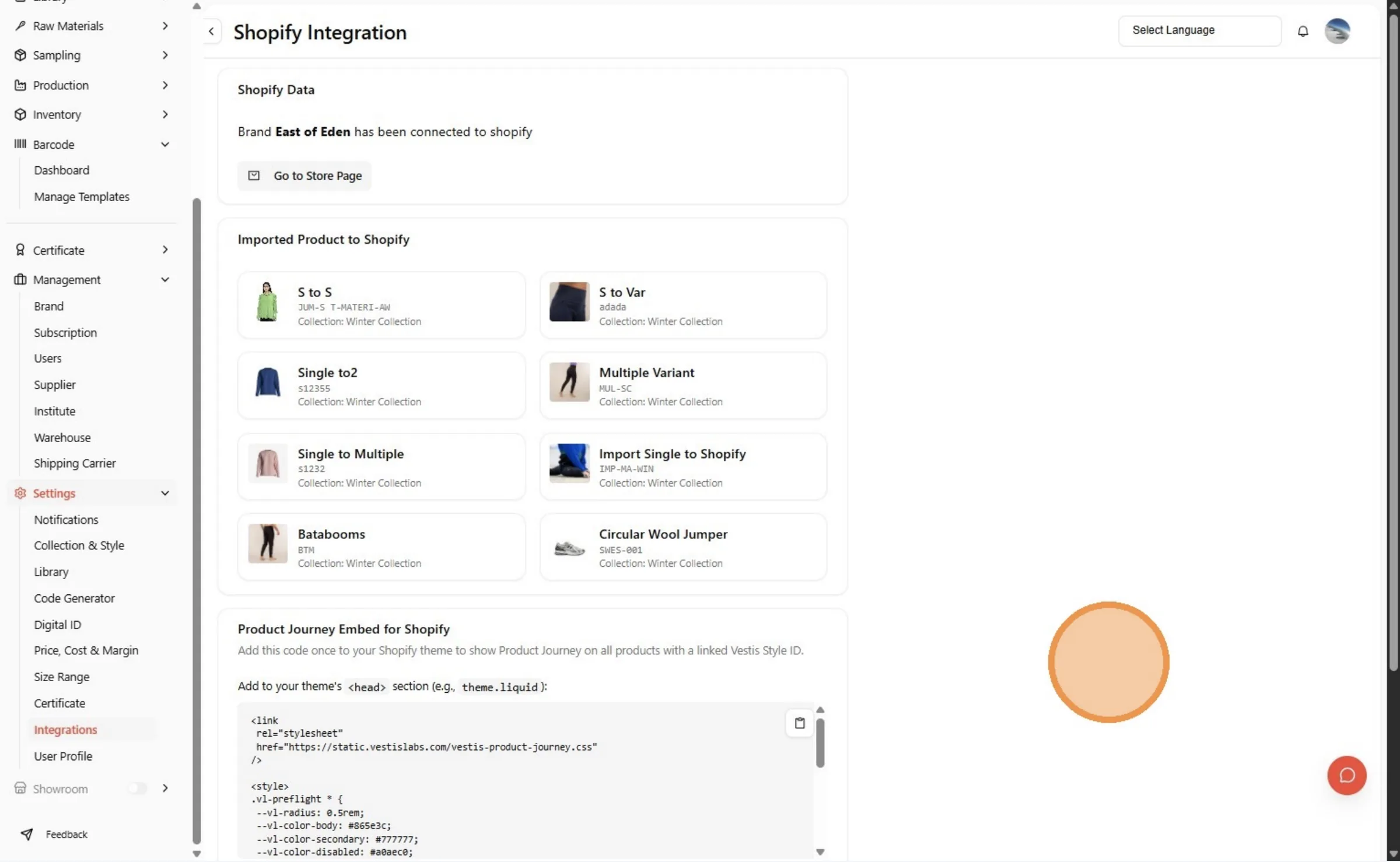
Locate the CSS code on this page, then copy it. You will need this code for the next step.
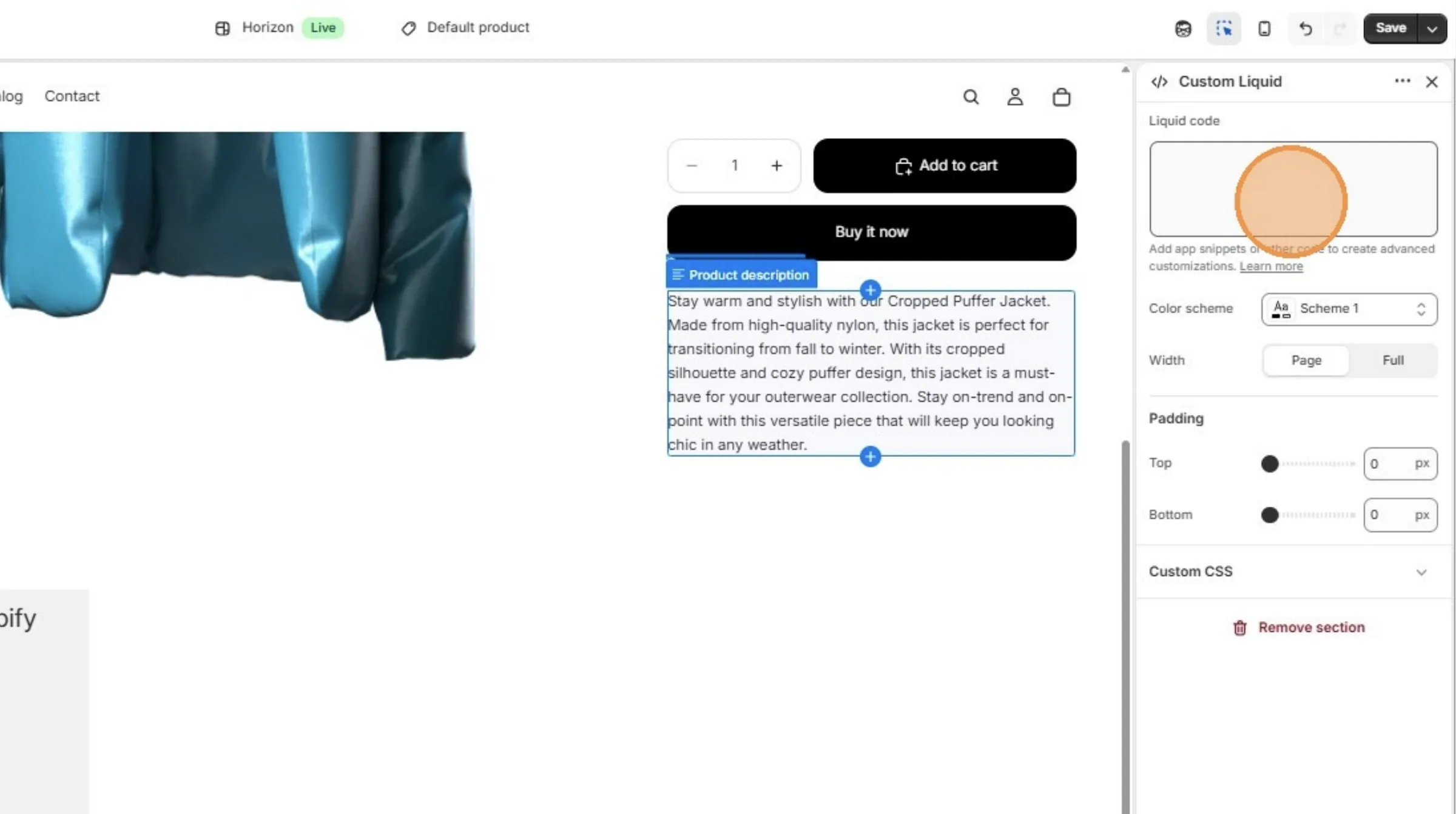
Click the "Liquid code" field.
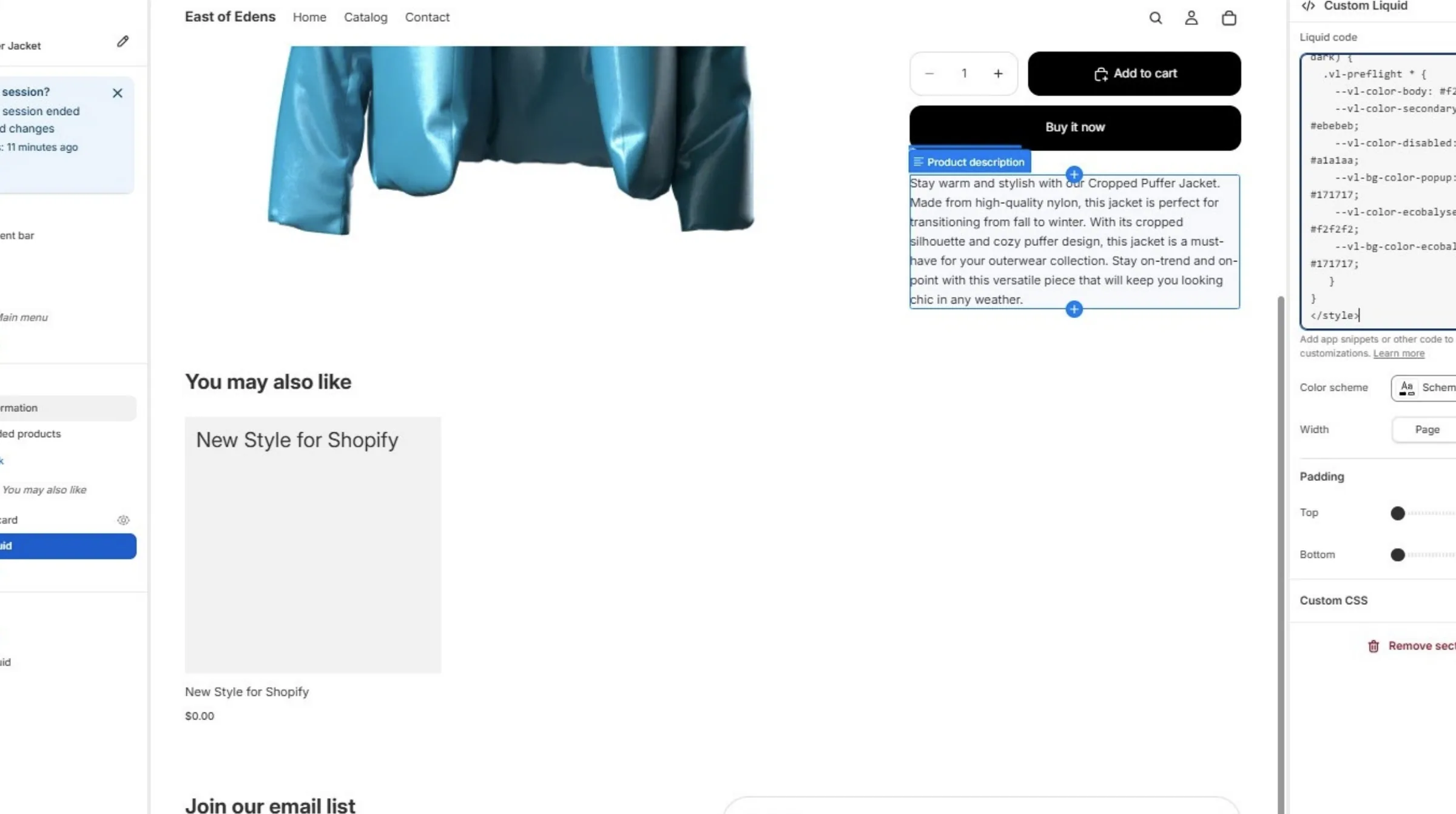
Paste the copied code into the Liquid code field.
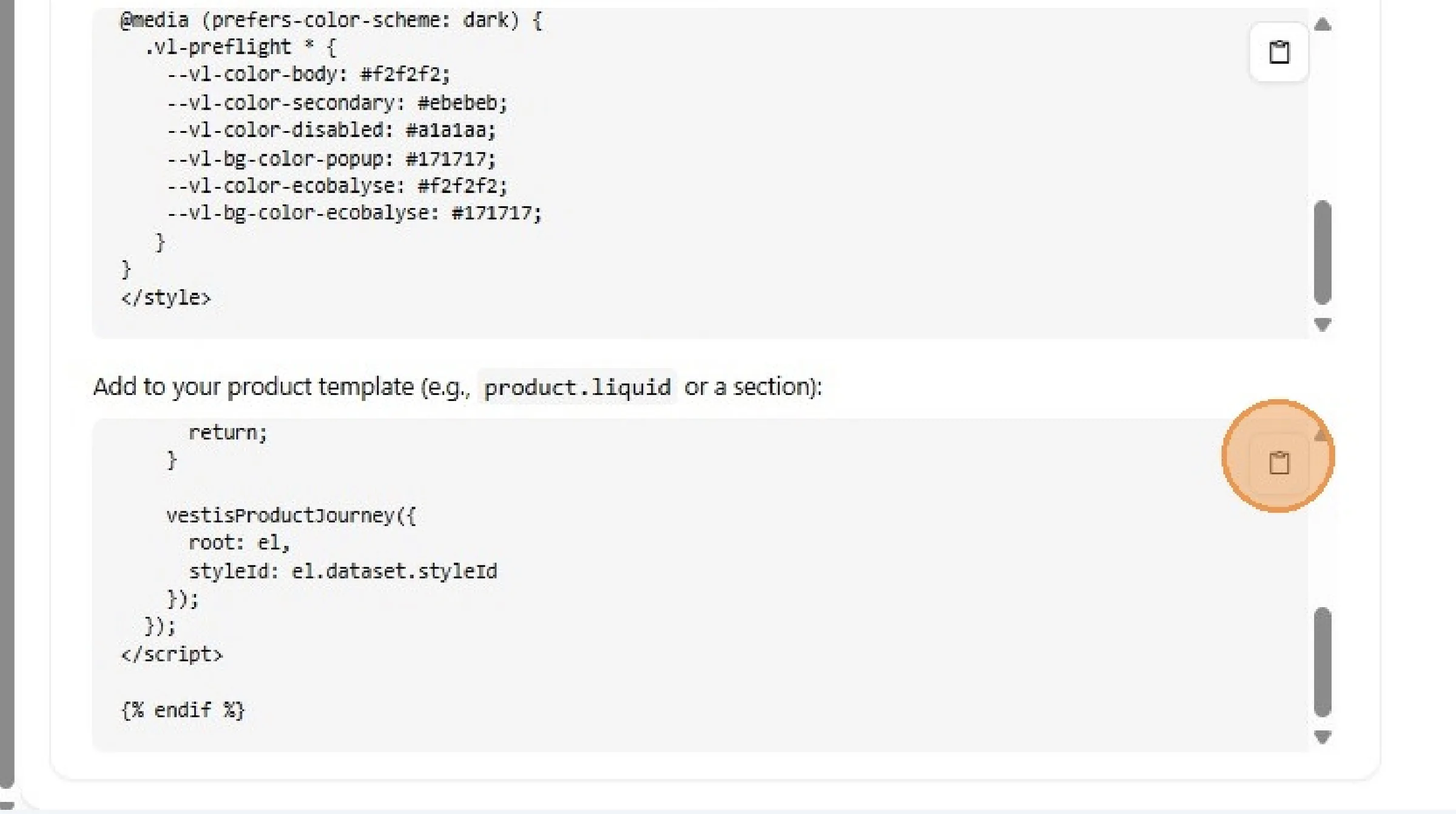
Copy the JavaScript embed code shown on this page.
This code is required to display the Product Journey on your product page.
Click the Liquid code field, then scroll to the bottom of the field.
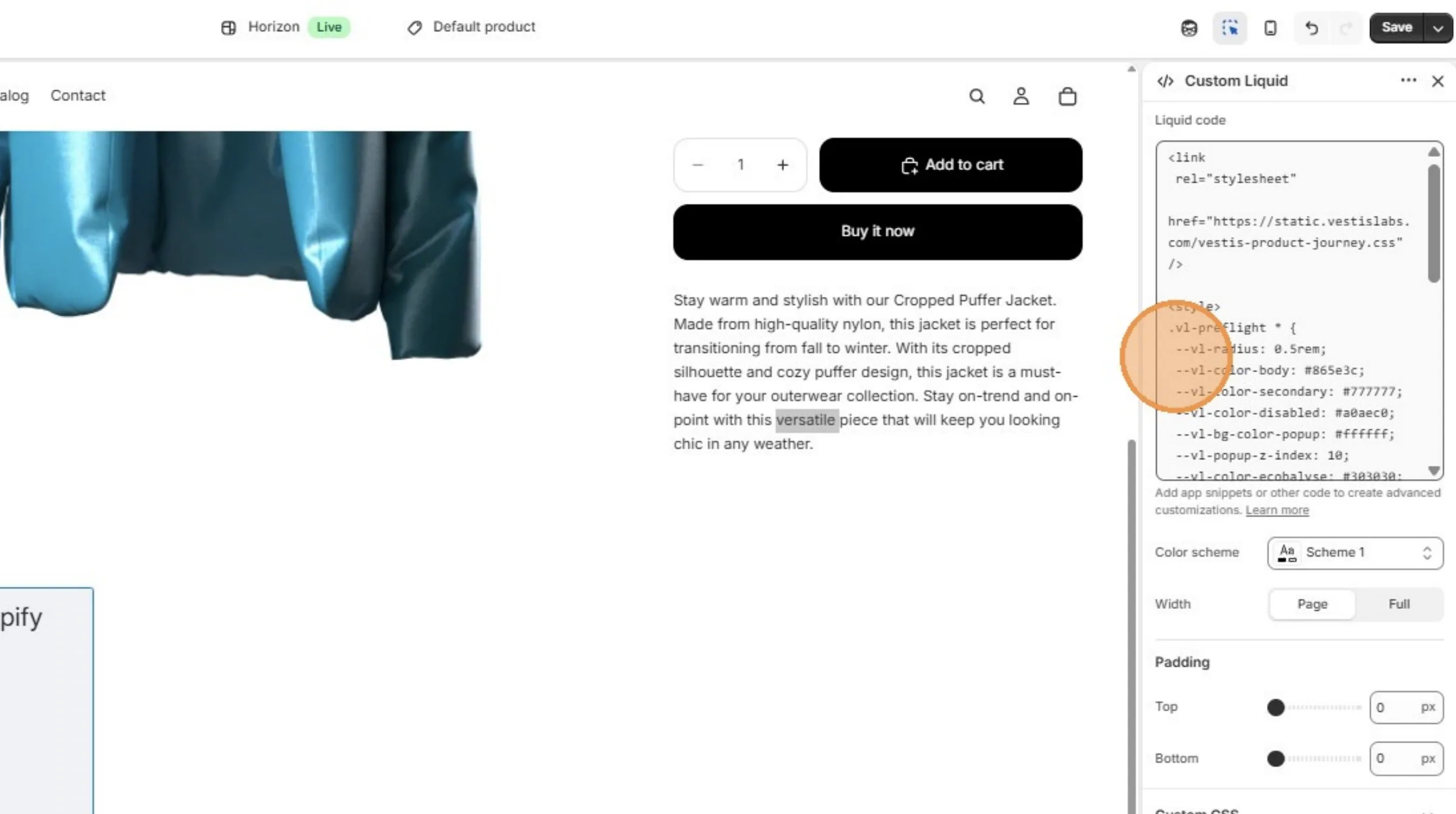
Paste the copied code at the bottom of the Liquid code field.
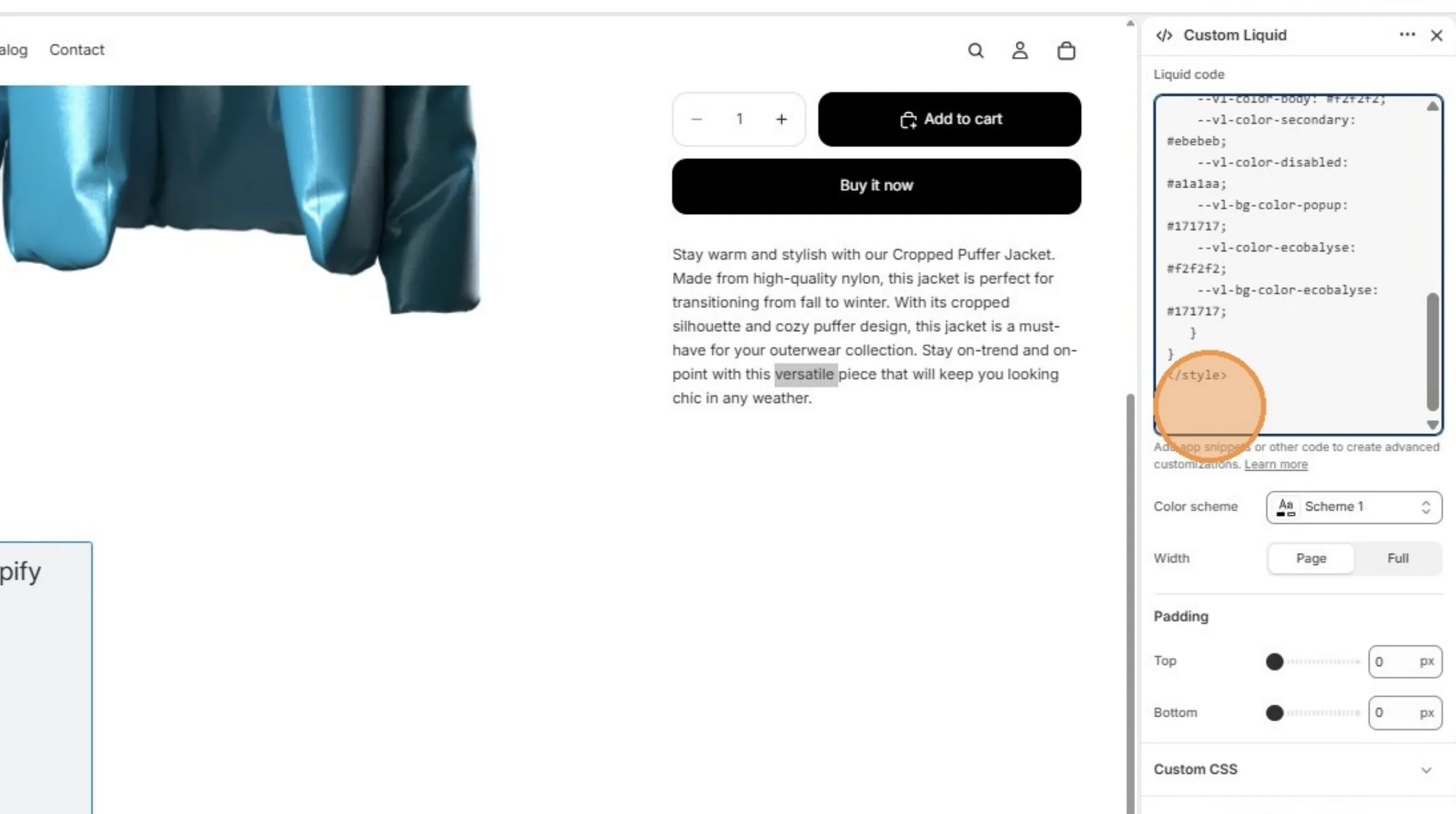
Click Save to apply the changes to your Shopify store.
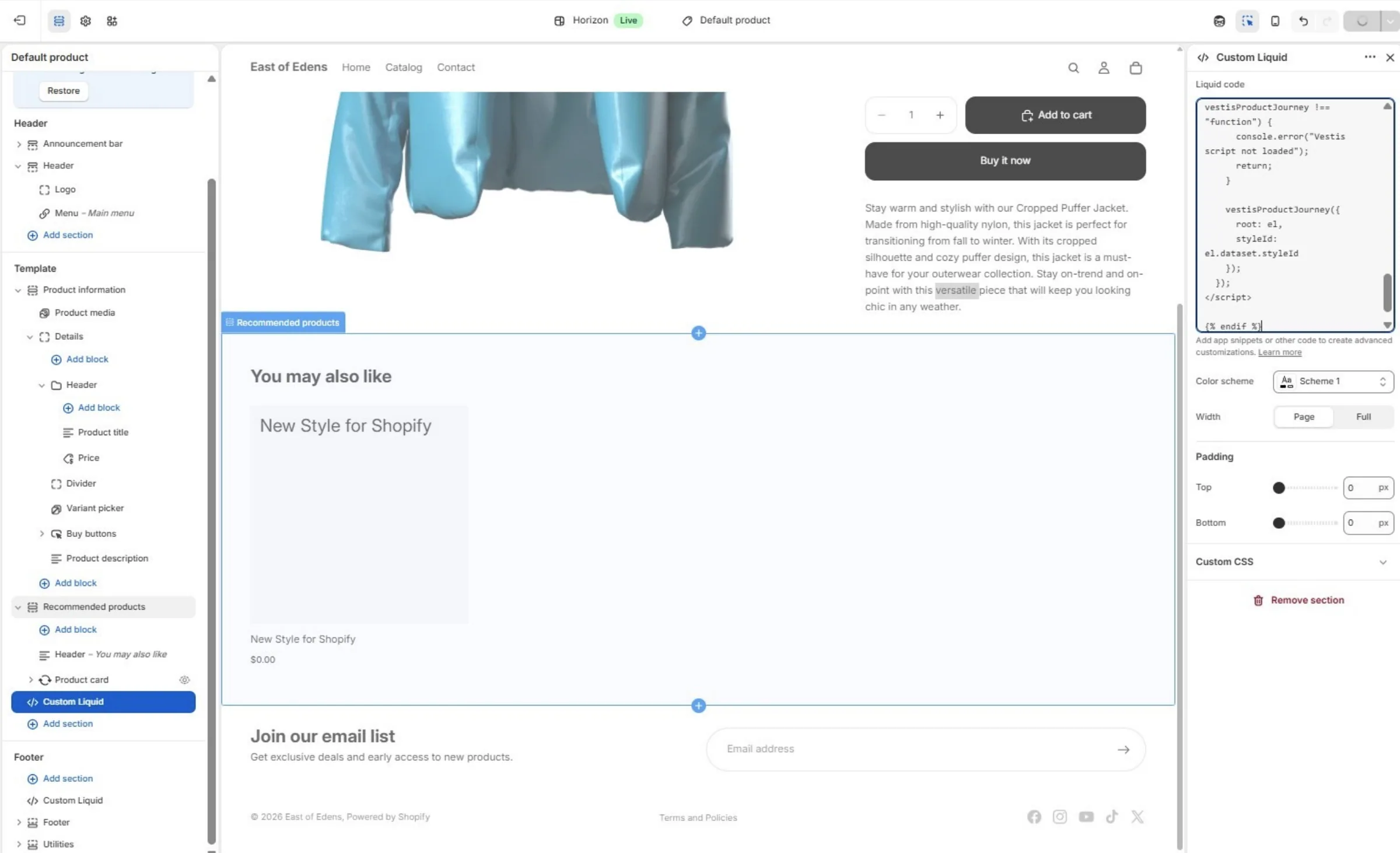
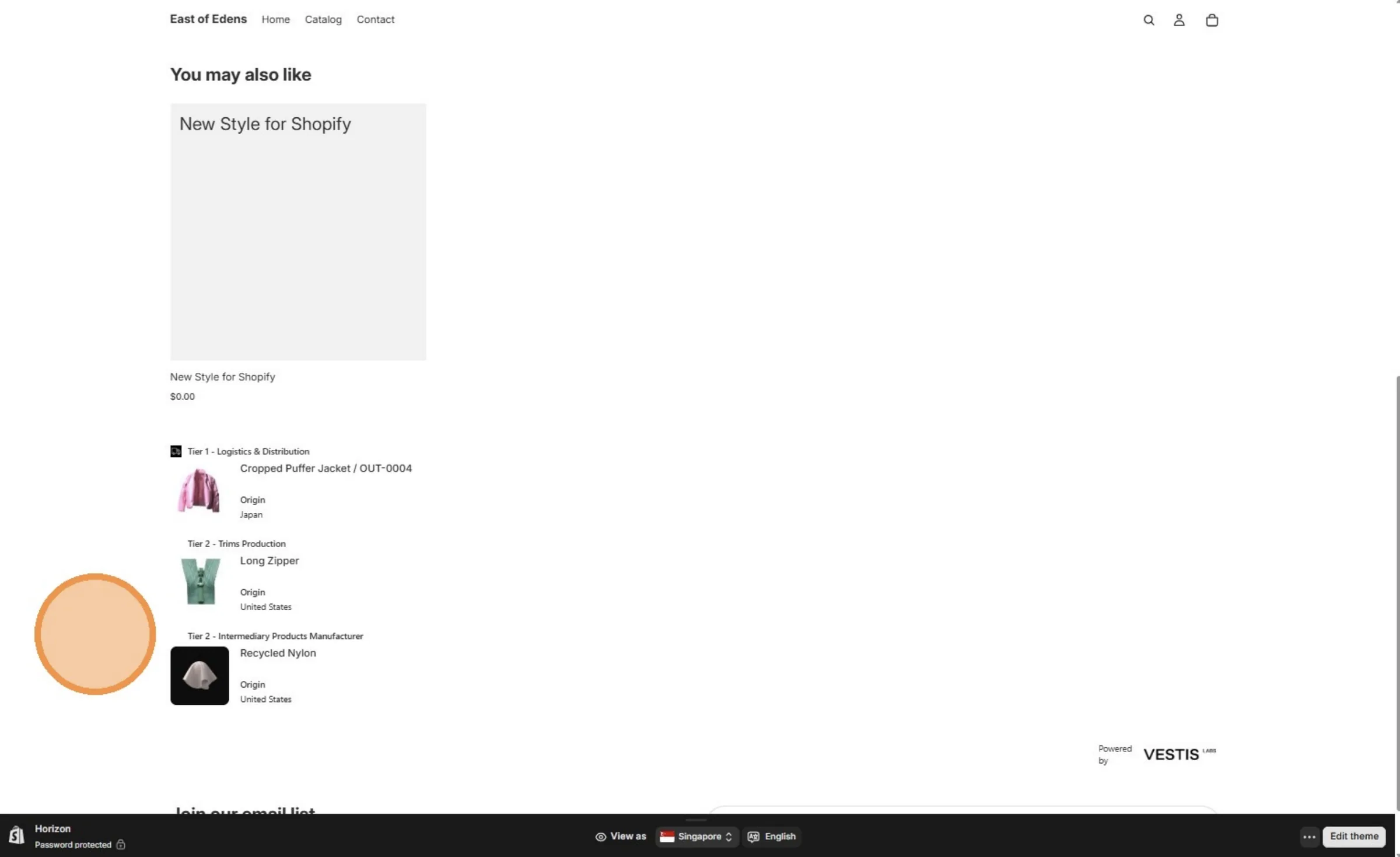
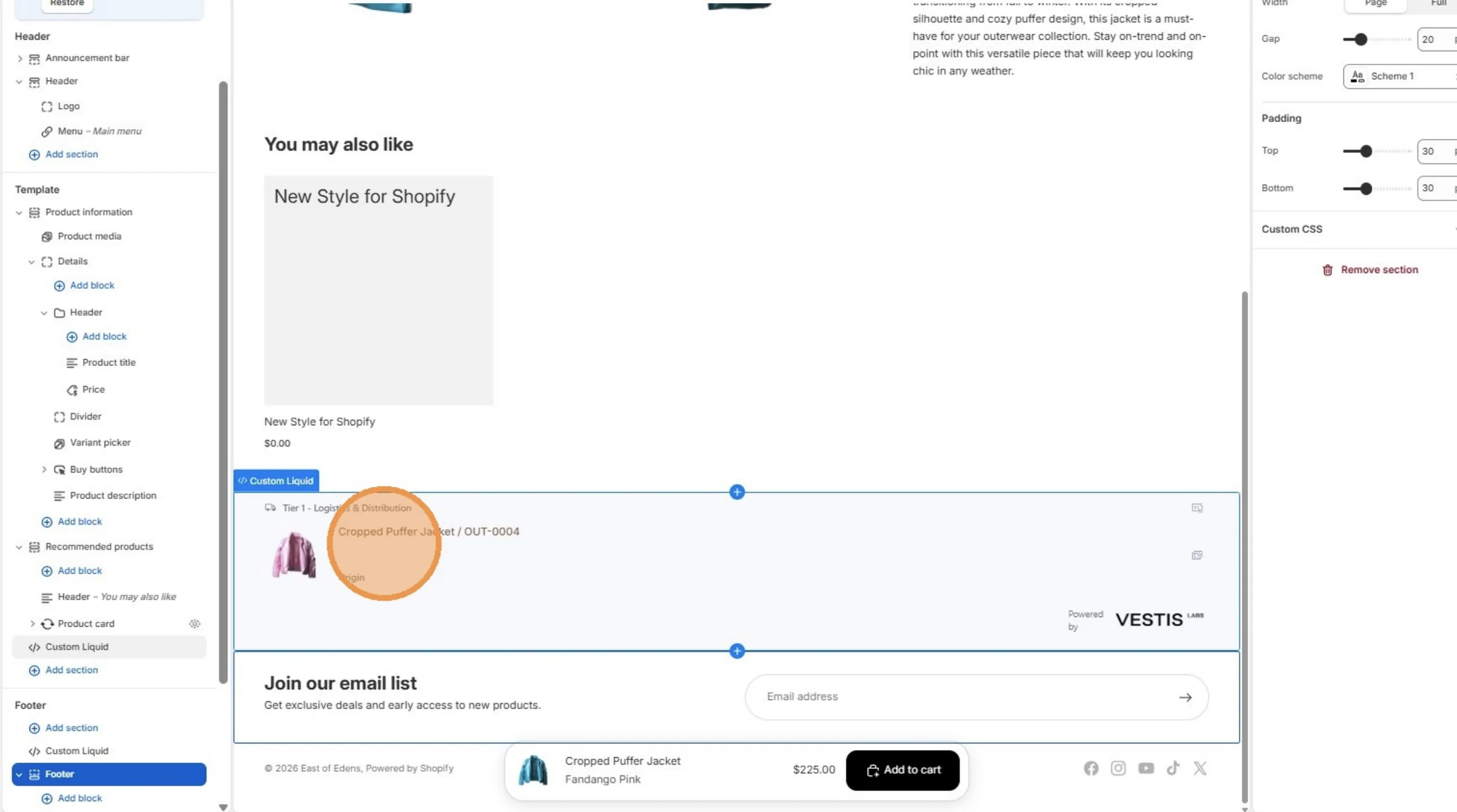
Once saved, you will see the embedded Product Journey preview displayed on the page.
From this page, click View your store to see how your product page appears to customers.
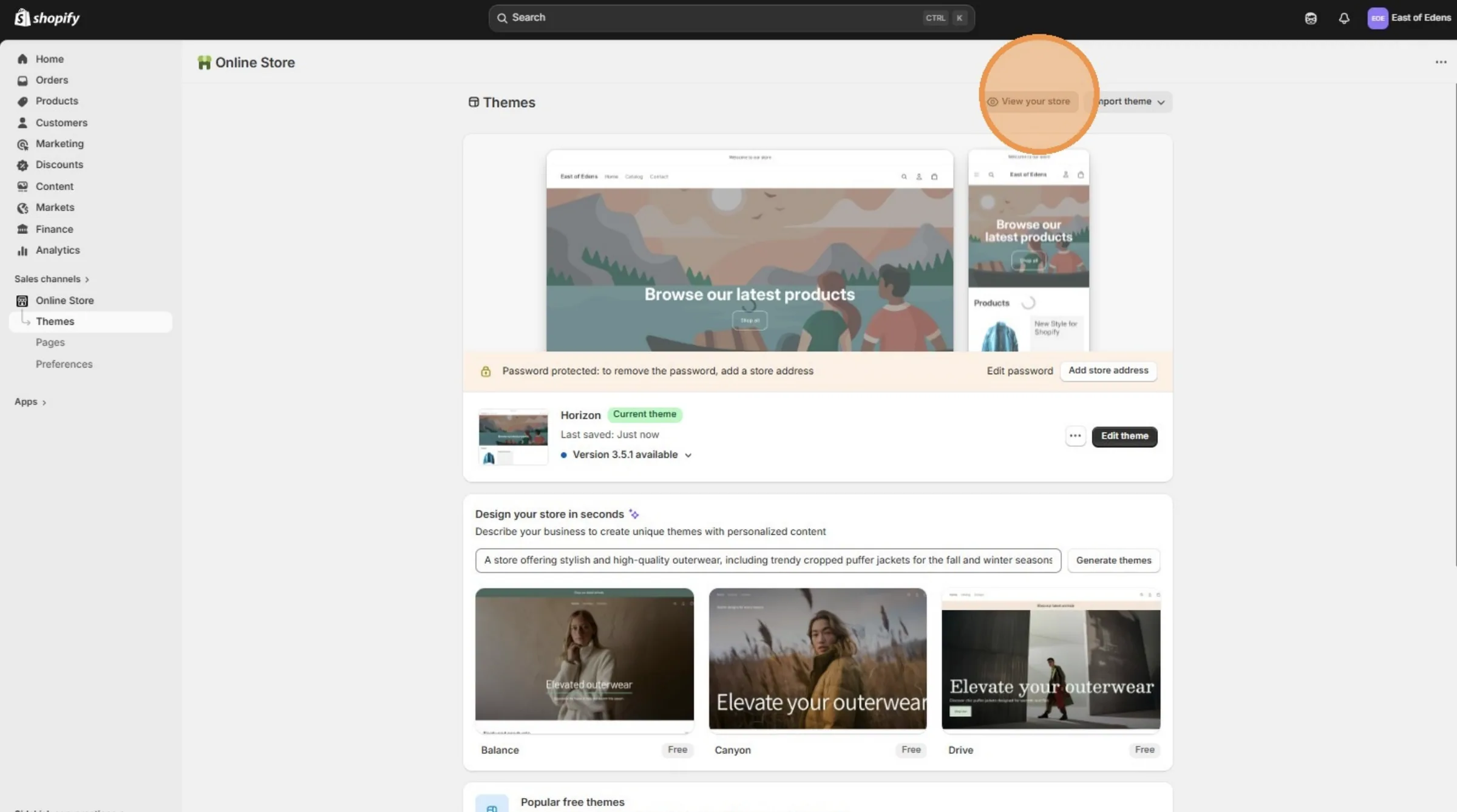
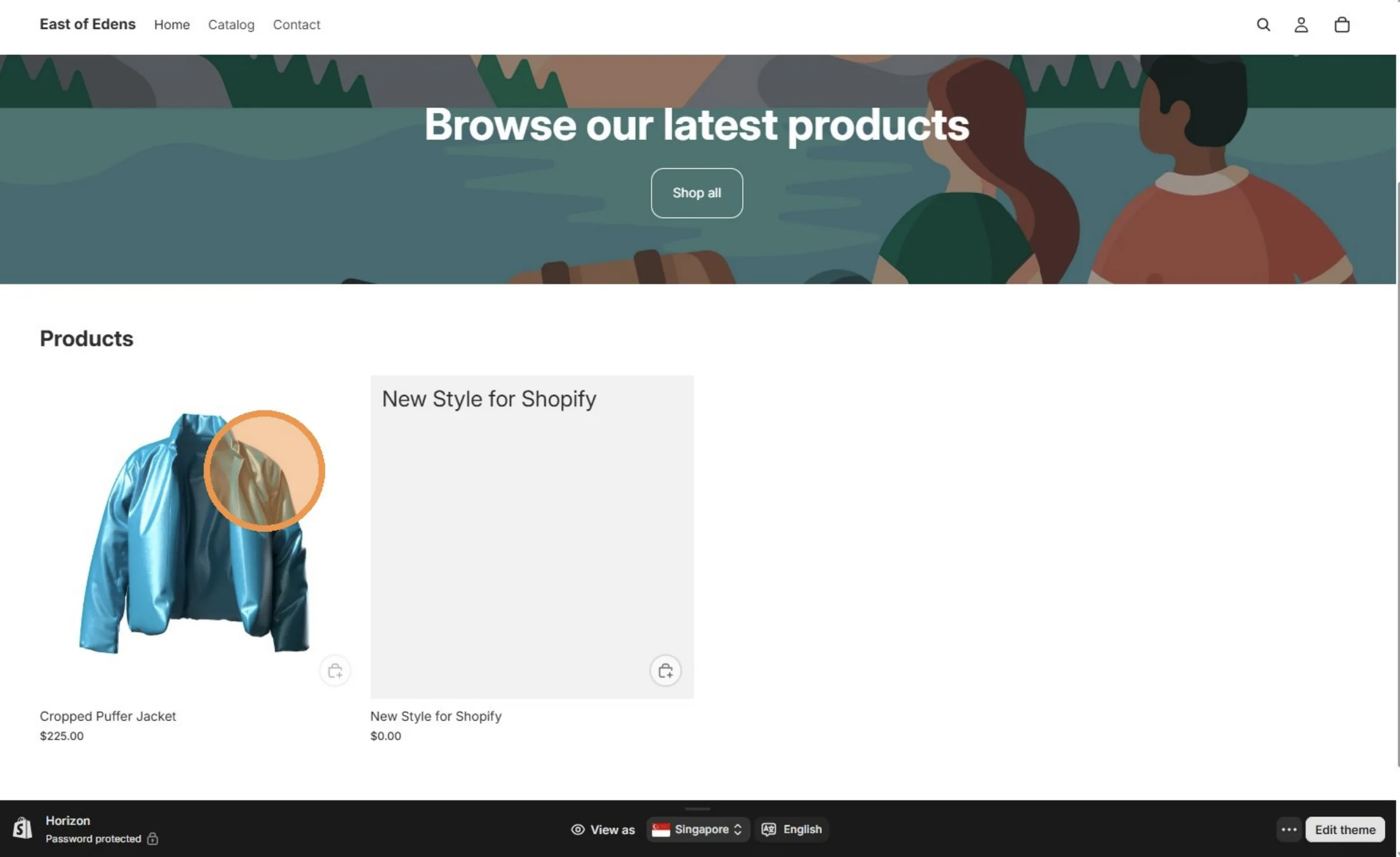
Select a product that has been integrated with Shopify and has a Vestis Lab ID.
Scroll down to the bottom of the product page to locate the Product Journey section.
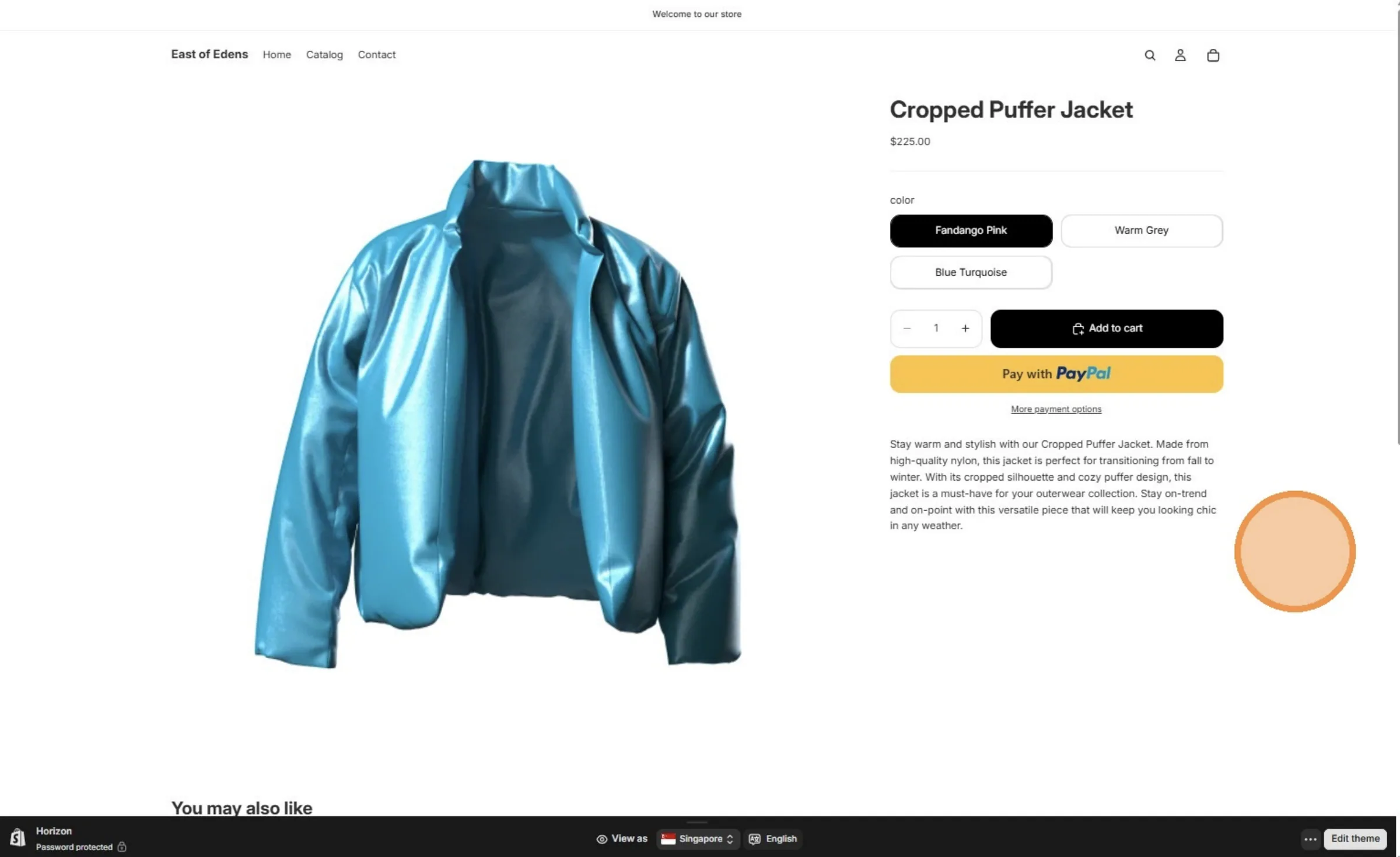
Scroll to the bottom of the page and confirm that the Product Journey is displayed, indicating a successful embed.