
Collection page overview
The Collection Page stores all the information related to the Collection created in Vestis Labs.
Under review. This page is published while we check it against the live app, so some details may have changed.
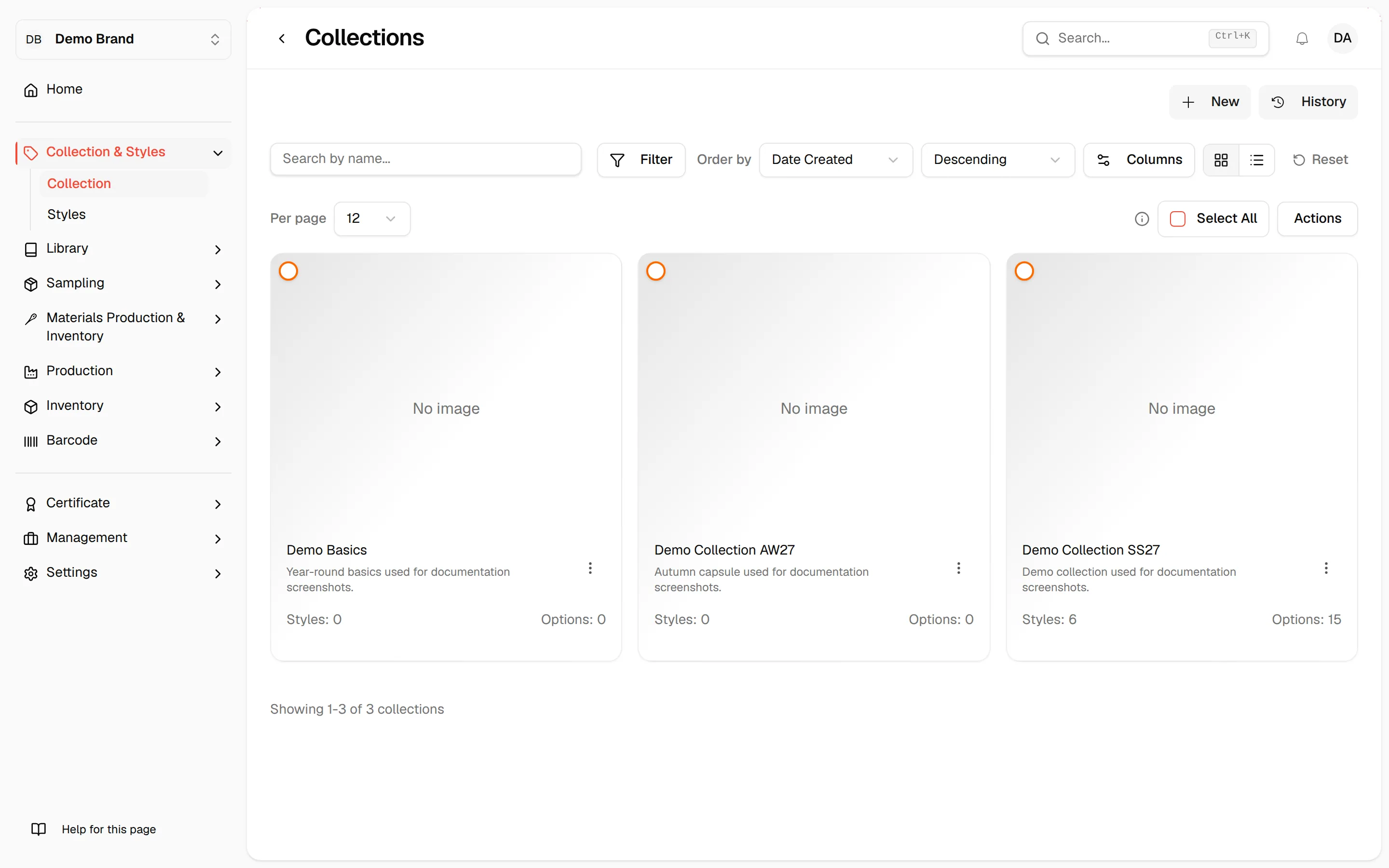
Collection & StylesCollection
Permission: VIEW_COLLECTION
Use the Filters Feature based on the Sales or Delivery Window, Seasons, and Collection Attribute, or use the sorting options by Name, Date Created, or Last Modified to be Descending or Ascending next to Order by in the toolbar to locate a Collection.
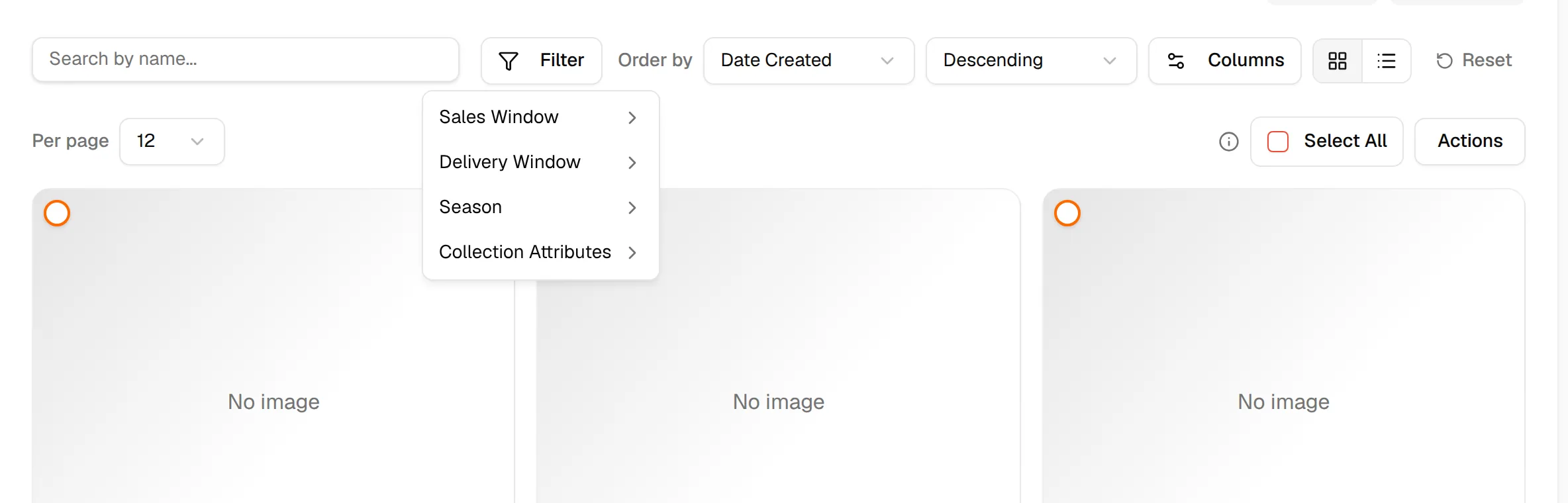
Search by name: Enter the name of your collection in the field to locate a specific Collection.
Reset: All the Filter features will be reset to the default.

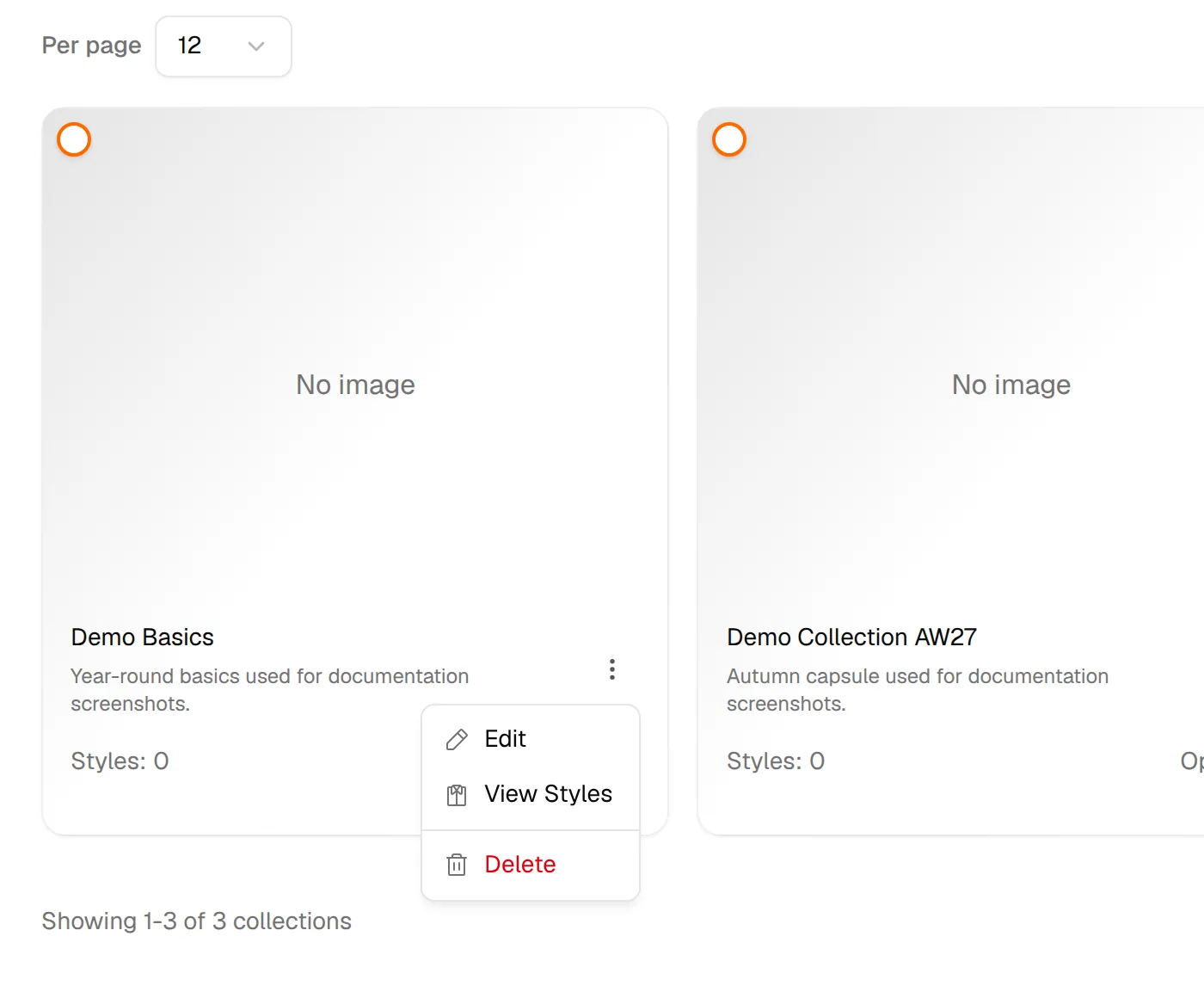
Three dots Action Button represents actions that can be performed by Users. Users can select an action for the selected collection to Edit, View Styles, or Delete.
History: All the activities of users on the collection page will be recorded in this section.
+New: Create a New Collection

Create New With AI: Create a new collection with AI assistance. This button only appears when the AI feature is enabled for your brand.
Users can select all collections to export the data to Excel.

Switch between card view and table view
Use the two buttons next to Reset to choose how collections are listed. Card view shows each collection as a card with its cover picture, name, short description and the number of Styles and Options (style colour options). Table view shows one row per collection.
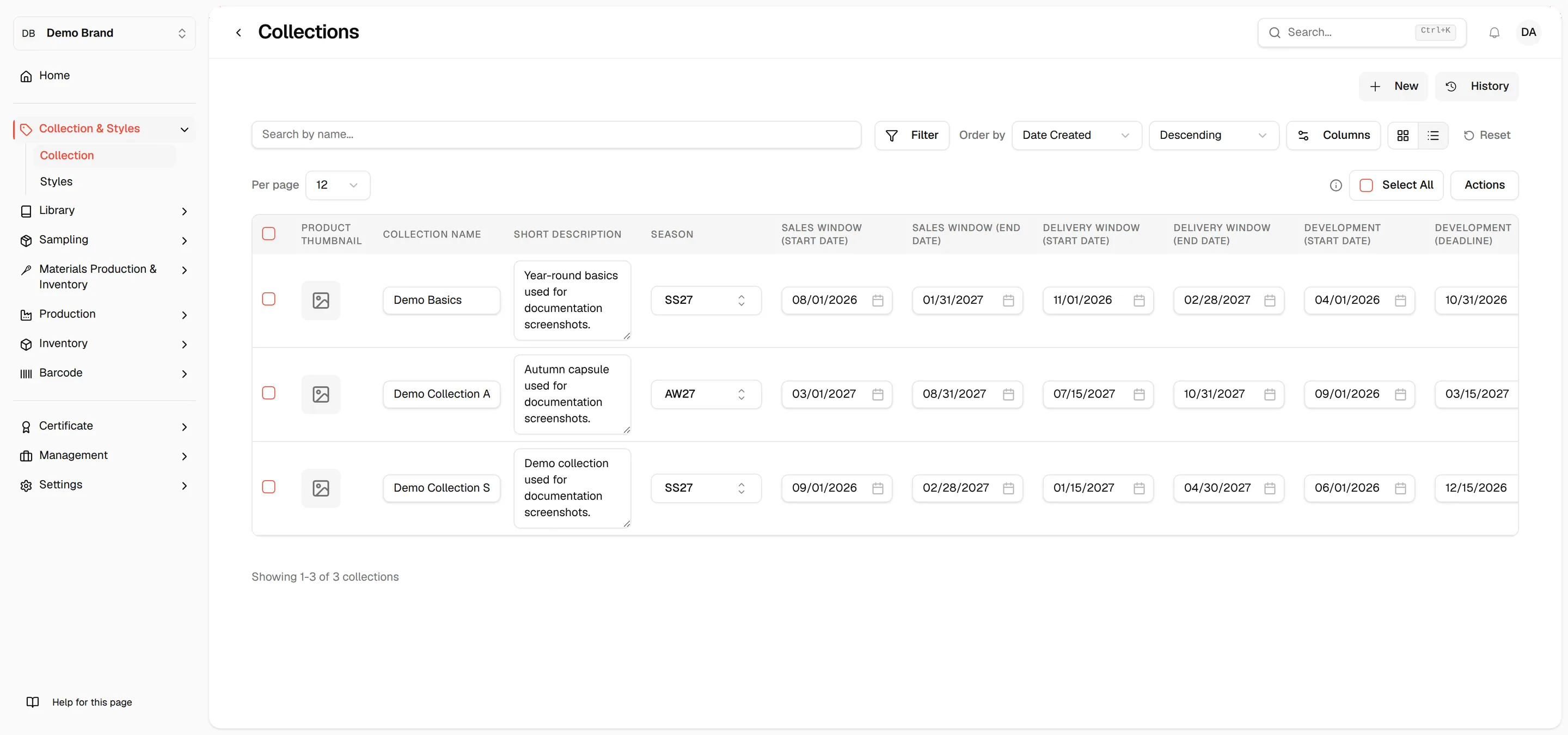
Click a card's cover picture, or the collection name in table view, to open the styles inside that collection.
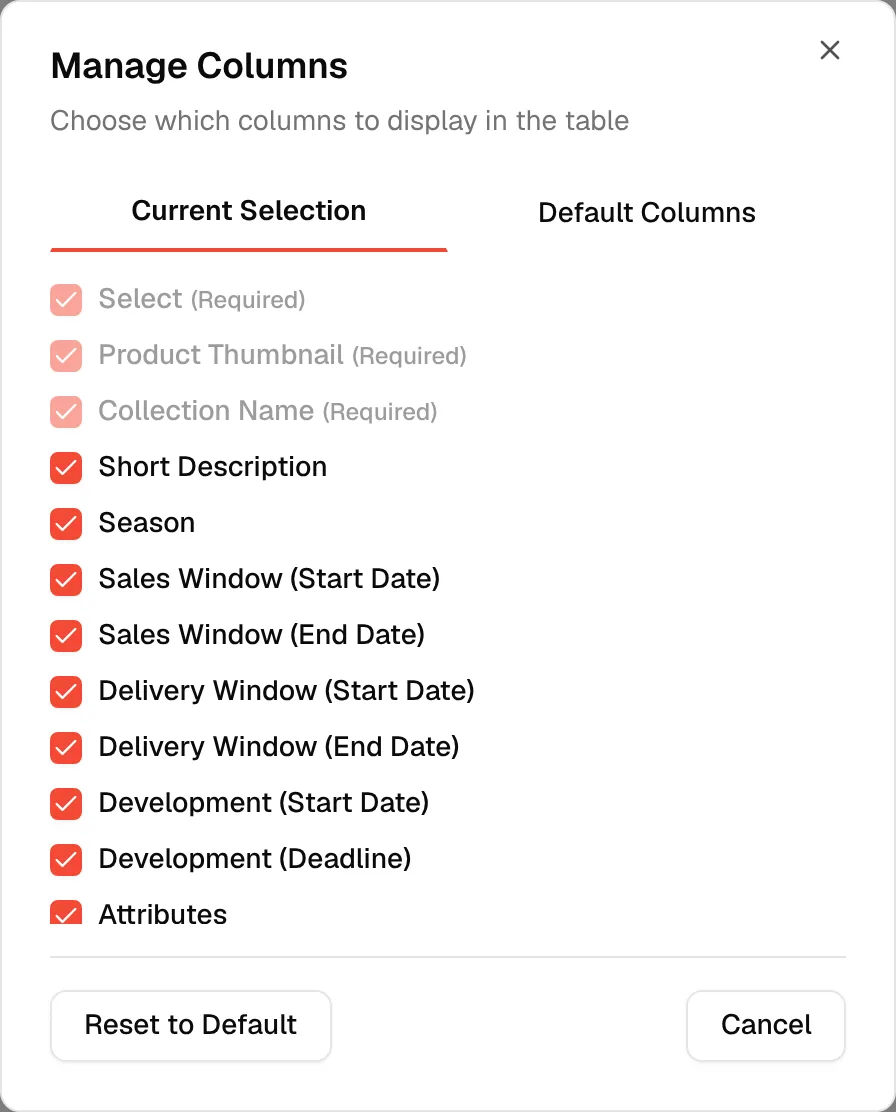
Choose the columns in table view
If you have permission to update collections, a Columns button appears next to the view buttons. It opens Manage Columns with two tabs.
- Current Selection: tick the columns you want to see. Columns marked (Required) cannot be turned off.
- Default Columns: choose the layout that new users start with.
Available columns are Product Thumbnail, Collection Name, Short Description, Season, Sales Window (Start Date), Sales Window (End Date), Delivery Window (Start Date), Delivery Window (End Date), Development (Start Date), Development (Deadline), Attributes, Number of Styles, Number of Style Color Options and Currency List. Click Reset to Default to go back to the default layout.
Collection limit
Your plan sets how many collections you can have. When you are one collection away from the limit, a Collection limit almost reached message appears, and at the limit the New button is disabled and a Collection limit reached message appears with a link to upgrade your plan.
Note
If you have more collections than the limit allows, the page shows Collection limit exceeded. Delete collections or upgrade your plan to manage them.
Per page
Above the list, Per page lets you show 12, 24 or 48 collections, or All.
Export collections to Excel
Click Select All (or tick individual collections), then click Actions → Export Excel. When some collections are selected the menu item reads Export with the number selected, and only those collections are exported. With nothing selected, the export includes every collection.
When there are no collections
A new account shows No collections created with a New button (if you may create collections).