
The purchase order document
Read what a purchase order document contains and print it or save it as a PDF to send to your supplier.
The purchase order document is the printable page you send to the supplier. It opens in its own browser tab, on a white page, and shows the order as it was when the purchase order was issued.
ProductionOrder Managementthree-dot menuPurchase Ordersthree-dot menuView / Download
Permission: VIEW_BRAND_PRODUCTION
Open the document
Open the purchase orders
On the Production Orders page, select the three-dot action button on the order's row and click Purchase Orders, or use the Purchase Order tab of the order.
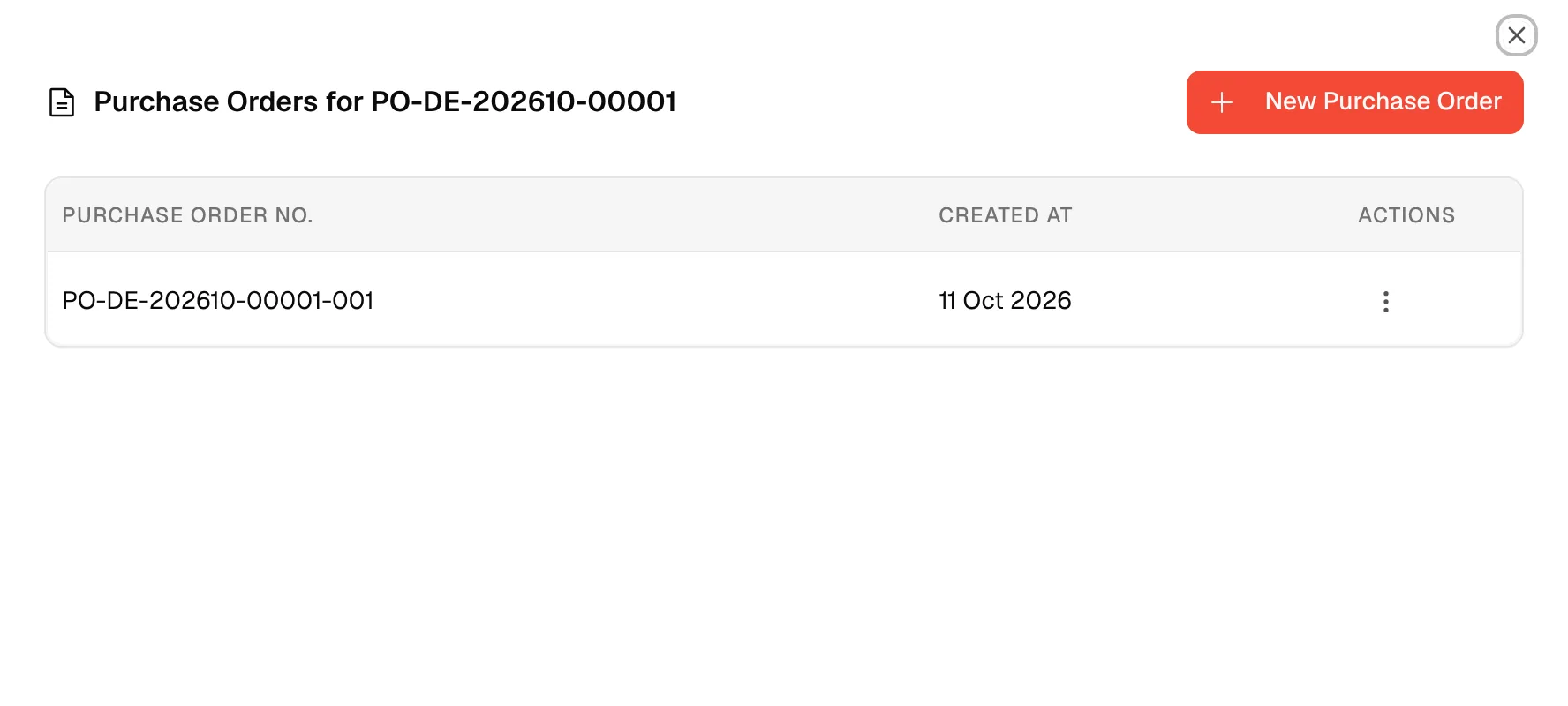
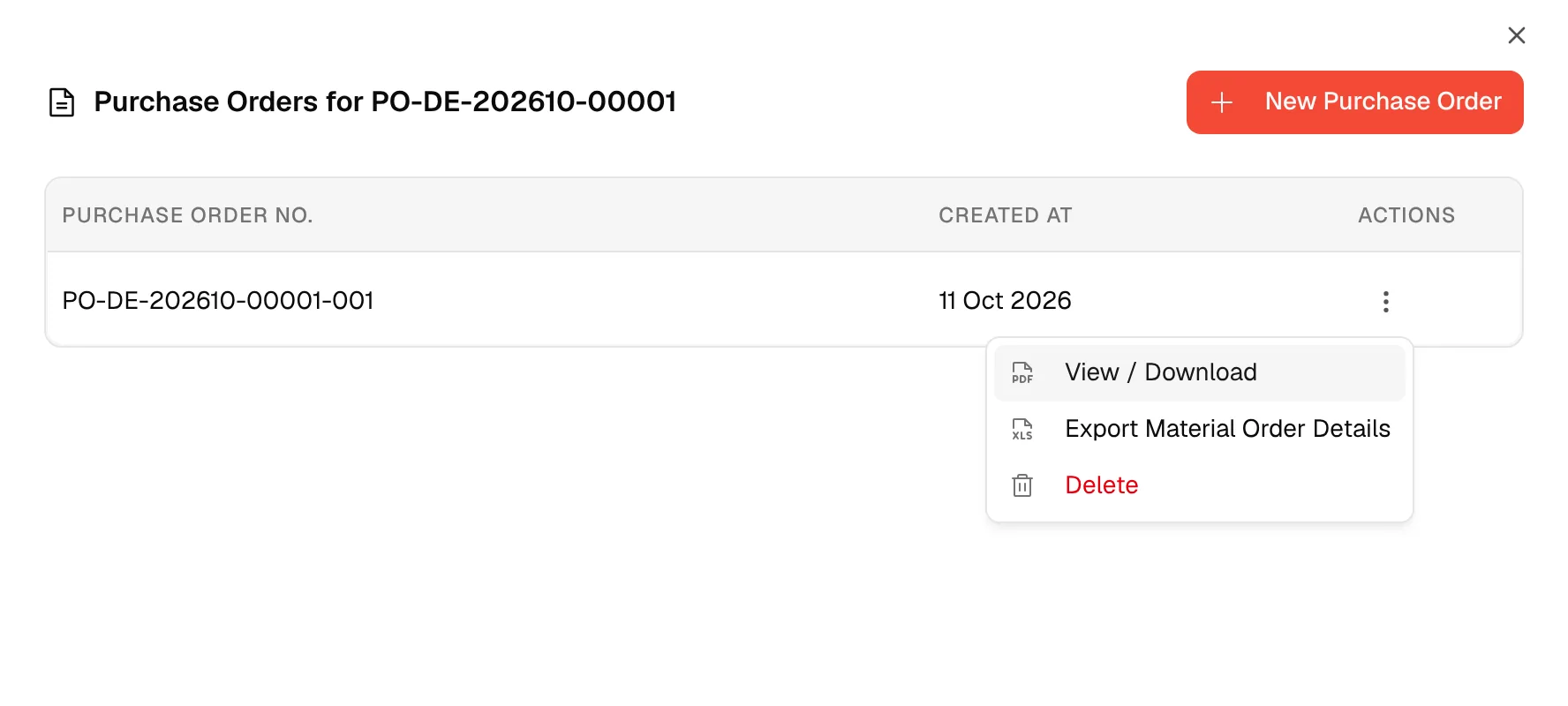
Click "View / Download"
Select the three-dot action button of the purchase order and click View / Download. The document opens in a new tab.
Print or save as PDF
Click the round printer button at the bottom right of the page. In the print window of your browser, choose a printer, or choose to save as PDF.
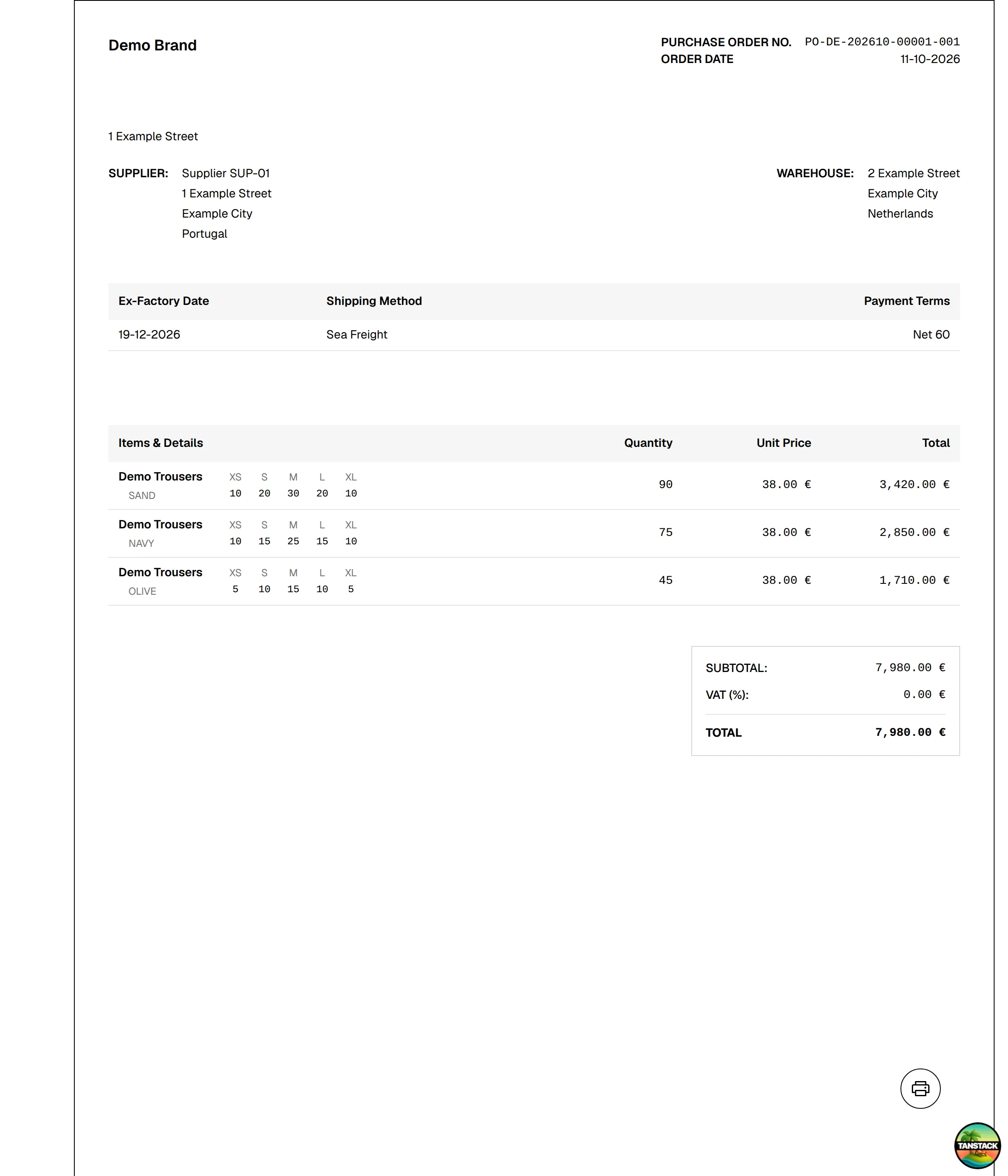
The printer button is not part of the printed page.
What the document contains
| Section | What it shows |
|---|---|
| Header | Your brand logo and name, the Purchase Order No. and the Order Date |
| Brand address | The address saved for your brand (first page only) |
| SUPPLIER | The supplier's name, address, city, post code and country (first page only) |
| WAREHOUSE | The delivery address: address, city, post code and country (first page only) |
| Shipping information | Ex-Factory Date, Shipping Method and Payment Terms; N/A when a value is empty (first page only) |
| Items & Details | One line per style and colour with its picture, name, colour and the quantity for each size, followed by Quantity, Unit Price and Total |
| Totals (last page) | SUBTOTAL, SHIPPING COST (only when the order has Add Shipping Cost on PO? turned on), VAT with its percentage, and TOTAL |
Sizes with a quantity of zero are left out of the line. Each page is A4 portrait, holds up to ten lines, and shows Page 1/n at the bottom right.
Note
The prices and quantities are the ones on the order when the purchase order was created. Reprinting a purchase order later gives the same figures even if a style's cost has changed since. To change them, edit the order and create a new purchase order.
If the document does not load
If the purchase order or your brand cannot be loaded, the page shows Error and "Unable to load required data for print view."