
Step 7 of 12 in Stock materials and finished goods
Inventory stock overview
The Stock Overview page allows you to manage and track inventory levels in detail.
Under review. This page is published while we check it against the live app, so some details may have changed.
Screenshots may be out of date.
The Stock Overview page allows you to manage and track inventory levels in detail. You can view available, reserved, and incoming stock by SKU or style, along with stock values, locations, suppliers, and last updated timestamps.
InventoryStock Overview
Permission: VIEW_STYLE_INVENTORY
- Use the search bar (Search by name, style code, or SKU) to find items by product name, style code, or SKU.
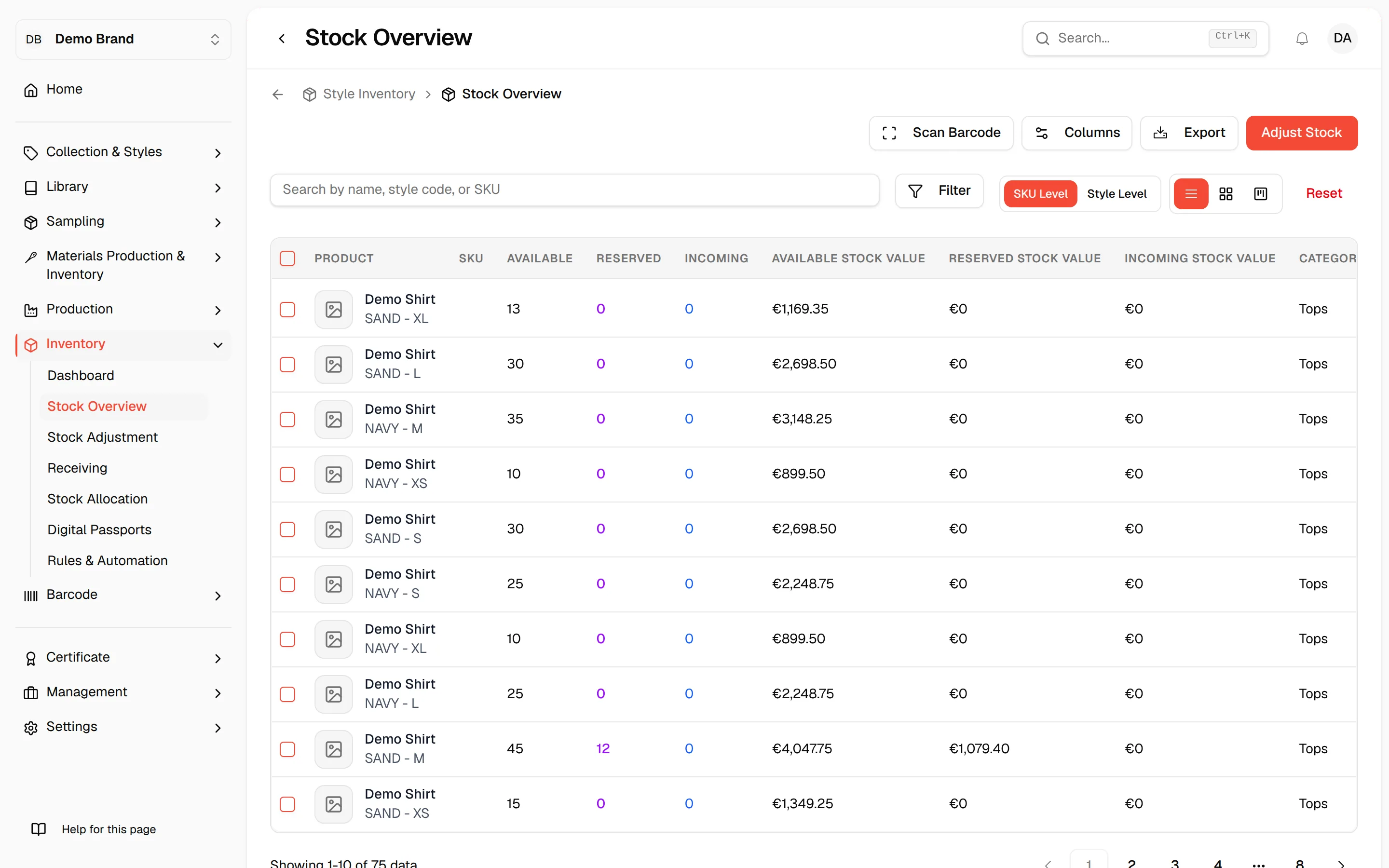
- Switch between SKU Level or Style Level views.
The SKU Level view allows you to manage inventory at the most detailed level. Each SKU defined by specific attributes such as size, color, or variant is treated separately. This view is ideal for setting precise stock rules, tracking exact quantities, and making allocation decisions that depend on variant-level availability.
The Style Level view provides a higher-level overview by grouping all related SKUs under a single style. Inventory quantities are aggregated across variants, making it easier to monitor overall stock, plan production, and define rules that apply to an entire product style rather than individual SKUs.
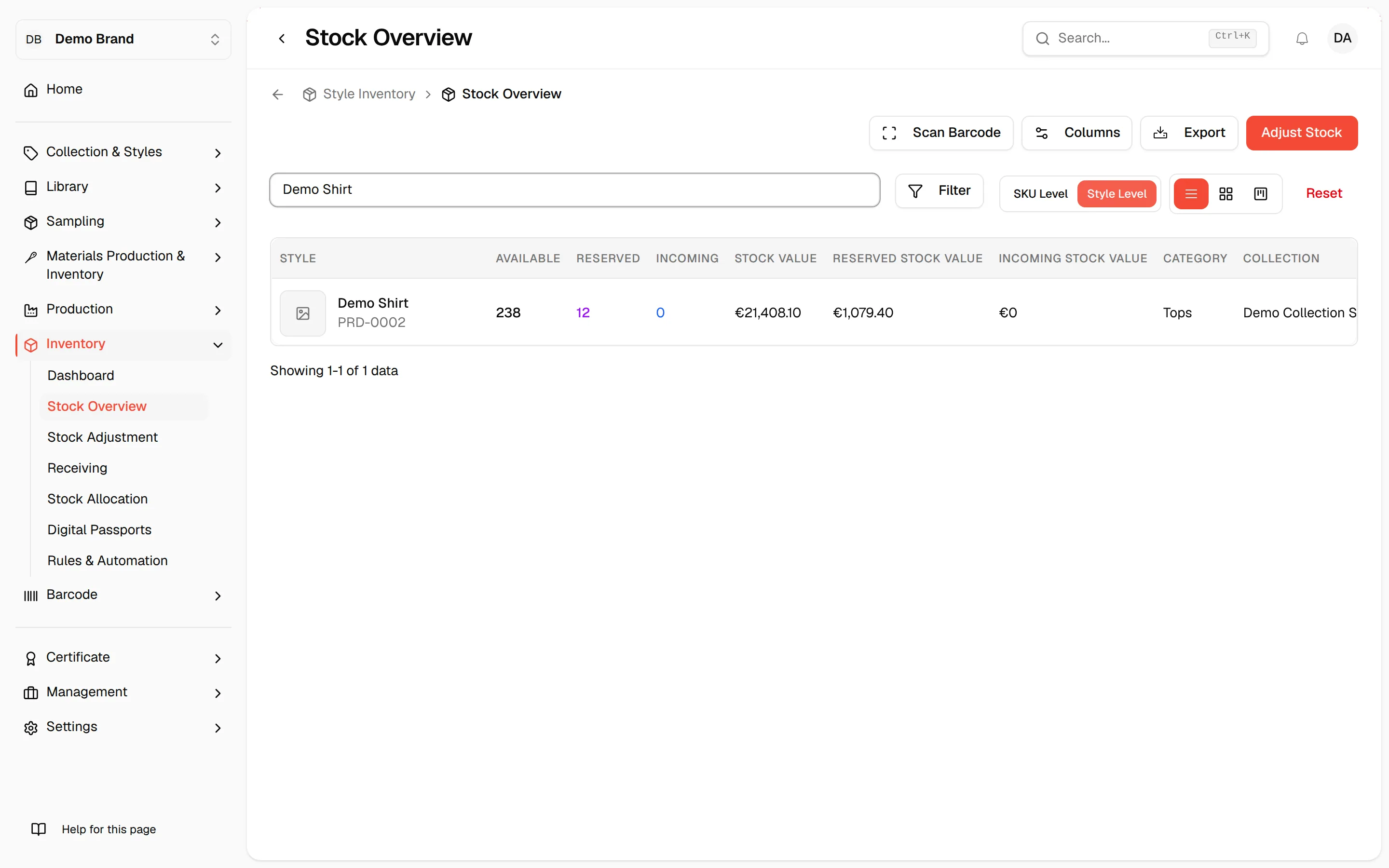
Review key stock information such as:
- Available, reserved, and incoming quantities.
- Stock values
- Category, collection, supplier, and location
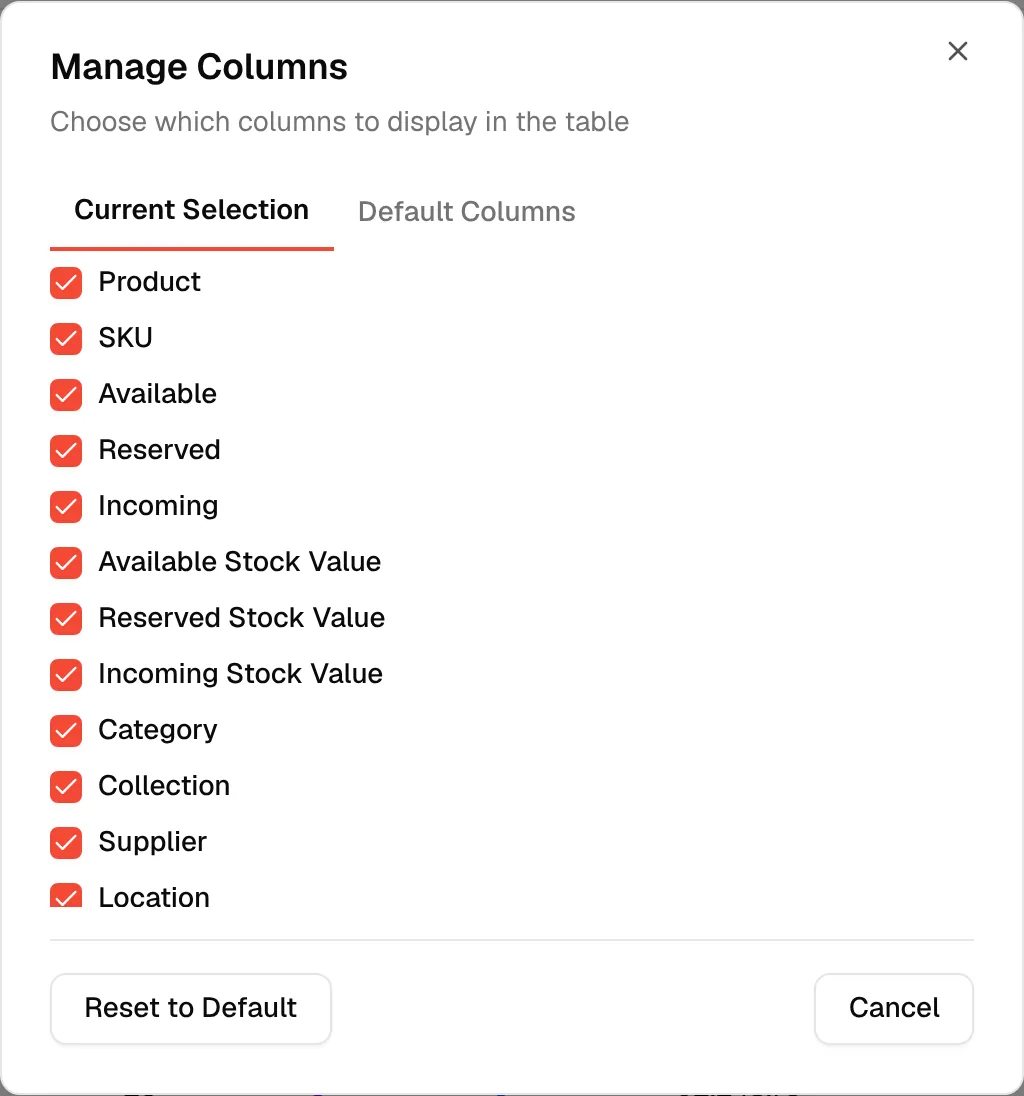
Click Columns to choose which columns to display. In Manage Columns, the Current Selection tab lists the columns, and Reset to Default restores the Default Columns.
Filter and change the view
Click Filter to narrow the list by Category, Collection, Supplier, Location or Status. The status options are In Stock, Out of Stock, Low Stock and Overstock. <!-- ::screenshot id="inventory-stock-overview-filter" -->
Switch between the list, grid and kanban views with the three view icons.
Click Reset to clear the search and filters.
The SKU Level list has these columns: Product, SKU, Available, Reserved, Incoming, Available Stock Value, Reserved Stock Value, Incoming Stock Value, Category, Collection, Supplier, Location, Status, Last Updated, Notes and Actions. The Style Level list shows Style instead of Product and SKU, and Stock Value instead of Available Stock Value.
Export the list
Click Export, then select Export to Excel or Export to PDF.
Work with a single stock line
At SKU Level, open the actions menu on a row. You need permission to update style inventory for the first three actions and permission to delete style inventory for Delete.
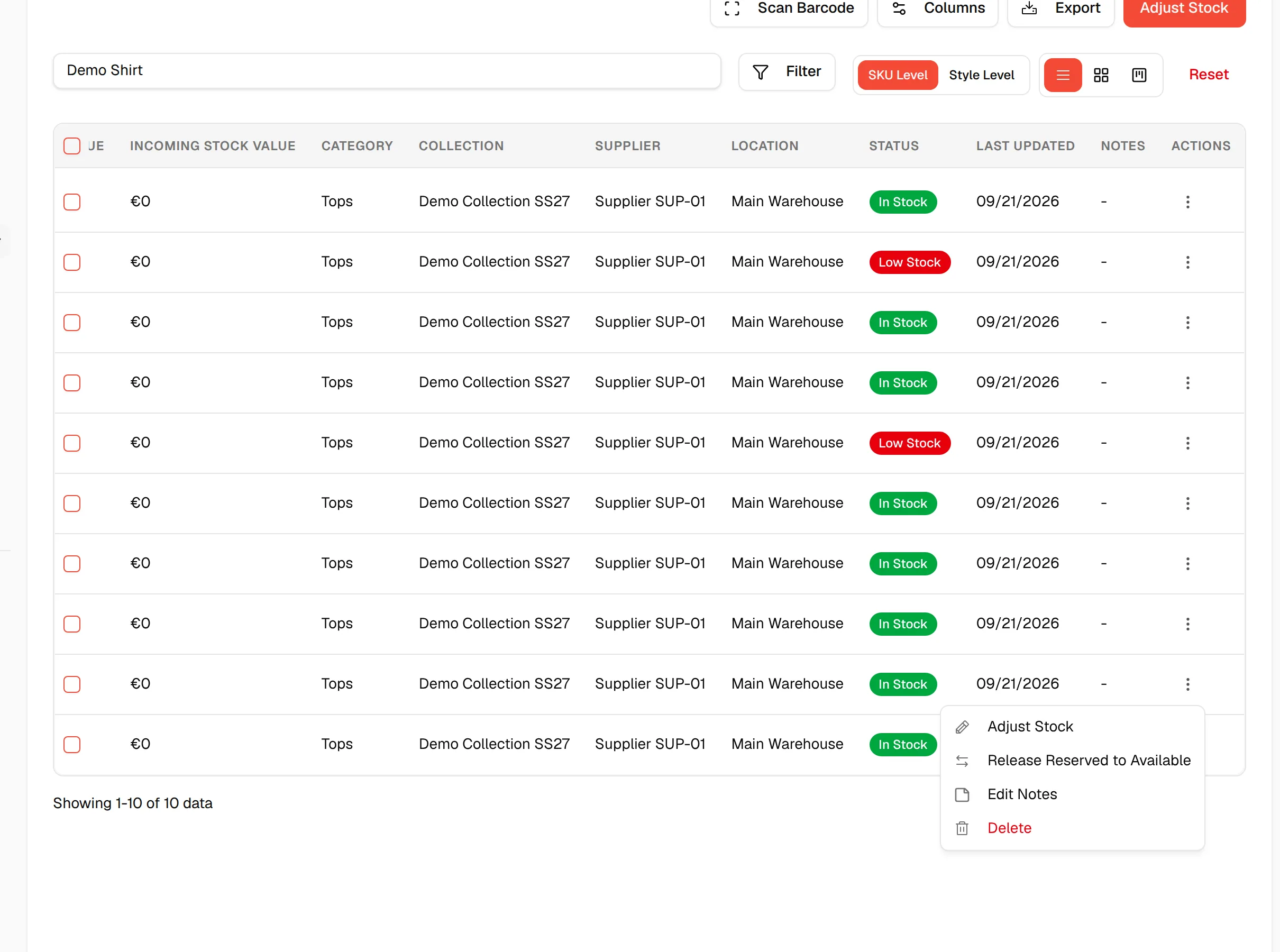
- Adjust Stock: opens the adjustment form for that product. See Inventory stock adjustments.
- Release Reserved to Available: moves reserved units back to available. It is disabled when nothing is reserved.
- Edit Notes: opens Edit Note, where you write up to 500 characters and click Update Note.
- Delete: asks you to confirm in Delete Style Inventory. This cannot be undone.
Release reserved stock
Open "Release Stock"
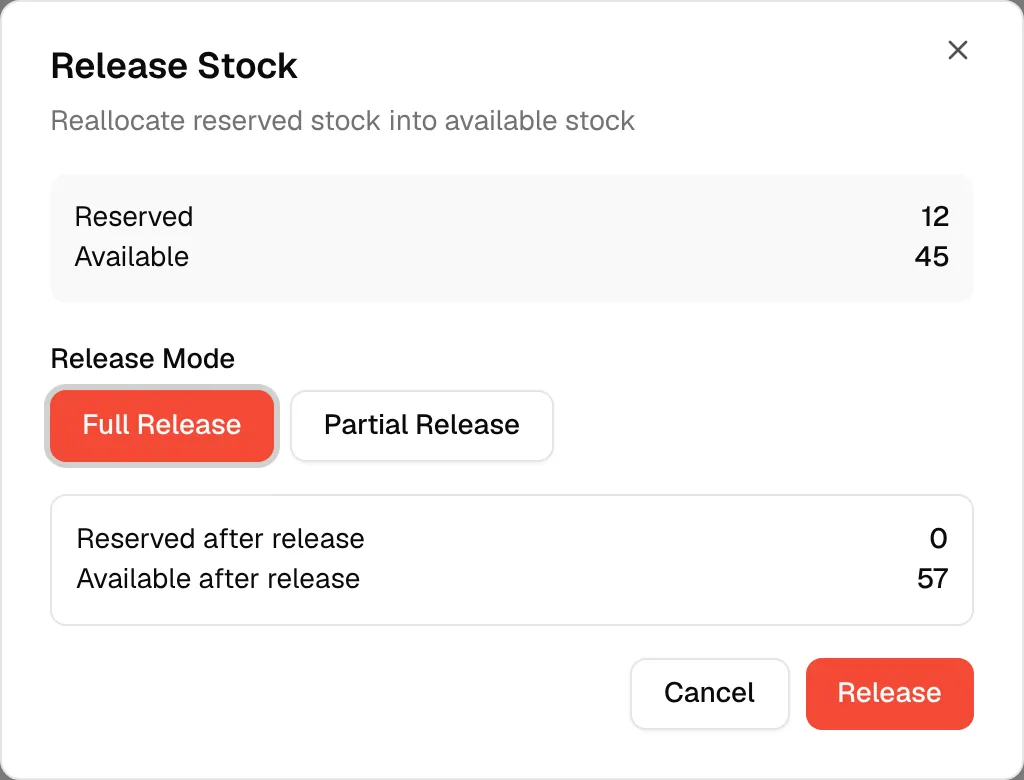
From the row's actions menu, click Release Reserved to Available. Release Stock shows the current Reserved and Available quantities.
Select the release mode
Select Full Release to release everything, or Partial Release to release part of it.
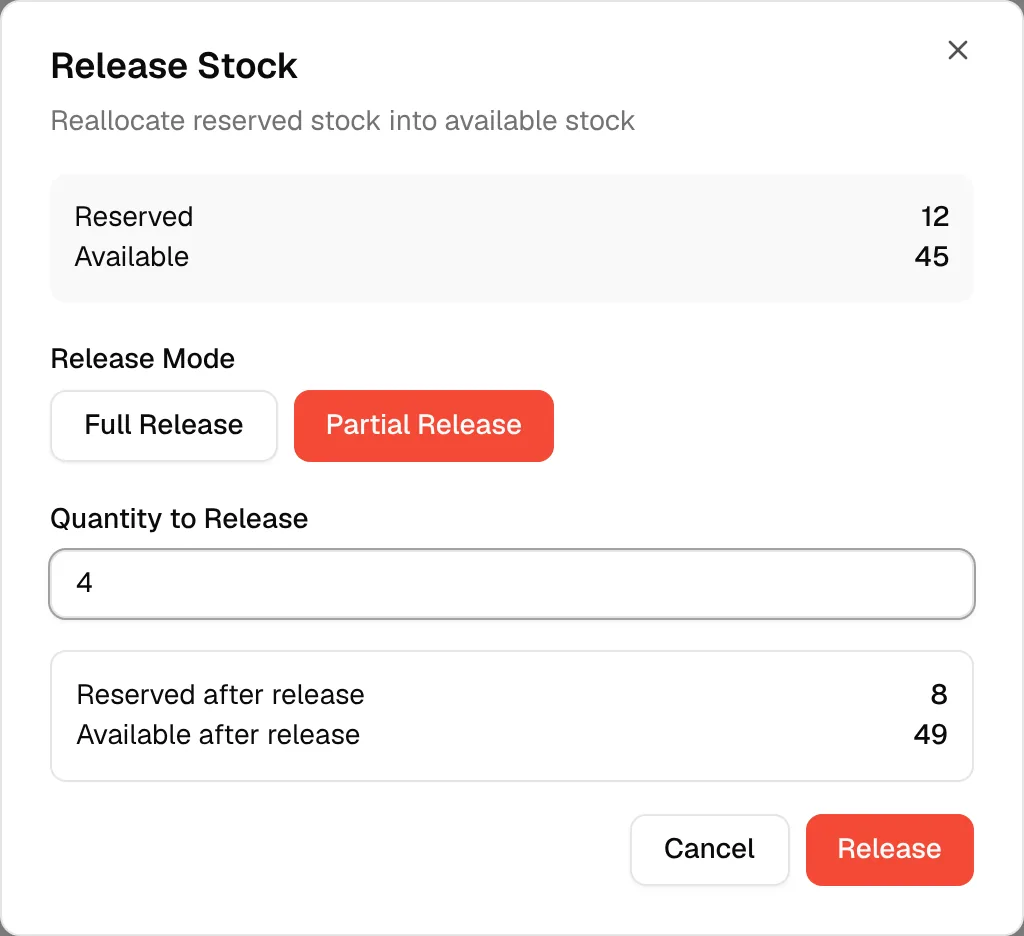
Enter the quantity (partial release only)
In Quantity to Release, type the number of units. Reserved after release and Available after release update as you type.
Click "Release"
Click Release to apply the change.
Release reserved stock for several lines
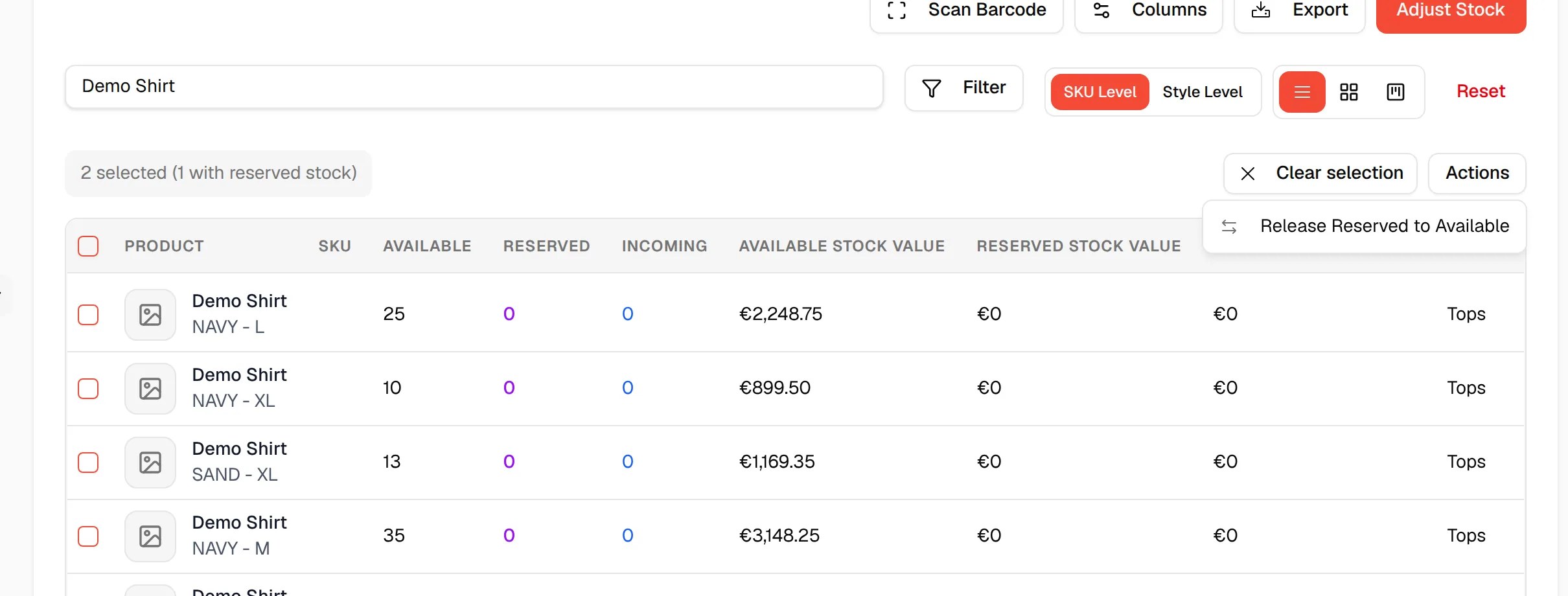
- Check the boxes beside the rows you want. The Select all rows on this page box selects the whole page.
- Click Actions, then Release Reserved to Available.
- In Release reserved stock (full), click Confirm release. Selected lines with no reserved stock are skipped.
Note
Row selection is available in the SKU Level list view and clears when you change page.
Barcode section
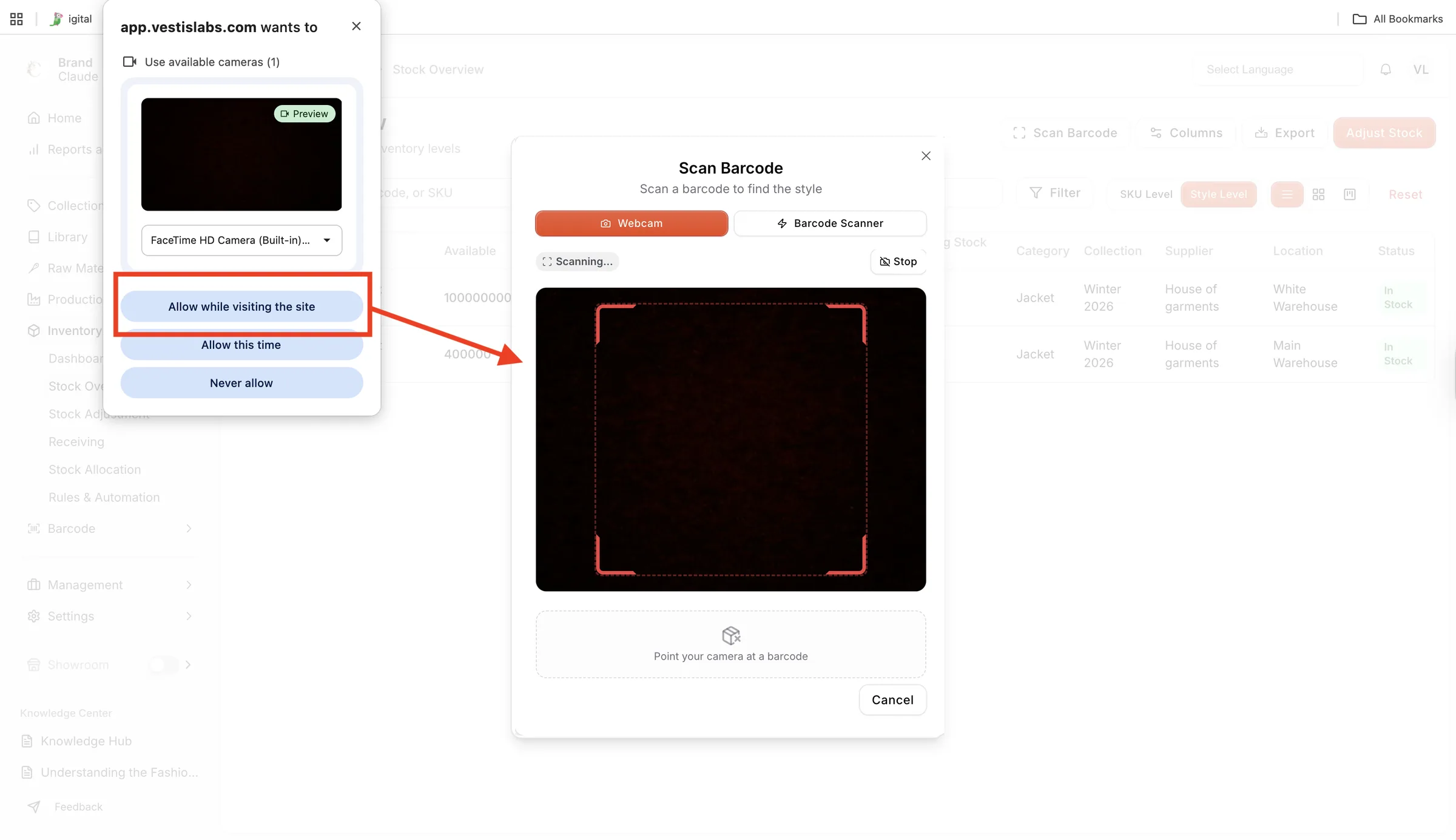
- Click Scan Barcode for quick item lookup. The list is narrowed to the SKU of the item you scan.
Choose Webcam to scan the barcode using the camera on the device.
Webcam is selected when the dialog opens. The camera starts straight away and Scanning… shows while it looks for a barcode. Click Stop to turn the camera off.
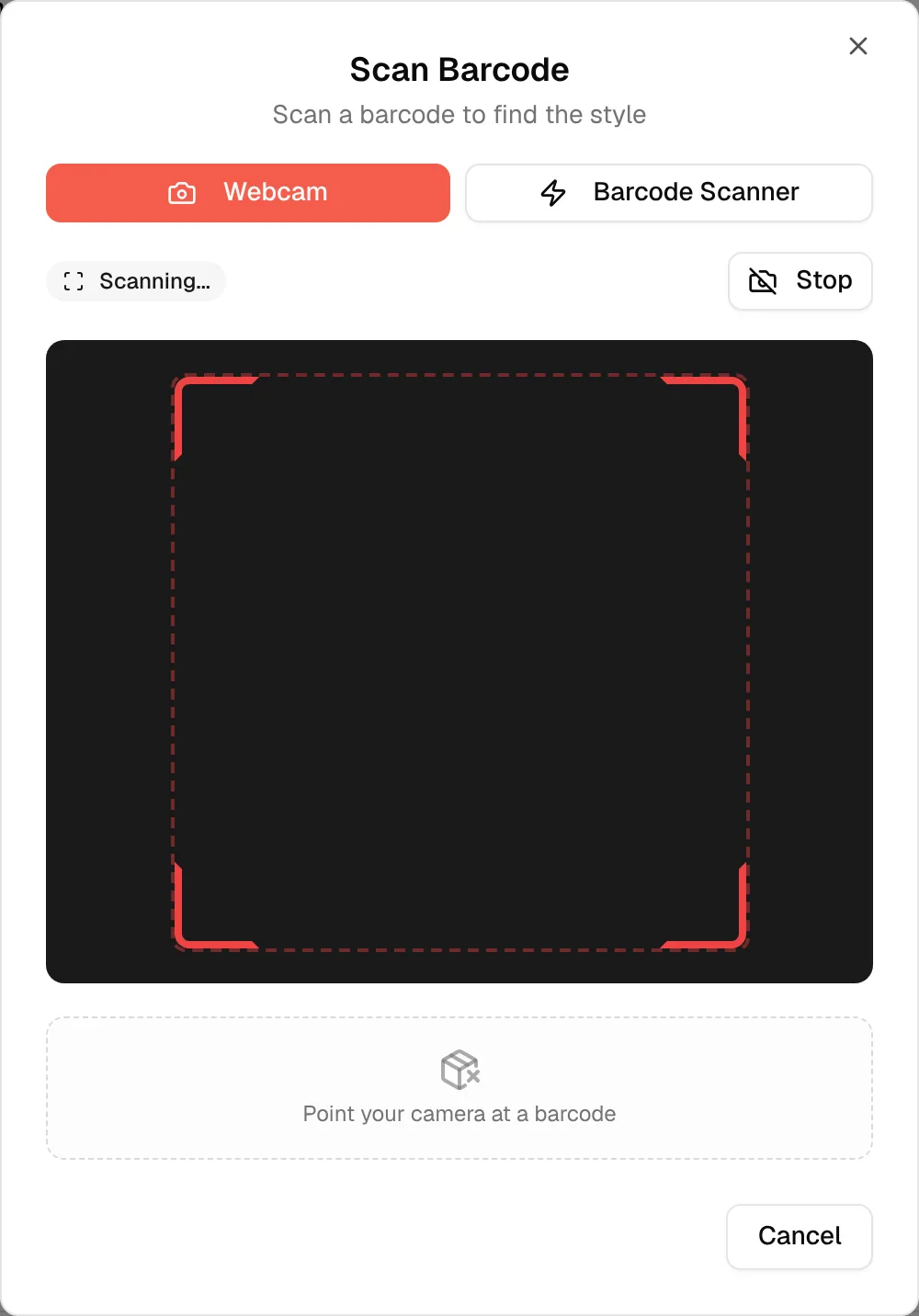
Click “Allow while visiting the site” to enable camera access on your device. Inform users to start scanning the barcode inside the camera frame.
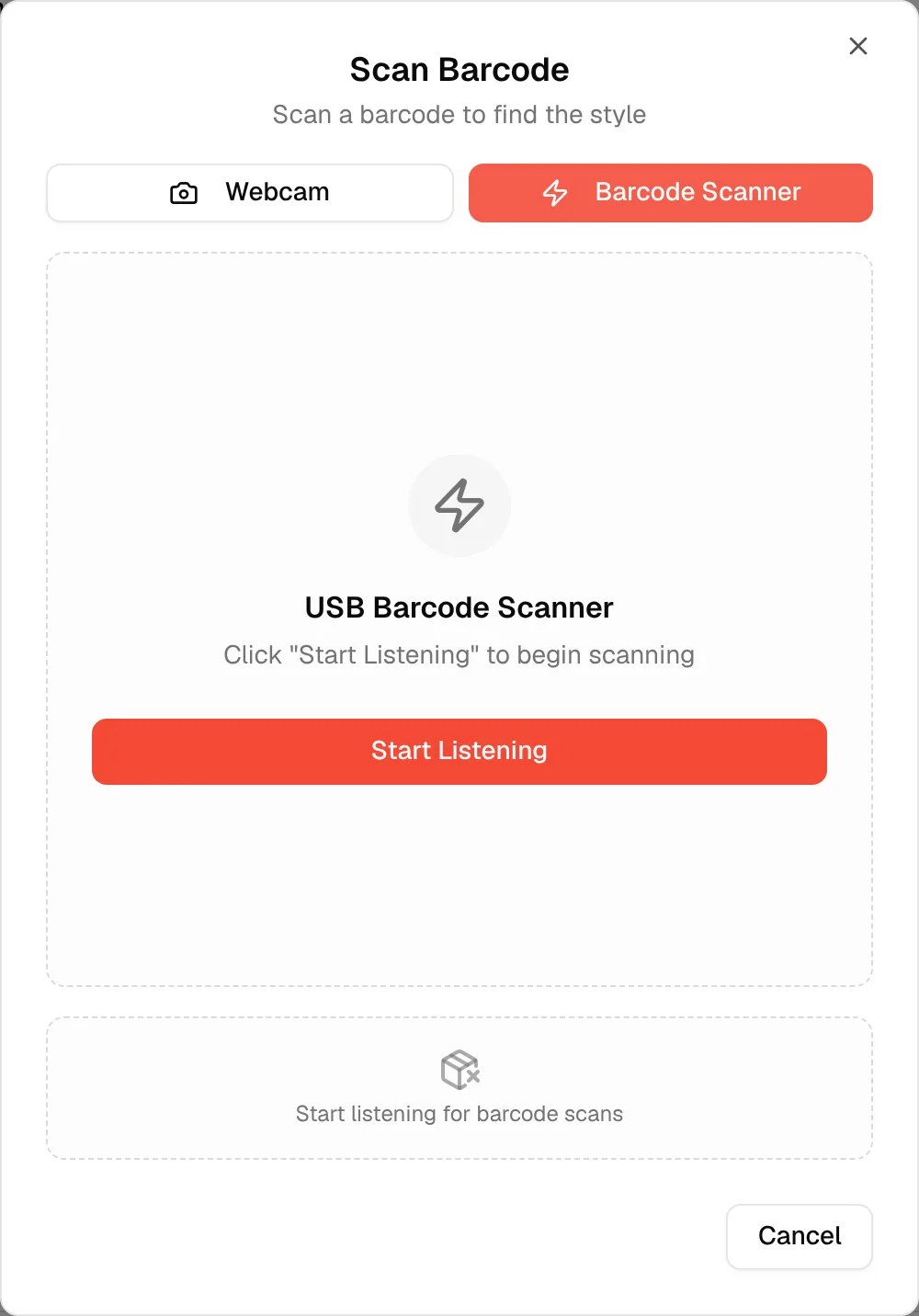
Choose the Barcode Scanner to scan the barcode using the USB Scanner.
Click Barcode Scanner, then Start Listening, and scan the barcode with the connected USB scanner.
Create stock adjustment
- Click Adjust Stock to update inventory quantities.
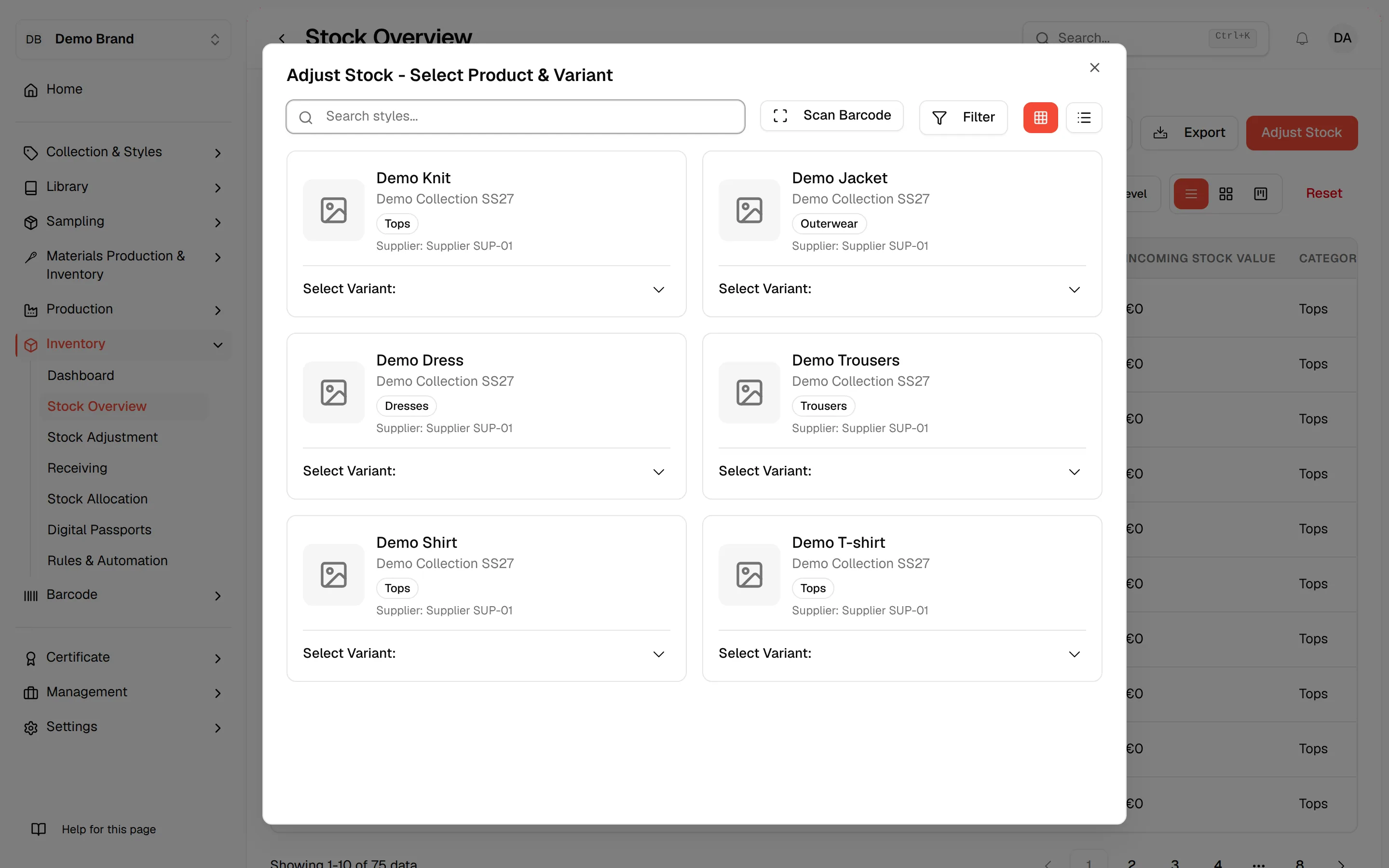
If no inventory exists, the page shows No Inventory Found and, if you have permission, an Adjust Stock button to create new inventory. At Style Level, an empty list shows No inventory found.