Barcode dashboard
The Barcode Dashboard serves as the central hub for managing all barcode-related activities in your workspace.
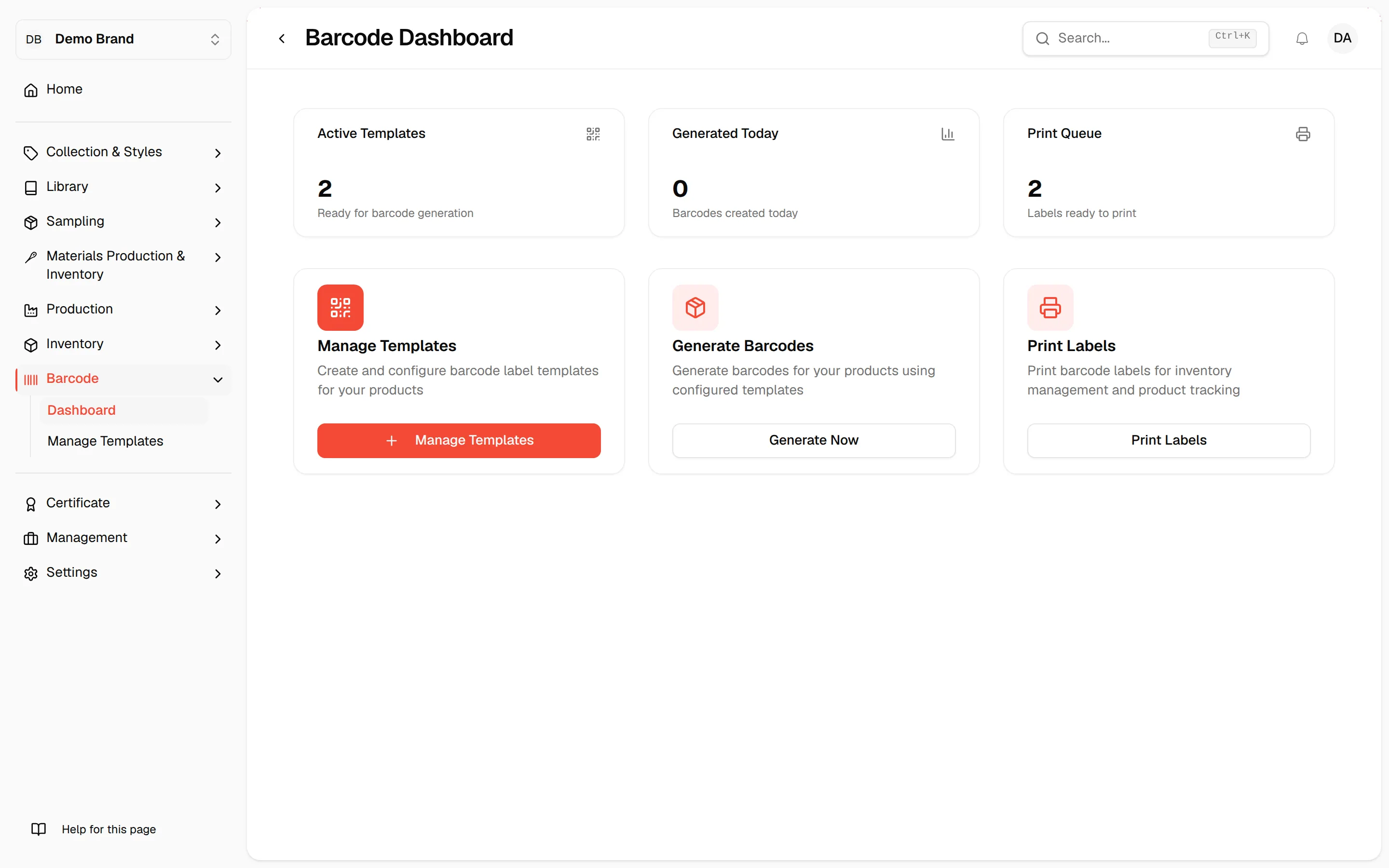
The Barcode Dashboard serves as the central hub for managing all barcode-related activities in your workspace. From this page, users can monitor barcode usage, manage templates, generate new barcodes, and print labels efficiently in one place.
This dashboard is designed to give you quick visibility into your barcode operations while providing direct access to key actions.
BarcodeDashboard
Permission: VIEW_BARCODE
Navigate to Barcode > Dashboard in the left bar menu.
Key features on the barcode dashboard
Summary Cards (Top Section)
At the top of the dashboard, you will find an overview of your barcode activity:
- Active Templates Displays the total number of barcode templates available and ready to use for generation.
- Generated Today Shows how many barcodes have been created on the current day, helping you track daily activity.
- Print Queue Indicates the number of barcode labels that are ready to be printed.
These summary cards help you quickly understand the current status of your barcode workflow without needing to navigate into each section.

Manage Templates
This section allows you to create and configure barcode label templates.What you can do:
- Create new barcode templates
- Edit existing templates
- Define label layouts and data fields
- Customize barcode types and text formatting
Click “Manage Templates” to access and maintain your barcode template library. This is where you set up how your barcode labels will look and what information they include.
Generate Barcodes
This section is used to create barcode labels based on your configured templates.
What you can do:
- Generate barcodes for selected products or styles
- Apply predefined templates to your data
- Automatically create barcode values using configured rules
Click “Generate Now” to start generating barcode labels. The system will use your templates and product data to produce ready-to-use barcodes.
Print Labels
This section allows you to print your generated barcode labels.
What you can do:
- Access labels that are ready for printing
- Preview barcode labels before printing
- Print directly or export for later use
Click “Print Labels” to proceed with printing. You can ensure that all labels are properly formatted and aligned before final output.