
Create new tech pack list
Through this page, users can create a Tech Pack for the Styles.
Under review. This page is published while we check it against the live app, so some details may have changed.
Screenshots may be out of date.
Through this page, users can create a Tech Pack for the Styles. It functions as a detailed instruction manual for your fashion product.
Open the Tech Pack overview page.
To access the Tech pack overview Page, go to Collection & Style > Style from the left bar menu. Select your style and click Tech Pack > Overview on the style menu.
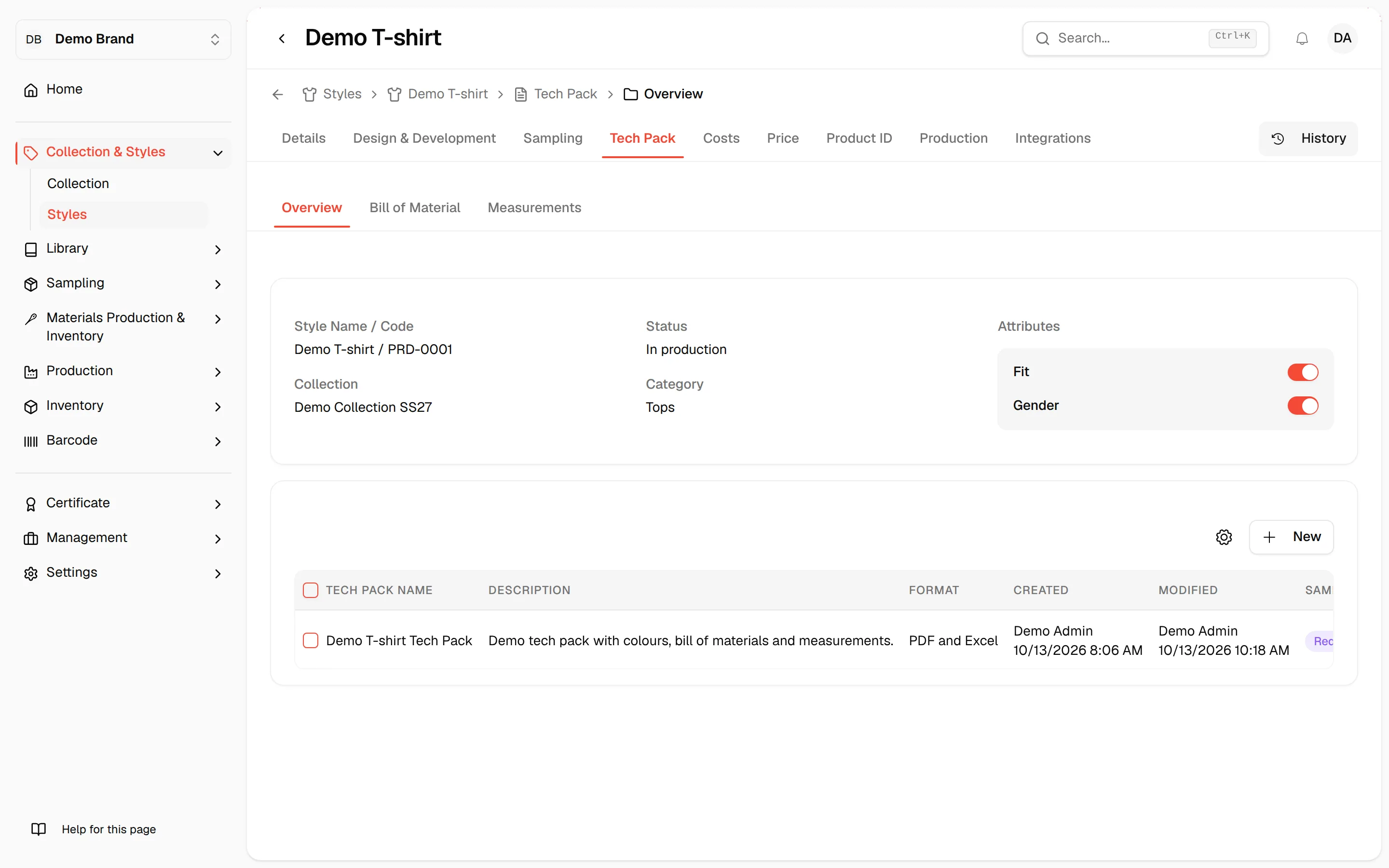
Check the style attributes in the header.
The header is filled in from the main style page. Use the switches next to Attributes to show or hide style attributes. You can select several.

Select +New to create a Tech Pack list.

In the Add New Tech Pack window, fill in the fields.
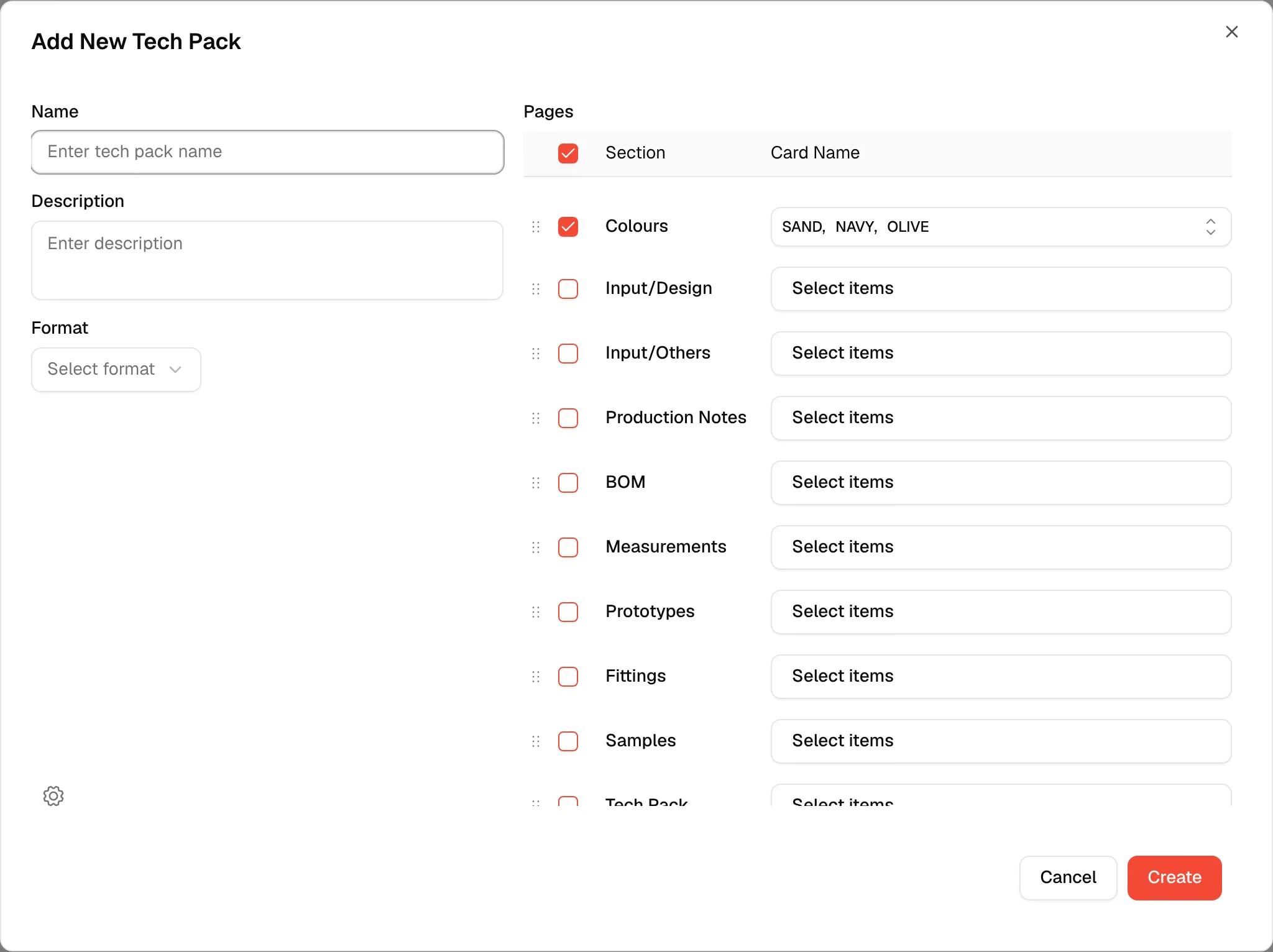
Name: Users can enter the name of the Tech Pack.
Description: The Tech Pack Description. Users can enter the description representing the Tech Pack.
Format: The Tech Pack is available in two file formats: PDF and Excel, or both (PDF and Excel). Users may select their preferred format when saving the Tech Pack list.
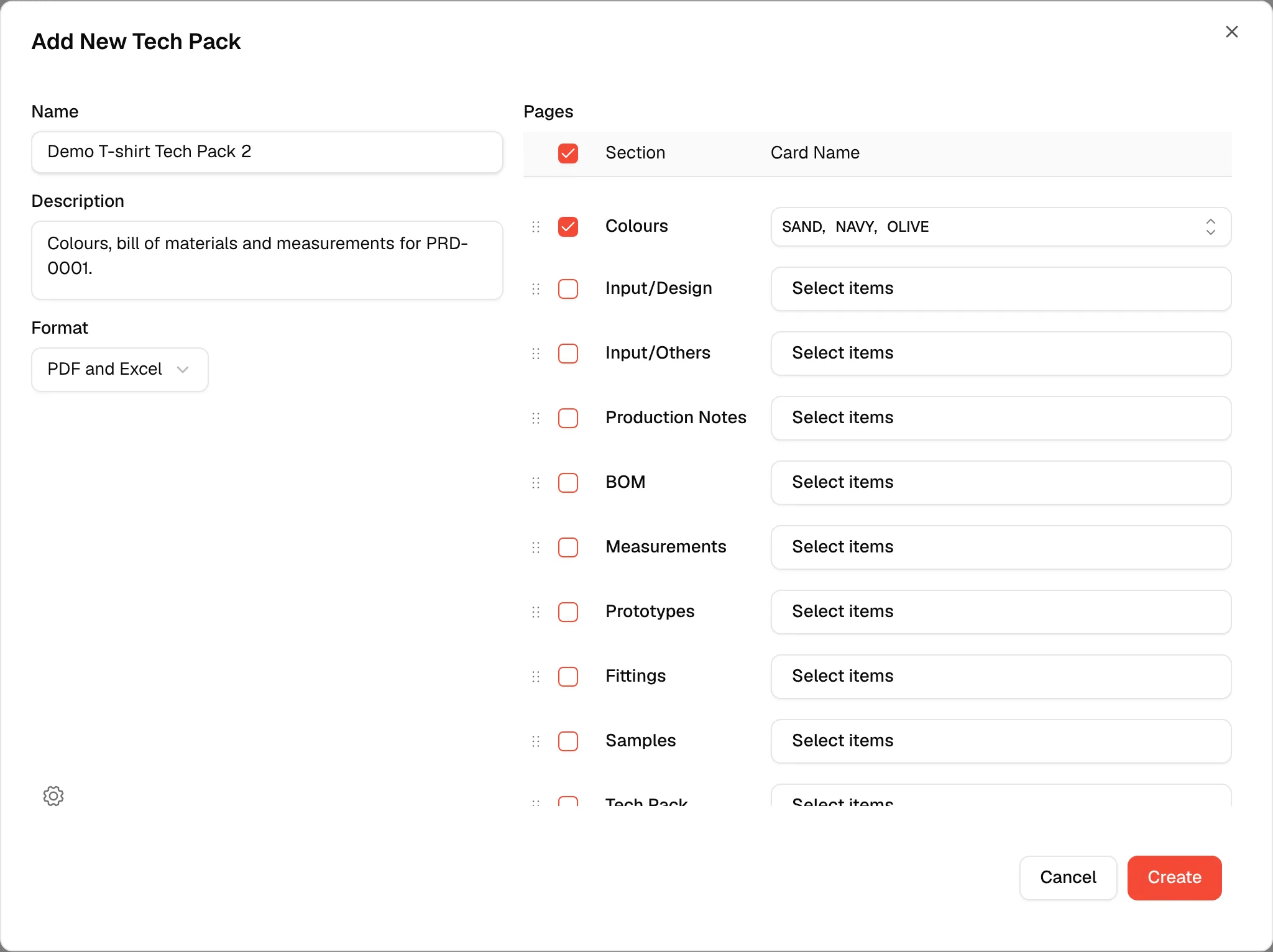
Use the checkboxes to select the Tech Pack Pages
you want to show in the tech pack list. Colours is ticked when the window opens.
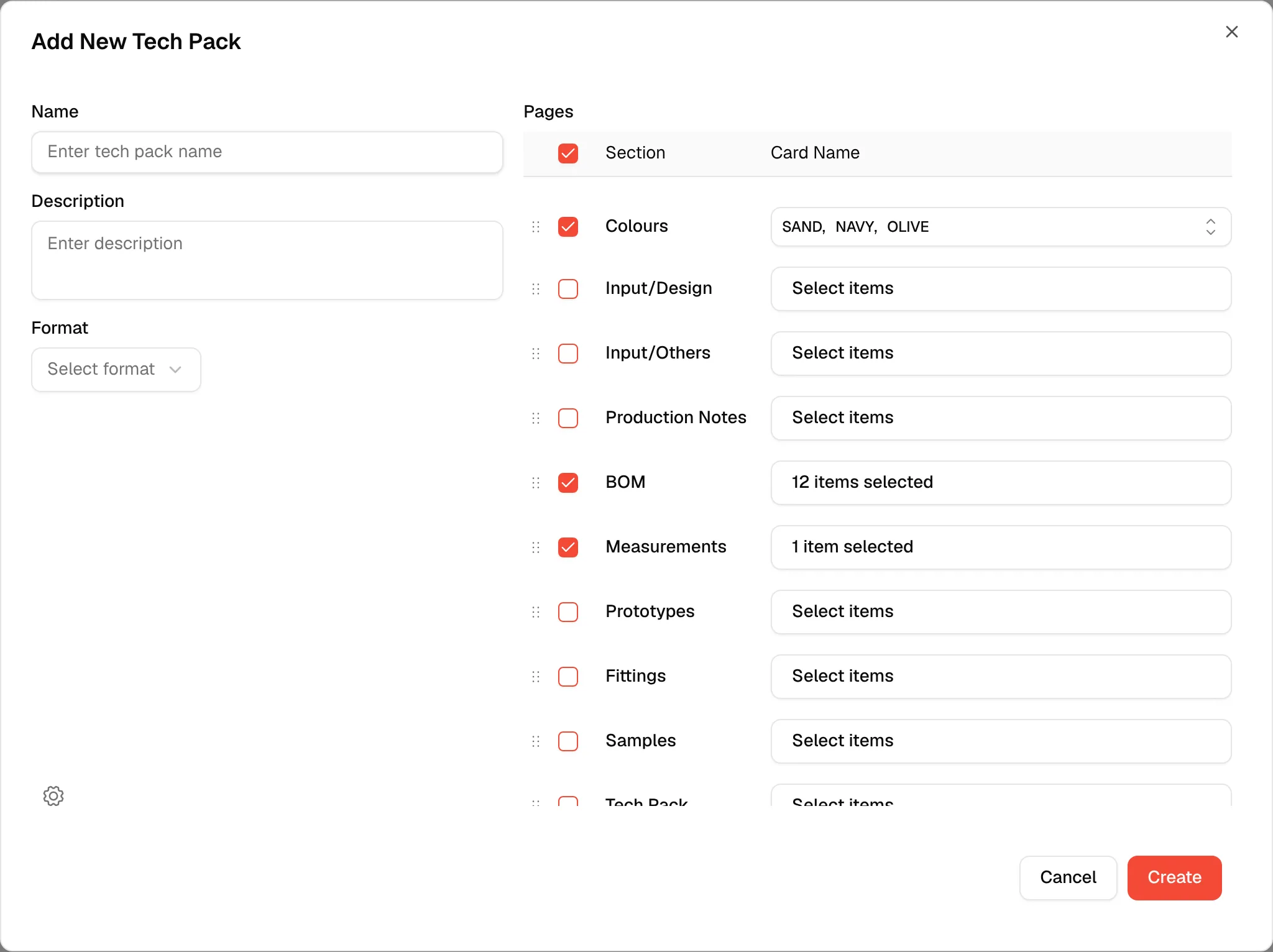
Select the cards for a page.
For pages such as BOM and Measurements, click Select items in the Card Name column and tick the cards (and versions) you want from the Design and Development page. Users can assign multiple cards.
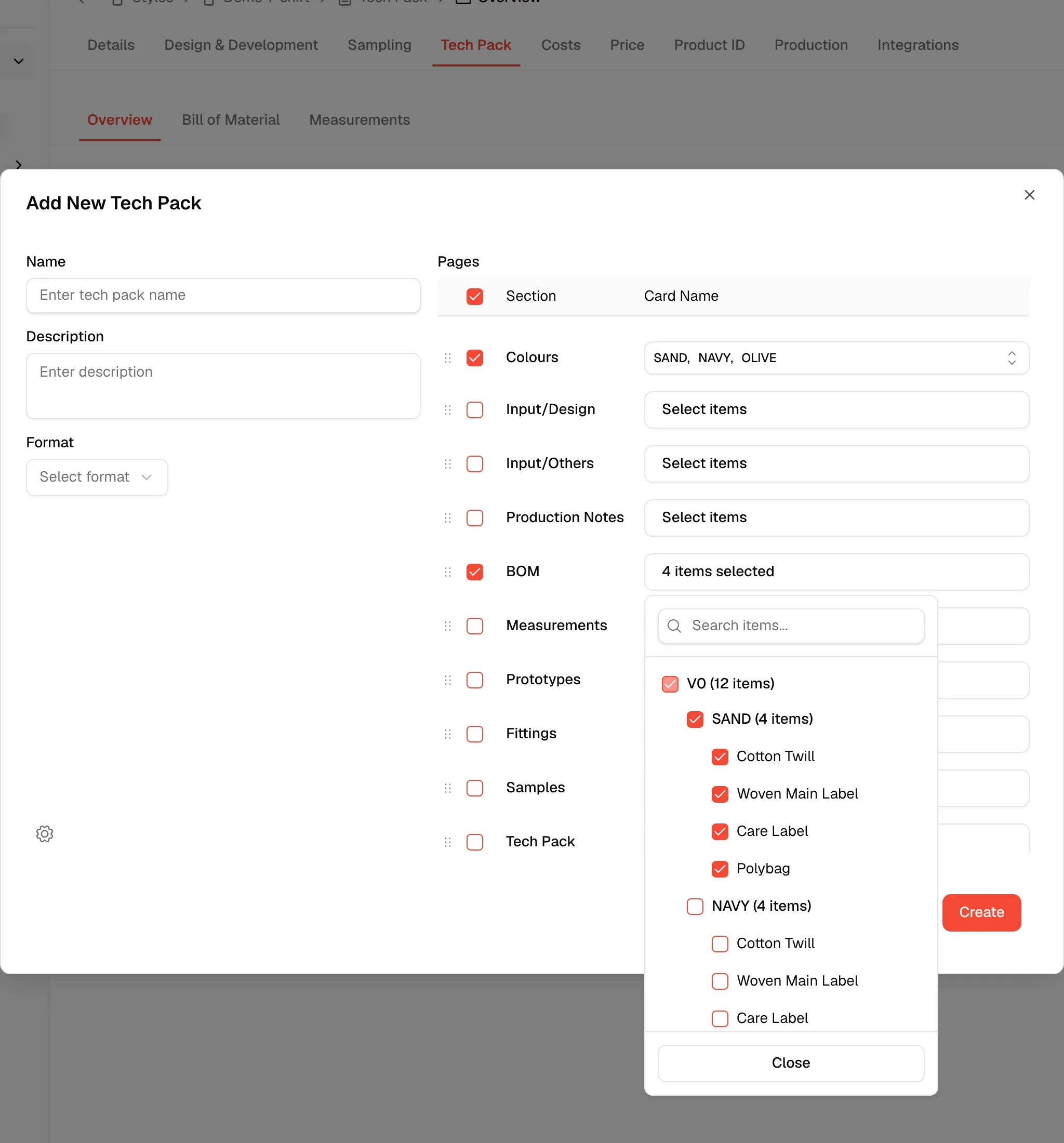
Settings: Users can select the Tech Pack file format settings.
Click the gear icon in the lower-left corner of the window. Settings for Workspace lets you choose the annotation and comment setting used when saving the Tech Pack list.
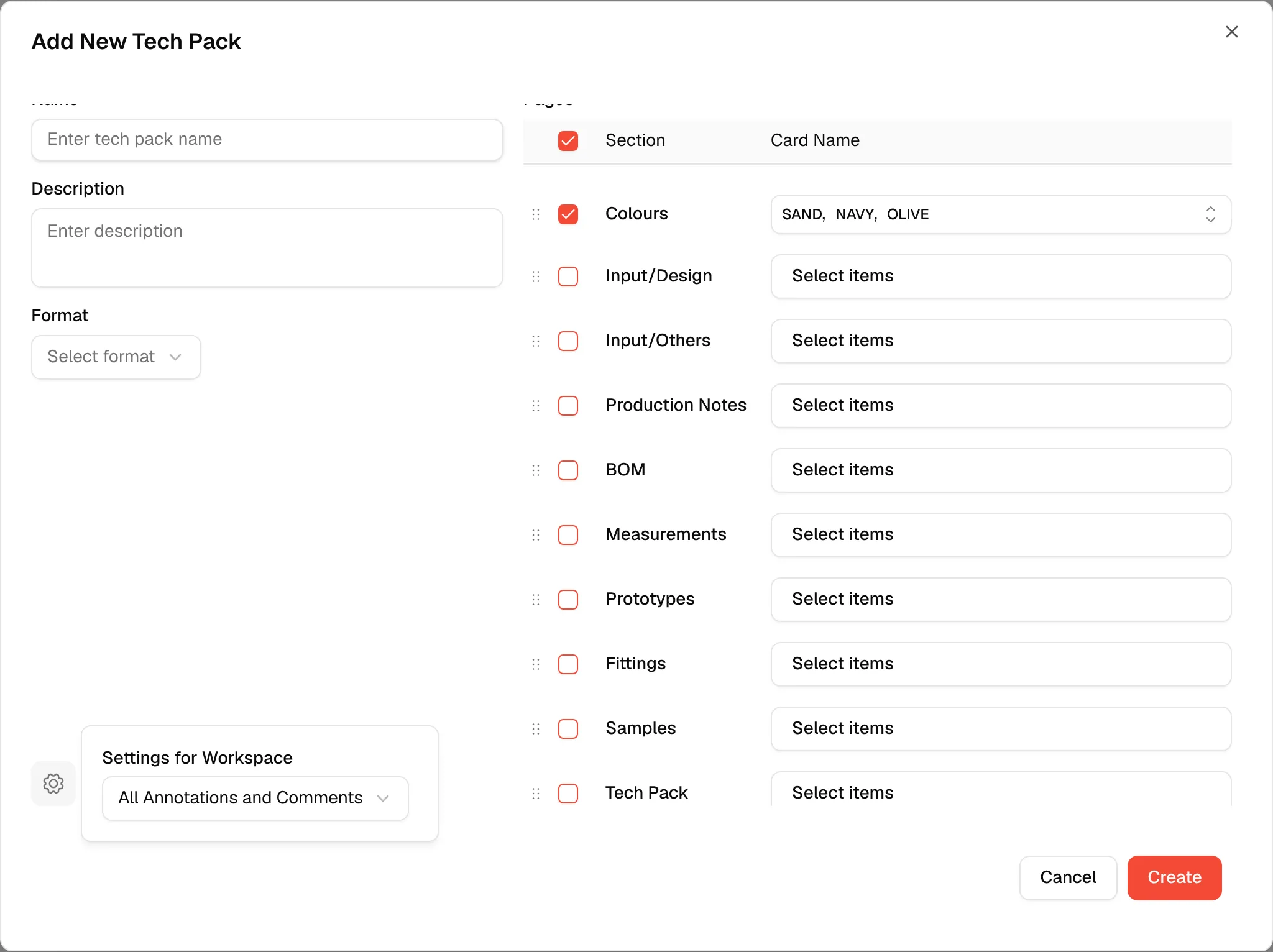
Select Create in the lower-right corner.
Use the three dots to choose an action for the Tech Pack.
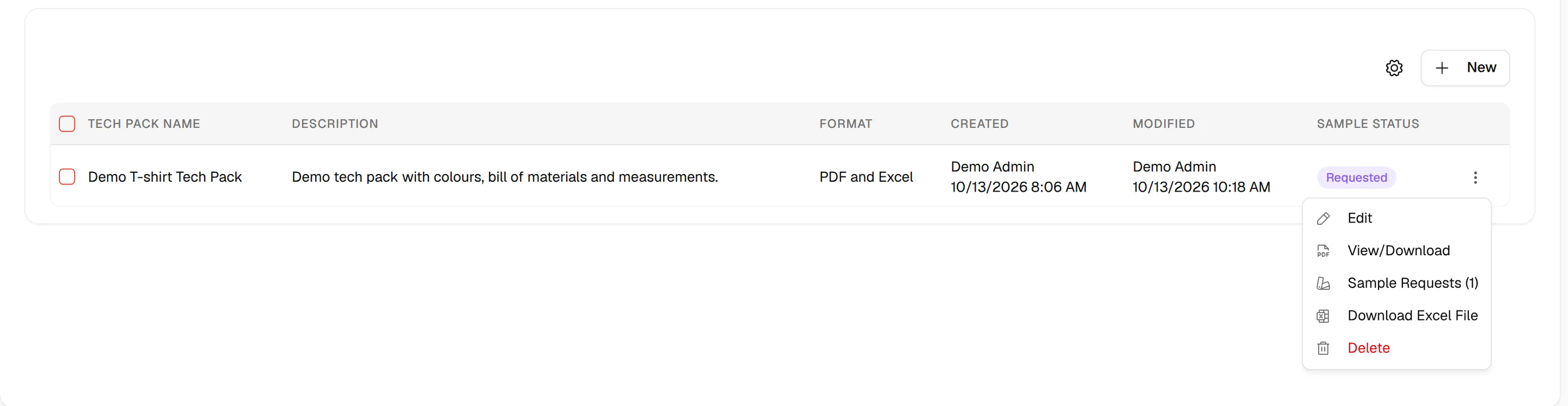
Edit: Users can edit an existing Tech Pack.
View/Download: Users can download it into their device and view the PDF-created Tech Pack list.
Sample Requests: Opens the sample requests linked to the Tech Pack.
Download Excel File: Users can download it into their device in Excel Format for the created Tech Pack list.
Delete: Delete the Tech Pack from the tech pack list from the Vestis Labs platform.
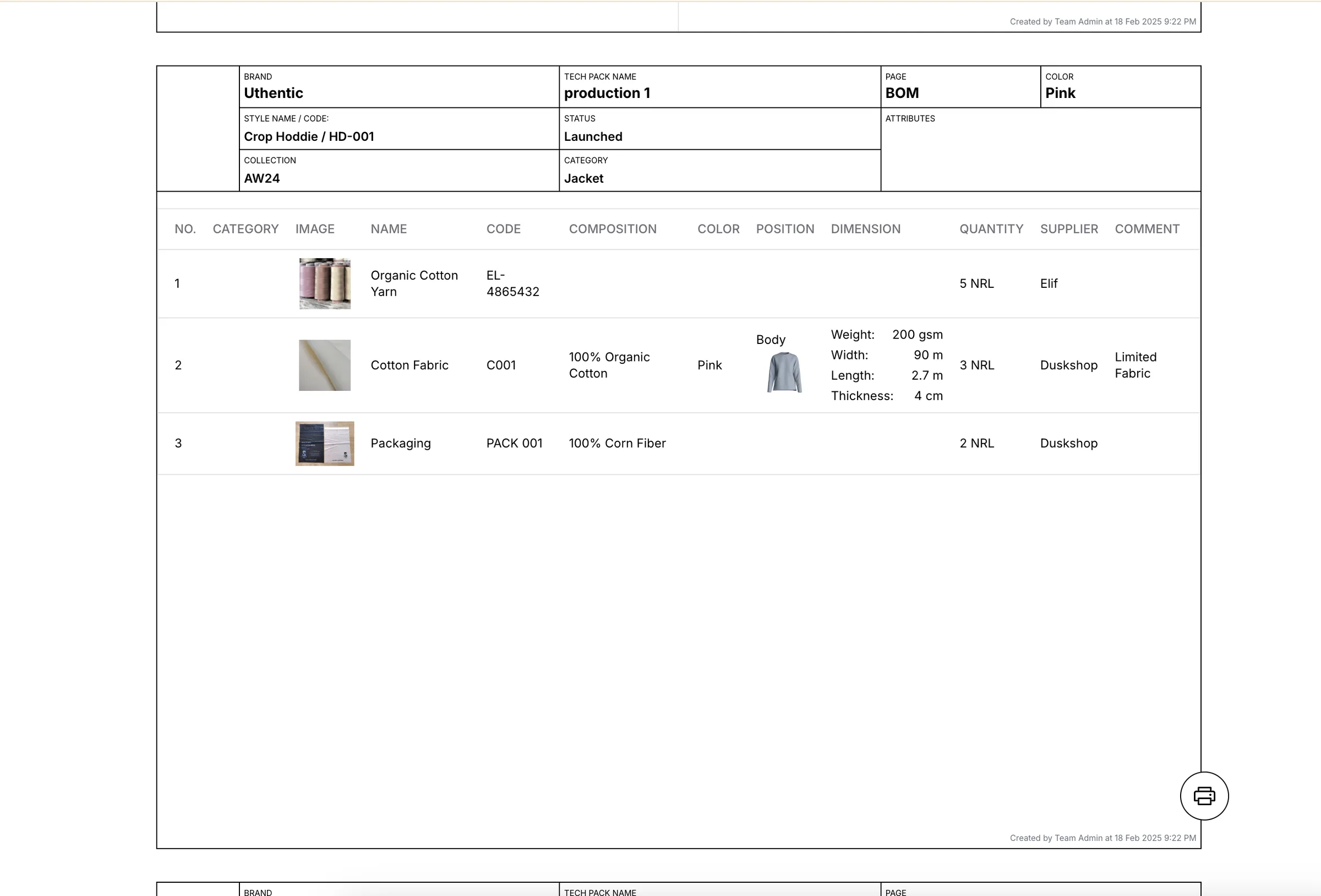
The downloaded file in PDF Format, you'll receive the file that looks like this:
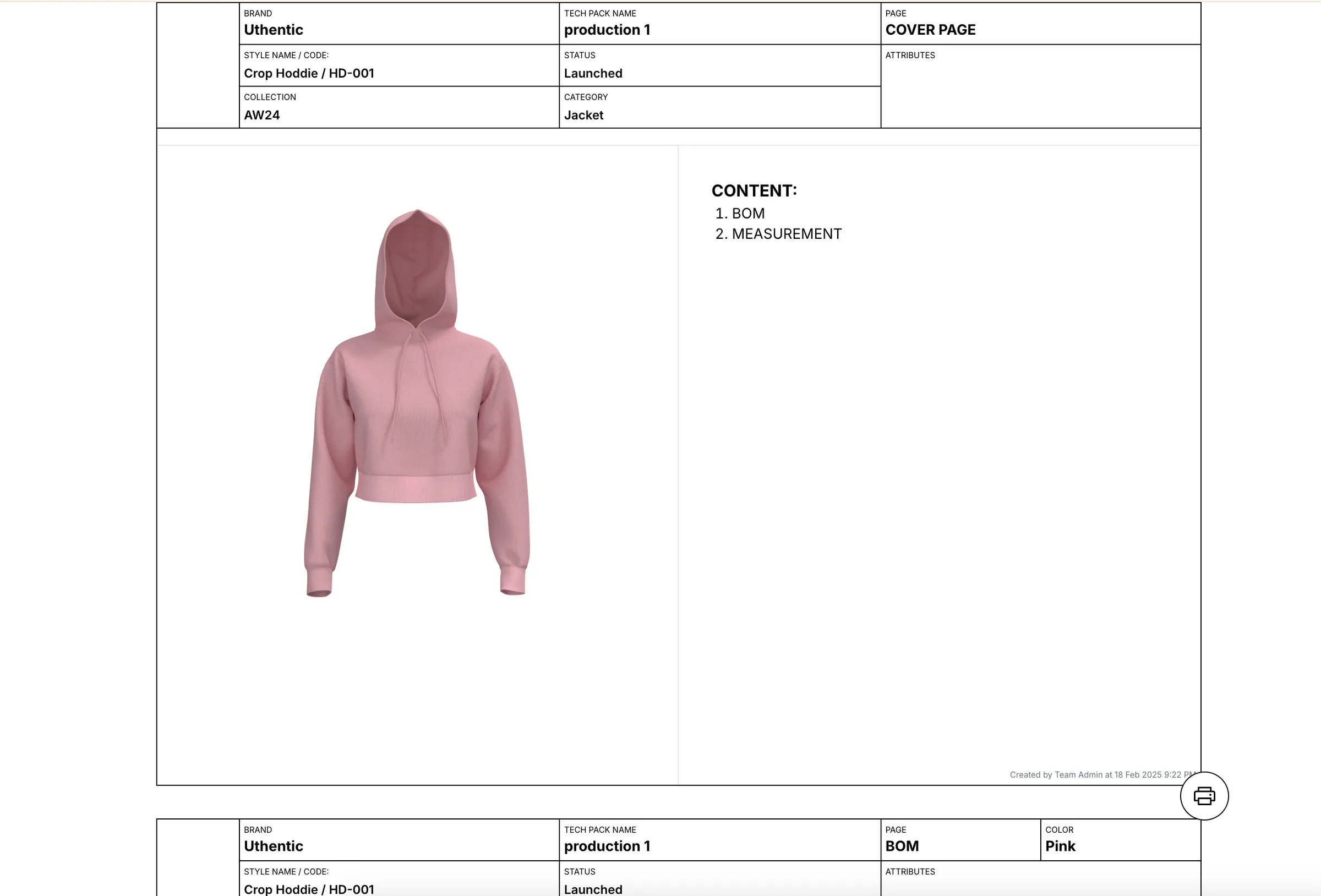
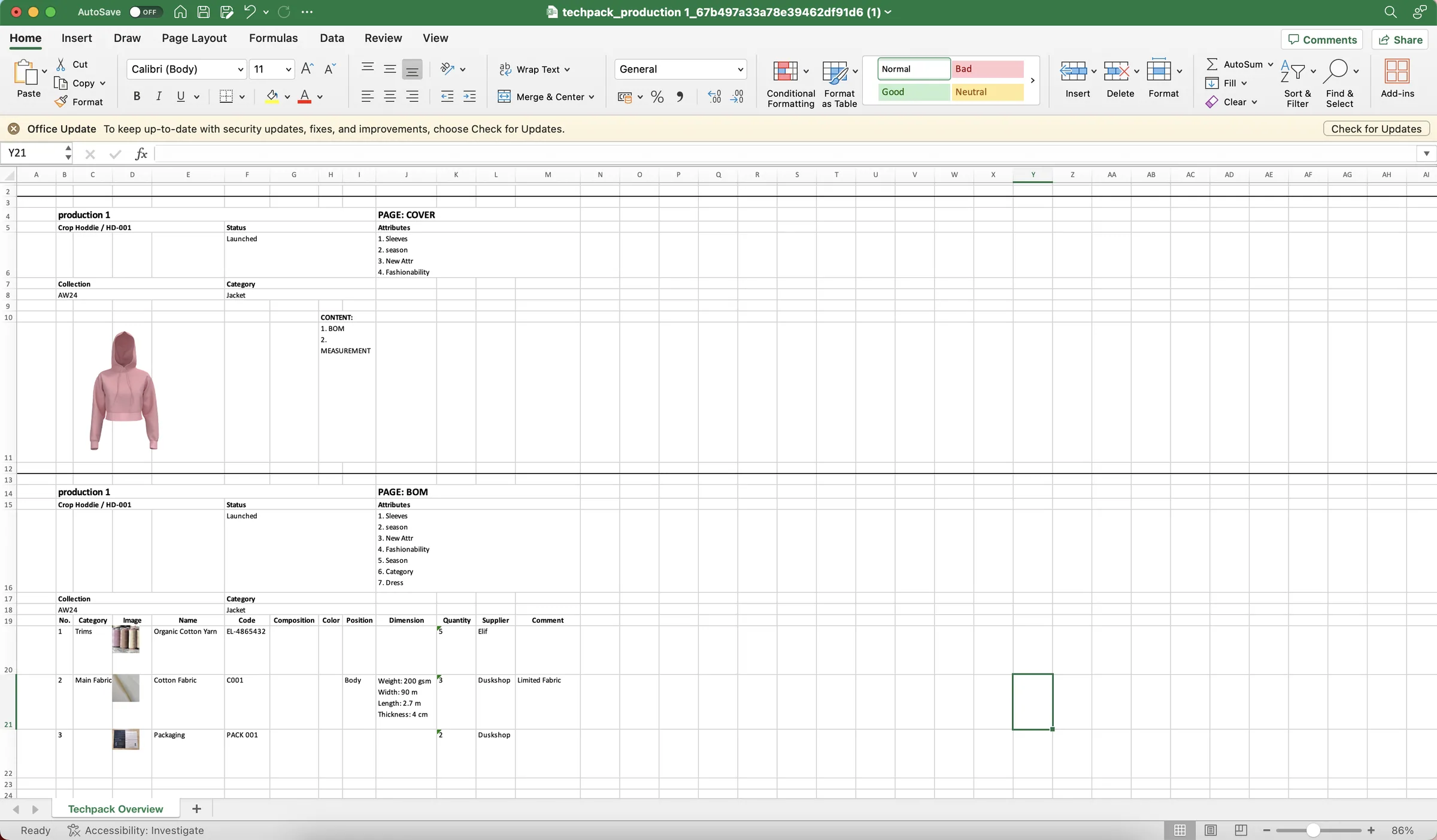
The downloaded file in Excel Format, you'll receive the file that looks like this:
What the Add New Tech Pack window contains
- Name and Format are required. If you leave one empty, Create shows an error message instead of saving. Description is optional.
- Format offers PDF, Excel and PDF and Excel. The format decides which actions appear later in the three dots menu: View/Download for PDF, Download Excel File for Excel.
- The gear icon next to Format opens Settings for Workspace with All Annotations and Comments, Annotations Only and Comments Only.
- In Pages, each row is a section you can include: Colours, Input/Design, Input/Others, Production Notes, Prototypes, Fittings, Samples, Tech Pack, BOM and Measurements. Drag the rows to change the order of the sections in the tech pack.
- The checkbox at the top of the Pages table selects or clears all rows at once.
Note
After you click Create, the new tech pack appears in the tech pack list. To print or download it, see Print and share a tech pack.