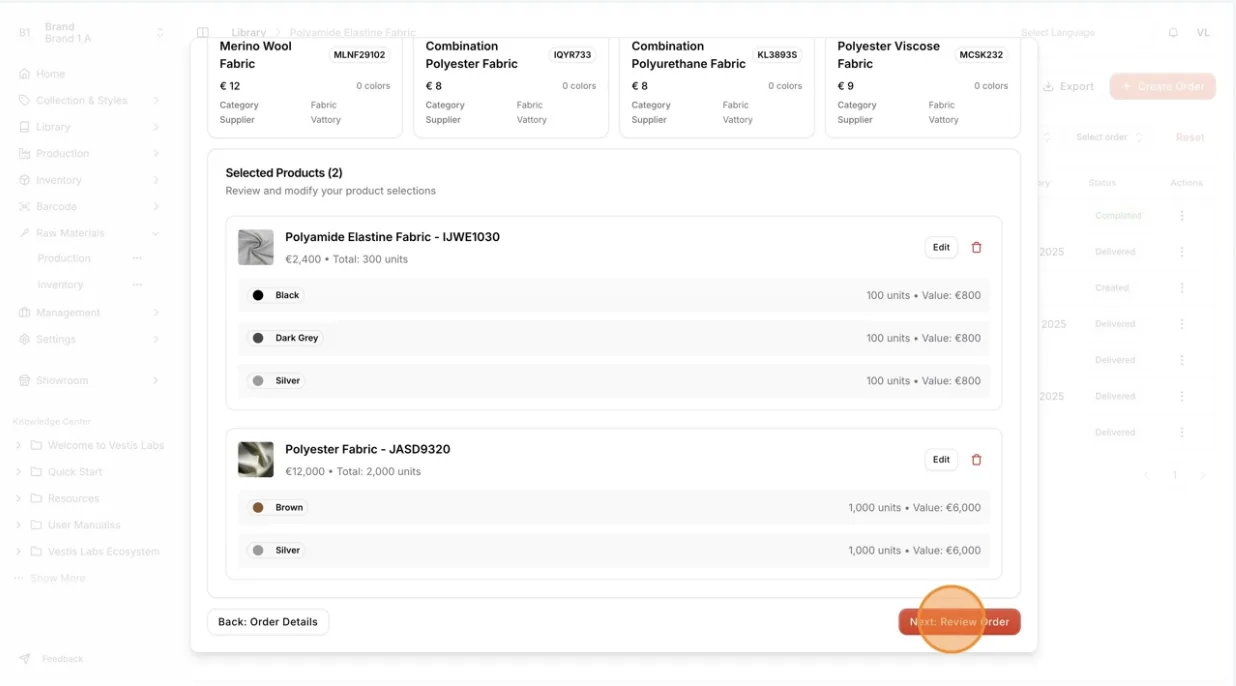
Order production in raw material production order
Select the appropriate product variant to ensure the correct raw material is included in the order
Under review. This page is published while we check it against the live app, so some details may have changed.
Screenshots may be out of date.
Materials Production & InventoryProductionOrder Management
Permission: CREATE_MATERIAL_PRODUCTION
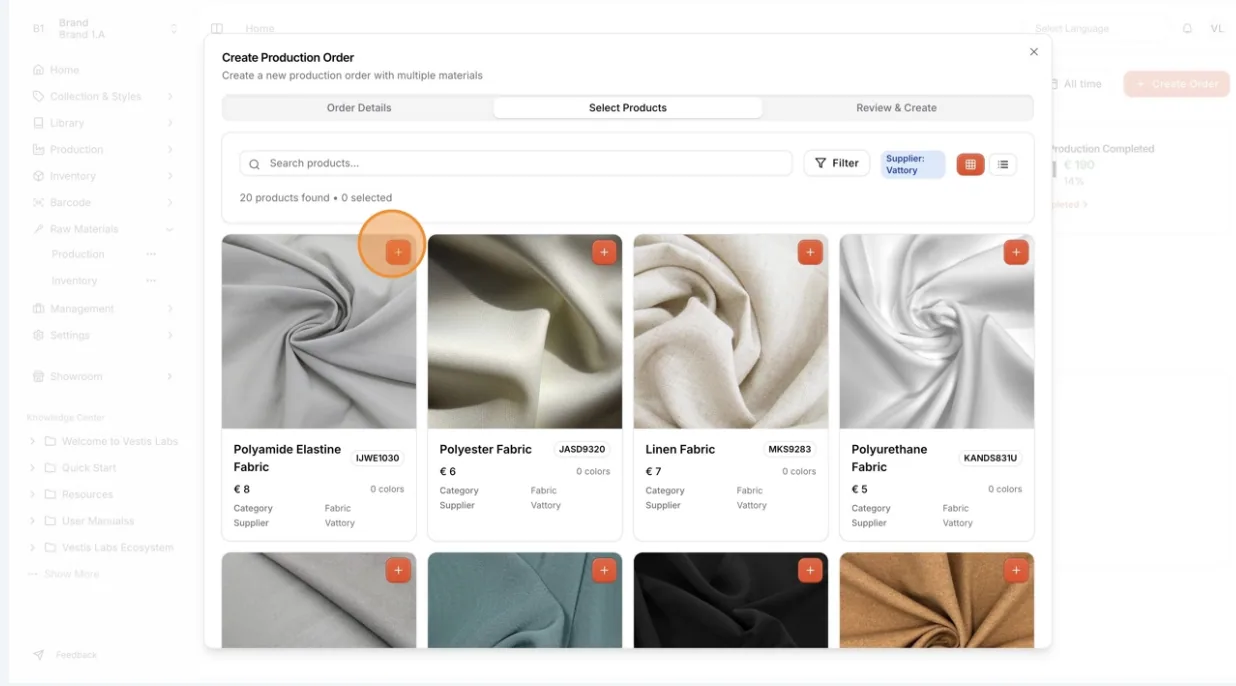
This is the Select Products step of the Create Production Order window. Use Search products... and the filters to find a material, and the grid and list buttons to switch the view.
Choose products by clicking the + icon (or Configure in the list view).
The Order Material Product window opens.
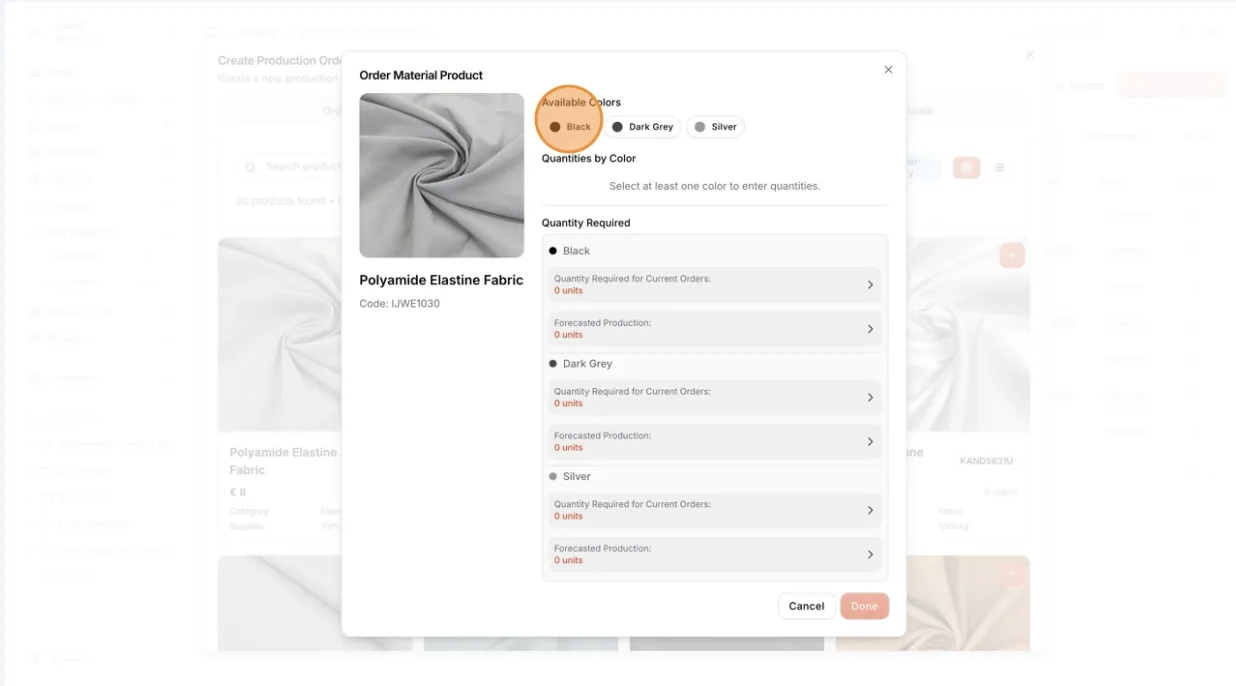
Select the appropriate available product colour variant
Under Available Colors, click a colour such as Black or Dark Grey.
Enter the Quantity for each colour.
The total order value will be calculated automatically based on the product quantity.
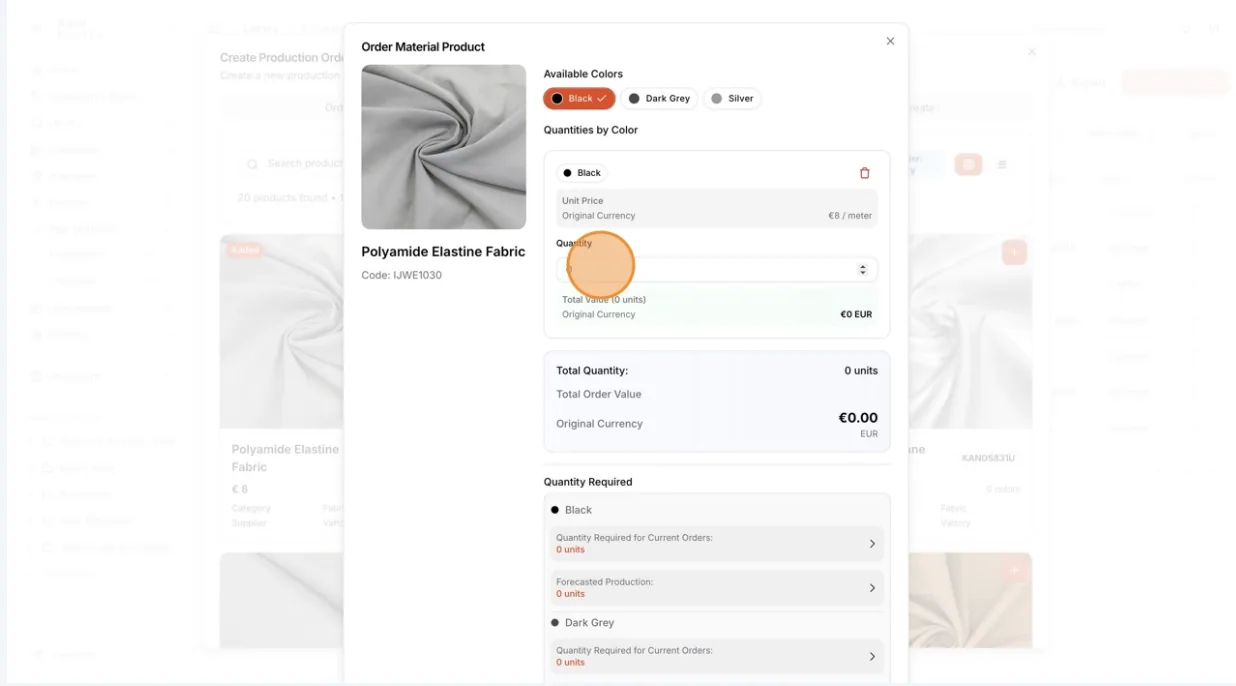
Users can select multiple variants under one product…
Users can select multiple variants under one product to include various options in the same order.
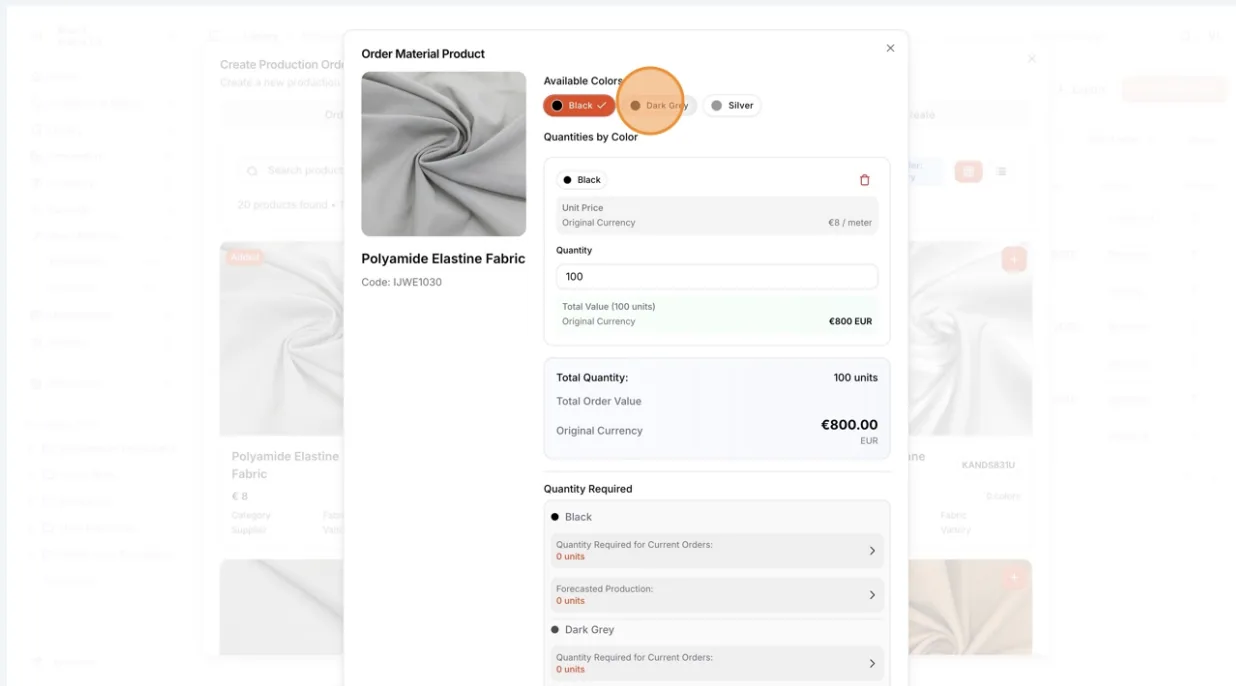
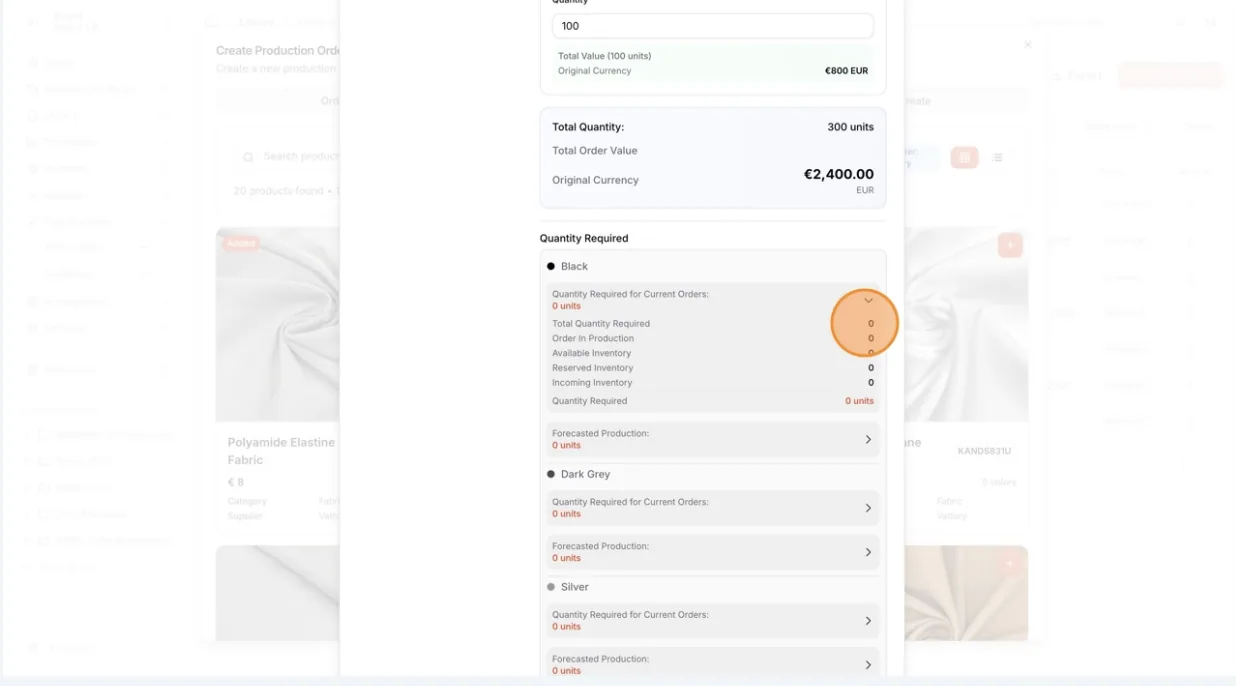
In the Quantity Required section, users can view the required quantity for each product variant.
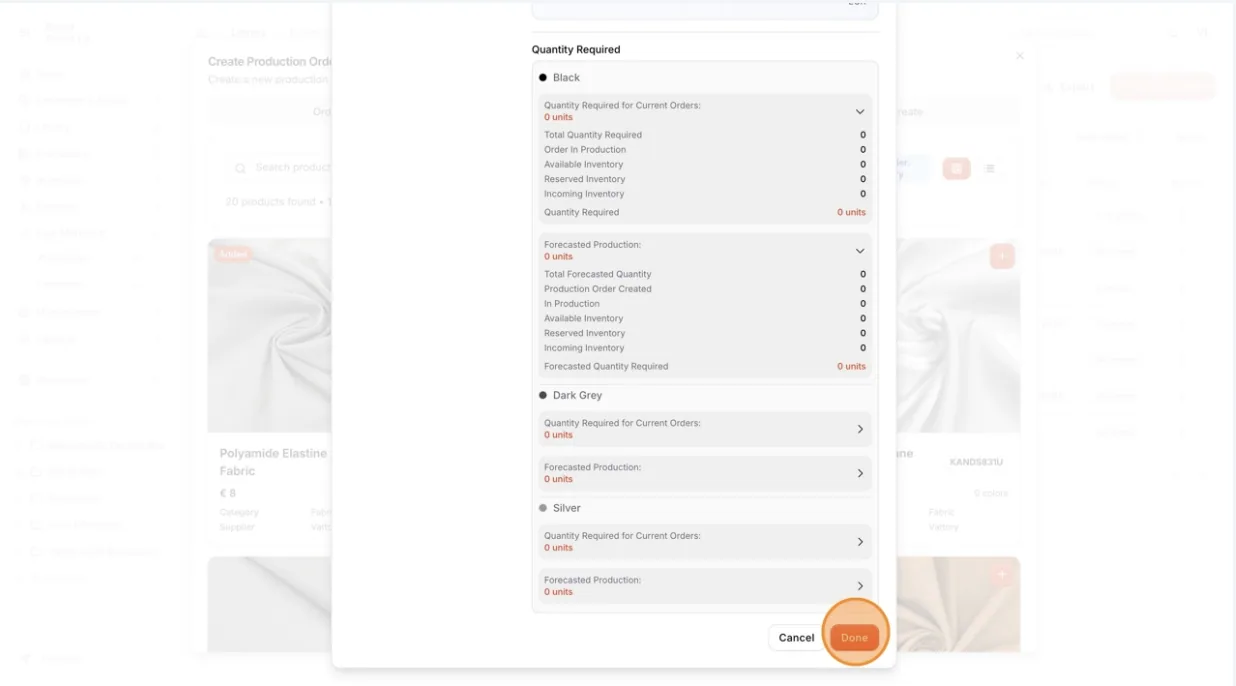
Click the dropdown arrow to expand and view detailed information such as Quantity Required for Orders, Available Inventory, Reserved Inventory, and Incoming Inventory.
Click Done once you have added the product.
If the total is below the product's minimum order quantity, a Minimum Order Quantity message asks whether to proceed. Click Proceed to continue or Cancel to change the quantity.
Repeat the process to a dd more products or variants as required.
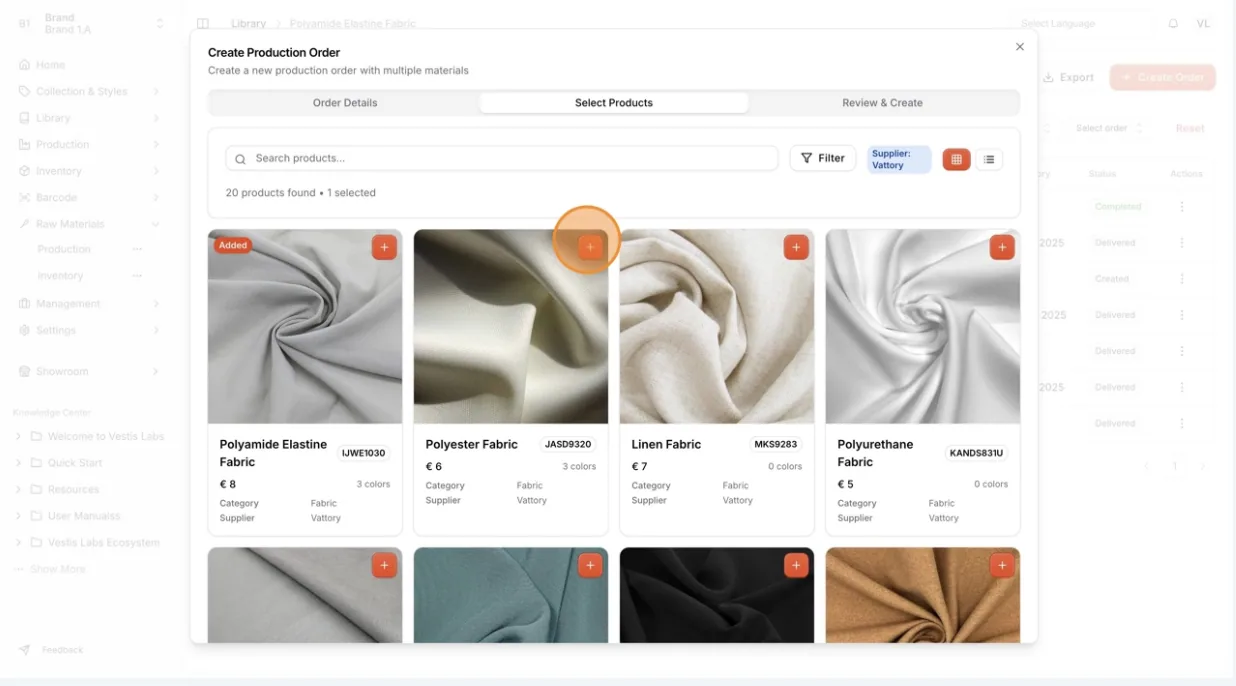
Click Next: Review Order