
Batch production
Review the production batches of a style, check their quantities and status, and open a batch to see its items and connect Product ID owners.
Under review. This page is published while we check it against the live app, so some details may have changed.
The Batch Production tab lists every production batch of a style. A batch records how many pieces of each colour (and size) are produced on a given date. From here you can review the batches, edit or delete them, and open a batch to see every item in it.
Collection & StylesStyles(your style)ProductionBatch Production
Permission: UPDATE_PRODUCT,VIEW_BRAND_PRODUCTION,VIEW_STYLE
Before you start
- The Production tab only appears on a style when batch production is turned on for your brand. If you cannot see it, contact support.
- You need permission to view the style and to view brand production. If a page shows a permission error, ask your Brand Admin.
The tabs on the Production page
The Production page has these tabs. Which ones you see depends on the features turned on for your brand.
- Production Details: the production orders of this style. See Style production orders.
- Create Order: create a new production order for this style. See Create order.
- Shipping: track the shipments of this style. See Shipping.
- Batch Production: this page.
- SKU: manage the SKU code of every colour and size. See SKU codes.
Review the batches of a style
Open the Production tab
Open the style, then click Production in the style menu and select Batch Production.
Read the style card
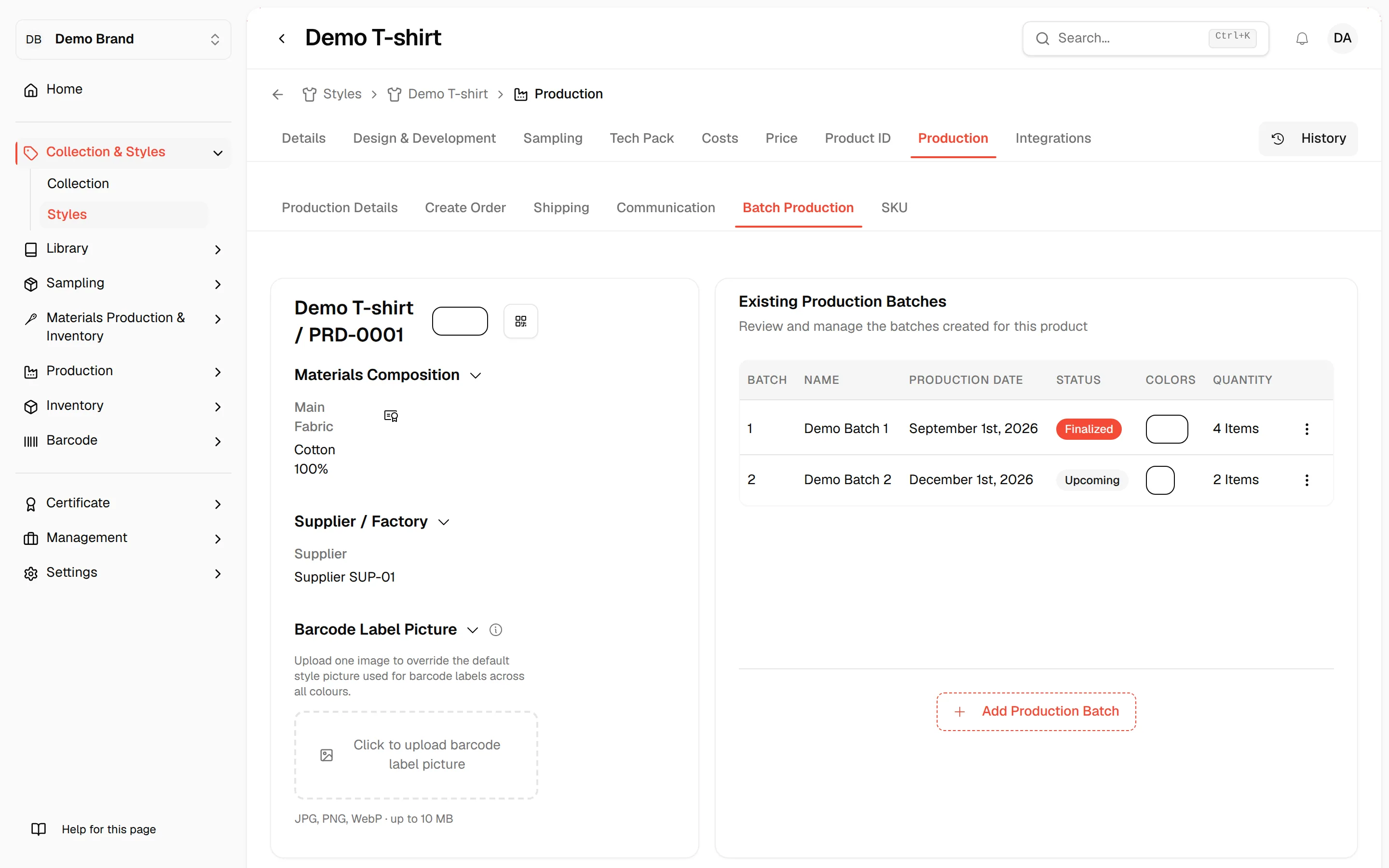
On the left, the style card shows the pictures, the style name and code, the colour dots, the Materials Composition, and the Supplier / Factory (tier and supplier).
Note
If you can view barcodes, the card also shows a Barcode Label Picture section where you can Replace or Remove the picture used on barcode labels. If you can view QR codes, a Share product page button opens a QR code and link for each colour, with Download QR Image and Copy link.
Read the batch list
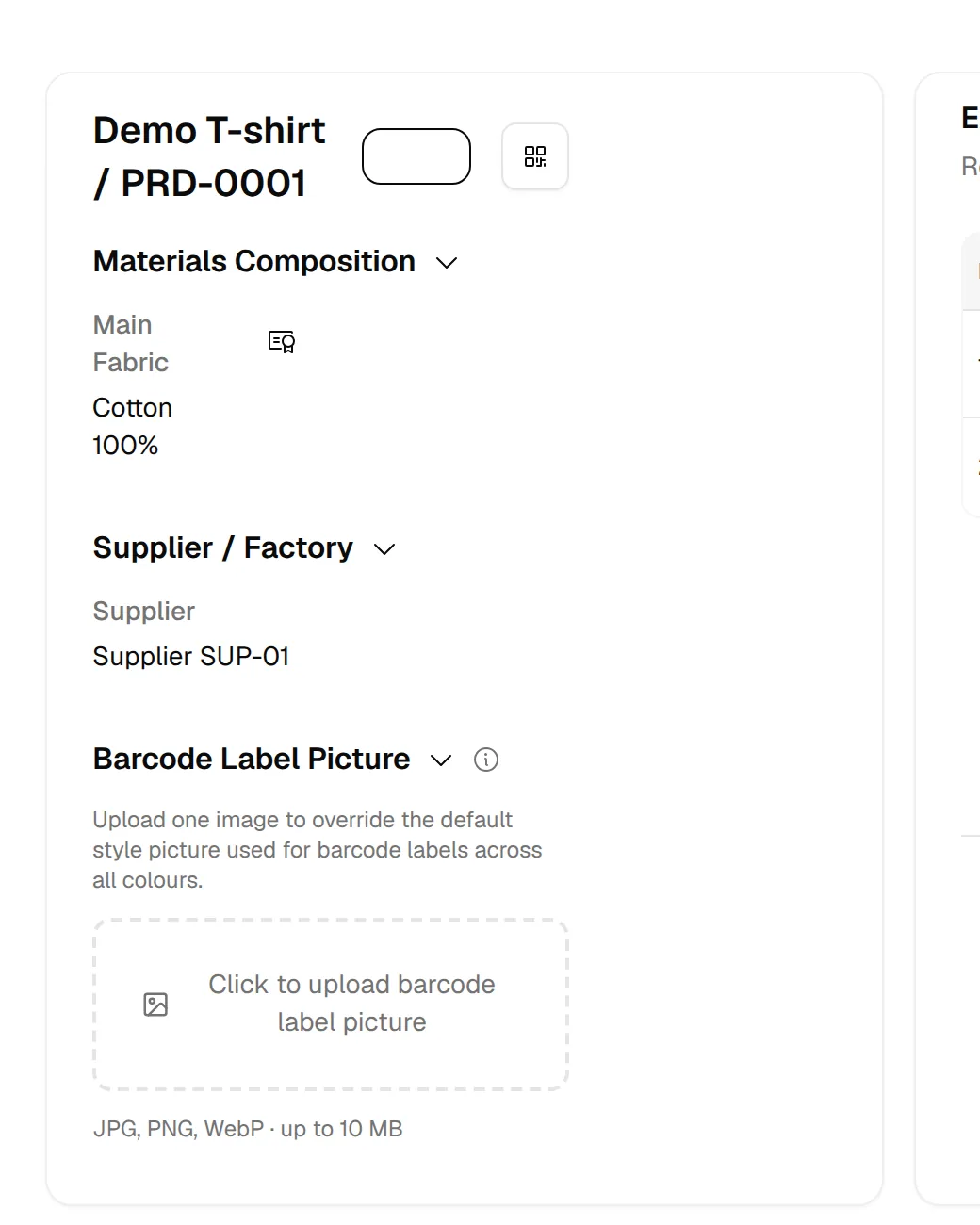
On the right, Existing Production Batches shows one row per batch. If the style has no batches, the list says "No production batch found".
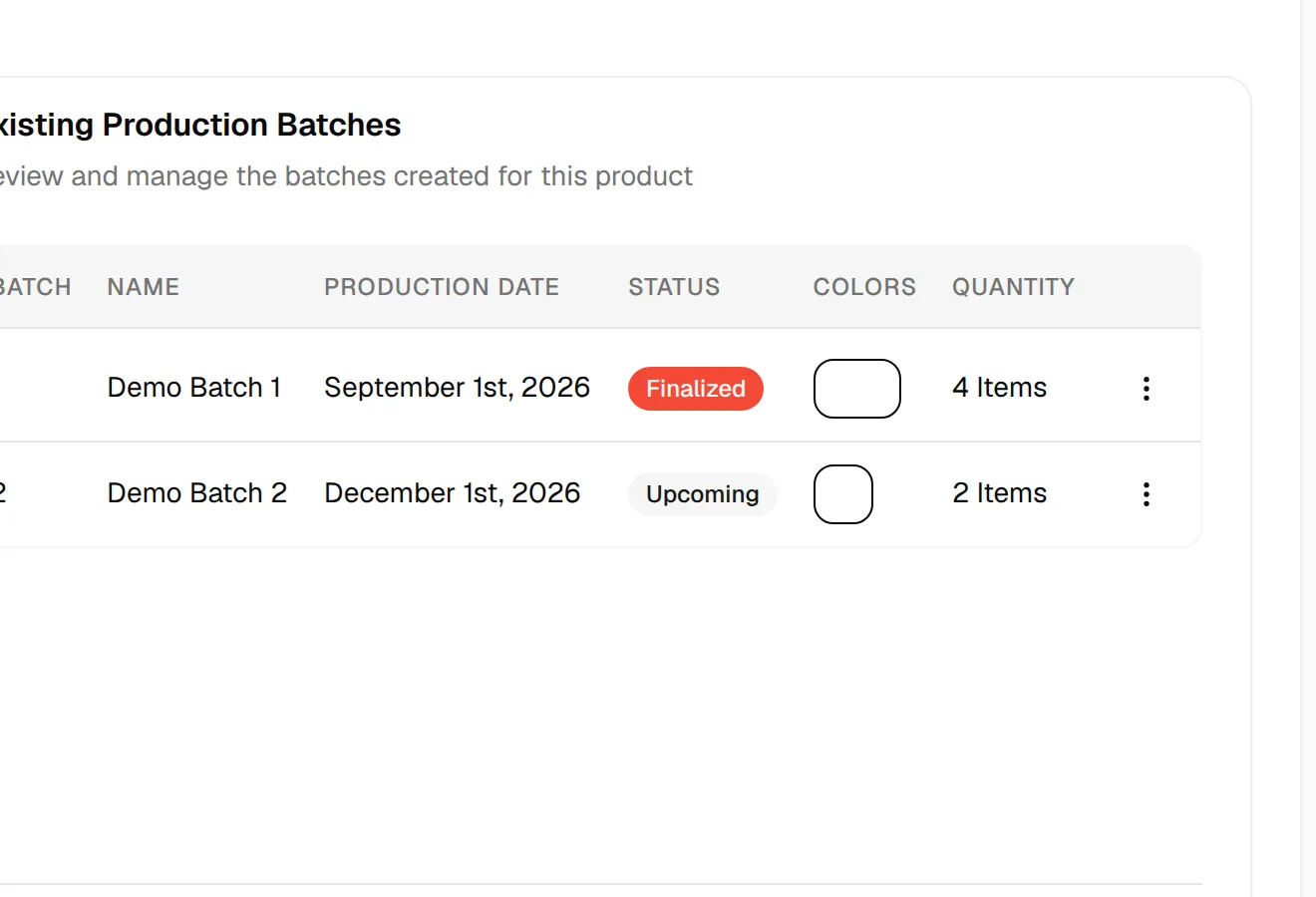
Each row of the list shows:
| Column | What it shows |
|---|---|
| Batch | The batch number. |
| Name | The batch name you entered. |
| Production Date | The production date of the batch. |
| Status | Upcoming when the production date is in the future, Finalized when it is today or in the past. |
| Colors | One dot per colour. Hover over a dot to see the colour name, the number of items and, for sized styles, the quantity per size. |
| Quantity | The total number of items in the batch. |
Note
A colour that was deactivated after the batch was created keeps showing in the batch as a faded dot marked (Inactive). A colour that was deleted shows as Deleted color.
Edit or delete a batch
Open the row menu
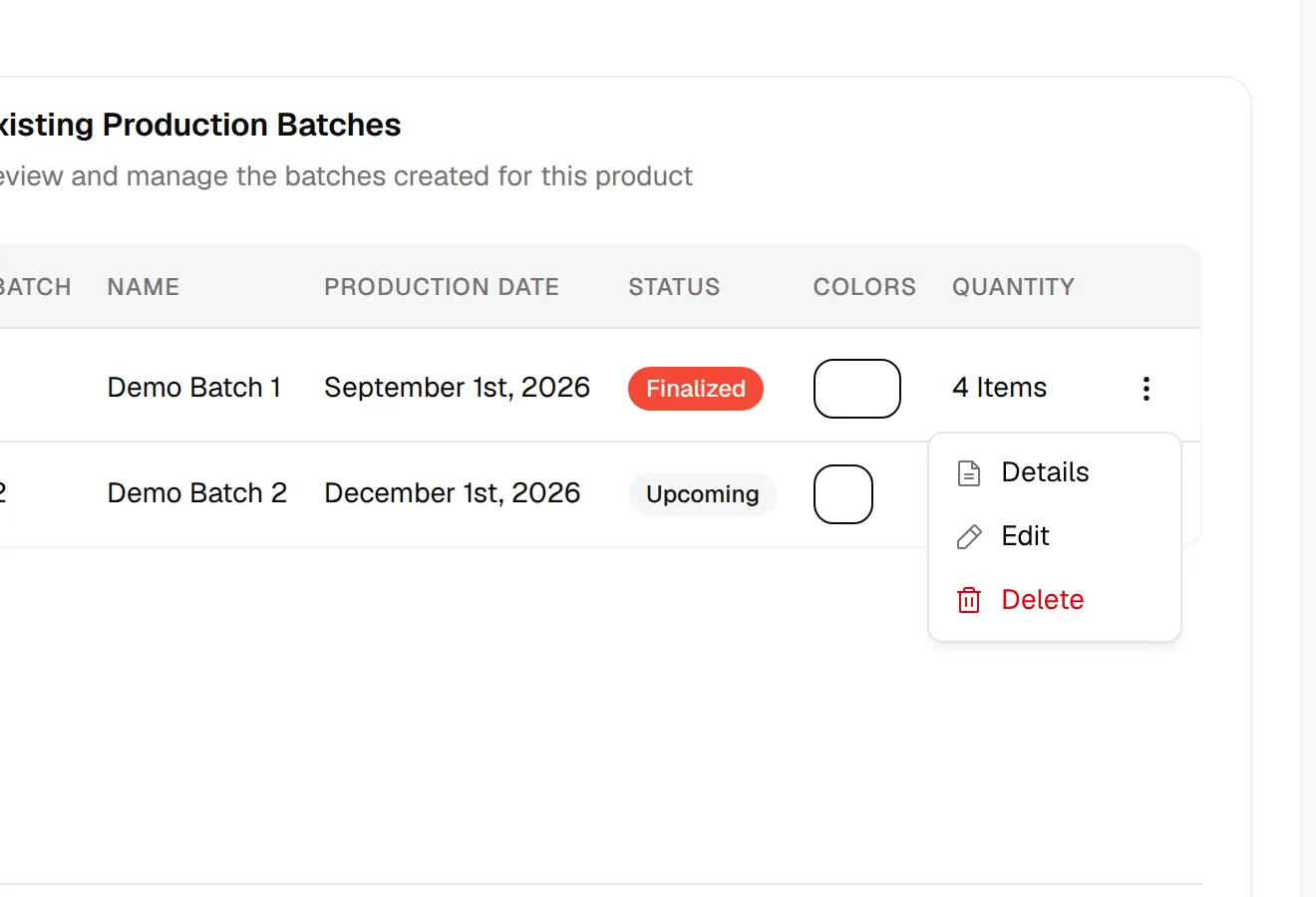
Click the three dots at the end of the batch row.
Choose an action
Select Details to open the batch, Edit to change it, or Delete to remove it.
Confirm
Edit opens the same form as when you add a batch. Delete asks "Are you sure want to delete this batch production?"; click Delete to confirm or Cancel to keep the batch.
Warning
If the production date has passed, the batch is finalized. Deleting it, or updating it, shows the warning "This batch has been finalized" before you confirm. For a finalized batch, the colour switches and quantity fields in the form are locked.
Open a batch
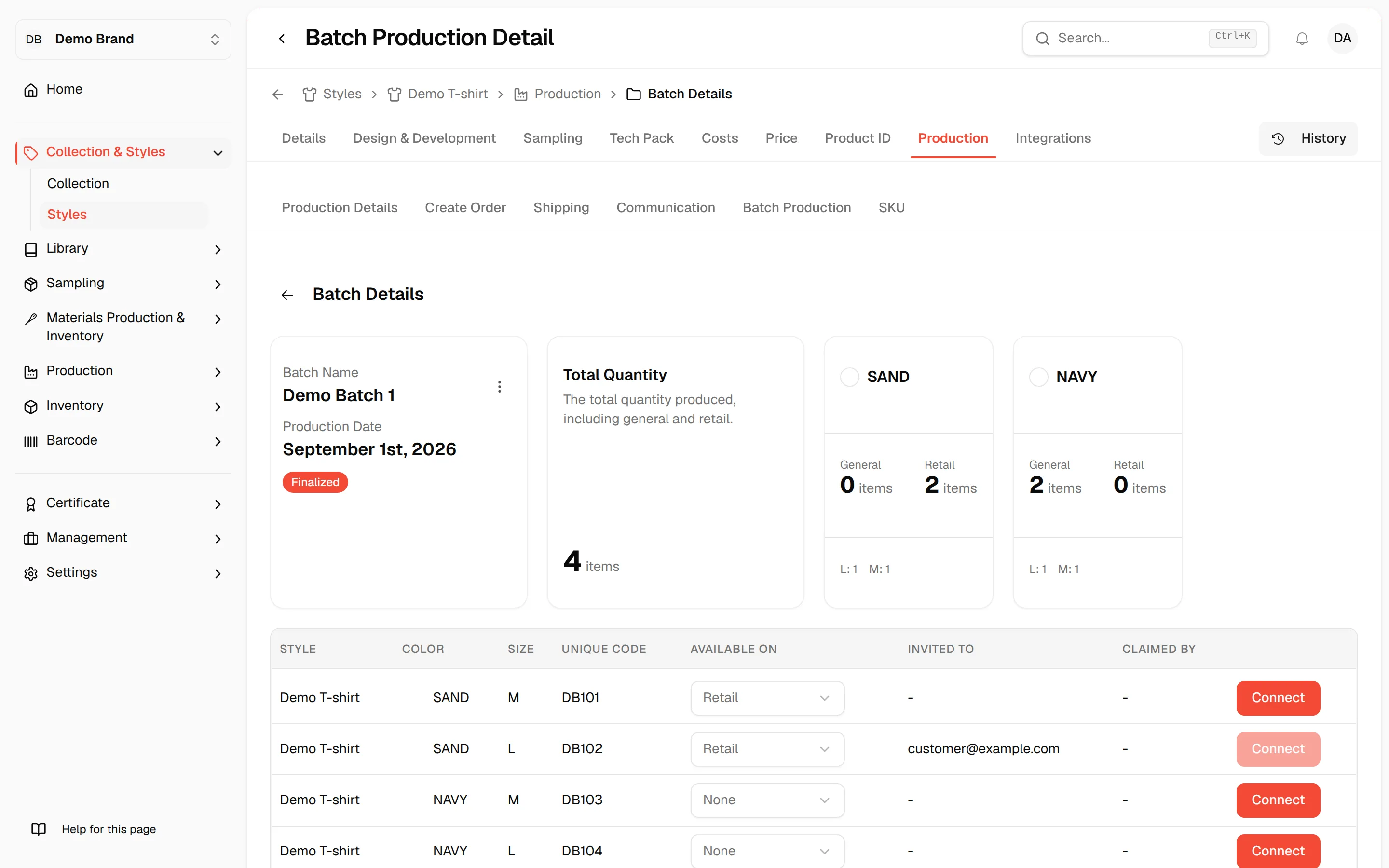
Select Details from the row menu to open Batch Details. Use the back arrow at the top left to return to the batch list.
The page shows:
- Batch Name and Production Date, with the Upcoming or Finalized badge. The menu next to the name has Delete Batch.
- Total Quantity: the total produced, including general and retail quantities (and Shopify quantities when your brand is connected to Shopify).
- One card per colour with its General, Retail and, when connected to Shopify, Shopify quantities, plus the quantity per size for sized styles.
- A table with one row for every item: Style, Color, Size, Unique Code, Available On, Invited To and Claimed By.
In the table you can change Available On per item. The options are Retail and None, plus Shopify when your brand is connected to Shopify.
Connect an item to a customer
Use Connect to send a customer an invitation to claim the item's Product ID.
Click "Connect"
Click Connect at the end of the item row. The button is disabled once the item has been invited or claimed.
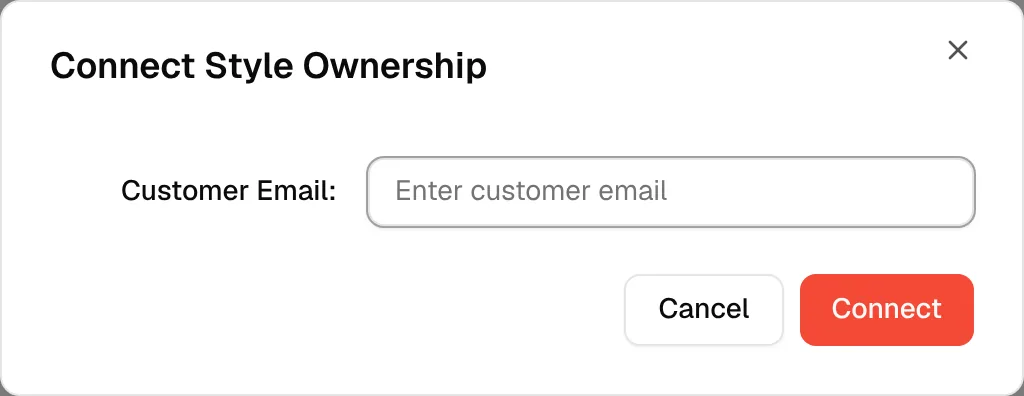
Enter the customer email
In the Connect Style Ownership window, type the address in Customer Email:. An empty or invalid address shows "Email must not be empty" or "Please input a valid email address".
Click "Connect"
Click Connect to send the email. The message "Connect Style Ownership email has been sent" confirms it, and the address appears under Invited To.
When the customer claims the item, their address appears under Claimed By.
Troubleshooting
The Production tab is missing. Batch production is turned on per brand. Contact support to have it enabled.
Saving a batch shows an error. The form needs a batch name, a production date, at least one selected colour and a total quantity above zero. See Add a production batch.