Amend agreed production dates
Change the agreed start, completion and ex-factory dates of a production order, record why, and optionally tell the supplier.
The agreed dates of a production order are the production start, production completion and ex-factory dates you and the supplier planned. When the plan changes, amend them and record the reason. The original dates stay in the amendment history.
ProductionOrder Managementthree-dot menuView/EditAmend agreed dates
Permission: UPDATE_BRAND_PRODUCTION
Before you start
- You need the Update production permission.
- The Amend agreed dates button is not shown to supplier users. They can respond to confirmation requests, but never change the agreed dates.
- To record when something really happened, use Update actual production dates instead.
Amend the dates
Open the order
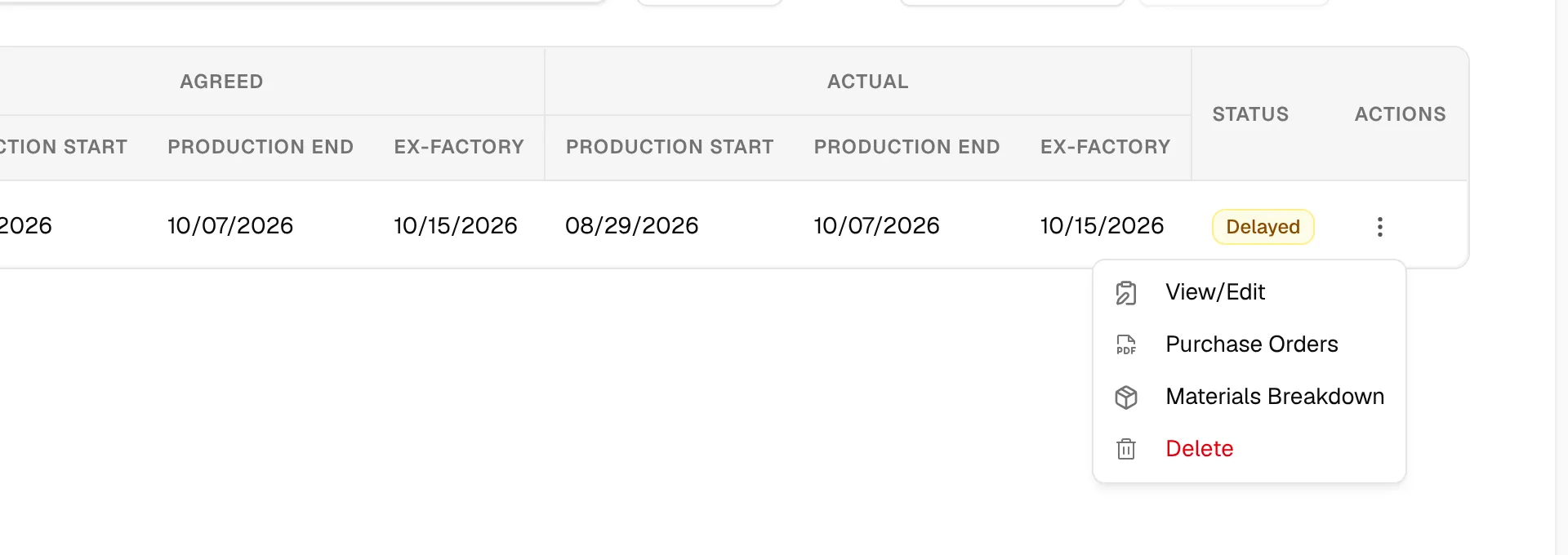
On the Production Orders page, select the three-dot action button on the order's row and click View/Edit.
Click "Amend agreed dates"
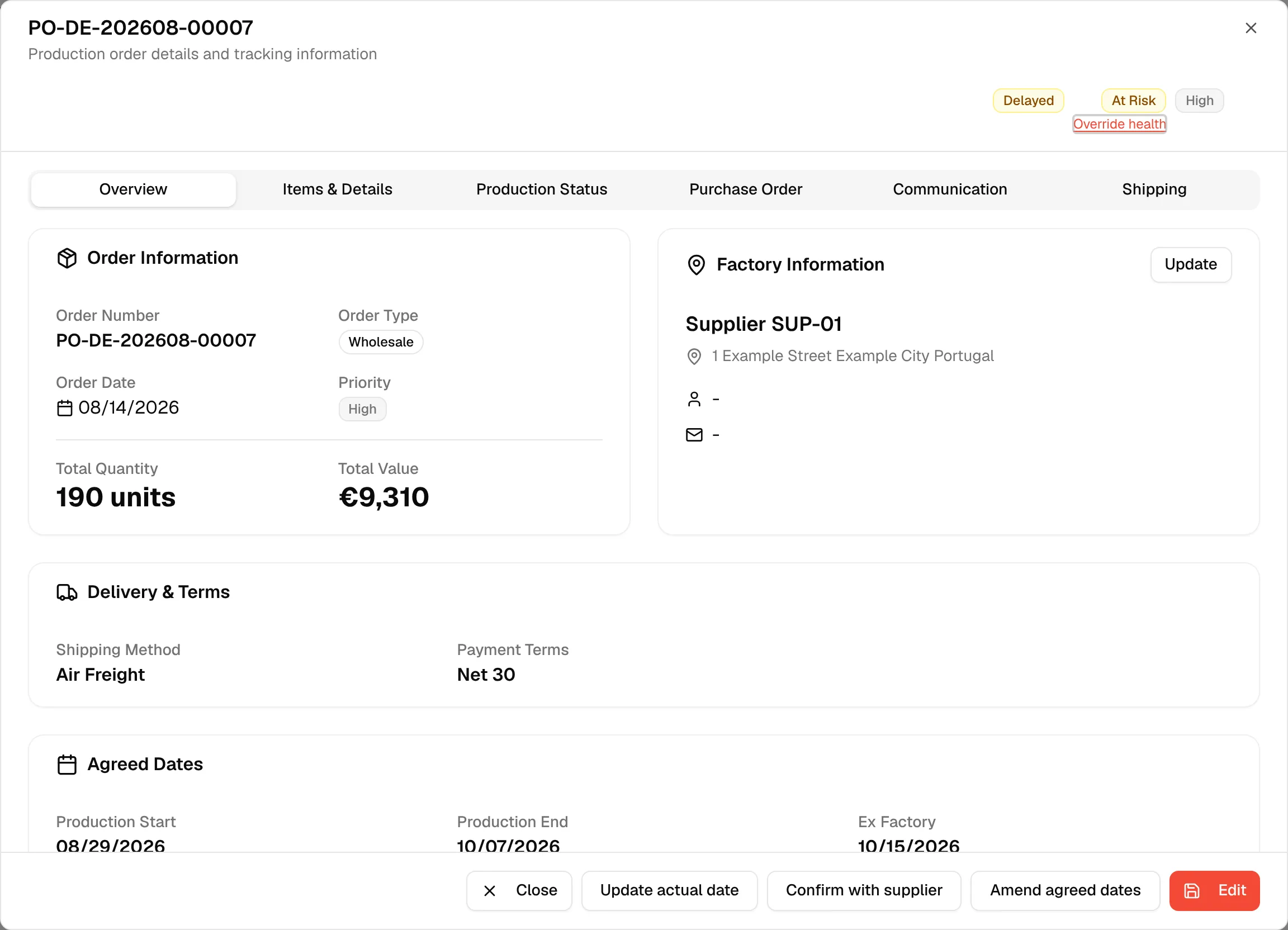
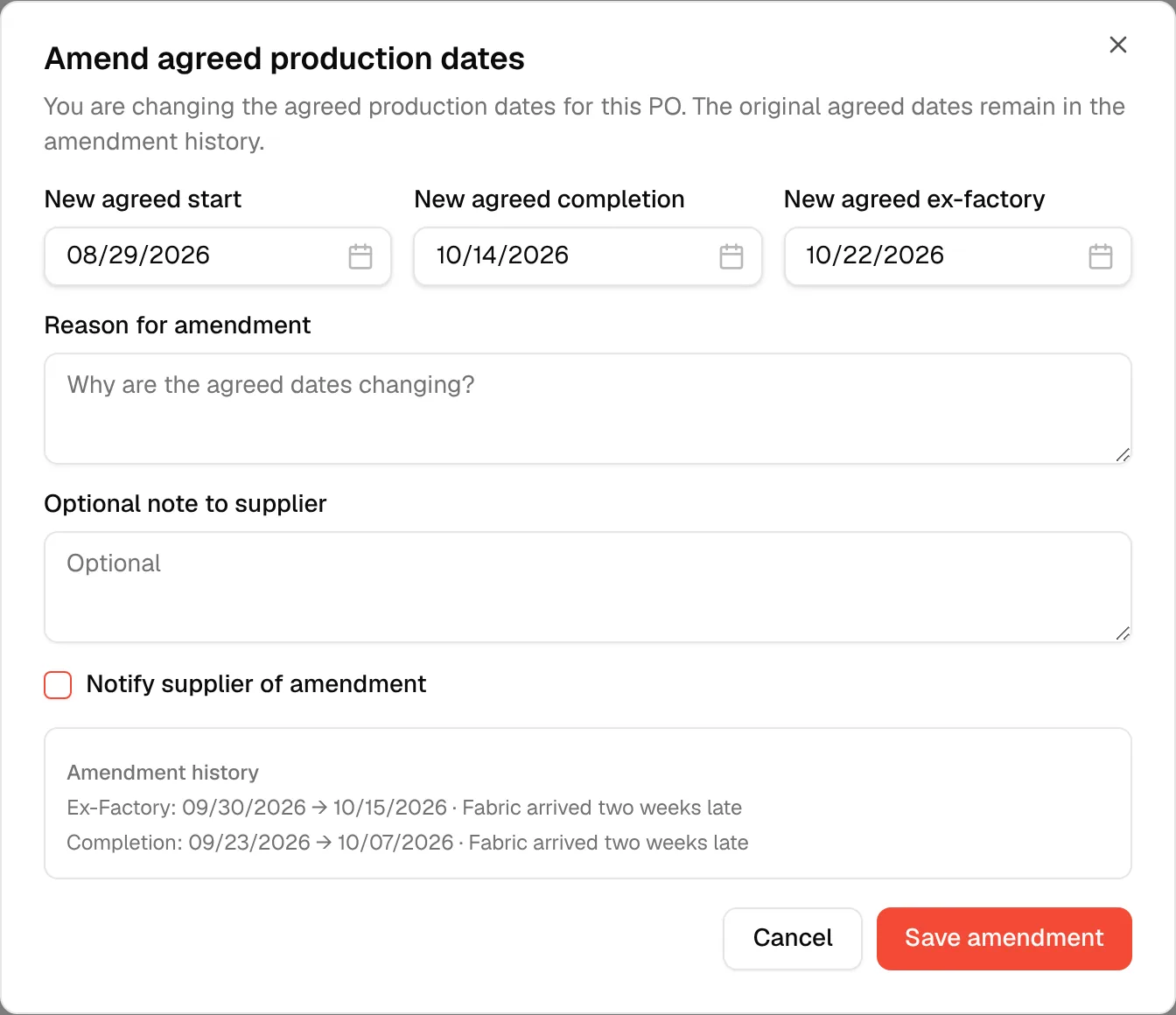
Click Amend agreed dates at the bottom of the order dialog. The Amend agreed production dates dialog opens: "You are changing the agreed production dates for this PO. The original agreed dates remain in the amendment history."
Set the new dates
Choose the New agreed start, New agreed completion and New agreed ex-factory dates. The fields start with the current agreed dates, so change only the dates that move.
Enter the reason
Type why the dates are changing in Reason for amendment. This field is required: without it the form shows "Reason is required".
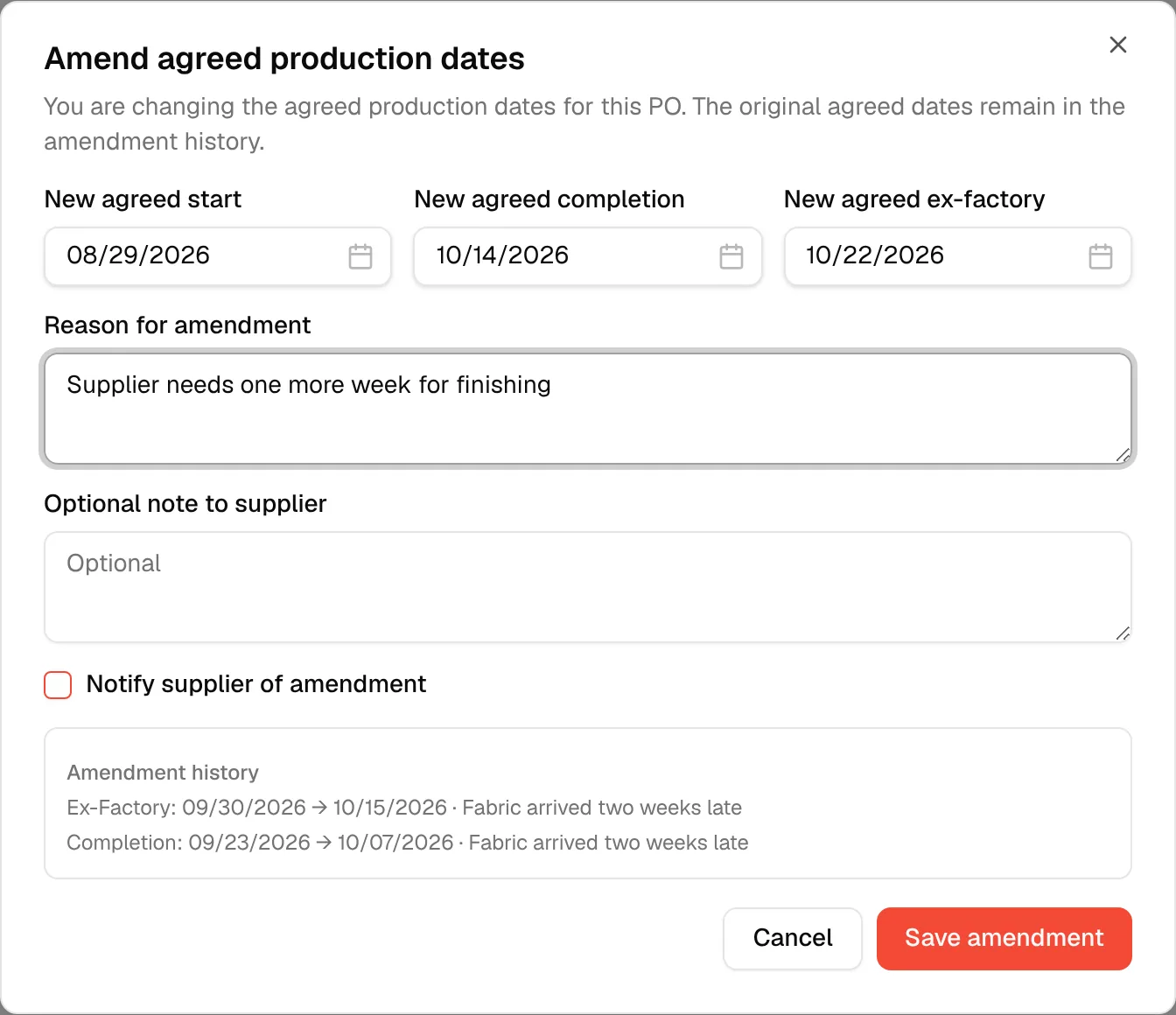
Add a note for the supplier (optional)
Type a message in Optional note to supplier.
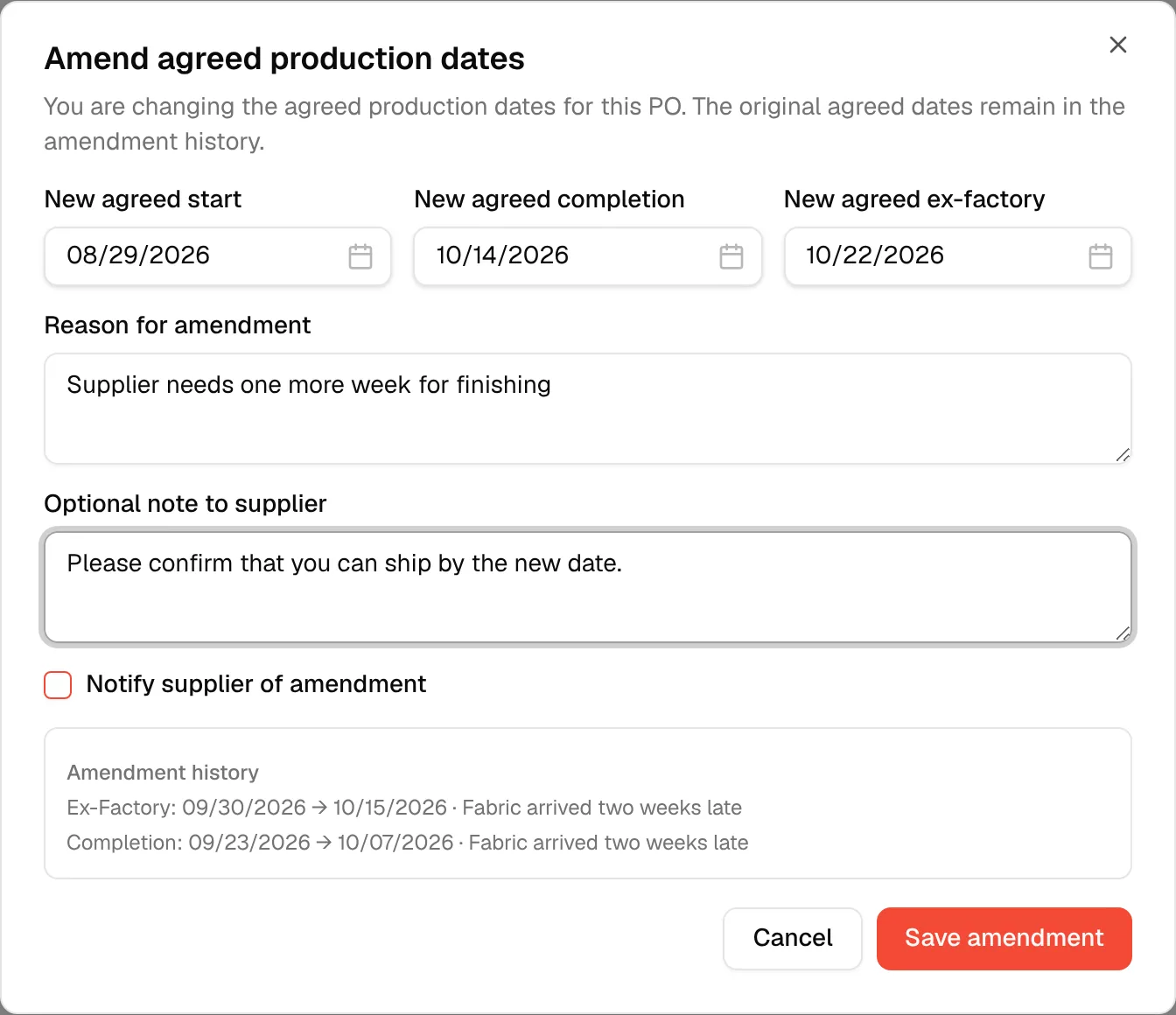
Choose whether to notify the supplier
Check Notify supplier of amendment to tell the supplier about the change.
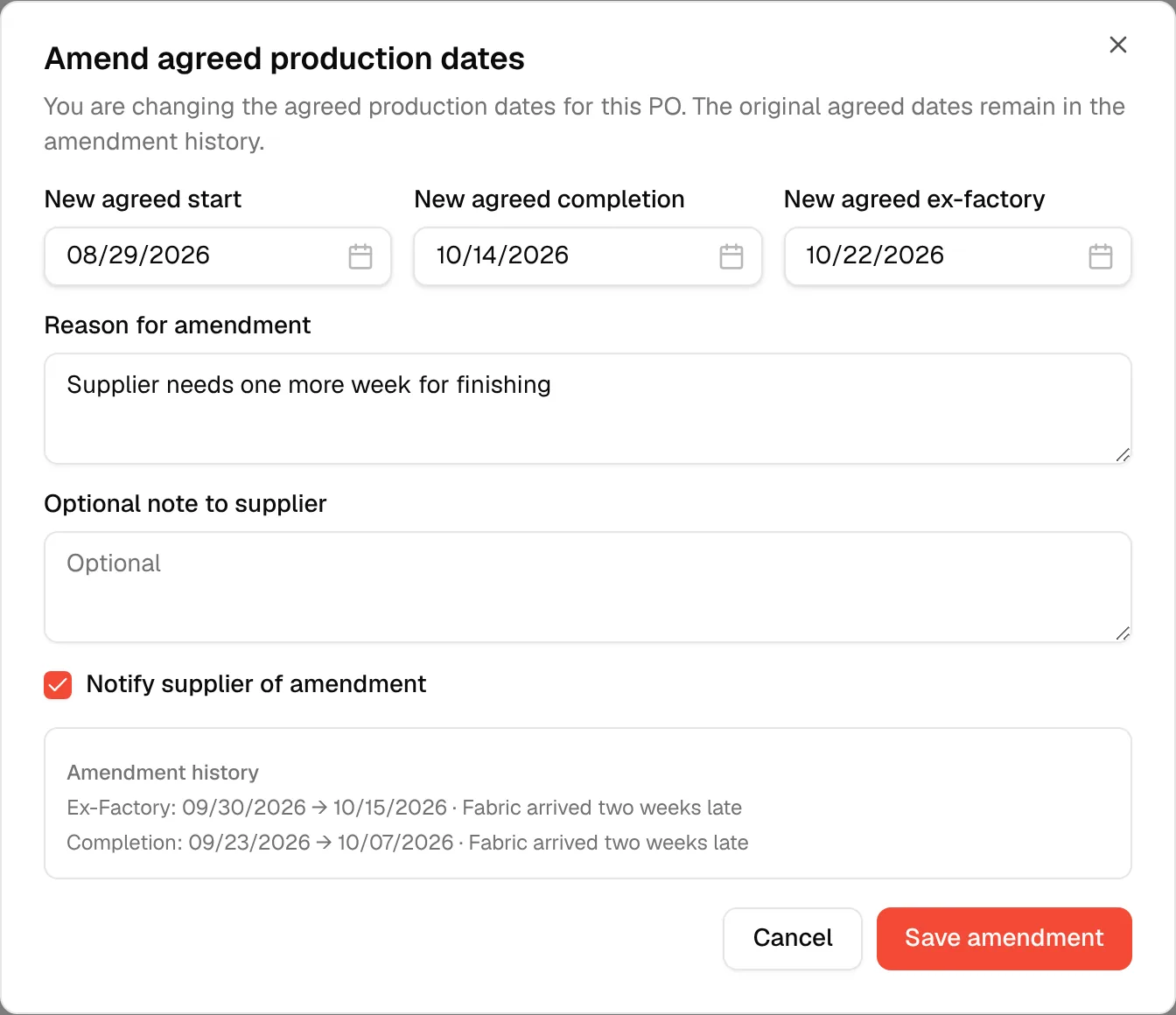
Click "Save amendment"
Click Save amendment. The dialog closes when the amendment is saved.
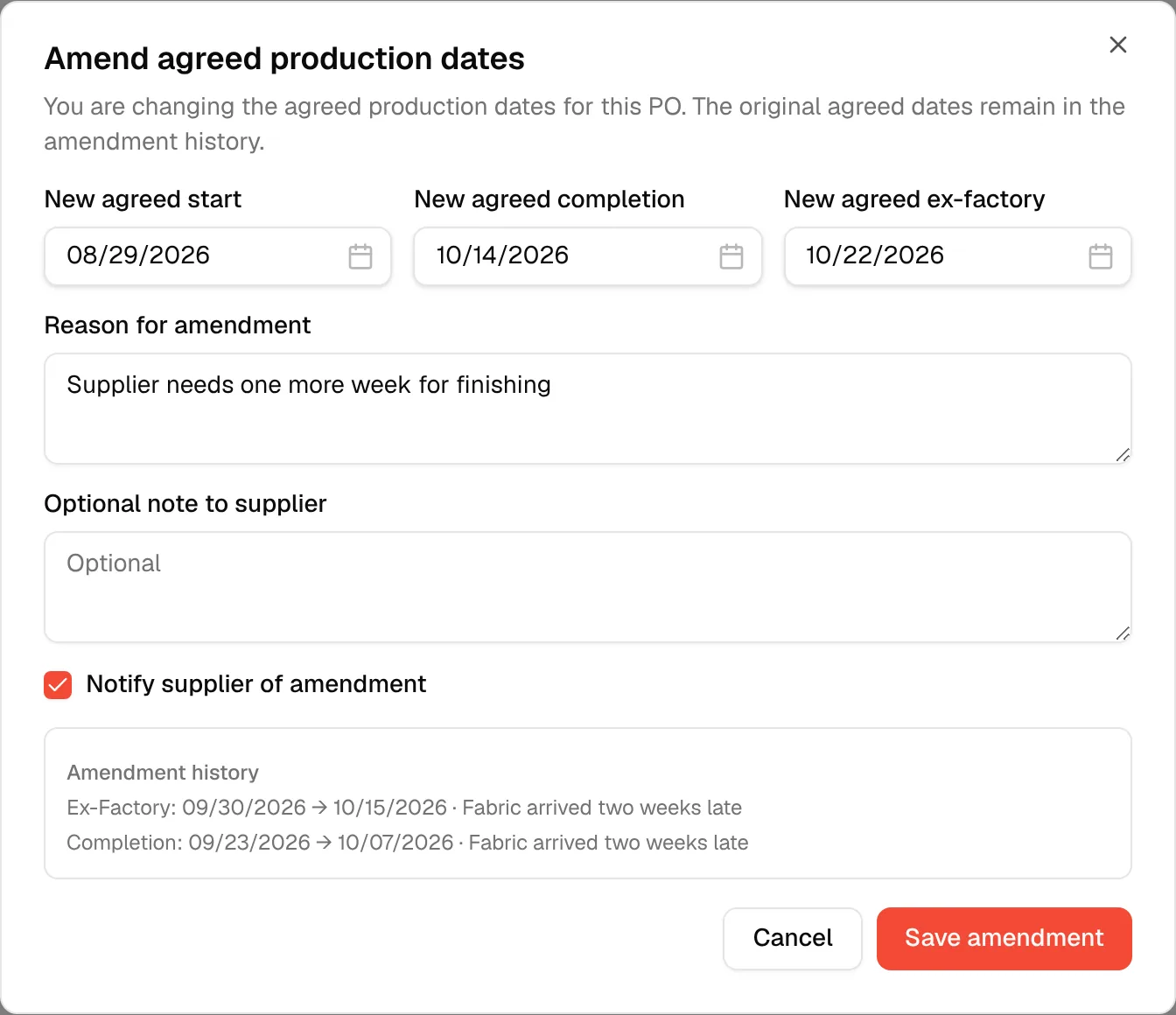
The Agreed Dates card on the Overview tab now shows the new dates.
Rules for the dates
- The completion date cannot be earlier than the start date: "Completion cannot be earlier than start".
- The ex-factory date cannot be earlier than the completion date: "Ex-factory cannot be earlier than completion".
- If the platform rejects a date, the message appears under the date field it concerns.
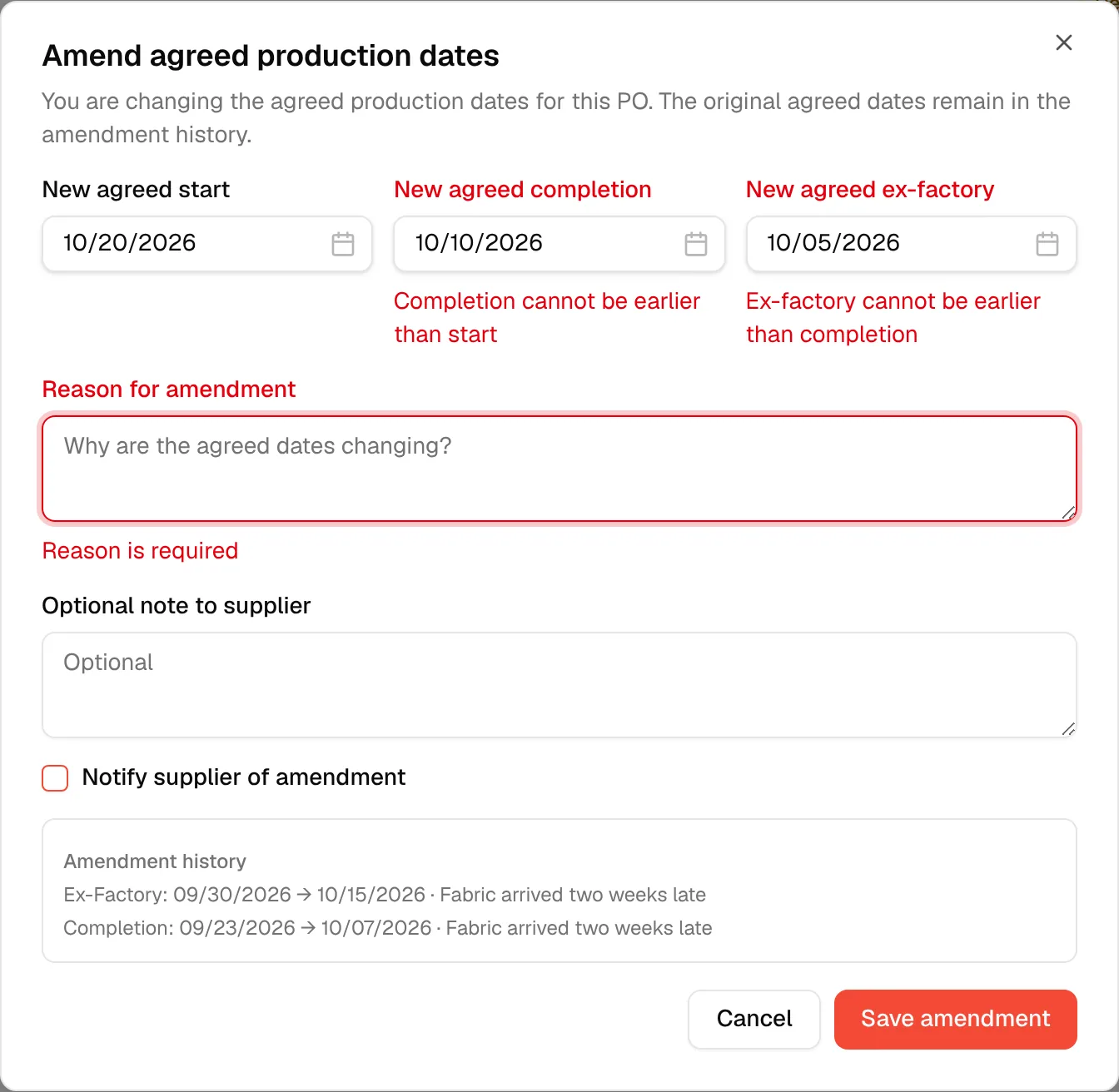
Amendment history
When the order has been amended before, the dialog lists the earlier amendments under Amendment history, newest first. Each line shows which date changed (Start, Completion or Ex-Factory), the old date, the new date and the reason.
Closing without saving
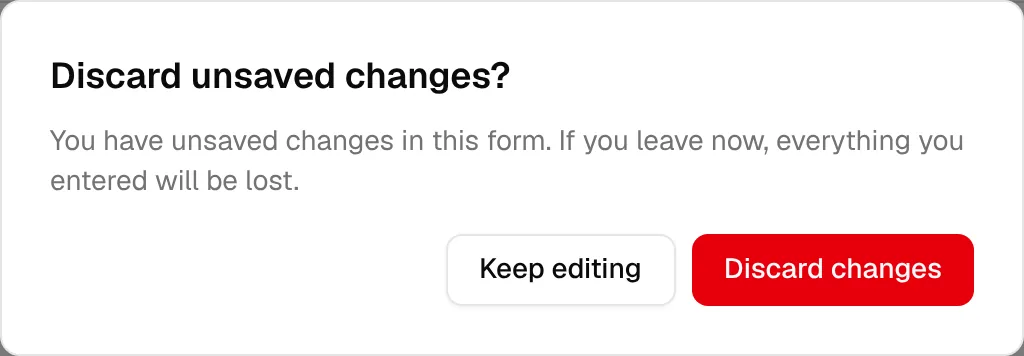
If you changed something and close the dialog, the platform asks Discard unsaved changes? Click Keep editing to go back or Discard changes to close it.