
Create raw materials shipping & tracking record
The Raw Materials Shipping & Tracking feature allows users to create, manage, and track the shipment of raw materials efficiently.
Under review. This page is published while we check it against the live app, so some details may have changed.
Screenshots may be out of date.
Materials Production & InventoryProductionShipping & Tracking
Permission: UPDATE_MATERIAL_PRODUCTION
Click Create Shipment to start creating a new shipment record.
The Create New Shipment window opens.
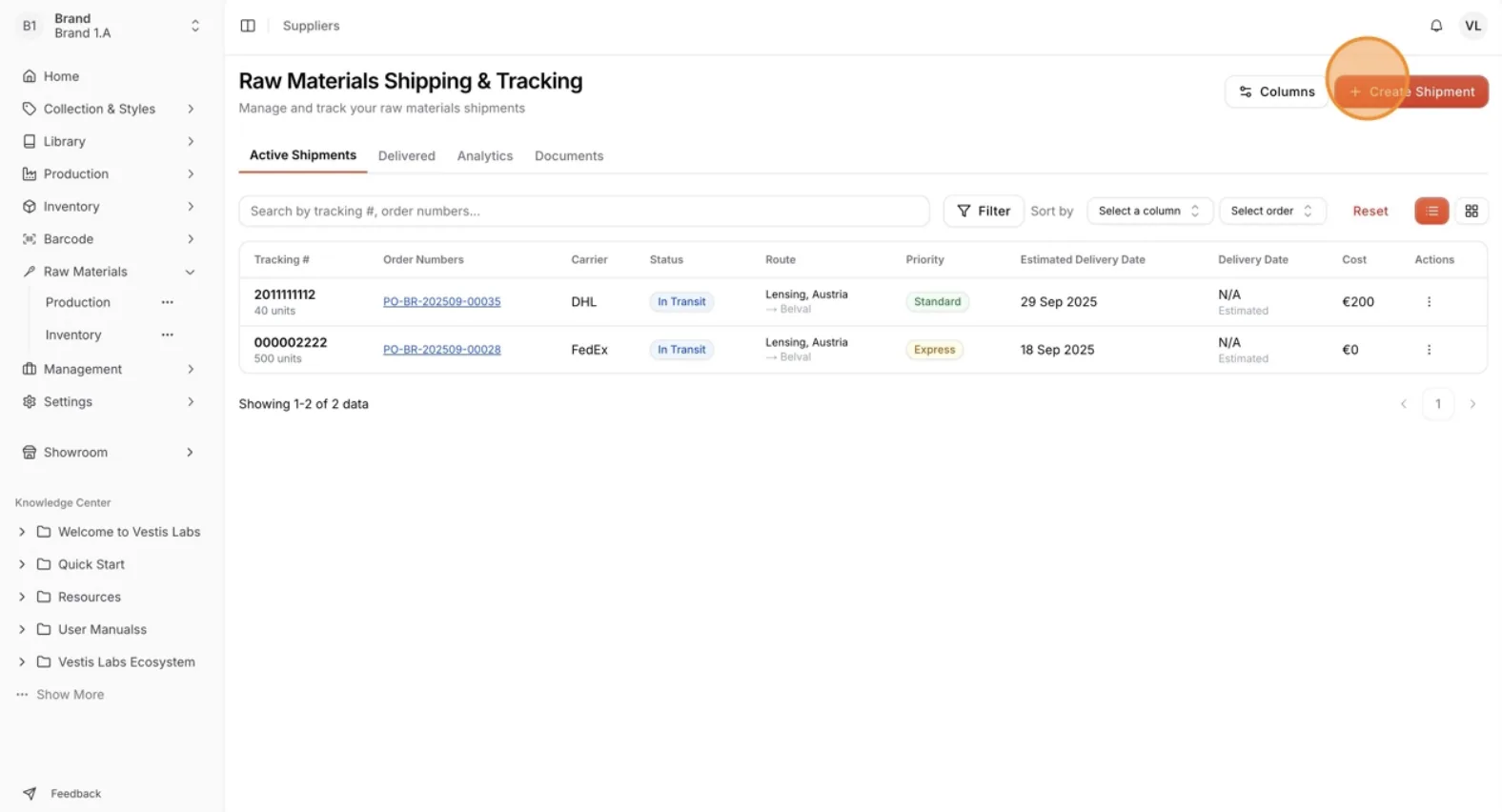
Choose the factory that will handle the shipment.
Pick it in the Factory field (required). The selected factory determines which production orders and materials will be available for shipment.
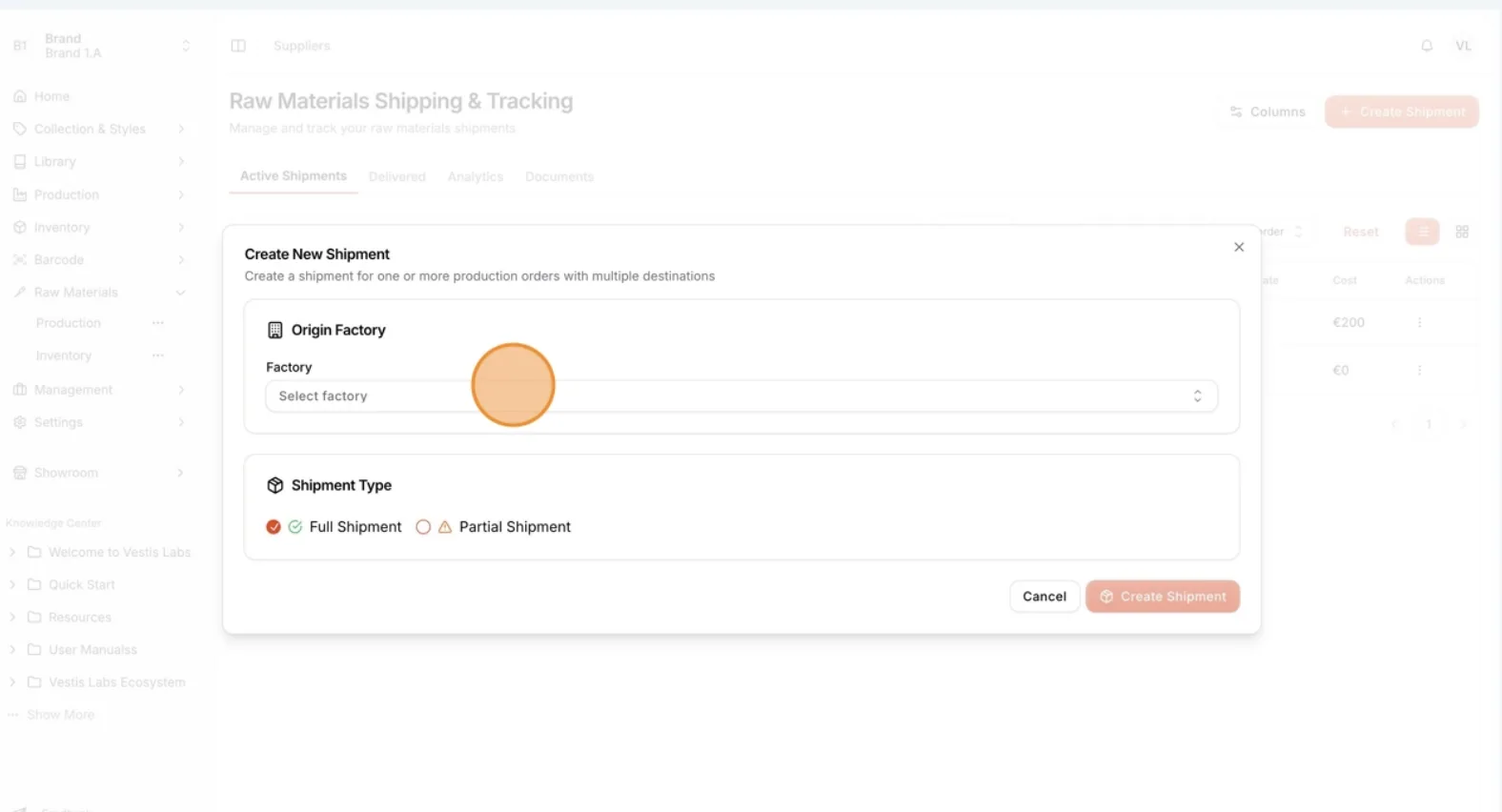
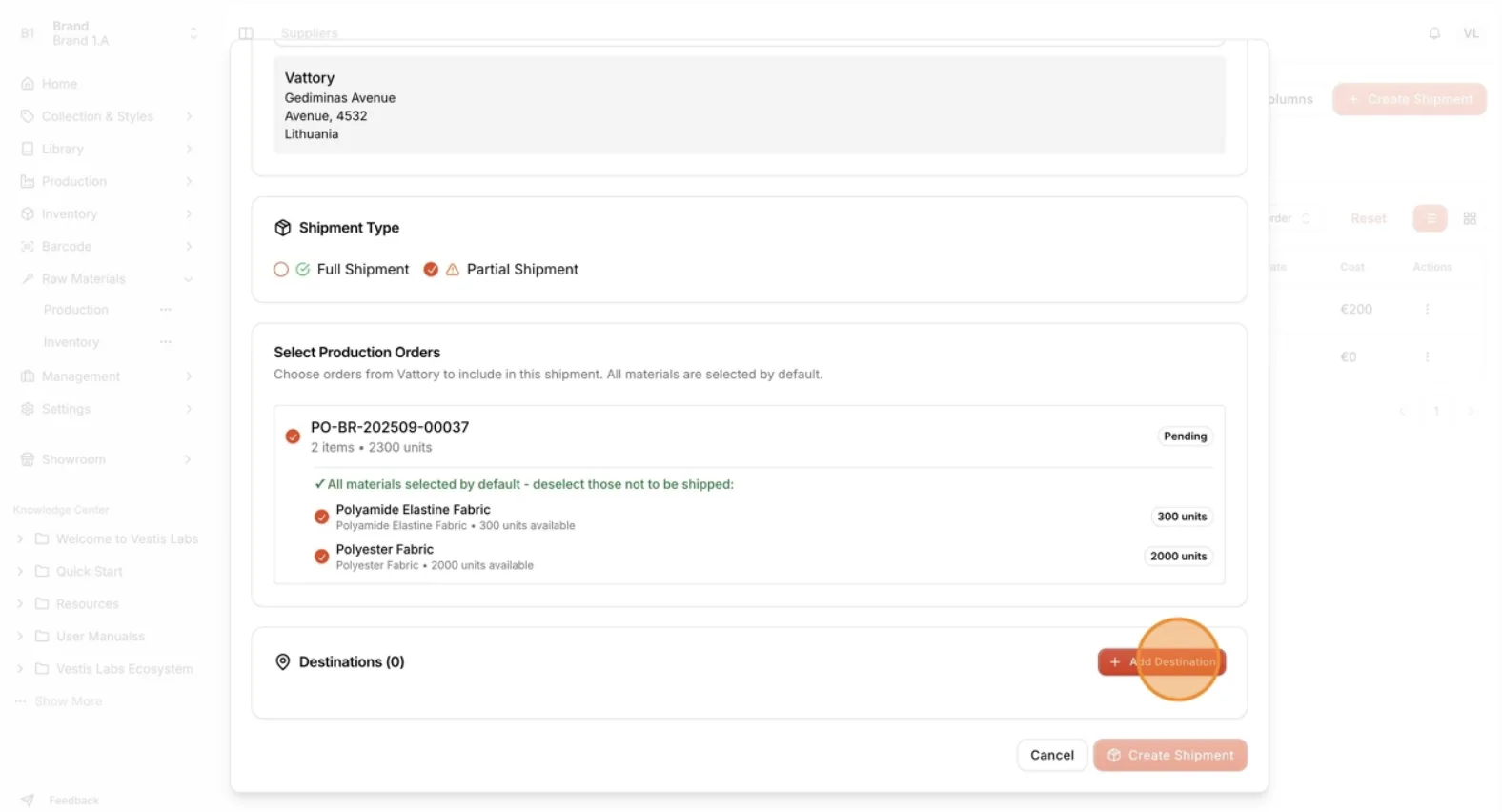
Select the type of shipment you want to create:
- Full Shipment: Sends all materials from the selected production orders at once in a single delivery.
- Partial Shipment: Sends selected items from the production orders in multiple, separate deliveries based on readiness or scheduling needs.
**
**
Note
For a full shipment, all materials are selected by default. For a partial shipment, you can manually deselect items you do not want to ship.
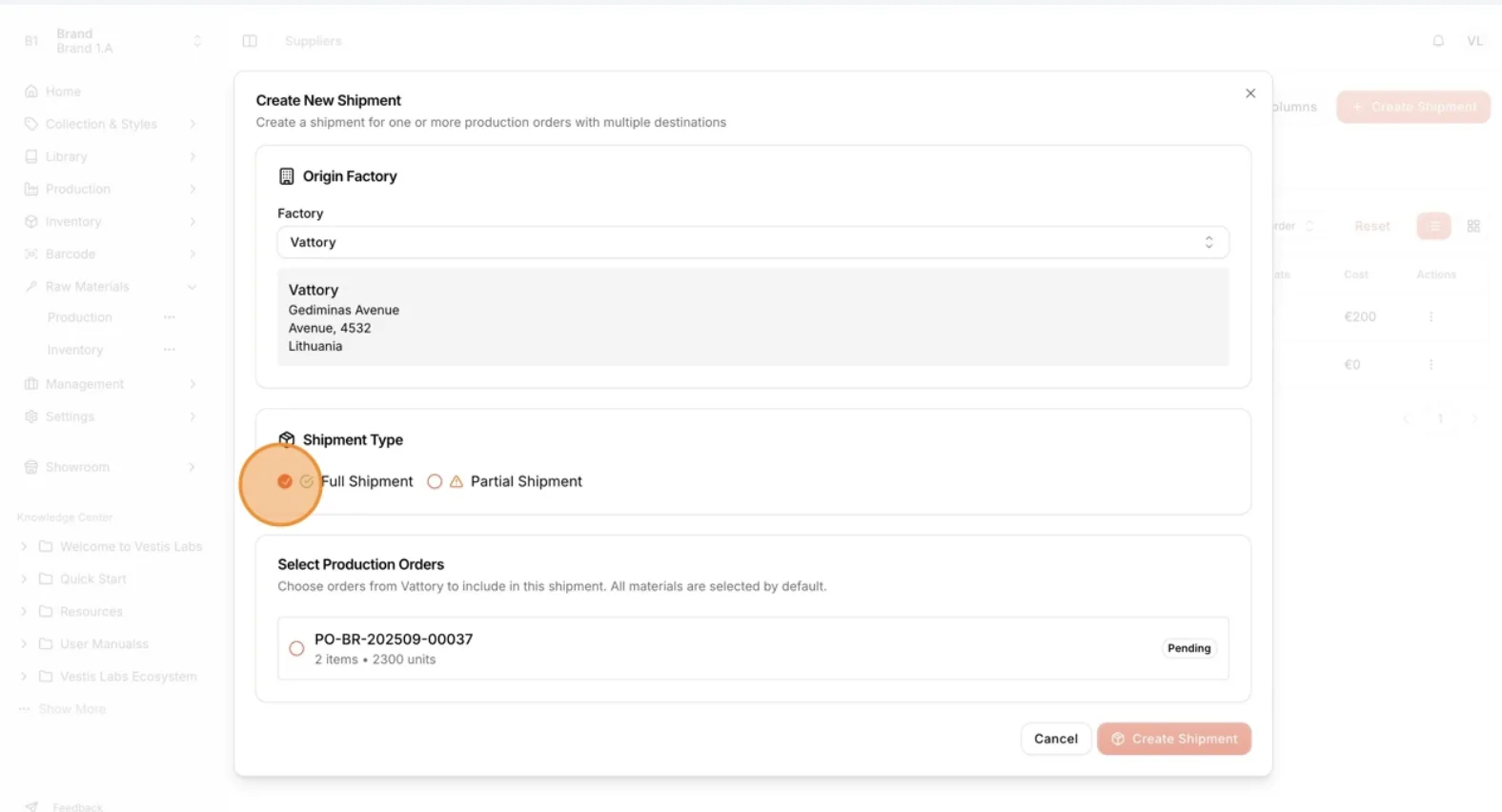
Choose the related Production Orders from the selected factory.
They are listed under Select Production Orders. These orders determine which raw materials will be included in the shipment.
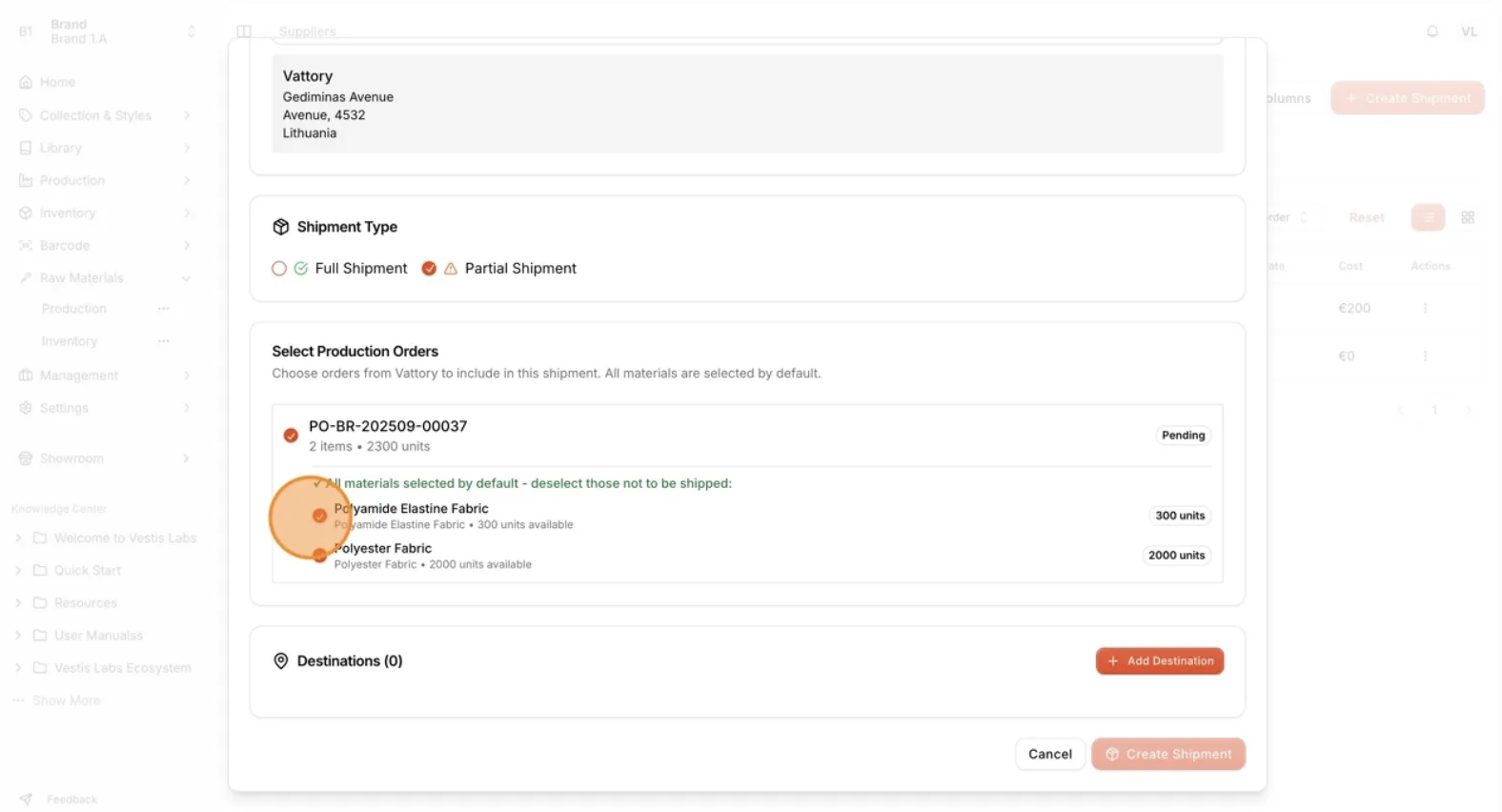
Click Add Destination to set the delivery location.
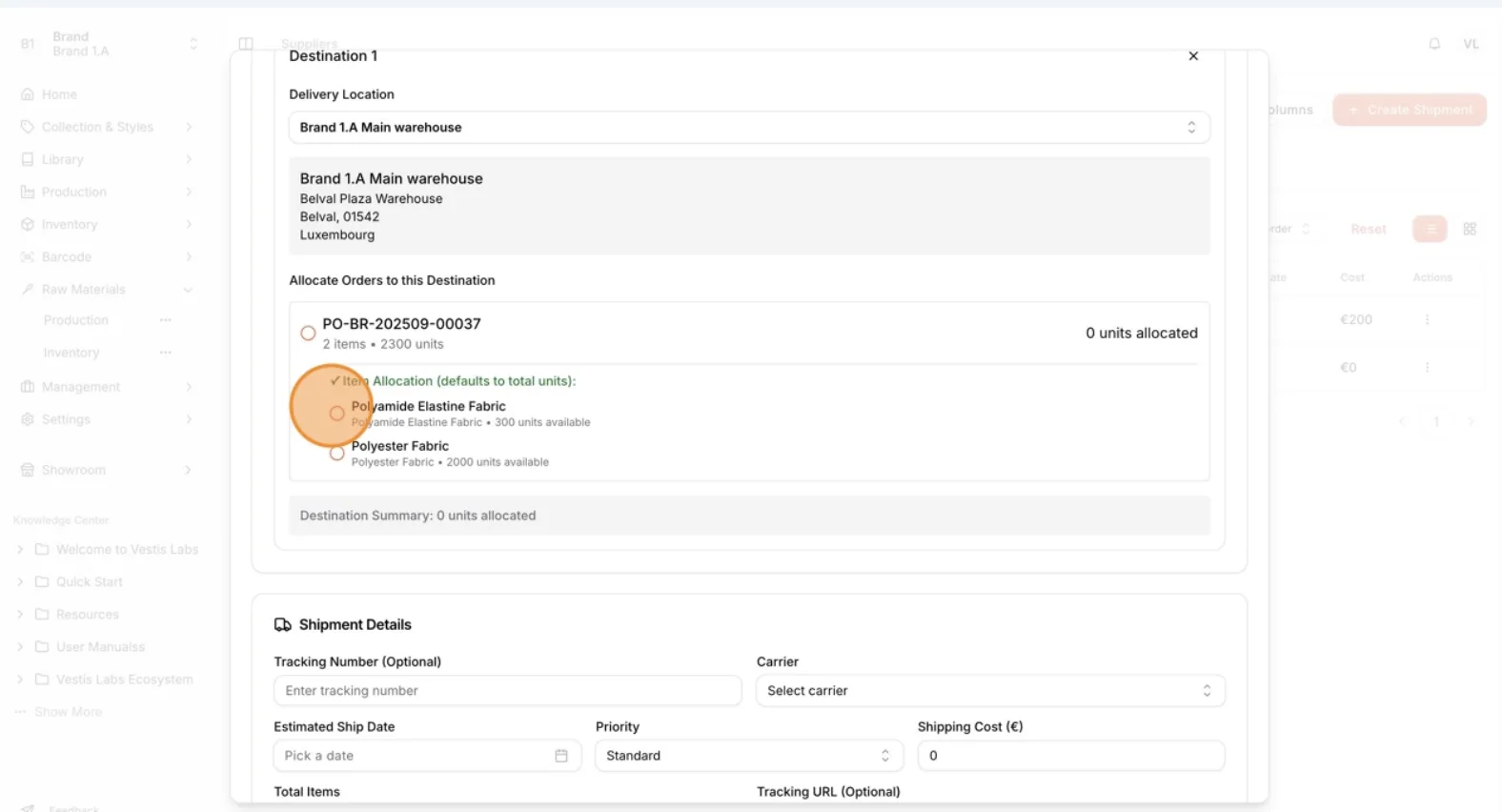
In Delivery Location, select a supplier or a warehouse.
Select the production orders to be shipped to that location.
Under Allocate Orders to this Destination, select the orders and quantities for this location. This step ensures the correct allocation of items to the designated delivery point.
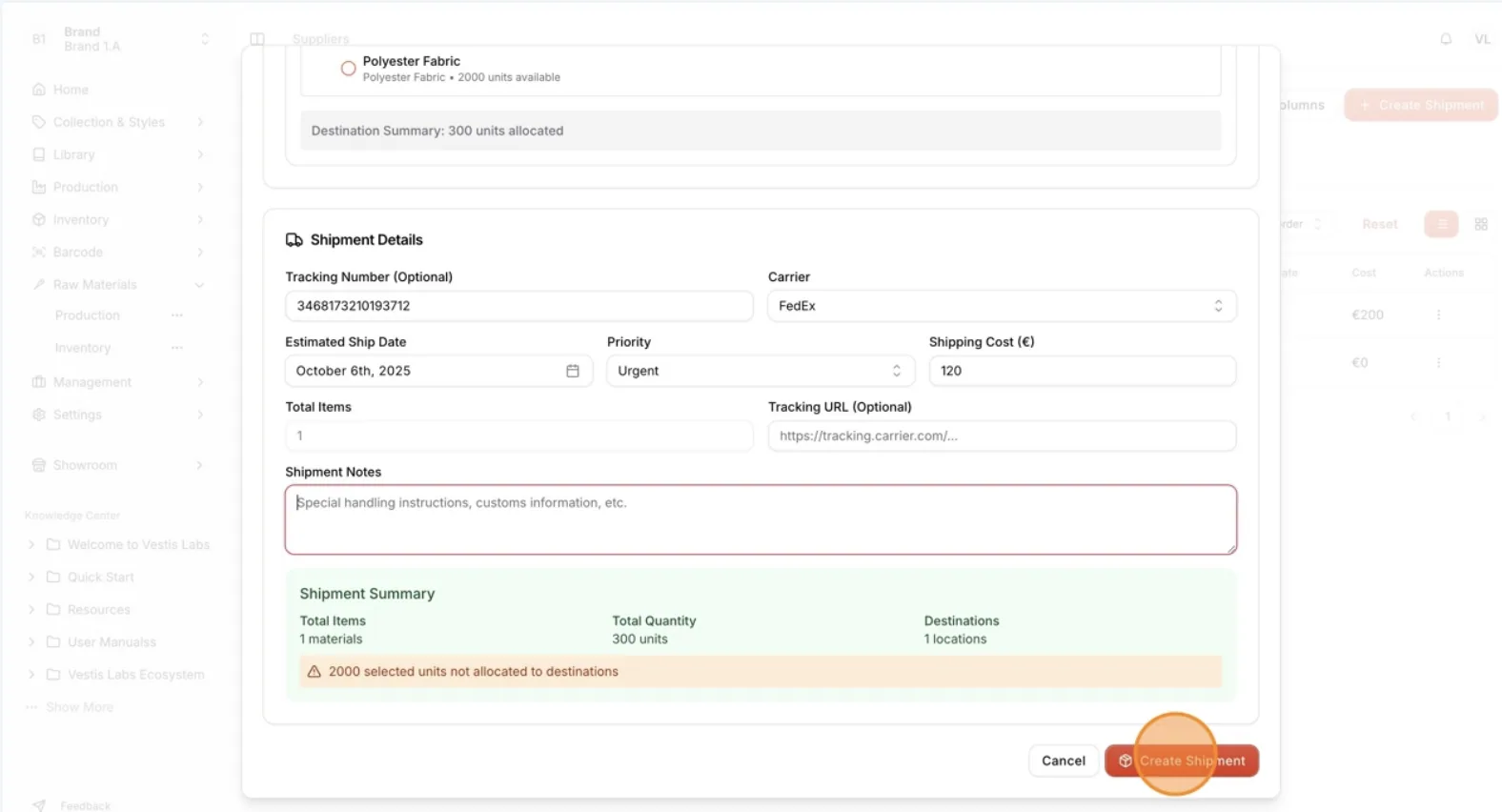
Fill in all shipment-related details to ensure accurate tracking and documentation:
- Tracking Number (Optional) – Enter the shipment tracking ID provided by the carrier.
- Carrier – Select the shipping provider from the list. This field is required.
- Estimated Ship Date – Specify the expected shipment date. This field is required.
- Priority – Select Standard, Express or Urgent.
- Shipping Cost (€) – Enter the estimated or actual shipping cost.
- Total Items – Shows the total number of items included in the shipment. It is filled in for you and cannot be edited.
- Tracking URL (Optional) – Provide the link to track the shipment in real time.
- Shipment Notes – Add any additional remarks or special handling instructions.
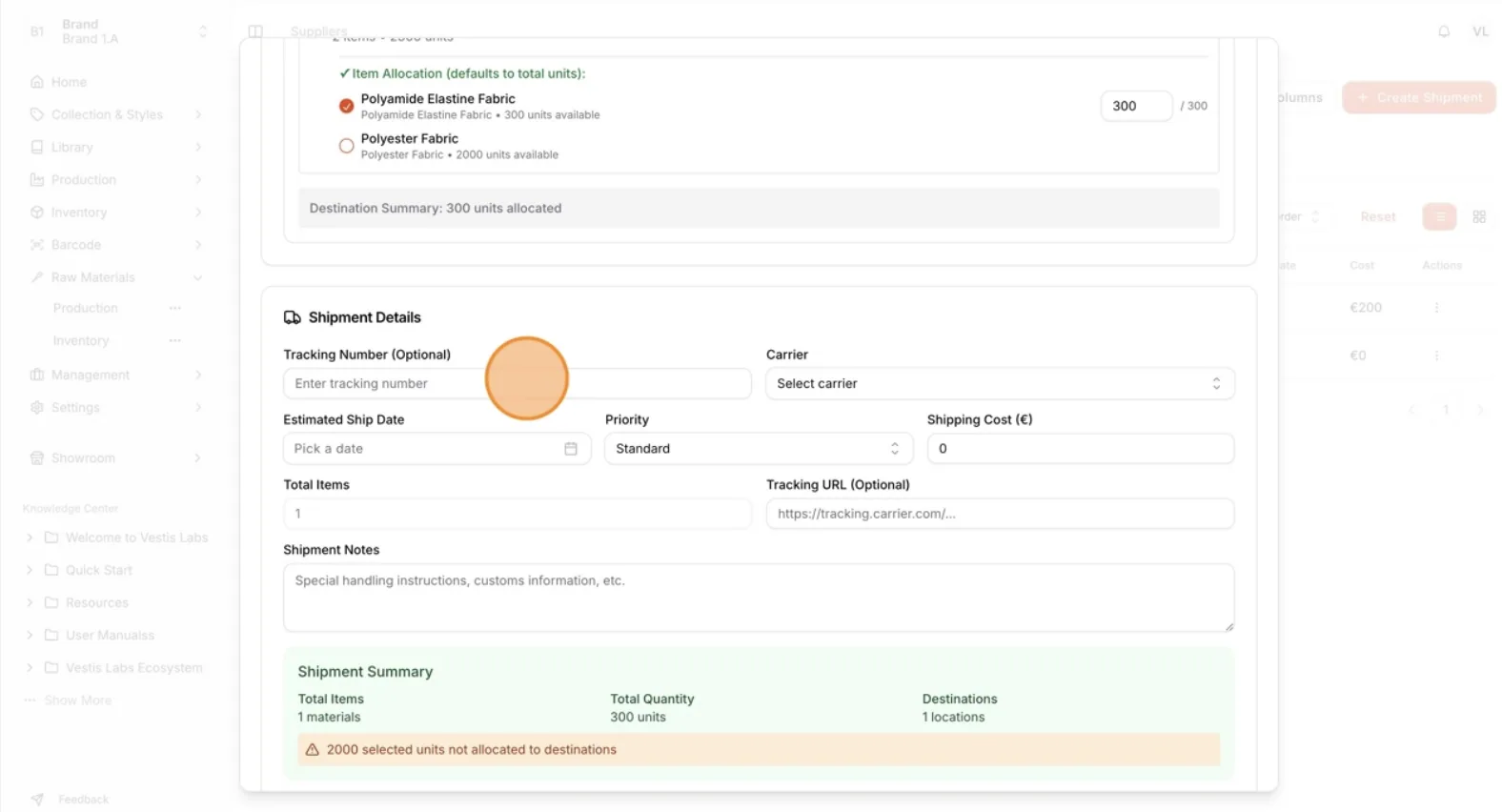
Before proceeding
review the Shipment Summary to verify the Total Items, Total Quantity and Destinations. A warning appears if some selected units are not allocated to a destination.
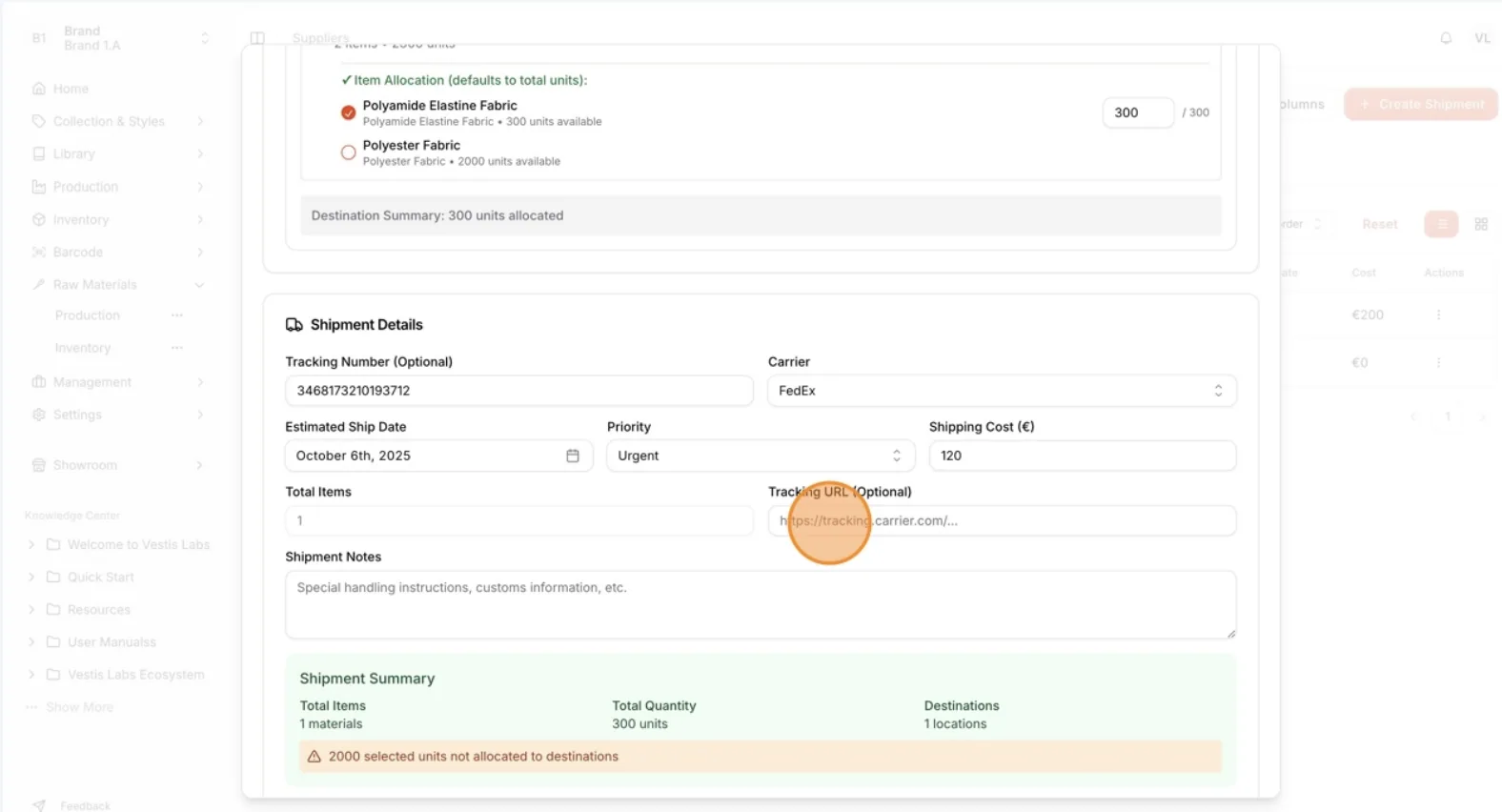
Once everything is confirmed, click Create Shipment t…
Once everything is confirmed, click Create Shipment to save and finalize the shipment record.
This process ensures that all raw material shipments are accurately documented, properly tracked, and efficiently managed from preparation to delivery.