Step 10 of 13 in Onboard your brand
Seasons settings
Seasons will help you group and track your work when creating a style and collection in Vestis Labs.
Under review. This page is published while we check it against the live app, so some details may have changed.
Seasons – admin setup
Seasons will help you group and track your work when creating a style and collection in Vestis Labs. Seasons act as a parameter to structure your styles and organise your data across collections. You can create as many seasons as needed based on your workflow and planning.
Introduction & best practice
Based on your collection structure, you can create seasons in Vestis Labs to organise styles or collections and maintain a clear overview that aligns with your seasonal development timelines.
Step-by-step guide
Create a season
SettingsCollection & StyleSeasons
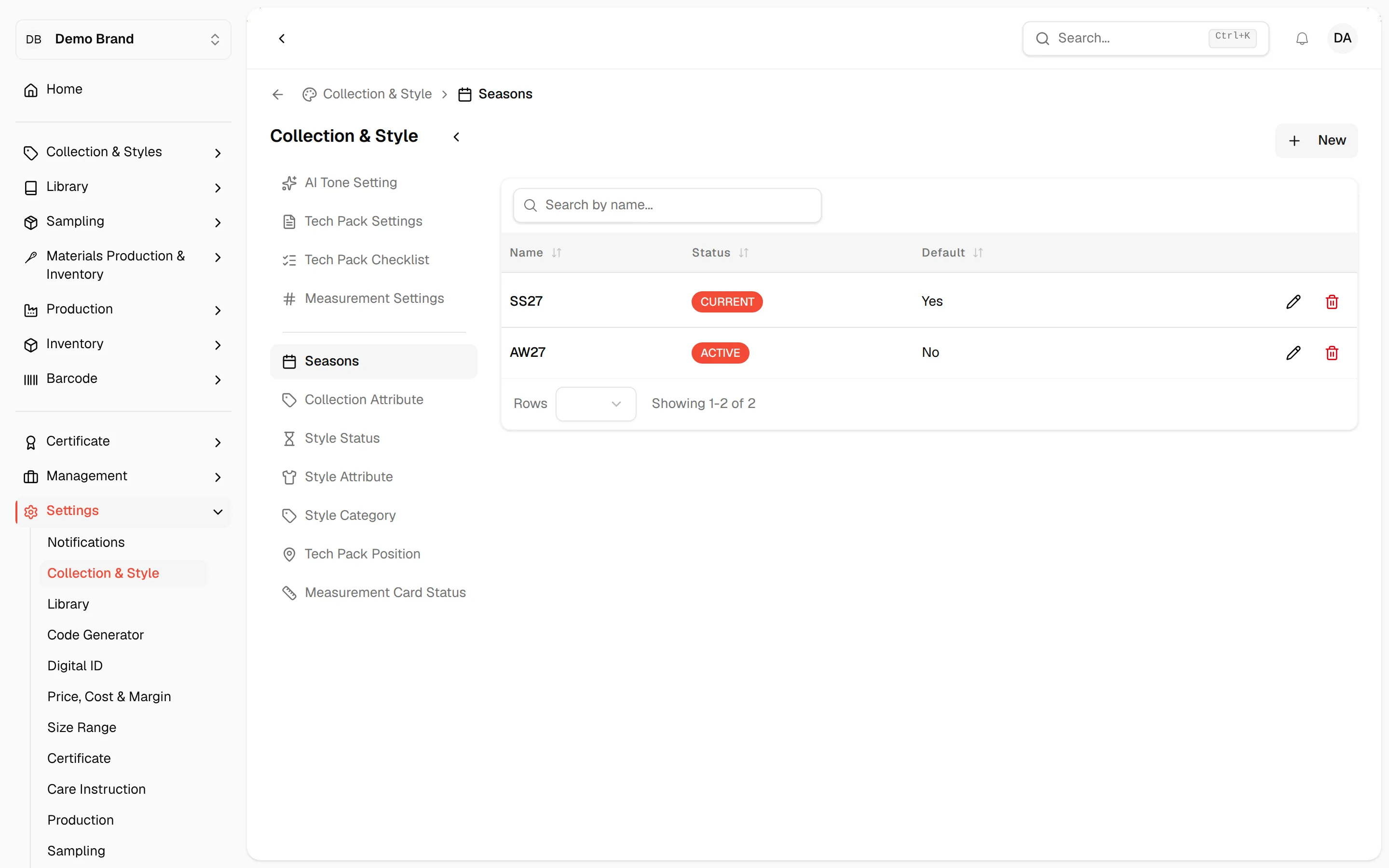
Navigate to: Settings > Collection & Style > Seasons, then click New.
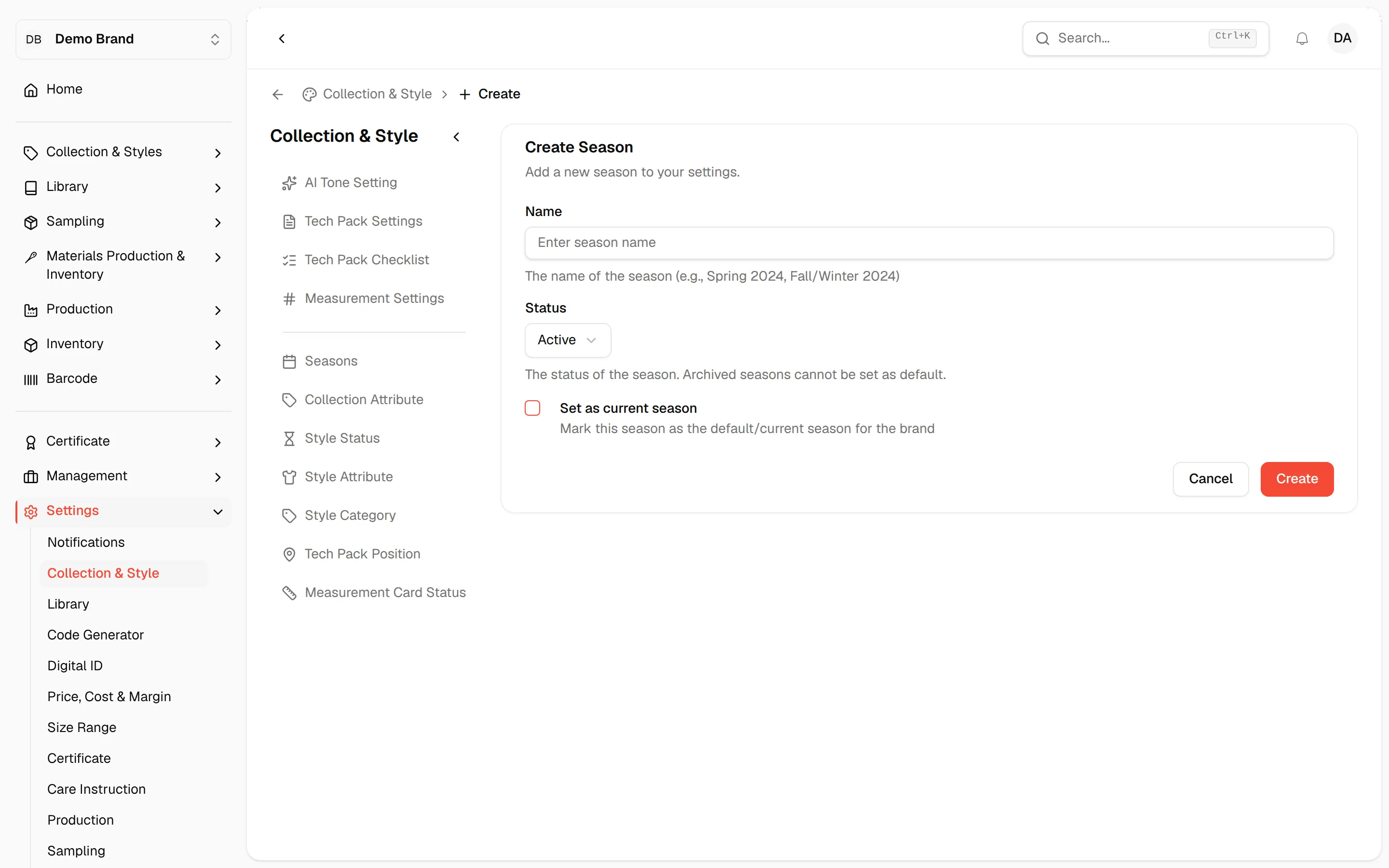
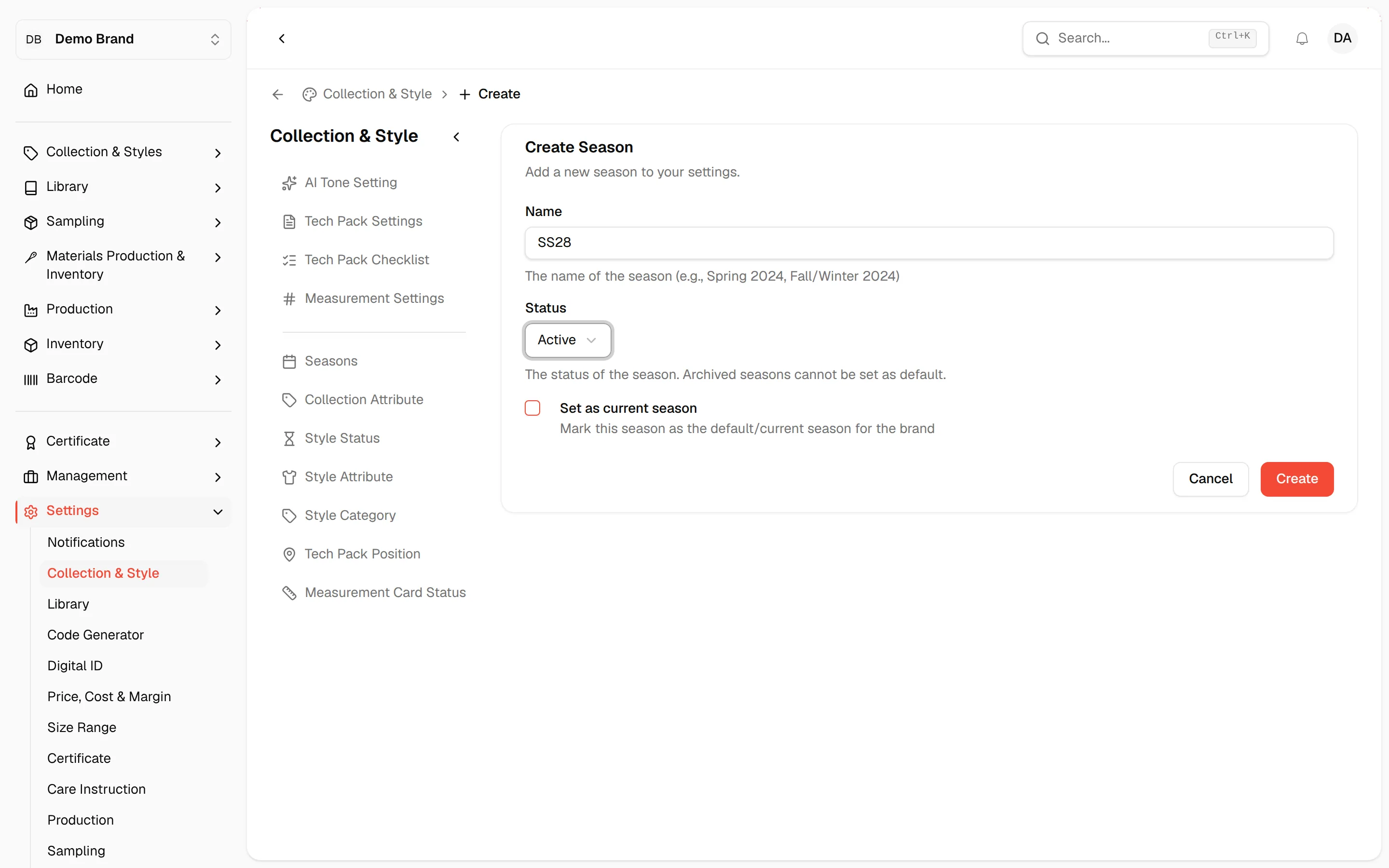
- Name - *mandatory
- Status - Active or Archived. This is useful for organising seasonal drops, collections, or any other subcategories for the active or inactive status within a season's timeframe
- Set as current season - Marks this season as the active one your team is working on. Any new collections or styles you create will automatically be assigned to this season. The box is switched off and cannot be checked while the status is Archived.
- Click Create to finish
Deactivate a season
You can deactivate seasons if they should no longer be selectable for new styles. Likewise, you can deactivate sample types for specific seasons.
Navigate to: Settings > Collection & Style > Seasons
- Click on the 'pen' icon in the season's row to open it in edit mode
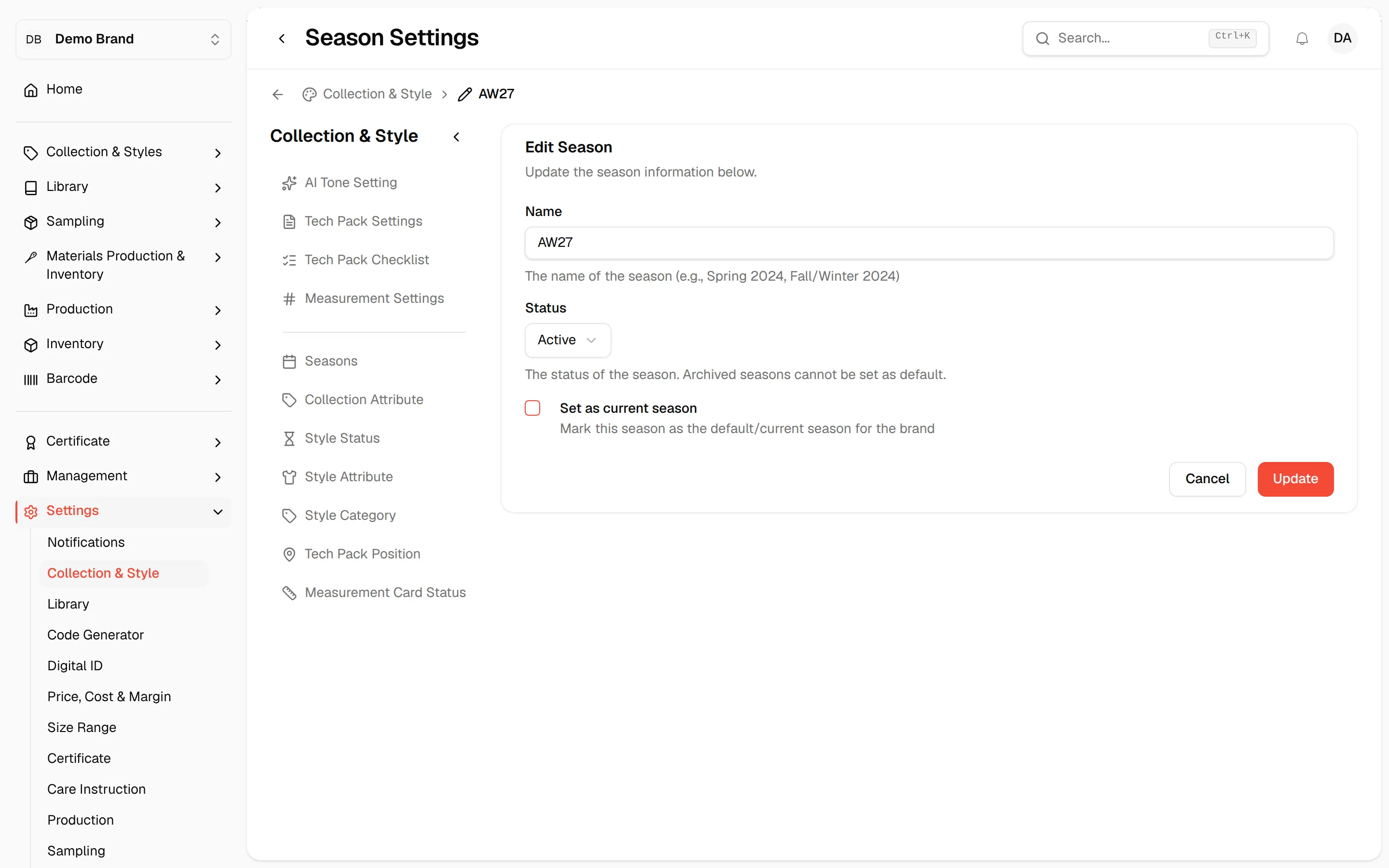
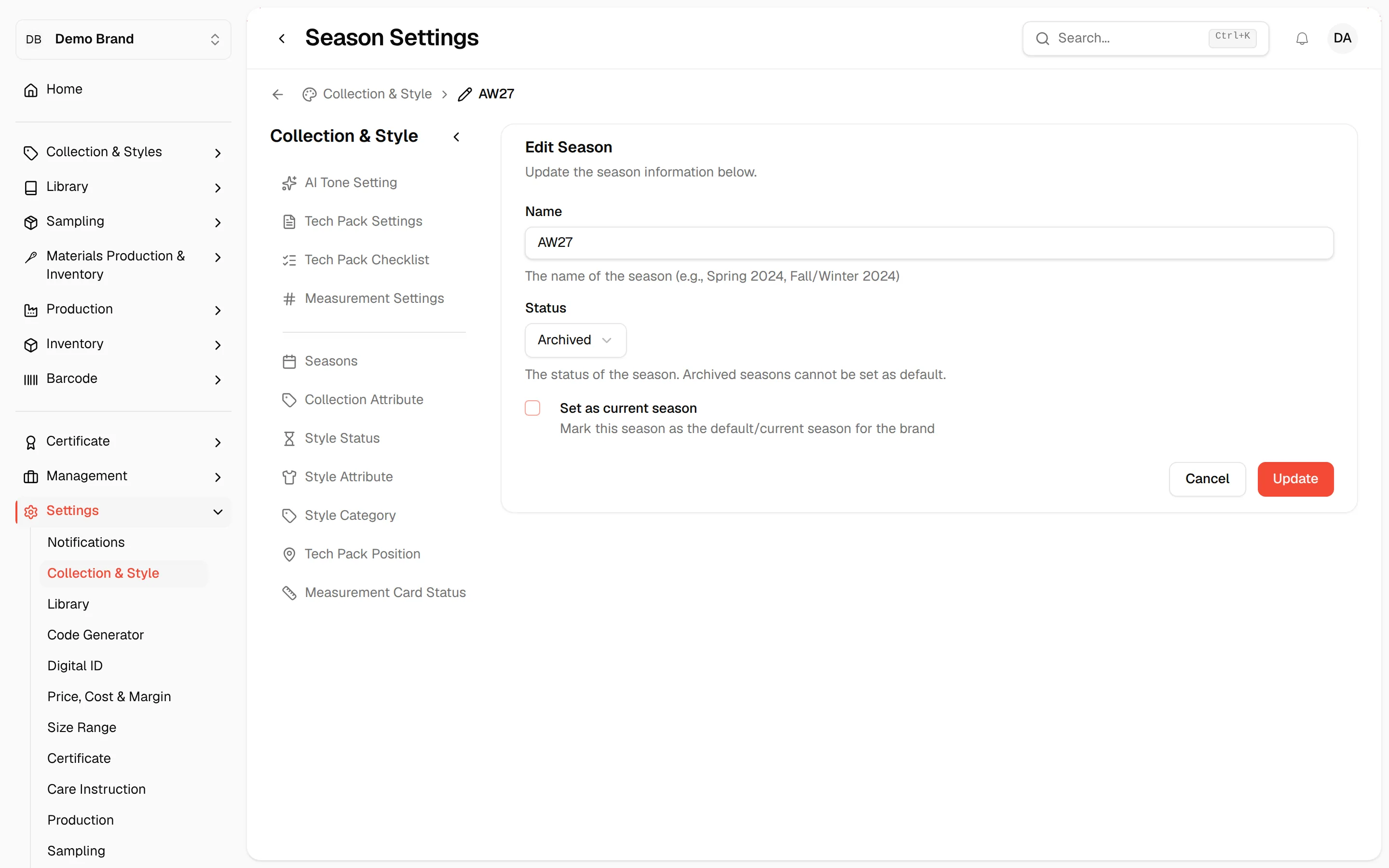
- Select Archived in the Status field to deactivate the season
- Click Update to finish
Delete a season
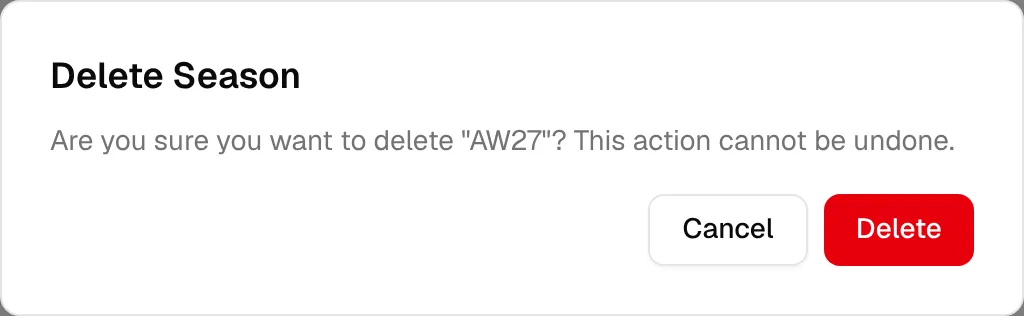
Click the trash icon in the season's row, then click Delete in the Delete Season confirmation. This cannot be undone.