
Default invitations settings
Choose which team members are invited automatically to every new material library item, and turn that rule on or off.
The Default Invitations page in Settings → Library lets you pick the team members who are invited automatically whenever a new library is created.
SettingsLibraryDefault Invitations
Permission: VIEW_STYLE,VIEW_PRODUCT,UPDATE_PRODUCT
Before you start
- Default Invitations only appears in the Library menu when the feature is switched on for your brand. If it is off, opening the page shows "Feature is disabled for this brand". Contact support to have it enabled.
- Anyone with the view permissions can open the page. You need the update product permission to change anything on it.
Turn default invitations on
Open the page
From the left sidebar, click Settings, then Library, then Default Invitations.
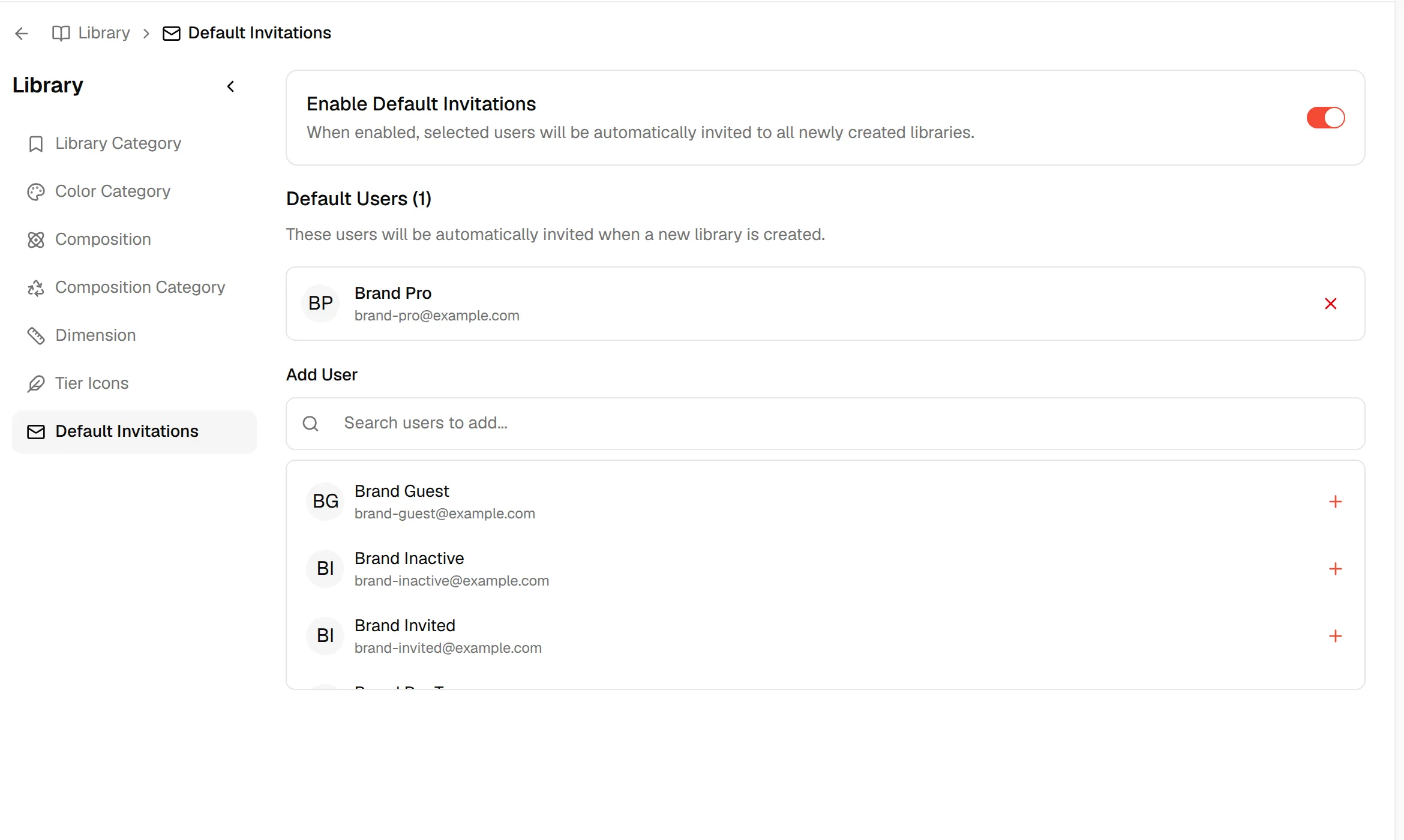
Turn on Enable Default Invitations
Switch on Enable Default Invitations. The page explains: "When enabled, selected users will be automatically invited to all newly created libraries."

The toggle saves straight away and shows "Default invitations updated successfully".
Add a default user
Search for a user
Under Add User, type a name or email in the Search users to add... field.
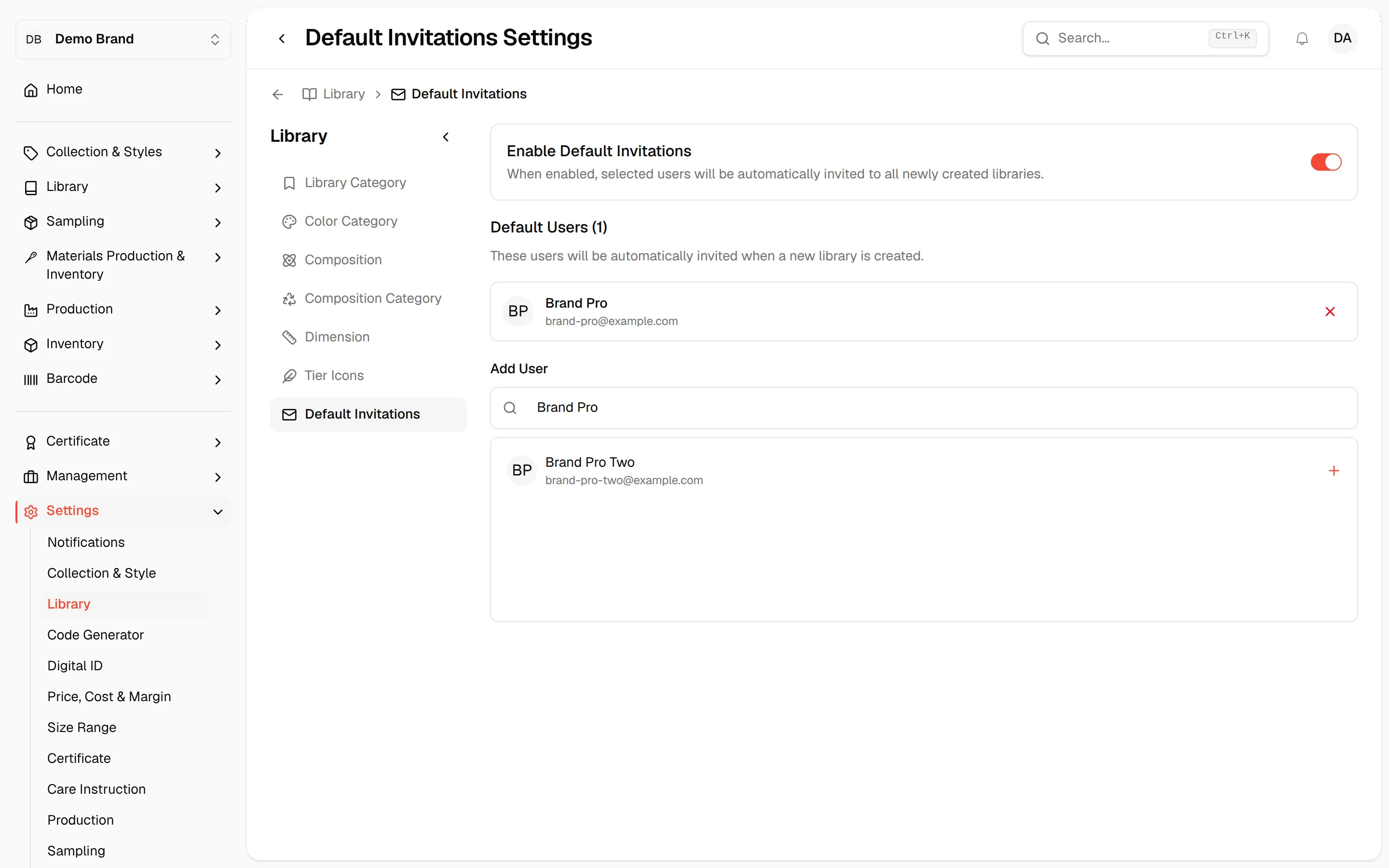
Select the user
Click the user in the list. They move up to the Default Users list at once.
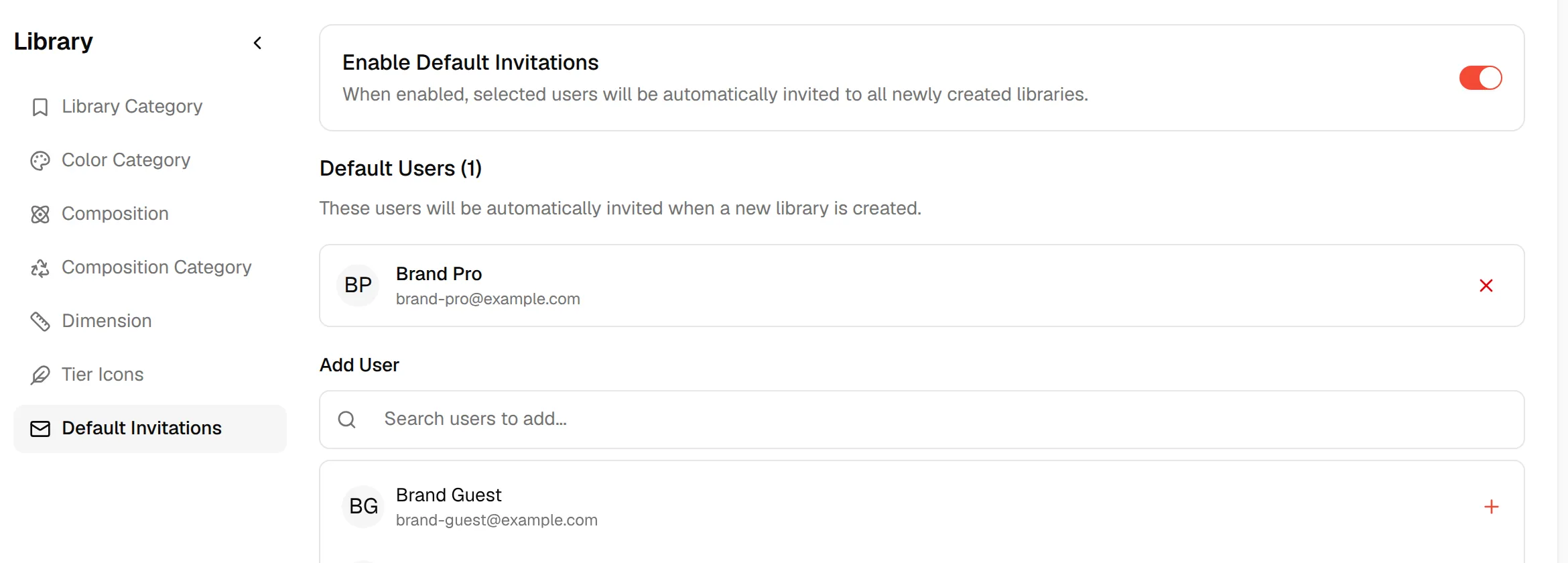
Note
You cannot add yourself. Users who are already on the list are not offered again. If nobody is left to add, the page shows "No users available to add".
Remove a default user
Click the X at the right of the user under Default Users. The user is no longer invited automatically to new libraries.
Result
Default Users shows how many users are selected. These users are invited automatically when a new library is created. Turning the toggle off keeps your list but stops the automatic invitations.