
Measurements from your techpack
Import a size chart from a techpack spreadsheet and see where the measurement cards land.
Under review. This page is published while we check it against the live app, so some details may have changed.
Screenshots may be out of date.
This is one chapter of the full Importing from Excel guide, covering every way to bring size charts, sample fittings and barcodes into Vestis. This page covers just the measurements a techpack import brings in.
A techpack usually carries more than one measurement sheet: the graded size chart, plus a sheet for each sample fitting round (a first sample, a photo sample, and so on). Vestis reads every one of them. Every measurement sheet in your file becomes its own measurement card on the style, so a first sample's numbers sit right next to the size chart they're being checked against, not buried in a separate file.
| Sheet in your Excel | What Vestis makes | Where you find it |
|---|---|---|
| "GS Graded spec" (or any sheet with a full size range) | A size chart card | Tech Pack → Measurements |
| "1st - Sample" | A sample fitting card, for that one round | Tech Pack → Measurements |
| "Photo - Sample", "SMS - Sample" | One more sample fitting card each | Tech Pack → Measurements |
| "Sample request 1" (a label : value layout's sample sheet) | A sample fitting card, size read from the sheet's own "Sample size" line | Tech Pack → Measurements |
| A cover page, a colour list, anything with no measurement table | Nothing — skipped | — |
1. Upload, then check the Measurements tab
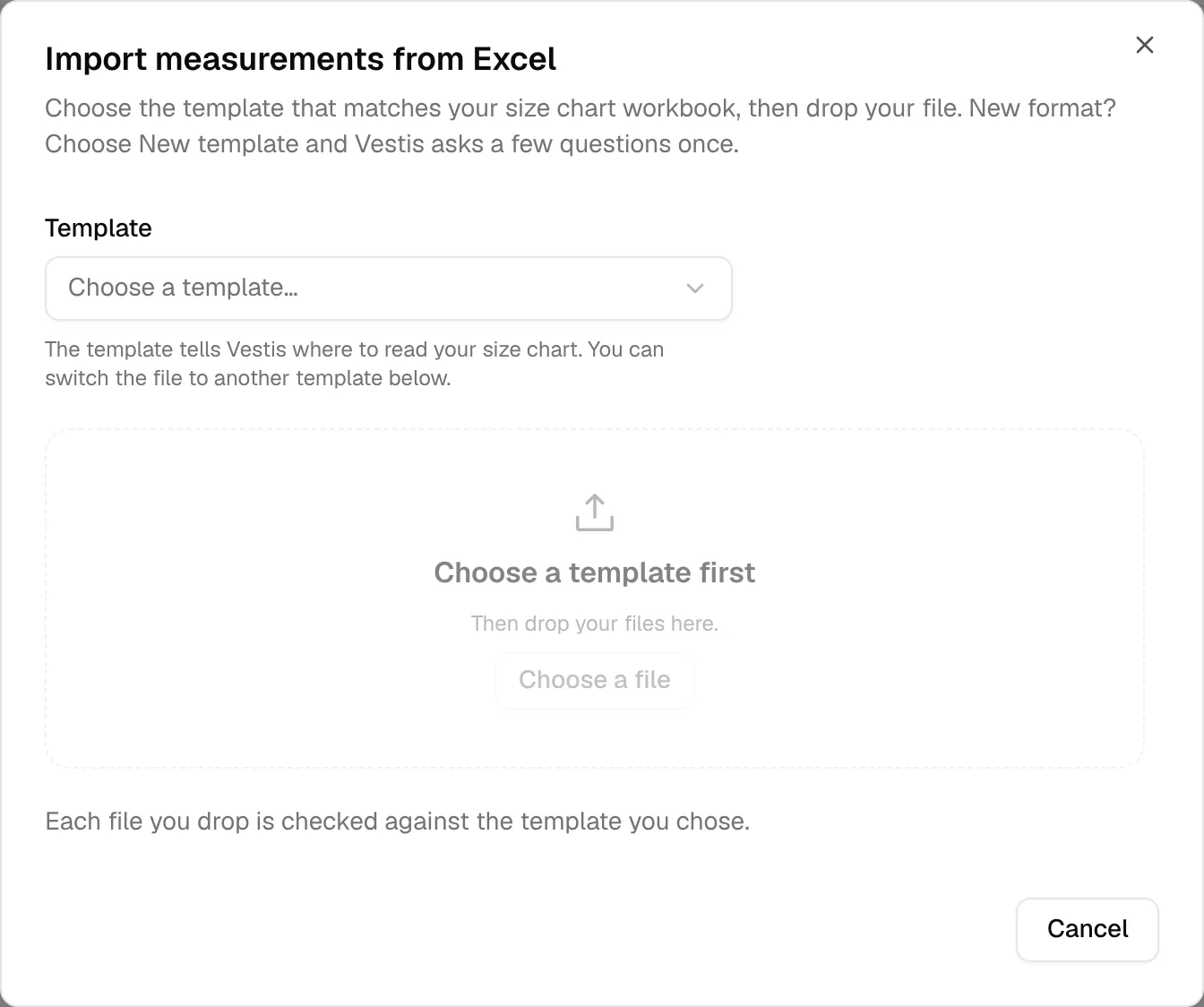
Upload your techpack the same way as any other: choose a template (or + New template for a layout Vestis hasn't seen), then drop the file in (see Example 1 above). When you set up a new format, the Check what we found screen has a Measurements tab alongside Style details, Materials and Colourways.
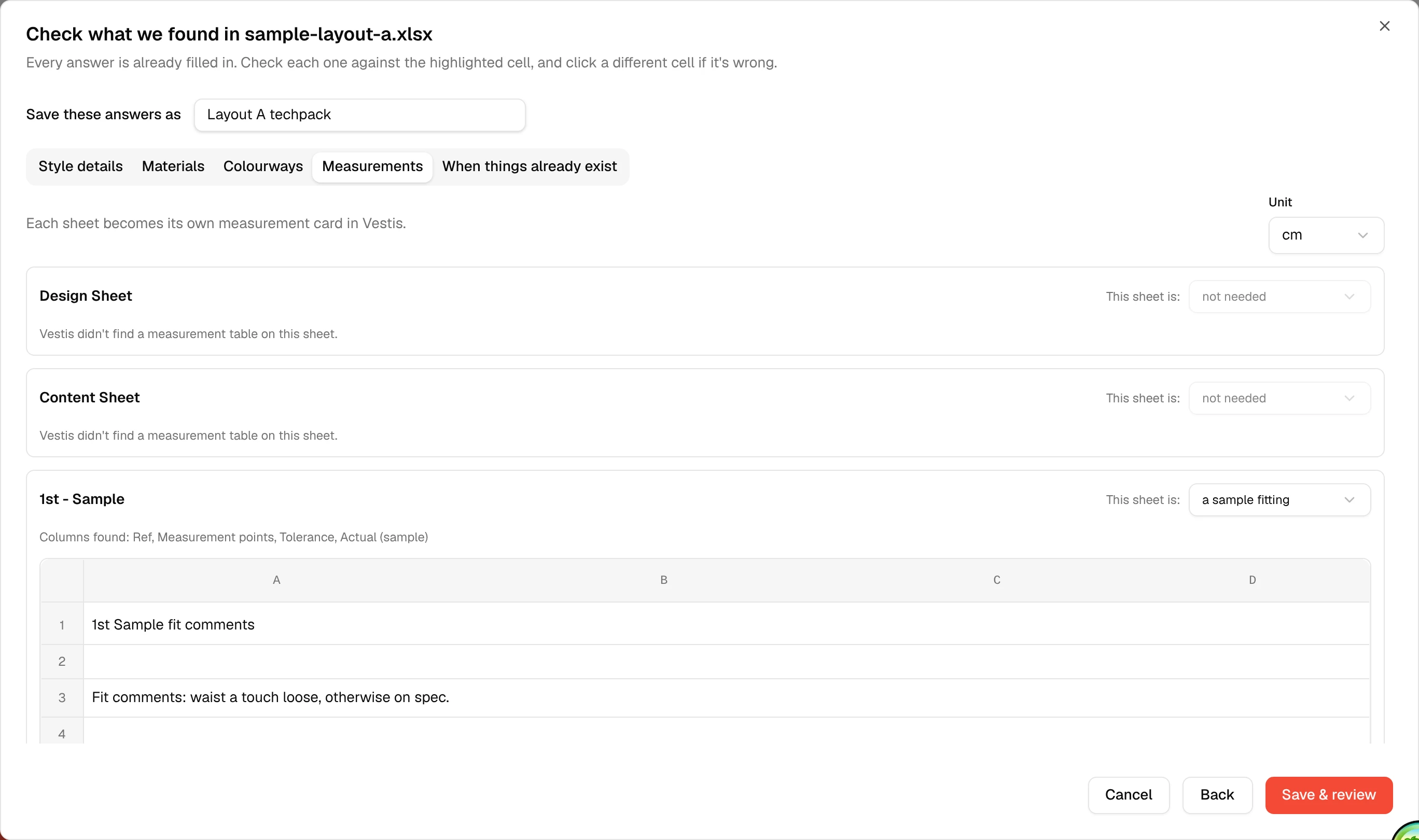
Every sheet in the file gets its own card here, and This sheet is: says what Vestis thinks it holds:
- a size chart: the full size range with target measurements — this is the sheet Tech Pack → Measurements builds its main card from.
- a sample fitting: one fitting round, like a first or second sample. Vestis reads the size the garment was actually cut to (from the cell above the value column, or from a "Sample size" line on a label:value sheet), plus every point of measure and its actual value.
- grading rules: how each measurement changes from one size to the next, instead of full numbers.
- a guide: instructions or a diagram for another sheet.
- not needed: nothing to bring in — Design Sheet and Content Sheet default to this, since neither has a measurement table.
Scroll down and the graded sheet shows up as its own card, read exactly the way the old size-chart-only import always read it: sizes, points of measure, tolerance, and the sample size.
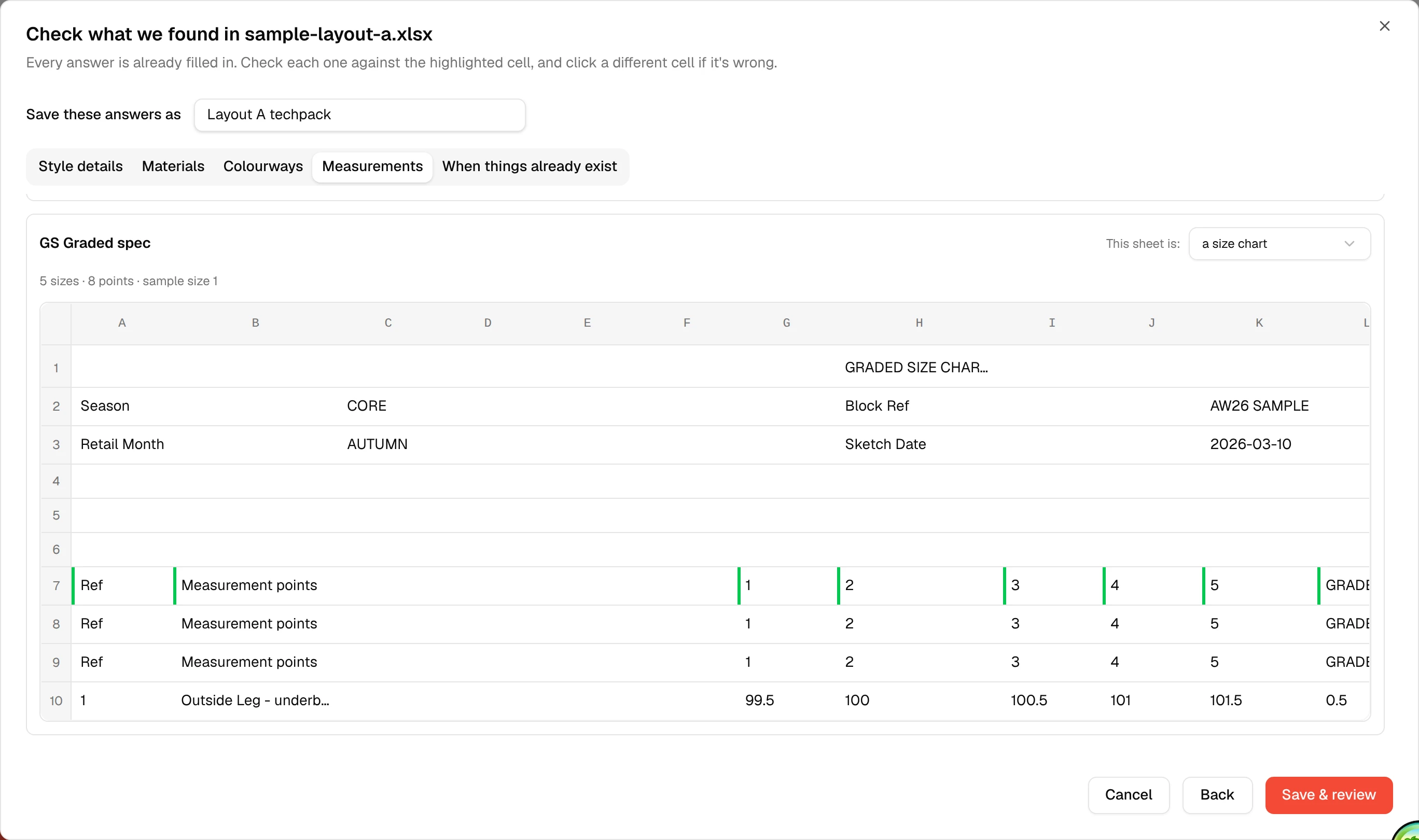
Unit (cm or inches) sits once at the top of the tab and applies to every card on this sheet, the same as it always has for the size chart alone.
2. Review
The Review screen's style card sums up every measurement sheet the file carries in one line:
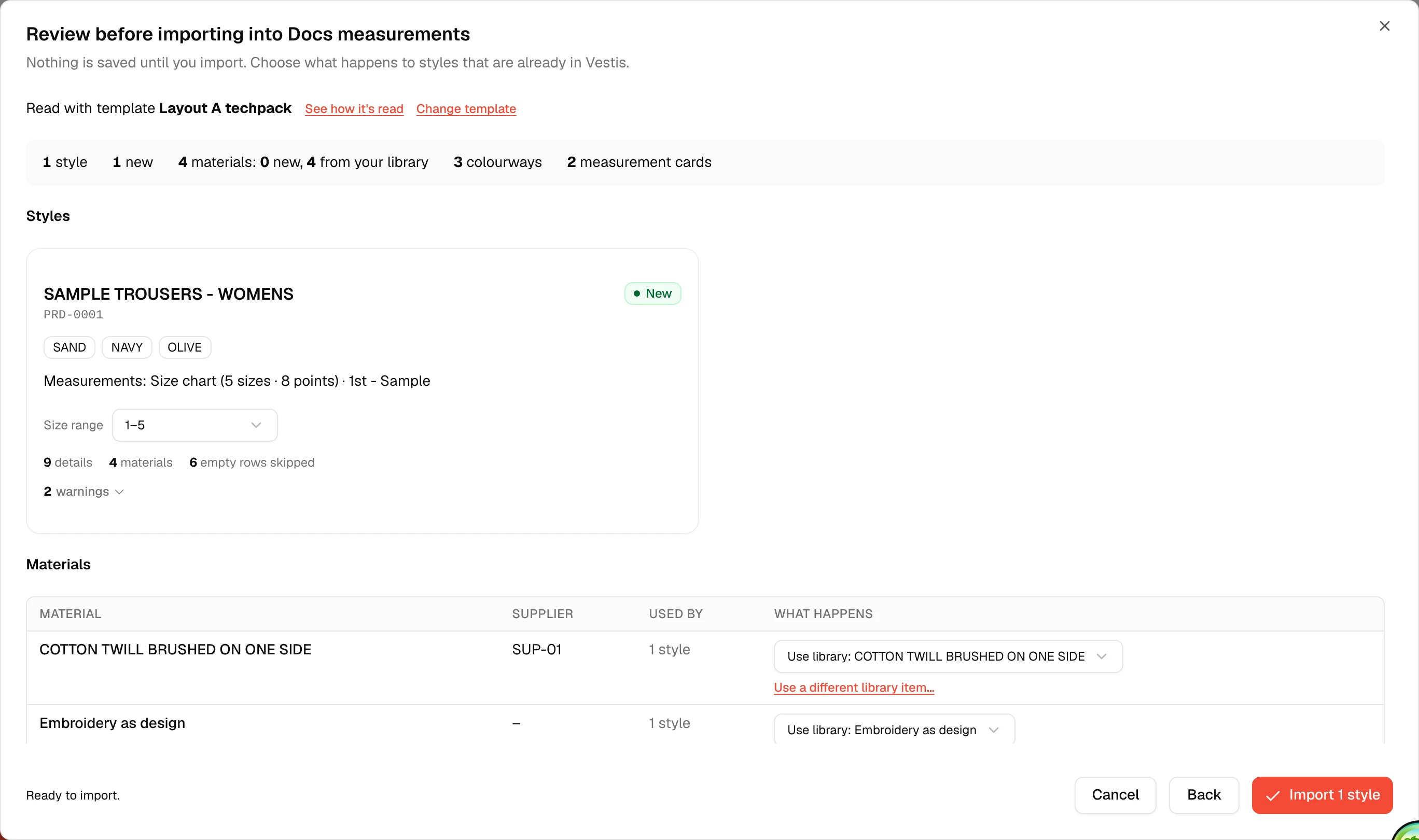
Measurements: Size chart (5 sizes · 8 points) · 1st - Sample — the size chart plus every sample fitting sheet, all in the count. Click Import 1 style when you're happy.
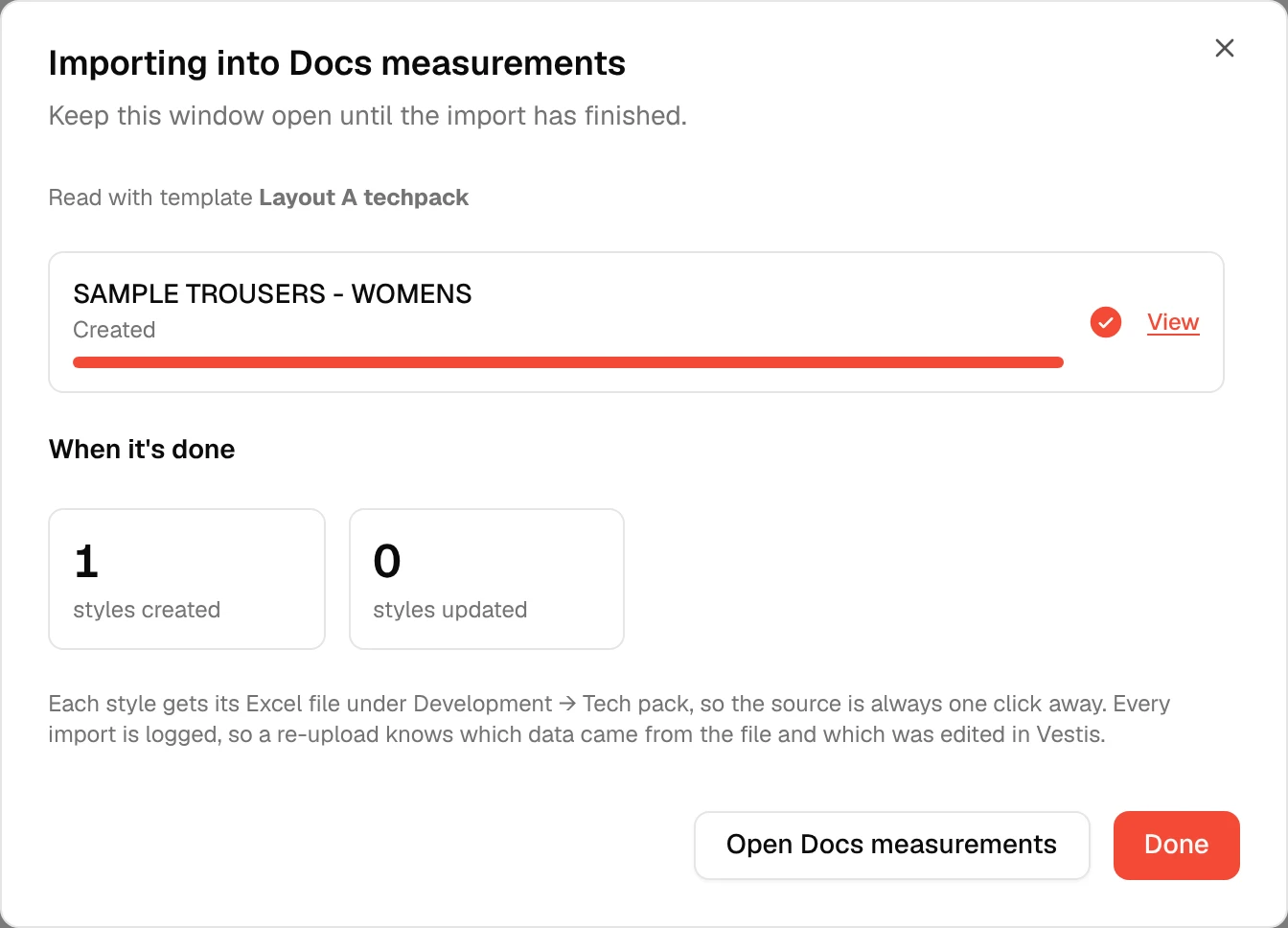
3. Where the cards land
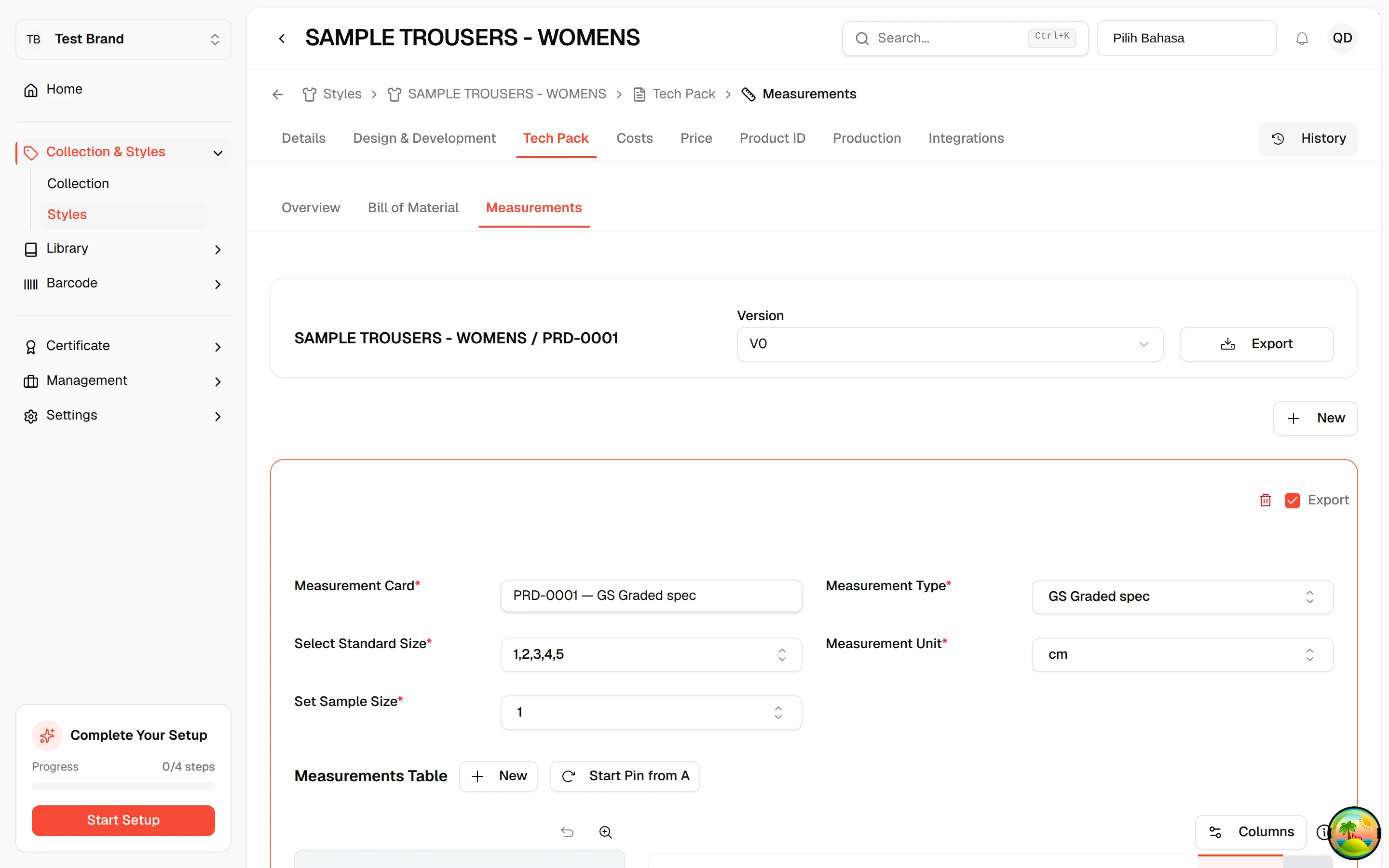
Every measurement sheet lands on the style's Tech Pack → Measurements tab, each as its own card. Pick a card from the Measurement Card dropdown to switch between them.
The size chart card looks exactly as it always has: sizes across the top, one row per point of measure.
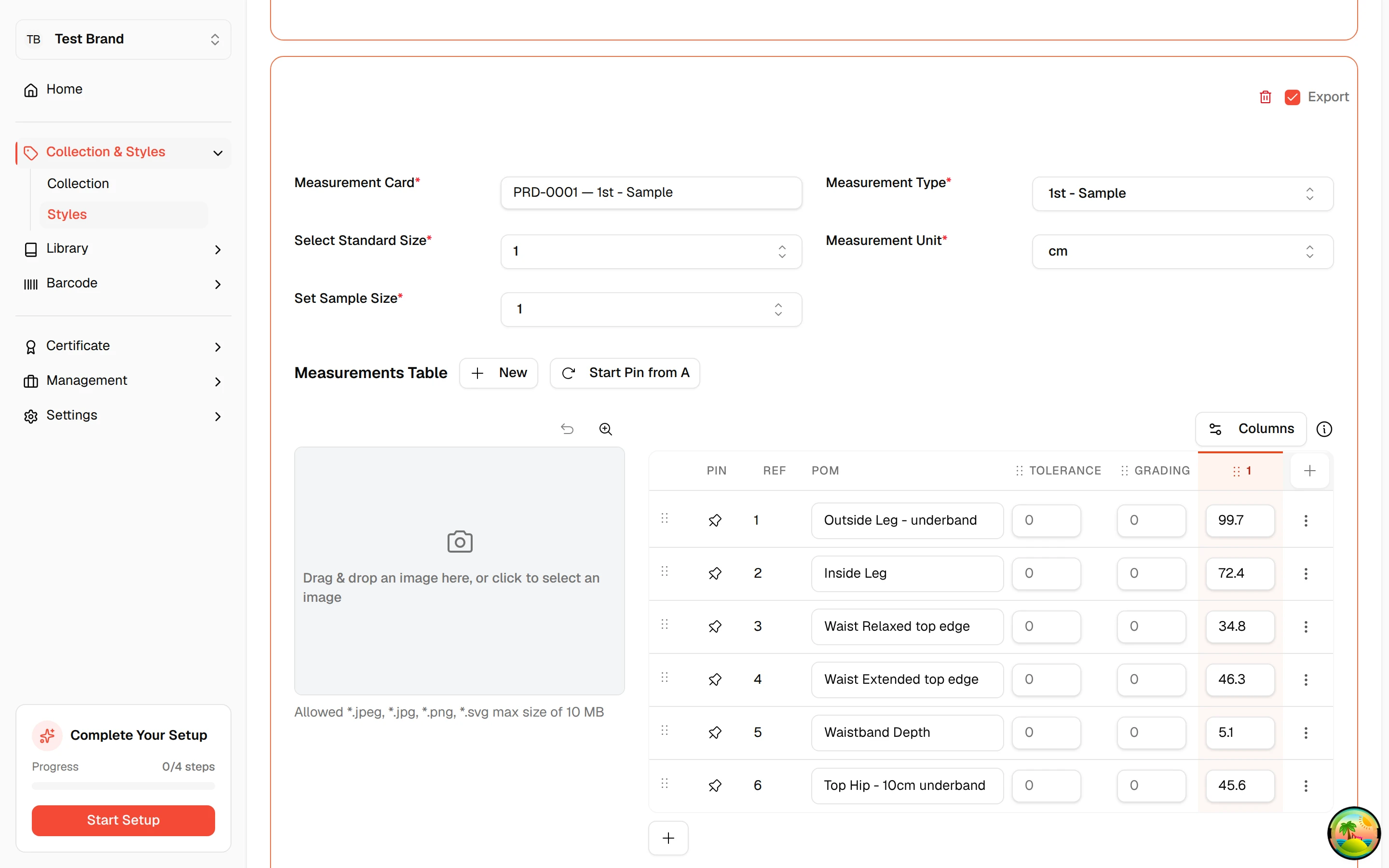
A sample fitting card shows one column instead of a size range: the size the sample was actually cut to (here, size 1), with the point of measure and the value that was actually measured on the garment.
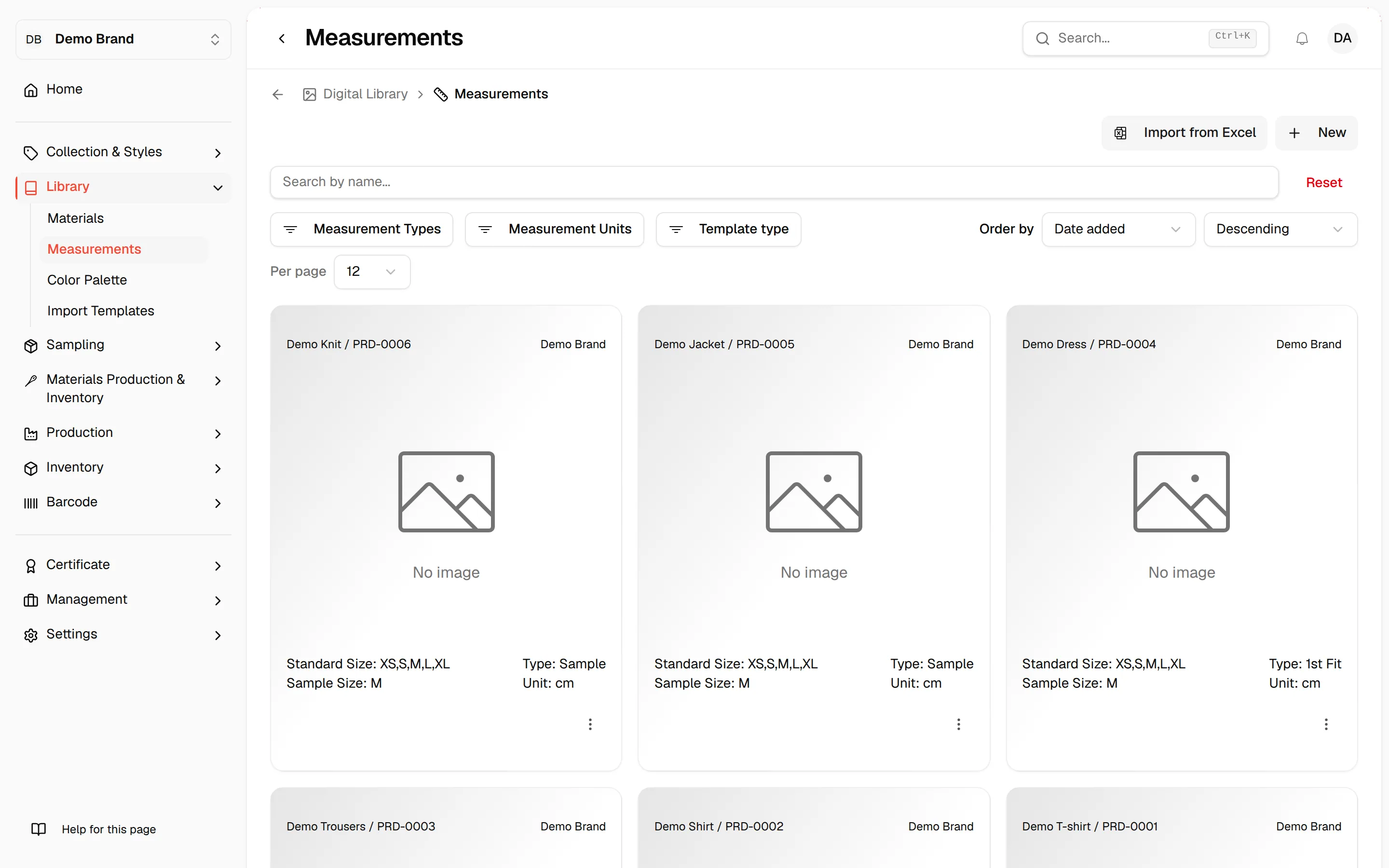
These measurement cards only live on the style's Tech Pack tab. They don't show up in Library → Measurements — that library is for measurement workbooks kept on their own, without a style attached (see Part 2).
Next time
A re-upload of the same file, or the next round's file in the same layout, updates the same cards instead of creating new ones. Anything you've edited by hand on a card — fixing a typo, adding a note the file doesn't have — is kept if the file's re-import doesn't mention it:
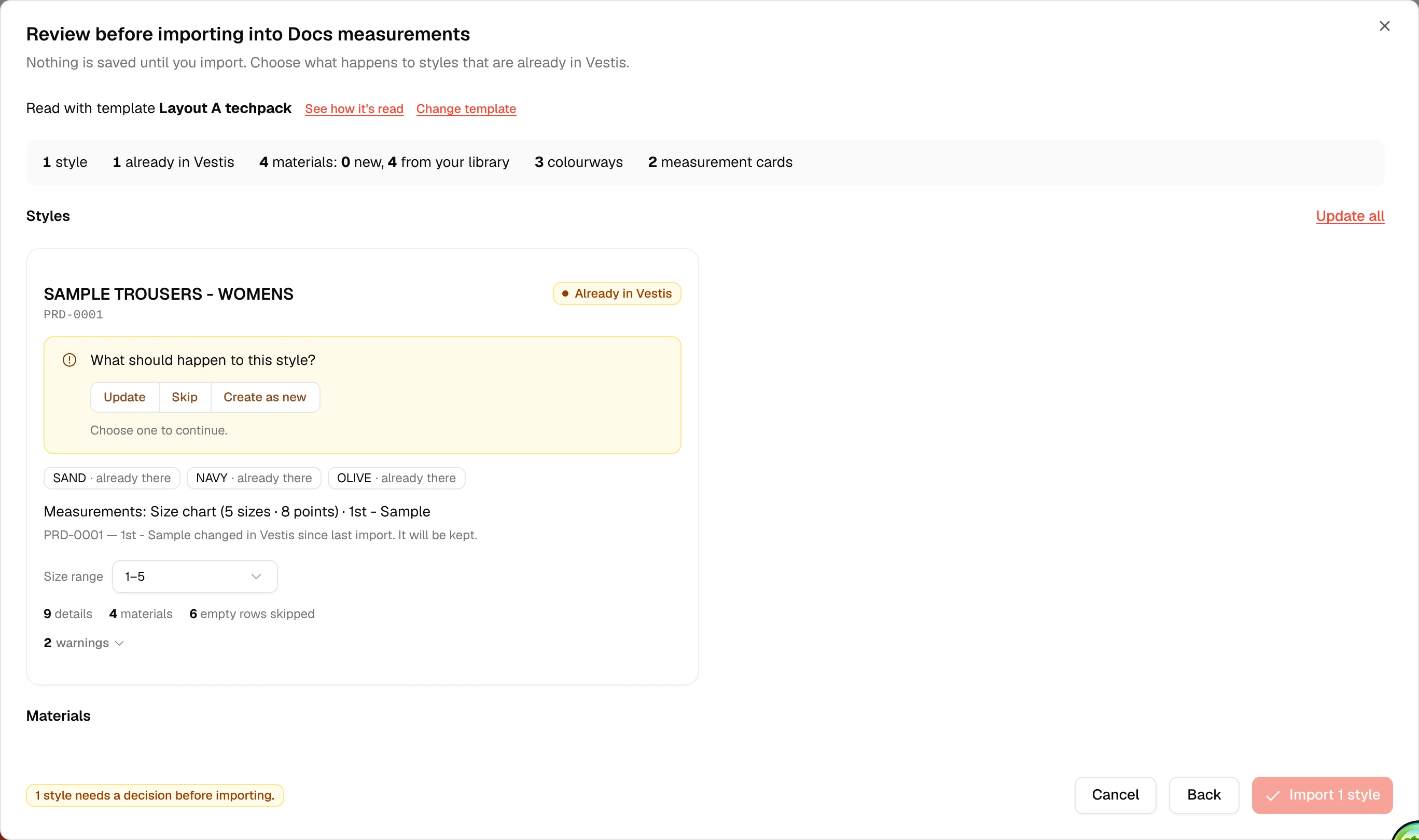
Update brings in the file's numbers for anything it lists in full. If you edit a value the file itself sets (a measured number, say) and then re-import with Update, that value follows the file again — same as any other field. What's kept is anything you've added that the file has no opinion on.
A label : value spreadsheet
Not every techpack uses the Design Sheet layout above. A label : value layout — "Style no:", "Season:" and so on written one pair per line, like Layout B — can carry a sample sheet too. Vestis reads it the same way: it finds a table with a point-of-measure column and a measured-value column, then reads the garment's size off a "Sample size" line on that same sheet, since there's no cell sitting directly above the value column to read it from instead.
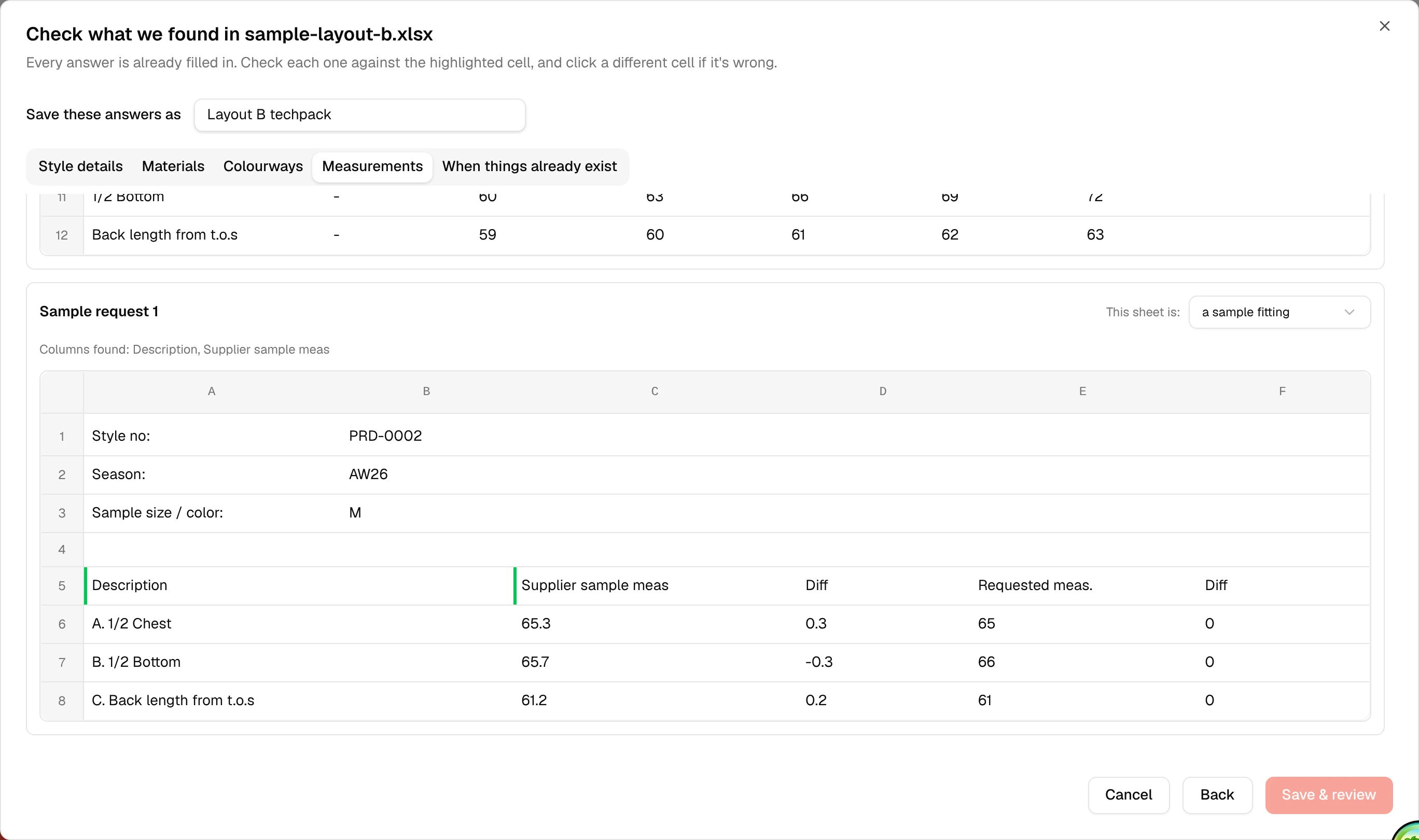
No code column is needed: when a sheet only has point names like "A. 1/2 Chest", Vestis reads the letter as part of the name and still lines every row up correctly.
Already have a template from before?
A template saved before this feature existed only has a Size chart tab, not a Measurements tab — it never learned to read sample sheets. Open Library → Import Templates, click the template's ⋮ menu, then Edit. The Size chart tab offers a one-click upgrade:
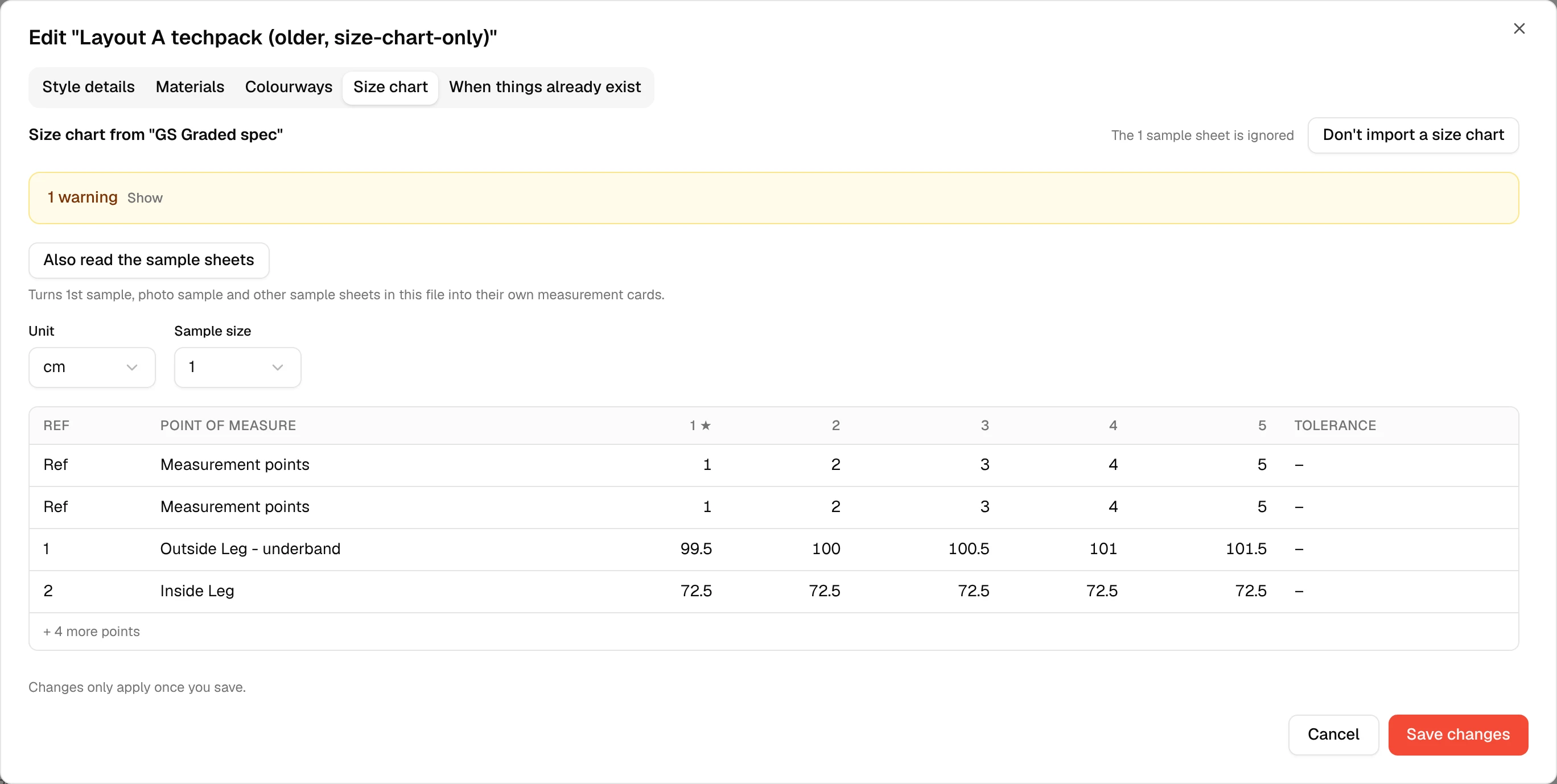
Click Also read the sample sheets. Vestis turns the sheet-by-sheet Size chart tab into a full Measurements tab, picking up every sample sheet in the file the template was built from — nothing else about the template changes. Click Save changes to keep it (or Cancel if you were only checking).
Check before you import
Test on a file, from the template's ⋮ menu, shows every card a file would produce without changing anything. Sample fittings get their own line, with the sheet name, how many points it found, and the size:
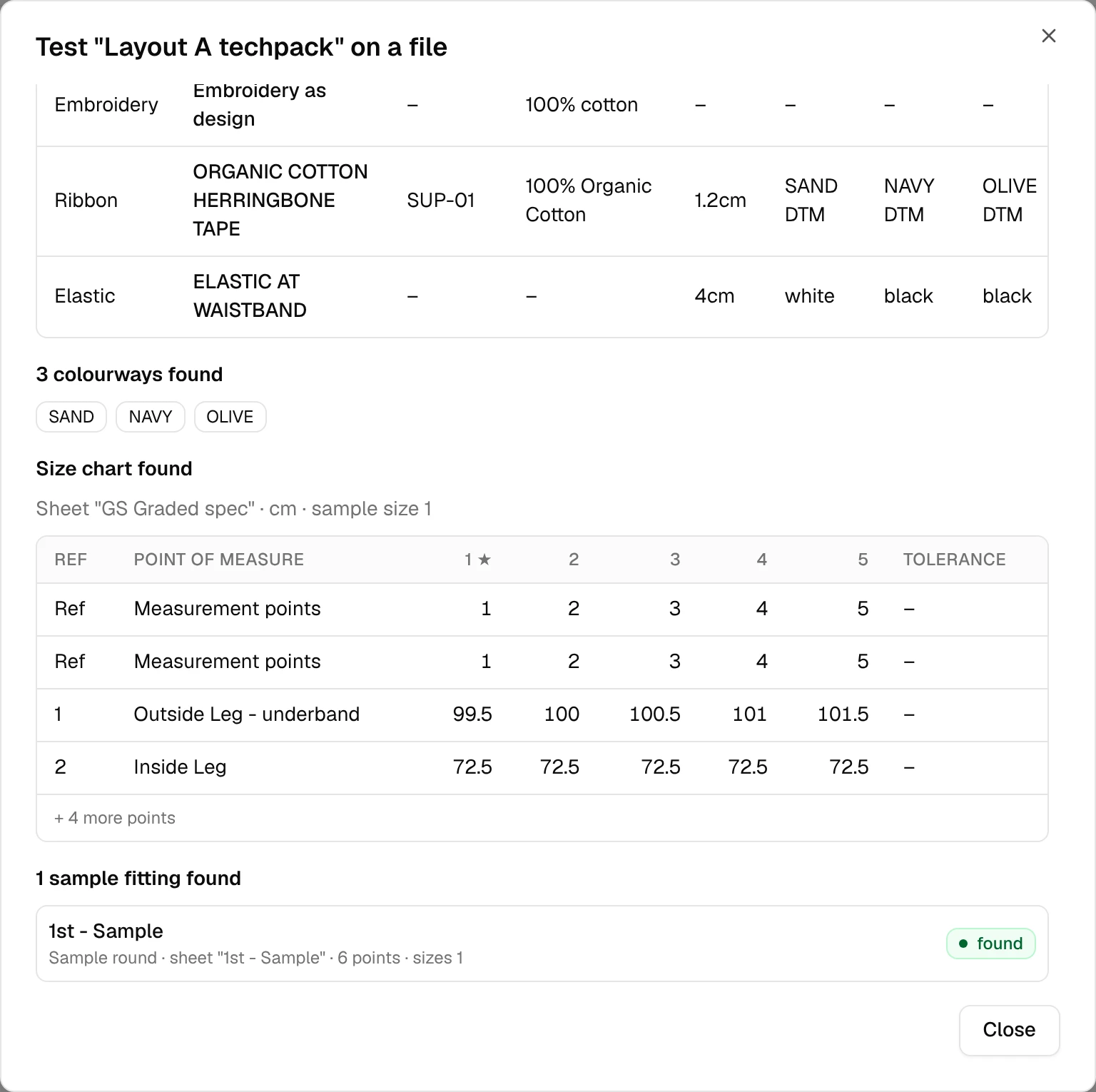
Use this whenever a new round's file looks slightly different and you're not sure the sample sheet will still be picked up.
If a sheet isn't picked up
A sample sheet is missing from the Measurements tab. Vestis only treats a sheet as a sample fitting if its name reads like one: something containing "sample", "proto", "fit", "sms" or "photo" — "1st - Sample", "Photo - Sample" and "SMS - Sample" all match. A sheet named something else, like "Fit round 1", won't be picked up on its own; rename the sheet, or use Fix mapping on the saved template to point at it directly.
Sheet names must match between files. A template remembers a sheet by its name (and, for the graded sheet, by its header row). If next month's file renames "1st - Sample" to "First Sample", Vestis won't recognise it as the same sheet and it comes in as not needed until you fix the mapping.
"We couldn't read the sample sheet '[sheet name]', so no measurement card is made for it." The sheet's name matched, but Vestis couldn't find a usable table on it this time — usually a header row that moved further than expected. The rest of the import still goes ahead; only that one card is skipped.
The measurement unit is wrong. The same Unit control at the top of the Measurements tab covers every card read from that file. If a sample fitting's numbers look like inches when they should be centimetres (or the reverse), change Unit once and every card updates.