
Edit a production order
Change the details, styles and quantities of an existing production order, and refresh its prices from the current style costs.
Under review. This page is published while we check it against the live app, so some details may have changed.
The Edit Production Order dialog lets you change an order after it was created. It works like the create dialog, with the same three tabs, and it saves your changes automatically as you work.
ProductionOrder Managementthree-dot menuView/EditEdit
Permission: UPDATE_BRAND_PRODUCTION
Before you start
- You need the Update production permission to save changes. Without it, the Update Order button on the last tab is not shown.
- Prices on an existing order are the prices agreed when the order was placed. They do not change when a material is repriced later. Opening the editor never reprices the order; only Refresh prices does.
Edit an order
Open the order
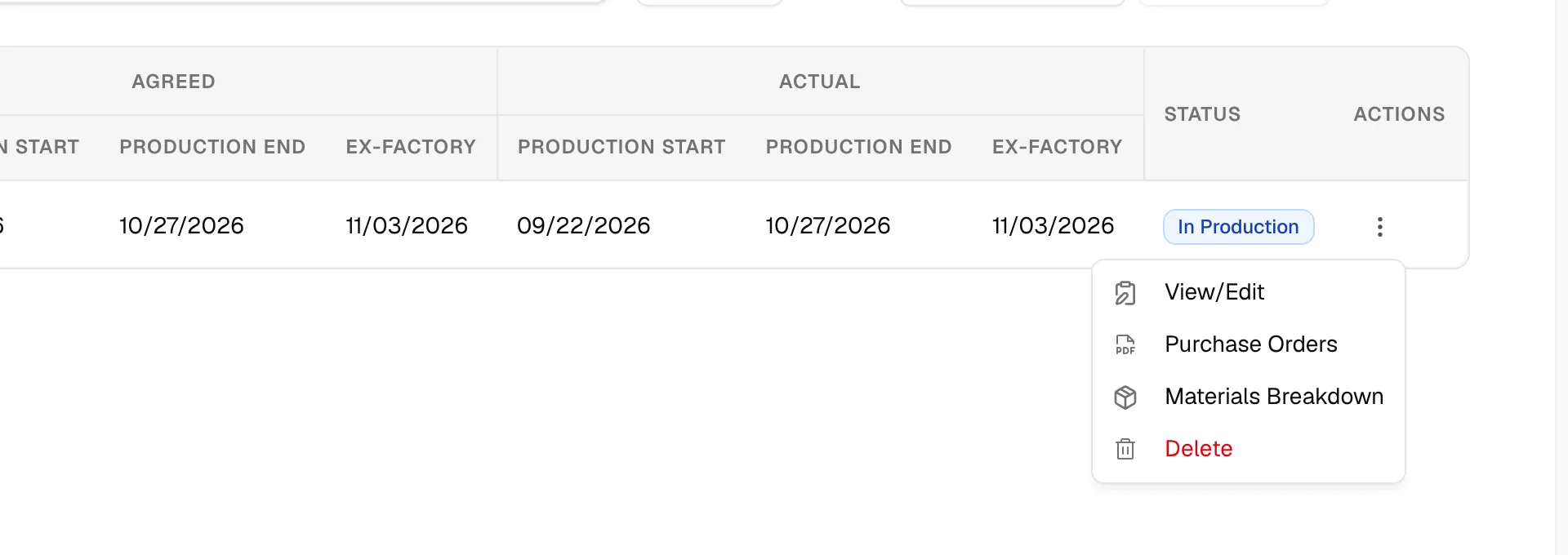
On the Production Orders page, select the three-dot action button on the order's row and click View/Edit.
Click "Edit"
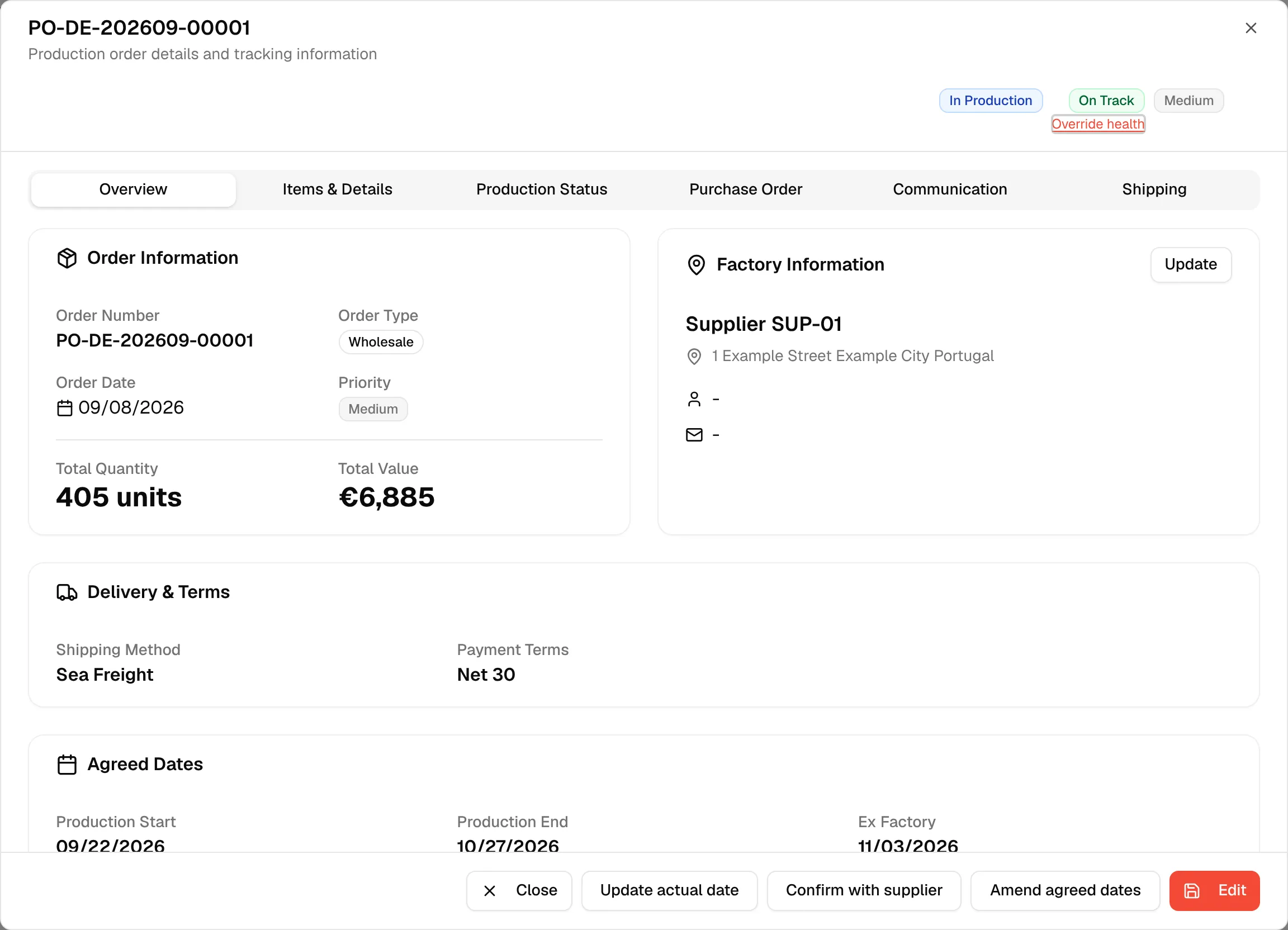
Click Edit at the bottom right of the order dialog. The Edit Production Order dialog opens with the description "Edit a production order with multiple styles".
Change the order details
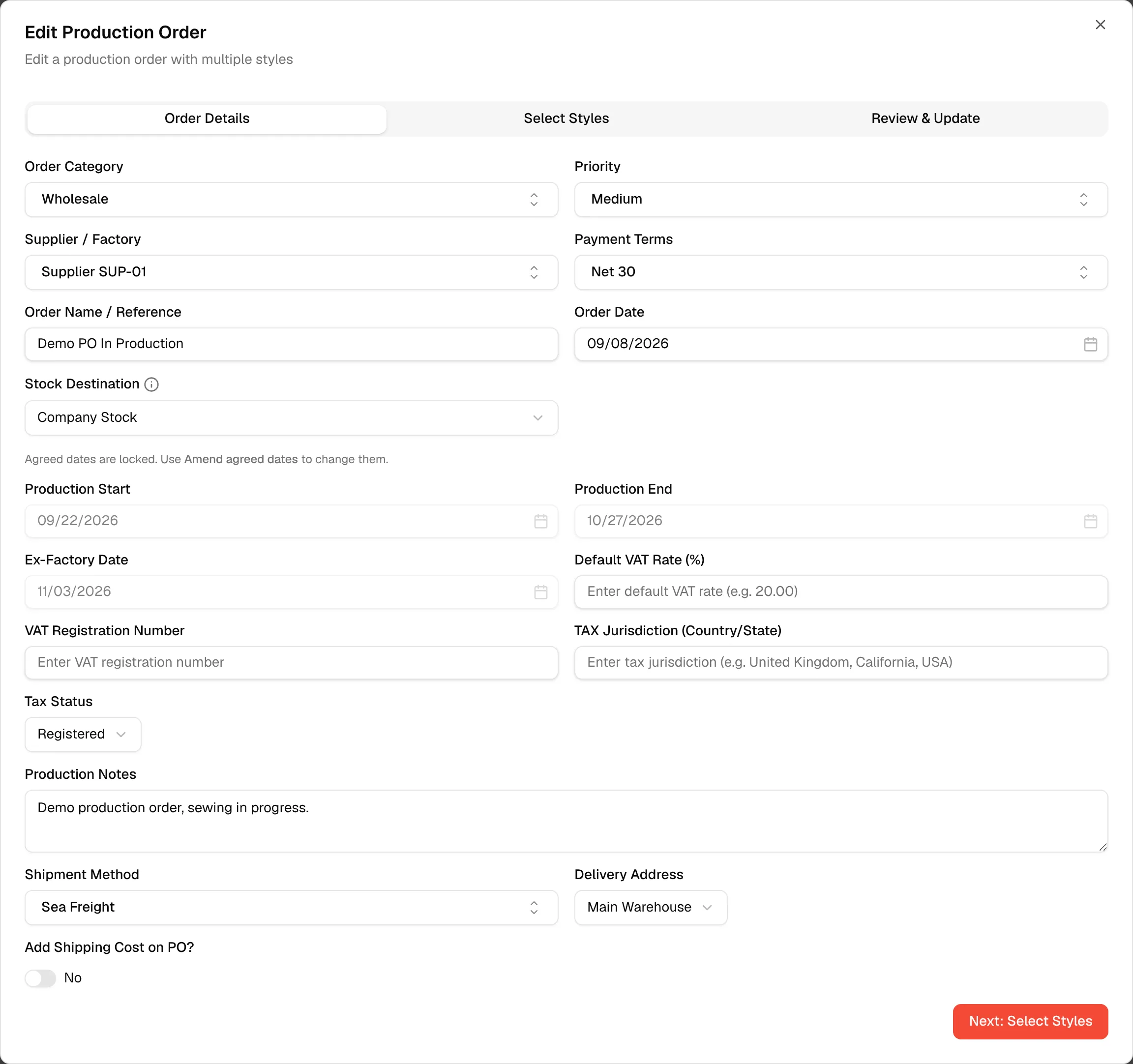
On the Order Details tab, change any field, such as Order Category, Priority, Supplier / Factory, the tax fields or the delivery details. The fields are the same as when you created the order. The agreed Production Start, Production End and Ex-Factory Date are locked here and greyed out: the form says Agreed dates are locked. Use Amend agreed dates to change them. See Amend agreed dates.
Change the styles
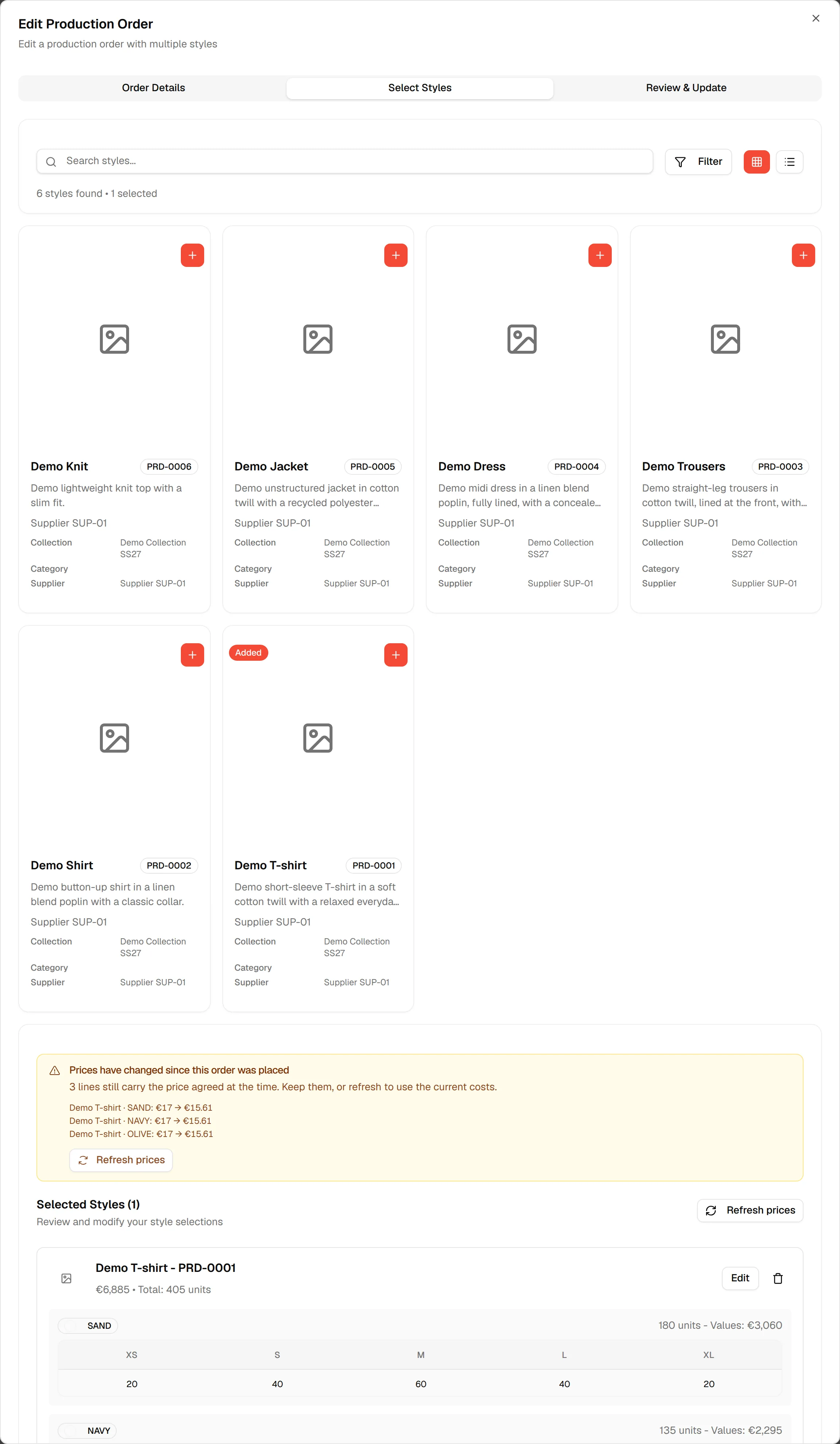
Click Next: Select Styles. Click Edit on a style under Selected Styles to change its colours and quantities, click the bin icon to remove it, or add more styles. See Select style for production order.
Review the order
Click Next: Review Order to open the Review & Update tab and check the Order Summary.
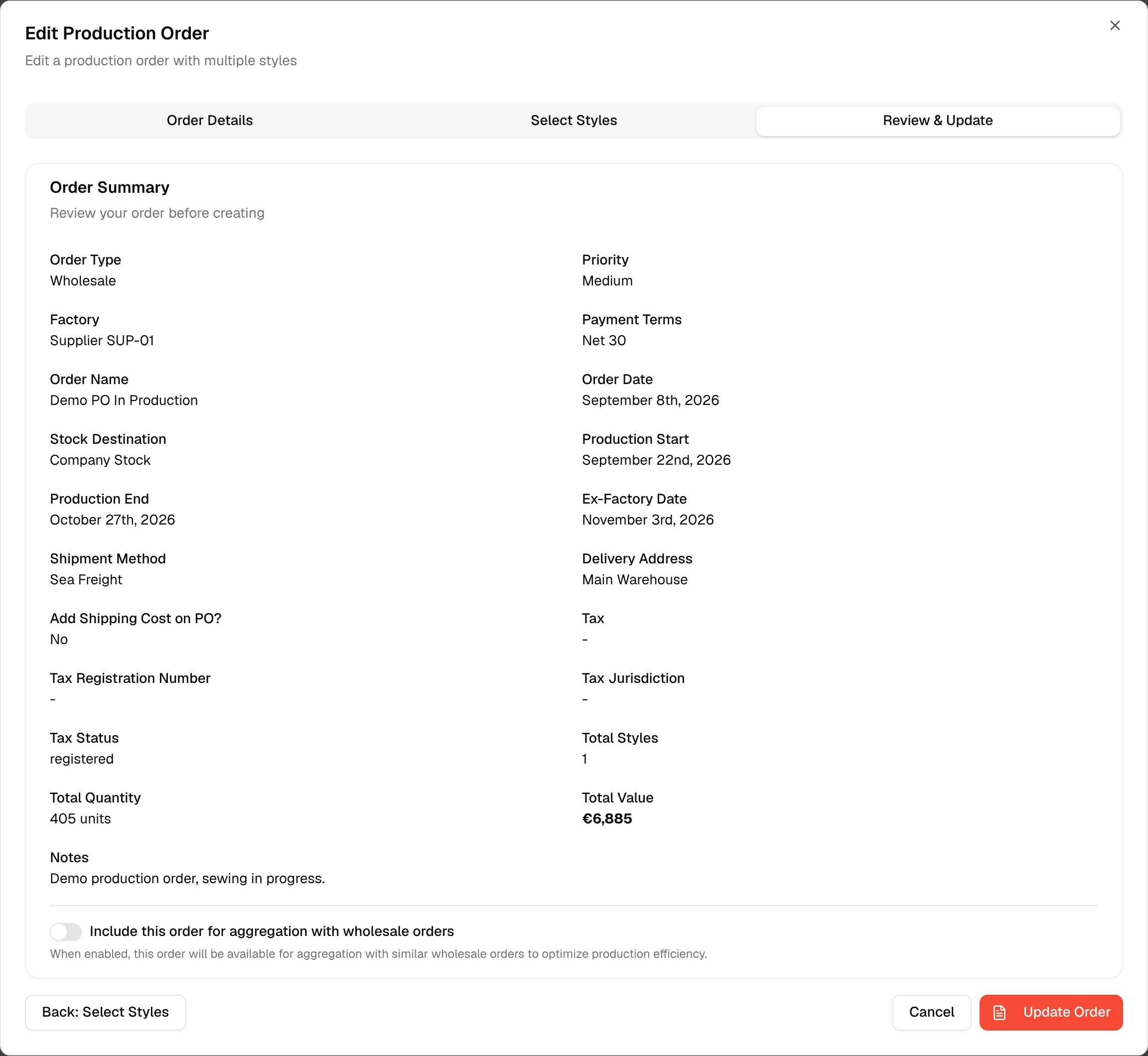
Click "Update Order"
Click Update Order. The order is saved and the dialog closes.

You should now see your changes on the order and in the Production Orders list.
Changes are saved as you type
You do not have to click Update Order to keep a change. About a second and a half after you stop editing, the platform saves the form by itself. A Saving... message appears, followed by Saved. If saving fails, the message shows the reason. Update Order saves the form straight away and closes the dialog, and Cancel closes it without making further changes.
Fields that lock after receiving
If the production order has already started receiving, Stock Destination and Buyer Name cannot be changed. The form explains: "Locked because this production has already started receiving."
Refresh prices
When a style's cost has changed since the order was placed, the Select Styles tab shows a warning: Prices have changed since this order was placed. It lists each affected line with the price on the order and the current price, for example "Style · Colour: 10 → 12".
- Click Refresh prices (in the warning, or at the top of Selected Styles) to replace the price of every line with the current style cost. A message confirms: "Prices refreshed from the current style costs."
- Do nothing to keep the prices that were agreed. Styles and colours you add during this editing session always use the current cost.
Note
Refresh prices reprices every line of the order at once. Check the Total Value on the review tab afterwards.