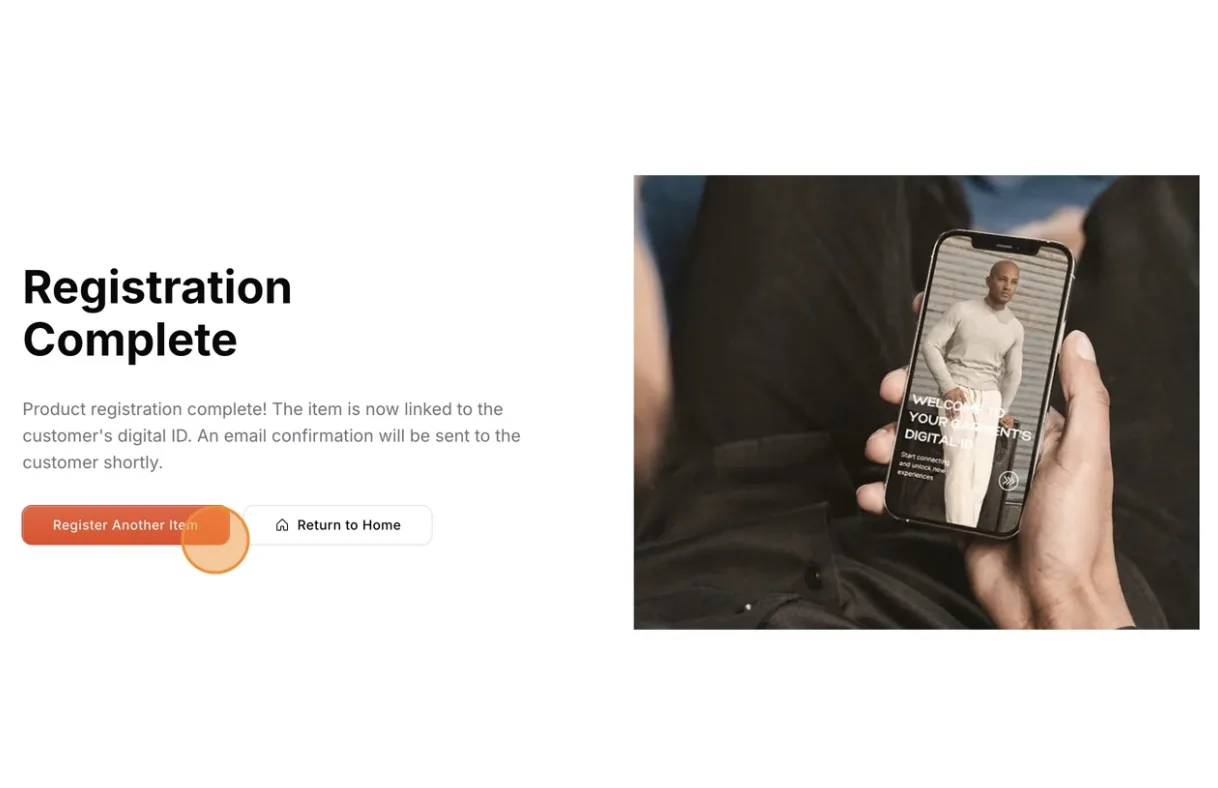
Step 14 of 15 in Publish a Digital ID and product passport
Activate the digital ID from store
Users can activate the Digital ID from the Store and Online.
Under review. This page is published while we check it against the live app, so some details may have changed.
Screenshots may be out of date.
Users can activate the Digital ID from the Store and Online. Only users with the role of cashier can activate it in the Store.
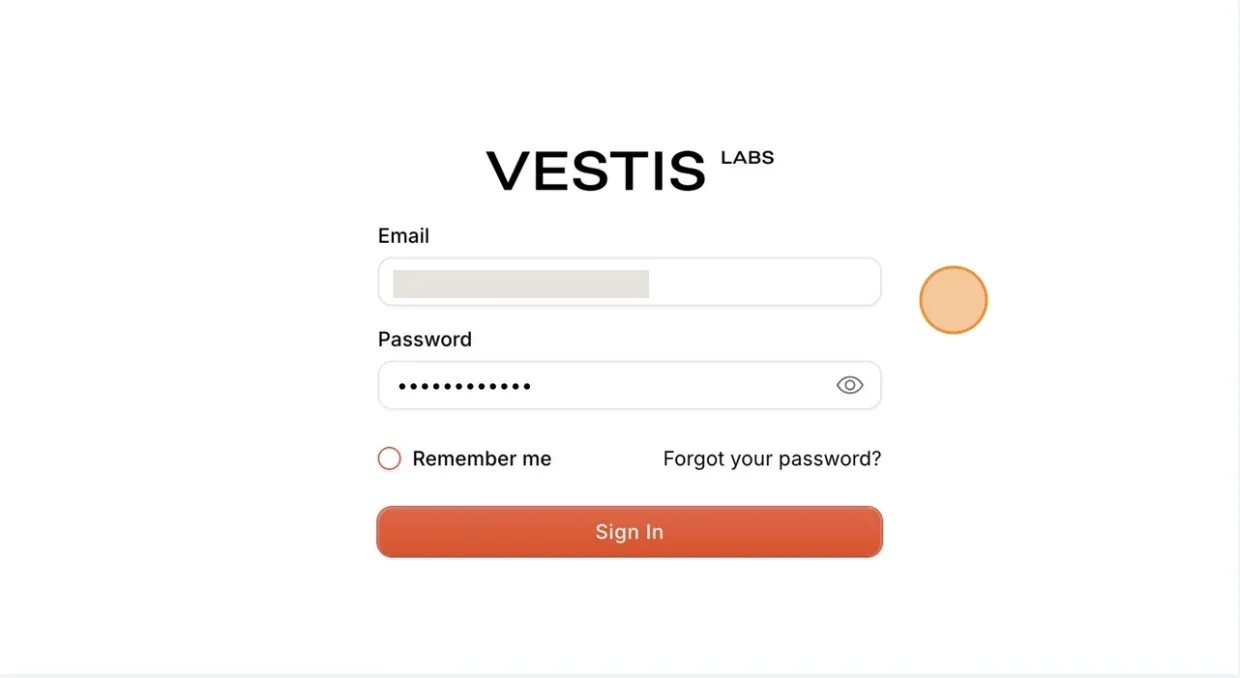
To Sign In, go to app.vestislabs.com.
Enter your registered email address and password, and then select Sign In.
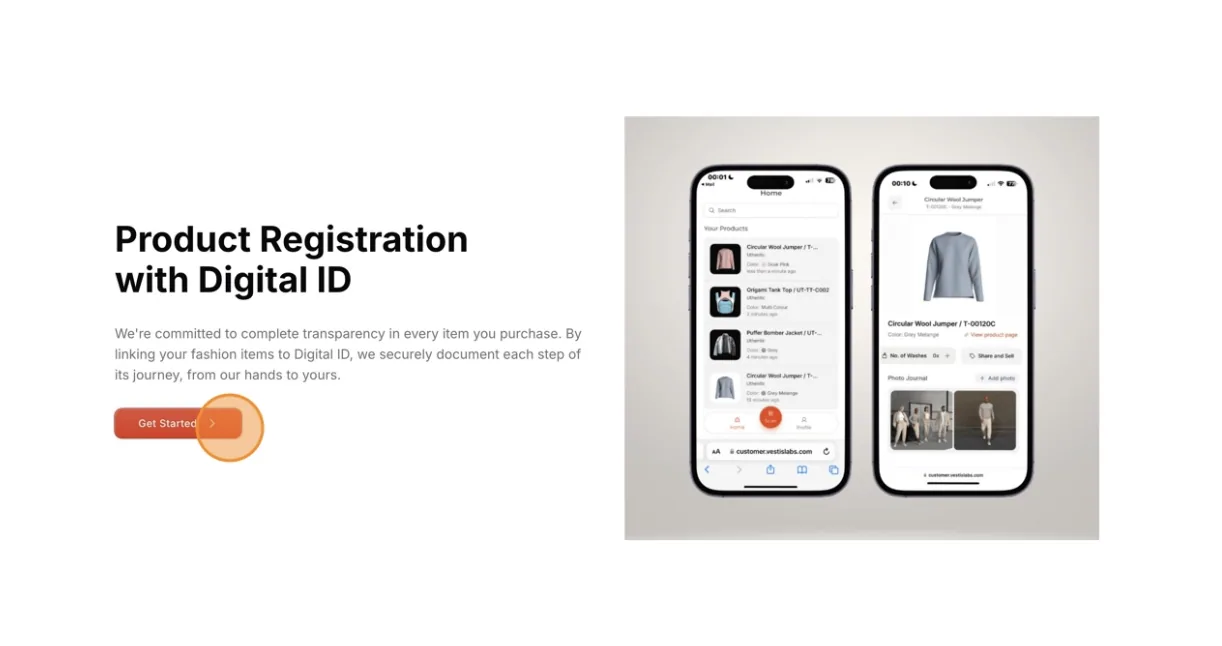
Select Get Started on the lower left side of the page.
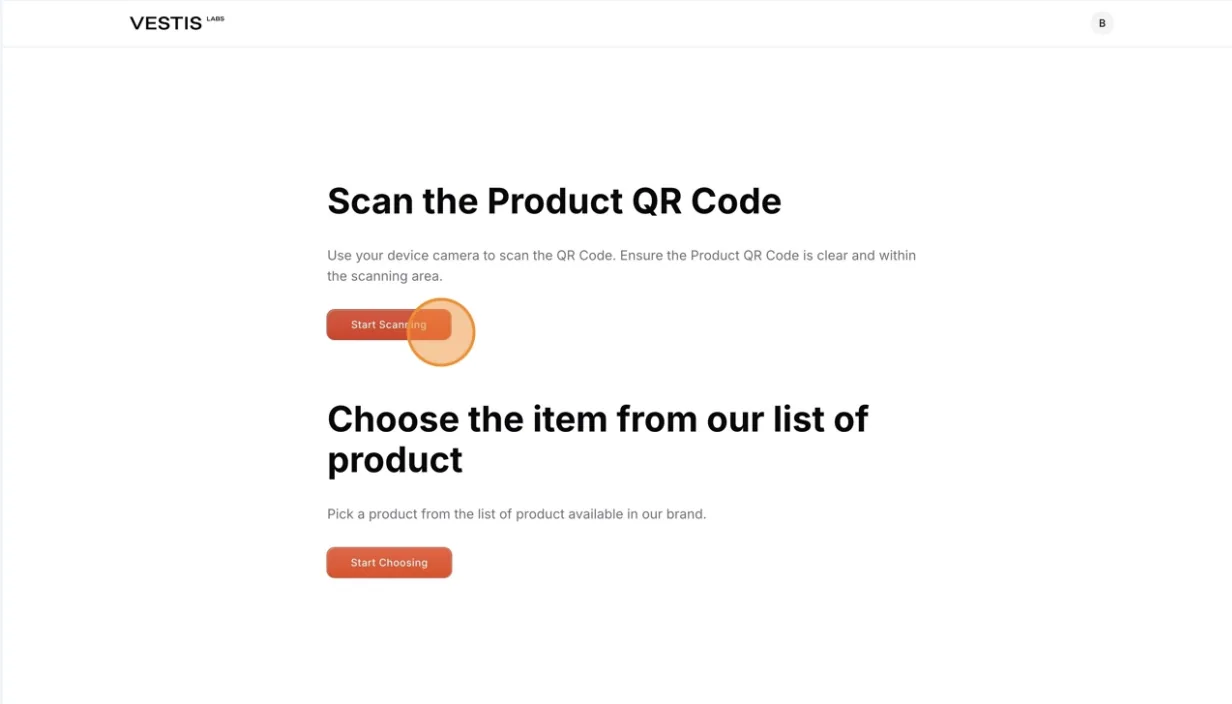
Select Start Scanning to activate the digital ID using Scan the QR product.
Scan the QR of the Product using the Camera on your device.
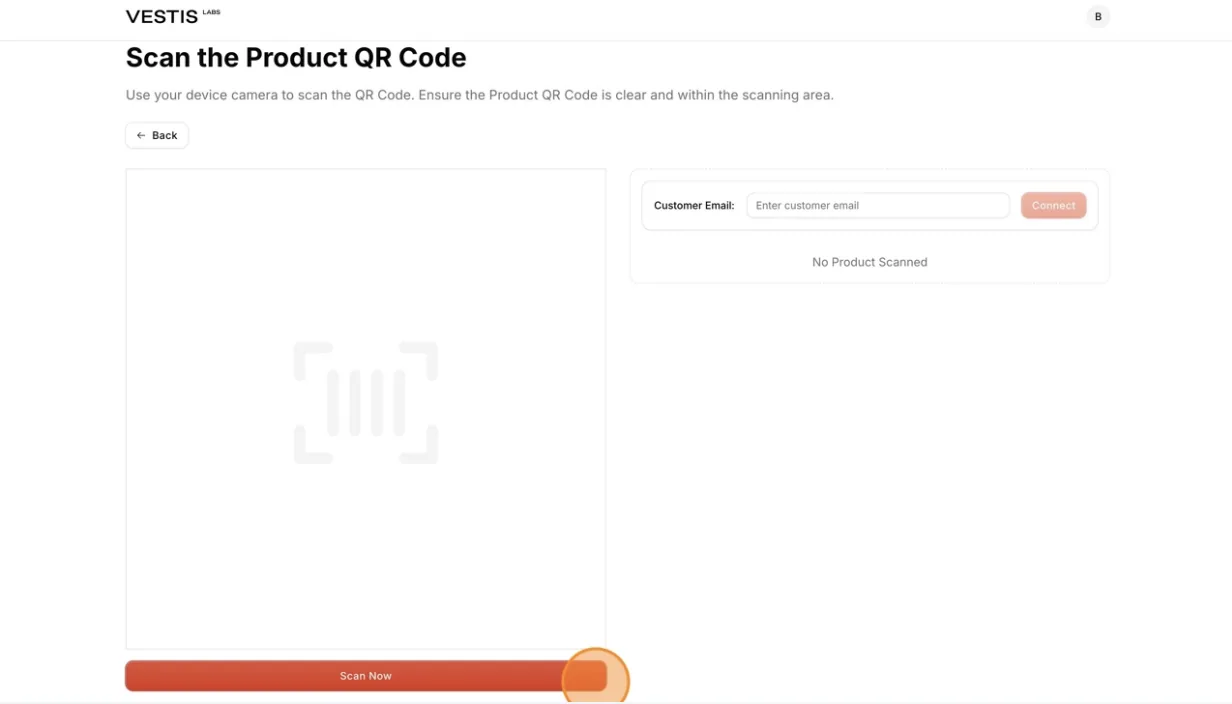
Select Scan Now on the lower left corner under the Camera Box to start scanning the barcode. Place the barcode inside the Camera Box.
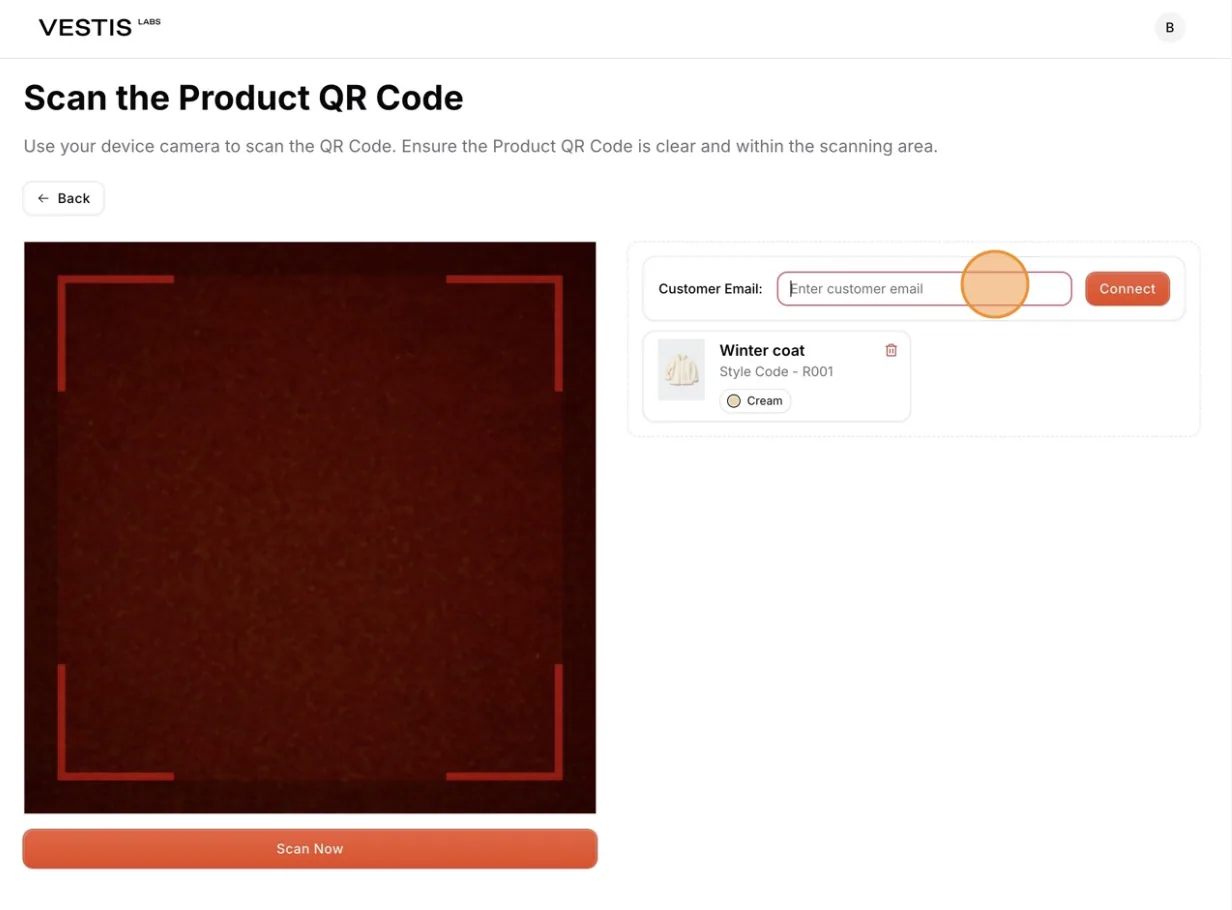
Fill out the Customer Email Field.
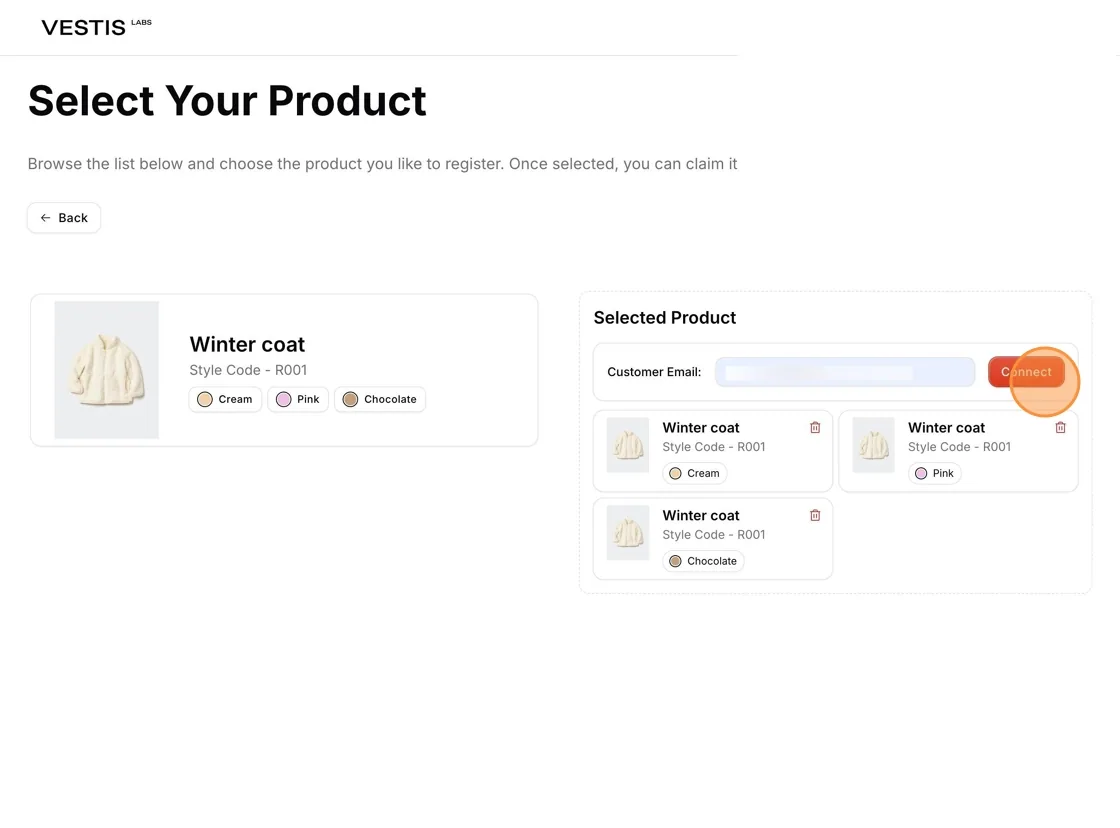
Select Connect on the upper right corner to claim the product's Digital ID.
Nb: Users can assign multiple Products, and it will show under the Customer Email Field.
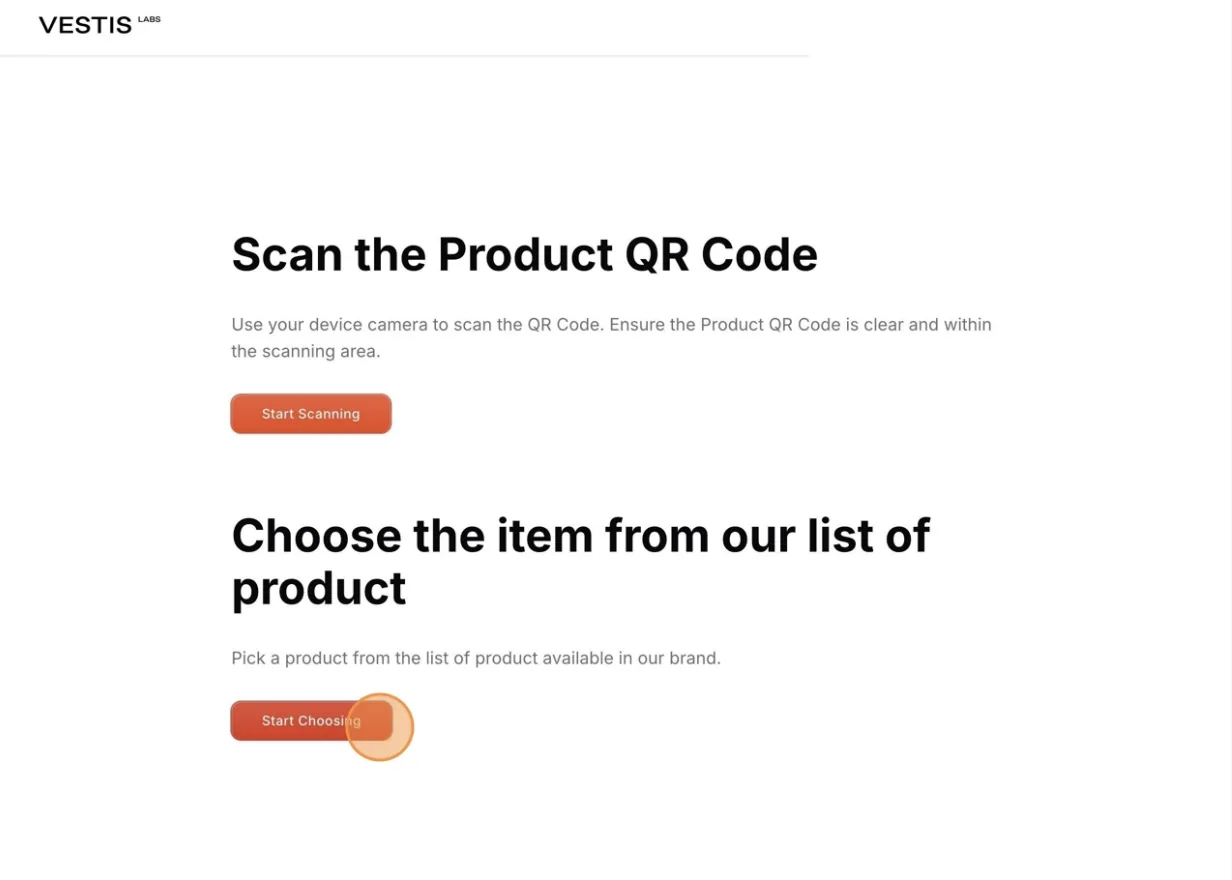
Select Start Choosing to activate the digital ID using the item from the list of product.
Users can select the Product by Clicking the Colors Option
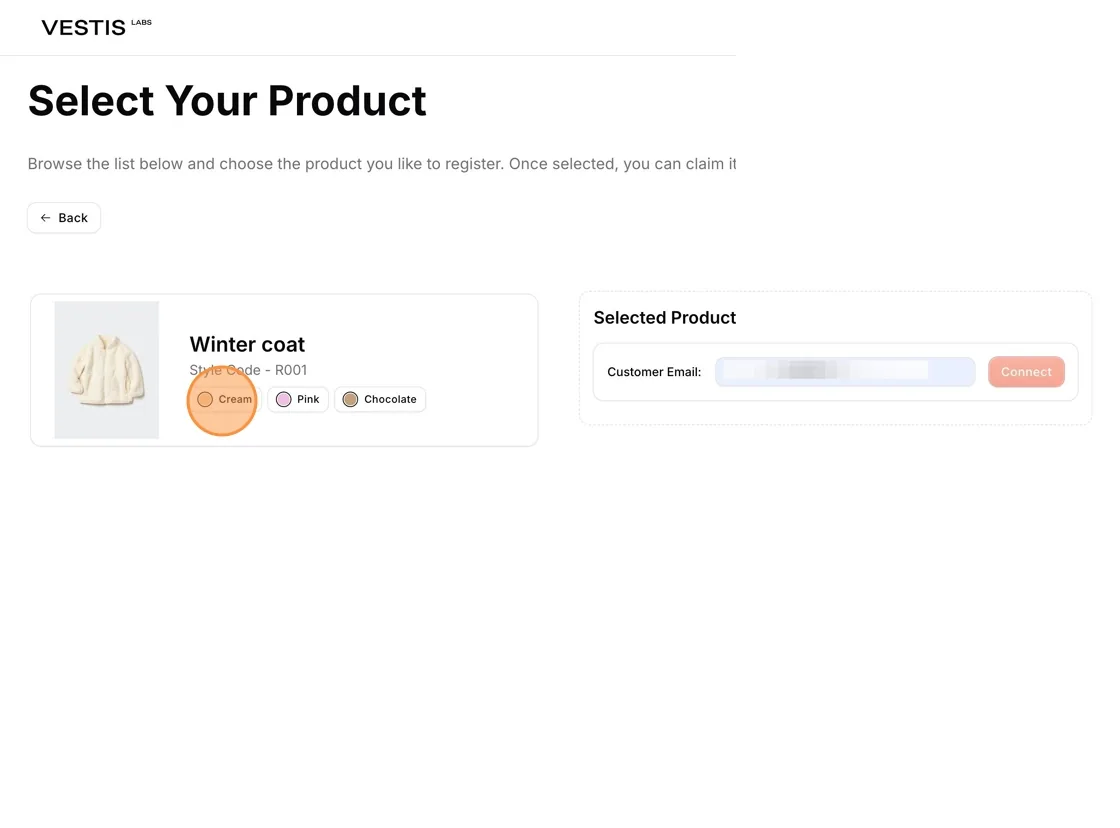
Customer Email: enter the customer email.
Select Connect to claim the product's Digital ID.
The confirmation email of the product's Digital ID will be sent directly to your account.
Register another Item: register to another product's Digital ID.