
Step 3 of 9 in Run a sampling round
Print the sample order sheet
Open the order sheet of a sample, choose portrait or landscape, and print it or save it as a PDF, or export the sample to Excel.
Under review. This page is published while we check it against the live app, so some details may have changed.
The order sheet is the printable summary of one sample request. It gathers the sample information, the status history, the comments you chose to include, and the measurements or tech pack of the style, so you can send it to your supplier or keep it on file.
SamplingSample ManagementSample DetailsGenerate Order Sheet
Permission: SAMPLING_VIEW
Open the order sheet
Open the sample details
In Sample Management, click the speech-bubble icon of the sample, or choose Edit/View in its menu. See Sample details.
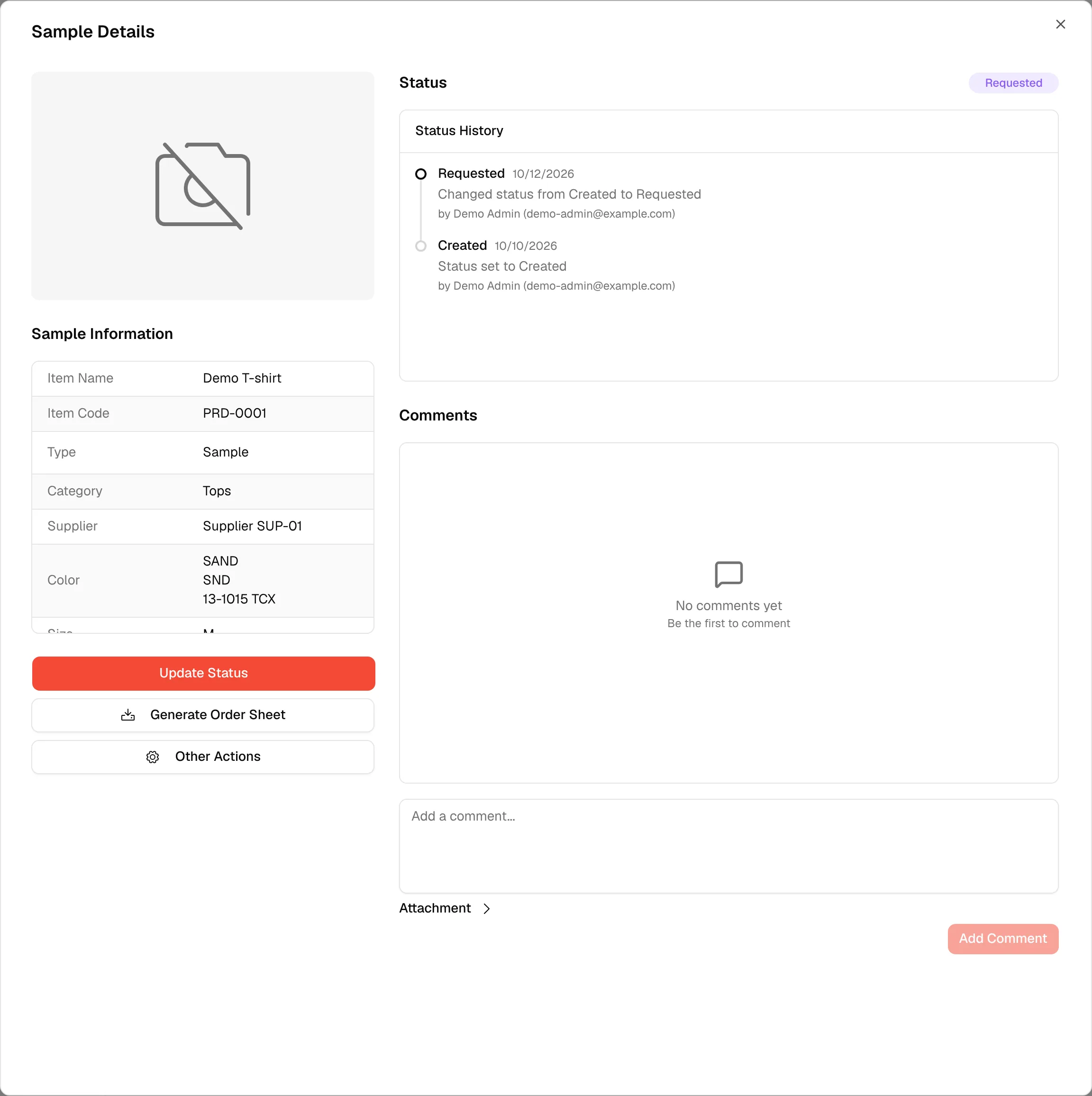
Click "Generate Order Sheet"
Under the sample information, click Generate Order Sheet. A small menu opens.
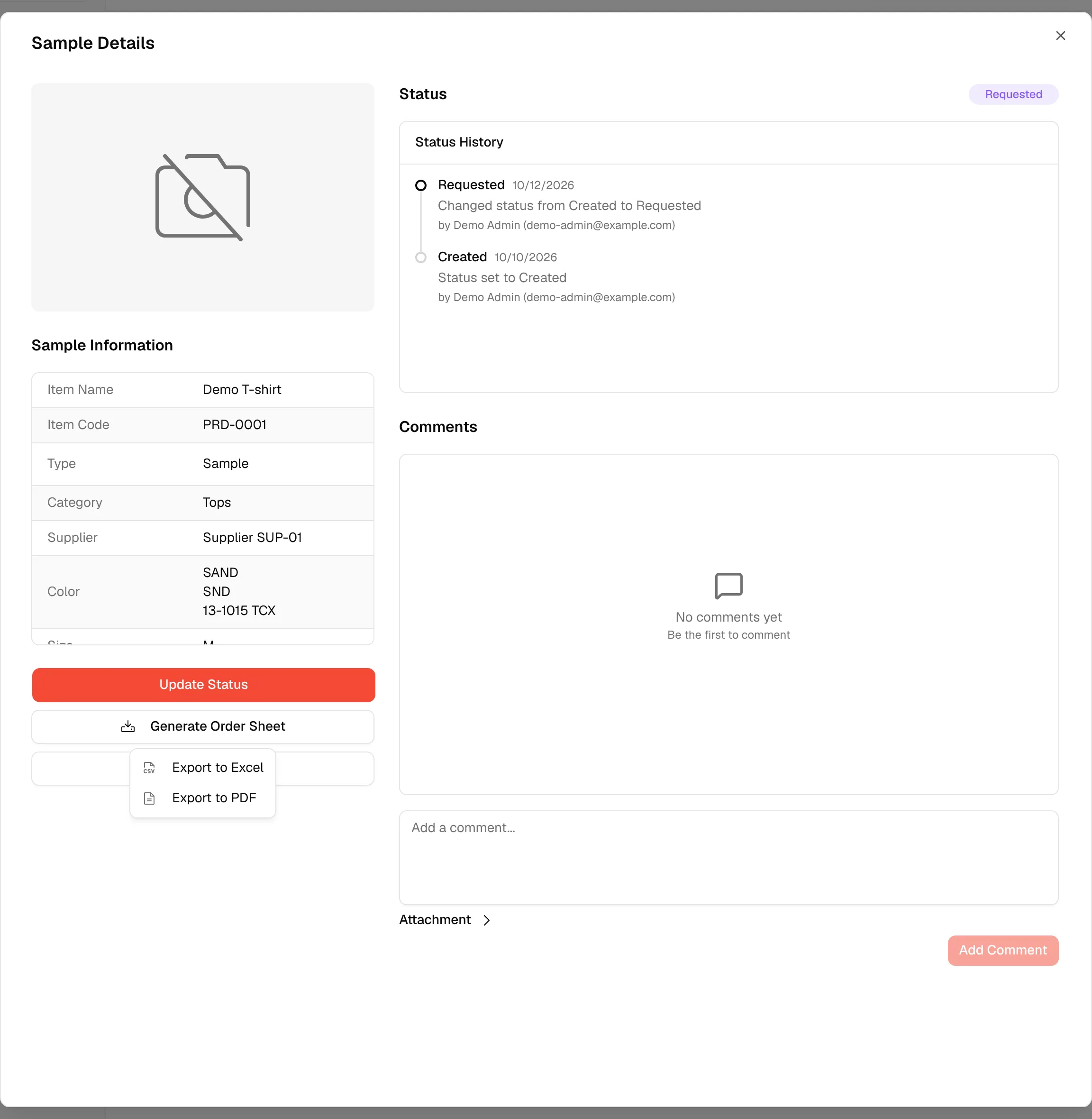
Select "Export to PDF"
Click Export to PDF. The order sheet opens in a new browser tab. While your brand logo is still loading, the menu item reads Preparing….
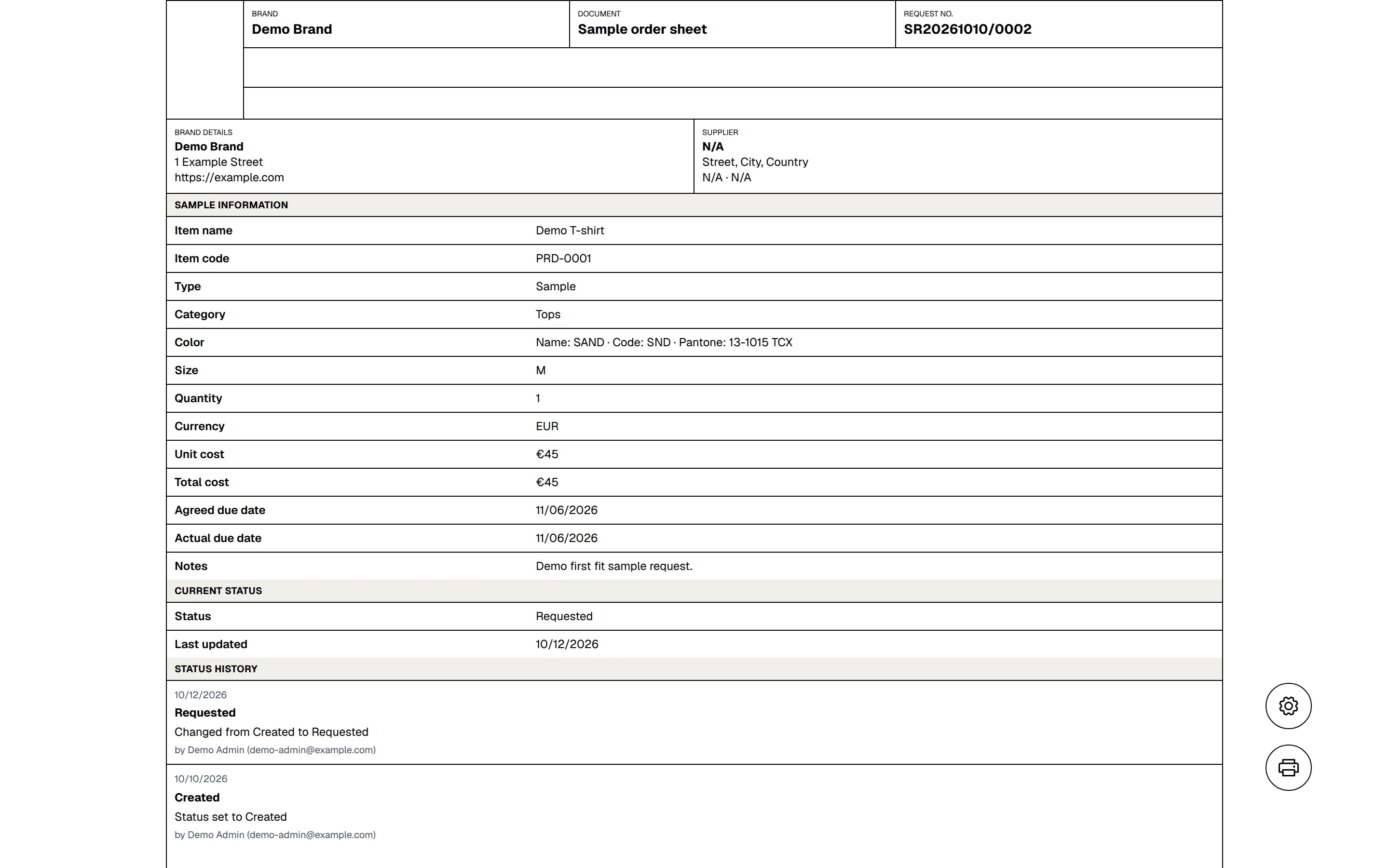
The page shows a spinner while it collects everything. If it cannot load the data it shows Error and Unable to load required data for the order sheet.
What the order sheet contains
- Header: your brand logo, the Brand, the document name Sample order sheet, the Request no. and the Printed on date.
- Brand details and Supplier: name and address of your brand, and name, address and first contact of the supplier.
- Sample information: item name, item code, type, category, colour, size, quantity, currency, unit cost, total cost, agreed due date, actual due date and notes.
- Current status: the status and when it was last updated, followed by the status history.
- Comments: only the comments whose order sheet switch is on, with their images. PDF attachments are added as extra pages. See Sample details.
- Measurements or tech pack: when the sample is linked to a tech pack, the tech pack follows the order sheet. Otherwise the measurement card of the sample is printed, with its additional tables.
Print or save as PDF
Choose the layout
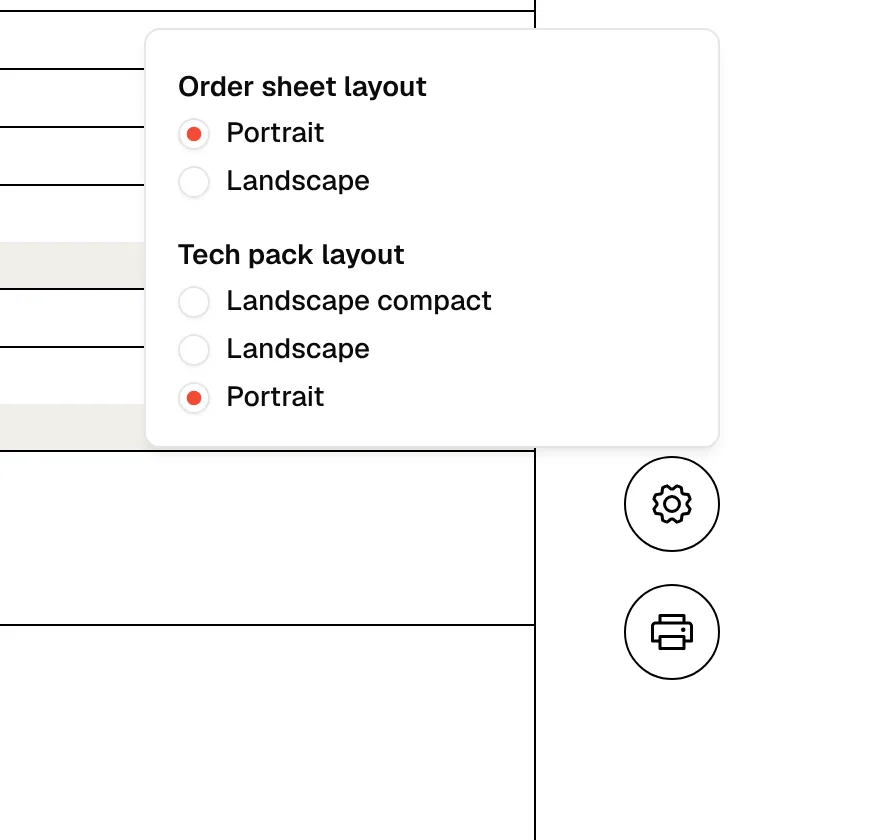
Click the gear icon at the bottom right (Layout settings). Under Order sheet layout, select Portrait or Landscape.
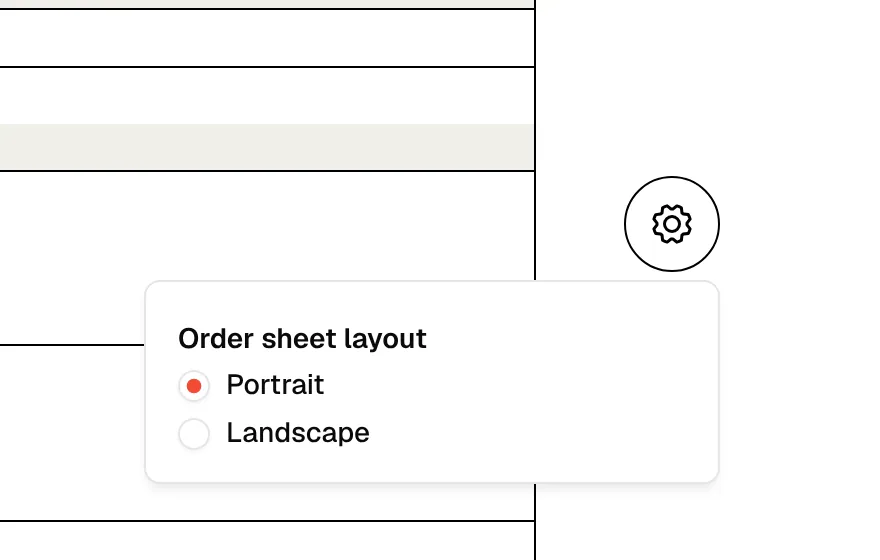
Choose the tech pack layout (if shown)
When the sample is linked to a tech pack, Tech pack layout also appears with Landscape compact, Landscape and Portrait.
Click the printer icon
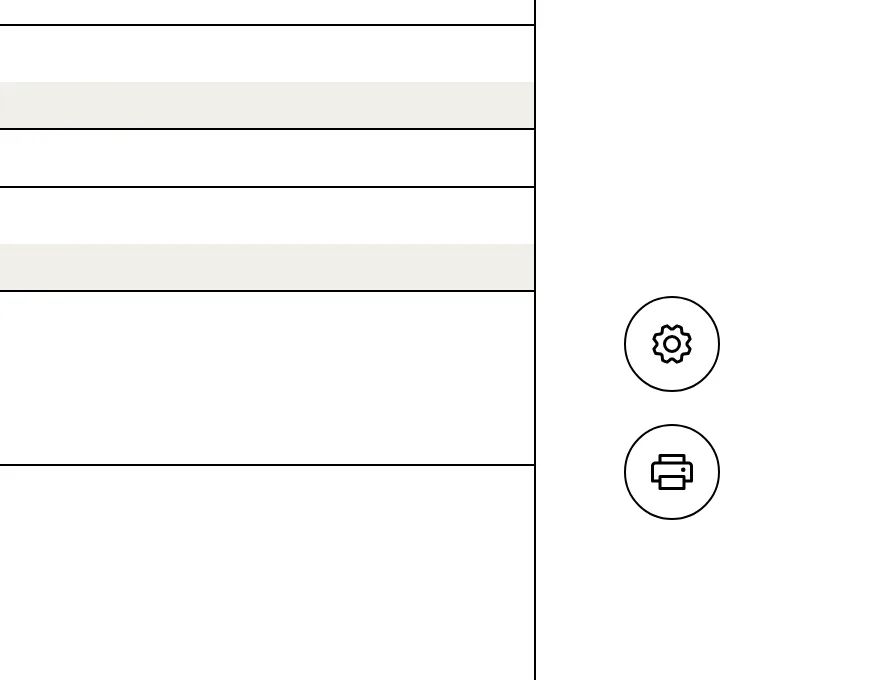
Click the printer icon under the gear. It stays disabled, with the tooltip Preparing pages…, until every page is ready.
Print or save
In the print window of your browser, choose a printer, or choose Save as PDF as the destination, then confirm.
Note
The gear and printer icons are for the screen only and do not appear on the printed pages.
Export to Excel
In the same Generate Order Sheet menu, click Export to Excel to download the sample as a spreadsheet instead. The file is named after the item, its code and today's date.
Send the order sheet to your supplier
The order sheet also goes to your supplier by email with Send Request, which is available while the sample status is Created. To stop a supplier from opening the link they received, use Revoke Order Sheet Link in Other Actions. See Sampling.